Creating a stand-alone OpenSearch instance for document ingestion#
Now that you created and deployed your own assistant with conversational search capabilities, your client can understand how watsonx Assistant for Z provides its content-grounded responses to any Z-related questions. In the previous section, you configured your assistant to use a pre-configured Z RAG that has over 220 knowledge sources, and uses this knowledge to provide AI-generated responses.
Next, learn to enable clients to personalize the assistant with an internal knowledge base that contains documentation they add to the Retrieval Augmented Generation (RAG). This helps provide a level of context-awareness for their own environment when environment-specific questions are asked to the assistant.
Now, install and configure a “Z RAG” on Red Hat OpenShift enabling the bring-your-own-search (BYOS) and bring-your-own-documentation (BYOD) capability to ingest other documentation. In doing so, you deploy a dedicated OpenSearch instance (BYOS). Then, connect your assistant to the new RAG database to provide responses based on the ingested documentation (BYOD).
Below is a high-level, logical architecture of the environment deployed in this section.

Earlier, you provisioned three IBM Technology Zone (ITZ) environments. One of which was a single-node Red Hat OpenShift (SNO) cluster. If you have not reserved this environment, or it is not in the Ready state, return to the IBM Technology Zone environment section to complete the reservation.
Summary of new features for v2.2.9 of Z BYOSearch & RAG deployment#
The step-by-step instructions in this section will walk you through installing version 2.2.9 of BYOSearch with the corresponding RAG documentation.
Details of the updates can be found here.
Key features include:
- Client ingestion enhancements
- Beta release now supports s390x architecture
- Minor bug fixes to enhance stability and performance
-
Resolved a Windows-specific issue in the legacy CLI
-
Dynamic filtering improvements
- Enhanced contextual grouping provides more accurate and intuitive search results
For more details on the filtering/scoping of product areas during conversational search, please refer to Step 10 of this page.
Install the Red Hat OpenShift command line interface utility#
The Red Hat OpenShift command line interface (CLI) utility, which is known as oc, must be installed on your local workstation. If you already installed the oc utility, you can proceed to log in to the SNO cluster.
-
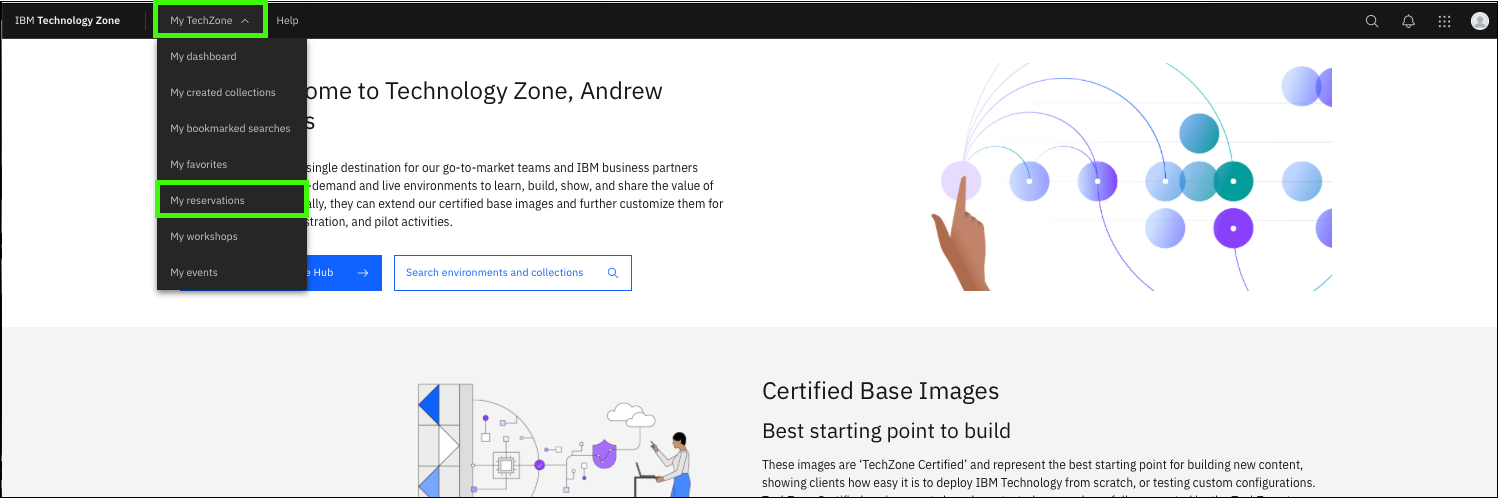
Click the following link to open a browser window to your ITZ reservations.
-
Click the Single Node OpenShift tile.
-
Scroll down and record the Cluster Admin Username and Cluster Admin Password.

-
Click the OCP Console link.
Note: OCP stands for OpenShift Container Platform.

-
Enter the Cluster Admin Username and Cluster Admin Password values from step 3 and click Log in.

-
Click Help (
 ) and then click Command Line Tools.
-
Click the link under oc - OpenShift Command Line Interface (CLI) for the operating system of your local machine.

Clicking the preceding link automatically downloads either a .zip or .tar file specific to your operating system. Extract the file's content. Place the oc binary for your operating system (OS) in a directory that is in your default PATH, or set the PATH environment variable to include the location of the oc binary.
-
Verify the installation by running the oc command on your local workstation.
Sample output:
Mac/OS users may need to adjust security settings.
The oc binary may cause a security exception. Adjust the security settings by opening the System Settings utility and clicking Privacy & Security. Under Security locate the message about the oc binary and click Allow Anyway. Return to the terminal window and try the
oc --helpcommand again and click Allow Anyway when prompted.
Prepare to ingest documents#
Before ingesting documents, complete the following setup steps.
Log in to the OpenShift cluster from your local terminal#
Note: If you just installed the oc utility, skip the next 5 steps.
-
Click the following link to open a browser window to your ITZ reservations.
-
Click the Single Node OpenShift tile.
-
Scroll to the bottom of the reservation page and record the Cluster Admin Username and Cluster Admin Password.
-
Click the OCP Console link.
-
Enter the Cluster Admin Username and Cluster Admin Password values from step 3 and click Log in.
Before getting started, verify your storage configuration was setup properly by...
Navigating to the "Persistent Volumes" and the "Persistent Volume Claims" tabs under the "Storage" section of your OCP web console. Ensure you have at least one Persistent Volume and one Persistent Volume Claim already created. If not, then you will need to re-provision your Single Node OpenShift environment.
-
Click the kube:admin profile drop-down and click Copy login command.

-
Click Display Token.

-
Select and copy the Log in with this token string.
For most operating systems, double-click the value, then right-click and select Copy.

-
Open a command prompt or terminal window on your local workstation.
-
Paste the login command and press enter.

Create a working directory#
-
Create a directory to store the configuration files that you will create in the next steps.
Instructions vary by your local workstation's operating system.
The directions that follow may vary depending on your operating system. The examples provided are based upon MacOS.
-
Change to the new directory.

Install IBM Certificate Manager on Red Hat OpenShift#
-
In a text editor, create a file that is named
catalogCertManager.yamland paste the following text in the file.Formatting of the yaml file is critical!
The content of the YAML file must be formatted exactly as shown. Use the Copy icon to prevent typographical errors.
File name:
File contents:
apiVersion: operators.coreos.com/v1alpha1 kind: CatalogSource metadata: name: ibm-cert-manager-catalog namespace: openshift-marketplace spec: displayName: ibm-cert-manager-4.2.7 grpcPodConfig: securityContextConfig: restricted image: icr.io/cpopen/ibm-cert-manager-operator-catalog@sha256:4dcf4ace4b5f166f83b31063f7e6404dbf78d8e98a9d4fcf52fedf576a55ca6c publisher: IBM sourceType: grpc updateStrategy: registryPoll: interval: 30m0s -
Install the IBM Certificate Manager operator in the Red Hat OpenShift cluster.
The preceding command returns a message that states the ibm-cert-manager-catalog was created.
-
In the OpenShift web console, click Operators and then select OperatorHub.

-
Click the Project to pull-down menu and click the Show default projects toggle.

-
Scroll down and select openshift-marketplace.

-
Enter IBM Cert Manager in the search field and then click the IBM Cert Manager tile.
Be patient.
It may take a minute or two for the IBM Cert Manager tile to appear.
Note: The current version of the operator may differ than shown in the image below. Select the most current version.

-
Click Install.

-
Keep the default settings and click Install.

Do not continue until...
The installation process takes a few minutes. Do not continue until you see the following message: Installed operator: ready for use.

Install the watsonx Assistant for Z Operator (for OpenSearch)#
-
In your command prompt or terminal window, create 2 new namespaces called
wxa4z-operatorandwxa4z-zadin the Red Hat OpenShift cluster by issuing the following 2 commands in sequence. -
Create or obtain your IBM Container Software production entitlement key.
A production entitlement key is required to pull the container images that get deployed by the operator.
To create or retrieve your existing entitlement key, follow the instructions here.
If you don't have an entitlement key at the above link, click the Add new key to create a new one or visit this link to create a new one.
If extra assistance is needed, refer to this site. Note, the process here is not
Locate your existing key or create a new one and continue to the next step.
-
Click copy and record your entitlement key for future use in a secure location.

-
In your command prompt or terminal window, set an environment variable with your production entitlement key.
Substitute your production entitlement key copied in the last step for
<entitlement key>.Mac OS:
Microsoft Windows:
-
Enter the following command to create a pull secret for the Container Registry.
Mac OS:
oc -n wxa4z-zad create secret docker-registry icr-pull-secret --docker-server=cp.icr.io --docker-username=cp --docker-password=$IBM_CS_ENT_KEYMicrosoft Windows:
oc -n wxa4z-zad create secret docker-registry icr-pull-secret --docker-server=cp.icr.io --docker-username=cp --docker-password=%IBM_CS_ENT_KEY%
-
In a text editor, create a file that is named
catalogSource.yamland paste the following text in the file.Formatting of the yaml file is critical!
The content of YAML files must be formatted exactly as shown. Use the copy icon to prevent typographical errors.
File name:
File contents:
apiVersion: operators.coreos.com/v1alpha1 kind: CatalogSource metadata: name: ibm-wxa4z-operator-catalog namespace: wxa4z-operator spec: displayName: "IBM watsonx Assistant for Z Operator Catalog" image: icr.io/cpopen/ibm-wxa4z-catalog:v2.2.9@sha256:5482b78fed630a022c836cc21eb4aee6f7524067cb4794332c4f5bbfe09c0296 publisher: 'IBM' sourceType: grpc -
Create your document catalog in the Red Hat OpenShift operator.

-
In the Red Hat OpenShift web console, click OperatorHub and select the wxa4z-operator project.

-
Enter ibm watsonx in the search field and the click the IBM watsonx Assistant for Z Operator Catalog tile.
Be patient.
It may take a minute or two for the IBM watsonx Assistant for Z Operator Catalog tile to appear. Reload the browser page if the operator is not listed.
Note: The current version of the operator may differ than that shown in the image below.

-
Click Install.
Note: The current version of the operator may differ than the one shown in the image after this. Select the most current version.

-
Select A specific namespace on the cluster (a) under Installation mode and wxa4z-operator (b) for the Installed Namespace, then click Install (c).

Do not continue until...
The installation process takes a few minutes. Do not continue until you see the following message: Installed operator: ready for use.

-
In the Red Hat OpenShift web console, under Workloads, click Pods.

-
Verify the two pods that start with ibm-wxa4z-operator have a status of Running and that all pods are Ready.

-
Once the operator install is complete, update the operator group to target the namespace where you will deploy BYOSearch.
First, run the following command to retrieve the unique name of your operator group:
Record the outputted operatorgroup as you will need it for the following step.Your operatorgroup will be unique and look something like
NAME AGEwxa4z-operator-sv8j8 42s -
Finally, run the following command to update the list of targeted namespaces, where
<operatorgroup-name>is substituted with your unique operator group name recorded in the previous step.Mac OS:
oc -n wxa4z-operator patch operatorgroup <operatorgroup-name> --type=merge -p '{"spec": {"targetNamespaces": ["wxa4z-zad"]}}'Microsoft Windows:
oc -n wxa4z-operator patch operatorgroup <operatorgroup-name> --type=merge -p "{\"spec\": {\"targetNamespaces\": [\"wxa4z-zad\"]}}"The command and corresponding output should like something like
oc -n wxa4z-operator patch operatorgroup wxa4z-operator-sv8j8 --type=merge -p '{"spec": {"targetNamespaces": ["wxa4z-zad"]}}'operatorgroup.operators.coreos.com/wxa4z-operator-sv8j8 patched
Deploy required secrets and the custom bring-your-own-search (BYOSearch) resources#
-
In a text editor, create a file that is named
os-secret.yaml, paste the following text in the file, and then modify the default password.File name:
Substitute a secure password of your choosing for the string
<OPENSEARCH_PASSWORD>. Record this value for later use.File contents:
-
Create the secret by running the following command.
-
In a text editor, create a file that is named
client-ingestion-secret.yaml, paste the following text in the file, and then modify the default password.File name:
Substitute a secure authentication key of your choosing for the string
<CLIENT_INGESTION_AUTHKEY>. The authentication key can be a random password. Record this value for later use.File contents:
-
Create the secret by running the following command.
-
In a text editor, create a file that is named
wrapper-creds.yaml, paste the following text in the file, and then modify the default password.File name:
Substitute a secure password credential of your choosing for the string
<WRAPPER_PASSWORD>. The password can be a random password. Record this value for later use. Use this password in the following steps when you configure your BYOS connection in your assistant to connect to the network route.File contents:
-
Create the secret by running the following command.
-
Obtain and record your cluster domain that is used for routes by running the following command.
The output from the command does not include a newline.
The value returned for the cluster domain does not include a newline. When copying the value do not include the character or characters used for your command line prompt. Do not include your prompt in the next step! For example, the command may return
apps.678e206af501a868a5828e4a.ocp.techzone.ibm.com%. You do NOT want to include the%character which was part of the terminal command prompt.Note: The output of the command will be a string similar to: apps.672b79320c7a71b728e523b4.ocp.techzone.ibm.com
-
In a text editor, create a file that is named
deploy-zad.yamland paste the following text in the file.File name:
Substitute the domain name recorded in the previous step for the string
<YOUR_CLUSTER_DOMAIN>.File contents:
apiVersion: wxa4z.watsonx.ibm.com/v1 kind: ZAssistantDeploy metadata: name: zassistantdeploy namespace: wxa4z-zad spec: imagePullSecrets: - name : icr-pull-secret namespace: wxa4z-zad clusterDomain: <YOUR_CLUSTER_DOMAIN> license: true opensearch: secretName: opensearch-creds persistence: enabled: true storageClass: "managed-nfs-storage" accessModes: - ReadWriteOnce size: 24Gi dashboard: resources: requests: cpu: "10m" memory: "100Mi" limits: cpu: "2" memory: "8Gi" wrapper: createRoute: true secretName: wrapper-creds resources: requests: cpu: 2 memory: "500Mi" limits: cpu: 2 memory: "1Gi" clientIngestion: secretName: client-ingestion-authkey resources: limits: cpu: "500m" memory: 2Gi nvidia.com/gpu: "0" requests: cpu: "500m" memory: 1Gi nvidia.com/gpu: "0" pvc: storageClass: "managed-nfs-storage" enabled: true size: 24Gi -
Run the following command to deploy BYOS on your cluster.
Change your selected namespace in the Web Console to view progress
The new pods will be created in your wxa4z-zad namespace. To view the progress of your pods creation, select the wxa4z-zad project from the Projects drop-down within the OCP Web console.

-
After running the previous command and while the new pods are initializing, run the following command to disable the dashboard deployment as this is not required and not supported in TechZone:
Mac OS:
oc -n wxa4z-zad patch zassistantdeploy zassistantdeploy --type='merge' -p='{"spec": {"dashboard": {"enabled": false}}}'Microsoft Windows:
-
Lastly, run the following command to disable the assistantBootstrap feature:
Mac OS:
oc -n wxa4z-zad patch zassistantdeploy zassistantdeploy --type='merge' -p='{"spec": {"assistantBootstrap": {"enabled": false}}}'Microsoft Windows:
Verify all the required pods are running and get the network route to your BYOS instance#
-
In the OCP console, verify that all pods have the status of Running or Completed within the wxa4z-zad project.
Do not continue until...
The BYOS deployment can take 20 minutes or more to complete. Do not continue until all the pods have a status of “Running” or "Completed". The next step is to retrieve your BYOS endpoint URL.

-
Under Networking, click Routes.

-
Copy and record the location for the wxa4z-opensearch-wrapper route.

Update your assistant with the new BYOS instance route#
You are now ready to configure your assistant with the route to your BYOS instance.
-
Using the network route for your BYOS instance, append the string /v1/query to complete the URL endpoint.
The URL should look similar to:
https://wxa4z-opensearch-wrapper-wxa4z-byos.apps.672b79320c7a71b728e523b4.ocp.techzone.ibm.com/v1/queryImportant: The above URL will not work for you. Use the value of your specific OpenSearch instance that is recorded in the previous step.
-
Update your assistant's custom search integration URL.
Next, you need to return to your assistant in the watsonx Orchestrate AI assistant builder and update the custom search integration URL. Use the URL form the network route (with /v1/query) appended. Use admin for the Username and the Password will be the password that you specified in the
wrapper-creds.yamlfile.Don't recall how to set the customer search URL?
Refer back to Creating an assistant and configuring conversational search if you don't remember how to specify the customer search URL.
-
Test your assistant and verify that it is still answering questions that are related to IBM Z.
Experiment with different prompts and validate that the answers provided are reasonable, and that you can view the documentation that was sourced. If responses are not received as expected, verify that the URL is formatted correctly and you specified the
wrapper-creds.yamlpassword as the admin password.
Troubleshooting#
The following are issues that you may encounter. If the provided resolutions do not work, contact support by using the methods that are mentioned in the Support section.
Pods have a status of ErrImagePull or ImagePullBackoff
If the pods starting with ibm-wxa4z-operator have a status of “ErrImagePull” or “ImagePullBackoff”, you can delete the pod and it will automatically restart and pull the image successfully. Wait until the pod is re-created successfully.
The wxa4z-client-ingestion pod does not start
Did you include the % character in the clusterDomain name when creating the byos.yaml? To resolve, edit the byos.yaml file and run the following command again. The current pod will be terminated and a new one started. This will take about 20 minutes to start.