IBM Technology Zone environment
To enable sellers to demonstrate IBM watsonx Assistant for Z, an environment was created in IBM Technology Zone (ITZ). This environment mimics a typical client deployment of IBM watsonx Assistant for Z, similar to this deployment architecture.

Follow the instructions in this section to create a new reservation request, extend the reservation, and access the ITZ demonstration environment.
Create a reservation request
Follow these steps to create a reservation in ITZ.
-
Click the following link to open a browser to the reservation page of the IBM watsonx Assistant for Z.
You may be asked to authenticate to IBM Technology Zone
The steps to authenticate to ITZ are not detailed here as they may vary between users.
-
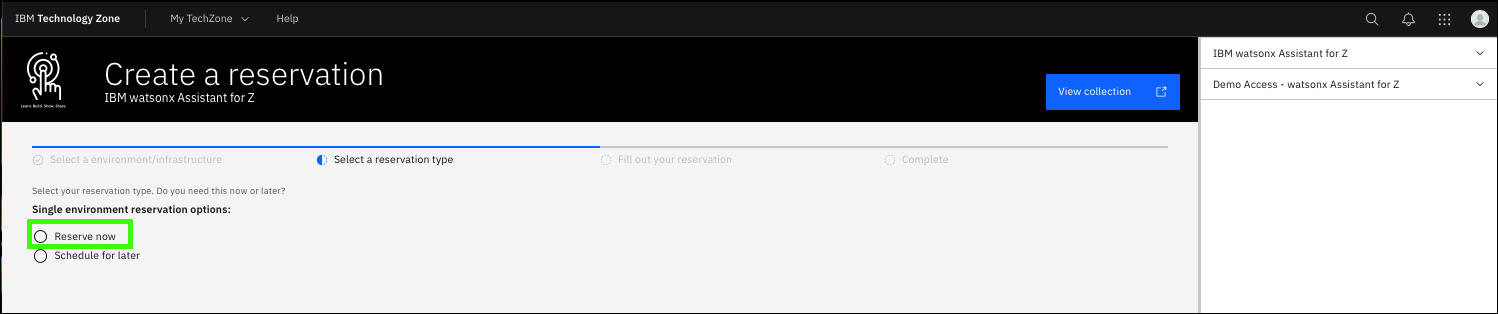
Click Reserve now.
The Reserve now option creates a reservation for immediate use. Optionally, schedule the reservation for a later date, like when you will be at your client's office.
-
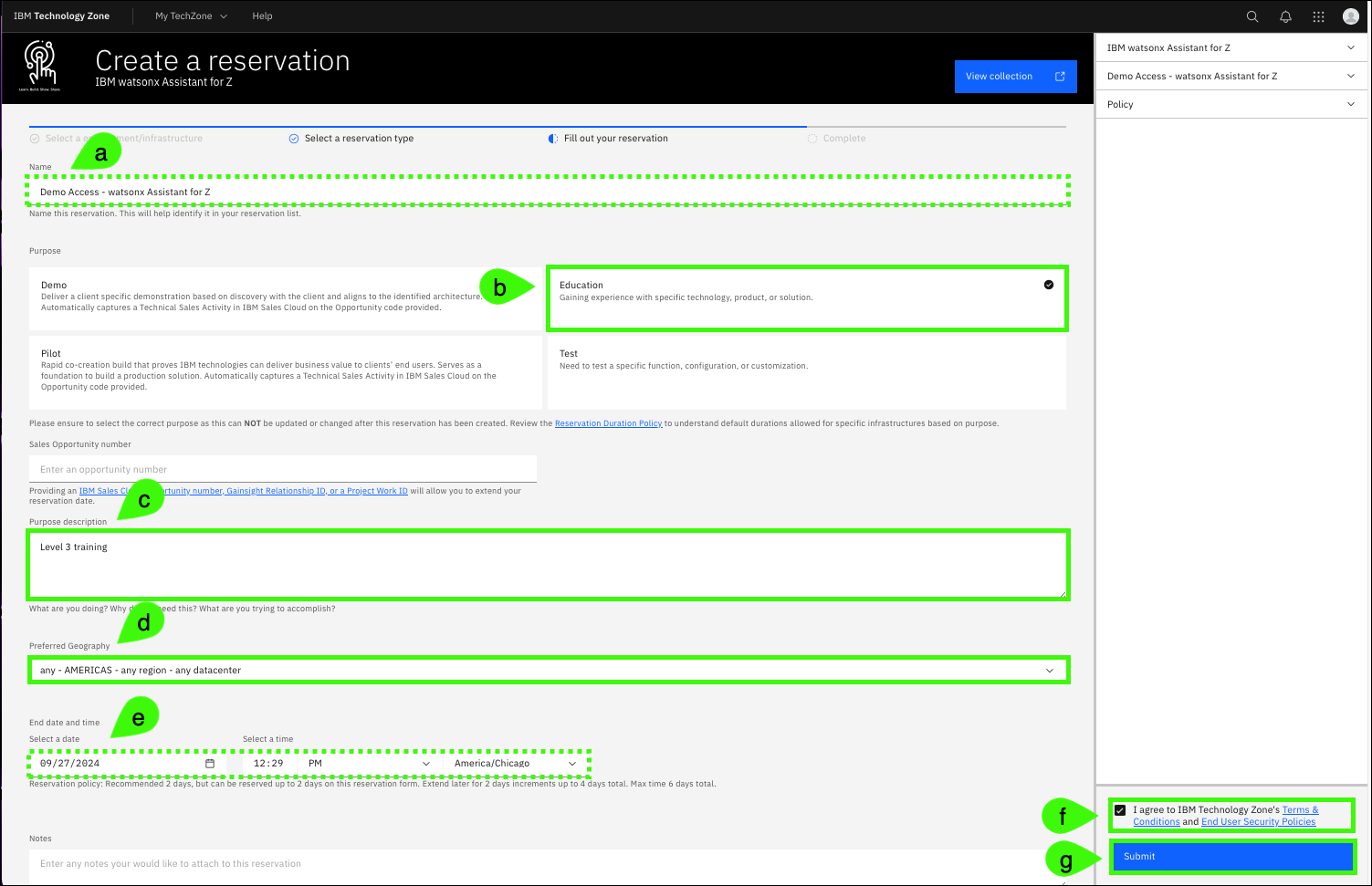
Complete the reservation request and click Submit.
a. Optionally, change the Name field for the reservation.
b. Select the Education purpose tile.
c. Enter a Purpose description.
d. Select any geography in the Preferred Geography drop-down.
e. The End date and time will be set to 2 days after the current date and time.
f. Accept the IBM Technology Zone's terms and conditions and security policies.
g. When satisfied with the parameters, click Submit.
Extend the reservation
The ITZ provisioning process takes approximately 15 minutes. Multiple emails are sent to you from ITZ as the provisioning process runs. One email states the reservation is provisioning and the other email states that the environment is Ready.
In rare cases, the provisioning process may fail. If you receive an email stating the reservation failed, try again by repeating Steps 1-3.
When the reservation is in the Ready state, you can extend your reservation to a total of 6 days. Remember, IBM sellers need the environment to record their Stand and Deliver and Business Partners need an environment to answer quiz questions.
-
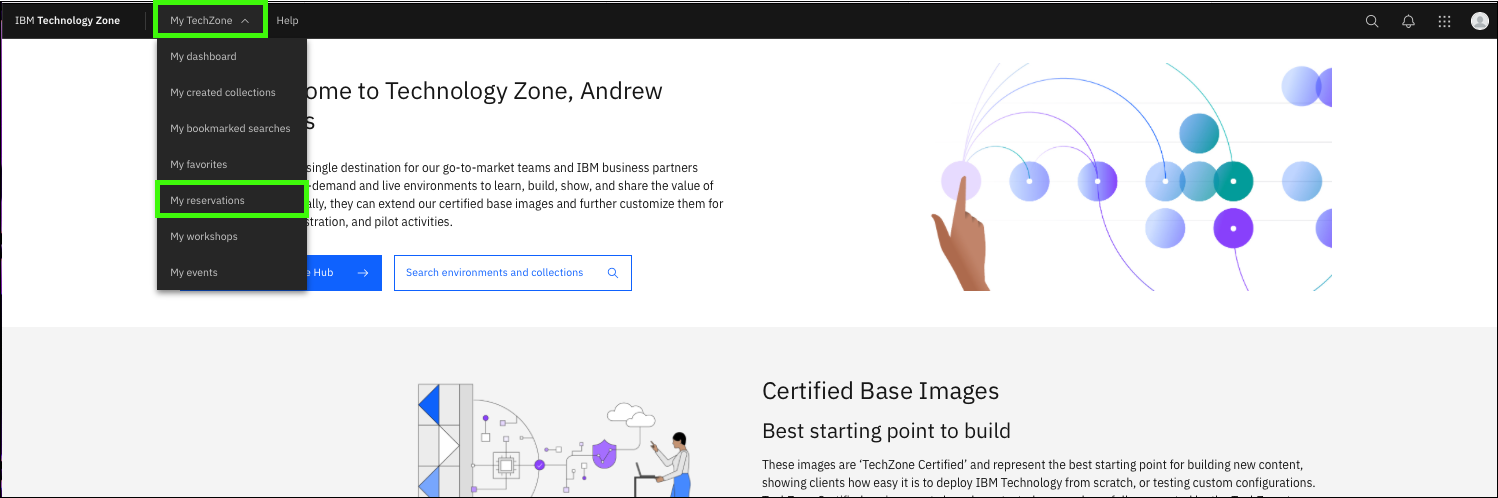
In the IBM Technology Zone portal, expand My TechZone at the top and select My Reservations.
-
Click the overflow icon (
 ) on the reservation tile and select Extend.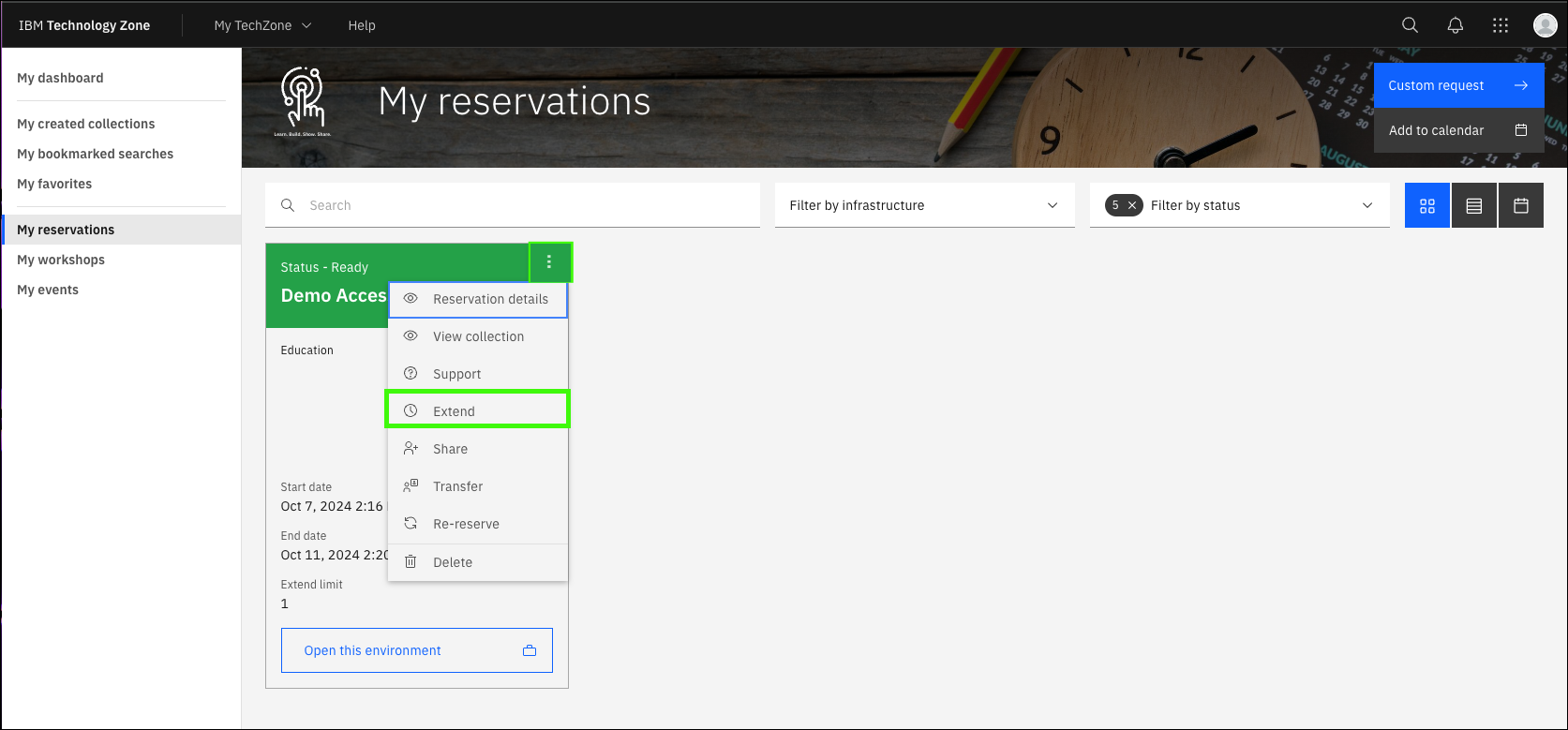
-
Click the Select a date option, specify the date to extend to, and then click Extend.
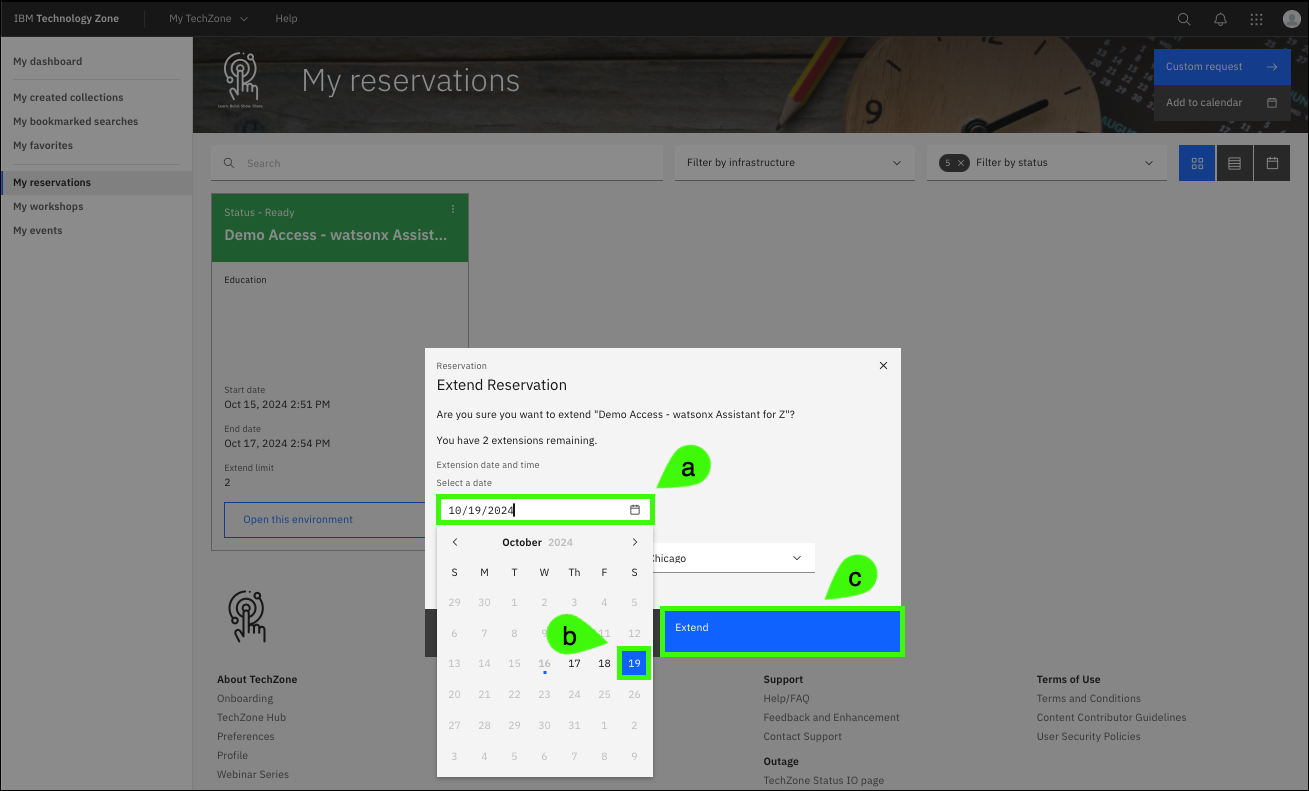
If you anticipate needing more time, repeat Steps 5 and 6 to extend the reservation to the maximum of 6 days.
Accessing the demonstration environment
Access to the IBM watsonx Assistant for Z demonstration environment is provided through a web interface to a fictitious company's intranet website.
-
Click on reservation tile in the ITZ My reservations page.
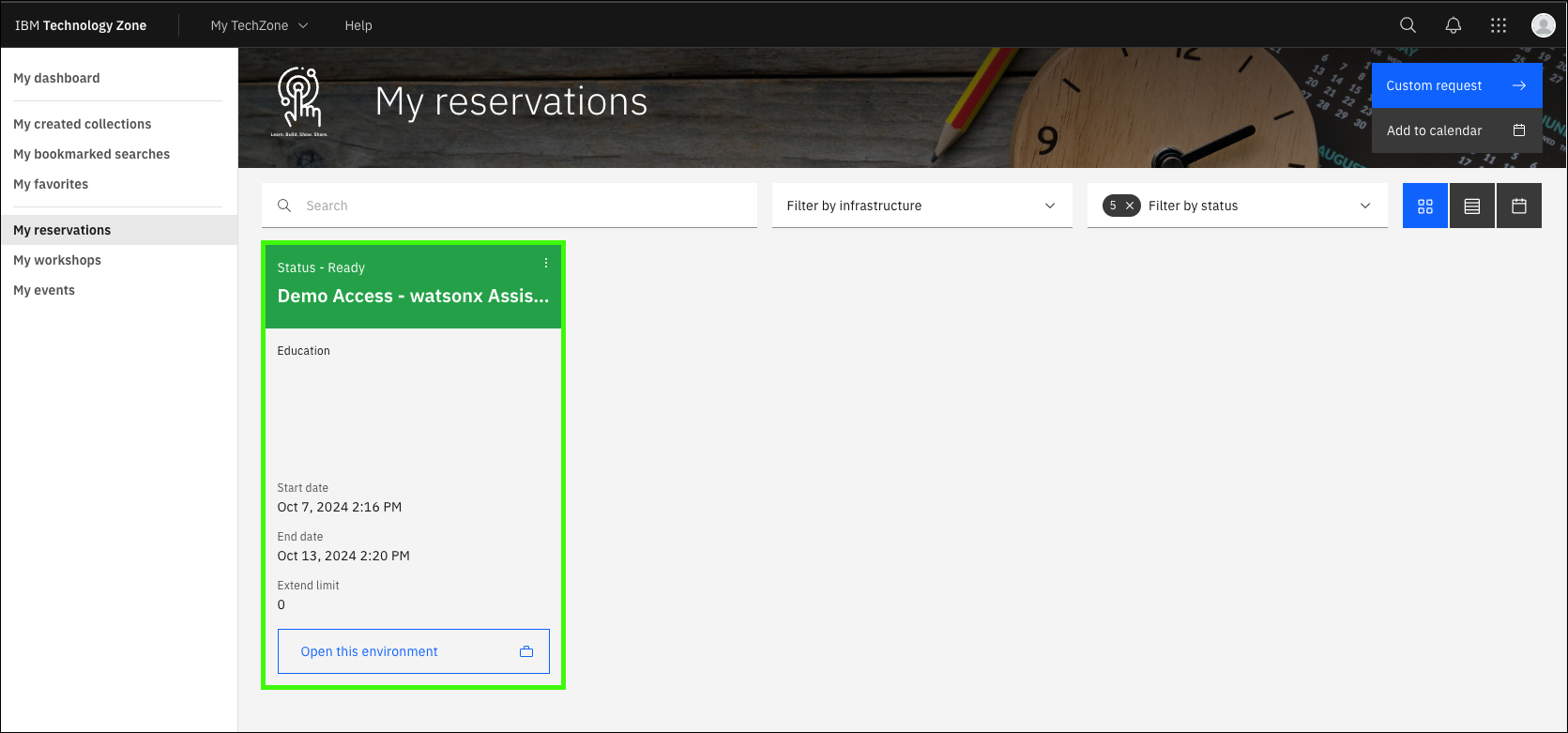
-
Click Open your IBM Cloud environment.
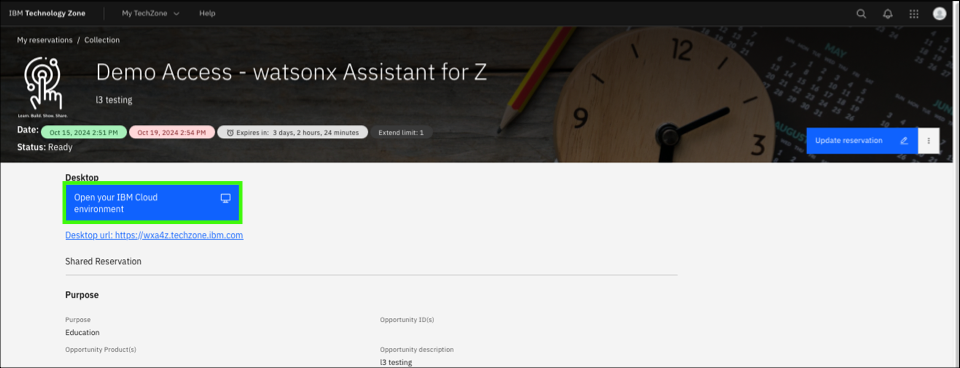
For best results, use the Google Chrome browser.
Issues may be encountered with some browsers when accessing the demo environment. If the page does not load, try loading the page in the Google Chrome browser.
You may be prompted to authenticate
In some instances, you may be prompted to authenticate when attempting to access the Open our IBM Cloud environment link. Use the same IBM ID and password used to reserve the ITZ environment.
The demonstration portal page
The demonstration portal page provides two ways of accessing the IBM watsonx Assistant for Z virtual assistant.
The chat icon
The first method is to use the assistant chat icon that appears at the lower right of the page. The Hi! I'm a virtual assistant. How can I help you today? dialog appears after a few seconds as the page loads.
-
Click the Virtual Assistant chat icon.
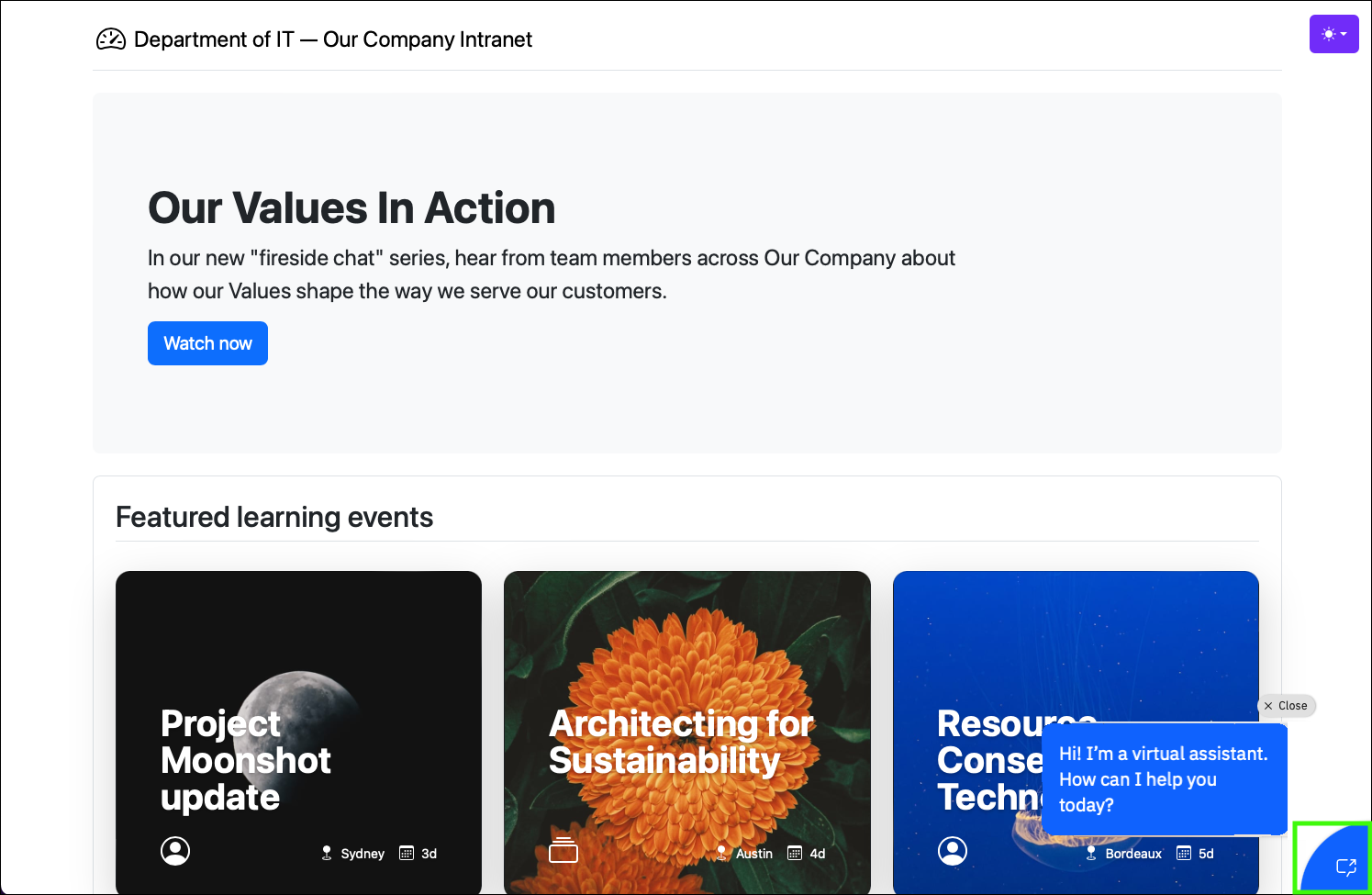
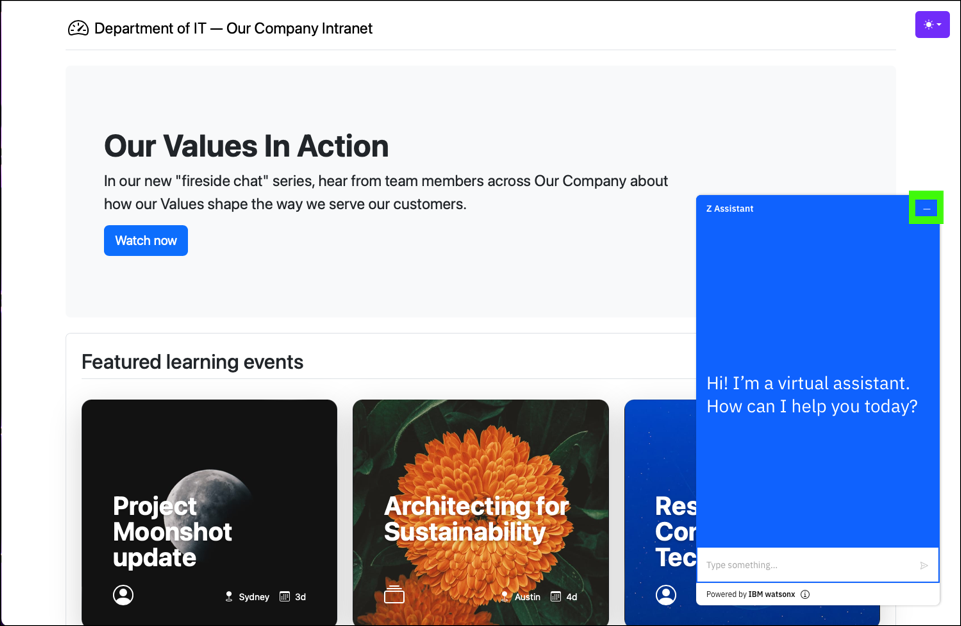
This action opens the virtual assistant in the current browser page as a pop-up dialog. This approach provides an integrated view of the web page and the virtual assistant dialog; however, the dialog could be considered small for giving a live demonstration if the audience is expected to read the output.
-
Close the Virtual Assistant dialog.
The full page virtual assistant
The second user interface available for the virtual assistant is a full browser page experience.
-
Scroll to the bottom of the page and click Techbot (in a new tab) under Technology.
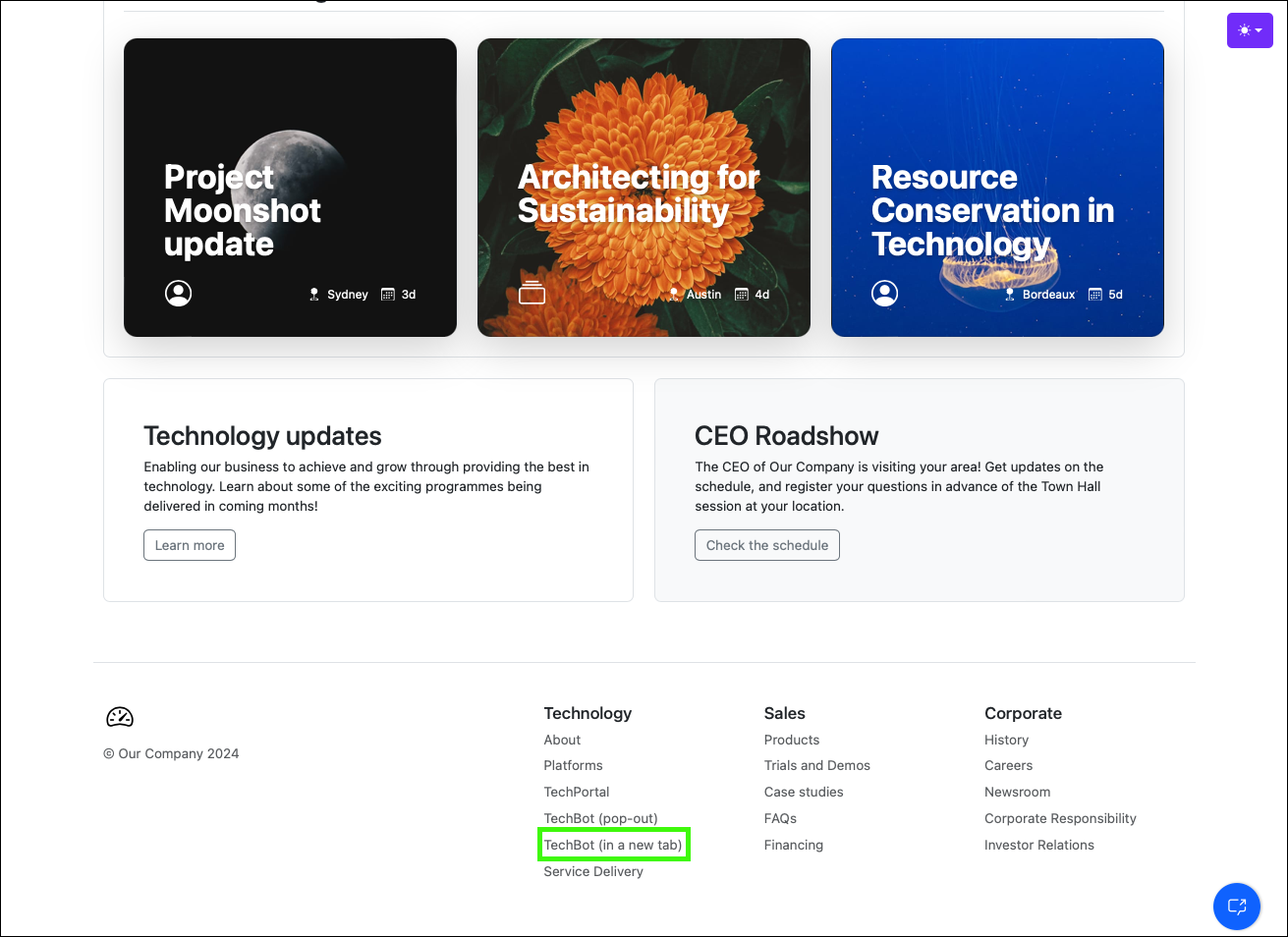
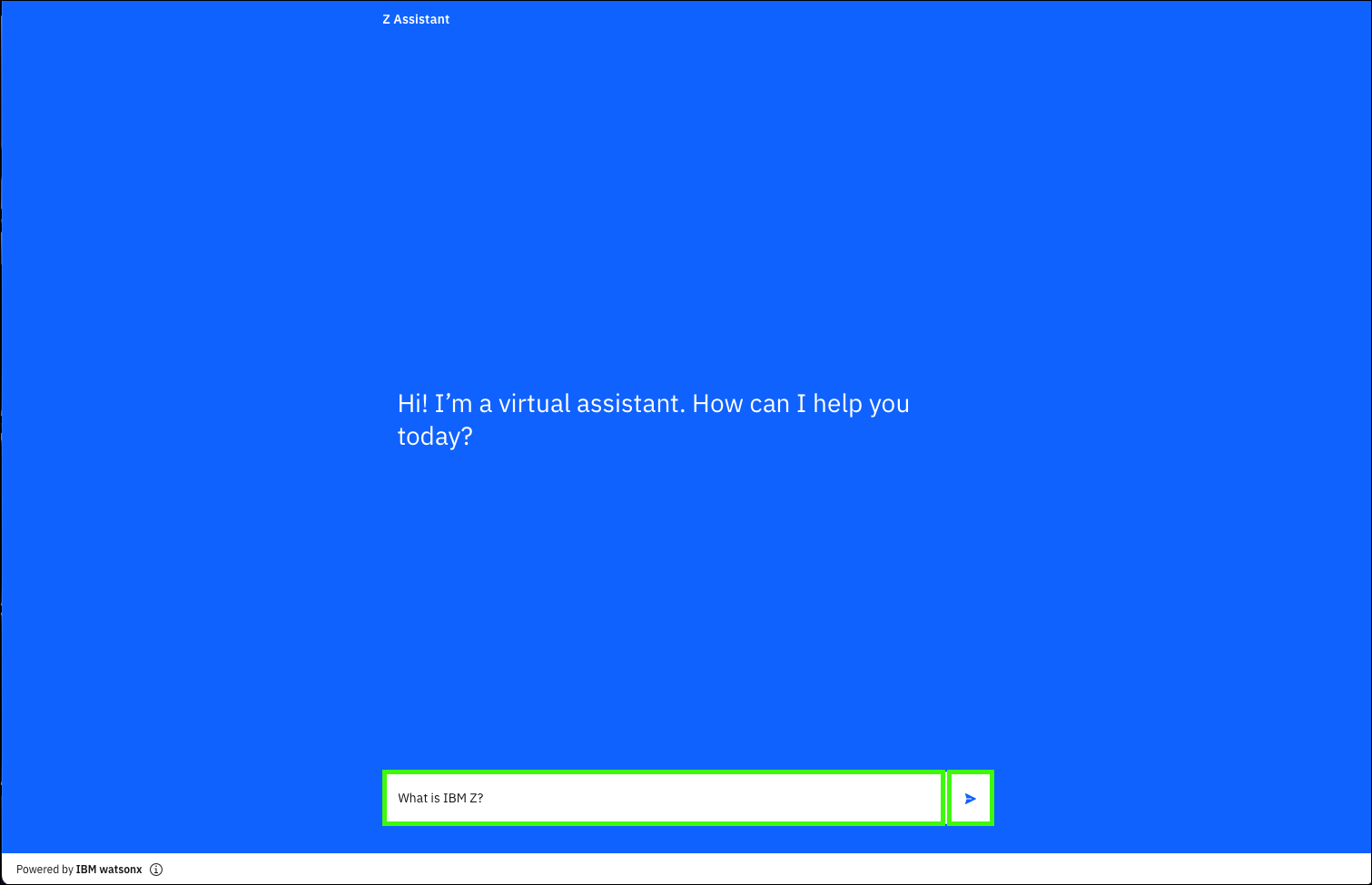
The full-page virtual assistant interface opens in a new browser window or tab (this is dependant on your browser preferences). The full-page virtual assistant interface is used for all screen captures in later chapters.
Using the virtual assistant
Enter a query into the field and press Enter or click the Send icon ( ).
).
Proceed to the next section to run through different IBM watsonx Assistant for Z client scenarios detailed in this demonstration guide.