 Back to tutorials
Note: The Event Endpoint Management UI provides a guided tutorial that you can access from the Help and support menu. The guided tutorial covers all the main concepts and operations of Event Endpoint Management and provides a mock Kafka cluster.
In this tutorial, you set up an Event Gateway to connect your Event Endpoint Management service with your Kafka cluster. You can then add topics from that cluster and share them as virtual topics.
Before you begin
- Ensure that you have a host with Docker installed for deploying an Event Gateway.
- Ensure that you have the connection details for your Kafka cluster available.
- Ensure that you have at least one Kafka topic.
Add an Event Gateway
Set up an Event Gateway to manage the connection and access control between your Kafka cluster and your Event Manager component within Event Endpoint Management. The gateway manages access to the virtual topics through which clients can access the data available on the topics.
The Event Endpoint Management UI generates a docker run command that includes arguments that contain all the configuration details for your Event Gateway.
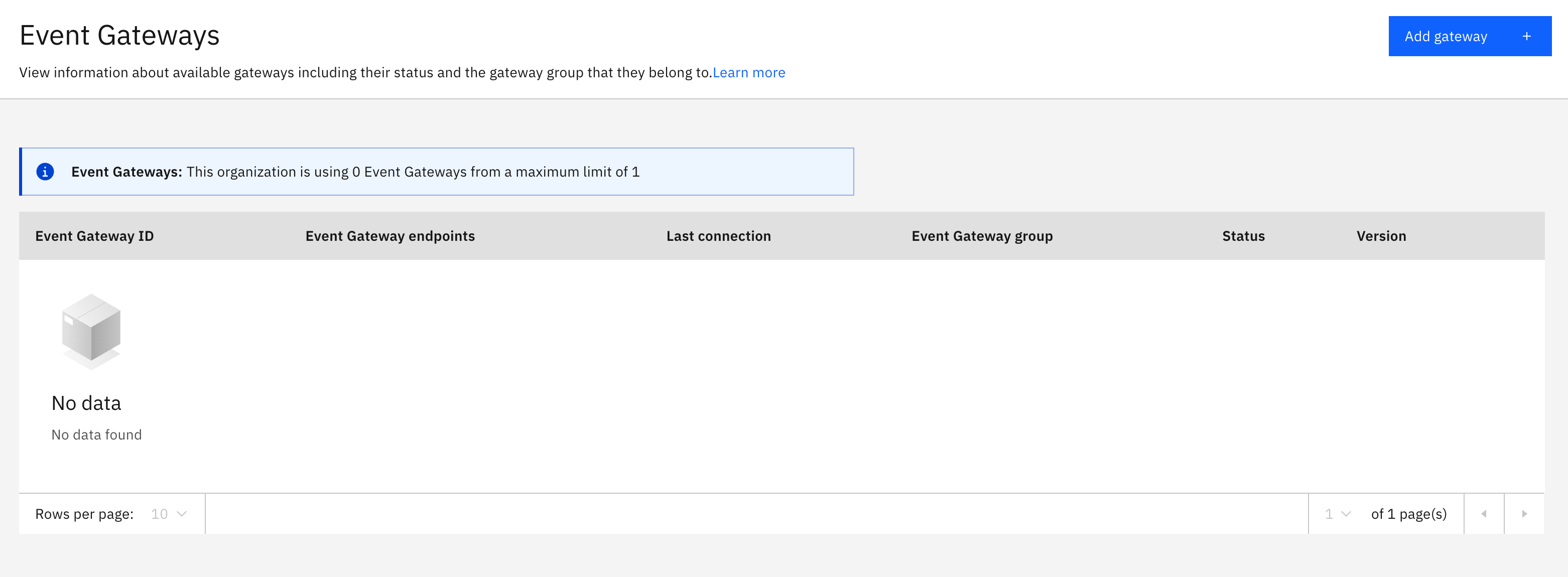
- In the navigation pane, click Administration > Event Gateways.
-
Click Add gateway.
-
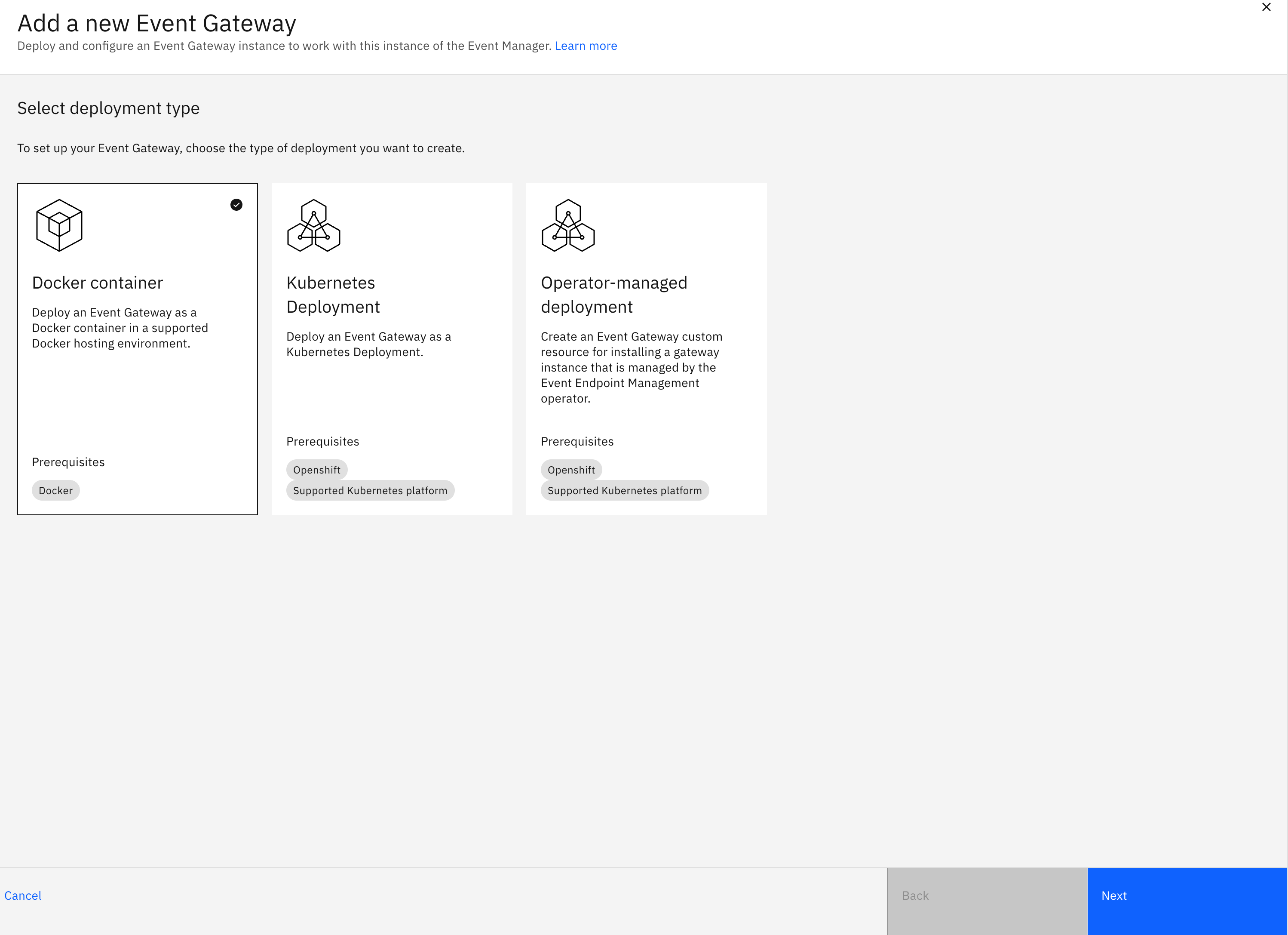
Select the Docker tile, then click Next.
-
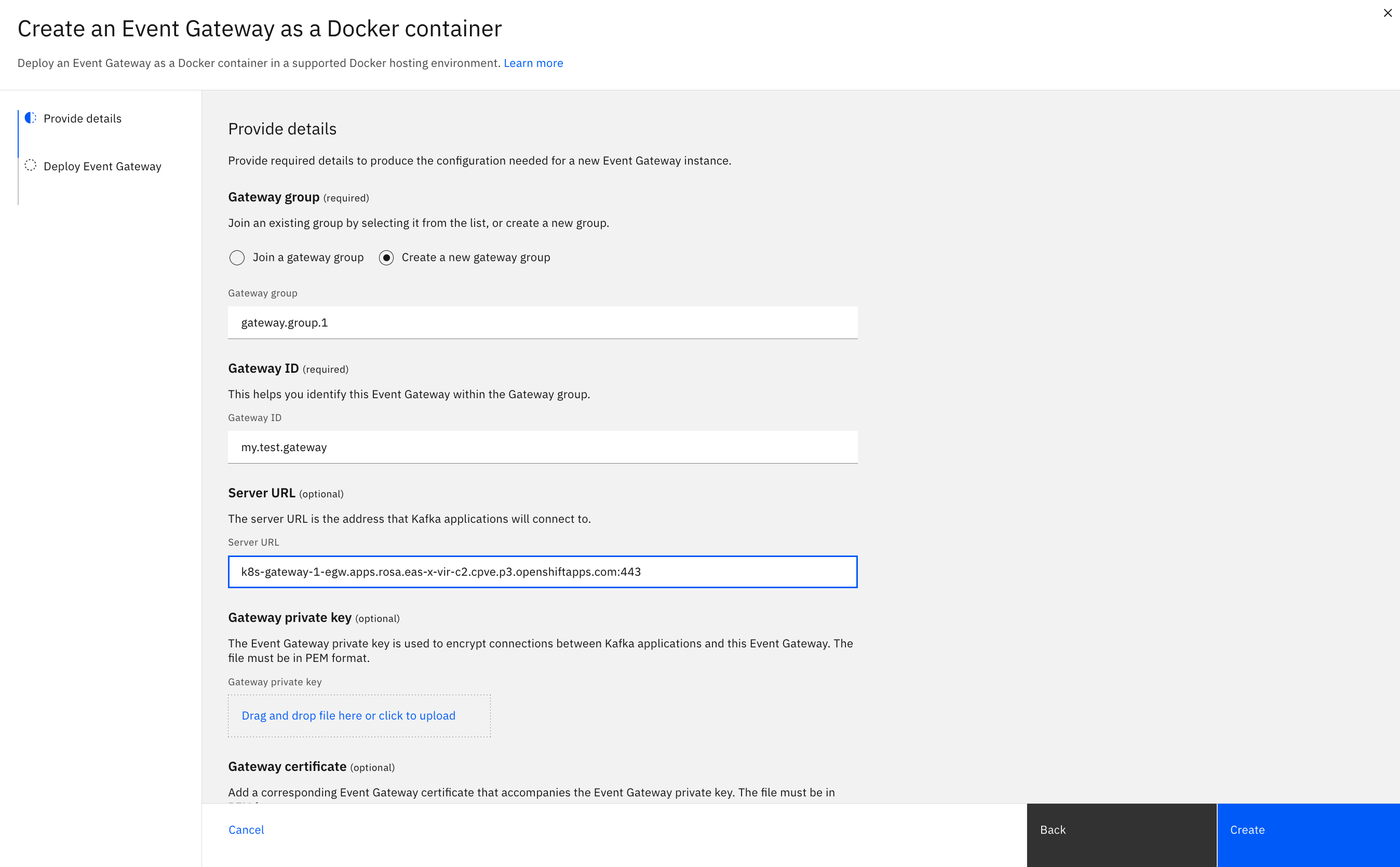
Provide the configuration details for your gateway, then click Create.
- Gateway group: Create a gateway group for your new gateway. An Event Gateway group is a set of gateway instances that can be logically grouped and scaled together. Create a group and called
mygroup - Gateway ID: Provide an ID for your new gateway that is unique within the gateway group. Set the ID to
mytestgateway - Server URL: The address of your new gateway that client applications use to access virtual topics through the gateway.
To configure TLS communication between client applications and the gateway, upload the following certificate files:
- Gateway private key: PEM file that contains the private key that is used to encrypt client application connections to your new gateway. The private key must be created with the gateway address in the SAN.
- Gateway certificate: PEM file that contains the public certificate that is used to encrypt client application connections to your new gateway. The certificate must be created with the gateway address in the SAN.
- CA certificate: PEM file that contains the CA certificate that client applications must add to their truststores for secure communication with your new gateway. This CA certificate must be an ancestor of the Gateway certificate.
- Gateway group: Create a gateway group for your new gateway. An Event Gateway group is a set of gateway instances that can be logically grouped and scaled together. Create a group and called
-
Copy the generated command and run it in your Docker environment to deploy the Event Gateway. For example:
docker run \ --name "gwy-group1-gwy1-id" \ -e MANAGER_CLIENT_URL="https://env2673081.eem.eem.apps.a-vir-r3.events.ipaas.dev.automation.ibm.com/gateway" \ -e KAFKA_LISTENERS="LISTENER://:8443" \ -e KAFKA_LISTENER_LISTENER_GROUPS="GROUP://explicit" \ -e KAFKA_LISTENER_LISTENER_GROUP_GROUP_ADDRESSES="test.example.com:9090" \ -e KAFKA_LISTENER_LISTENER_GROUP_GROUP_TRUST_PEM="/certs/ca.pem" \ -e KAFKA_LISTENER_LISTENER_SNI_ENABLED=false \ -e KAFKA_LISTENER_LISTENER_KEYSTORE_LOCATION="/certs/client.pem" \ -e KAFKA_LISTENER_LISTENER_KEYSTORE_KEY_LOCATION="/certs/client.key" \ -e KAFKA_LISTENER_LISTENER_KEYSTORE_TYPE="PEM" \ -v "/home/users/me/myclientcert:/certs/client.pem" \ -v "/home/users/me/myclientkey>:/certs/client.key" \ -p 9090:8443 \ -e MANAGER_CLIENT_API_KEY="<api-key>" \ -e LICENSE_ID="L-CYBH-K48BZQ" \ -e ACCEPT_LICENSE="true" \ -v "/home/users/me/myca:/certs/ca.pem" \ -d icr.io/cpopen/ibm-eventendpointmanagement/egw:11.8.0 - Return to the Event Gateways page to monitor the status of the new Event Gateway. When the gateway is registered, the status reports Running.
Add a topic
Add a Kafka topic to Event Endpoint Management to consume events from:
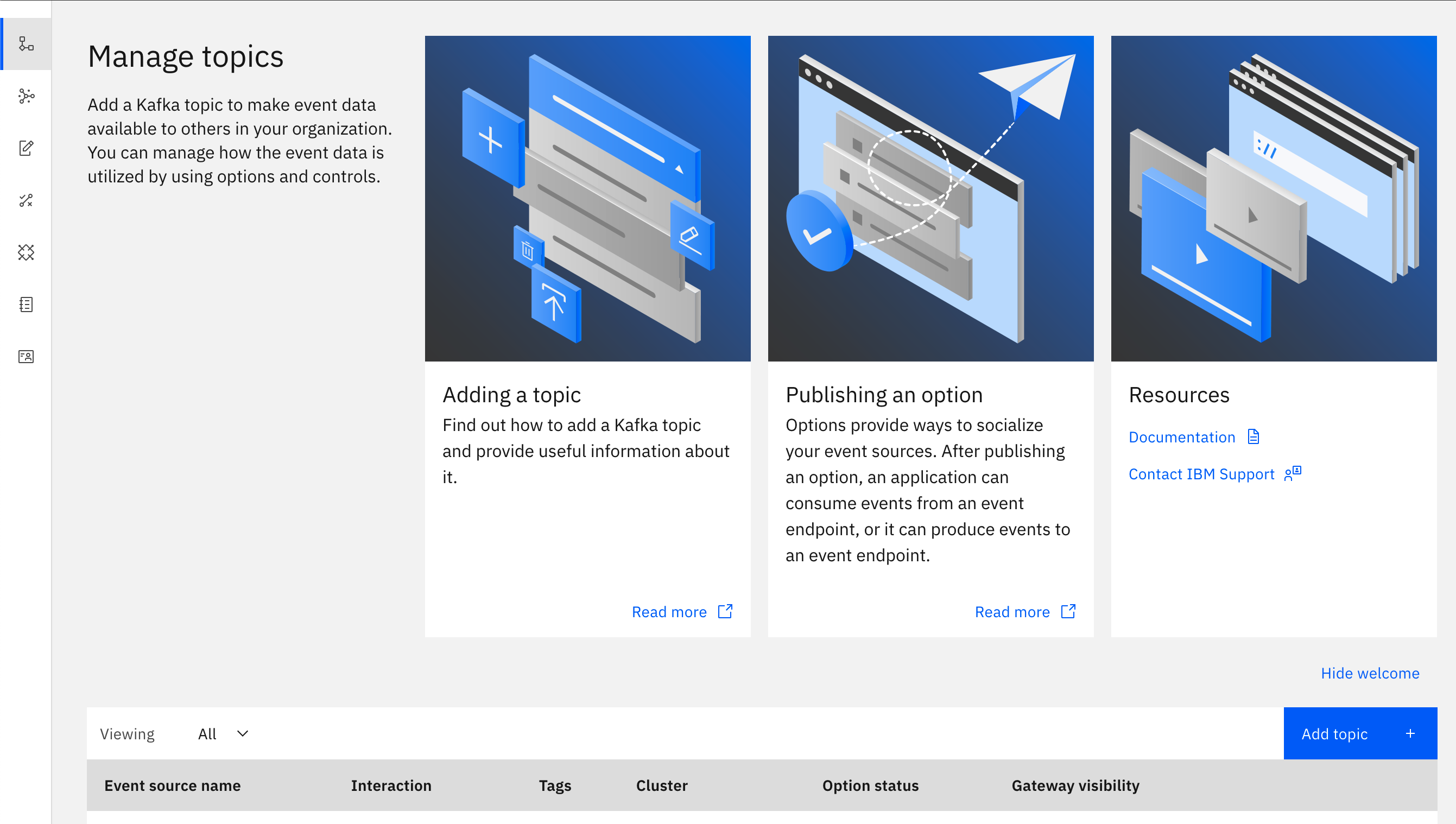
- In the navigation pane, click Manage > Topics.
-
Click Add topic.
-
In the Interaction pane, select how your application will interact with the topic. Click Consume events and click Next.
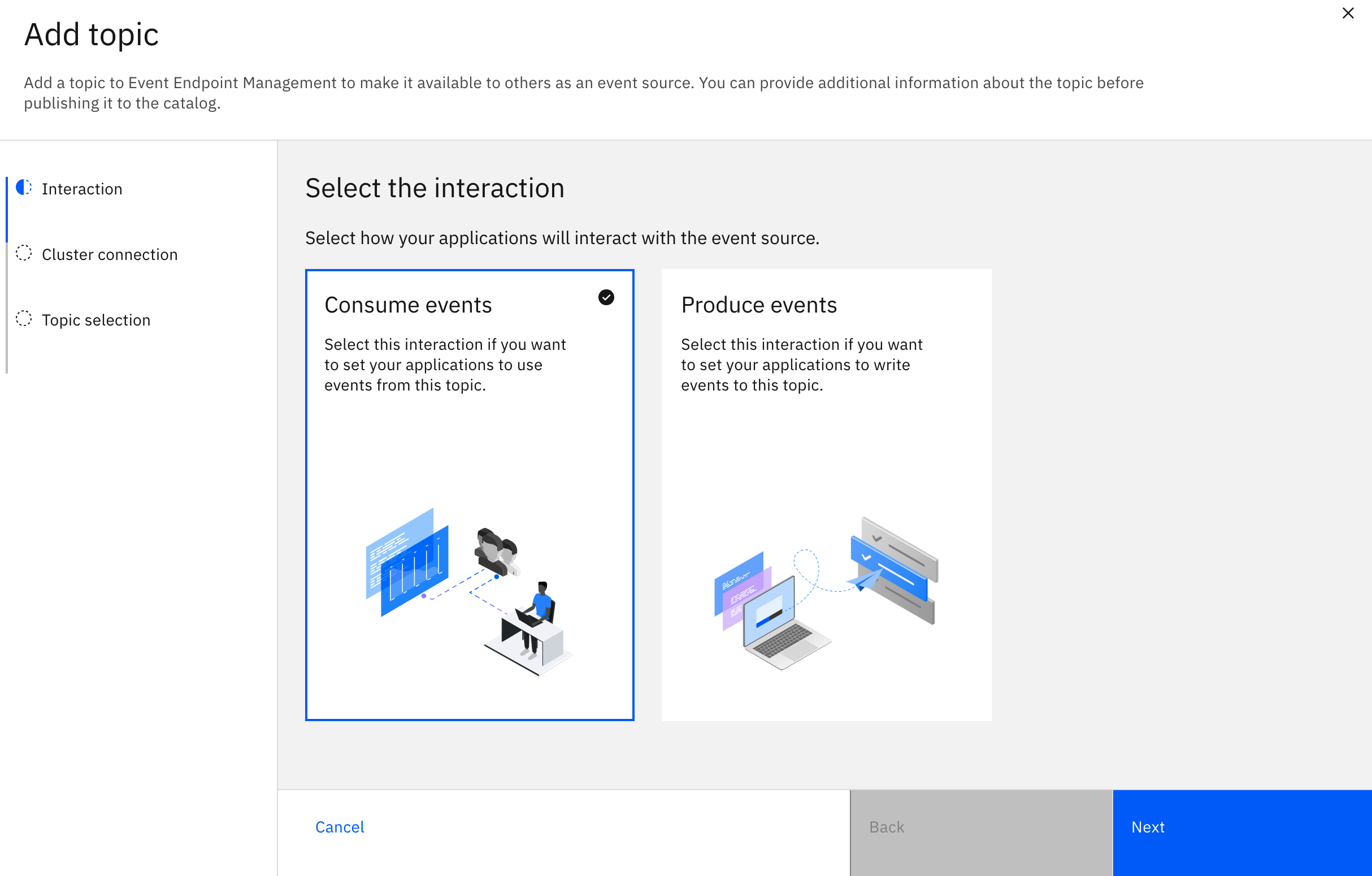
- Click Add cluster to specify the Kafka cluster that you want to consume events from.
- Enter a unique name for your new cluster, and click Next.
-
Enter the bootstrap server URL for your Kafka cluster, and click Next.
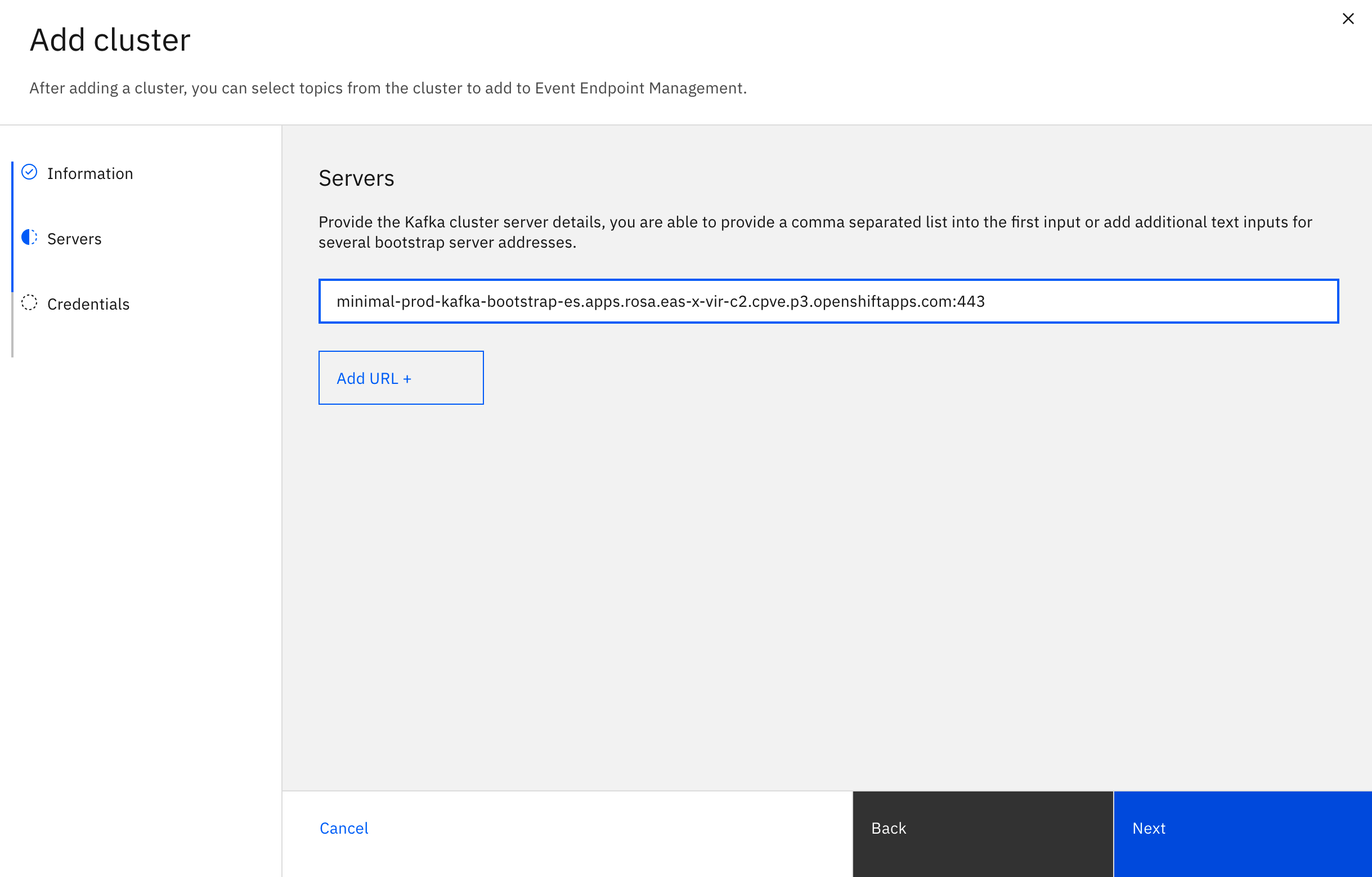
Note: After you click Next, Event Endpoint Management validates the entered server URL. If any untrusted certificates are found on the bootstrap server URLs, you are asked to confirm whether you accept the certificates found. Select the Accept all certificates checkbox to continue.
- Optional: If the Kafka endpoint is configured to require mutual TLS authentication, then you must upload the private and public keys (ask your Kafka cluster administrator if you do not have them). Upload the private and public keys in PEM format.
- Optional: If the entered bootstrap server URLs require SASL credentials to authenticate with Kafka, you are prompted to provide these credentials. If required, select the Security protocol, and enter your username and password.
- Click Next.
-
Select topics to add from the list of topics available on the cluster. By default, the Kafka topic name is used to populate the Name field, but you can edit this field as required.
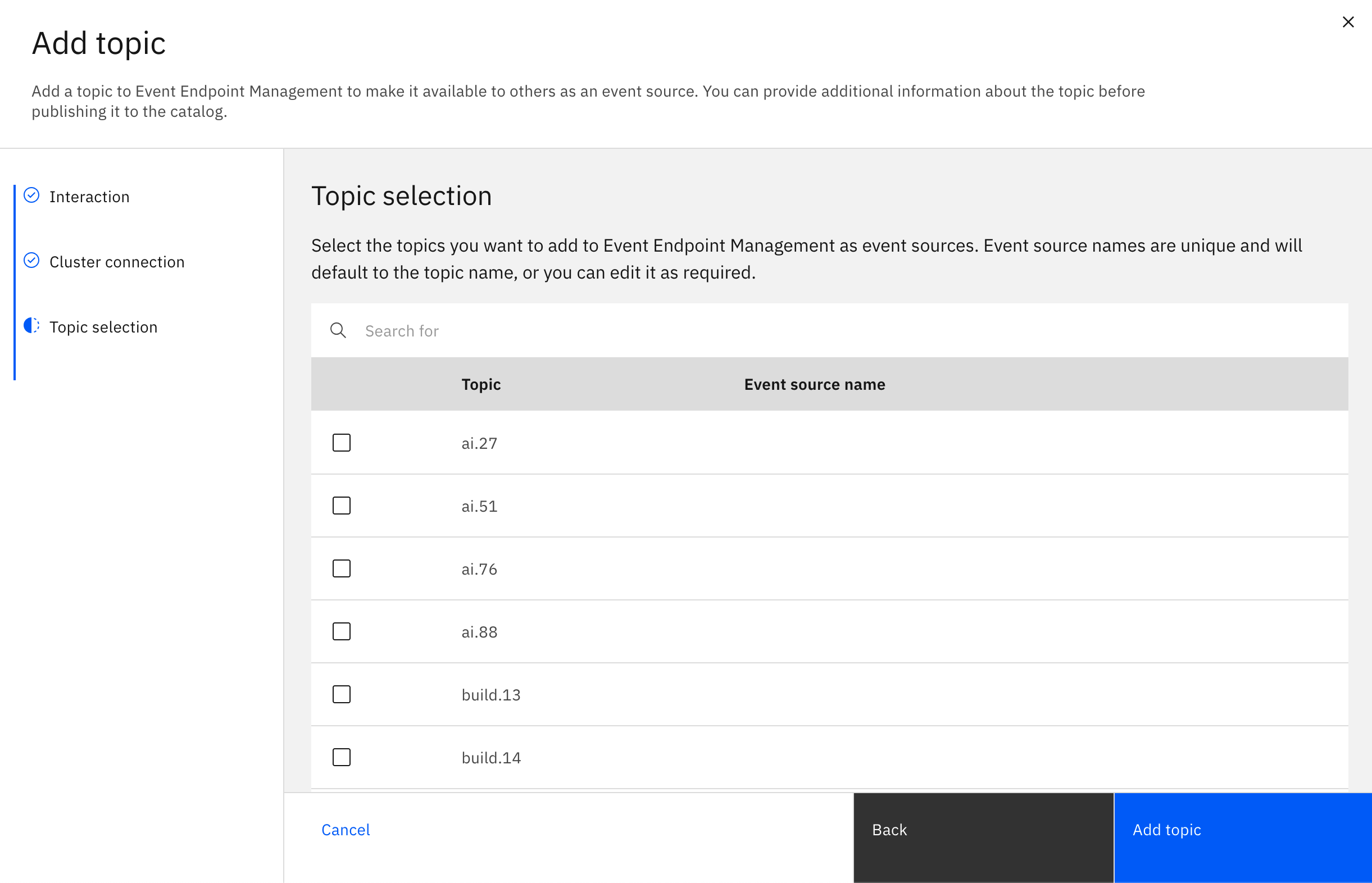
If your Event Manager is not able to connect to the Kafka cluster, then a table is presented for you to define provisional topics. Set Name to a unique name that identifies the topic in Event Endpoint Management, and set Kafka topic name to the name of the topic on the Kafka cluster. To add more provisional topics, click Define topic.
Note: When you define a topic manually, the topic is only registered in the Event Manager. The topic is not created on the Kafka cluster.
When you are finished selecting topics, click Next.
-
If user groups are enabled, then the Editors pane is displayed. To enable members of the group to edit the topic information and create virtual topics, select a user group from the table. If the user group is not displayed, click Enable user group to add one from your organization.
Note: Any user groups that you add here must exist within the organization that is provided by your OAuth provider.
- Click Add Topic.
Your new topic appears in the Manage topics page with the Virtual topics status as 0 published. You can now create a virtual topic for your source topic.
Create and publish a virtual topic
Create a virtual topic for the source topic to control how users can access it. For example, you can require subscription approval.
To create a virtual topic that requires approval:
- In the navigation pane, click Manage > Topics.
- Click the source topic that you added earlier.
- Click the Virtual topics tab.
- Click Create virtual topic. The Details pane is displayed.
- In the Virtual topic name field, provide a name for your virtual topic.
- In the Alias field, provide the Kafka topic name. This is the name of the topic that you added earlier.
- Optional: In the Description field, provide a description of your virtual topic.
- Click Next. The Event Data controls pane is displayed.
- Click Next. The Visibility pane is displayed.
- Click Next. The Security controls pane is displayed.
- Select SASL credentials and check Require approval to force users to request access to this virtual topic.
-
Click Save. Your new virtual topic is displayed.
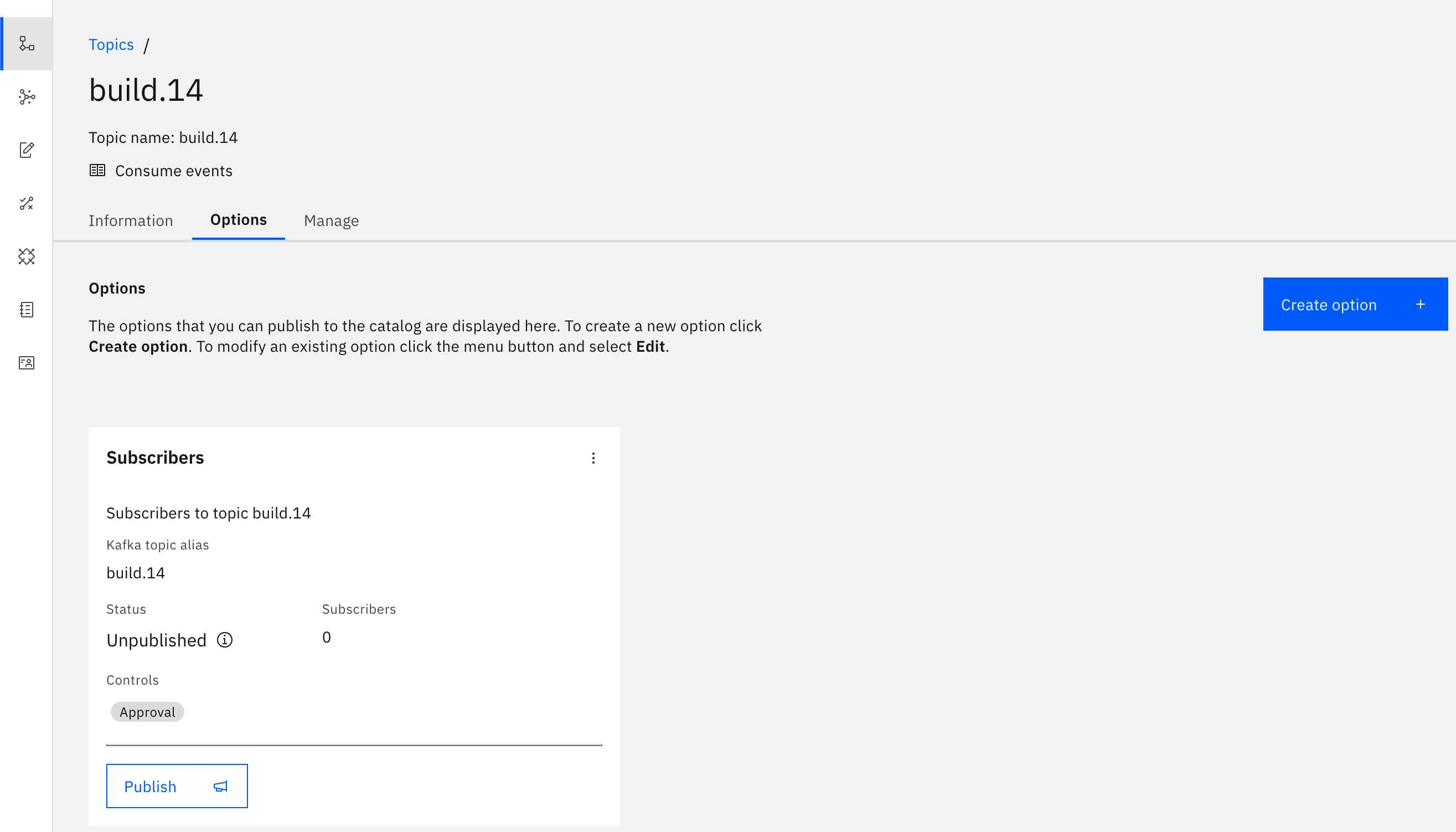
- To publish your virtual topic and make it available to subscribe to, click Publish on the tile for the virtual topic.
- In the Publish virtual topic dialog, select the gateway group that you added your gateway to earlier.
- Click Publish.
After the virtual topic is published, application developers can discover it in the Event Endpoint Management catalog, and consume from it.
Consume from the virtual topic
To consume events from the virtual topic that you created, request a subscription to the topic from the Catalog page.
-
In the navigation pane, click Catalog.
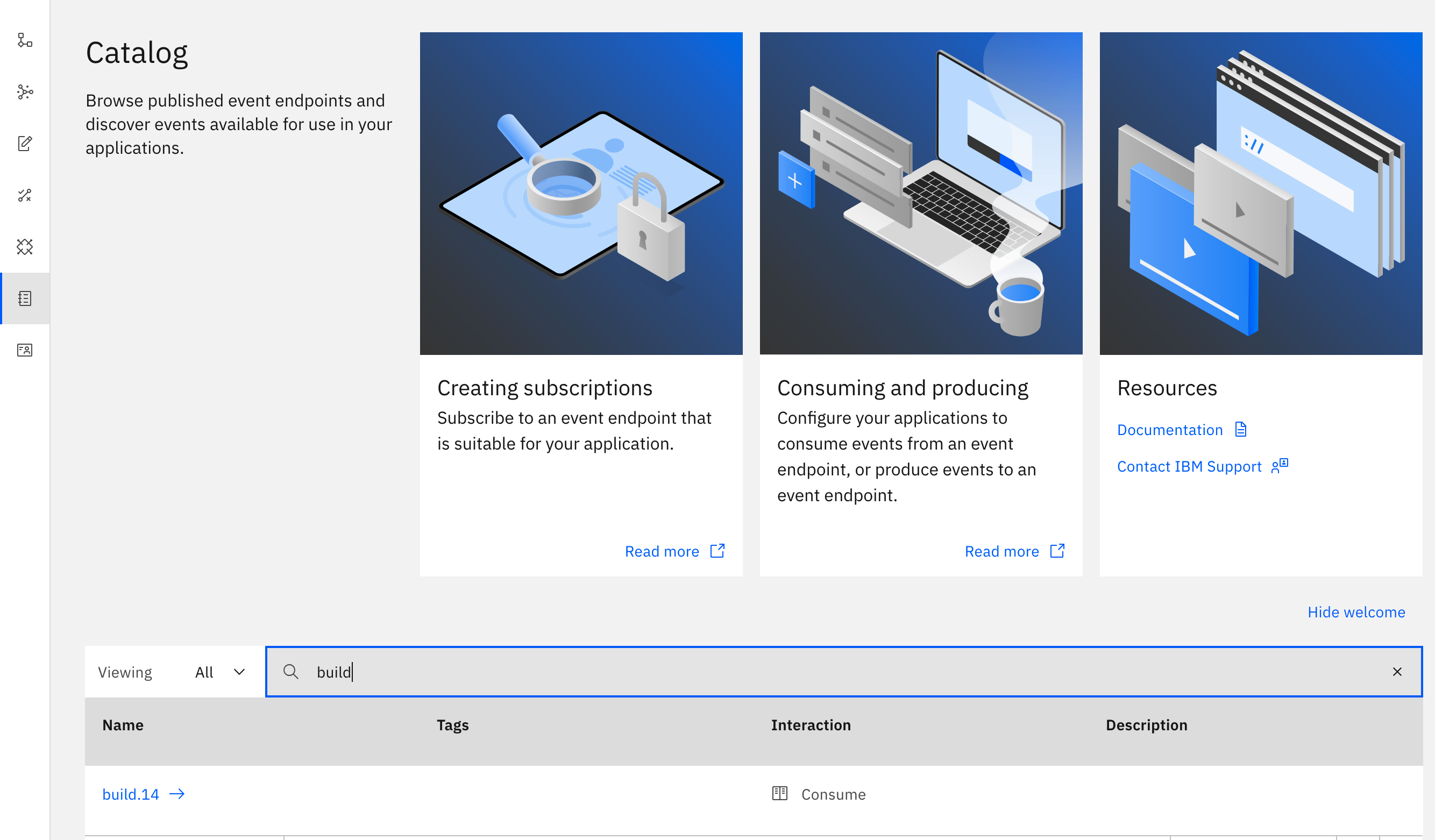
-
Click the topic name in the list. The Topic information page is displayed.
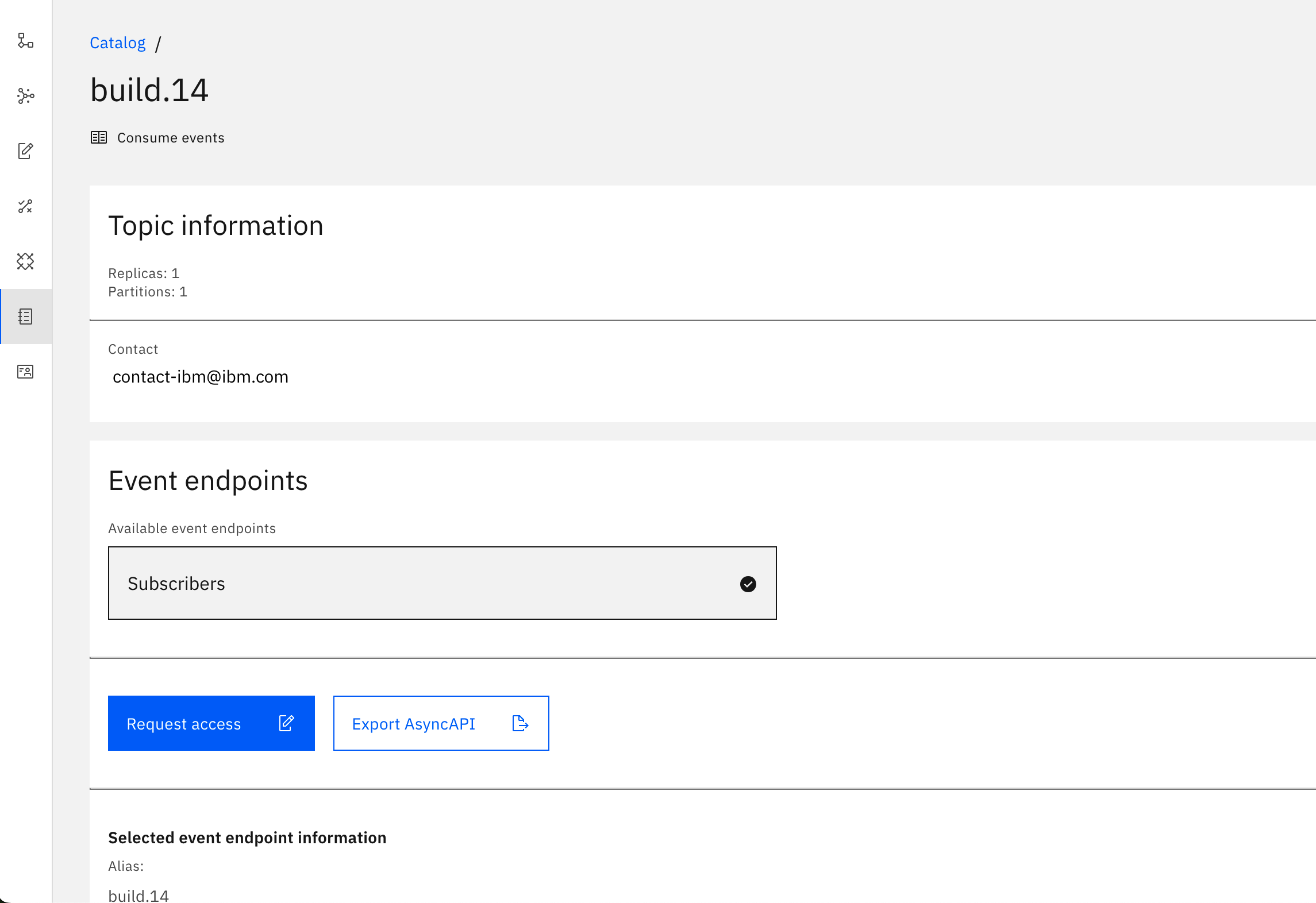
-
Click Request subscription.
-
Click Create application to create an application that will be used to subscribe to the virtual topic.
-
Provide a name and contact email address for your application.
-
Click Next. The Collaborators pane is displayed.
-
Click Next. The Client authentication set pane is displayed.
-
Select SASL Credentials and click Create.
Copy the generated username and password values, or click Download credentials to download your generated credentials as a JSON file. The credentials that are generated for you are shown one time. They cannot be retrieved later. Ensure that you save the access credentials and store them in a secure location.
Your application requires these credentials to access the source topic through the Event Gateway.
-
Click Close.
-
Select the application that you created, and click Next.
-
Enter your contact details and justification.
-
Click Request subscription.
As the topic owner, you can approve this request as follows:
- In the navigation pane, click Access requests. All the requests against virtual topics that you own are displayed.
- Locate the access request in the list and click View request.
- Click Approve request.
After access is granted, you can use the information on the topic’s catalog page to configure your client to consume from the topic. The topic page provides code samples to help you get started with creating applications.
For a simple test, use an open-source tool such as kcat.
The way that you provide the configuration settings to your client varies from client to client. However, the following settings are common for every client:
Bootstrap servers: Your Event Gateway endpoint addresses that provide access to a virtual topic.Security mechanism: Set asSASL_SSLif username and password are used in the subscription. Set asSSLif mTLS is used without a username and password.SSL configuration: The Event Gateway exposes only a TLS-secured endpoint for clients to connect to. Configure your client to trust this certificate.SASLcredentials: IfSASL_SSLis specified as theSASL mechanism, then use the values that you retrieved when subscribing to the source topic to setSASL usernameandSASL password.Topic name: The name of the virtual topic you want your application to use.
To find the virtual topic name, bootstrap server addresses, and gateway server certificate in the Event Endpoint Management UI, follow these steps:
- Log in to the Event Endpoint Management UI by using your login credentials.
- In the navigation pane, click Catalog.
- Click the topic that you want to subscribe to.
- In the Virtual topics section, click the virtual topic that you want to use. The name of the virtual topic is the name that is displayed in the card.
- The bootstrap server addresses and server certificate are available in the Selected virtual topic server URLs section.