4. Topology Rules
Topology Rules help streamline topologies, such as by merging different observer records of the same resource into a single composite resource, or by excluding specific changes from being recorded against a resource history. You can use different types of rules for different purposes.
Additional information about other rules can be found in the product documentation.
mergeRule
Different observers can record and then display the same resource as two (or more) resources. For example, a kubernetes cluster Observer can find a worker node as a topology resource but the same resource can be found by a VMware vCenter Observer as virtual machine. But its essentially the same resource. To prevent these situations, a merge rule can be created to ensure that these separate records share values in their tokens set, which then triggers the Merge service to create a single composite resource. Composite (or merged) resources are displayed in the Topology viewer as a single resource, which includes the properties of all merged resources. Merge rules are applied to resources by an observer job before it is sent to the topology service.
tagsRule
The tags rule allows the value of another field to be copied to the tags field so that it becomes searchable in the UI. It populates the tags of resources matched by the rule. Any field that is not indexed and cannot normally be searched becomes searchable when copied to the tags property. For a list of indexed properties, see Properties. Having the right tags in resources also enable the use of Tag Templates to group resources with a common tag. We will see resource grouping in the next chapter.
matchTokensRule
A match token rule allows the value of another field to be copied to the matchTokens field so that it can be used to match events to resources.
historyRule
Changes in topology resources are recorded. A history rule identifies properties that don't indicate an important change that needs to be recorded, for example a host's sysUpTime property. In other words, a history rule can be used to exclude properties from being retained in history, saving resources by not maintaining detailed historical records of changes to these properties.
4.1: Merge Rules in Action
You are now ready to create a Merge Rule to tie the two topology resources that we loaded in the previous chapter.
This is where the topology data coming from the application topology source is mapped onto the topology data coming from the infrastructure topology source. In our hypothetical scenario, we know we have Resources of type "computer" in both sets of topology, and we know that they relate to the same servers. Corresponding instances across the two data sets are also labelled consistently and correctly, meaning that identifying the same Resource across the two data sets is possible.
In our case, we have a Resource called "computer1000" represented in our infrastructure topology data as well as in our application data. Our goal is to merge the two sets of topology together so that we can both visualize what applications are running on our servers, and more importantly, correlate infrastructure alerts with application alerts, something that is not possible otherwise. Note that the rule is created in a generic way so that if there were any other computers included in our two data sets, they too would be merged together automatically, so long as they met the criteria set out in the rule.
From the burger menu in the top-left, navigate to: Operate → Resource management. In the Resource management page, click on the Settings gear icon in the top-right as shown below:

Select Topology configuration. From the Topology configuration page, in the Rules card shown below select Configure.
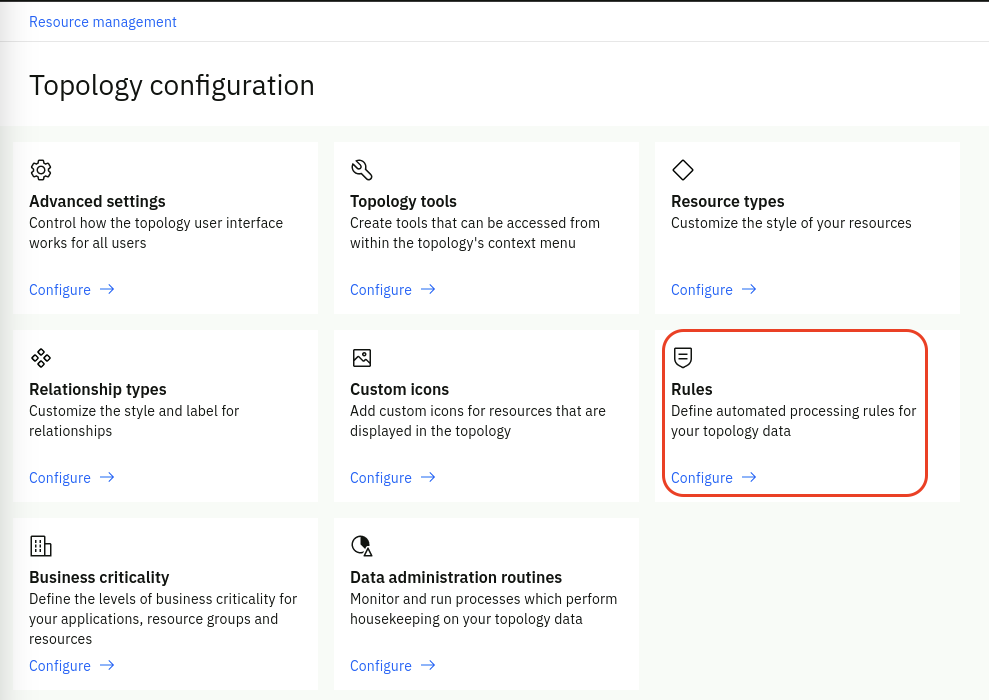
Note that some Merge rules are already defined out-of-the-box.
Click the New button in the top-right.
Select Merge rule from the rule type list and select Start.
Follow these steps to create your new Merge Rule:
- Rule name: Give your rule a name, for example InfrastructureApplications
- Set Status to Enabled
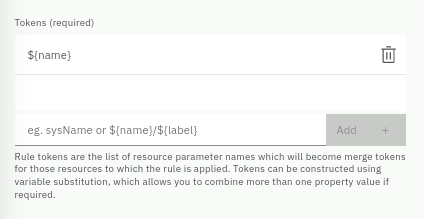
- Tokens: The tokens refer to the parameters in your Resources that will be
compared. In our case, the parameter that stores the computer name is called
"name" in both sets of data, therefore type
${name}and click on Add.
-
Expand the Conditions drop-down.
-
Observers: Select File from the list of Observers and click Add. Since both job types are of type File, this is all that is needed in this case. Normally you would add all the Observer types that apply to your mapping. If this section was left empty, it would try to apply this rule to topology data coming from all Observer types.
-
Providers: Add both of your jobs to the list (e.g. FILE.OBSERVER:infrastructure.txt and FILE.OBSERVER:application.txt) This specifies that this rule should only apply to these particular jobs. If this section was left empty, it would try to apply this rule to topology data coming from all File jobs defined.
-
Resource types: Add the Resource type that this rule should apply to which is computer. If this section was left empty, it would try to apply this rule to all Resource types in the Observers list and Providers list above.
-
The Token filter mode and Token filters sections allow you to refine your rule mapping even further, by allowing you to specify regular expressions to either include or exclude the set of Resources from the rule. In this case, we will leave both of these sections blank.
-
Your Conditions section should look like this:
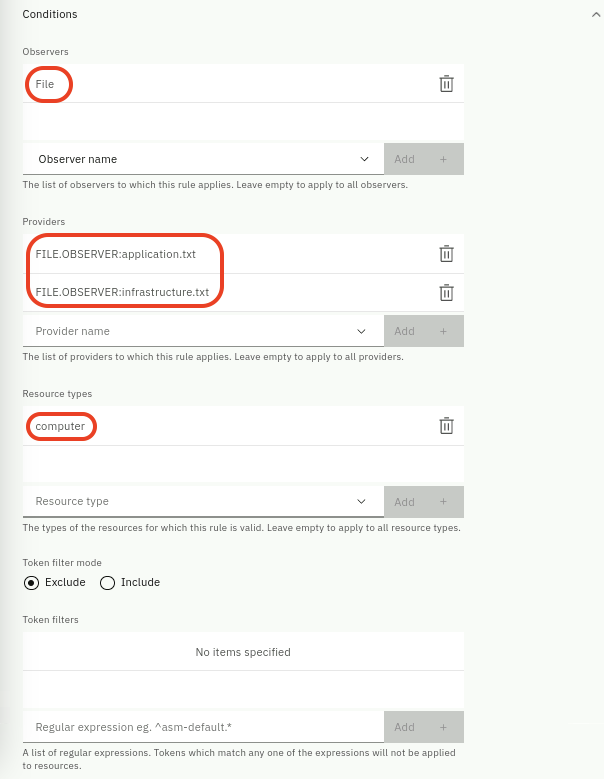
Its good practice to specify the appropriate set of Conditions in the rules, to ensure they only get applied to the right topology resources.
When finished creating your new Merge Rule, click Save and return to the Observer jobs page
Rerun Observer Jobs to Apply the Merge Rule
From the burger menu in the top-left navigate to: Define → Integrations
Click on Manage observer jobs tab and click on Configure, schedule, and manage observer jobs.
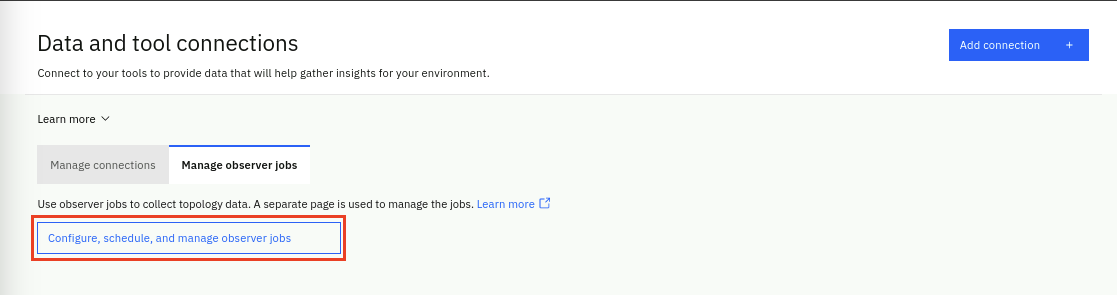
Click on Run (Play button icon) under the Operation column on each of the two jobs. Note that both Observer jobs must be run again. The data will be reprocessed in light of the new Merge rule we just created, and any Resources that match the rule will have the merge operation applied against them.
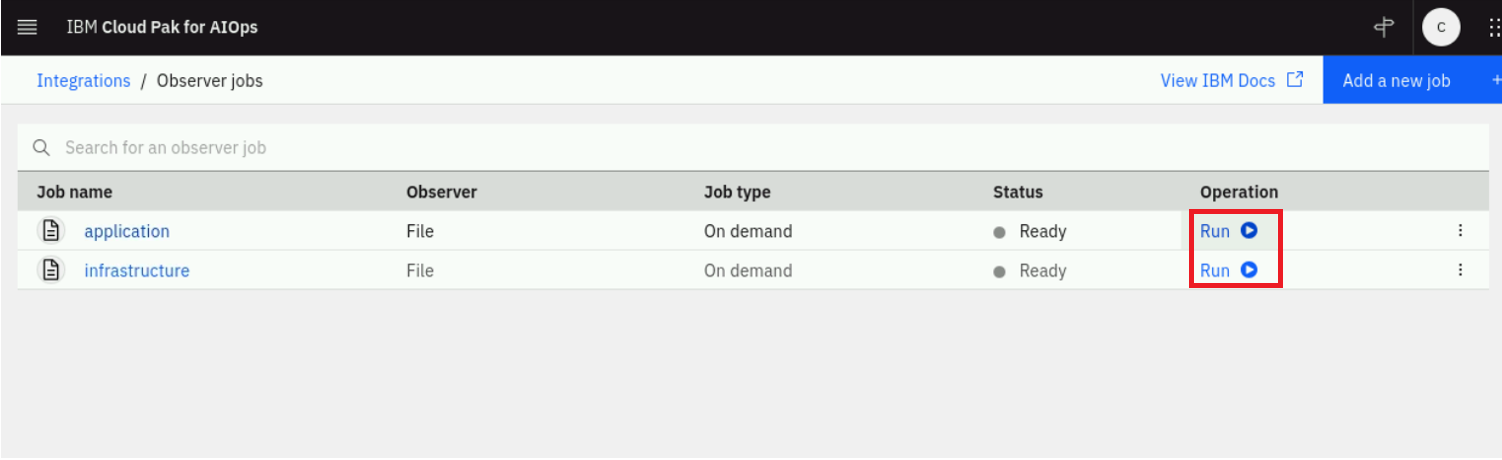
The merge will not happen unless the affected jobs are re-run. In other words, you will always have to rerun jobs to apply any defined rules.
Finding the Merged Resource
To verify the merge was successful, navigate back to Resource management. From the burger menu in the top-left, navigate to: Operate → Resource management.
In the Resource management page, click on the Resources tab and this time search for computer1000. Now you will see just one instance in the list of Resources called computer1000 whereas before you would have seen two. Click on computer1000, change the hop view to 2 and click Render. You should see something like the following, showing the combined topology segments:
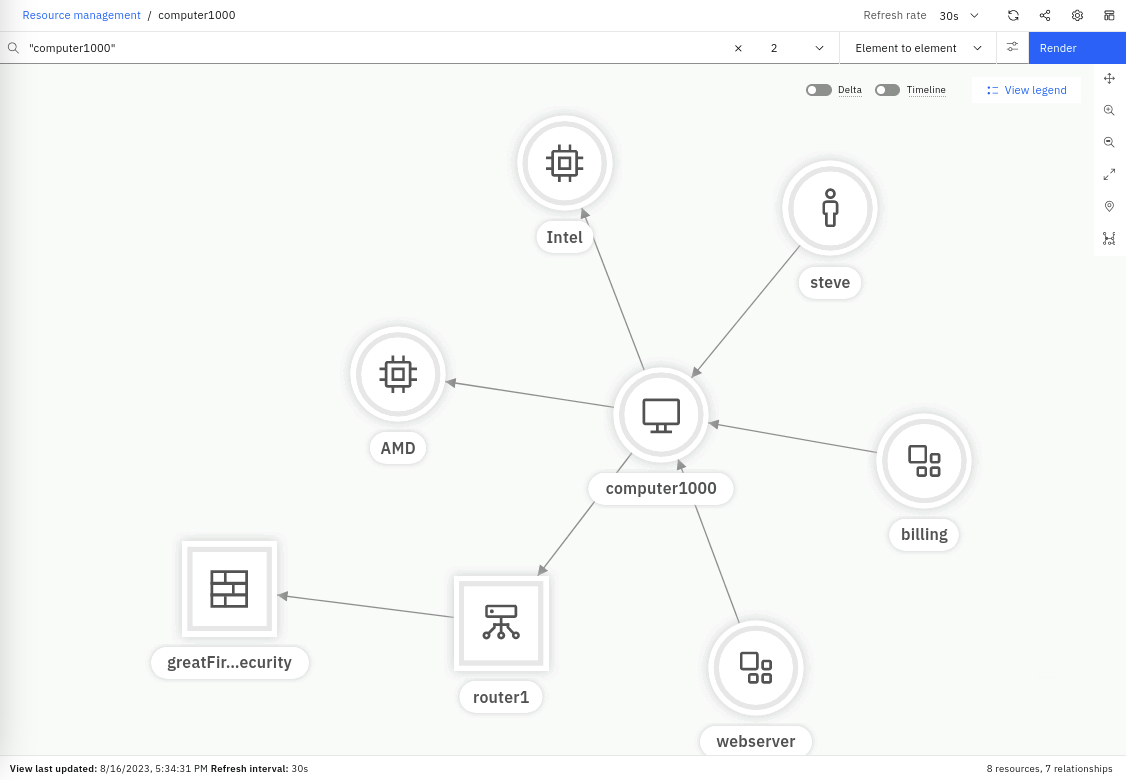
The Resource computer1000 is only shown once in the topology, but remains connected to all the resources it was connected to in both sets of topology data, prior to the merge. The Merge Rule has effectively merged the two sets of topology together, by merging the common Resources, according to the rule that we defined.
You have now completed this chapter and are ready for next one about "topology templates".
4.2: Topology Geo-Spatial Enrichment
Topology resources can be enriched with geographic location data so that they appear on an interactive map inside Concert Operate. This is useful for operations teams that manage distributed infrastructure across multiple sites or regions, as it provides an immediate visual indication of where a resource is located when investigating an incident.
In this section we will configure the map tile provider, create an enrichment data file that maps resource names to coordinates, define a File enrichment rule, and then verify that our topology resources appear correctly on the map.
Add the OpenStreetMap Tile Layer
Before resources can appear on a map, Concert Operate needs to be pointed at a map tile server. We will use the publicly available OpenStreetMap tile service.
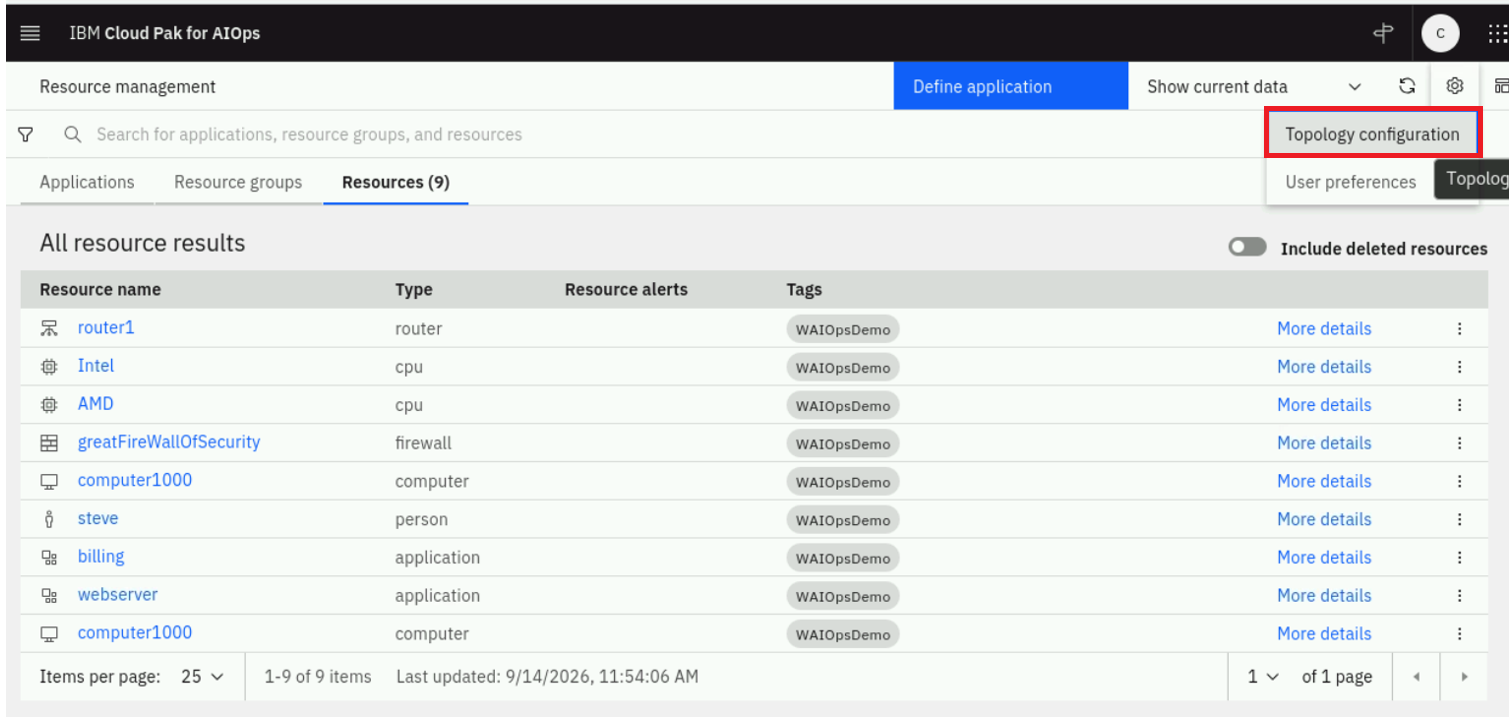
From the burger menu in the top-left, navigate to: Operate Resource management. In the Resource management page, click on the Settings gear icon in the top-right, then select Topology configuration.
From the Topology configuration page, select the Advanced settings tab.
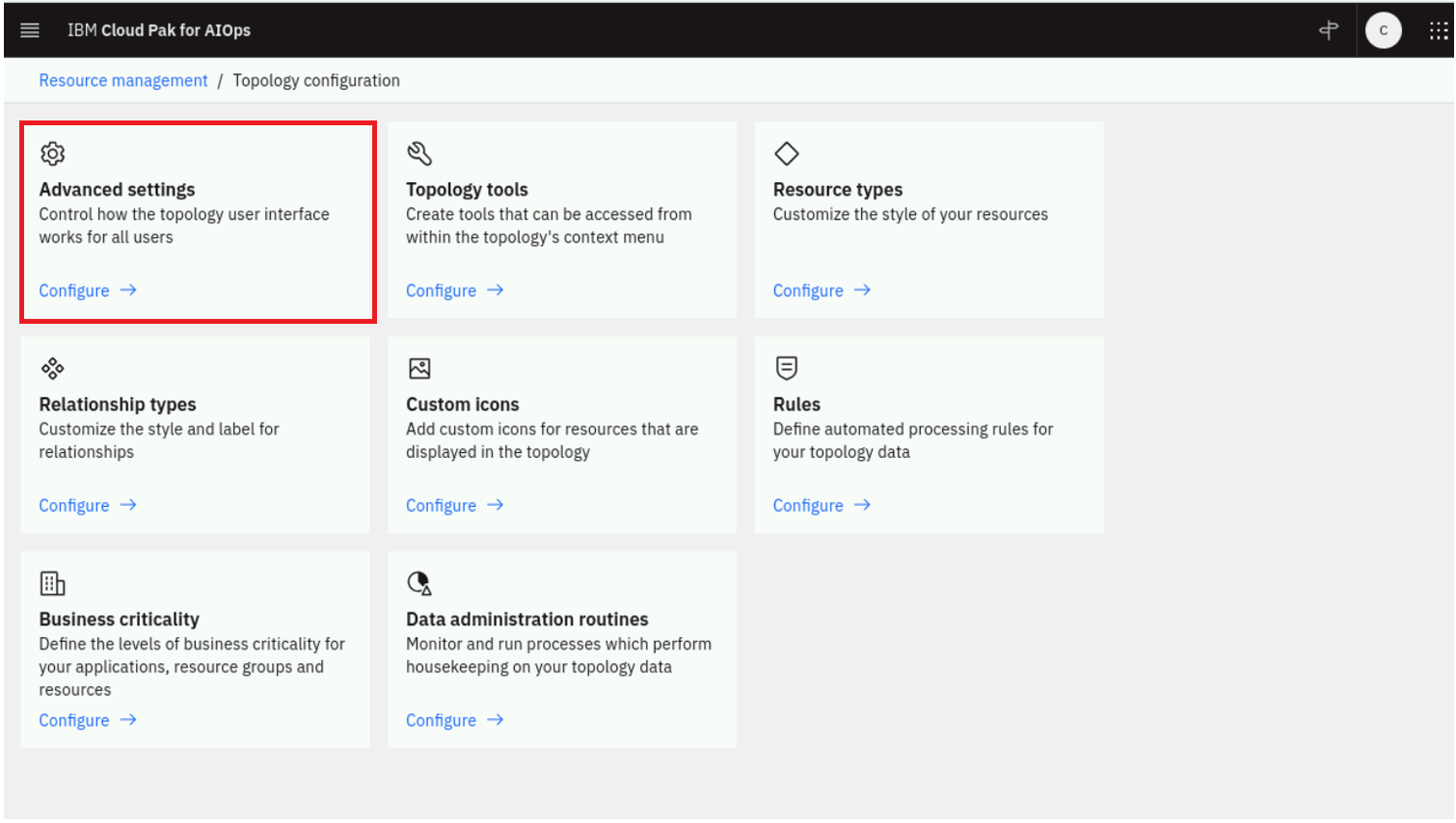
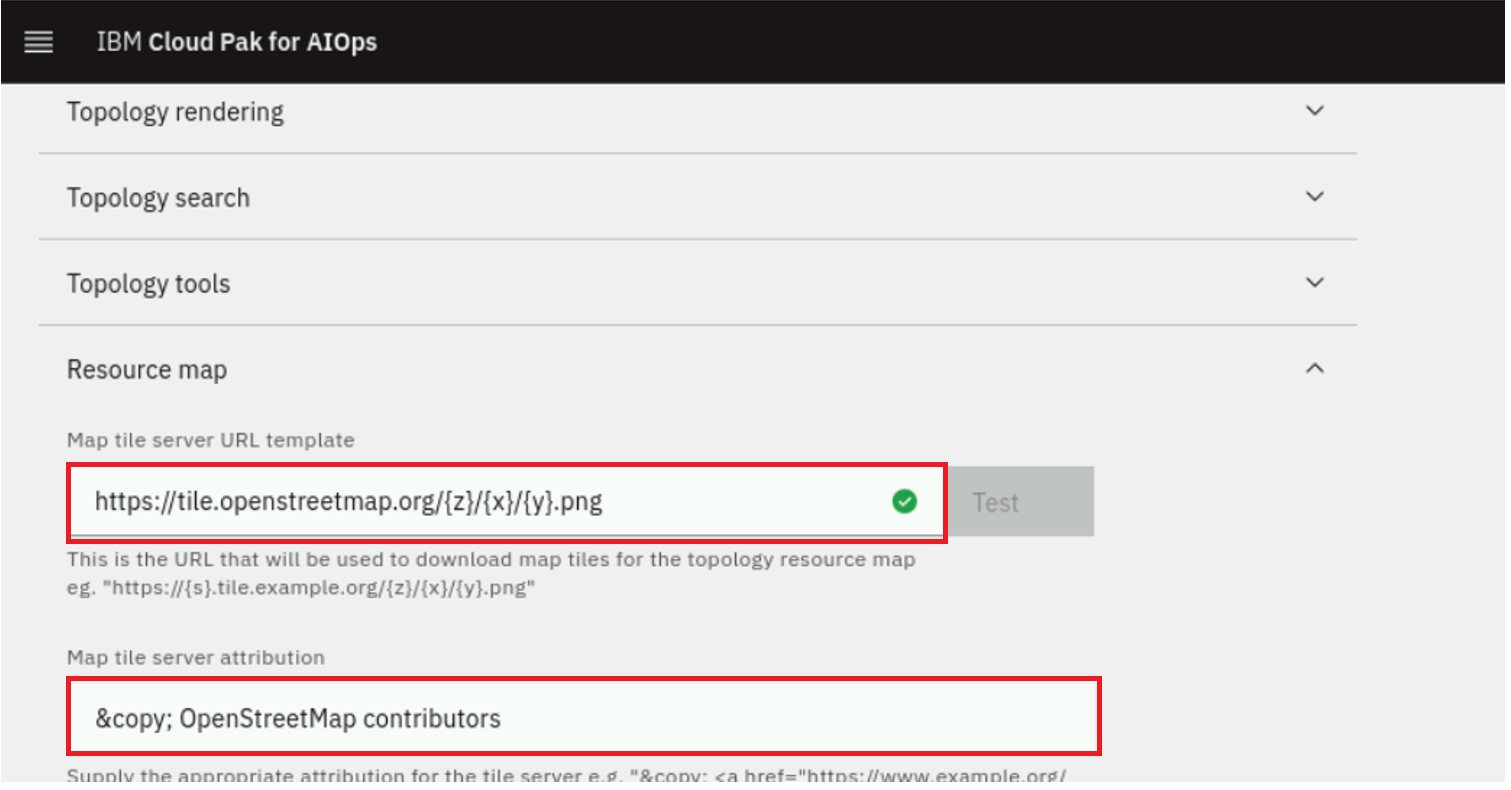
Locate the Map tile URL field and enter the following value:
https://tile.openstreetmap.org/{z}/{x}/{y}.png
In the Map tile attribution field, enter:
© OpenStreetMap contributors
Click Save.
Create the Geo-Spatial Enrichment Data File
You will now create a tab-separated values (TSV) file that maps topology resource names to their latitude and longitude coordinates. Concert Operate will use this file to place resources on the map.
Open a terminal and run the following command to create the file:
gedit techjam_topology_geo_data.tsv
Copy the data below (use the copy helper icon (top-right) for one-click copy), paste it into the text editor, click the Save button and close the editor window (click on the X).
ne-name	longitude	latitude
router1	46.212019	6.197746
computer1000	46.181919	6.107404
The ne-name values must exactly match the name field of the topology resources loaded in the previous chapters. The coordinates above place both resources in Geneva, Switzerland.
Create a File Enrichment Rule
An enrichment rule tells Concert Operate how to map the data in your enrichment file onto your topology resources. In this step you will create a File enrichment rule that reads the TSV file you just created and applies the location data to the matching resources.
From the burger menu in the top-left, navigate to: Operate Resource management. In the Resource management page, click on the Settings gear icon in the top-right, then select Topology configuration.
From the Topology configuration page, select the Rules card and click Configure.
Click the New button in the top-right.
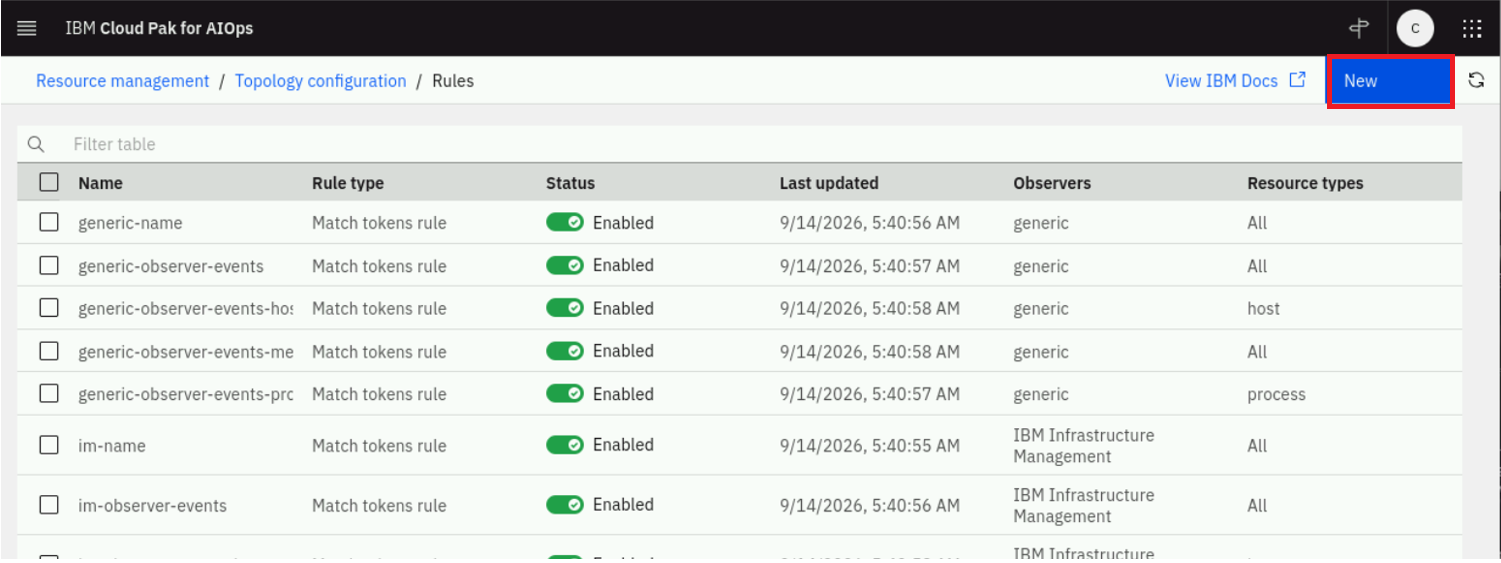
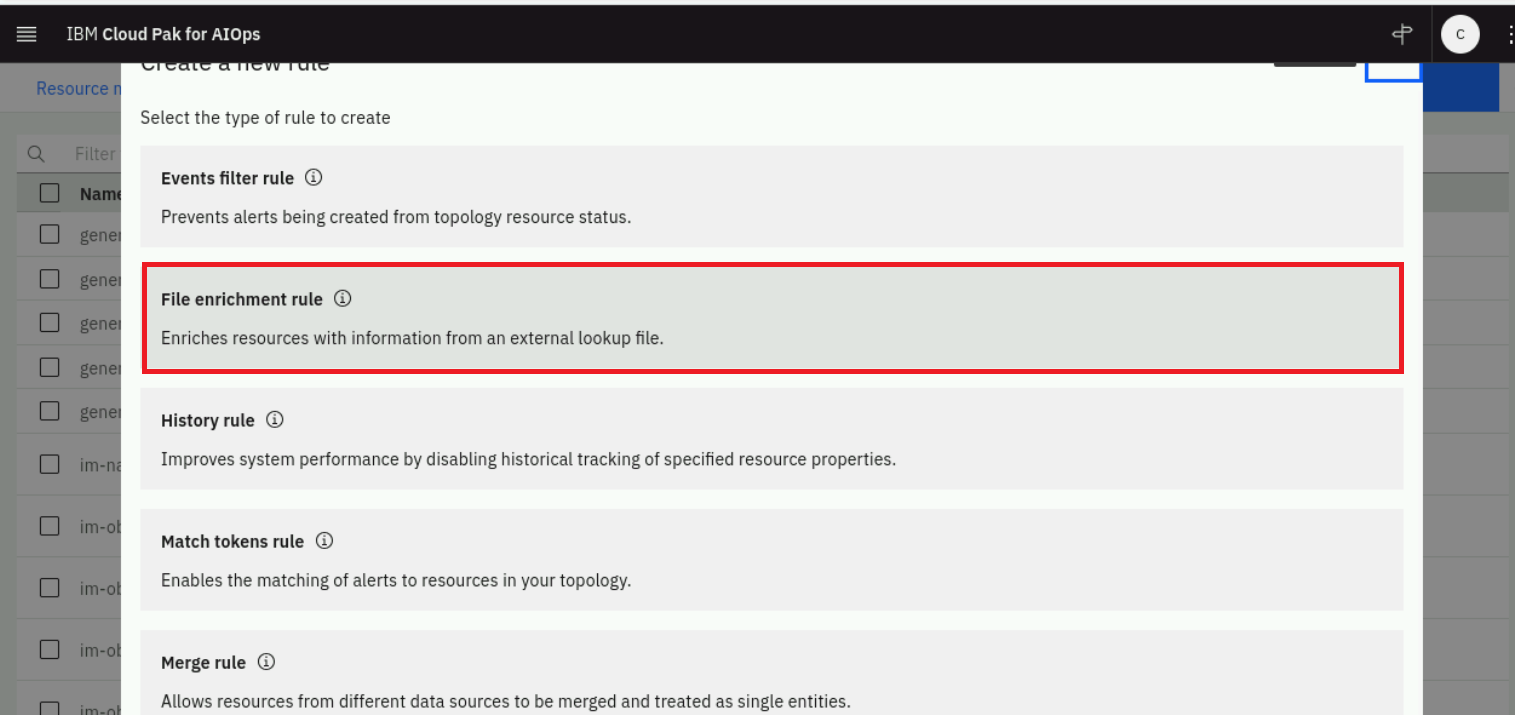
When prompted to select a rule type, select File enrichment rule.
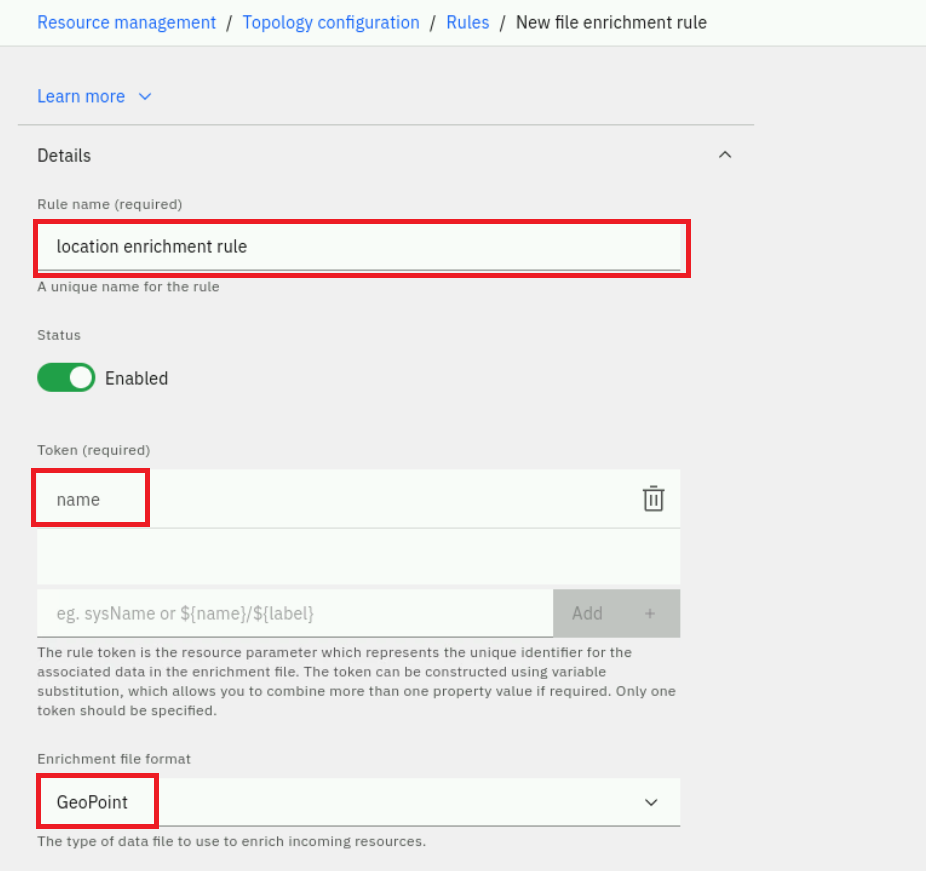
You will be presented with the enrichment rule configuration form. Complete the fields shown in the screenshot below.
Give the rule the name location enrichment rule; the resource token we will be matching against will be the resource name.
Select both the infrastructure and application Observer jobs, and upload the techjam_topology_geo_data.tsv file you created in the previous step; the enrichment file format will be GeoPoint.
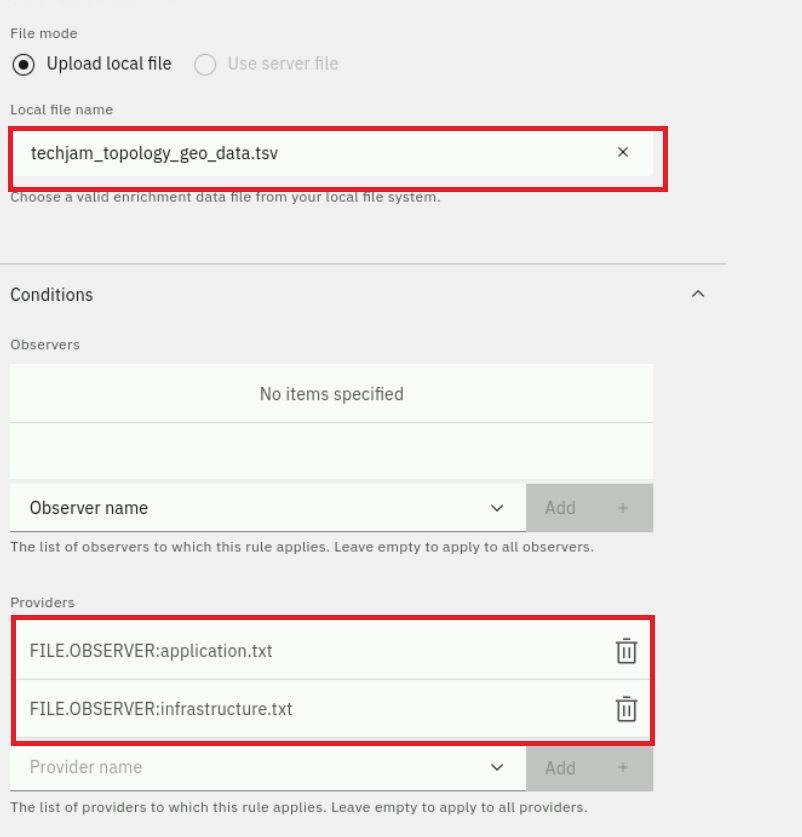
Click Save to save the new enrichment rule.
Re-run the File Observer Jobs
Enrichment rules are applied when an Observer job runs. You must re-run the File Observer jobs so that the location data from your TSV file is applied to the existing topology resources.
From the burger menu in the top-left, navigate to: Define Integrations.
Click on Manage observer jobs tab and click on Configure, schedule, and manage observer jobs.
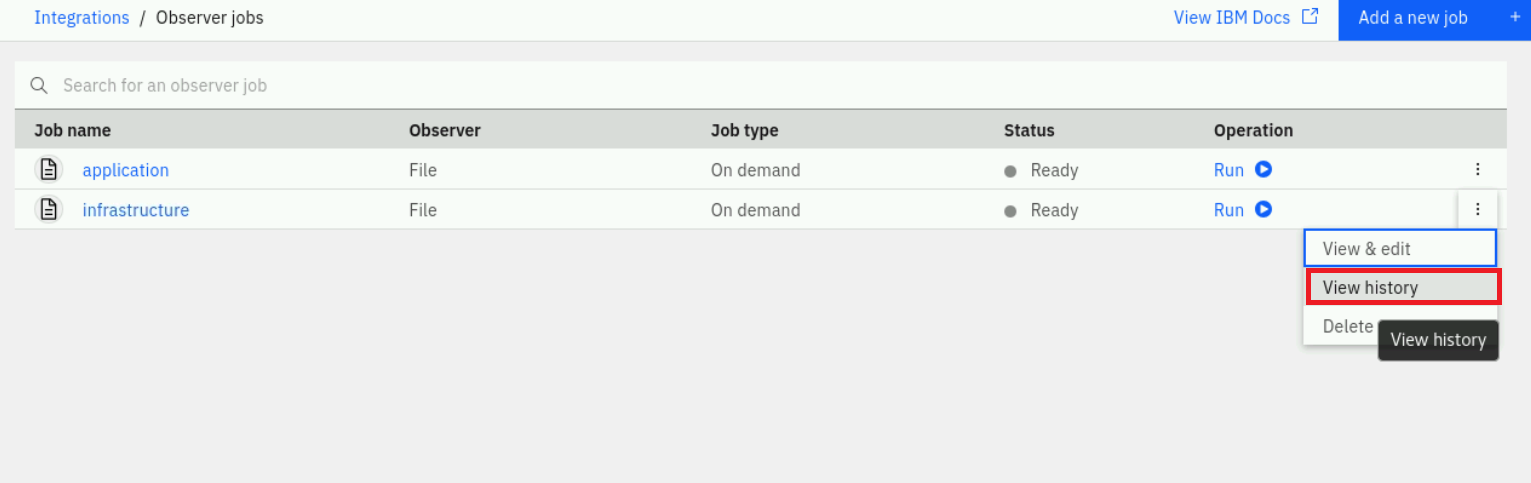
Click on Run (Play button icon) under the Operation column for the infrastructure and application Observer jobs.
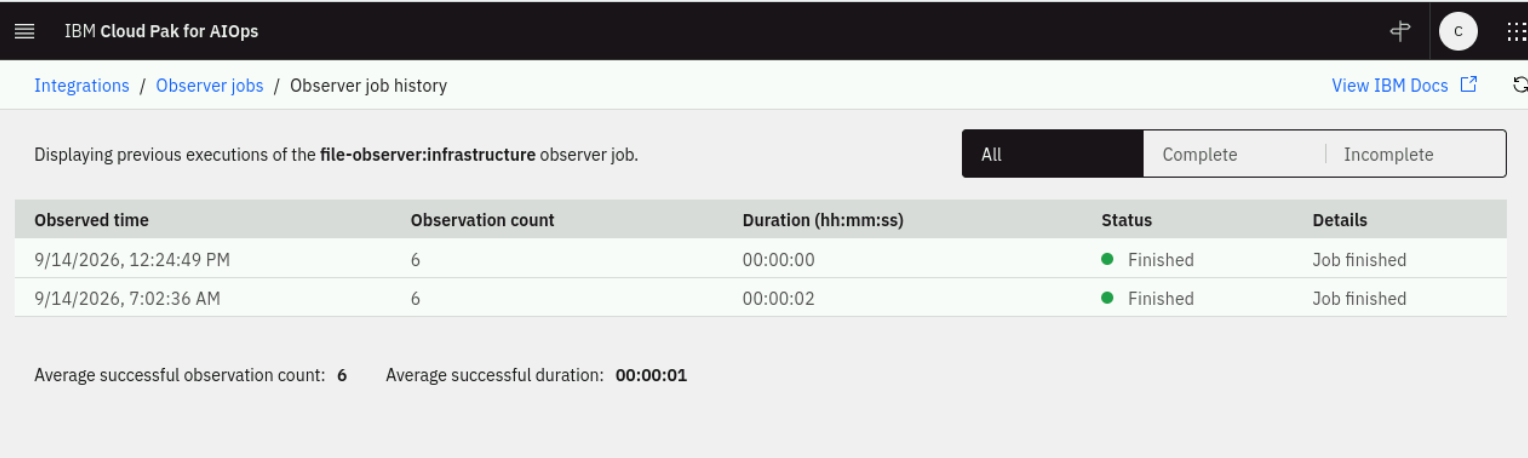
Once the job has finished, click on the History icon next to the job to confirm it completed successfully.
Verify Resources on the Map
You can now verify that your topology resources have been enriched with location data and are visible on the geographic map.
From the burger menu in the top-left, navigate to: Operate Resource management. In the Resource management page, click on the Resources tab.
Search for router1 and click on it to open the resource detail view. You should see the resources Location properties showing its coordinates, and the resource should appear as a pin on the map in the Geneva area.
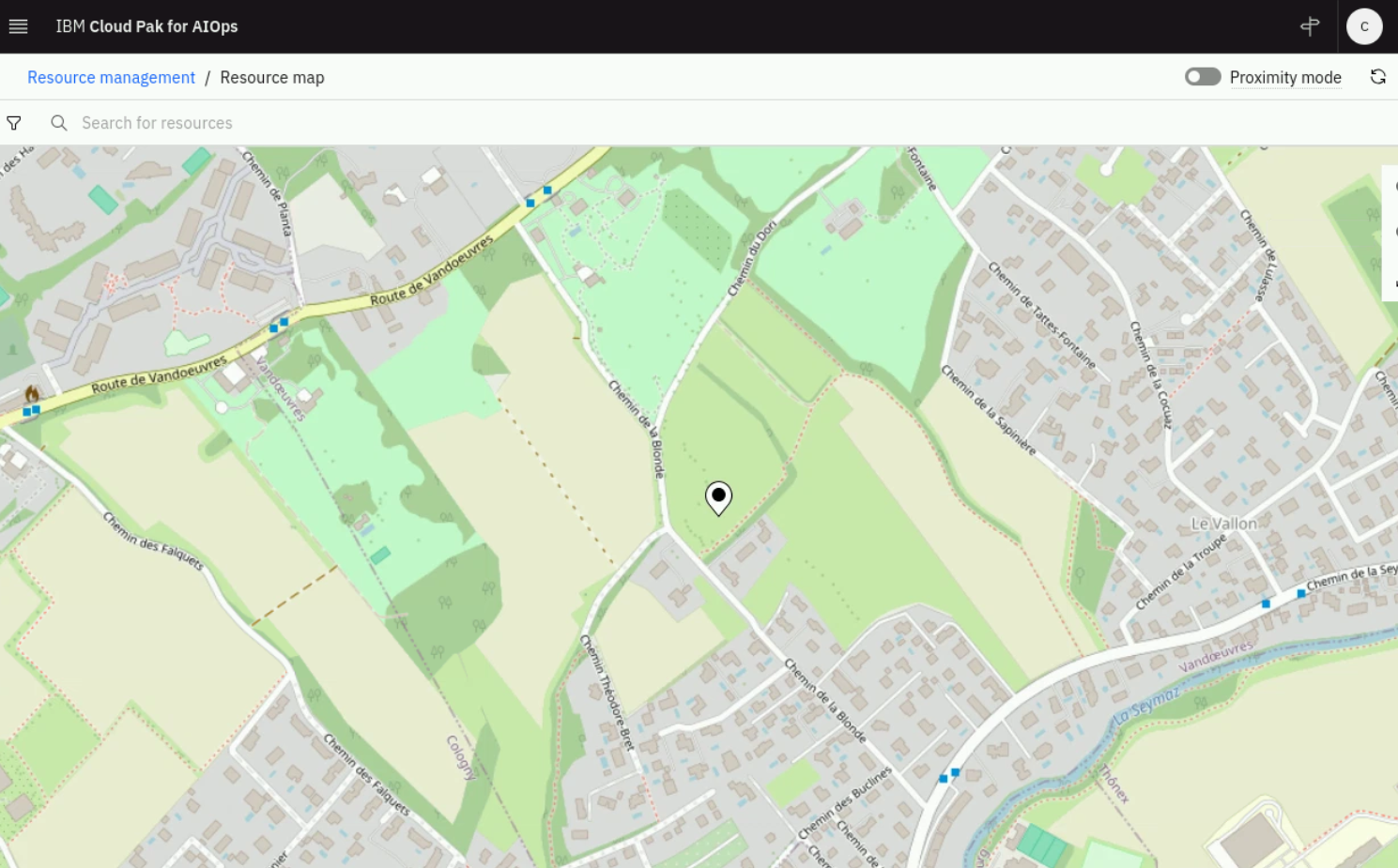
Repeat the search for computer1000 to confirm that resource also appears on the map.
You have now completed this chapter and are ready for the next one about "topology templates".