4. Instana Integration
4.1: Overview
The Concert and Instana bidirectional integration simplifies the management of application vulnerabilities. When you define this integration, Concert automatically pulls in your Instana application components, Kubernetes clusters, namespaces, container image names, and their relationships. You can bypass the manual process of generating and uploading Concert-defined (ConcertDef) SBOM files, which can be time-consuming and error prone.
Concert uses these configurations to assess CVEs within the context of your application and environment topology and assigns scores based on their potential impact on your application delivery lifecycle. For example, a CVE in a testing tool in your test environment receives a lower risk score than a CVE that affects multiple application images in your production environment.
To set up the integration, you will create a connection and an ingestion job for Instana from the Concert UI. Then, you will configure the CVE sensor in an Instana agent to view Concert CVE assessment data in the Instana UI.
4.2: Establishing a connection from Concert to Instana
4.2.1: Creating an Instana connection in Concert
In the Concert UI, establish a connection with Instana by completing the following steps:
- In the Concert UI, click Administration > Integrations.
- Click the Connections tab.
- Click Create connection.
- Use the search bar or scroll to find and click IBM Instana Observability.
- On the Create IBM Instana Observability connection screen, enter a Name for the connection such as
instana-connection. - Under Endpoint, enter the Instana URL you obtained in the Lab Preparation chapter.
- Enter the Instana API Token you obtained in the Lab Preparation chapter.
- Click Validate connection.
- After the connection validates Successful, click Create.
4.2.2: Creating a target environment in Concert
An environment in Concert groups related applications and inventory data. We will define a new environment to capture the application and environment data coming from Instana.
- In the Concert UI, select Inventory > Environment inventory.
- Click Define environment > From resources.
- Enter
productionas the Name for the environment. - From the Type drop down menu, select Kubernetes (generic).
- Select the Purpose of this environment as Production.
- Click Next.
- As there are no Build Artifacts to include in your environment definition, we will skip this step.
- Click Next.
- Review the summary of your entries, then click Create.
4.2.3: Creating a data ingestion job in Concert
To create an ingestion job to pull application and environment data from Instana to Concert, complete the following steps:
- In the Concert UI, click Administration > Integrations.
- Under the Ingestion jobs tab, click Create ingestion job.
- Enter
instana-ingestionas the Name for the ingestion job. - Under Connection type, select Instana.
- Under Connection, select the name of the connection established previously.
- Select the production Target environment defined previously.
- Click Create. The new ingestion job appears in the list.
Currently, the Instana data ingestion job only collects data from applications that are running on a Kubernetes cluster.
4.3: Establishing a connection from Instana to Concert
Instana can be configured to pull vulnerability data from Concert using the CVE sensor.
4.3.1: Configuring the CVE Sensor in Instana
The Instana CVE sensor collects vulnerability data from Concert so you can view it in the Instana Vulnerabilities tab. We will enable the CVE sensor in the Instana agent that its running in the bluebox host by updating its configuration using Helm.
From the Bastion SSH, connect to the bluebox host:
ssh jammer@bluebox
We will enable the CVE sensor by updating the agent configuration file. First, we will backup the configuration file before making changes. Run the following command:
sudo cp /opt/instana/agent/etc/instana/configuration.yaml /opt/instana/agent/etc/instana/configuration.yaml.backup
Next, we will edit the configuration.yaml file to include the Concert CVE sensor configuration.
Run the following command to open the configuration file in the vi editor:
sudo vi /opt/instana/agent/etc/instana/configuration.yaml
Search for the line that contains cve.
Uncomment the com.instana.plugin.cve: section and update it to include the Concert connection details as shown below.
Make sure to assign api_key with the Concert API key you generated in the Lab Preparation chapter between single quotes.
Make sure to add the last line ignore_cert: true to ignore SSL certificate validation since we are using a self-signed certificate for Concert.
Also, use the right indentation as shown in the picture below (2 spaces indentation).
com.instana.plugin.cve:
  enabled: true
  concert:
    base_url: 'https://concert.ibmdte.local:12443'
    instance_id: '0000-0000-0000-0000'
    api_key: 'Concert API key that you generated in the **Lab Preparation** chapter'
    poll_rate: 1
    ignore_cert: true
Your updated configuration should look similar to the following example (note that your api_key value will be different):
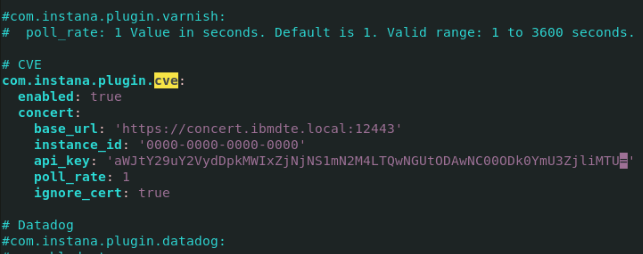
Finally, apply the updated configuration to the Instana agent by running the following command:
sudo systemctl restart instana-agent
Verify the Changes. Check agent status by running the following command. You should see that the agent is active and running:
sudo systemctl status instana-agent
Finally, check the agent log file to verify that the CVE sensor is enabled by running the following command. The output from the command should contain the second to last line that says Activated Sensor for concertCve.
You can ignore previous log errors such as cve_sensor_exception : Invalid base_url as long as you see later the activation message Activated Sensor for concertCve
sudo cat /opt/instana/agent/data/log/agent.log |grep -i cve