7. Vulnerability Patching
7.1: Overview
In this final chapter, we will demonstrate how to patch vulnerabilities in the qotd application deployed in the previous section.
We will focus on addressing the zlib package vulnerability (CVE-2022-37434) in the finding related to the
qotd-engraving-service container image.
After patching the vulnerability, we will run the Jenkins pipelines to build, deploy and scan the updated container image.
Finally, we will verify that the vulnerability has been resolved in Concert and that the related issue in GitHub has been closed.
In order to simplify the lab steps, we have skipped the proper steps to remediate a GitHub issue. In a real-world scenario, you would typically create a new branch, make the code changes, and create a pull request to merge the changes into the main branch. This pull request would reference the open GitHub issue and include details about the code changes made to address the vulnerability. Then, somebody else would review and approve the pull request before merging it or reject it if the code changes are not correct.
7.2: Verifying the Vulnerability in Concert
We will start by verifying the vulnerability finding in Concert before patching it. From the Bastion Remote Desktop, on the Firefox browser click on the Concert tab.
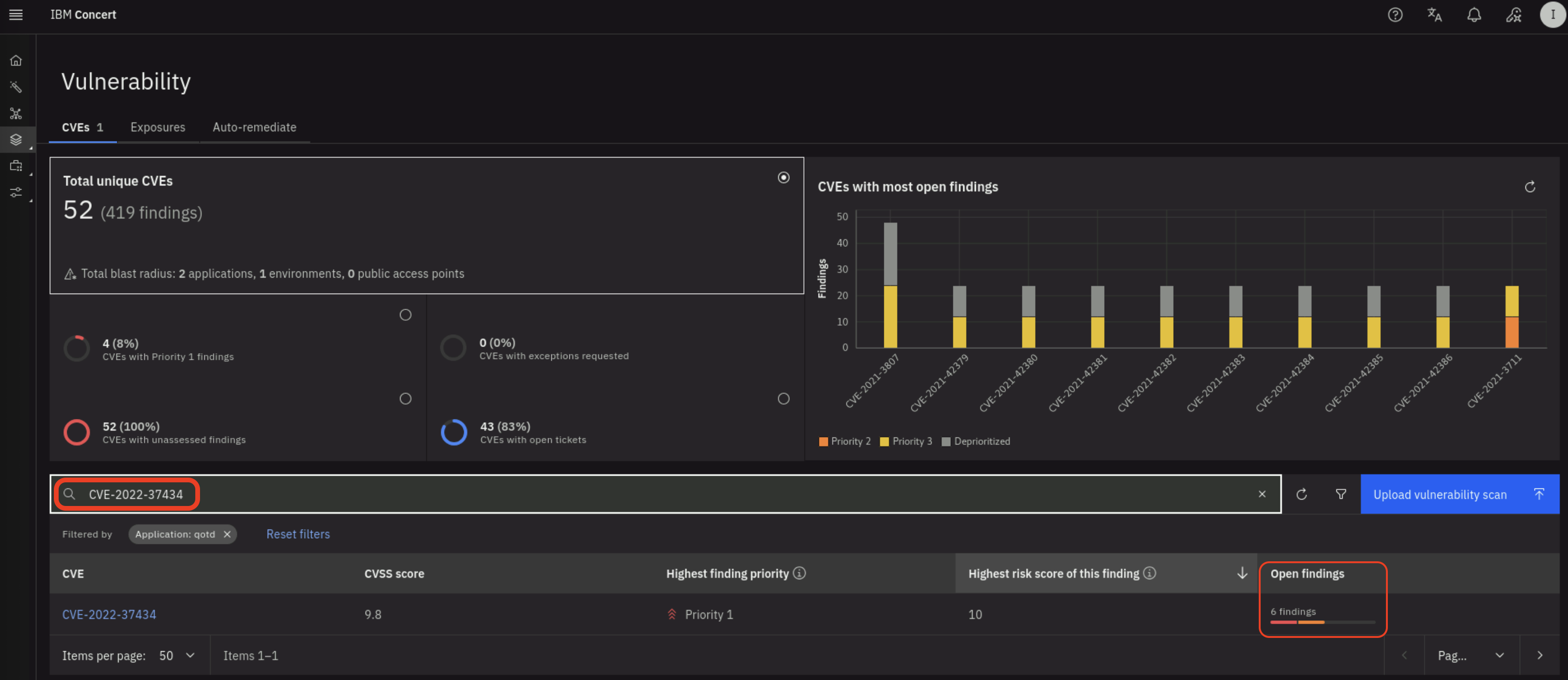
From the left navigation menu, click on Dimension -> Vulnerability. Search for CVE-2022-37434 in
the search box and click on the filter icon on the right and select the qotd application.
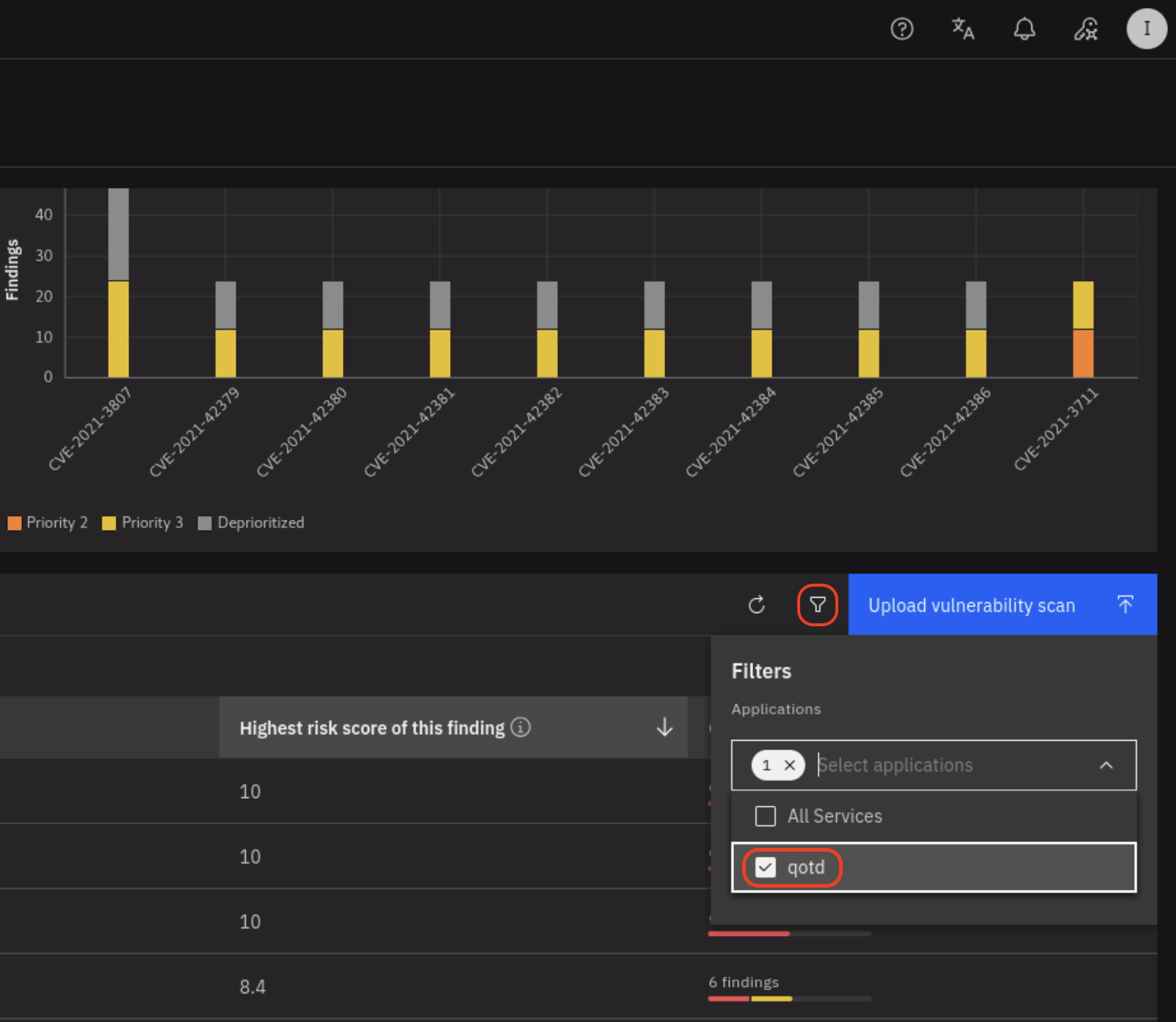
Note that the number of finding for CVE-2022-37434 is six.
7.3: Verifying the Vulnerability in Instana
We can also verify the vulnerability in Instana. From the Bastion Remote Desktop, on the Firefox browser click on the Instana tab.
From the left navigation menu, click on Applications and then click on qotd.
From the qotd application page, click on the Vulnerabilities tab.
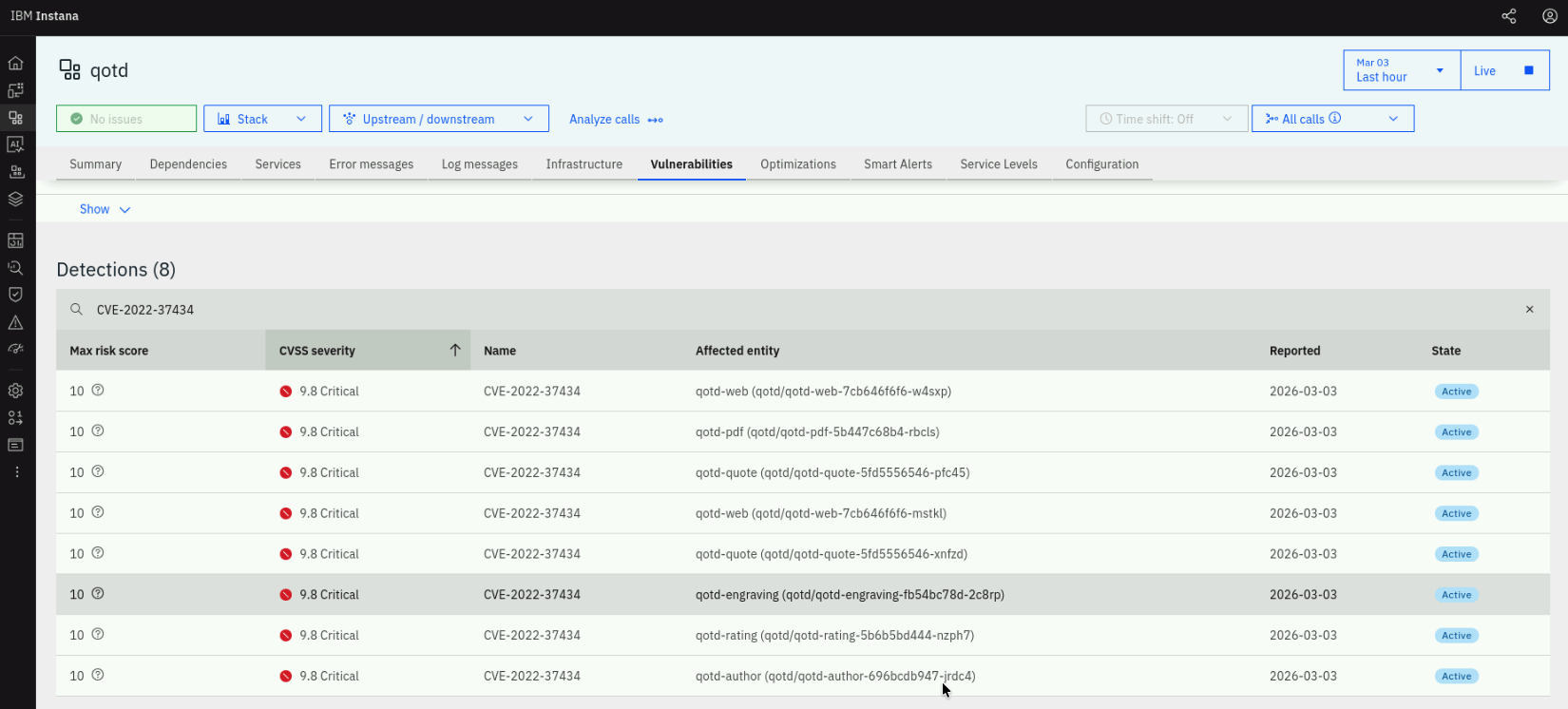
Click on the search icon on the right side of the search box and search for CVE-2022-37434 as shown below.
Note that there are 8 detections for CVE-2022-37434 including qotd-engraving.
7.4: Patching Vulnerabilities
In this section, we will provide an example on how to patch vulnerabilities in the qotd application.
We will focus on addressing the zlib package vulnerability (CVE-2022-37434) in the
qotd-engraving-service container image.
Login to your GitHub account and open the following repository path:
concert-vulnerability-lab/qotd/qotd-engraving-service/
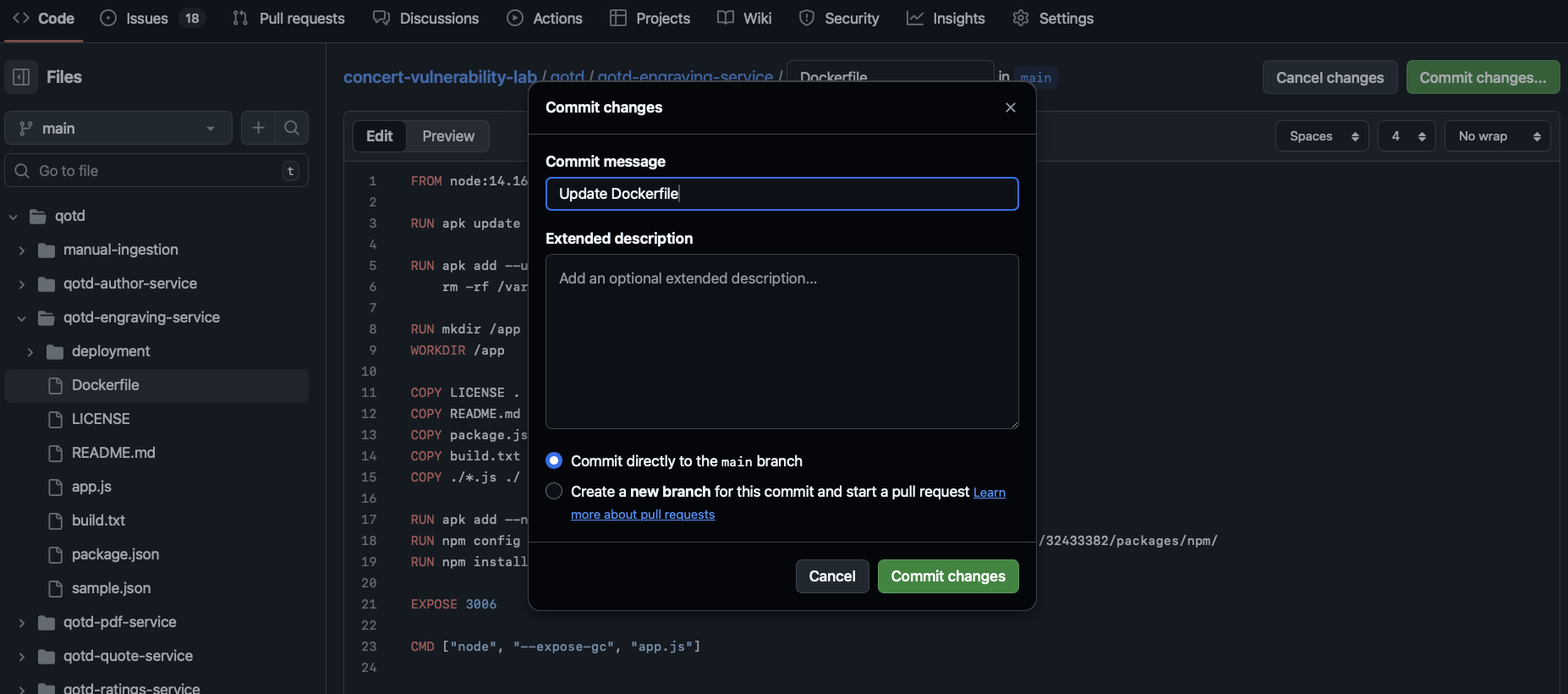
Open the Dockerfile in the qotd-engraving-service directory and click on the edit icon (pencil icon) to edit the file as shown below:
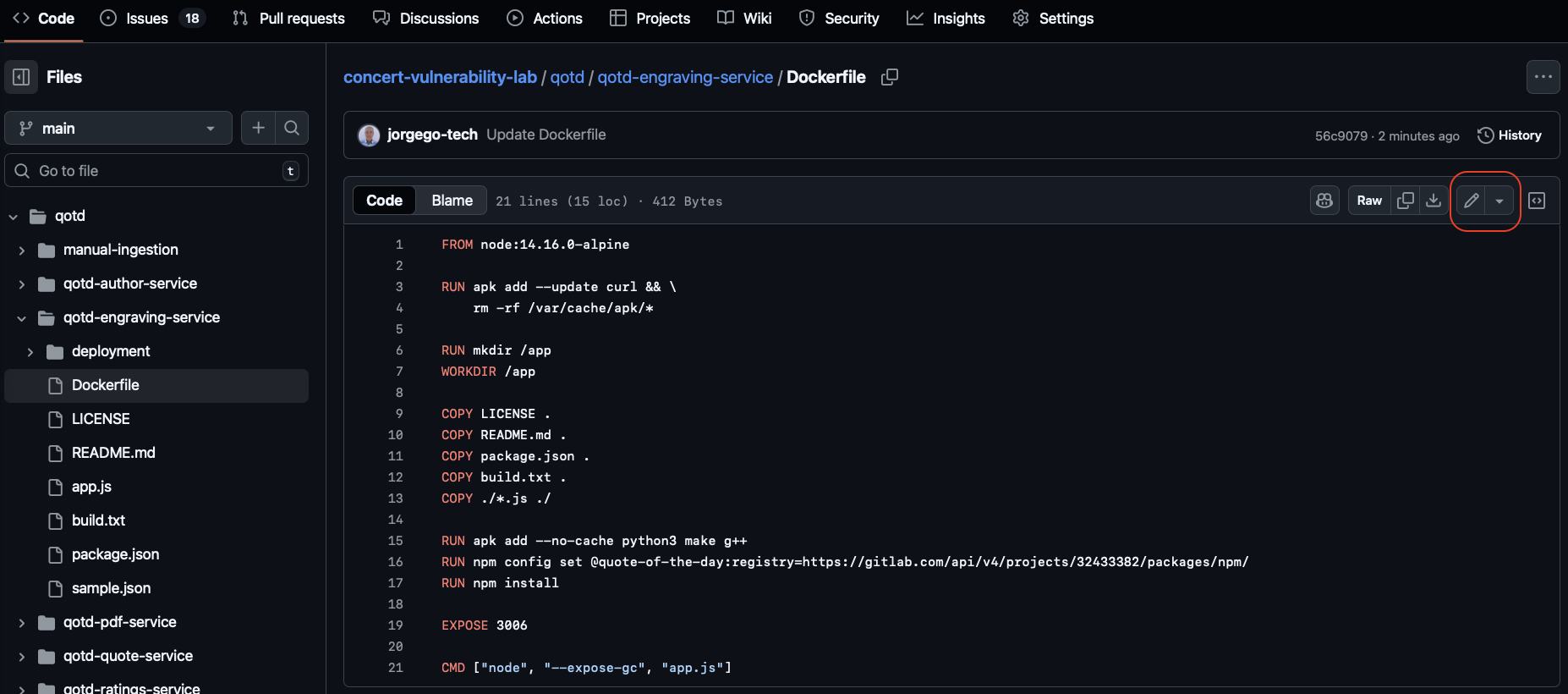
Add the line below after the first line in the Dockerfile to update the Alpine packages to the latest version.
RUN apk update && apk upgrade --available
Your Dockerfile code should look like below. The only change is adding the line after the From node:... line in the Dockerfile.
FROM node:14.16.0-alpine

RUN apk update && apk upgrade --available

RUN apk add --update curl && \
    rm -rf /var/cache/apk/*

RUN mkdir /app
WORKDIR /app

COPY LICENSE .
COPY README.md .
COPY package.json .
COPY build.txt .
COPY ./*.js ./

RUN apk add --no-cache python3 make g++
RUN npm config set @quote-of-the-day:registry=https://gitlab.com/api/v4/projects/32433382/packages/npm/
RUN npm install

EXPOSE 3006

CMD ["node", "--expose-gc", "app.js"]
Click on the Commit changes... button on the top-right to commit the changes to the repository. On the Commit changes dialog, select the Commit directly to the main branch option and click on the Commit changes button.
7.5: Running the Pipelines after Patching
Now that we have patched the vulnerability in the Dockerfile, we will run the pipelines to build, deploy and scan the updated container image.
From the Bastion Remote Desktop, on the Firefox browser click on the Jenkins tab.
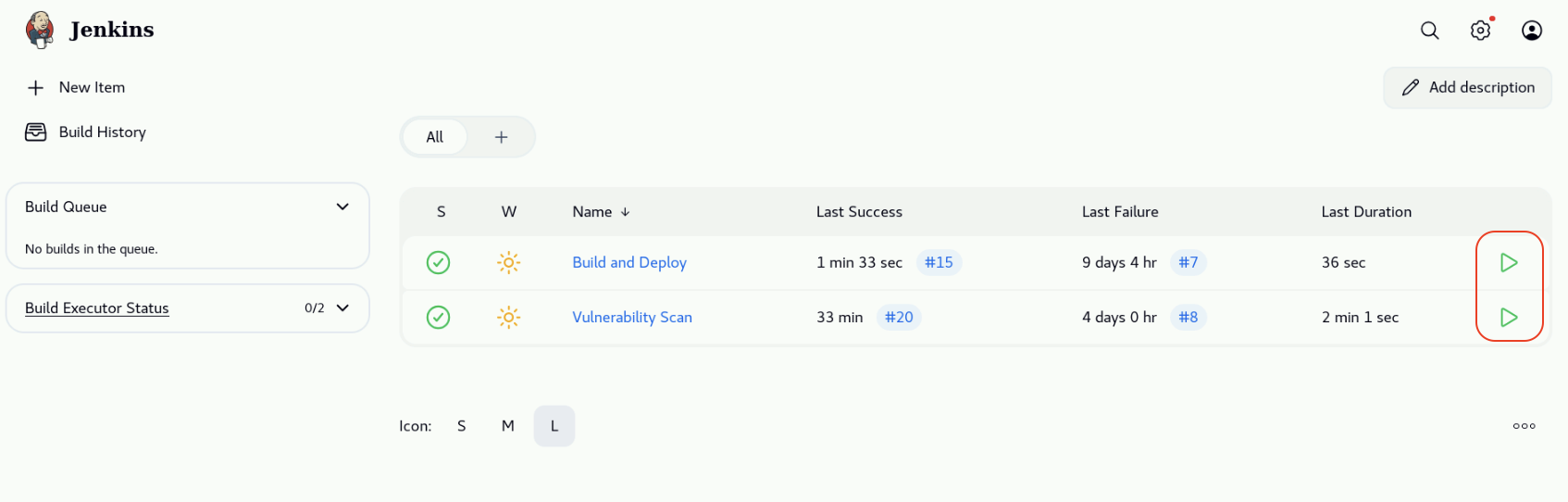
On the Jenkins dashboard, click on the play button on the right corresponding to the Build and Deploy pipeline and follow the execution progress (remember that this pipeline takes about 10 minutes to complete).
After the first pipeline completes successfully, click on the play button on the right corresponding to the Vulnerability Scan pipeline and follow the execution progress (remember that this pipeline takes about 3 minutes to complete).
7.6: Verifying the Vulnerability Resolution in Concert
After both pipelines completed successfully, Concert received the updated vulnerability scan results and automatically updated the finding related to the qotd-engraving-service container image.
From the Bastion Remote Desktop, on the Firefox browser click on the Concert tab.
From the left navigation menu, click on Dimension -> Vulnerability. From the left navigation menu,
click on Dimension -> Vulnerability. Search for CVE-2022-37434 in the search box as shown below.
Note that the number of finding for CVE-2022-37434 changed from six to five as shown below:

7.7: Verifying Issue Resolution in GitHub
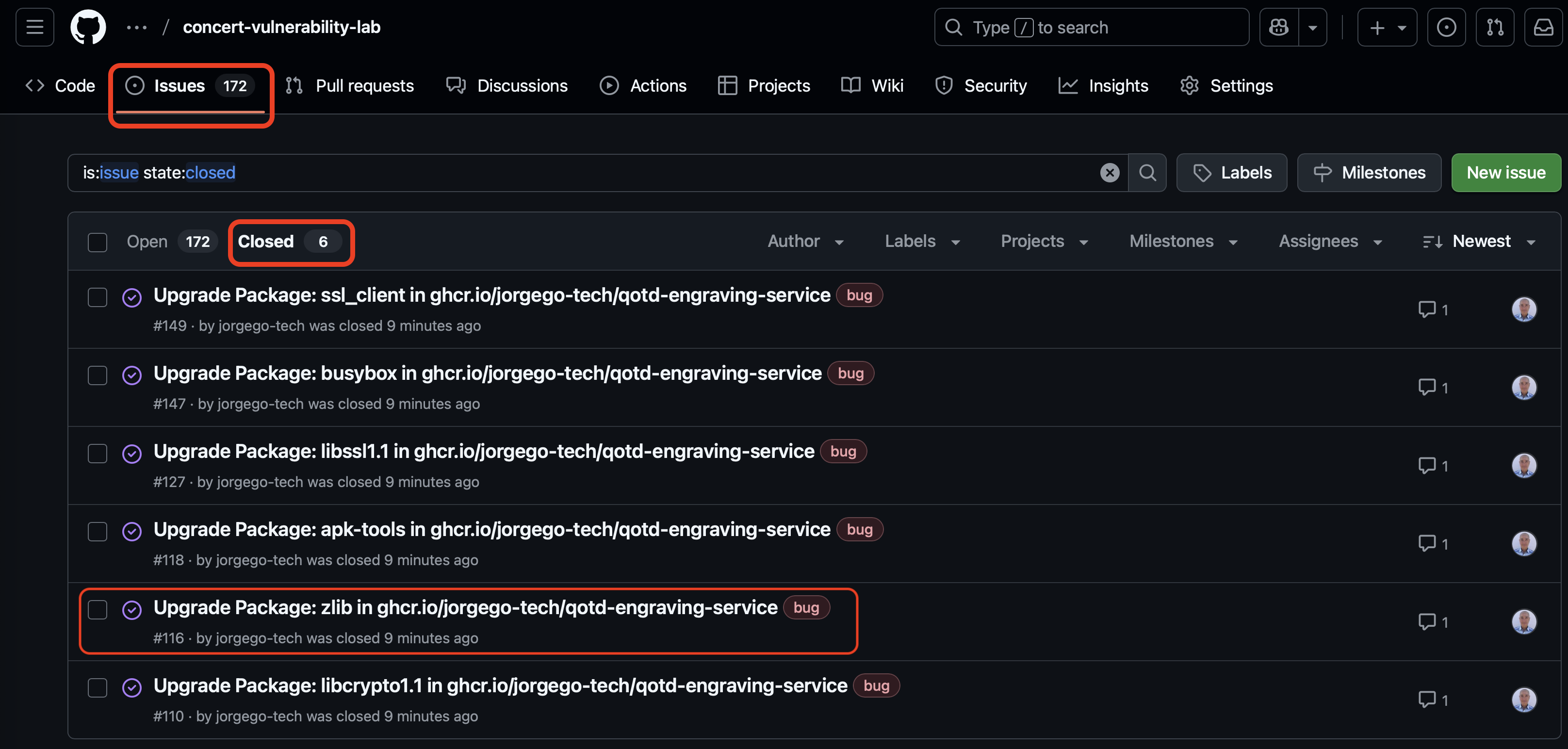
Now go back to the GitHub repository page where you edited the Dockerfile. Click on the Issues tab. Click on the Closed lower tab to view the closed issues related to CVE-2022-37434 in qotd-engraving-service. Note that in addition to the issue related to zlib, other issues are also fixed and closed due to the fact that we updated all the packages in the Dockerfile.
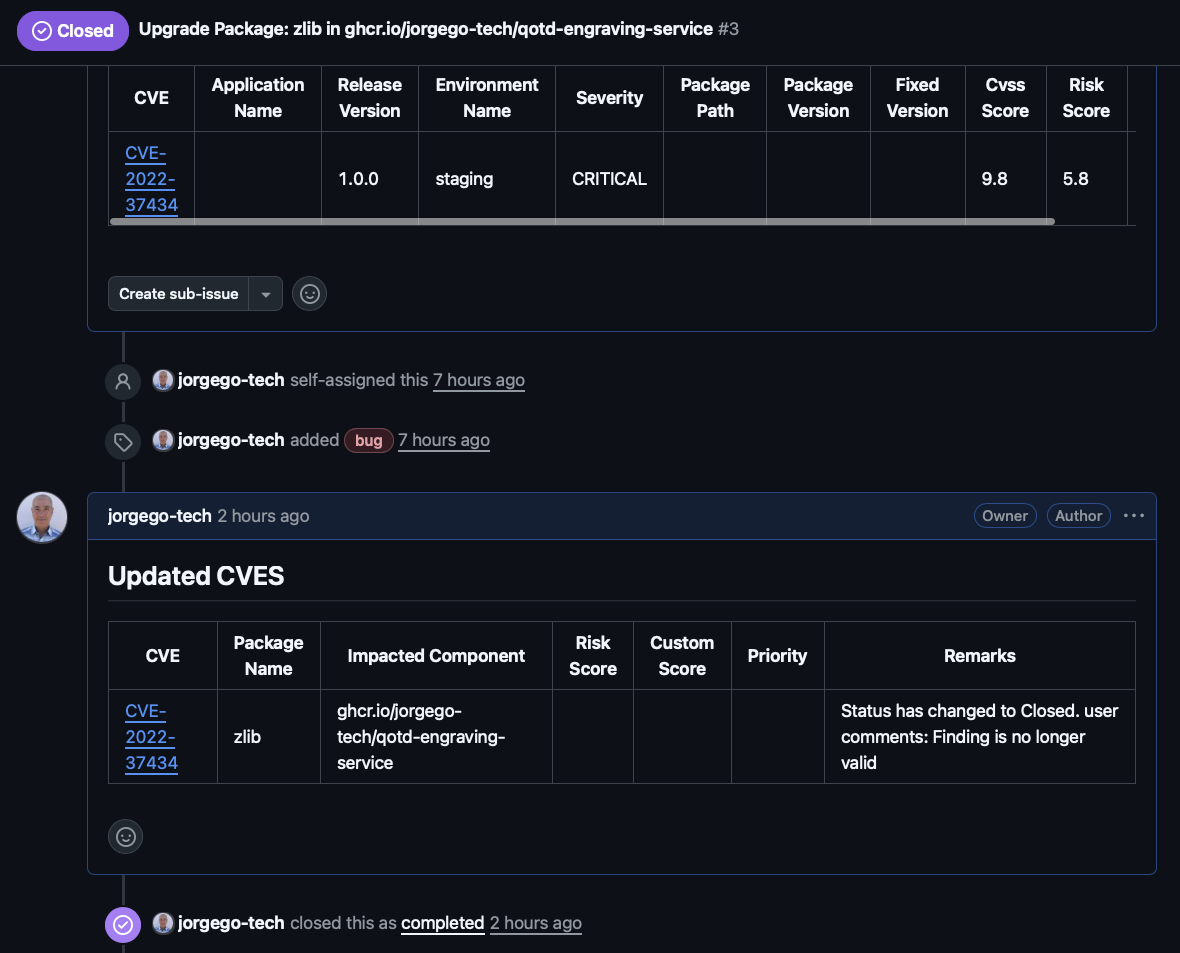
Open the closed issue to view the details. You can see that the issue was automatically closed by Concert due to the fact that the vulnerability CVE-2022-37434 does not affect the finding on qotd-engraving-service anymore.
7.8: Verifying the Vulnerability Resolution in Instana
Finally, we can also verify that the vulnerability has been resolved in Instana. From the Bastion Remote Desktop, on the Firefox browser click on the Instana tab.
From the left navigation menu, click on Applications and then click on the qotd.
From the qotd application page, click on the Vulnerabilities tab.
Click on the search icon on the right side of the search box and search for CVE-2022-37434 as shown below.
Note that the CVE detection for the Affected entity qotd-engraving is no longer listed.
It may take a long time for the CVE remediation updates to propagate in Instana. There is an open Issue regarding this.
================================
Congratulations! You have completed the Lab
We encourage you to provide feedback on this lab to help us improve future versions. Tell us what you liked, what you didn't like, and any suggestions for improvement. You can provide feedback on the Slack channel listed under the Support section.