Welcome#
Welcome to the IBM watsonx Assistant for Z for Technical Sales Level 4 Lab Guide (lab guide). The lab guide is part of the IBM watsonx Assistant for Z for Technical Sales Level 4 learning plan for IBM and Business Partner Technical Sales and related badge. The learning plan is intended to teach technical sellers and Business Partners how to conduct a proof of experience (PoX) for a client.
In a fast-paced world, things change...
The products and services may appear differently than what is shown in the lab guide. This can occur if the product or service is updated with a new version.
Responses generated by IBM watsonx Assistant for Z are likely to change over time. The responses you see when you run the queries in this section may differ from the screen images captured in the lab guide.
Prerequisite knowledge#
The prerequisite requirements to complete this course are as follows:
-
Basic Windows or Linux (MacOS) Operating System admin skills, including:
-
Open a command prompt or power shell on Windows, or a terminal window on Linux (MacOS)
-
Change directories, create directories, and move directories
-
Set environment variables and add directories to the default PATH
-
Create and modify plain text files with an editor and save as plain text files
-
Familiarity with a visual code editor like VS Studio Code is a plus
-
-
The following links may help with these basic skills. This is not an endorsement of the sources. Try searching the internet for related resources.
-
Windows tutorials (and other videos in the series).
-
The 50 most popular Linux & terminal commands - full course for beginners (based on the following book).
-
The Linux Commands Handbook (Linux/MacOS).
-
Read and follow all the directions.
It is important to read and follow all the documented steps. Skipping steps or sections can cause issues with completing the lab.
Also, invest a few minutes in reading the tips in the Using the demonstration guide section. The tips will save you time and frustration in completing the lab.
Lab overview#
This lab guide covers the setup, configuration, and usage of watsonx Assistant for Z. This lab guide uses the IBM watsonx Assistant for Z Velocity collection and the three Velocity Pilot lab environments in IBM Technology Zone (ITZ).
The lab guide also enables dedicated lab environments for customized client PoXs and demonstrations. If you are preparing for an actual pilot engagement, refer to the Pilot Scoping Guide for watsonx Assistant for Z for additional information.
Using the lab guide, you learn how to:
- Provision the lab environments
- Create an assistant and configuring conversational search
- Configure assistant settings
- Test conversational search
- Deploy a dedicated instance of OpenSearch for client document ingestion (Optional)
- Import skills for z/OS automations
- Connect apps to assistants
- Create assistant actions
- Create skill flows
- Publish and deploy an assistant
In addition, you import pre-packaged z/OS skills and create custom-built skills to deliver an assistant that handles 3 use cases:
- Retrieving initial program load (IPL) information
- Managing certificates
- Resource Access Control Facility (RACF) administration support
Not all capabilities of the offering are covered in the lab guide.
This lab guide covers many features and capabilities of IBM Watson Assistant for Z, but not all. Some uncovered capabilities may be available in ITZ environments, while others may not, such as using skills for OMEGAMON.
Support#
Think something is down? Check the applicable status pages for any known issues such as a site or service not being available:
For issues with provisioning the ITZ environment for this lab (for example, a failed reservation request due to insufficient quota capacity), open a ticket with ITZ support:
For issues related to specific steps found in the demonstration guide after the ITZ environment is provisioned, contact the authors:
-
Slack:
-
#watsonx-assistant-z-technical - IBM only
-
#wxo-practitioners - IBM only - for questions that are related to the software as a service (SaaS) instance of watsonx Orchestrate
Business Partners, use the IBM Training live Chat Support service or other support methods that are found on the IBM Training portal here.
Using the demonstration guide#
Use these helpful tips to take full advantage of the IBM watsonx Assistant for Z for Technical Sales Level 4 Lab Guide.
Printing the demonstration guide
Printed or saved copies can be out of date
The IBM watsonx Assistant for Z for Technical Sales Level 4 Lab Guide changes regularly to match the IBM watsonx Assistant for Z offering and associated ITZ environment. Printed or saved copies of the demonstration guide can become out-of-date quickly and result in failed steps.
A ready-to-print PDF version of the IBM watsonx Assistant for Z for Technical Sales Level 4 Lab Guide is here.
Create a reference card for storing user IDs, passwords, and links for your ITZ environments.
You will be creating and using multiple user IDs, passwords, links, and other content throughout the lab. To save time, it is strongly suggested you create a simple text file to store this data so it is readily available and you can easily cut and paste the data when needed. Here is a template to get you started.
watsonx Assistant for Z - Level 4 shortcuts:

watsonx Orchestrate

    IBM Cloud account:
    IBM Cloud resources: https://cloud.ibm.com/resources
    watsonx Orchestrate URL:

    Assistant name:
    Assistant description:
    Assistant icon: https://ibm.github.io/SalesEnablement-L4-watsonx-AssistantForZ/Setup/_attachments/Zeeves75x75.png

OpenShift

    Cluster Admin Username: kubeadmin
    Cluster Admin Password:
    OCP Console:

    IBM Cloud container entitlement key:

    OS-secret password:
    Client ingestion AuthKey:
    Wrapper password:
    Cluster domain for routes:
    Ingestion route (append /v1/query):

Ansible

    Ansible Automation Platform URL:
    AAP User Name: admin
    AAP password:

    Wazi User: IBMUSER
    Wazi Password:
    Wazi URL:

Live Embed

    inetegrationID:
    region:
    serviceInstanceID:
Viewing images
Images in the demonstration guide can be enlarged by clicking on the image. Press the Esc key or click the X to dismiss the enlarged image.
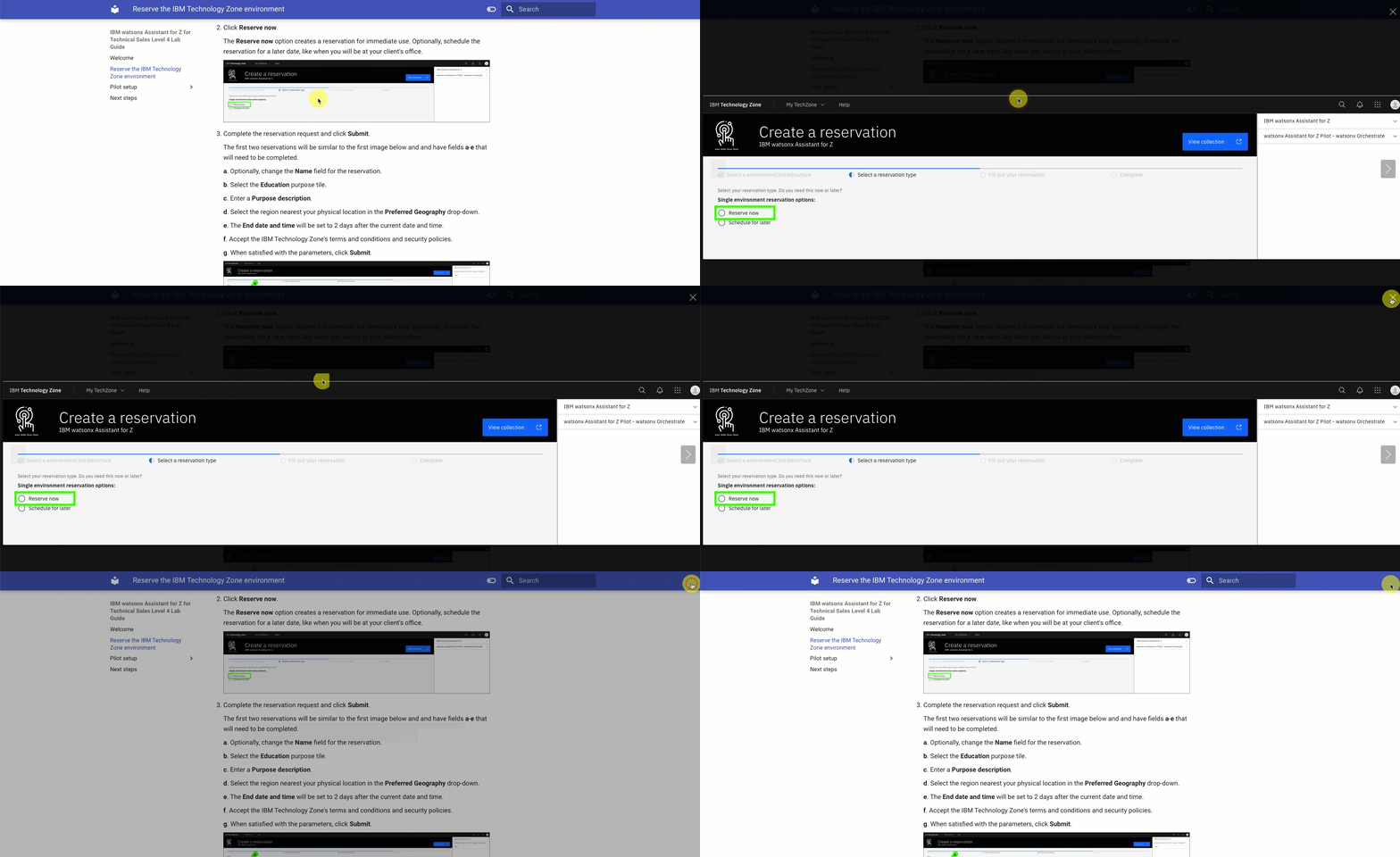
Image highlighting
In some images, the following styles of highlighting are used:
-
Solid highlight box: This style of box highlights where to click, enter, or select an item.

-
Dash highlight box: This style of box highlights one of two things: the path to follow to get to a specific location in the user interface, or areas to explore on your own.

Copying commands and prompts
Copying and pasting commands and prompts from this demonstration guide is easy and can eliminate typographical errors.
Click the highlighted copy icon and then use your operating system's paste function. For example, Ctrl+V, or right-click and select Paste.

Acronyms and terminology
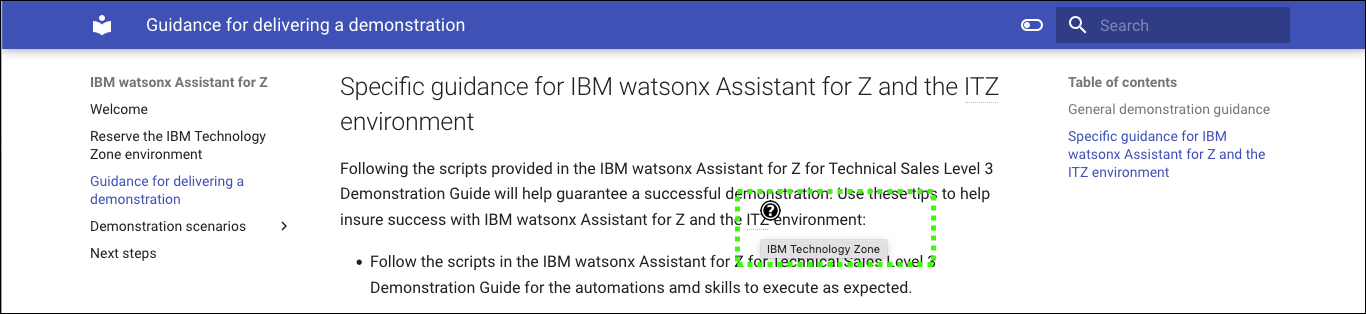
IBM employees and the tech industry in general, tend to use acronyms. In the demonstration guide, most acronyms will appear with a dashed underline. Hover over the acronym to learn its meaning. A question mark ( ) icon will first appear and after a second the tool tip with the acronym's meaning is displayed. Try it here: LPAR.
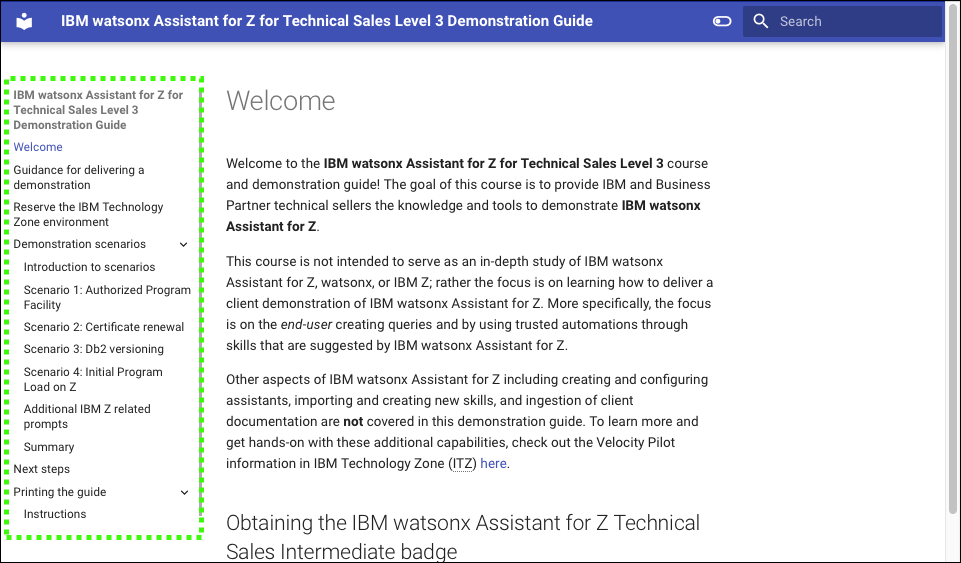
The Lab Guide table of contents
This Demonstration Guide uses a responsive browser-based interface to ensure pages are usable on various devices with different screen sizes. The Demonstration Guide table of contents may be displayed as highlighted in the green dashed box in this image:
However, if the browser window is sized smaller, the table of contents can be accessed by clicking the main menu icon ( ):
):
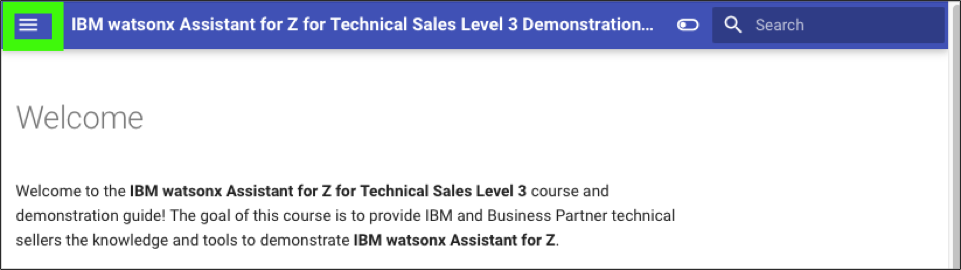
Click the main menu icon () to expand the table of contents.
Continue to the Reserve the IBM Technology Zone environments section to begin the journey to obtain the IBM watsonx Assistant for Z Technical Sales Advanced badge.