
Connections#
A connection is an object used to store connection-related data for a single datasource (Kafka, Azure, etc.), such as credentials, secrets, and URLs. Each connection is defined by exactly one datasource.
Tip
To read more about datasources see Retrieving a DatasourceType.
The SDK provides functionality to interact with connections.
- This includes operations such as:
Creating a connection
Retrieving connection(s)
Updating a connection
Deleting a connection
Creating a platform-level connection
Retrieving platform connection(s)
Importing a platform connection into a project
Updating a platform connection
Deleting a platform connection
Creating a Connection#
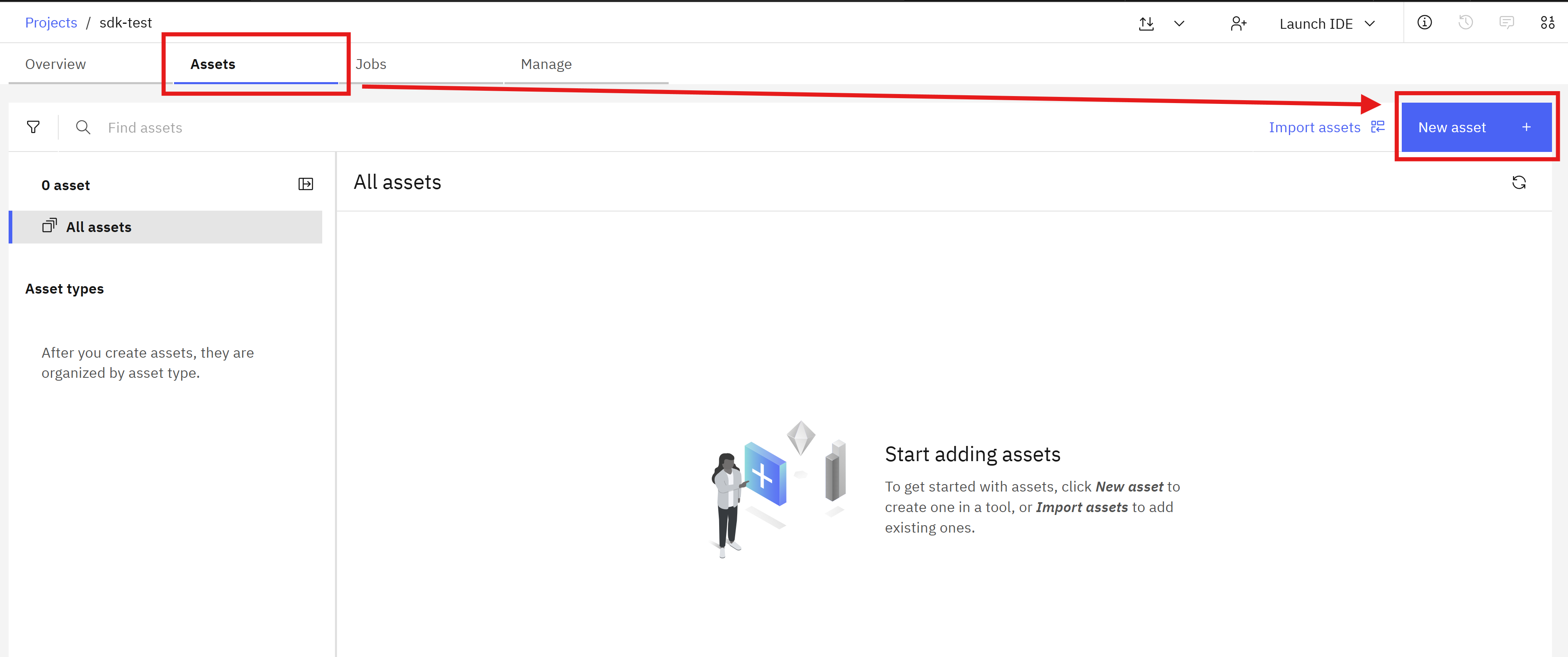
In the UI, you can create a new Connection by navigating to Assets -> New asset -> Connect to a datasource.
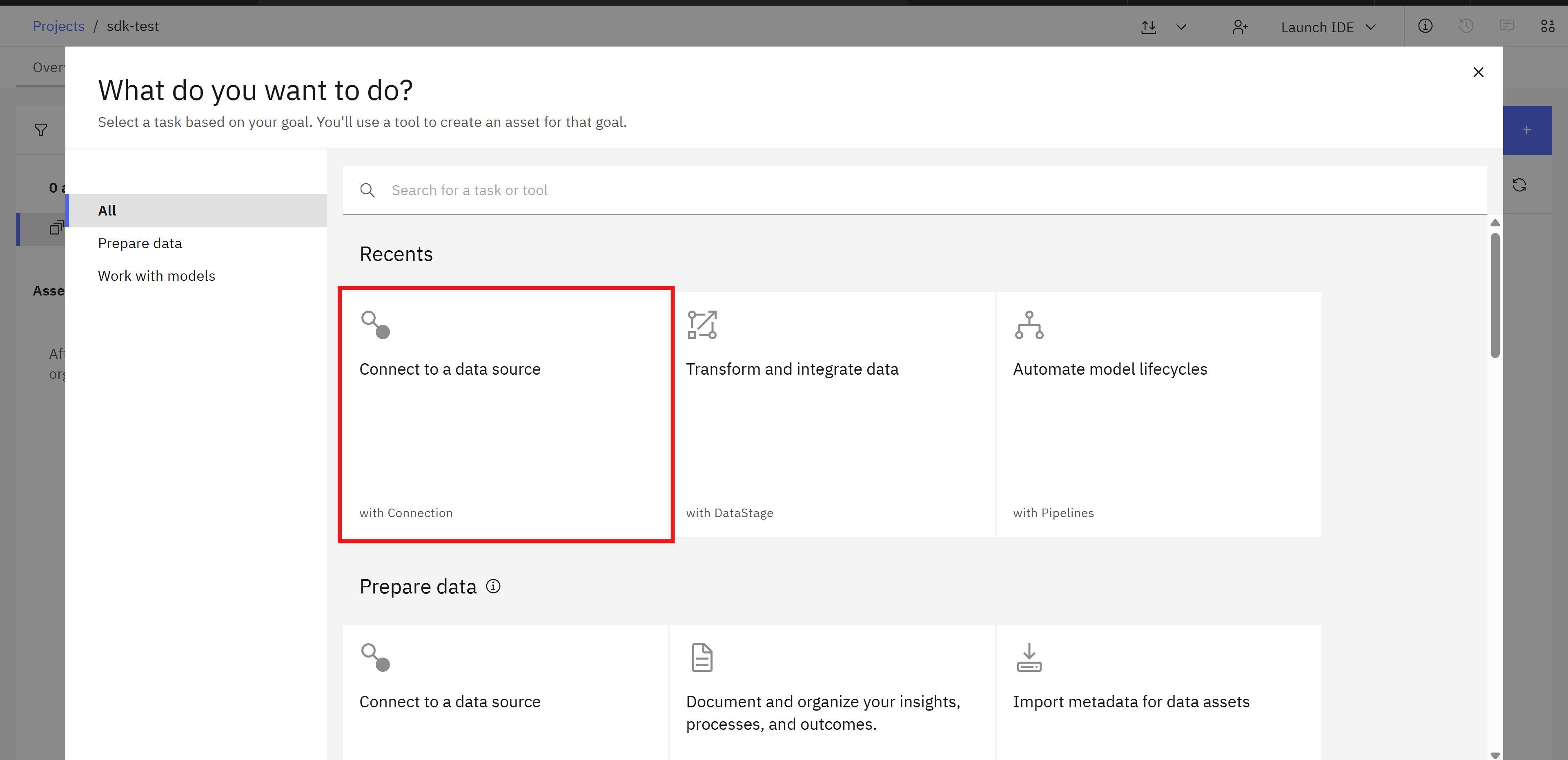
You will need to choose the desired datasource from the list.
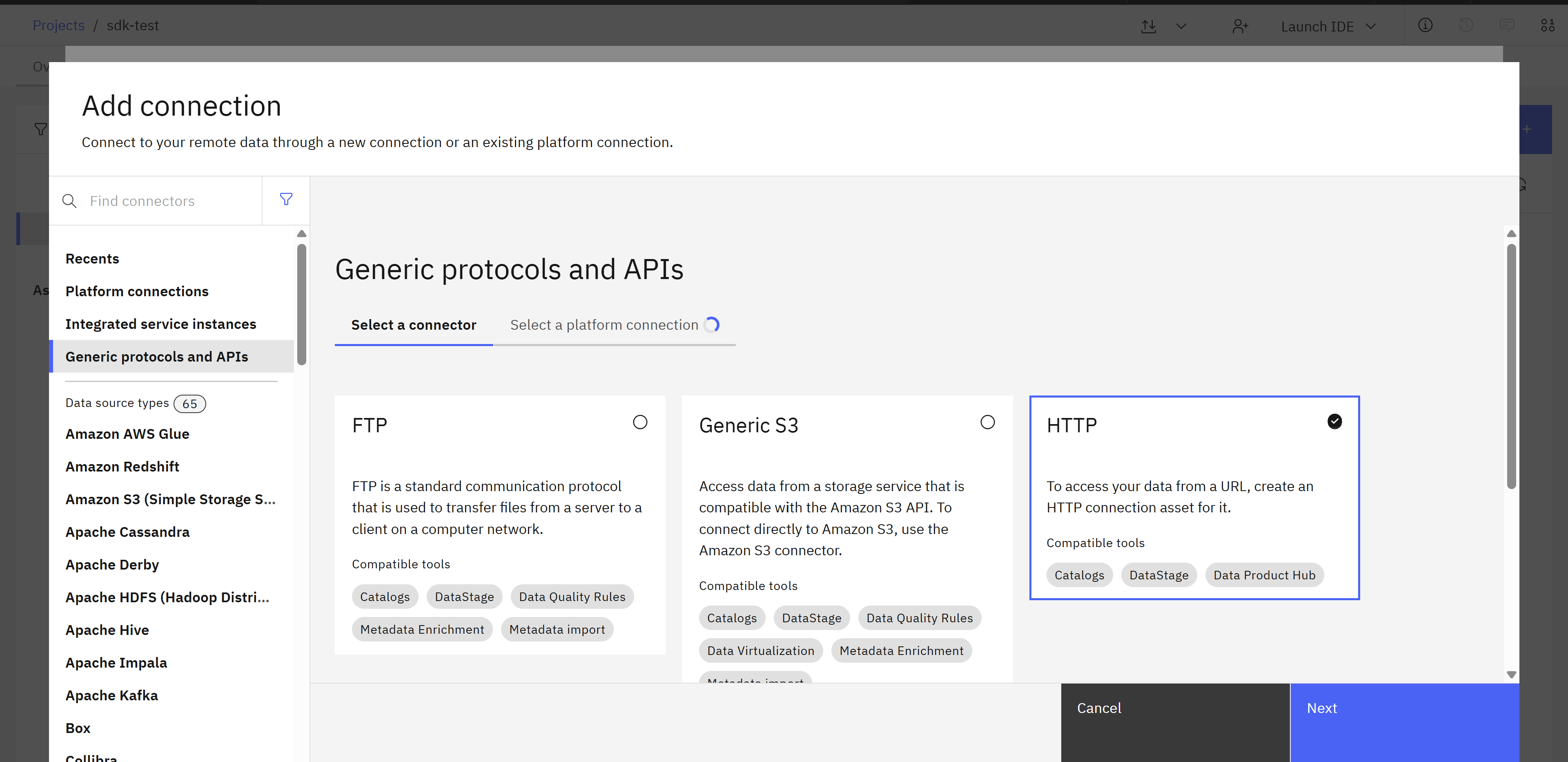
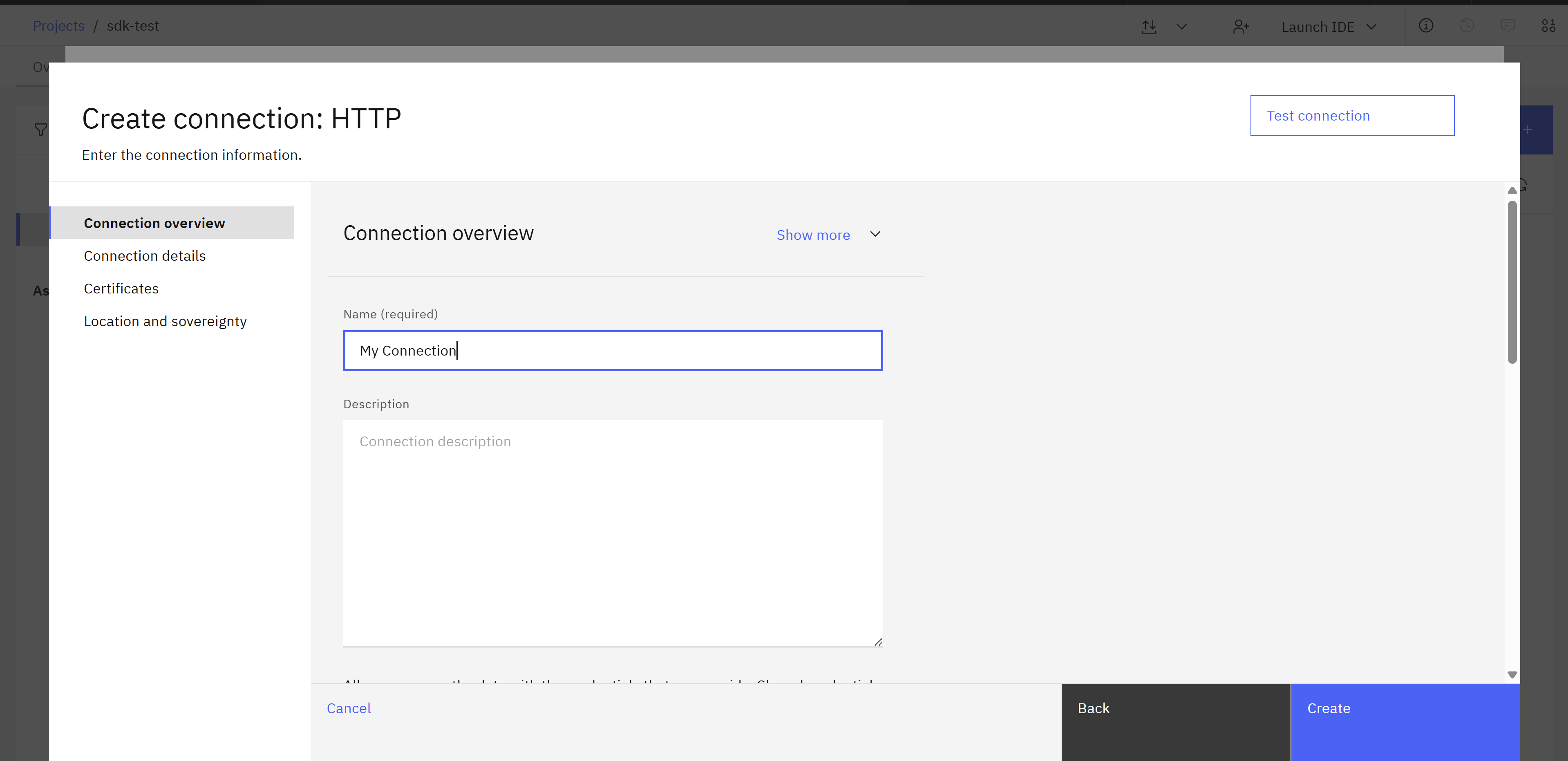
and provide a Name and other additional configuration (depending on the selected datasource).
In the SDK, you can create a new Connection object within a
Project,
by selecting the appropriate project from the Platform and then using
the Project.create_connection() method to instantiate the connection.
You must provide a name and datasource_type to create a connection.
DatasourceType is an object that defines the data source for which the connection will be created.
By default, the server validates a connection before creating it.
If the connection cannot be established with the provided parameters, you will get an error and the connection will not be saved.
To skip validation and create the connection anyway, set the test parameter of
Project.create_connection() to False.
Note
To see available datasources, refer to Retrieving a DatasourceType.
>>> datasource_type = platform.datasources.get(name='http')
>>> connection = project.create_connection(
...     name='Connection Name',
...     datasource_type=datasource_type,
...     description='Description ...',
...     properties={'url': 'https://my/connection/url'},
... )
>>> connection
Connection(name='Connection Name')
Important
Each datasource_type defines its own set of required properties.
To see the list of available properties, refer to Retrieving a DatasourceType connection properties.
Retrieving an existing Connection#
In the UI, you can view all Connections by navigating to Assets -> Data access -> Connections.
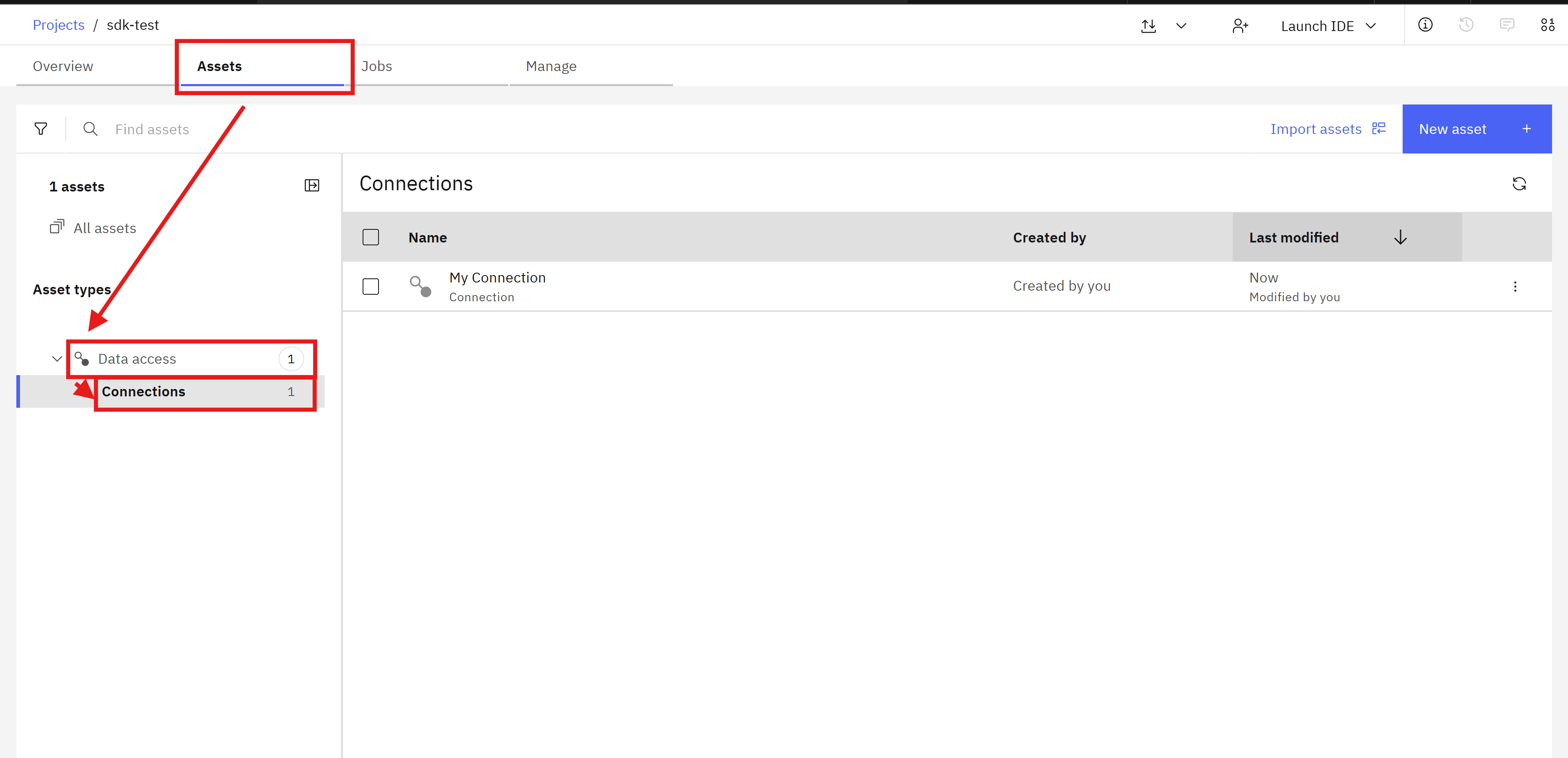
In the SDK, a Connection can be retrieved using the Project.connections property.
You can also filter the returned connections based on attributes including
name, connection_id, context, properties, and datasource_type.
This property returns a Connections object.
>>> # Returns the first connection matching given `name`
>>> connection = project.connections.get(name='Connection Name')
>>> connection
Connection(name='Connection Name')

>>> # Get the connection id
>>> connection_id = connection.connection_id

>>> # Returns a connection by its connection_id
>>> project.connections.get(connection_id=connection_id)
Connection(name='Connection Name')

>>> # Return a list of all connections that match `properties`
>>> project.connections.get_all(
...     properties={'url': 'https://my/connection/url'}
... )
[Connection(name='Connection Name')]

>>> # Return a list of all connections
>>> project.connections
[Connection(name='Connection Name')]
Tip
For detailed information about parameters and values refer to https://cloud.ibm.com/apidocs/data-ai-common-core Connections section.
Updating a Connection#
In the UI, you can update a Connection by navigating to Assets -> Data access -> Connections and clicking the edit button on the Connection you want to edit. This button is visible only when the cursor is over the Connection object.
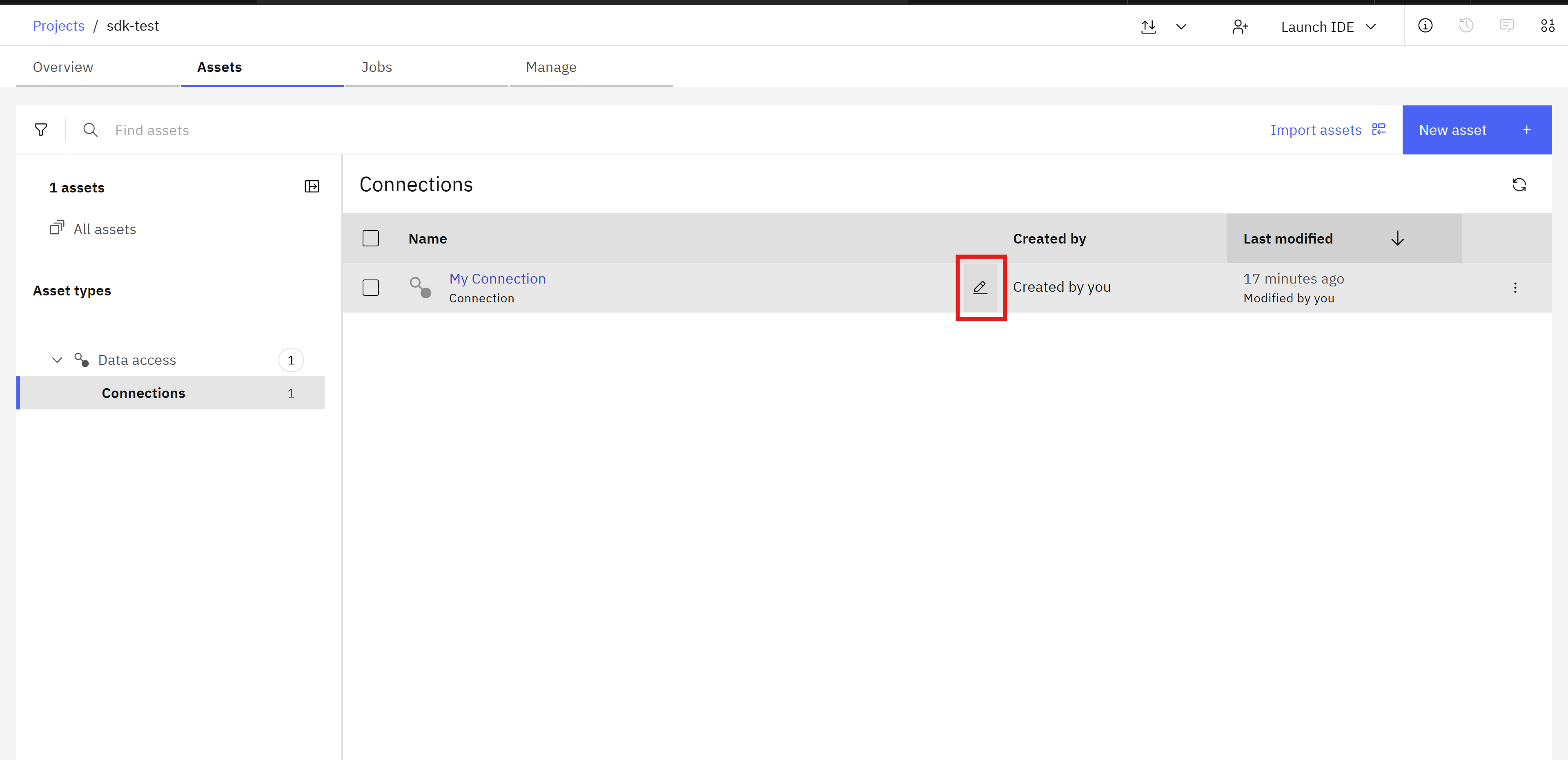
To update a connection in the SDK, first modify the properties of the connection and then
pass the instance to the Project.update_connection() method.
This method returns an HTTP response indicating the status of the update operation.
Similar to Creating a Connection, you can skip validation by setting the test parameter of
Project.update_connection() to False.
>>> connection.name = 'New Connection Name'
>>> project.update_connection(connection)
<Response [200]>
>>> project.connections.get(name='New Connection Name')
Connection(name='New Connection Name')
Using a Connection#
In the UI, you can use a Connection in a flow by adding a stage that takes a Connection and choosing the Connection in the view connection or connection property. For batch flows, this would be any connector stage.
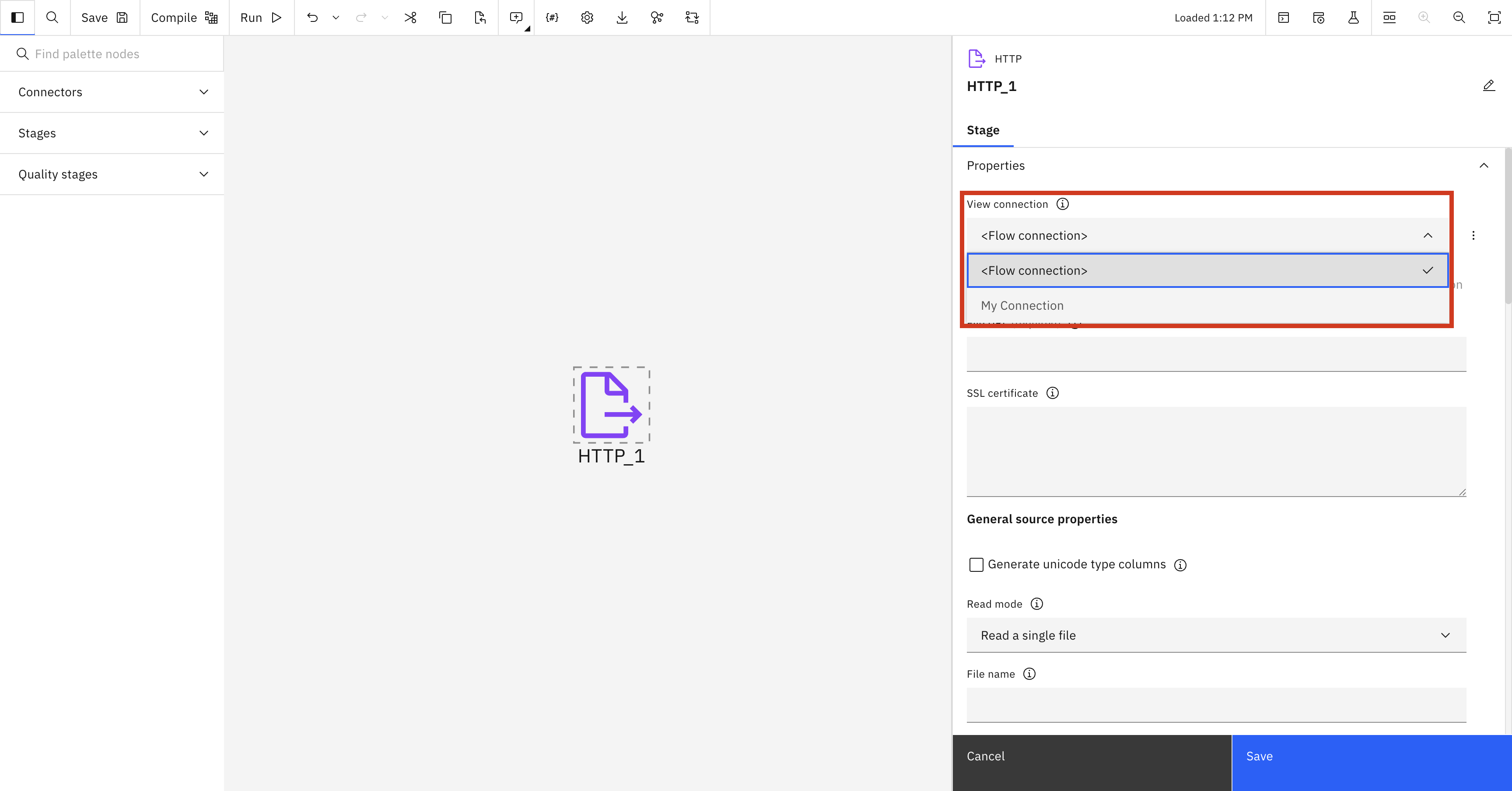
For streaming flows, this would be select source and target stages.
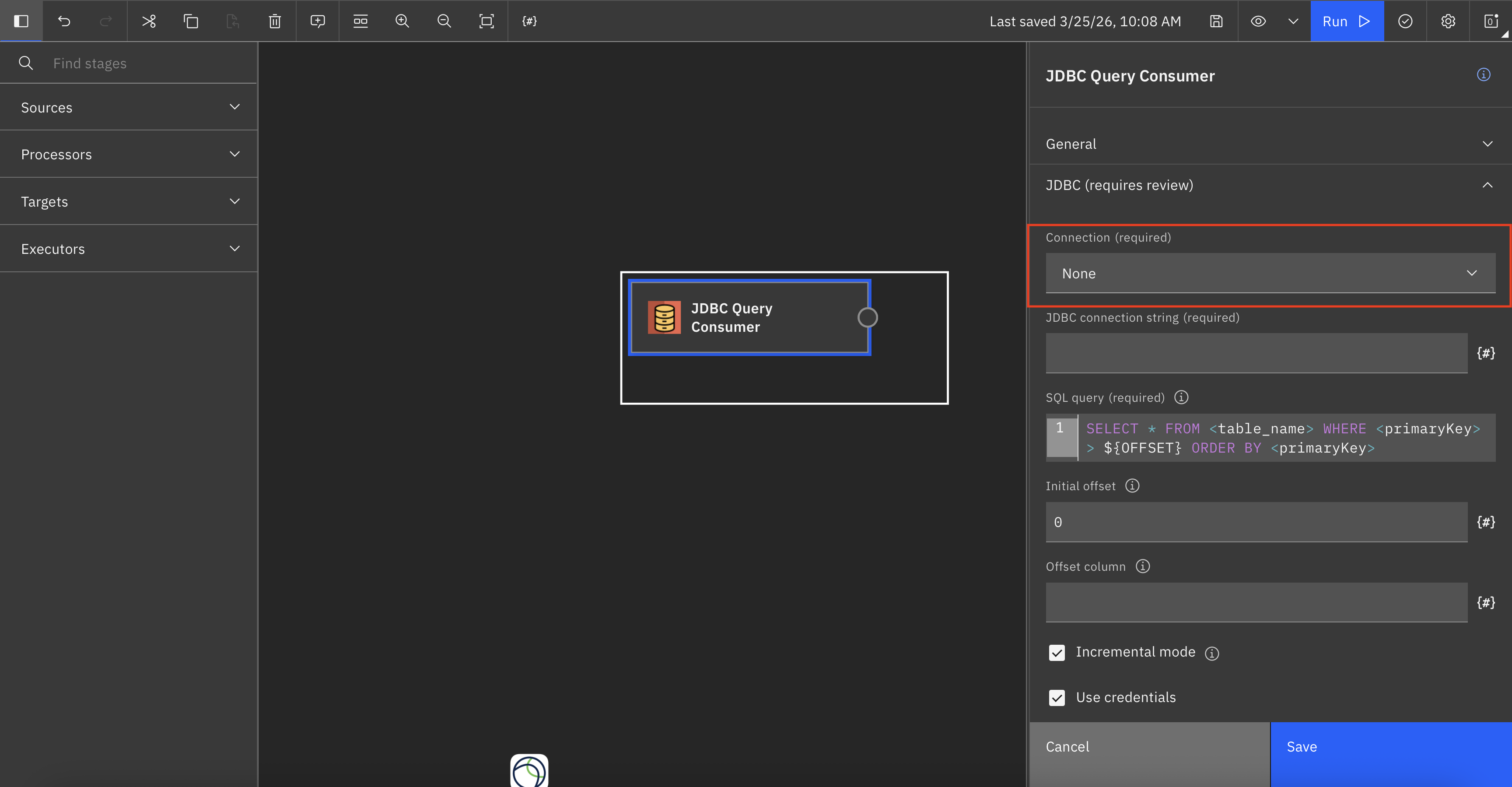
In the SDK, to use a Connection instance for batch flows, you can pass it to the StageNode.use_connection() method of the connector stage.
To use a Connection instance for streaming flows, you can pass it to the Stage.use_connection() method of the target or destination stage.
>>> # Batch Flow
>>> new_flow = project.create_flow(name='New flow', environment=None, flow_type='batch')
>>> connection = project.connections.get(name='New Connection Name')
>>> connection
Connection(name='New Connection Name')
>>> http = new_flow.add_stage(type='HTTP', label='HTTP_Stage_1')
>>> http.use_connection(connection)
>>> # Streaming Flow
>>> connection_to_use
Connection(name='dummy_connection ...')
>>> origin = flow.add_stage('JDBC Query Consumer')
>>> origin.use_connection(connection_to_use)
Using a local Connection (Batch Only)#
An alternative way to use a connector stage is to put connection parameters directly into the stage’s properties. In the UI, this can be done under the Connection details section of the stage.
If you are already Using a Connection, the Connection details section will not be visible.
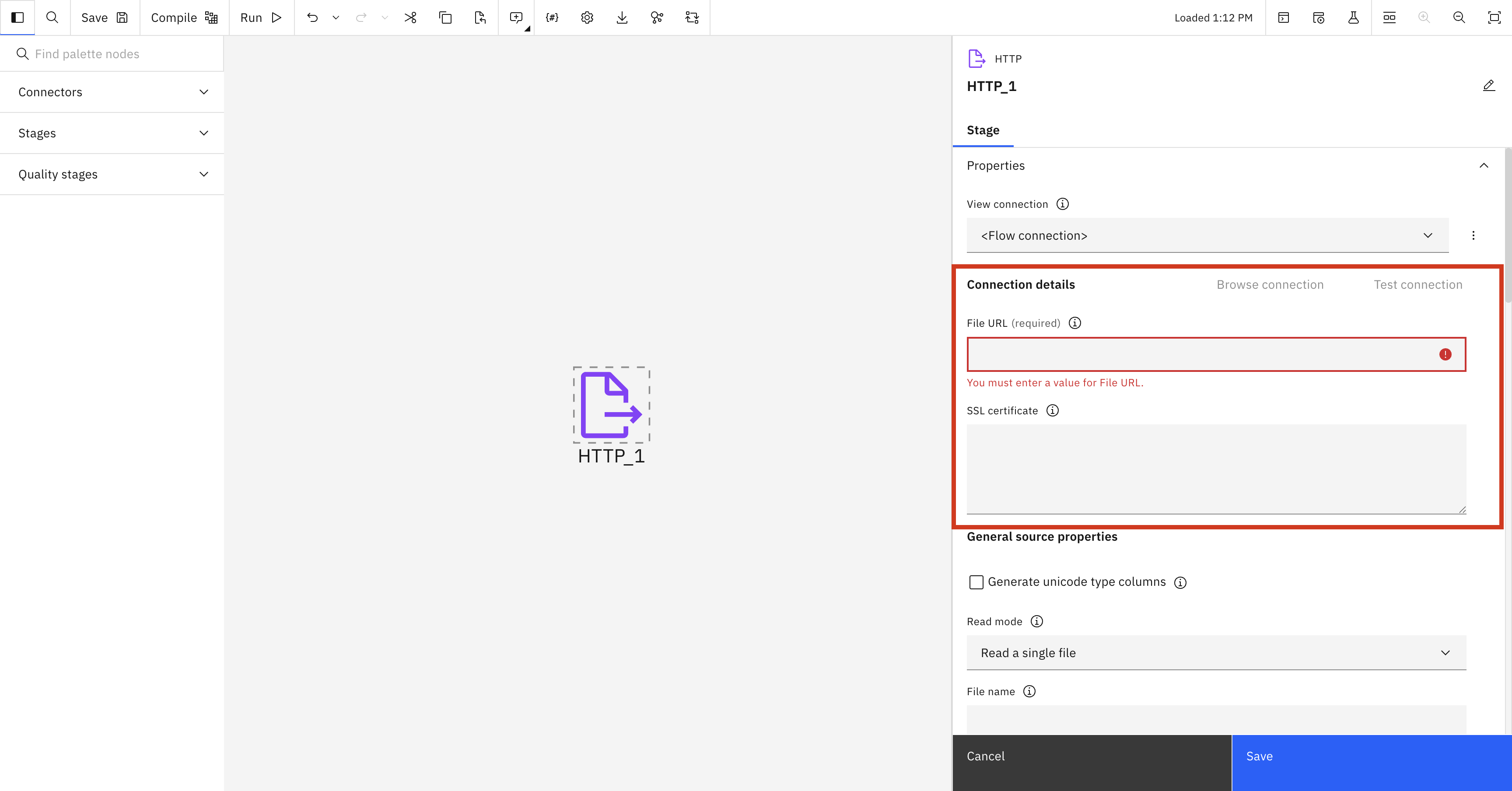
In the SDK, each connector stage’s configuration has a connection property. To use a local connection, you can directly edit the desired fields of this connection property.
>>> http = new_flow.add_stage(type='HTTP', label='HTTP_Stage_1')
>>> http.configuration.connection.url = 'yoururl.com'
>>> http.configuration.connection.ssl_certificate = 'yoursslcertificate'
Deleting a Connection#
In the UI, you can delete an existing Connection by navigating to the Assets -> Data access -> Connections.
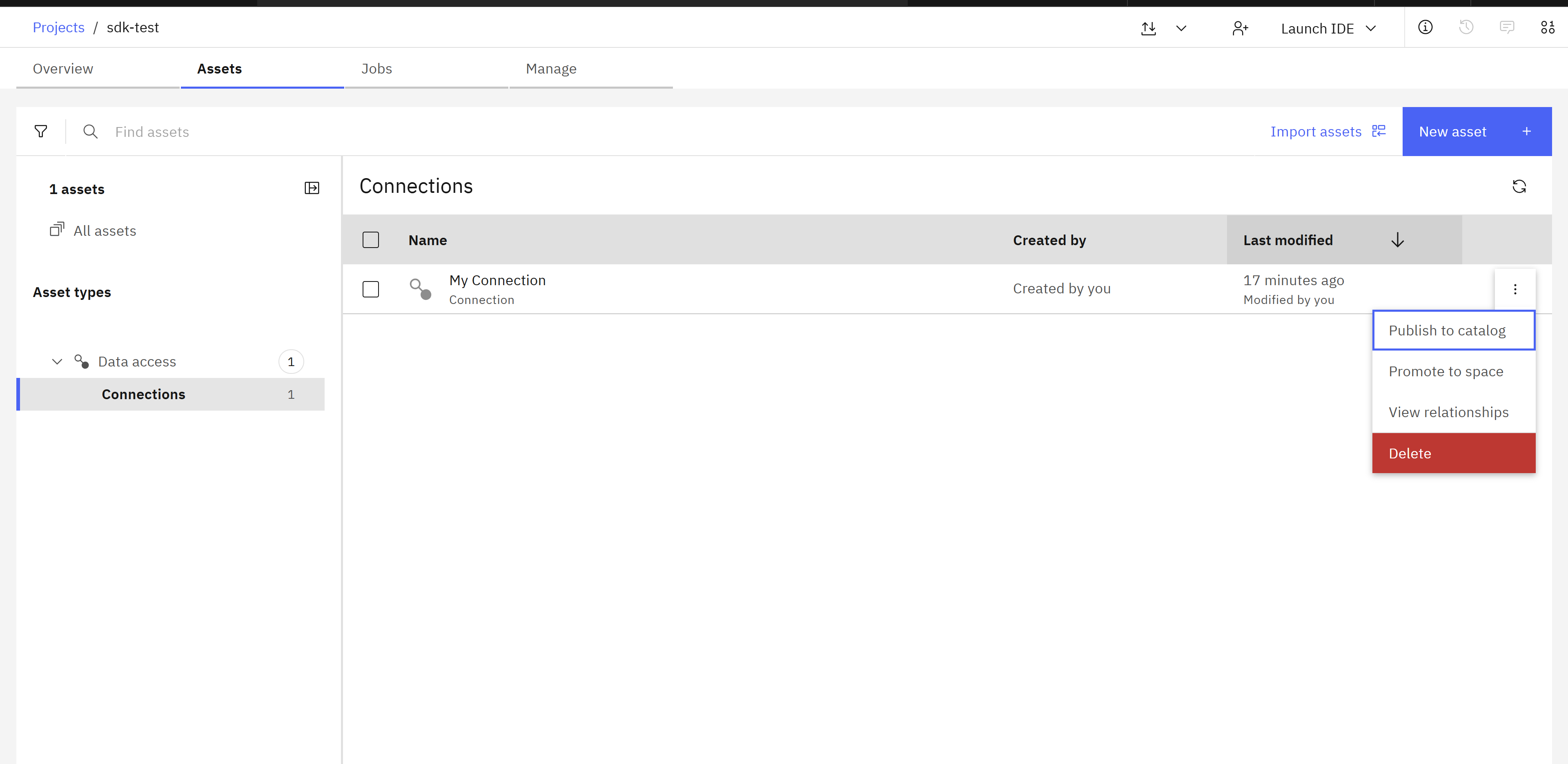
In the SDK, to delete a connection instance, you can pass it to the Project.delete_connection() method.
This method returns an HTTP response indicating the status of the delete operation.
>>> project.delete_connection(connection)
<Response [204]>
Platform Connections#
Connections can also exist at the platform level, independently of any project. This is useful when a single connection needs to be shared across multiple projects.
Creating a Platform Connection#
Use Platform.create_connection() to create a connection at the platform level.
The signature is the same as Project.create_connection() — provide a name, datasource_type, and any optional description, properties, or test flag.
Note
To see available datasources, refer to Retrieving a DatasourceType.
>>> datasource_type = platform.datasources.get(name='http')
>>> catalog_connection = platform.create_connection(
...     name='Platform Connection Name',
...     datasource_type=datasource_type,
...     description='Description ...',
...     properties={'url': 'https://my/connection/url'},
... )
>>> catalog_connection
Connection(name='Platform Connection Name')
Important
Platform connections will be automatically placed into your default catalog. Make sure you have at least one catalog created on your account. This feature has not been implemented in the SDK yet and must be done in the UI.
Each datasource_type defines its own set of required properties.
To see the list of available properties, refer to Retrieving a DatasourceType connection properties.
Retrieving Platform Connections#
Use the Platform.connections property to access connections at the platform level.
It returns a PlatformConnections collection that supports the same get and get_all filtering as project connections.
>>> # Retrieve a platform connection by name
>>> catalog_connection = platform.connections.get(name='Platform Connection Name')
>>> catalog_connection
Connection(name='Platform Connection Name')

>>> # Retrieve a platform connection by its ID
>>> platform.connections.get(connection_id=catalog_connection.connection_id)
Connection(name='Platform Connection Name')

>>> # Return a list of all platform connections
>>> list(platform.connections)
[Connection(name='Platform Connection Name')]
Tip
For detailed information about parameters and values refer to https://cloud.ibm.com/apidocs/data-ai-common-core Connections section.
Importing a Platform Connection into a Project#
Once a platform connection exists, it can be brought into any project using
Project.import_platform_connection().
The imported connection references the platform connection for its credentials — no credentials are re-validated by default.
>>> catalog_connection = platform.connections.get(name='Platform Connection Name')
>>> project_connection = project.import_platform_connection(catalog_connection)
>>> project_connection
Connection(name='Platform Connection Name')
The project connection can then be used in flows exactly like any other project-scoped connection.
Note
An imported connection remains linked to the original platform connection — it does not hold its own credentials.
Because of this, the imported project connection cannot be updated directly via
Project.update_connection().
To change the connection’s properties, update the platform connection itself using
Platform.update_connection()
(see Updating a Platform Connection).
Tip
By default, import_platform_connection sets test=False to avoid re-validating credentials that are held in the referenced platform connection.
Pass test=True explicitly if you want the server to verify connectivity at import time.
>>> project.import_platform_connection(catalog_connection, test=True)
Connection(name='Platform Connection Name')
Updating a Platform Connection#
To update a platform-level connection, first modify the desired properties on the connection object and then pass it to
Platform.update_connection().
This method returns an HTTP response indicating the status of the update operation.
Similar to Updating a Connection, you can skip validation by setting the test parameter to False.
>>> catalog_connection.name = 'Updated Platform Connection Name'
>>> platform.update_connection(catalog_connection)
<Response [200]>
>>> platform.connections.get(name='Updated Platform Connection Name')
Connection(name='Updated Platform Connection Name')
Deleting a Platform Connection#
To delete a platform-level connection, pass it to
Platform.delete_connection().
This method returns an HTTP response indicating the status of the delete operation.
>>> platform.delete_connection(catalog_connection)
<Response [204]>