
Jobs#
A job is an executable unit of work defined for a specific asset. It acts as a reusable template that includes basic configuration and parameters.
The actual execution of a job is referred to as a job run. A job run allows you to override the default configuration and captures runtime execution details. The SDK provides functionality to interact with both jobs and job runs on the watsonx.data integration platform.
- This includes operations such as:
Creating a job
Retrieving an existing job
Updating a job
Editing runtime settings of a batch job
Starting a job
Retrieving a job run
Refreshing a job run’s state
Cancelling a job run
Retrieving logs from a job run
Deleting a job
Resetting an offset
Creating a Job#
In the UI, you can create and run a new job directly from the flow canvas by clicking the Run button.

To create a new Job object within a
Project using the SDK,
first select the appropriate project from the Platform,
then use the Project.create_job()
method to instantiate the job.
You must specify a reference to a Flow object.
Additionally, you can provide optional configuration such as environment variables, schedules, retention policies, and runtime parameters.
The runtime_parameters parameter accepts either a dictionary or a ParameterSet object.
This method returns a Job object.
>>> # Create a job without runtime parameters
>>> job = project.create_job(
...     flow=batch_flow,
...     name='Test Job',
...     description='...',
... )
>>> job
Job(name='Test Job', ...)
You can override parameter set values at job creation time by passing a dictionary to runtime_parameters.
The dictionary keys should be in the format "parameter_set_name.parameter_name" for external parameters,
or just "parameter_name" for local parameters:
>>> # Create a job with runtime parameters to override parameter set values
>>> job_with_runtime_parameters = project.create_job(
...     flow=batch_flow_with_parameters,
...     name='Test Job with Parameters',
...     description='Job with custom parameter values',
...     runtime_parameters={
...         'myparamset.param1': 'production_db',
...         'localparam1': 'custom_value'
...     }
... )
>>> job_with_runtime_parameters
Job(name='Test Job with Parameters', ...)
Retrieving an Existing Job#
To list existing jobs in the UI, navigate to the Jobs tab in project view.

In the SDK, jobs can be retrieved using the Project.jobs property.
You can also filter the returned jobs based on attributes including
space_id, job_id, job_type, and run_id.
This property returns a Jobs object.
>>> # Returns all jobs
>>> project.jobs
[Job(...), ...]
>>> # Returns the first job matching the given `name`
>>> project.jobs.get(name='Test Job')
Job(name='Test Job', ...)
>>> # Returns a list of all jobs that match the given `name`
>>> project.jobs.get_all(name='Test Job')
[Job(name='Test Job', ...)]
Updating a Job#
In the UI, you can update a job by selecting its title from the jobs list. To update a job, click the pencil icon in the top bar.

In the SDK, updating a job is possible via your Project instance.
First, modify the properties of the existing job, then update it using the
update_job() method.
You can modify properties and configuration fields of the Job object.
This method returns an HTTP response indicating the status of the update operation.
The response also includes the updated job definition.
>>> job.name = 'New name'
>>> job.description = 'New description.'
>>> project.update_job(job)
<Response [200]>
You can display the properties of a job by calling the Job.print_json() method.
>>> job.print_json()
{
    "metadata": {
        "name": "New name",
        "description": "New description.",
        ...
    },
    ...
    "configuration": {...},
    ...
}
Note
Most fields other than metadata and configuration are runtime settings for batch jobs. These settings can be set only by a dedicated method. This is explained in the next section.
Editing runtime settings (Batch)#
Batch flow jobs have runtime settings you can edit per job. In the UI, you can change runtime settings in the same location where you update a job. Batch flows include additional settings.
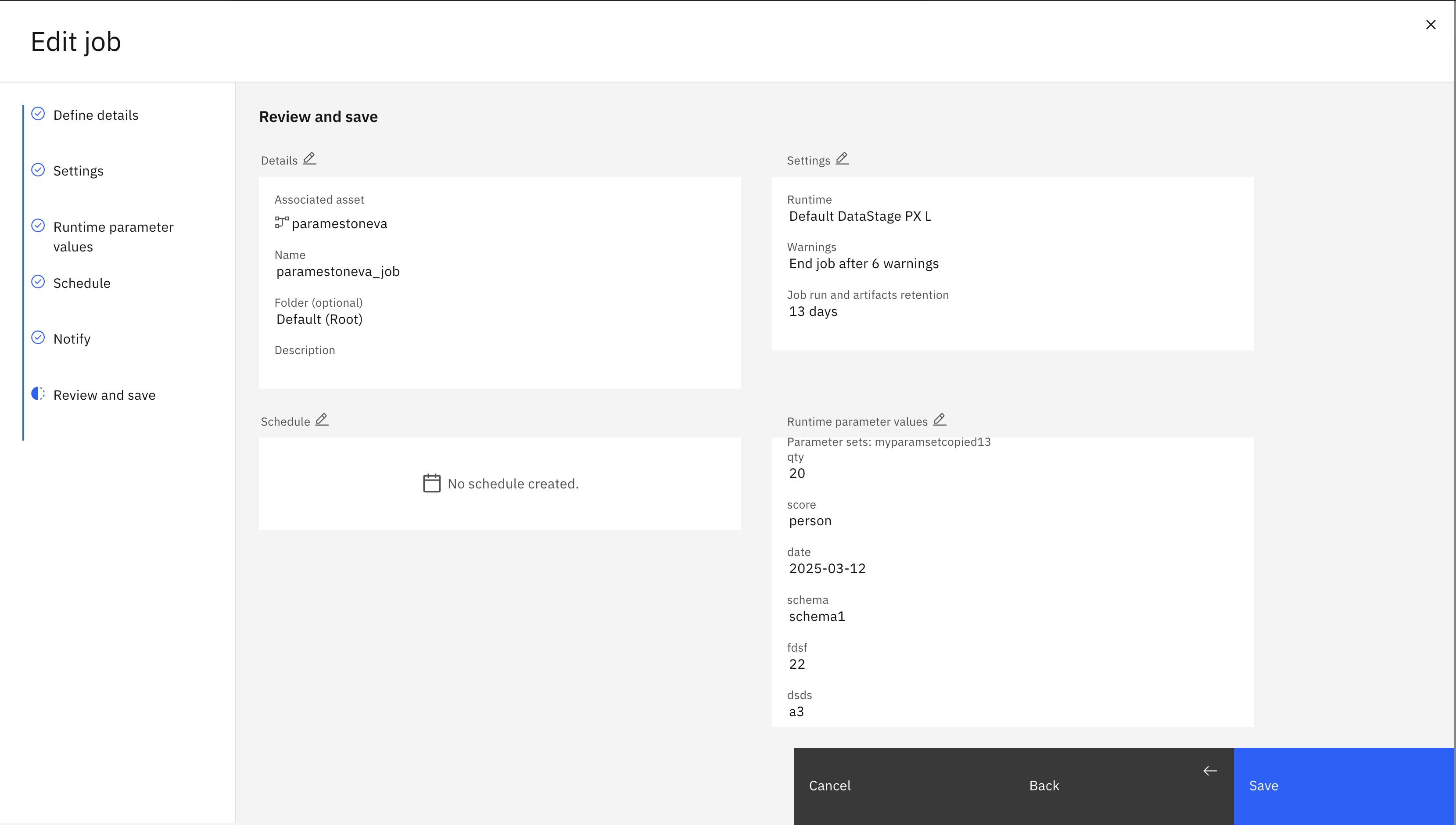
In the SDK, you can call the edit_configuration() method on the job instance. The following settings can be changed:
environment: The internal name of the batch environment to use. To find the internal name of a batch environment, you can either list all internal names withProject.list_batch_environments()or callProject.get_batch_environment()with the display name.
>>> project.list_batch_environments()
['default_datastage_px', 'default_datastage_px_large', 'default_datastage_px_medium']
>>> project.get_batch_environment('Default DataStage PX S')
'default_datastage_px'
warn_limit: The number of warnings allowed before the stages are stopped. Takes anintgreater than 0 orNonefor no limit.retention_days: The number of days to keep a job run. Cannot be set ifretention_amountis also set. Takes anintgreater than 0 orNonefor no limit.retention_amount: The number of job runs to keep in total. Cannot be set ifretention_daysis also set. Takes anintgreater than 0 orNonefor no limit.parameter_value_sets: The value sets to use in this job. Takes alistoftupleswhere the first value is the name of the parameter set and the second value is the value set to use for that parameter set.job_parameters: The values to use for the external and local parameters in this job. Takes alistoftupleswhere the first value is the name of the parameter and the second value is the value to use for that parameter. For external parameters, make sure the name of the parameter set comes before the name of the parameter:parameter_set.parameter.schedule: The schedule on which to run the job. Takes aScheduleobject orNonefor no schedule.notify_success: Takes abooleanindicating whether to notify on success.notify_warning: Takes abooleanindicating whether to notify on warning.notify_failure: Takes abooleanindicating whether to notify on failure.
>>> import datetime
>>> from ibm_watsonx_data_integration.cpd_models.job_model import Schedule
>>> schedule = Schedule(start_date = datetime.datetime(2030, 12, 11, 22, 17), repeat_mode = 'daily', repeat_value = datetime.time(23, 17))
>>> batch_job.edit_configuration(
...    environment='default_datastage_px',
...    retention_amount=100,
...    parameter_value_sets=[('myparamset', 'value_set_1'), ('paramset2', 'valset_2')],
...    job_parameters=[('myparamset.param1', 'myvalue'), ('localparam1', 'myvalue2')],
...    schedule=schedule,
...    notify_success=True,
...    notify_warning=False,
...    notify_failure=True
... )
<Response [200]>
Starting a Job#
In the UI, you can start a job from the Job Details page by clicking the play icon.

A job instance serves as a template to actually execute the flow for which the job was created.
Call the Job.start() method on the job instance.
The name and description parameters are optional; if not provided, default values will be used (name='job run', description='').
Additionally, you can further configure the job run by passing the configuration and runtime_parameters parameters to this method.
The runtime_parameters parameter accepts either a dictionary or a ParameterSet object.
This method returns a JobRun object.
>>> # Start a job run without runtime parameters
>>> job_run = job.start(name='Test Job Run', description='...')
>>> job_run
JobRun(...job_name='New name'...)
You can override parameter values for a specific job run by passing a dictionary to runtime_parameters.
This allows you to run the same job with different parameter values without modifying the job itself.
The dictionary keys should be in the format "parameter_set_name.parameter_name" for external parameters,
or just "parameter_name" for local parameters:
>>> # Start a job run with runtime parameters to override values
>>> job_run_with_runtime_parameters = job_with_runtime_parameters.start(
...     name='Test Job Run with Custom Parameters',
...     description='Run with overridden parameter values',
...     runtime_parameters={
...         'myparamset.param1': 'value',
...         'localparam1': 'override_value'
...     }
... )
>>> job_run_with_runtime_parameters
JobRun(...job_name='Test Job with Parameters'...)
Retrieving a Job Run#
To view job runs in the UI, go to the Jobs tab, select a job, and open the Job Details page.
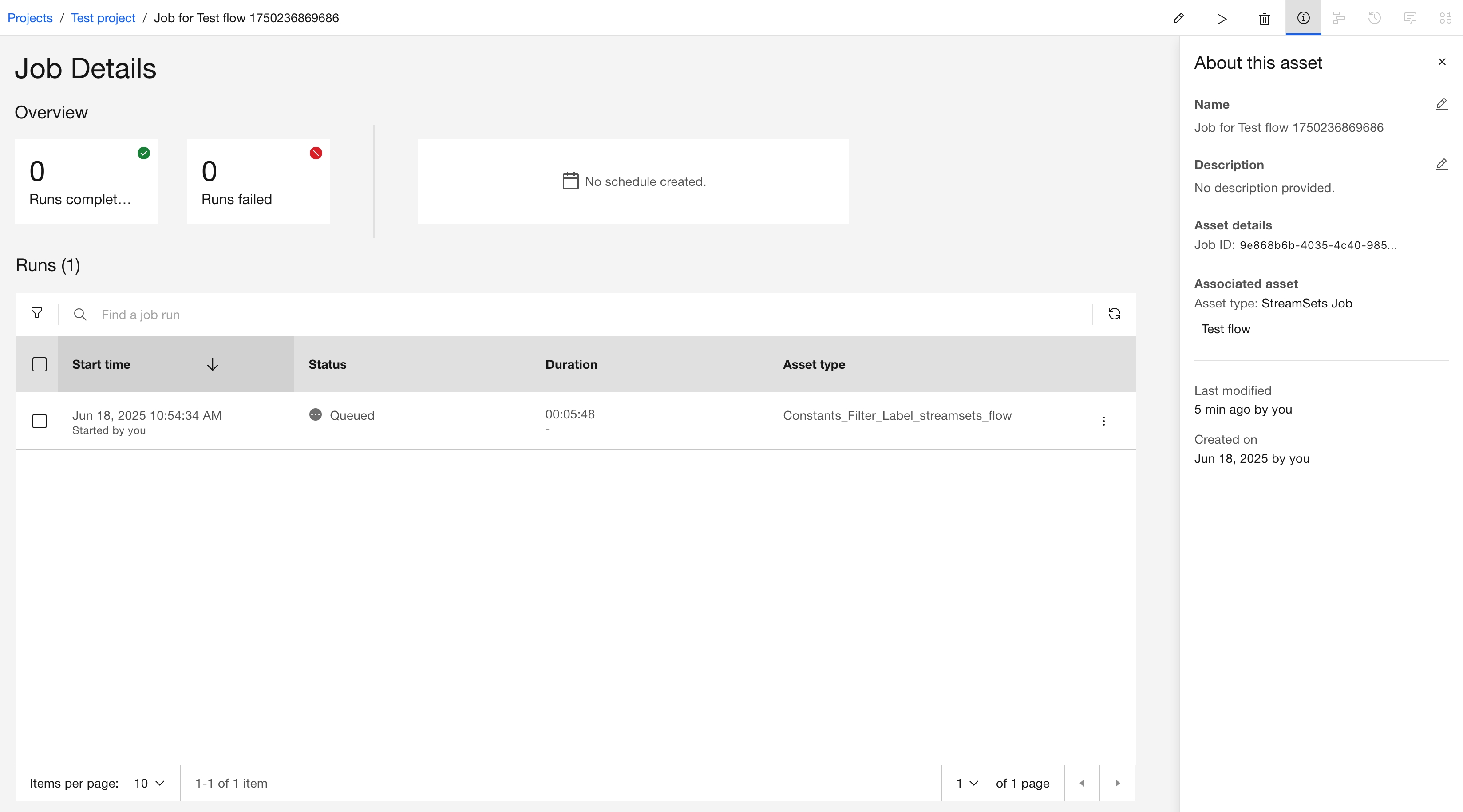
In the SDK, job runs can be retrieved using the job_runs property.
You can filter the returned jobs by space_id and state attributes.
This property returns a JobRuns object.
>>> # Returns a list of all job runs for given job
>>> job.job_runs
[JobRun(...job_name='New name'...)]
>>> # Returns a list of all job runs
>>> job.job_runs.get_all()
[JobRun(...job_name='New name'...)]
Refreshing a Job Run State#
In the UI, you can refresh a job’s status by clicking the three dots next to a job and then selecting Refresh status.

To refresh a job run using the SDK, call the JobRun.refresh_status() method.
It updates the JobRun.state property.
>>> job_run.refresh_status()
<Response [200]>
>>> job_run.state
<JobRunState...>
Cancelling a Job Run#
In the UI, you can cancel a job run by selecting Cancel from the three-dot menu of the selected run.
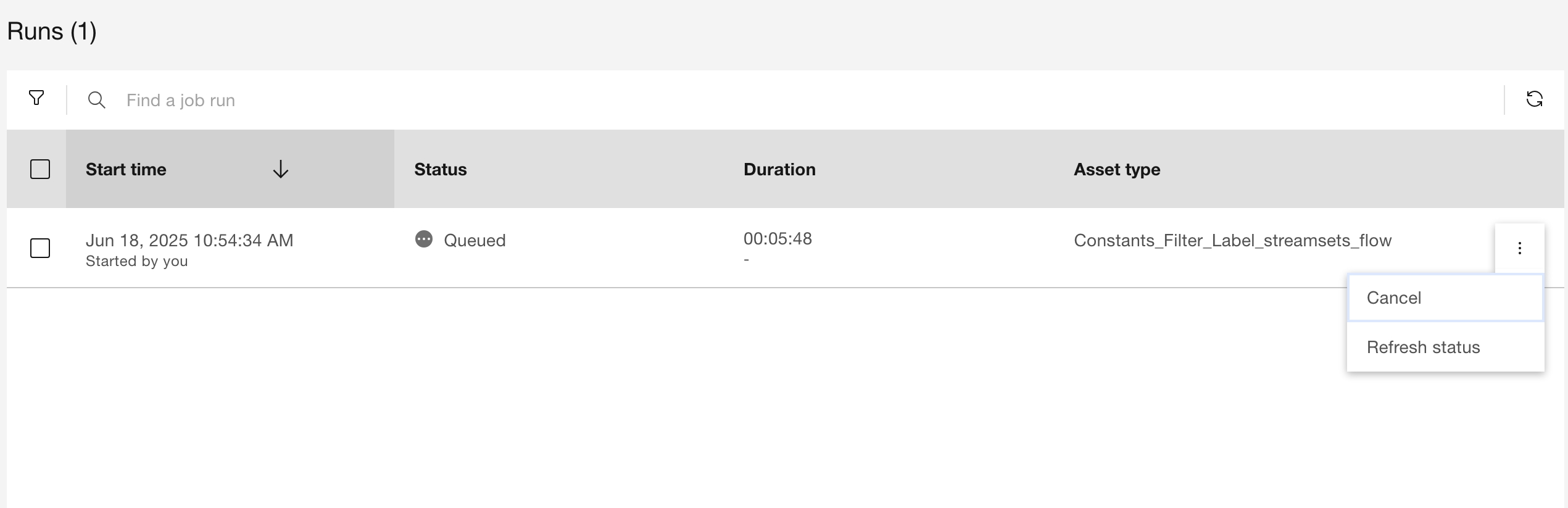
To cancel a running job run using the SDK, use the JobRun.cancel()
method on the job run instance.
This method returns an HTTP response indicating the status of the operation.
>>> job_run.cancel()
<Response [204]>
Retrieving Job Run Logs#
Runtime logs for a job run execution are stored in the
JobRun.logs property.
It returns a list where each entry is a string containing a log message.
Important
Streaming job run logs are not stored after the job run reaches a terminal state. Fetch them while the job run is still active.
Important
To properly fetch streaming job run logs, refresh the job run instance after it reaches the
Running state by retrieving it again from
Job.job_runs,
for example with job.job_runs.get(job_run_id=job_run.job_run_id).
>>> job_run.logs
[
    '##I IIS-DSEE-TOSH-00397 2025-05-27 14:27:27(000) Starting job Job for Test flow 1750236869686',
    '##I IIS-DSEE-TOSH-00408 2025-05-27 14:27:27(000) Job Parameters:',
    ...
]
Retrieving Job Run metrics (Batch)#
Batch job runs provide detailed performance metrics that can be accessed through the
JobRun.metrics property.
This property returns a BatchJobRunMetrics object
containing link and stage metrics for the job run.
The metrics include:
Link Metrics: Information about data flow between stages, including rows read/written, timing, and state
Stage Metrics: Performance data for each stage, including CPU time, memory usage, partition counts, and row counts
>>> # Get metrics for a completed batch job run
>>> metrics = job_run_with_runtime_parameters.metrics
>>> metrics
BatchJobRunMetrics(link_metrics=[...], stage_metrics=[...])
Accessing Link Metrics
Link metrics provide information about data transfer between stages:
>>> # View all link metrics
>>> metrics.link_metrics
[
    {
        "start_time": ...,
        "rows_read": 100,
        "rows_written": 100,
        "stop_time": ...,
        "source": "Row_Generator",
        "state": "finished",
        "dest": "Peek",
        "link_name": "Link_1"
    }
]

>>> # Access specific link metrics by index
>>> link = metrics.link_metrics[0]
>>> link.rows_read
100
>>> link.source
'Row_Generator'
>>> link.dest
'Peek'
Accessing Stage Metrics
Stage metrics provide performance information for each stage in the flow:
>>> # View all stage metrics
>>> metrics.stage_metrics
[
    {
        "stage_seconds_cpu": ...,
        "start_time": ...,
        "rows_read": 0,
        "rows_written": 100,
        "stop_time": ...,
        "total_memory": ...,
        "stage_type": "PxRowGenerator",
        "stage_name": "Row_Generator",
        "partition_row_counts": ...,
        "num_partitions": 1,
        "state": "finished"
    },
    {
        "stage_seconds_cpu": ...,
        "start_time": ...,
        "rows_read": 100,
        "rows_written": 0,
        "stop_time": ...,
        "total_memory": ...,
        "stage_type": "PxPeek",
        "stage_name": "Peek",
        "partition_row_counts": ...,
        "num_partitions": 2,
        "state": "finished"
    }
]

>>> # Access specific stage metrics by index
>>> stage = metrics.stage_metrics[1]
>>> stage.rows_read
100
>>> stage.stage_name
'Peek'
>>> stage.num_partitions
2
Filtering Metrics
The metrics SeekableList supports filtering using the get() and get_all() methods:
>>> # Get first link from a specific source stage
>>> link = metrics.link_metrics.get(source='Row_Generator')
>>> link.rows_read
100

>>> # Get all links to a specific destination stage
>>> links = metrics.link_metrics.get_all(dest='Peek')
>>> len(links)
1

>>> # Get first stage of a specific type
>>> stage = metrics.stage_metrics.get(stage_type='PxRowGenerator')
>>> stage.stage_name
'Row_Generator'

>>> # Get all stages in finished state
>>> finished_stages = metrics.stage_metrics.get_all(state='finished')
>>> len(finished_stages)
2
Refreshing Metrics
You can refresh the metrics of a job run by calling JobRun.refresh_metrics() to get the latest metrics.
>>> job_run_with_runtime_parameters.refresh_metrics()
<Response [200]>
Retrieving Job Run metrics (Streaming)#
Streaming job runs provide performance metrics that can be accessed through the
JobRun.metrics property.
This property returns a StreamingJobRunMetrics
object containing pipeline summary metrics and per-stage metrics for the job run.
The metrics include:
Pipeline Summary: Aggregated pipeline-level information, including input and output record counts, error counts, batch count, runner availability, and processing rates
Stage Metrics: Performance data for each stage, including input and output record counts, error counts, processing rates, and batch processing timing statistics
Important
Streaming job run metrics are not stored after the job run reaches a terminal state. Fetch them while the job run is still active.
Important
To properly fetch streaming job run metrics, refresh the job run instance after it reaches the
Running state by retrieving it again from
Job.job_runs,
for example with job.job_runs.get(job_run_id=job_run.job_run_id).
>>> # Make sure that job is running
>>> streaming_job_run.state
'Running'
>>> metrics
StreamingJobRunMetrics(pipeline_summary={...}, stages=[...])
Accessing Pipeline Summary
Pipeline summary metrics provide an overview of the entire streaming pipeline run:
>>> metrics.pipeline_summary
{
    "input_records": ...,
    "output_records": ...,
    "error_records": ...,
    "stage_errors": ...,
    "batch_count": ...,
    "total_runners": ...,
    "available_runners": ...,
    "input_rate_per_sec": ...,
    "output_rate_per_sec": ...,
    "error_rate_per_sec": ...
}
Accessing Stage Metrics
Stage metrics provide performance information for each stage in the streaming flow:
>>> # View all stage metrics
>>> metrics.stages
[
    {
        "stage_id": "DevRawDataSource_01",
        "stage_name": "DevRawDataSource_01",
        "input_records": ...,
        "output_records": ...,
        "error_records": ...,
        "stage_errors": ...,
        "input_rate_per_sec": ...,
        "output_rate_per_sec": ...,
        "avg_processing_time_sec": ...,
        "min_processing_time_sec": ...,
        "max_processing_time_sec": ...,
        "p95_processing_time_sec": ...,
        "p99_processing_time_sec": ...,
        "batch_count": ...
    },
    {
        "stage_id": ...,
        "stage_name": ...,
        "input_records": ...,
        "output_records": ...,
        "error_records": ...,
        "stage_errors": ...,
        "input_rate_per_sec": ...,
        "output_rate_per_sec": ...,
        "avg_processing_time_sec": ...,
        "min_processing_time_sec": ...,
        "max_processing_time_sec": ...,
        "p95_processing_time_sec": ...,
        "p99_processing_time_sec": ...,
        "batch_count": ...
    },
    {
        "stage_id": "Trash_01",
        "stage_name": "Trash_01",
        "input_records": ...,
        "output_records": ...,
        "error_records": ...,
        "stage_errors": ...,
        "input_rate_per_sec": ...,
        "output_rate_per_sec": ...,
        "avg_processing_time_sec": ...,
        "min_processing_time_sec": ...,
        "max_processing_time_sec": ...,
        "p95_processing_time_sec": ...,
        "p99_processing_time_sec": ...,
        "batch_count": ...
    }
]
>>> # Access specific stage metrics by index
>>> stage = metrics.stages[0]
>>> stage.stage_name
'DevRawDataSource_01'
Filtering Metrics
The
stages
SeekableList supports filtering using the get() and get_all() methods:
>>> # Get metrics for a specific stage by name
>>> stage = metrics.stages.get(stage_name='DevRawDataSource_01')
>>> stage.stage_name
'DevRawDataSource_01'

>>> # Get all stages matching a specific name
>>> stages = metrics.stages.get_all(stage_name='Trash_01')
>>> len(stages)
1
Refreshing Metrics
You can refresh the metrics of a job run by calling
JobRun.refresh_metrics()
to get the latest metrics.
>>> streaming_job_run.refresh_metrics()
<Response [200]>
Deleting a Job#
In the UI, you can delete a job by selecting its title from the jobs list. To delete a job, click the trash icon in the top bar.

In the SDK, to delete a job you can pass the job instance to the Project.delete_job() method.
This method returns an HTTP response indicating the status of the delete operation.
>>> project.delete_job(job)
<Response [204]>
Resetting an Offset (Streaming)#
Warning
This method doesn’t work on batch jobs.
Jobs use offsets to track the last processed data before they were completed or cancelled. In certain cases, it may be necessary to reset a job’s offset to reprocess data. To reset the job offset in the UI, select Restart from initial offset from the edit job screen.
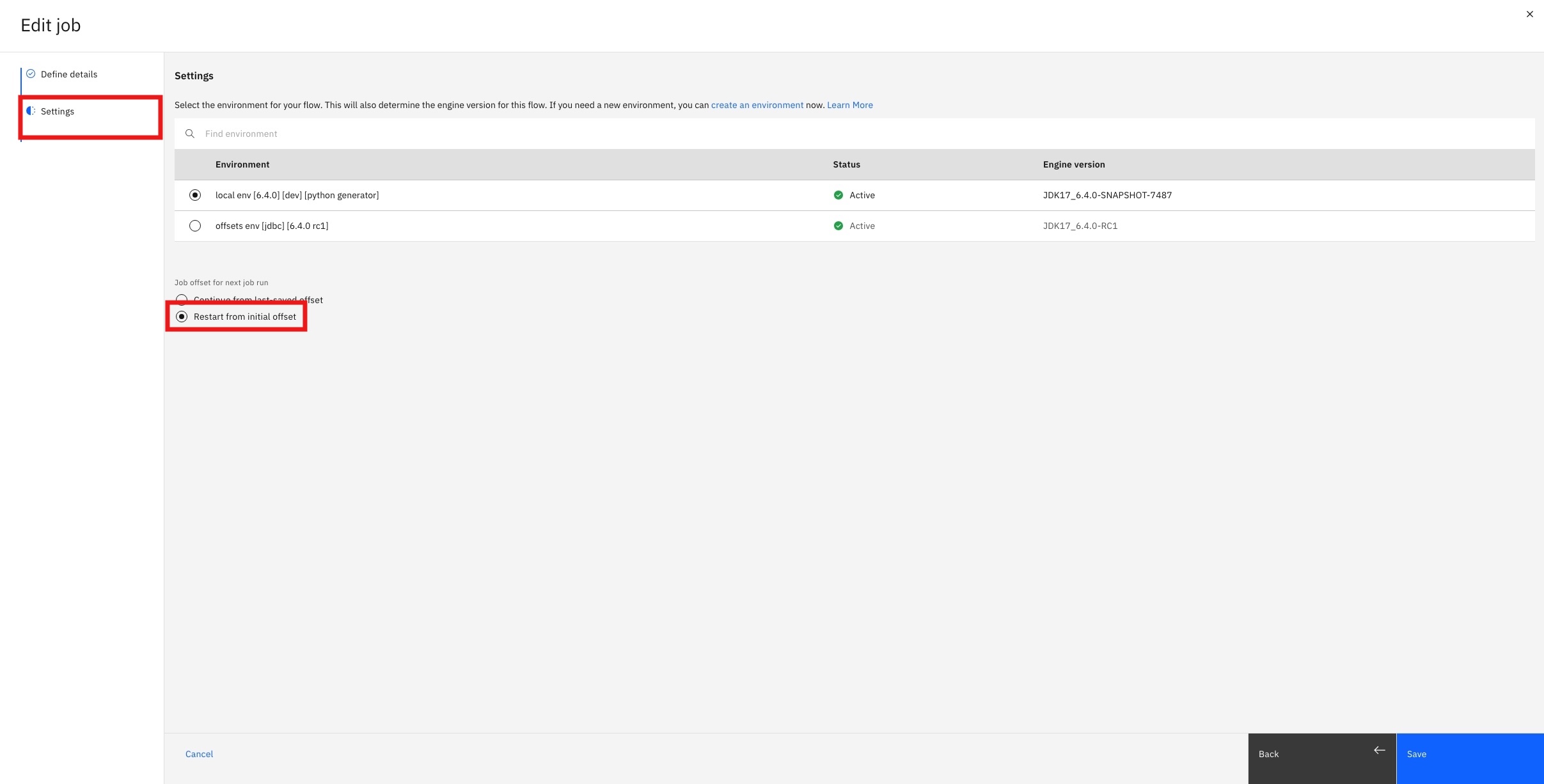
Job offsets can be reset using the Job.reset_offset()
method on the job instance.
>>> job.reset_offset()
<Response [200]>