5. Certificate Discovery
5.1: Overview
In this section, we will configure Linux_Keystore_Cert_Discovery Workflow to discover certificates from Apache Tomcat Java KeyStore, then ingest them into Concert. We will also verify that the certificates are visible in Concert's Operations Certificate page and that GitHub issues have been auto-created for both expired and expiring certificates.
5.2: Configuring the Discovery Workflow
Let's configure user variables values for Linux_Keystore_Cert_Discovery Workflow by using the Authentications created in the previous section.
For each default value shown below, make sure it begins and ends with a double quote (").
-
Click on the Workflows tab on the top and select the Workflows tile
-
Click the certificatesDiscovery folder
-
Click the Linux_Keystore_Cert_Discovery workflow. You will now confirm that the Workflow input parameters are using the authentications you created previously.
- Under keystorePath name, click Eye icon as shown below to reveal the text, for Default value, confirm it's
"/opt/tomcat/ssl/server.jks"

- Under env_name name, for Default value, confirm it's
"development". This refers to the environment that you created in the Lab Preparation section - Under linuxAuth name, for Default value, confirm it's
"ibmconcert/Ansible-apacheTomcat" - Under concertAuth name, for Default value, confirm it's
"ibmconcert/ConcertAPIKey" - Under passwordMap name, for Default value, confirm it's
"ibmconcert/CertConfigData"
- Under keystorePath name, click Eye icon as shown below to reveal the text, for Default value, confirm it's
-
Click Save icon on top right area to apply and save the workflow with the configurations

5.3: Running the Discovery Workflow and Verifying the Results
5.3.1: Running the Discovery Workflow
You will now run Linux_Keystore_Cert_Discovery Workflow to discover certificates from Apache Tomcat Java KeyStore, then ingest them into Concert.
In a customer environment, the Linux_Keystore_Cert_Discovery Workflow should be configured to run automatically as a job through a workflow job scheduler. In this lab exercise, however, it is executed manually to demonstrate how it works.
Be aware that the certificate serial number in your lab environment may differ from the one shown in the screenshot.
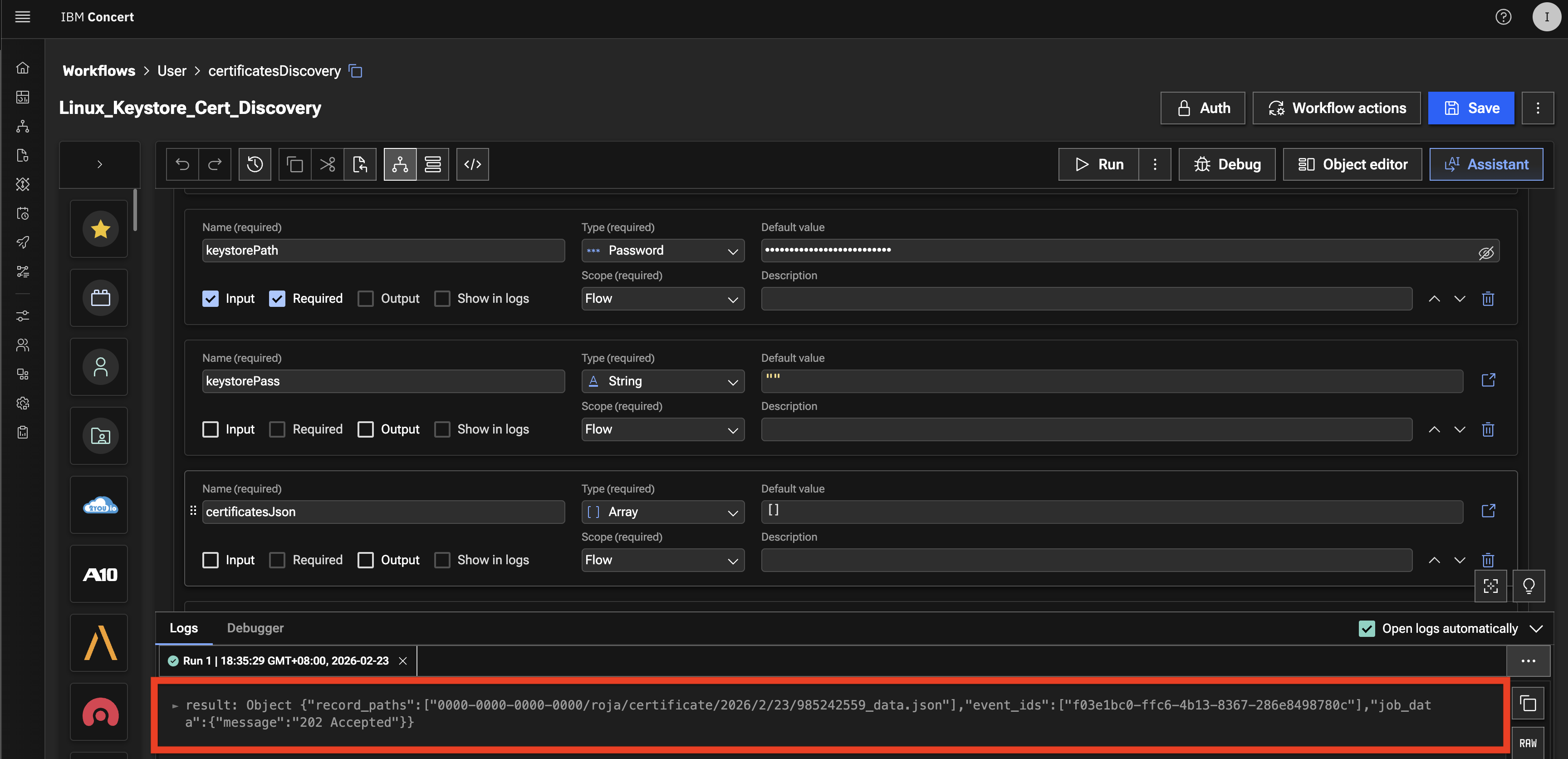
- Click the Run button for Linux_Keystore_Cert_Discovery Workflow

- The workflow will complete its execution and return 202 Accepted as message in Logs section below
5.3.2: Verifying the Results of the Discovery Workflow Execution
Let's verify the results of the Discovery Workflow execution in the Concert's Operations Certificate page
-
Click on the Resilience tab on the top.
-
On the left side menu, select Dimensions -> Operations
-
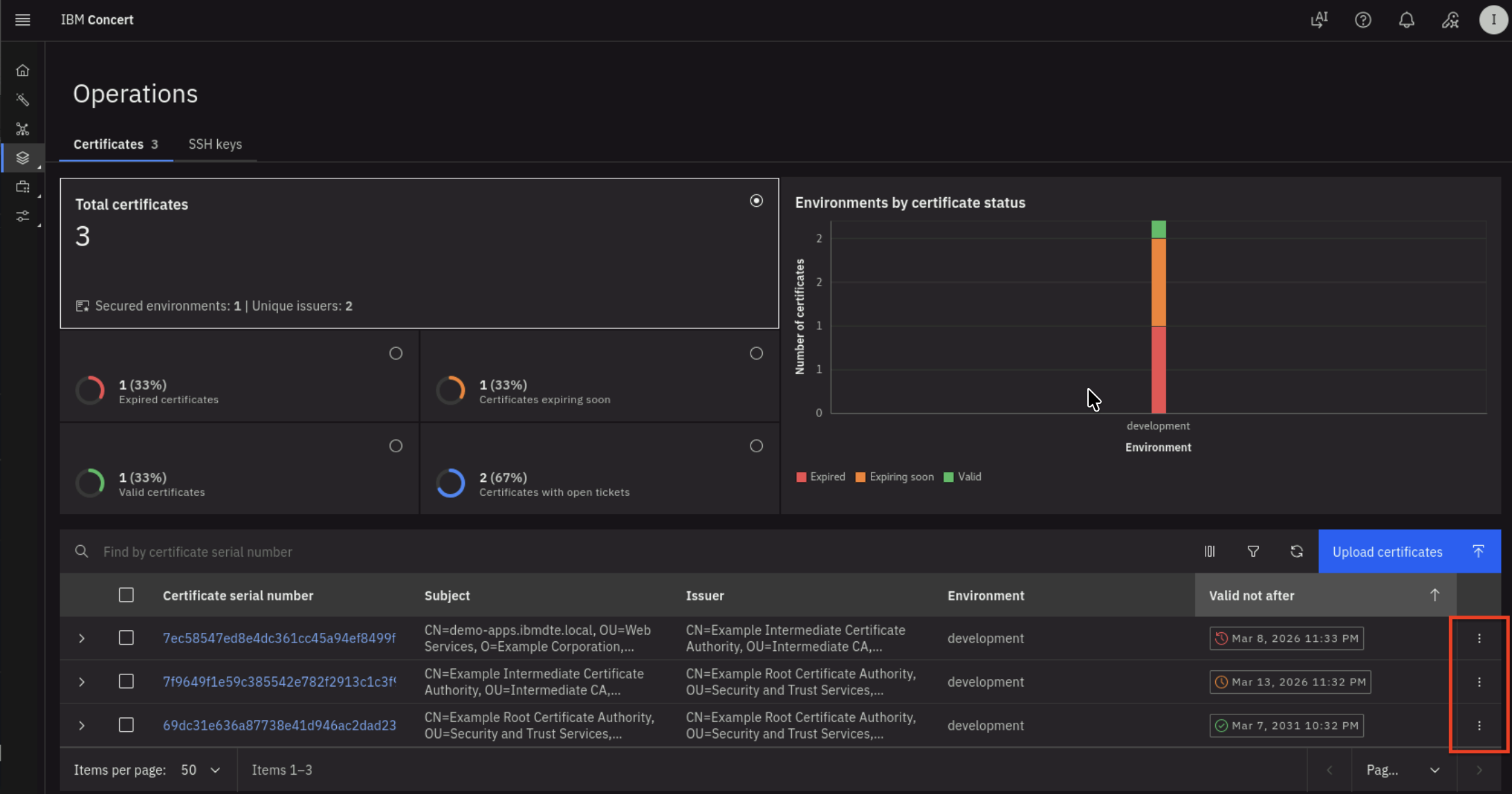
On the Certificates tab, you will see that the total number of Certificates in the development environment is 3, where:
- One Certificate is nearing expiration
- One Certificate has already expired
- One Certificate is still valid
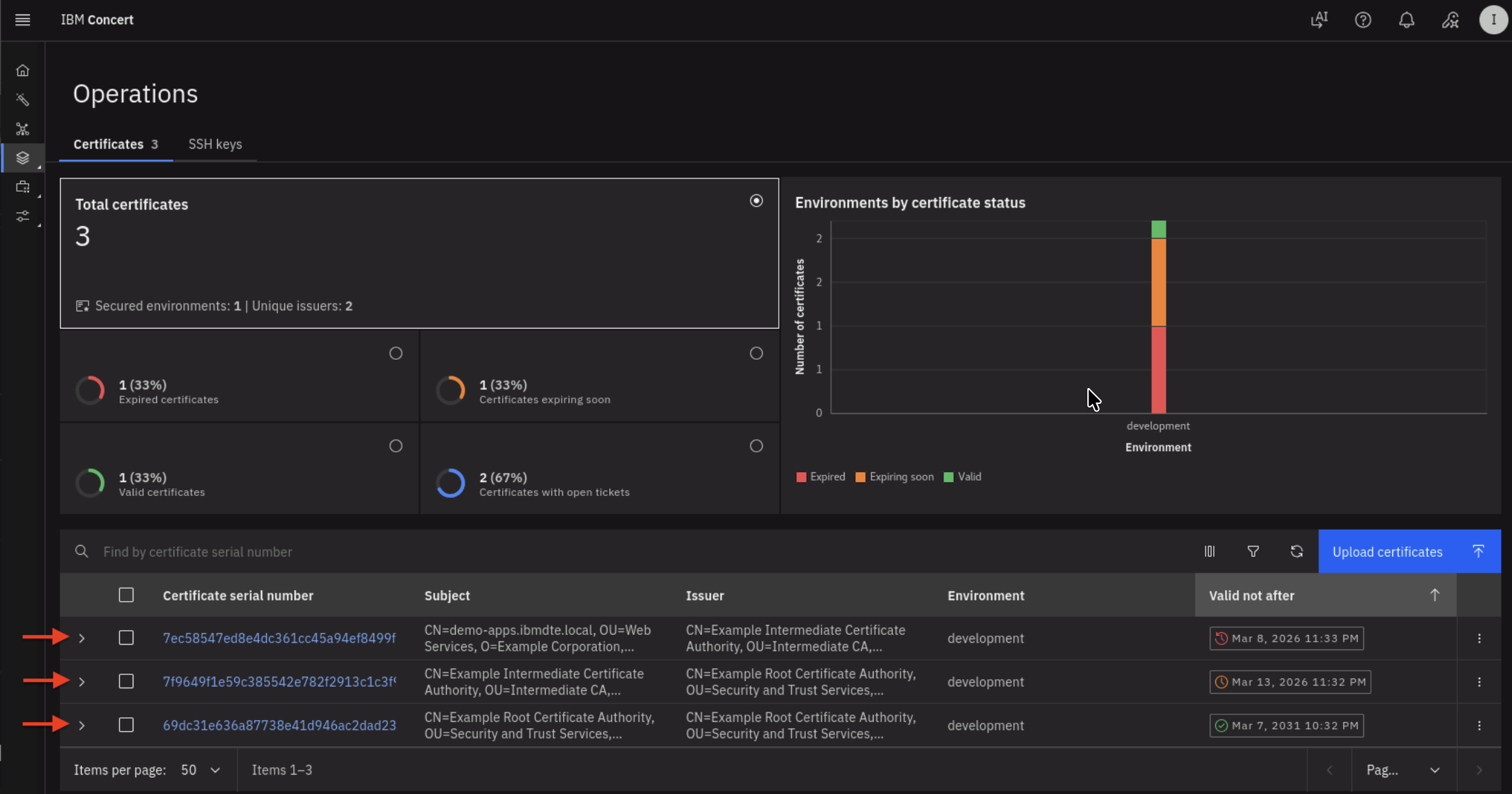
- Click the twistie indicated by the red arrow above to expand each certificate and view its properties.
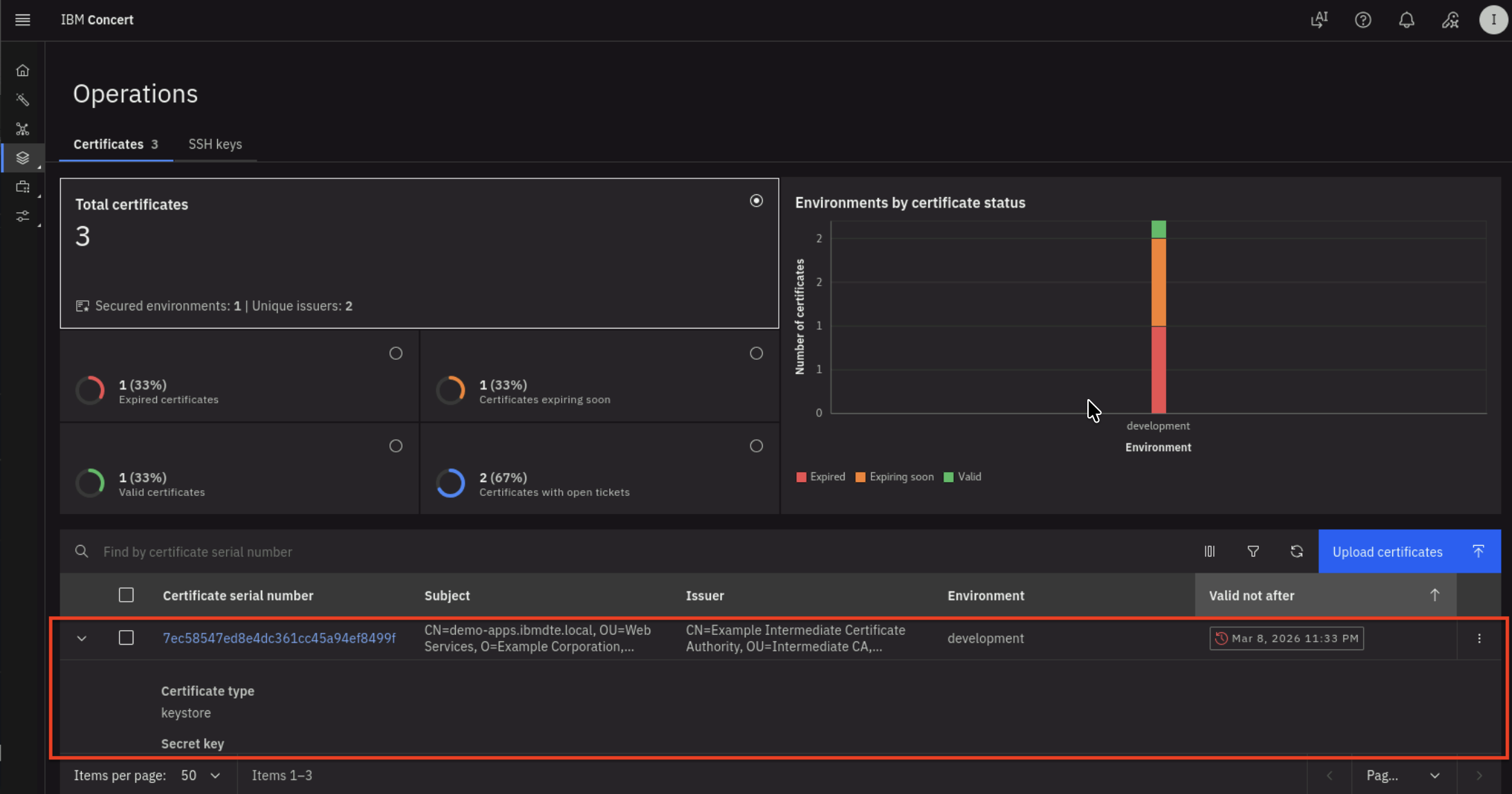
- After expanding the twistie, you will see certificate properties and a GitHub issue URL.
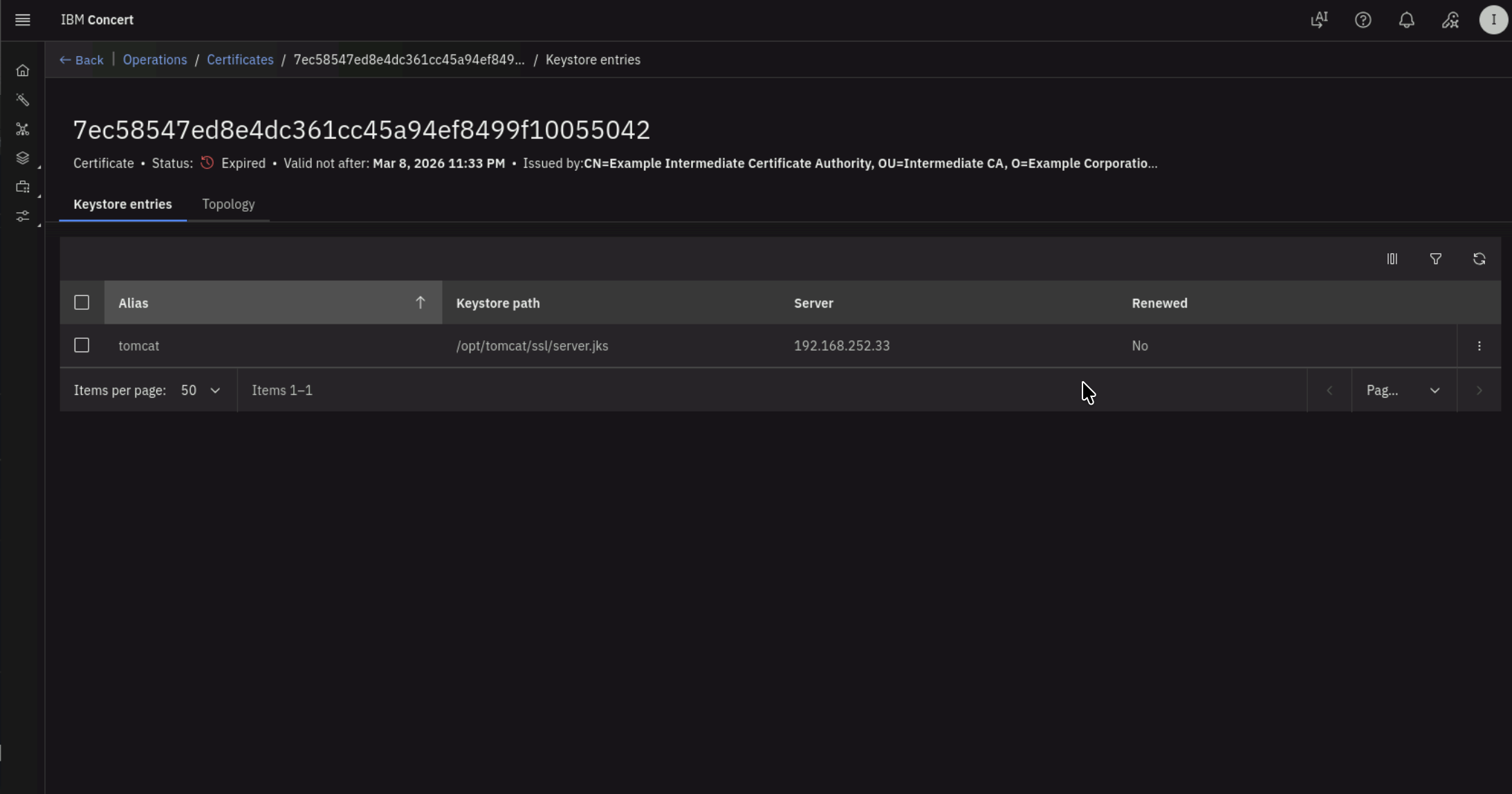
- Click the Certificate Serial Number to navigate to the Certificate's Keystore entries UI.
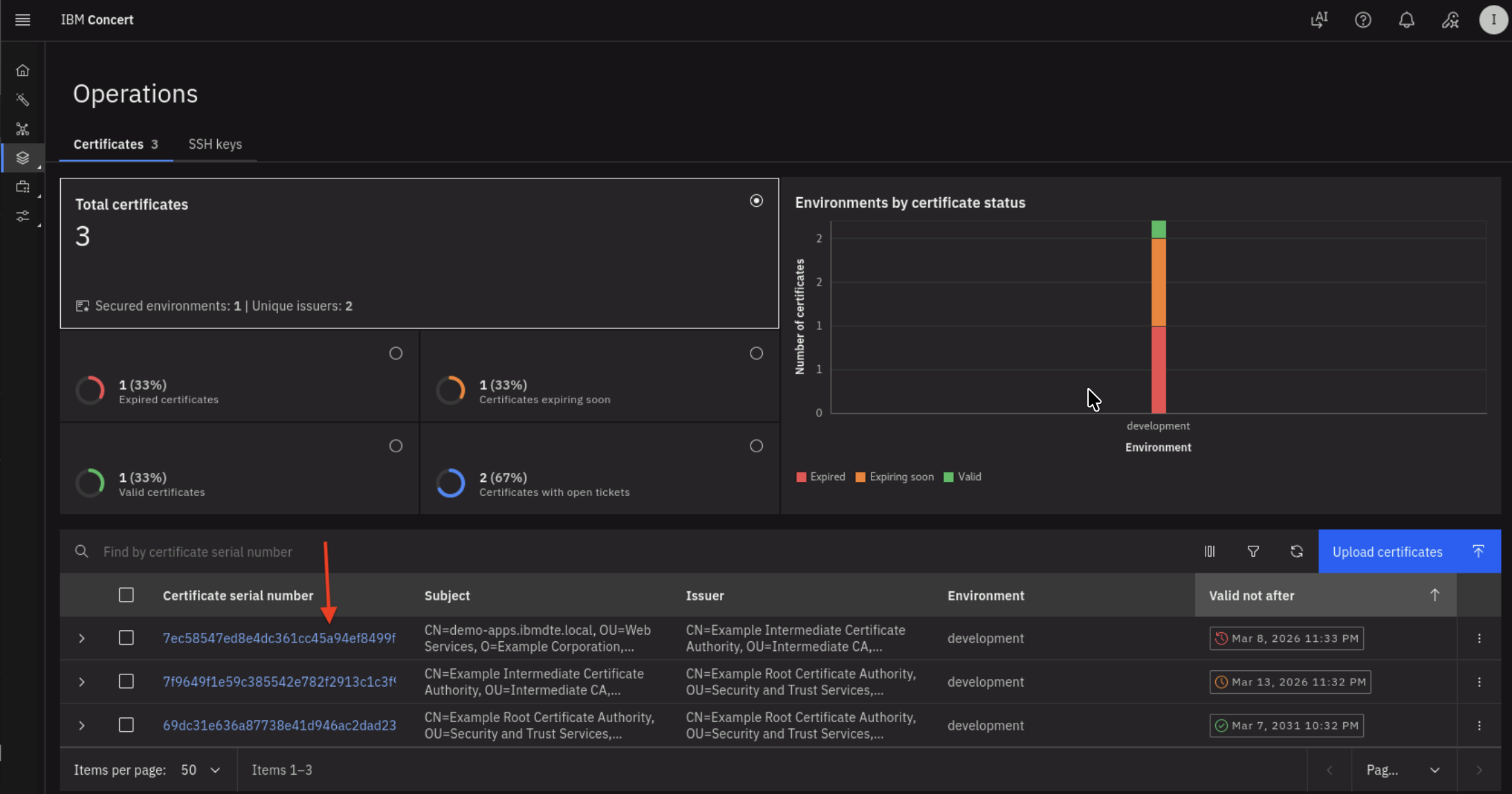
- You will get into Keystore entries UI for a Certificate after performing the previous action.
- Click on Back on the top navigation to get back to the previous page.
Click on the 3 vertical dots at the right of the certificates. You will see the option to update some certificate attributes or delete the certificate (don't make any change).
5.3.3: Label the GitHub Issues for Certificate Renewal
In GitHub, you will see the two GitHub issues created automatically by Concert Automation Rules. To recap, you created an Automation Rule in section 3.6: Creating Automation Rules in Concert
The two GitHub issues are associated with:
- One Certificate nearing expiration
- One Certificate that has already expired
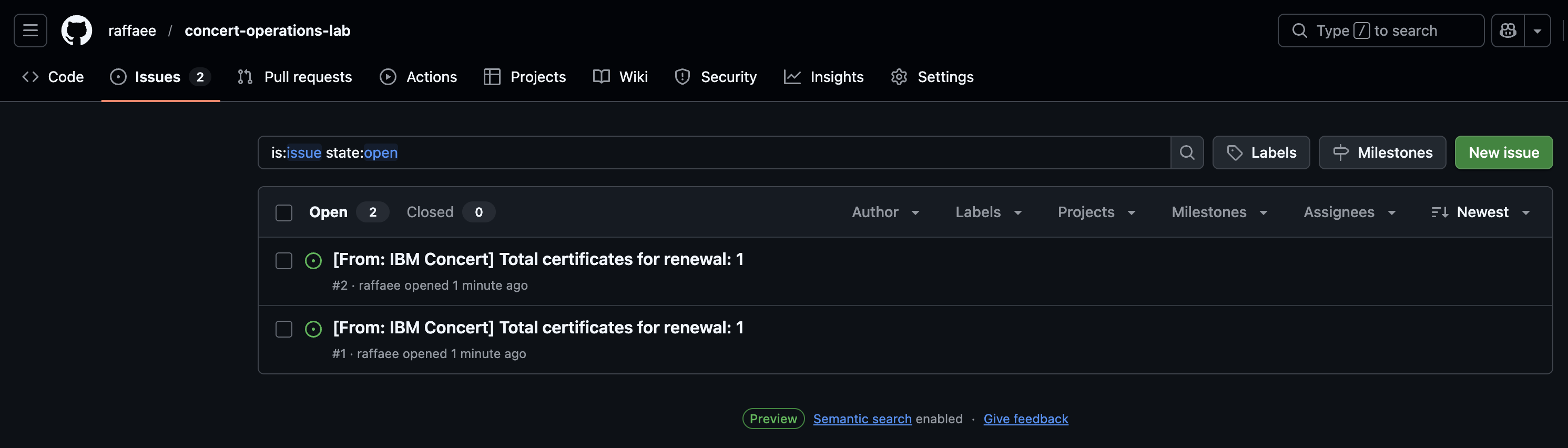
Now, using the Ticket/Issue link on the certificate, we will label the issue that belongs to the expired certificate as Approved for renewal.
- Click the twistie indicated by the red arrow on the expired certificate. Again, make sure you select the expired cert.
- Scroll down and click on the link under the Ticket section to open the Issue created for this expired certificate.
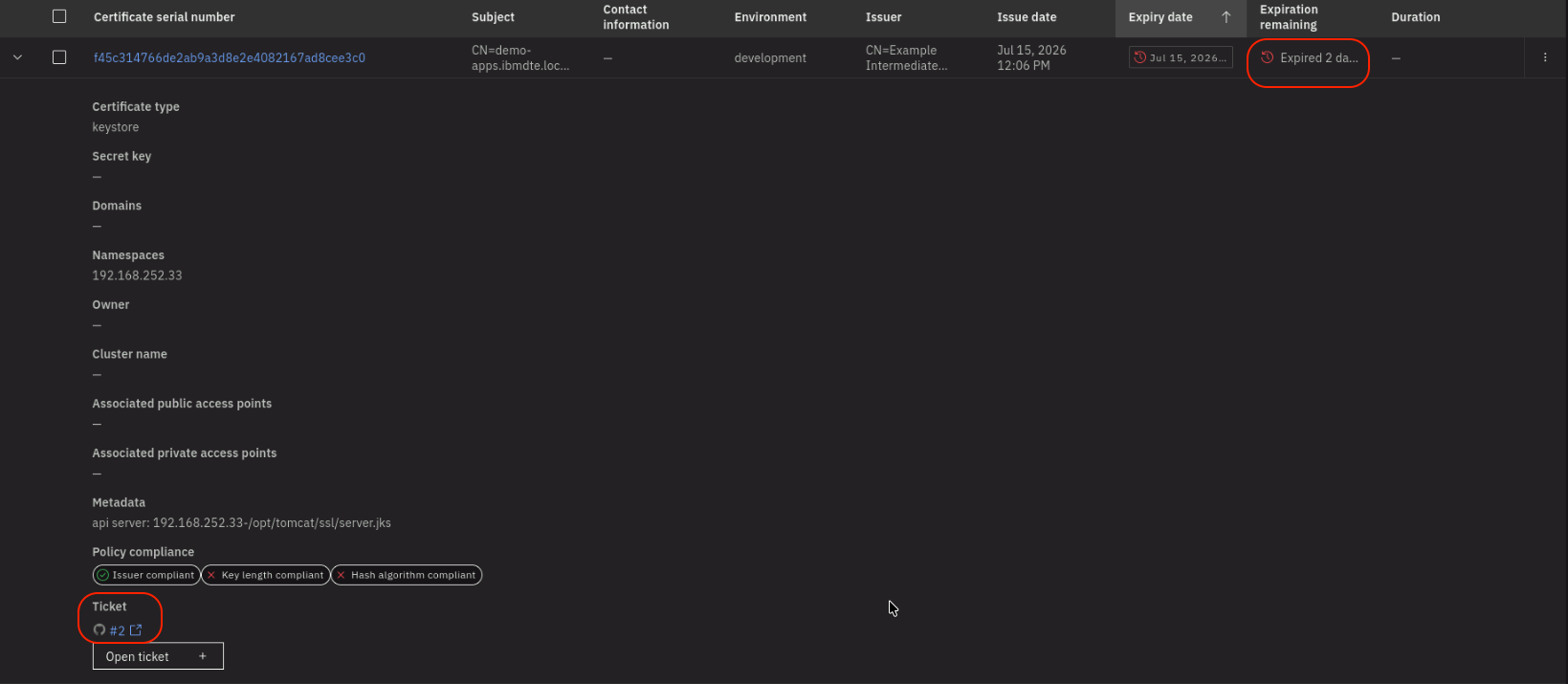
- On the Issue page, click on Labels on the right and check the Approved label. You should see the Approved label added to the issue as shown below:
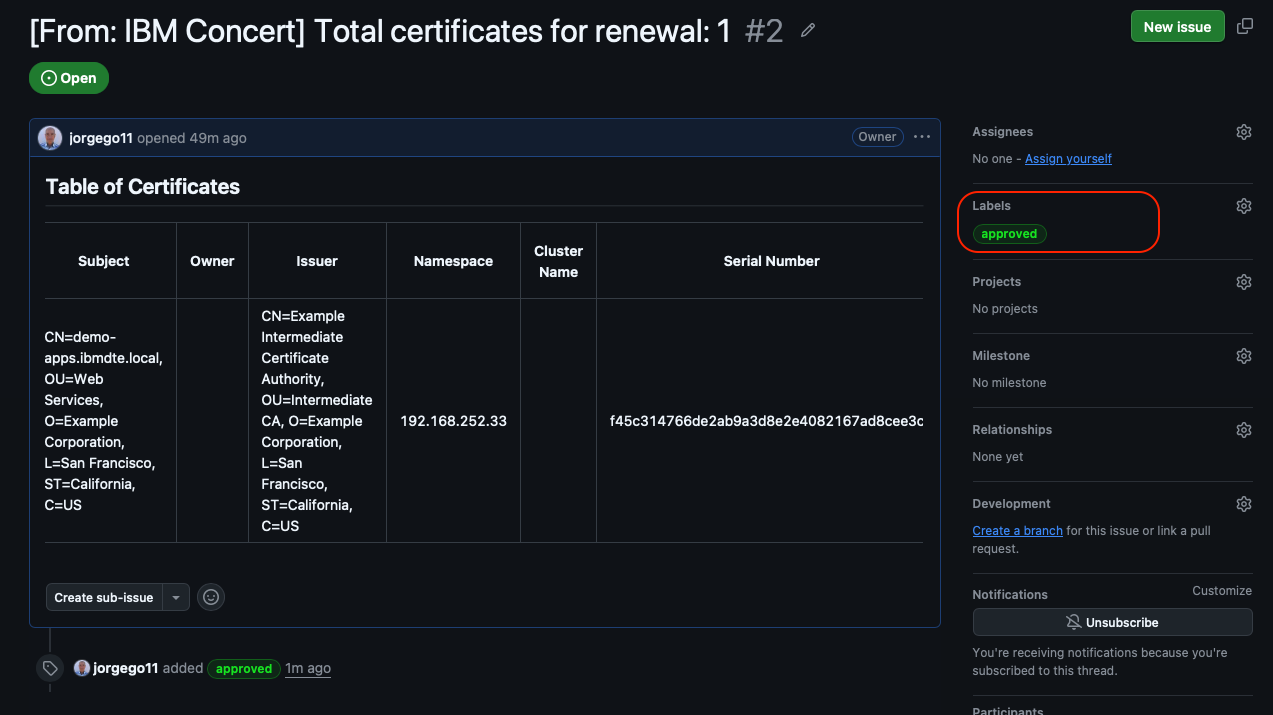
- Just to recap, we have labeled the issue that belongs to the expired certificate as Approved. This means that we have approved the renewal of this certificate. We will see how it gets renewed in the next section.
5.4: Confirm All Tomcat JKS Certificates are Discovered
Let's verify all Certificates in Apache Tomcat Java Keystore (JKS) are discovered and present in Concert UI.
The trust chain hierarchy for the certificates stored in the keystore file is as follows:
From the Bastion SSH, connect to demo-apps:
ssh jammer@demo-apps
Run the following to list all Certificates in Apache Tomcat Java Keystore:
sudo keytool -list -v -keystore /opt/tomcat/ssl/server.jks -storepass tomcat
The command output should display Certificate[1], Certificate[2], and Certificate[3] and certificate properties for each certificate as shown below.
This confirms that all three Certificates from Apache Tomcat Java Keystore were successfully discovered by the discovery workflow
and they are present in Concert.
- Certificate[1] is the Apache Tomcat certificate
- Certificate[2] is the Intermediate CA
- Certificate[3] is the Root CA.
Check the Valid from property under Certificate[1], which shows that the certificate is valid from: Mon Mar 09 03:32:00 UTC 2026 until: Mon Mar 09 03:33:00 UTC 2026.
Be aware that the certificate serial number in your lab environment may differ from the one shown in the screenshot.
Keystore type: JKS
Keystore provider: SUN

Your keystore contains 1 entry

Alias name: tomcat
Creation date: Mar 9, 2026
Entry type: PrivateKeyEntry
Certificate chain length: 3
Certificate[1]:
Owner: CN=demo-apps.ibmdte.local, OU=Web Services, O=Example Corporation, L=San Francisco, ST=California, C=US
Issuer: CN=Example Intermediate Certificate Authority, OU=Intermediate CA, O=Example Corporation, L=San Francisco, ST=California, C=US
Serial number: 7ec58547ed8e4dc361cc45a94ef8499f10055042
Valid from: Mon Mar 09 03:32:00 UTC 2026 until: Mon Mar 09 03:33:00 UTC 2026
Certificate fingerprints:
	 SHA1: 98:79:D2:98:E5:BD:2F:D7:05:92:BC:88:32:6C:A9:5F:CC:14:AB:3D
	 SHA256: E8:5D:87:19:5B:E0:A7:06:E1:35:2A:10:55:42:AC:6C:EB:4B:02:67:44:6D:5F:A1:67:A5:24:5A:07:EC:D5:2B
Signature algorithm name: SHA512withRSA
Subject Public Key Algorithm: 2048-bit RSA key
Version: 3

Extensions:

#1: ObjectId: 2.5.29.35 Criticality=false
AuthorityKeyIdentifier [
KeyIdentifier [
0000: 73 21 3A 93 49 58 BA 1A   73 E3 58 A4 84 1A 56 81  s!:.IX..s.X...V.
0010: 28 A9 A7 68                                        (..h
]
]

#2: ObjectId: 2.5.29.19 Criticality=true
BasicConstraints:[
  CA:false
  PathLen: undefined
]

#3: ObjectId: 2.5.29.37 Criticality=false
ExtendedKeyUsages [
  serverAuth
]

#4: ObjectId: 2.5.29.15 Criticality=true
KeyUsage [
  DigitalSignature
  Key_Encipherment
]

#5: ObjectId: 2.5.29.17 Criticality=false
SubjectAlternativeName [
  DNSName: myserver.example.com
  DNSName: demo-apps.ibmdte.local
  IPAddress: 192.168.252.33
]

#6: ObjectId: 2.5.29.14 Criticality=false
SubjectKeyIdentifier [
KeyIdentifier [
0000: EB 73 E0 12 DC 15 A1 4C   FE 0F 94 B2 A1 D6 24 66  .s.....L......$f
0010: CC 78 F4 47                                        .x.G
]
]

Certificate[2]:
Owner: CN=Example Intermediate Certificate Authority, OU=Intermediate CA, O=Example Corporation, L=San Francisco, ST=California, C=US
Issuer: CN=Example Root Certificate Authority, OU=Security and Trust Services, O=Example Corporation, L=San Francisco, ST=California, C=US
Serial number: 7f9649f1e59c385542e782f2913c1c3f9a43808e
Valid from: Mon Mar 09 03:32:00 UTC 2026 until: Sat Mar 14 03:32:00 UTC 2026
Certificate fingerprints:
	 SHA1: C9:B8:FB:94:D3:D3:ED:1C:BB:8D:C5:76:5F:33:BB:9A:D3:2A:F4:05
	 SHA256: E4:83:54:6C:36:8B:50:B8:47:BB:49:36:A5:04:85:58:F7:58:AD:3A:2D:24:FB:56:8E:A1:25:76:B7:51:F7:0A
Signature algorithm name: SHA512withRSA
Subject Public Key Algorithm: 4096-bit RSA key
Version: 3

Extensions:

#1: ObjectId: 2.5.29.35 Criticality=false
AuthorityKeyIdentifier [
KeyIdentifier [
0000: B8 C9 34 FC ED A1 88 87   6B 9C 43 CF 81 18 8B 87  ..4.....k.C.....
0010: A9 3B 98 85                                        .;..
]
]

#2: ObjectId: 2.5.29.19 Criticality=true
BasicConstraints:[
  CA:true
  PathLen: no limit
]

#3: ObjectId: 2.5.29.15 Criticality=true
KeyUsage [
  Key_CertSign
  Crl_Sign
]

#4: ObjectId: 2.5.29.17 Criticality=false
SubjectAlternativeName [
  IPAddress: 127.0.0.1
]

#5: ObjectId: 2.5.29.14 Criticality=false
SubjectKeyIdentifier [
KeyIdentifier [
0000: 73 21 3A 93 49 58 BA 1A   73 E3 58 A4 84 1A 56 81  s!:.IX..s.X...V.
0010: 28 A9 A7 68                                        (..h
]
]

Certificate[3]:
Owner: CN=Example Root Certificate Authority, OU=Security and Trust Services, O=Example Corporation, L=San Francisco, ST=California, C=US
Issuer: CN=Example Root Certificate Authority, OU=Security and Trust Services, O=Example Corporation, L=San Francisco, ST=California, C=US
Serial number: 69dc31e636a87738e41d946ac2dad2398be484d8
Valid from: Mon Mar 09 03:32:00 UTC 2026 until: Sat Mar 08 03:32:00 UTC 2031
Certificate fingerprints:
	 SHA1: 93:EF:C1:83:5C:FE:0D:1F:B4:8A:43:3D:E9:B3:89:28:C5:3F:53:99
	 SHA256: 43:5D:D9:62:FD:6E:67:2B:E7:80:B1:26:E2:F0:40:87:26:57:D0:D9:AB:F7:3B:D6:52:FC:8E:35:05:DE:4E:23
Signature algorithm name: SHA512withRSA
Subject Public Key Algorithm: 4096-bit RSA key
Version: 3

Extensions:

#1: ObjectId: 2.5.29.19 Criticality=true
BasicConstraints:[
  CA:true
  PathLen: no limit
]

#2: ObjectId: 2.5.29.15 Criticality=true
KeyUsage [
  Key_CertSign
  Crl_Sign
]

#3: ObjectId: 2.5.29.14 Criticality=false
SubjectKeyIdentifier [
KeyIdentifier [
0000: B8 C9 34 FC ED A1 88 87   6B 9C 43 CF 81 18 8B 87  ..4.....k.C.....
0010: A9 3B 98 85                                        .;..
]
]


*******************************************
*******************************************


Warning:
The JKS keystore uses a proprietary format. It is recommended to migrate to PKCS12 which is an industry standard format using "keytool -importkeystore -srckeystore /opt/tomcat/ssl/server.jks -destkeystore /opt/tomcat/ssl/server.jks -deststoretype pkcs12".
5.5: Get the Certificate Metadata via Concert API
Let's use Concert API to search for a Certificate using Certificate Serial Number.
Be aware that the certificate serial number in your lab environment may differ from the one shown in the screenshot.
From the Bastion SSH, run the following curl command. Use the credentials file to copy the command below and update the following values:
- Replace the value after search= with the Certificate Serial Number that belongs to the expired certificate from the Concert Operations/Certificates page.
- Replace the value after C_API_KEY: with your Concert API Key.
curl -sk \
  --request GET https://concert.ibmdte.local:12443/core/api/v1/certificates?search=<CERTIFICATE_SERIAL_NUMBER> \
  --header 'Authorization: C_API_KEY: <YOUR_CONCERT_API_KEY>' \
  --header 'InstanceId: 0000-0000-0000-0000' \
  --header 'accept: application/json' \
  --header 'content-type: application/json-patch+json' | jq
This is an example of the expected output:
{
  "pagination": {
    "total_count": 1,
    "total_pages": 1,
    "page_size": 2000,
    "page_number": 1
  },
  "certificates": [
    {
      "id": "7b32dea1-18d1-4f19-ae27-c3692c57d67c",
      "subject": "CN=demo-apps.ibmdte.local, OU=Web Services, O=Example Corporation, L=San Francisco, ST=California, C=US",
      "issuer": "CN=Example Intermediate Certificate Authority, OU=Intermediate CA, O=Example Corporation, L=San Francisco, ST=California, C=US",
      "serial_number": "7ec58547ed8e4dc361cc45a94ef8499f10055042",
      "certificate_type": "keystore",
      "validity_start_date": 1773027120,
      "validity_end_date": 1773027180,
      "auth_user_role": "admin",
      "namespaces": [
        "192.168.252.33"
      ],
      "last_updated_on": 1773121137,
      "last_updated_by": "ibmconcert",
      "is_archived": false,
      "metadata": "{\"api_server\": \"192.168.252.33-/opt/tomcat/ssl/server.jks\"}",
      "additional_data": "{\"policy_check_result\": {\"issuer_compliant\": true, \"key_length_compliant\": false, \"hash_algorithm_compliant\": false}, \"192.168.252.33-/opt/tomcat/ssl/server.jks-tomcat\": {\"alias\": \"tomcat\", \"server\": \"192.168.252.33\", \"keystore_path\": \"/opt/tomcat/ssl/server.jks\"}}",
      "status": "expired",
      "environment": {
        "id": "c6f75900-d53e-4b90-b75c-824f95a48306",
        "name": "development"
      },
      "issues": [
        {
          "id": "7b32dea1-18d1-4f19-ae27-c3692c57d67c",
          "id_type": "certificate",
          "opened_on": 1773121142,
          "status": "Open",
          "last_updated_on": 1773121142,
          "issue_link": {
            "issue_id": "2",
            "url": "https://github.com/raffaee/concert-operations-lab/issues/2",
            "labels": [],
            "assignees": []
          }
        }
      ],
      "access_points": [],
      "with_open_tickets": true,
      "table_data": null
    }
  ]
}
- From the json output, you will notice that under issues block there is a GitHub issue associated with the certificate because it is already expired.
5.6: Summary
In this section, you have been able to accomplish the following:
- Have configured the parameter values for the Discovery workflow.
- Have executed the Discovery workflow.
- Have verified all certificates from Apache Tomcat Java Keystore are discovered and present in Concert.
- Have verified that GitHub issues are automatically created by the Concert Automation Rules.
- Have tried out Certificate Concert API to search for a Certificate using its Serial Number.
Now, it's time to move to the next step. Please continue to the next section of the lab.