6. Certificate Renewal
6.1: Overview
In this section, we will configure the certificate renewal workflow to update a certificate in the Apache Tomcat Java KeyStore, then ingest the new certificate into Concert. We will also verify that the new certificate is visible in Concert's Operations Dimension UI and confirm that the corresponding GitHub issue has been updated with a closing comment and marked as closed.
6.2: Configuring the Certificate Renewal Workflow
Let's configure user variables values for Linux_Keystore_Cert_Renewal Workflow by using Authentications created in previous section.
From the Bastion Remote Desktop, on the Firefox browser click on the Concert tab.
For each default value shown below, begin the entry with a double quote (") and end it with a double quote (").
-
Click on the burger menu on the top left corner and select Workflows -> Workflows
-
Click on the certificateRenewal folder
-
Click Linux_Keystore_Cert_Renewal workflow
- Under ansibleAuth name, for Default value, type
"ibmconcert/Ansible-apacheTomcat" - Under passwordMap name, for Default value, type
"ibmconcert/CertConfigData" - Under caOrSelfSigned name, for Default value, type
"ca" - Under caServerAnsibleAuth name, for Default value, type
"ibmconcert/Ansible-cfssl" - Under caType name, for Default value, type
cfssl - Under tomcatServerAnsibleAuth name, for Default value, type
"ibmconcert/Ansible-apacheTomcat" - Under sFtpsrcFilePath name, for Default value, type
"/opt/cfssl/cfssl-pki/all-certs/fullchain.pem" - Under sFtpdestFilePath name, for Default value, type
"/tmp/fullchain.pem" - Under keyStoreFileName name, for Default value, type
"server.jks" - Under gitHubCredentials name, for Default value, type
"ibmconcert/GitHub" - Under gitHubOwner name, for Default value, type
"<GitHub Username>" - Under gitHubRepo name, for Default value, type
"concert-operations-lab" - Under gitHubIssueState name, for Default value, type
"open" - Under gitHubIssueLabel name, for Default value, type
"approved" - Under concertAuth name, for Default value, type
"ibmconcert/ConcertAPIKey" - Under commonSSHcfssl name, for Default value, type
"ibmconcert/SSH-cfssl" - Under commonSSHTomcat name, for Default value, type
"ibmconcert/SSH-apacheTomcat"
- Under ansibleAuth name, for Default value, type
-
Click the Save icon on top right area to apply and save the workflow with the configurations

6.3: Scheduling the Certificate Renewal Workflow
Let's create a job schedule for Linux_Keystore_Cert_Renewal Workflow.
In a customer environment, the Linux_Keystore_Cert_Renewal Workflow is configured to run automatically as a job through a workflow job scheduler. You can also run Linux_Keystore_Cert_Renewal workflow manually.
From the Bastion Remote Desktop, on the Firefox browser click on the Concert tab.
- Click on the burger menu on the top left corner and select Workflows -> Jobs
- Click + Create Job button on top right side
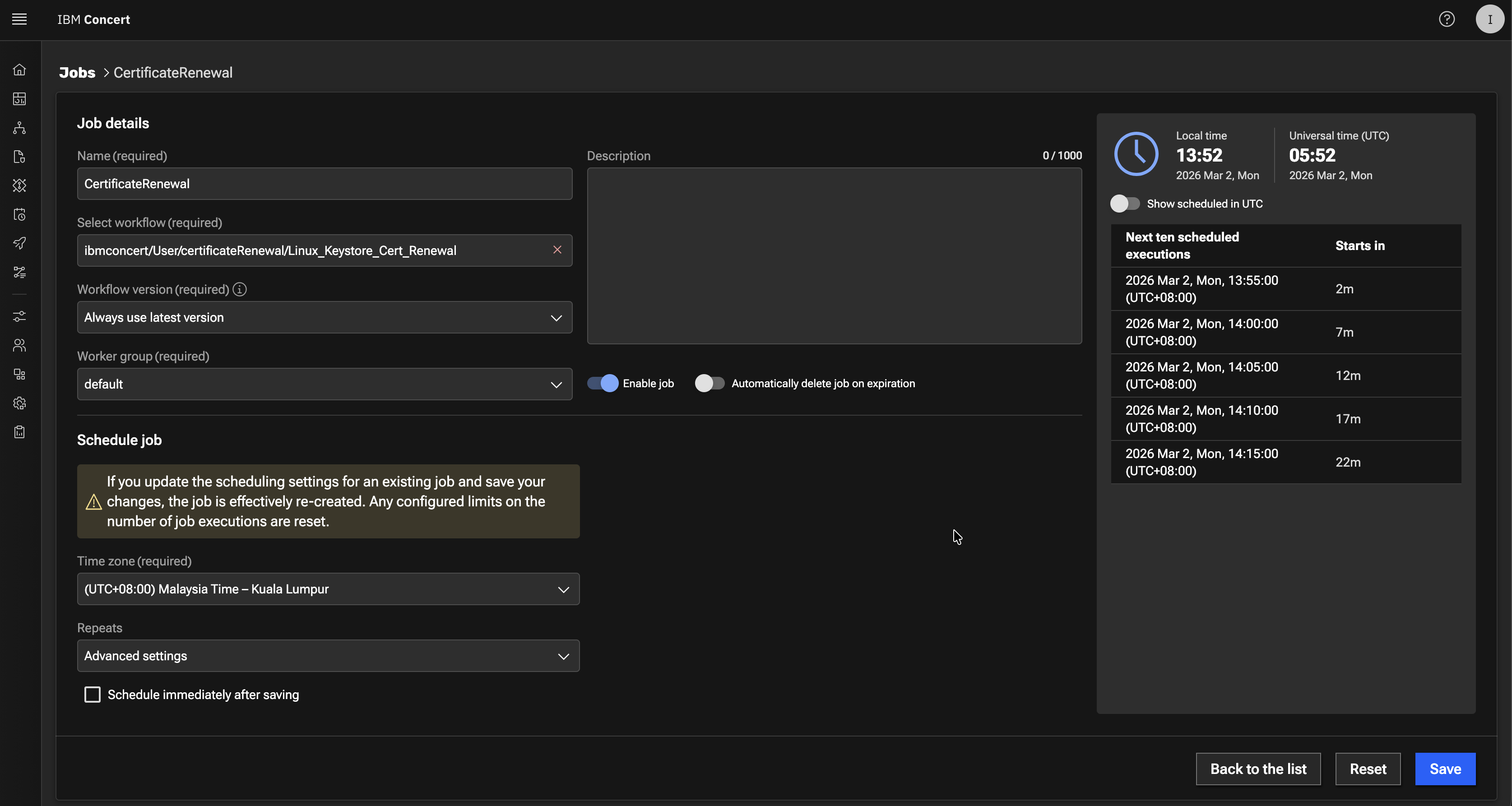
- Under Job details:
- In Name type
certificateRenewal - In Select workflow browse to
certificatesRenewalfolder and selectLinux_Keystore_Cert_Renewal - In Workflow version select Always use latest version
- In Enable job slider, slide it to the right to enable it
- In Name type
- Under Schedule job:
- In Time zone select the Time Zone for your location
- In Repeats select Advanced settings
- Uncheck Schedule immediately after saving checkbox
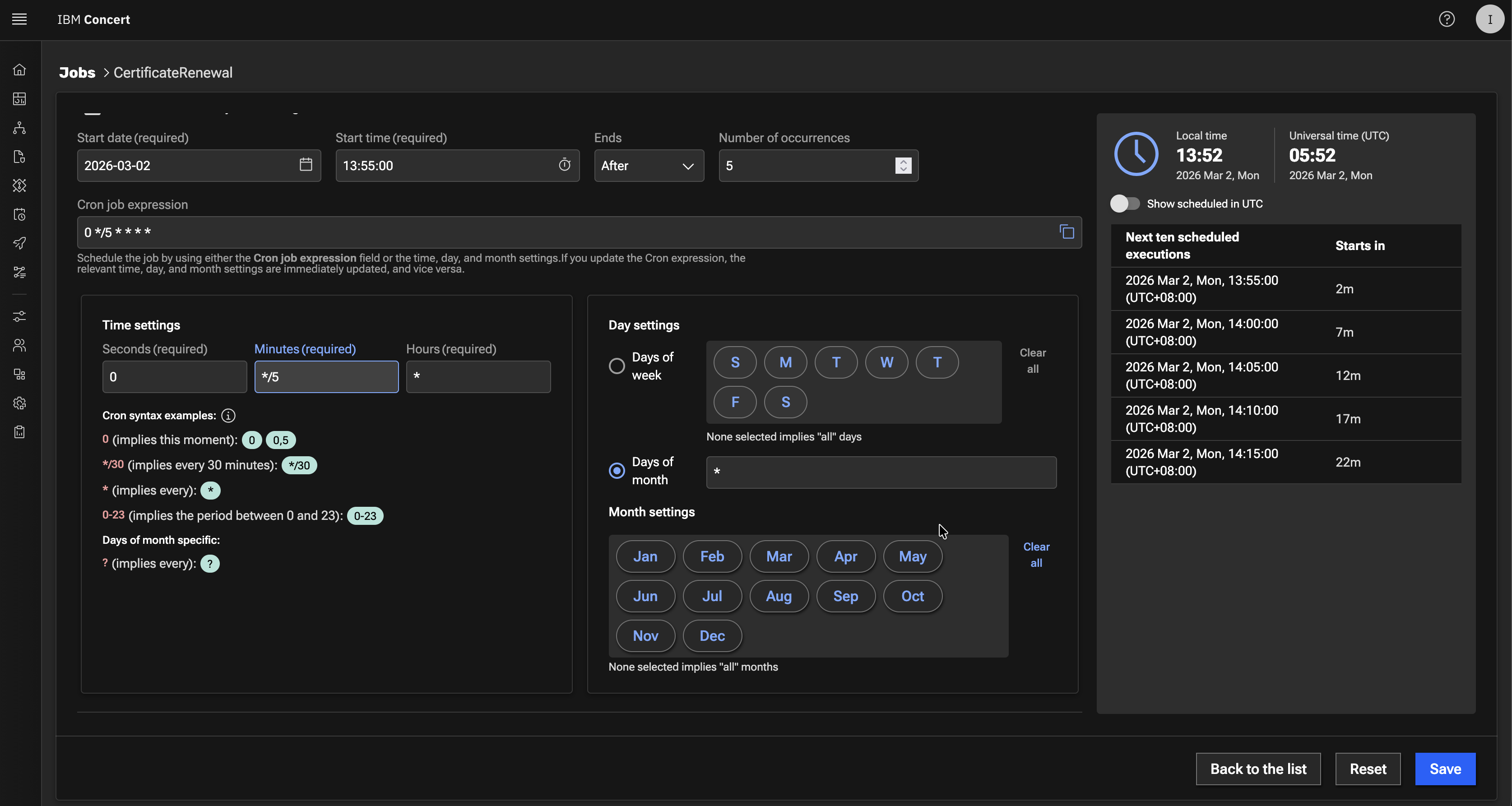
- In Select date select Current Date
- In Select time select Current Time + 5 minutes
- In Ends select After
- In Number of occurrences select 5
- In Cron job expression type
0 */5 * * * *
For the schedule time, Current Time + 5 minutes is required to give us some time to complete section 6.4 below before Linux_Keystore_Cert_Renewal job kicks in.
Your configuration should look similar to the screenshot below. Your scheduled date and time will be different.
- Click the Create button to save the job schedule
6.4: Triggering the Certificate Renewal Workflow
We will use Renewal menu option in the Certificate Keystore page, to perform the following actions :
- Use Certificate Serial Number to approve the Apache Tomcat certificate for renewal
- Use Certificate Serial Number to reject the Intermediate certificate for renewal
For this lab Certificate Renewal scenario:
-
approving Apache Tomcat certificate action means adding the approved label to the GiHub issue for the Apache Tomcat certificate. The
Linux_Keystore_Cert_Renewalworkflow uses this condition to perform the certificate renewal. -
rejecting an Intermediate certificate action means adding the rejected label to GiHub issue for Apache Tomcat certificate and the
Linux_Keystore_Cert_Renewalworkflow uses this condition to skip the certificate renewal.
Be aware that the certificate serial number in your lab environment may differ from the one shown in the screenshot.
From the Bastion Remote Desktop, on the Firefox browser click on the Concert tab.
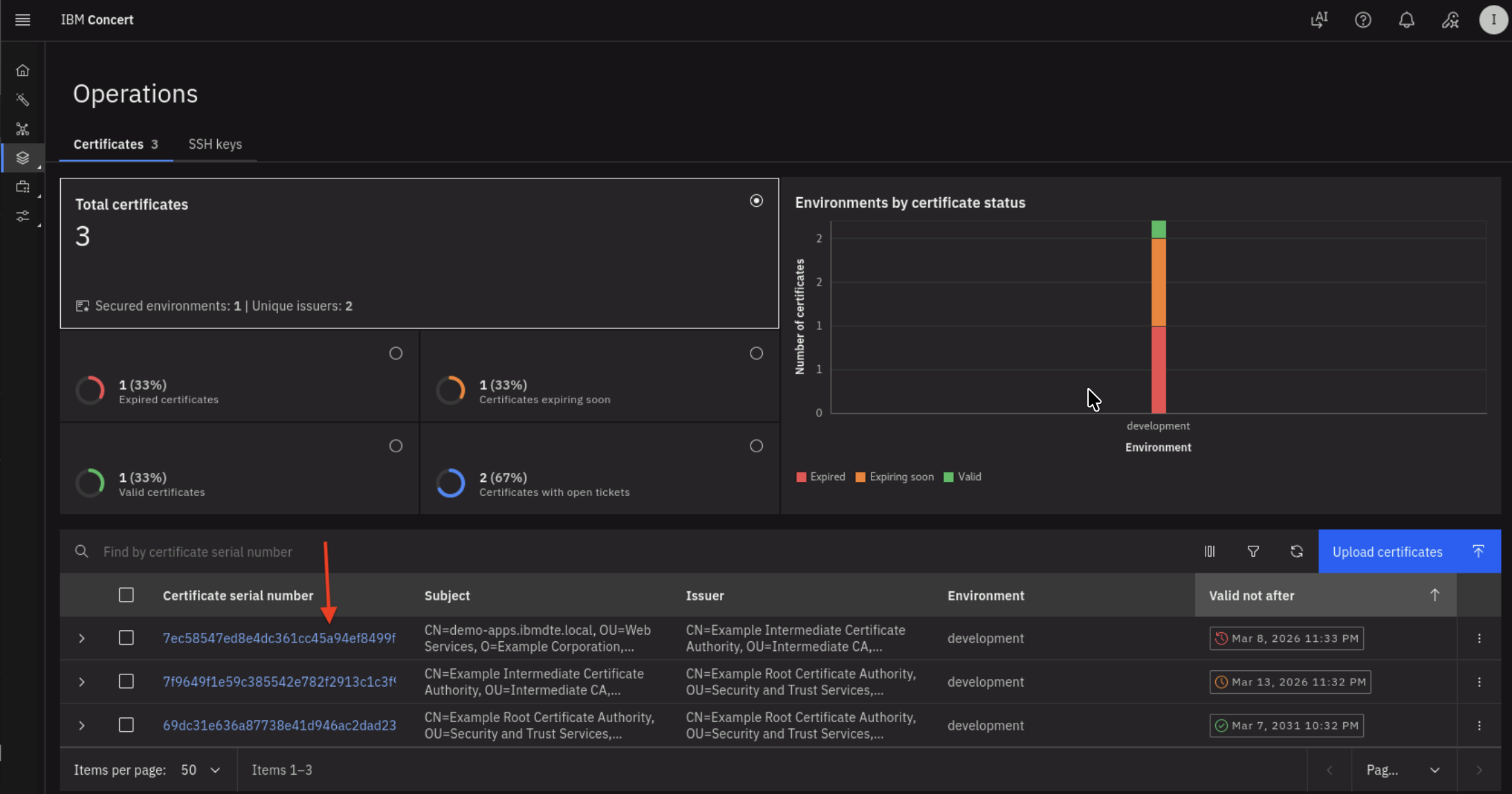
- Click on the burger menu on the top left corner and select Concert -> Dimensions -> Operations
- Choose
Apache Tomcat certificateorexpired certificatefrom the list. It is Apache Tomcat certificate when you see CN=demo-apps.ibmdte.local... under Subject column - Click the Certificate Serial Number to navigate to the Certificate's Keystore entries UI.
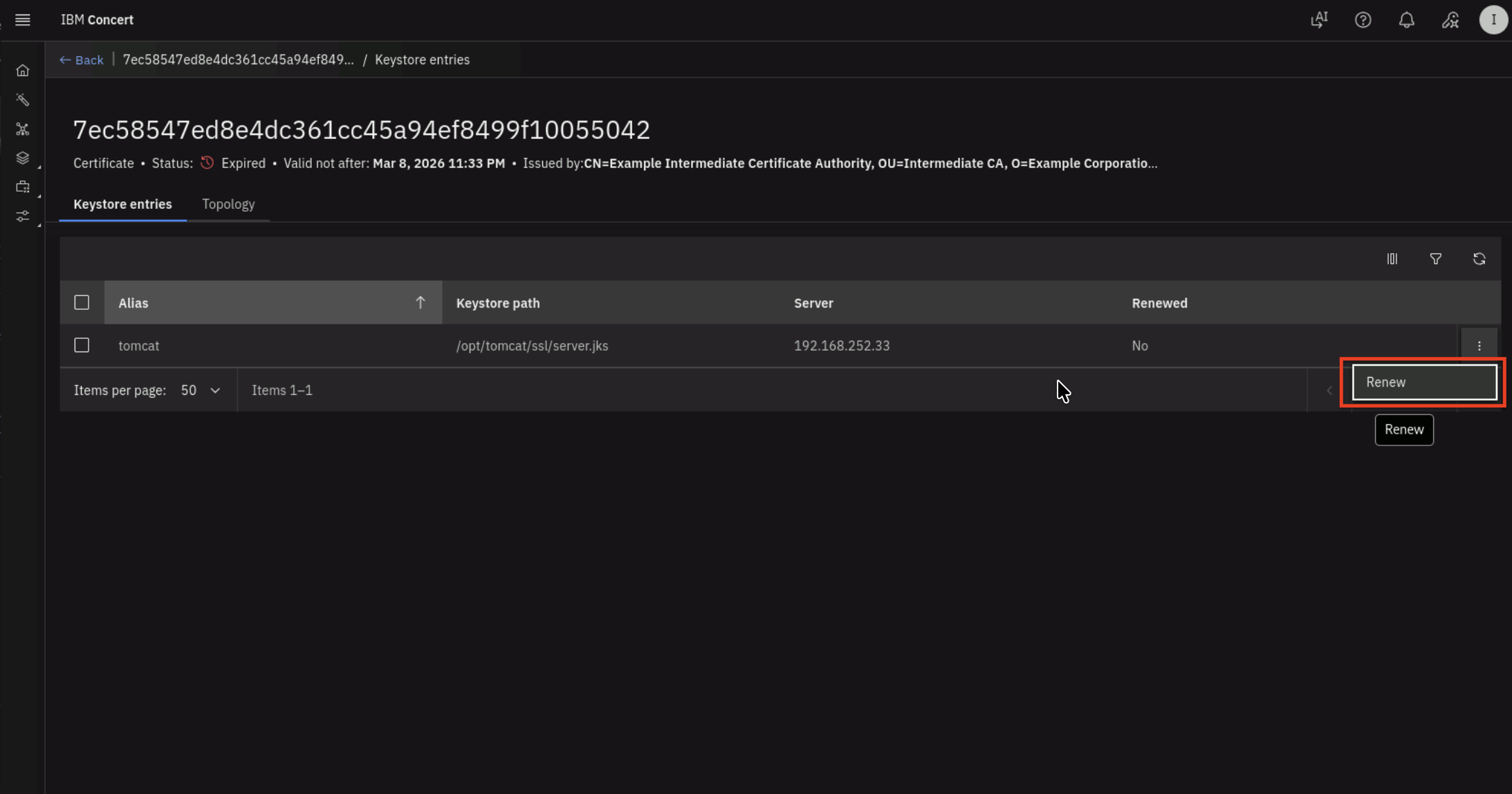
- You will get into Keystore entries UI for a Certificate after performing previous action. We will be using the Certificate Serial Number in subsequent step. Copy the Certificate Serial Number into a text file. Click Renew option.
- In Renew certificate UI, fill in these values :
- In Workflow reference select
updateGitHubIssueWithALabel - In Certserial type the Certificate Serial Number that you copied previously
- In Concertauth type
ibmconcert/ConcertAPIKey - In Githubcredentials type
ibmconcert/GitHub - In Issuelabel type
approved
- In Workflow reference select
Your configuration should look similar to the screenshot below.
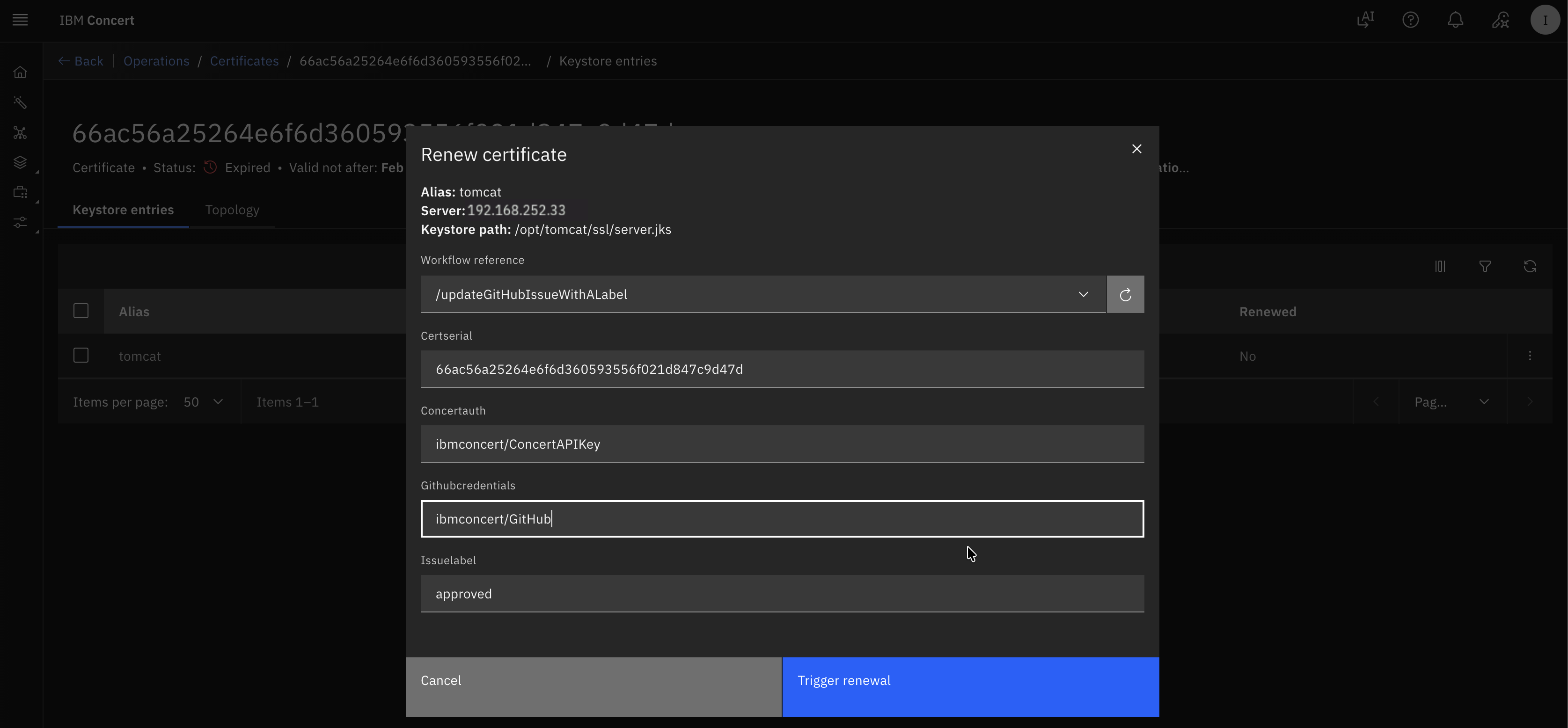
- Alternatively, you can go to GitHub Issues and manually add the
approvedlabel.
Now we will reject a certificate renewal:
- Navigate back to previous screen or Concert -> Dimensions -> Operations
- Choose
Intermediate CAorcertificate expiring soonfrom the list. It is Intermediate CA when you see CN=Example Intermediate Certificate Authority... under Subject column - Click the Certificate Serial Number to navigate to the Certificate's Keystore entries UI.
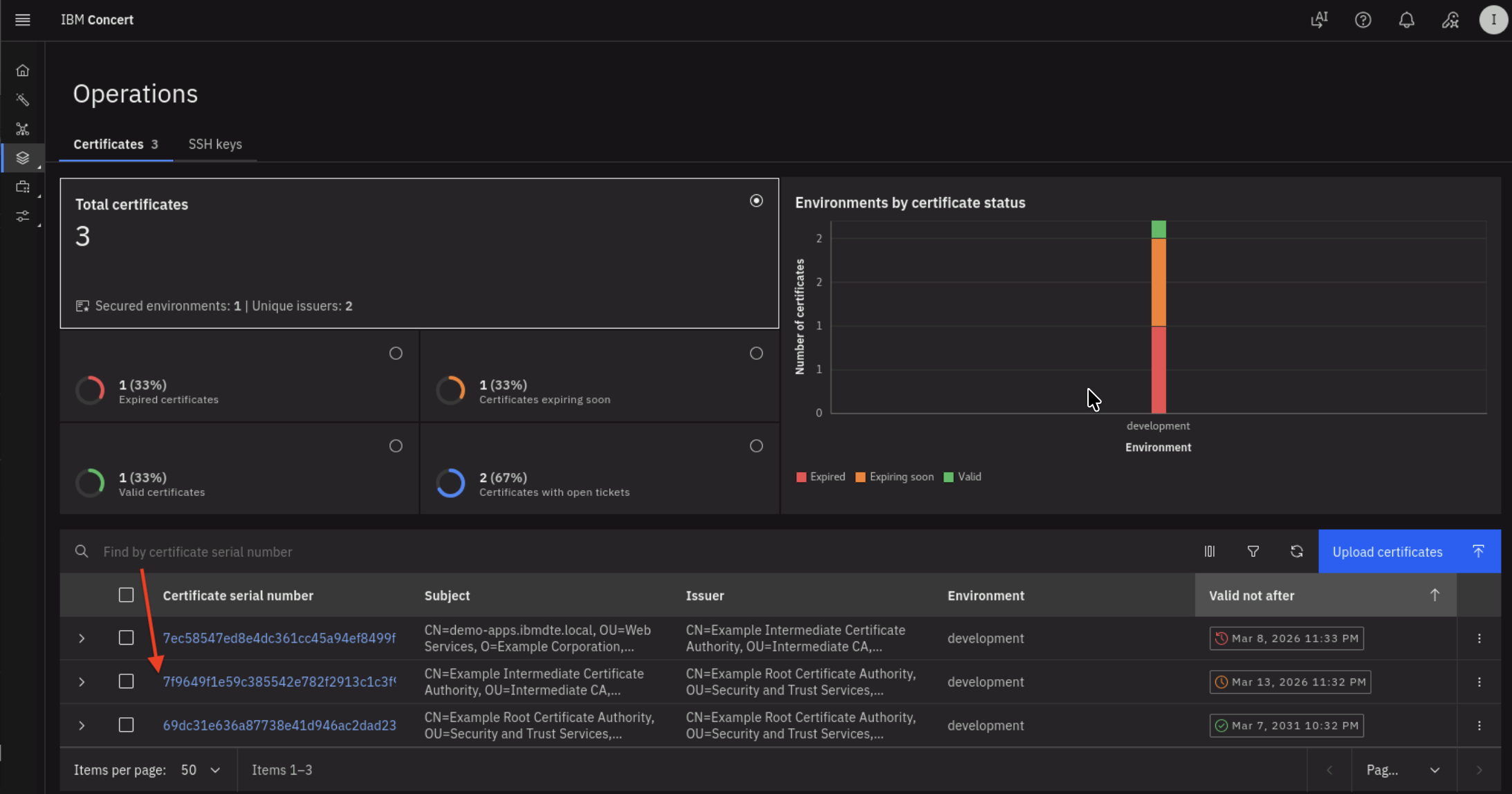
- You will get into Keystore entries UI for a Certificate after performing previous action. We will be using the Certificate Serial Number in subsequent step. Copy the Certificate Serial Number into a text file. Click Renew option.
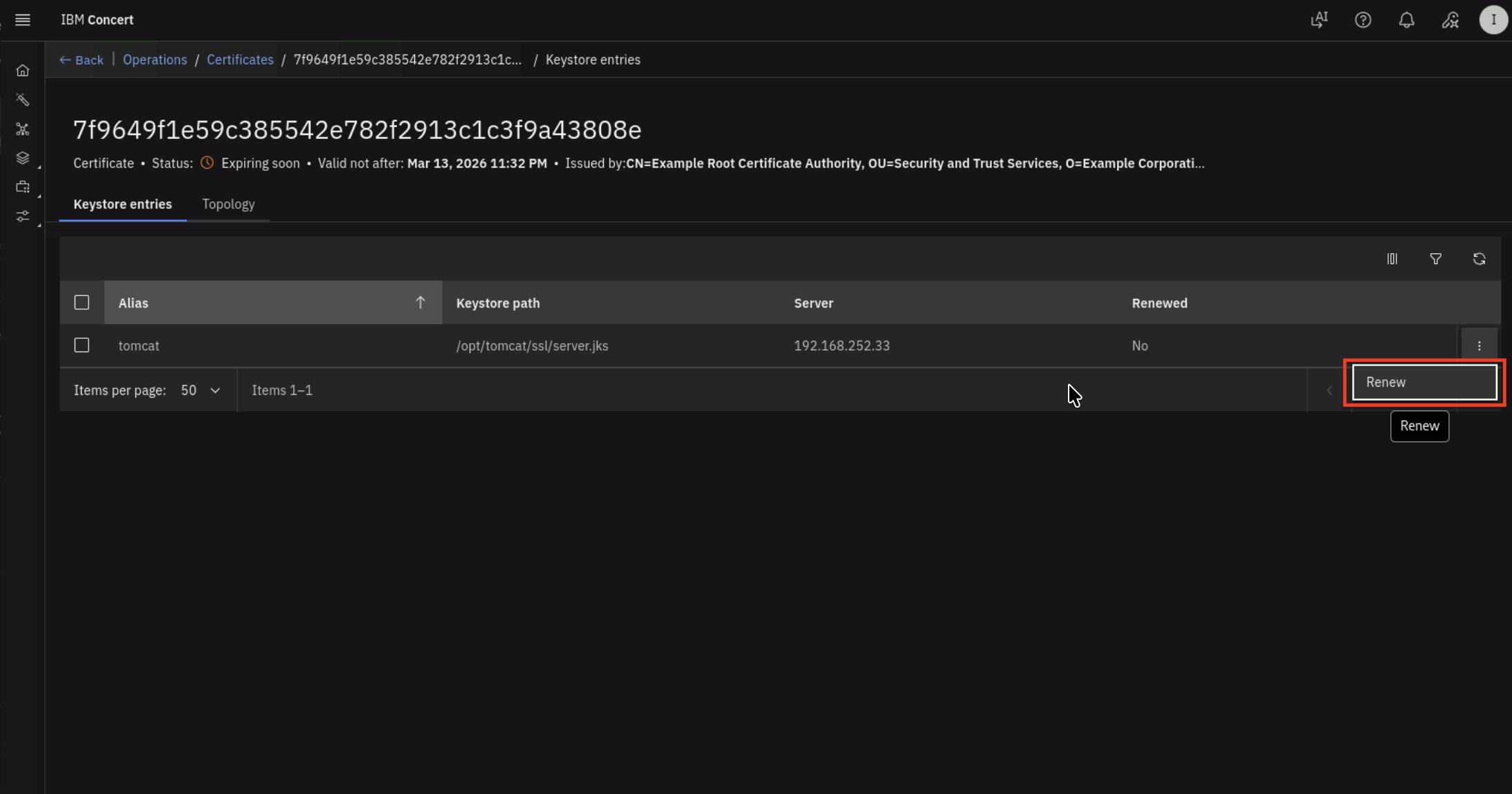
- In Renew certificate UI, fill in these values :
- In Workflow reference select
updateGitHubIssueWithALabel - In Certserial type the Certificate Serial Number that you copied previously
- In Concertauth type
ibmconcert/ConcertAPIKey - In Githubcredentials type
ibmconcert/GitHub - In Issuelabel type
rejected
- In Workflow reference select
Your configuration should look similar to the screenshot below.
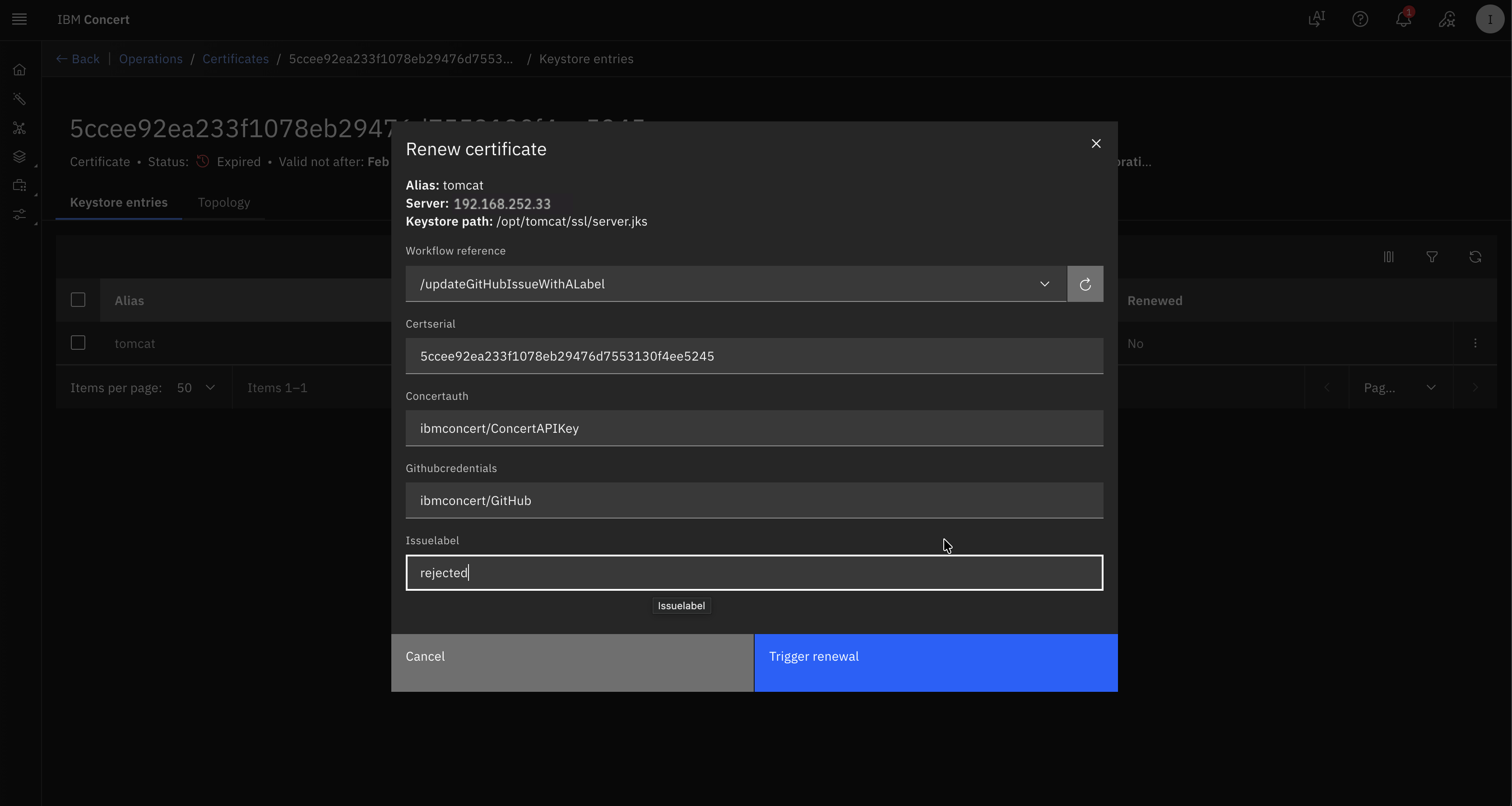
- Alternatively, you can go to GitHub Issues and manually add the
rejectedlabel.
You can now verify in GitHub that :
- 1 issue for Apache Tomcat Certificate has
approvedlabel - 1 issue for Intermediate CA has
rejectedlabel
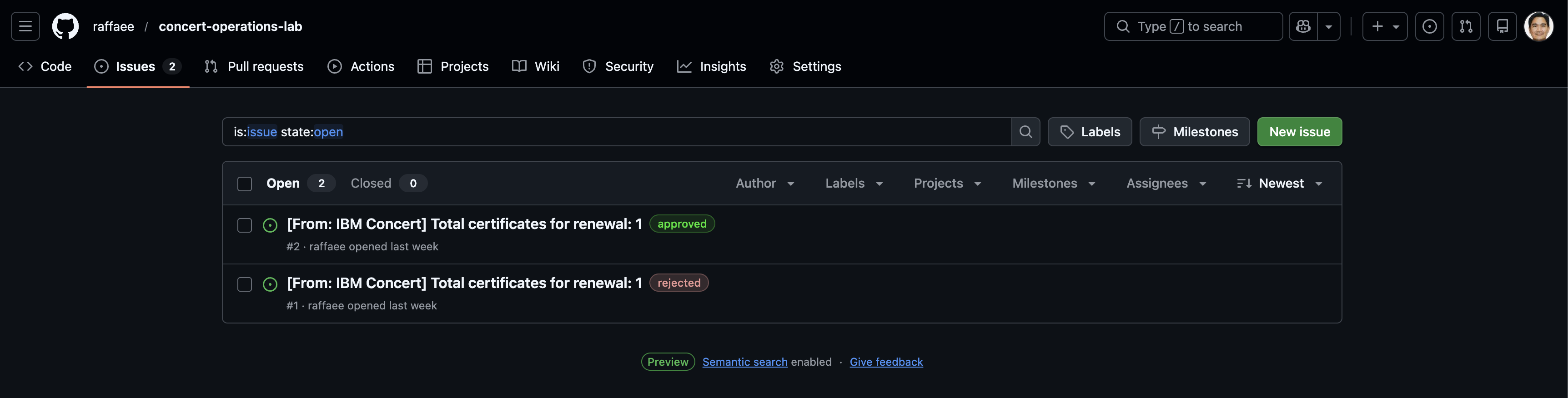
Let's wait for a while for Linux_Keystore_Cert_Renewal workflow job schedule kicks in.
6.5: Verifying the Renewal Workflow Job Schedule
Let's verify Linux_Keystore_Cert_Renewal workflow job log.
Be aware that the certificate serial number in your lab environment may differ from the one shown in the screenshot.
From the Bastion Remote Desktop, on the Firefox browser click on the Concert tab.
- Click on the burger menu on the top left corner and select Workflows -> Logs
- Search for Linux_Keystore_Cert_Renewal under Workflow column and Job scheduler under Executed from column
You will see job log similar to the screenshot below. The job log shows that the workflow completed successfully for the certificate with serial number value.
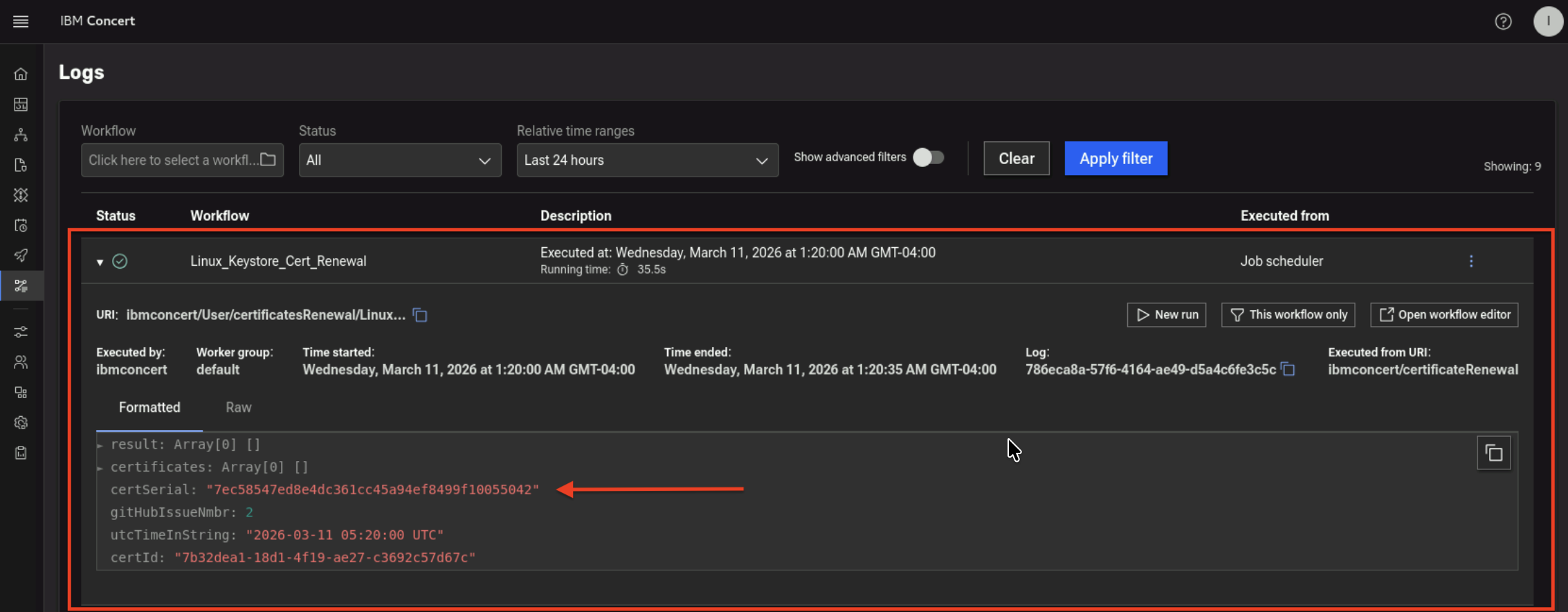
In GitHub, you will see the github issue for the certificate with serial number selected for renewal is marked as Closed.
You will also notice that there are comments for the issue added by Concert Automation.
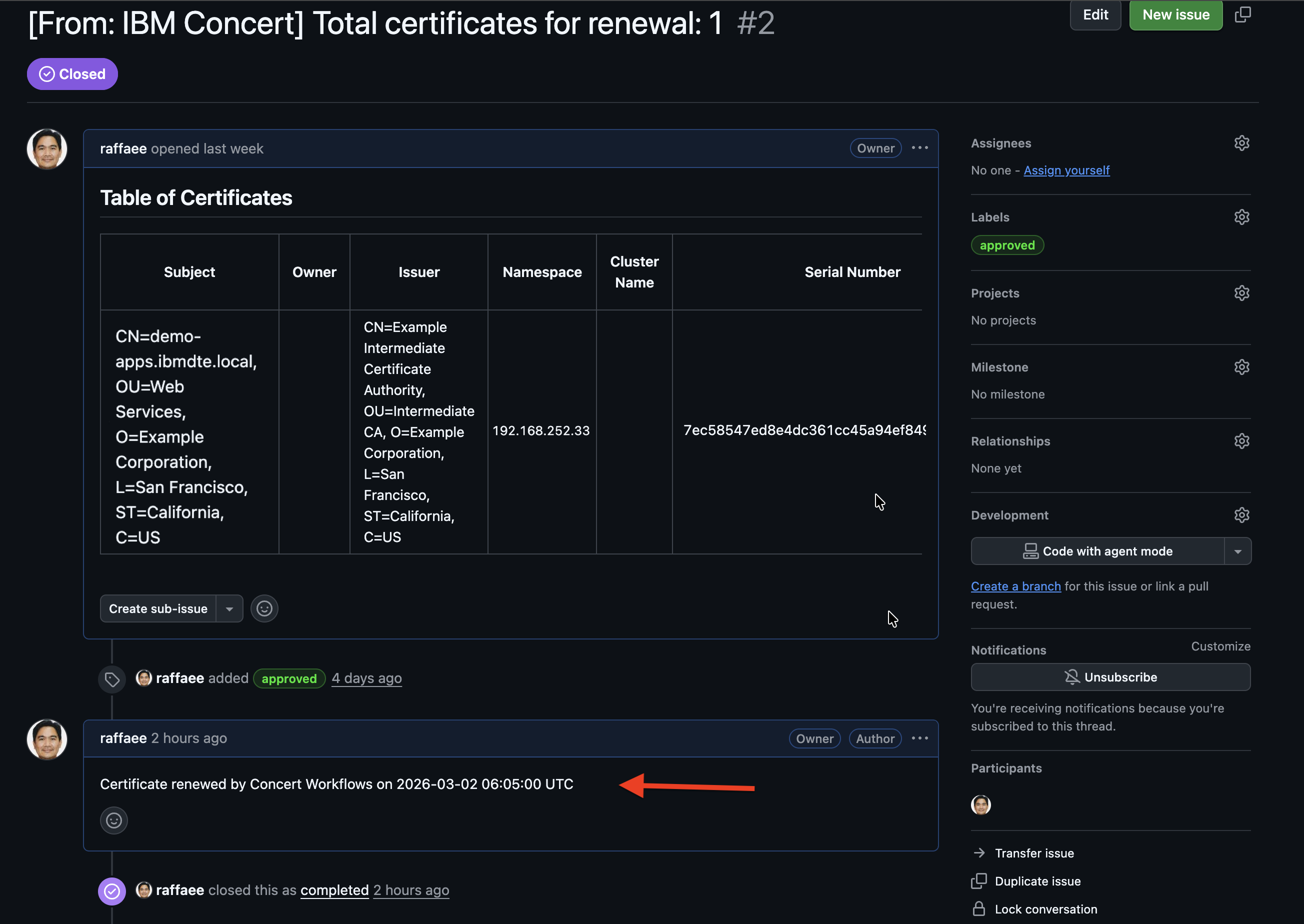
The github issue for the certificate with the serial number labeled as rejected is still Open and has no change.

6.6: Performing the Certificate Discovery Again
After a certificate in Apache Tomcat Java Keystore has been renewed, you will now run Linux_Keystore_Cert_Discovery
Workflow to discover certificates from Apache Tomcat Java KeyStore, then ingest them into Concert.
This discovery step is essential for importing the renewed certificate into Concert.
In a customer environment, the Linux_Keystore_Cert_Discovery Workflow is configured to run automatically as a job through a workflow job scheduler. In this lab exercise, however, it is executed manually to demonstrate how it works.
- Click Run icon for Linux_Keystore_Cert_Discovery Workflow

- The workflow will complete its execution and return 202 Accepted as message in Logs section below
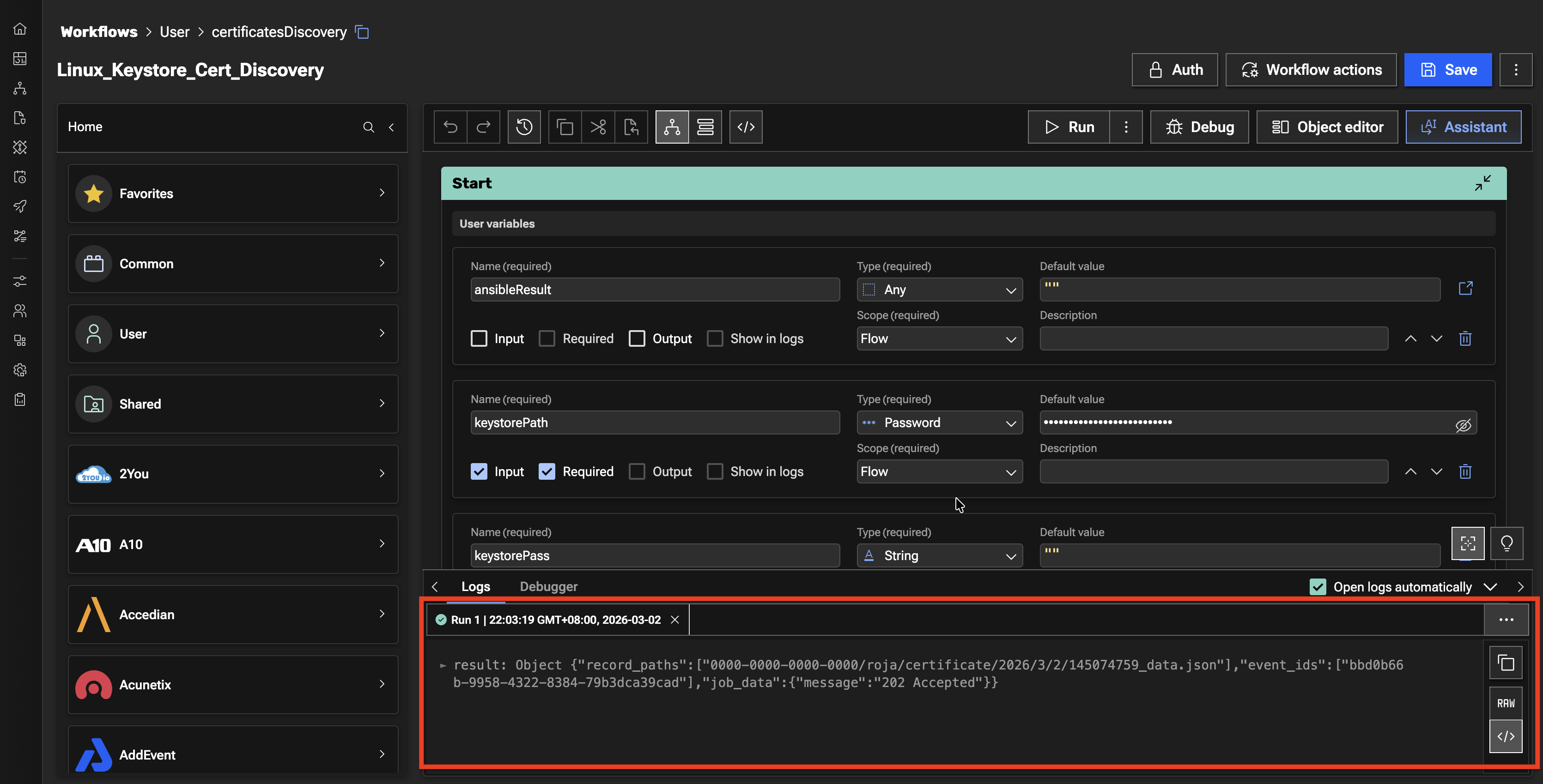
Let's verify the Discovery Workflow execution in Concert UI.
From the Bastion Remote Desktop, on the Firefox browser click on the Concert tab.
-
Click on the burger menu on the top left corner and select Concert -> Dimensions -> Operations. Make sure to refresh the page to see the updates.
On Certificates tab, you will see total number of Certificates in the development environment is 3, where :
- Two Certificate are now valid,
- One Certificate is still nearing expiration.
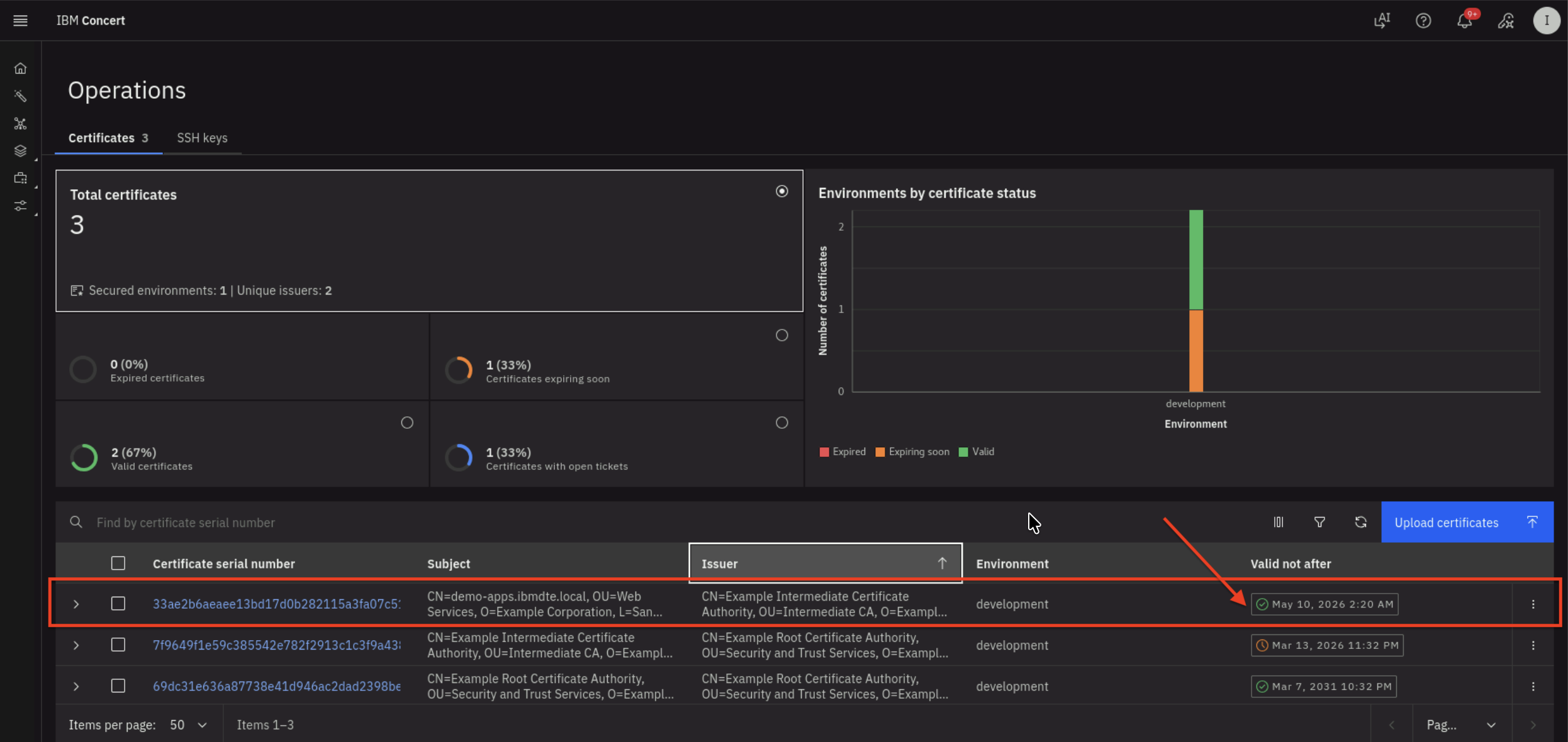
- The renewed certificate is highlighted in the above screenshot where the expiry date is + 2 months from present date
Be aware that the certificate serial number in your lab environment may differ from the one shown in the screenshot.
6.7: Search a Certificate via Concert API
Let's use Concert API to search for the new Apache Tomcat Certificate using Certificate Serial Number.
Be aware that the certificate serial number in your lab environment may differ from the one shown in the screenshot.
From the Bastion SSH, run the curl command, after replacing the following two values :
- Replace the value after search= with the actual Certificate Serial Number obtained from your Concert Certificate UI
- Replace the value after C_API_KEY: with your Concert API Key.
curl -sk \
  --request GET https://concert.ibmdte.local:12443/core/api/v1/certificates?search=<CERTIFICATE_SERIAL_NUMBER> \
  --header 'Authorization: C_API_KEY: <YOUR_CONCERT_API_KEY>' \
  --header 'InstanceId: 0000-0000-0000-0000' \
  --header 'accept: application/json' \
  --header 'content-type: application/json-patch+json'
This is an example of the expected output:
{
  "pagination": {
    "total_count": 1,
    "total_pages": 1,
    "page_size": 2000,
    "page_number": 1
  },
  "certificates": [
    {
      "id": "1eb38c4b-2cd9-440b-8672-b24c81fd4b02",
      "subject": "CN=demo-apps.ibmdte.local, OU=Web Services, O=Example Corporation, L=San Francisco, ST=California, C=US",
      "issuer": "CN=Example Intermediate Certificate Authority, OU=Intermediate CA, O=Example Corporation, L=San Francisco, ST=California, C=US",
      "serial_number": "33ae2b6aeaee13bd17d0b282115a3fa07c51e33",
      "certificate_type": "keystore",
      "validity_start_date": 1773210000,
      "validity_end_date": 1778394000,
      "auth_user_role": "admin",
      "namespaces": [
        "192.168.252.33"
      ],
      "last_updated_on": 1773211082,
      "last_updated_by": "ibmconcert",
      "is_archived": false,
      "metadata": "{\"api_server\": \"192.168.252.33-/opt/tomcat/ssl/server.jks\"}",
      "additional_data": "{\"policy_check_result\": {\"issuer_compliant\": true, \"key_length_compliant\": false, \"hash_algorithm_compliant\": false}, \"192.168.252.33-/opt/tomcat/ssl/server.jks-tomcat\": {\"alias\": \"tomcat\", \"server\": \"192.168.252.33\", \"keystore_path\": \"/opt/tomcat/ssl/server.jks\"}}",
      "status": "valid",
      "environment": {
        "id": "c6f75900-d53e-4b90-b75c-824f95a48306",
        "name": "development"
      },
      "issues": [],
      "access_points": [],
      "table_data": null
    }
  ]
}
From the json output, you will notice that the issues block is empty which indicates that there is no GitHub issue associated with the certificate because it is valid and not expiring.
6.8: Confirm the certificate in Java Keystore has a New Expiration Date
Let's use Java Keytool command to verify the Apache Tomcat certificate in Java Keystore now has new Expiration Date.
From the Bastion SSH, connect to demo-apps:
ssh jammer@demo-apps
Run the following to list all Certificates in Apache Tomcat Java Keystore:
sudo keytool -list -v -keystore /opt/tomcat/ssl/server.jks -storepass tomcat
The command output should display Certificate[1], Certificate[2], and Certificate[3] and certificate properties for each certificate as shown below.
- Certificate[1] is the Apache Tomcat certificate
- Certificate[2] is the Intermediate CA
- Certificate[3] is the Root CA
Check the Valid from property under Certificate[1], which shows that the certificate is now valid for the next two months. This confirms that Apache Tomcat certificate has been renewed successfully.
Be aware that the certificate serial number in your lab environment may differ from the one shown in the screenshot.
Example keytool command output:
Keystore type: JKS
Keystore provider: SUN

Your keystore contains 1 entry

Alias name: tomcat
Creation date: Mar 11, 2026
Entry type: PrivateKeyEntry
Certificate chain length: 3
Certificate[1]:
Owner: CN=demo-apps.ibmdte.local, OU=Web Services, O=Example Corporation, L=San Francisco, ST=California, C=US
Issuer: CN=Example Intermediate Certificate Authority, OU=Intermediate CA, O=Example Corporation, L=San Francisco, ST=California, C=US
Serial number: 7a32b7683d18a1416b923c2b8f2b63434b87b4ce
Valid from: Wed Mar 11 05:15:00 UTC 2026 until: Sun May 10 05:15:00 UTC 2026
Certificate fingerprints:
	 SHA1: 96:0B:14:3C:84:3C:D1:38:36:29:27:C0:12:FC:A1:5C:18:4B:B6:3C
	 SHA256: DF:AD:6F:64:8B:CD:2E:C4:ED:7C:5B:EB:D7:06:CE:46:12:8B:61:35:11:49:C3:8C:06:7E:5A:9F:A6:5D:29:E2
Signature algorithm name: SHA512withRSA
Subject Public Key Algorithm: 2048-bit RSA key
Version: 3

Extensions:

#1: ObjectId: 2.5.29.35 Criticality=false
AuthorityKeyIdentifier [
KeyIdentifier [
0000: 73 21 3A 93 49 58 BA 1A   73 E3 58 A4 84 1A 56 81  s!:.IX..s.X...V.
0010: 28 A9 A7 68                                        (..h
]
]

#2: ObjectId: 2.5.29.19 Criticality=true
BasicConstraints:[
  CA:false
  PathLen: undefined
]

#3: ObjectId: 2.5.29.37 Criticality=false
ExtendedKeyUsages [
  serverAuth
]

#4: ObjectId: 2.5.29.15 Criticality=true
KeyUsage [
  DigitalSignature
  Key_Encipherment
]

#5: ObjectId: 2.5.29.17 Criticality=false
SubjectAlternativeName [
  DNSName: myserver.example.com
  DNSName: demo-apps.ibmdte.local
  IPAddress: 192.168.252.33
]

#6: ObjectId: 2.5.29.14 Criticality=false
SubjectKeyIdentifier [
KeyIdentifier [
0000: EB 73 E0 12 DC 15 A1 4C   FE 0F 94 B2 A1 D6 24 66  .s.....L......$f
0010: CC 78 F4 47                                        .x.G
]
]

Certificate[2]:
Owner: CN=Example Intermediate Certificate Authority, OU=Intermediate CA, O=Example Corporation, L=San Francisco, ST=California, C=US
Issuer: CN=Example Root Certificate Authority, OU=Security and Trust Services, O=Example Corporation, L=San Francisco, ST=California, C=US
Serial number: 7f9649f1e59c385542e782f2913c1c3f9a43808e
Valid from: Mon Mar 09 03:32:00 UTC 2026 until: Sat Mar 14 03:32:00 UTC 2026
Certificate fingerprints:
	 SHA1: C9:B8:FB:94:D3:D3:ED:1C:BB:8D:C5:76:5F:33:BB:9A:D3:2A:F4:05
	 SHA256: E4:83:54:6C:36:8B:50:B8:47:BB:49:36:A5:04:85:58:F7:58:AD:3A:2D:24:FB:56:8E:A1:25:76:B7:51:F7:0A
Signature algorithm name: SHA512withRSA
Subject Public Key Algorithm: 4096-bit RSA key
Version: 3

Extensions:

#1: ObjectId: 2.5.29.35 Criticality=false
AuthorityKeyIdentifier [
KeyIdentifier [
0000: B8 C9 34 FC ED A1 88 87   6B 9C 43 CF 81 18 8B 87  ..4.....k.C.....
0010: A9 3B 98 85                                        .;..
]
]

#2: ObjectId: 2.5.29.19 Criticality=true
BasicConstraints:[
  CA:true
  PathLen: no limit
]

#3: ObjectId: 2.5.29.15 Criticality=true
KeyUsage [
  Key_CertSign
  Crl_Sign
]

#4: ObjectId: 2.5.29.17 Criticality=false
SubjectAlternativeName [
  IPAddress: 127.0.0.1
]

#5: ObjectId: 2.5.29.14 Criticality=false
SubjectKeyIdentifier [
KeyIdentifier [
0000: 73 21 3A 93 49 58 BA 1A   73 E3 58 A4 84 1A 56 81  s!:.IX..s.X...V.
0010: 28 A9 A7 68                                        (..h
]
]

Certificate[3]:
Owner: CN=Example Root Certificate Authority, OU=Security and Trust Services, O=Example Corporation, L=San Francisco, ST=California, C=US
Issuer: CN=Example Root Certificate Authority, OU=Security and Trust Services, O=Example Corporation, L=San Francisco, ST=California, C=US
Serial number: 69dc31e636a87738e41d946ac2dad2398be484d8
Valid from: Mon Mar 09 03:32:00 UTC 2026 until: Sat Mar 08 03:32:00 UTC 2031
Certificate fingerprints:
	 SHA1: 93:EF:C1:83:5C:FE:0D:1F:B4:8A:43:3D:E9:B3:89:28:C5:3F:53:99
	 SHA256: 43:5D:D9:62:FD:6E:67:2B:E7:80:B1:26:E2:F0:40:87:26:57:D0:D9:AB:F7:3B:D6:52:FC:8E:35:05:DE:4E:23
Signature algorithm name: SHA512withRSA
Subject Public Key Algorithm: 4096-bit RSA key
Version: 3

Extensions:

#1: ObjectId: 2.5.29.19 Criticality=true
BasicConstraints:[
  CA:true
  PathLen: no limit
]

#2: ObjectId: 2.5.29.15 Criticality=true
KeyUsage [
  Key_CertSign
  Crl_Sign
]

#3: ObjectId: 2.5.29.14 Criticality=false
SubjectKeyIdentifier [
KeyIdentifier [
0000: B8 C9 34 FC ED A1 88 87   6B 9C 43 CF 81 18 8B 87  ..4.....k.C.....
0010: A9 3B 98 85                                        .;..
]
]


*******************************************
*******************************************
6.9: Make the Firefox Browser to Trust the Certificates
Finally, let's update the Firefox browser settings to trust the Intermediate CA and Root CA produced by CFSSL as the internal private Certificate Authority.
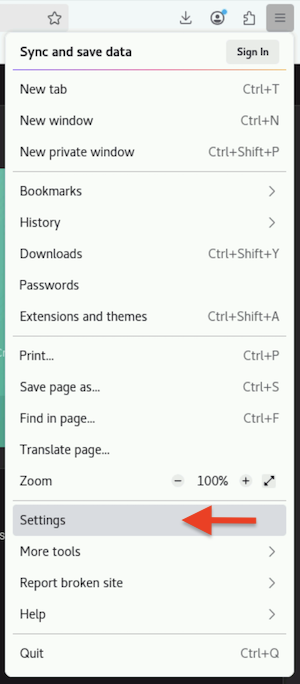
From the Bastion Remote Desktop, on the Firefox browser click on the burger menu on the top right corner.
- Click Settings
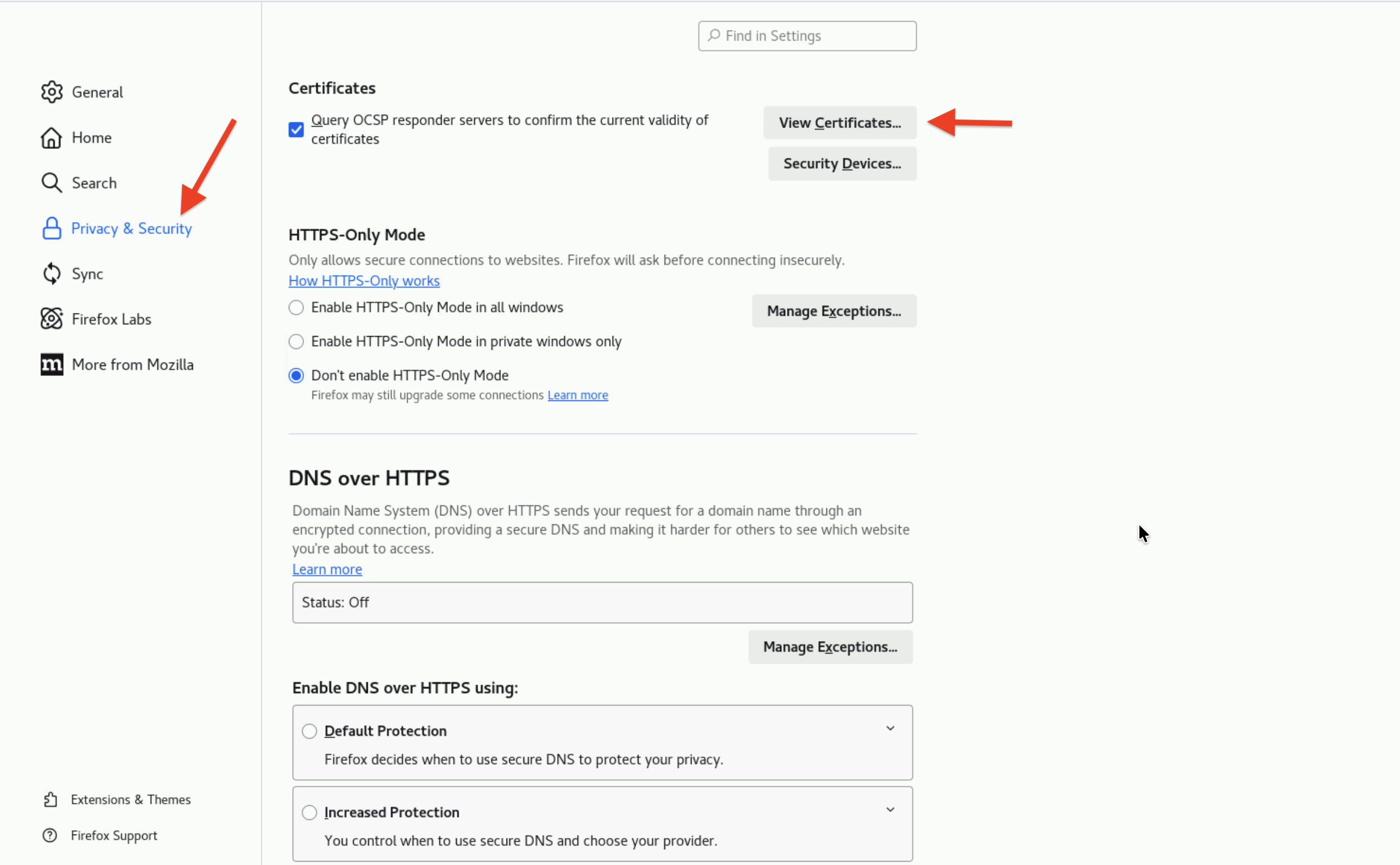
- Click Privacy & Security section on left panel
- Click View Certificates... button
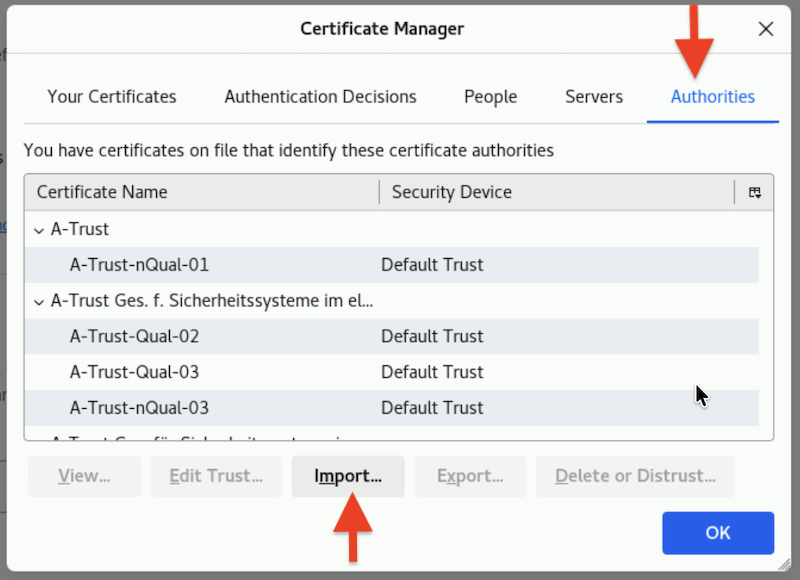
- Click Authorities tab
- Click Import button
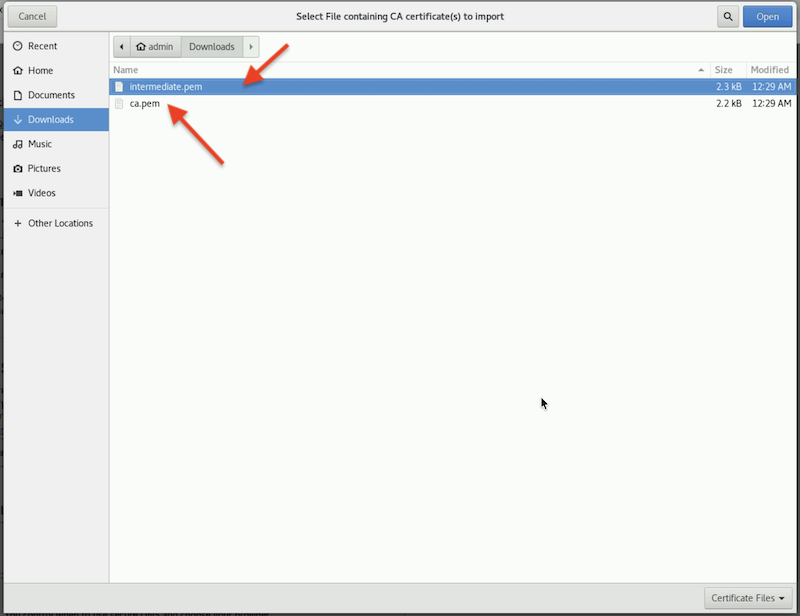
- Browse to Downloads folder
- Select intermediate.pem and ca.pem to import
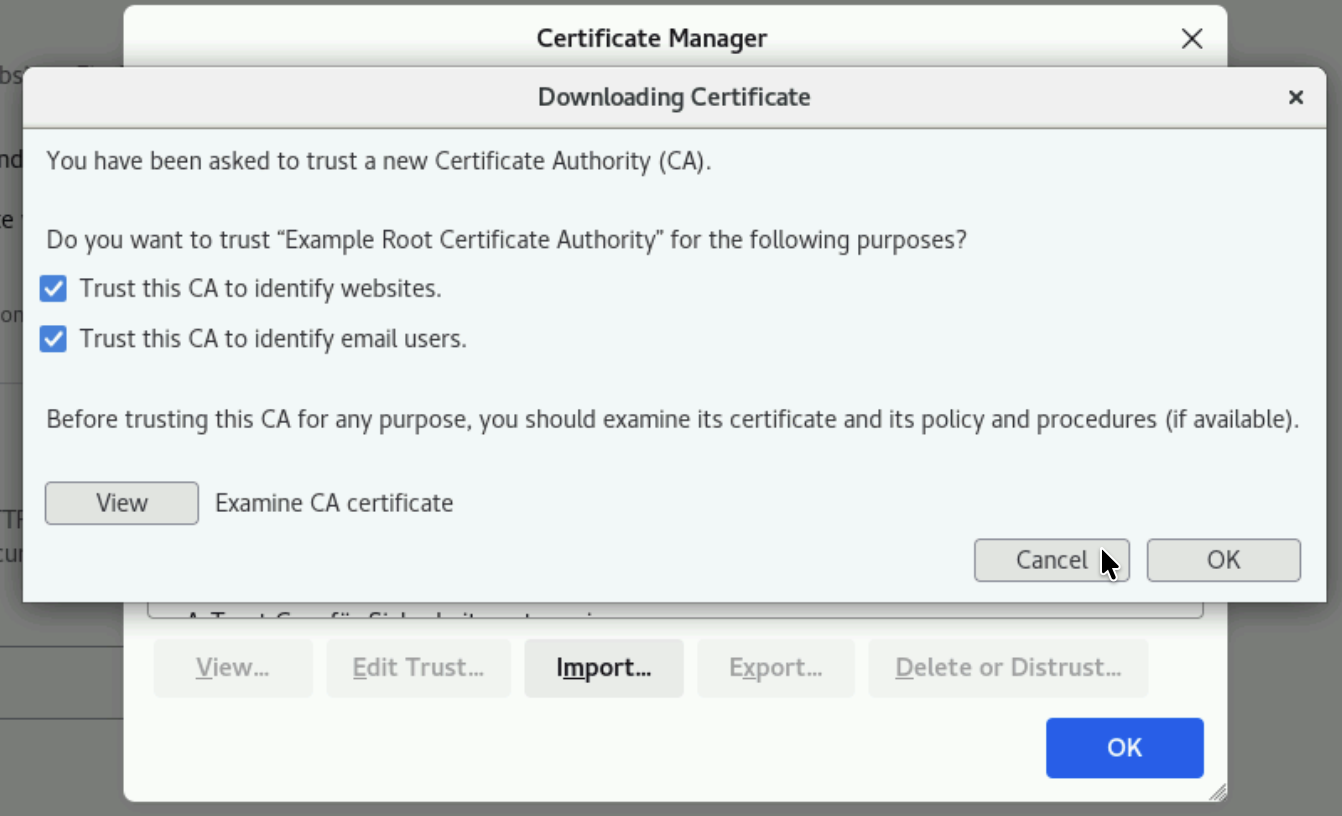
- Click the two check boxes appear in the dialog box
- Trust this CA to identify websites.
- Trust this CA to identify email users.
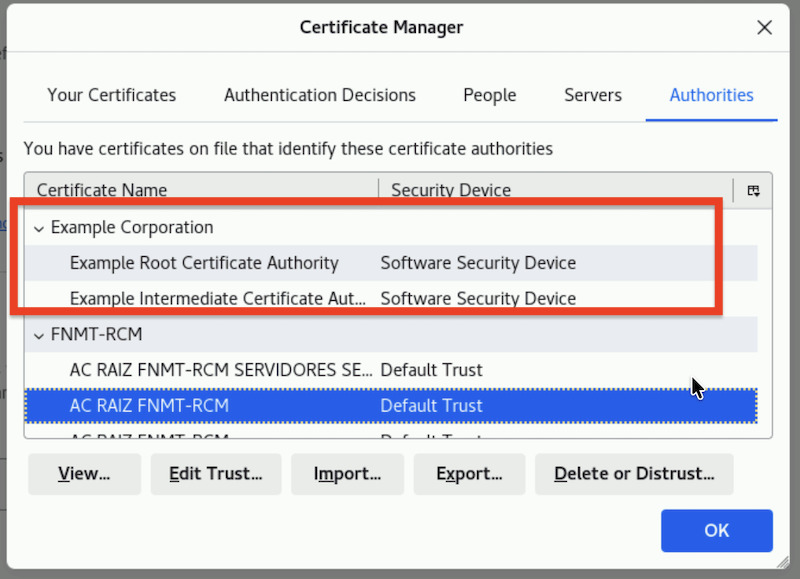
You will see the 2 certificates imported successfully similar to the screenshot below.
- Finally, open the URL
https://demo-apps.ibmdte.local:8443in the Firefox browser.
You will see a padlock icon with a locked status, indicating a secure, encrypted HTTPS connection. This is the result of the steps you performed earlier, which enabled Firefox to trust the two certificates you imported.
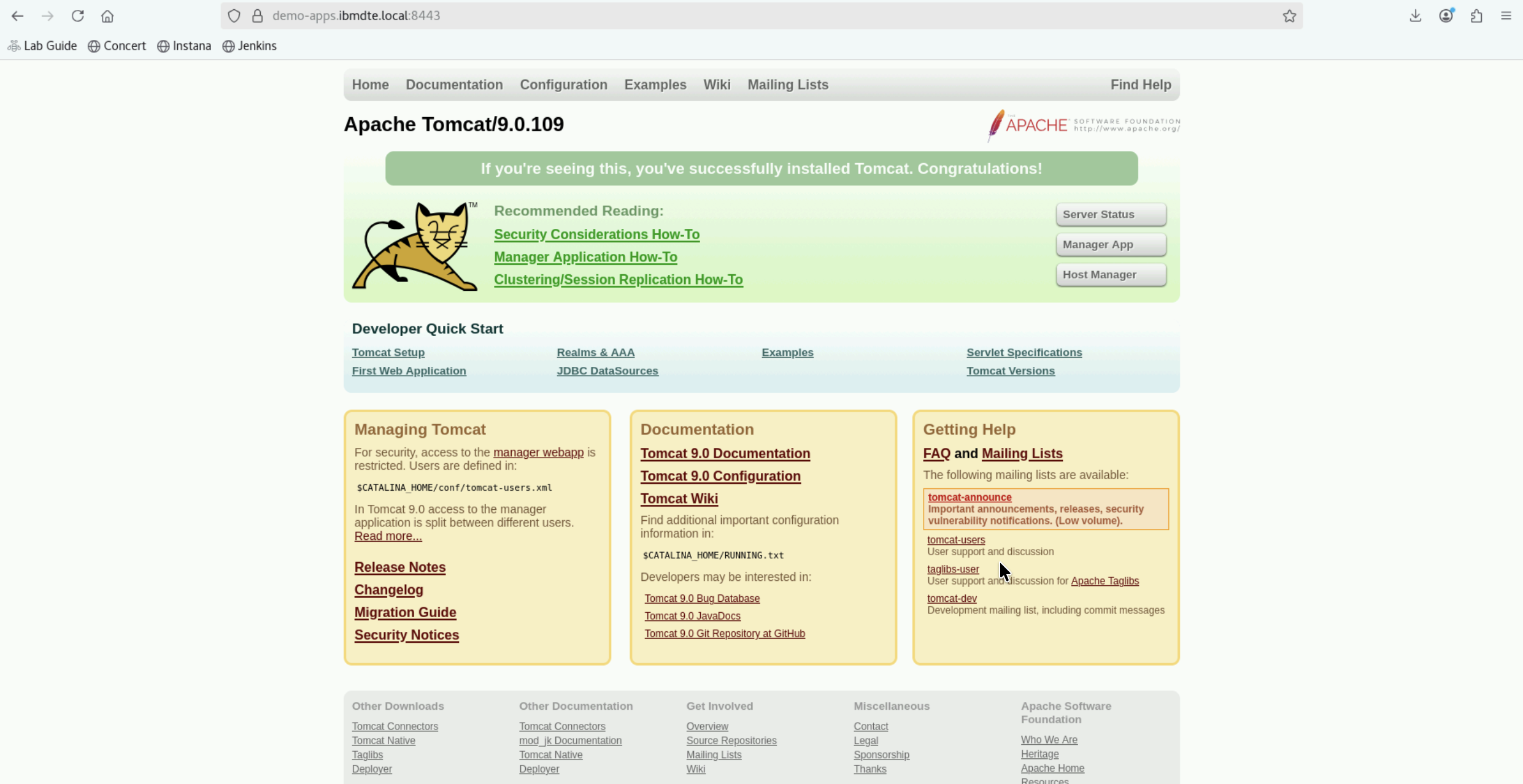
You can also view the new certificate for Apache Tomcat via Firefox browser by clicking the padlock icon and navigate to Connection secure -> More information -> View Certificate
6.10: Summary
In this section, you have been able to accomplish the following:
- Have configured parameter values for Certificate Renewal workflow.
- Have scheduled Certificate Renewal workflow using Concert Workflows Jobs.
- Have verified the new Certificate for Apache Tomcat with new expiry date.
- Have queried Concert API using curl for a Certificate Serial Number.
- Have imported two certificates which CFSSL in the lab produces.
================================
Congratulations! You have completed the Lab
We encourage you to provide feedback on this lab to help us improve future versions. Tell us what you liked, what you didn't like, and any suggestions for improvement. You can provide feedback on the Slack channel listed under the Support section.