Lab Environment
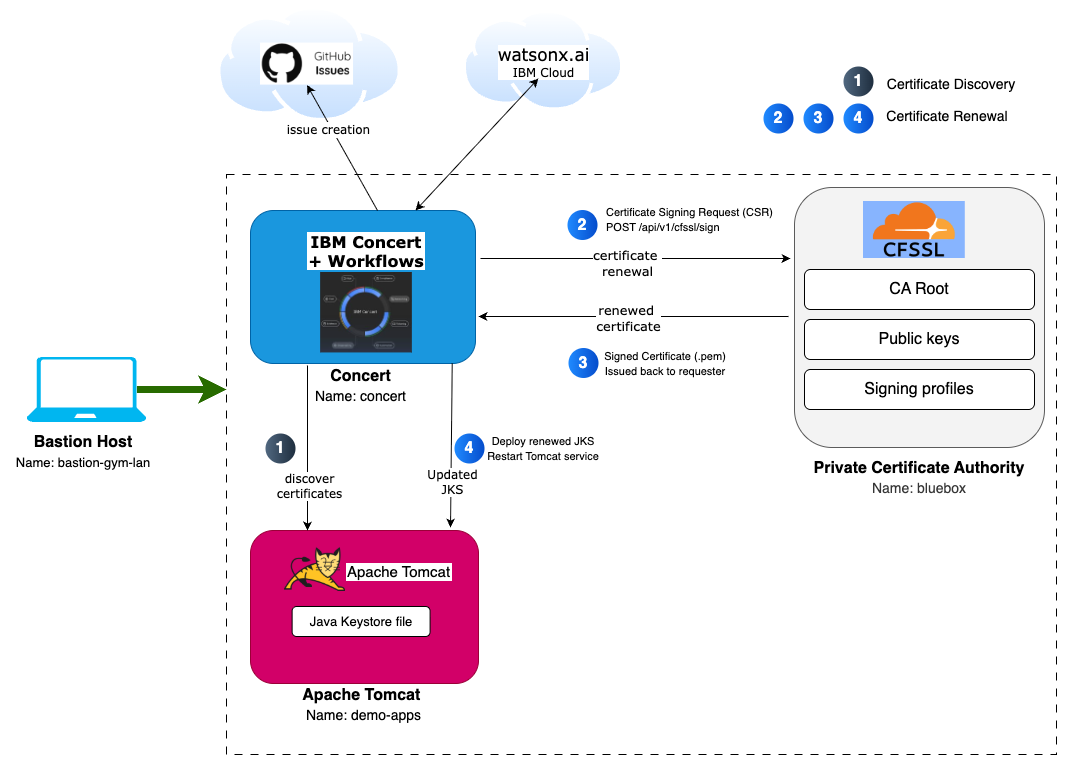
In this Lab, you will have access to three RHEL (Red Hat Enterprise Linux) virtual machines plus a bastion virtual machine that will let you access the overall deployment:
- Bastion Host - a RHEL VM named bastion-gym-lan that will be used as the bastion host for the lab network. This Bastion host has access to all lab VM's and will be your primary workstation for these labs.
- Concert Host - a RHEL VM named concert that has preinstalled IBM Concert + Workflows + DataApps.
- CFSSL Host - a RHEL VM named bluebox that contains CloudFlare SSL pre-installed to provide Certificate Authority Role.
- Apache Tomcat Host - a RHEL VM named demo-apps that contains Apache Tomcat with a Java KeyStore file.
CFSSL is Cloudflare's open-source PKI (Public Key Infrastructure) toolkit. Its an open-source Certificate Authority (CA) and toolkit that provides a simple, lightweight way to issue and manage certificates during lab exercises. In this lab environment, CFSSL acts as the local private CA used to generate root and intermediate certificates, sign certificate requests, and issue server certificates that will be discovered and renewed through automated workflows. For more information, visit the CFSSL GitHub repository.
Apache Tomcat uses a Java KeyStore (JKS) to store and manage the server's SSL/TLS certificates. In this lab, you will work with Apache Tomcat and its JKS to understand how certificates are applied, updated, and managed in a real application environment.
The following software versions are used in the Lab environment:
- Concert v2.2.0
- CFSSL v1.6.5
- Apache Tomcat v9.0.112
- RHEL release 9.4
The following diagram describes the infrastructure for the Lab:
Prerequisites
The Lab uses a Root, Intermediate CA and Tomcat certificates all from the private CA included in the lab. The Intermediate CA certificate would last 120 hours (5 days) before expiration. Please make sure to complete the lab within 5 days after requesting the lab environment. After 5 days, you can still run the lab but note that the Intermediate CA certificate will be shown in Concert as expired.
Create an IBM ID
You will need an IBM ID to request and access your lab environment in IBM TechZone. You can create an IBM ID here.
Obtain your Entitlement key
Navigate to the IBM Container Software Library to obtain your entitlement key. The entitlement key is assigned to your IBM ID which will grant you access to the IBM Container Registry.
You can check your entitlement key by clicking View Library. Take note of this key as you will need it later in the Lab.

Instana license keys
Required when requesting the lab environment:
- Agent / Download Key
- Sales Key
IBMers and IBM Business Partners can get license keys from the Partner Access to Instana presentation.
Note: Keys are rotated every 6 months so please check at time of requesting lab.
A public GitHub account
During the Lab, you will need to create a new GitHub repository using your own personal public GitHub account. You can create a free account if you do not have one already from GitHub.
Requesting a Lab Environment
Below is a live chart showing Tech Zone capacity in each available region. When requesting your environment it would be wise to select the region that has the most capacity available.
Follow these instructions for step by step guidance on requesting and accessing a lab environment in IBM Tech Zone.
Request Tech Zone environment: