Lab Environment
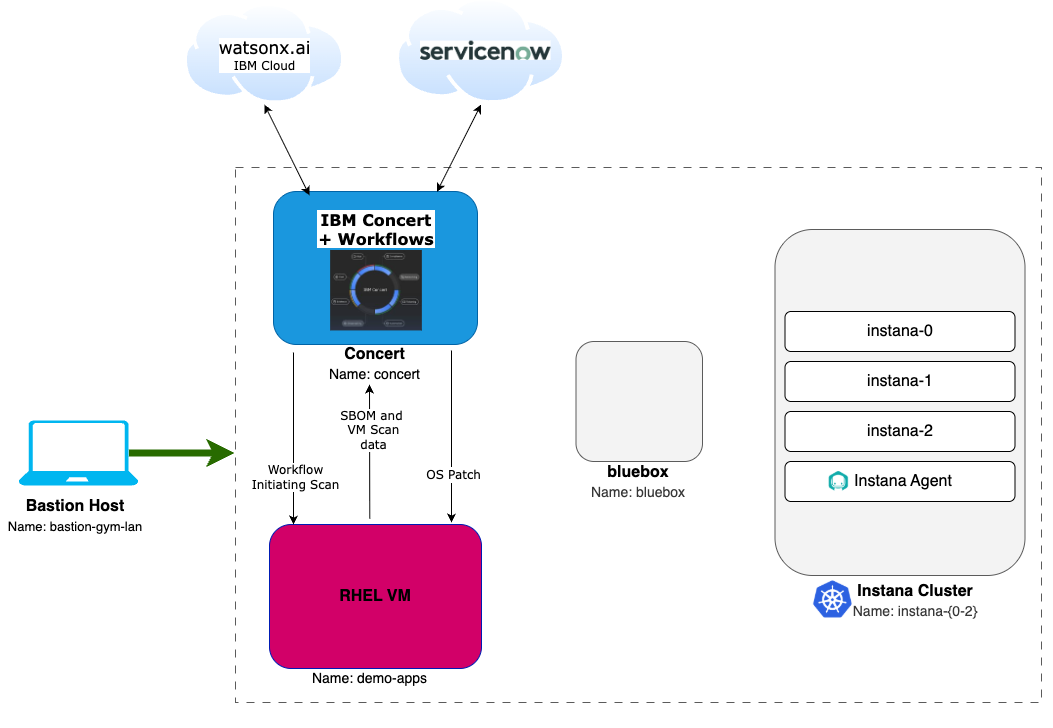
In this Lab, you will have access to two RHEL virtual machines plus a bastion virtual machine that will let you access the overall deployment:
- Bastion Host - a RHEL VM named bastion-gym-lan that will be used as the bastion host for the lab network. This Bastion host has access to all lab VM's and will be your primary workstation for these labs.
- Concert Host - a RHEL VM that has preinstalled IBM Concert + Workflows + DataApps.
- Demo Applications Cluster - a RHEL VM which you will target for the scan and the patch.
The following software versions are used in the Lab environment:
- Concert v2.2.0
- RHEL release 9.4
The following diagram describes the infrastructure for the Lab.
Note that the bluebox VM and the Instana cluster shown in the following deployment diagram, although part of the overall lab environment, they will not be used in this specific lab. Because of this, you will still need to provide the Instana license keys to request the lab environment.
Prerequisites
Create an IBM ID
You will need an IBM ID to request and access your lab environment in IBM TechZone. You can create an IBM ID here.
Obtain your Entitlement key
Navigate to the IBM Container Software Library to obtain your entitlement key. The entitlement key is assigned to your IBM ID which will grant you access to the IBM Container Registry.
You can check your entitlement key by clicking View Library. Take note of this key as you will need it later in the Lab.

Instana license keys
Required when requesting the lab environment:
- Agent / Download Key
- Sales Key
IBMers and IBM Business Partners can get license keys from the Partner Access to Instana presentation.
Note: Keys are rotated every 6 months so please check at time of requesting lab.
ServiceNow Developer Instance
During the Lab, you will create ServiceNow Incidents using your own personal ServiceNow Developer Instance. You can request a free instance if you do not have one already by following the instructions below:
-
On your personal computer browser, navigate to:
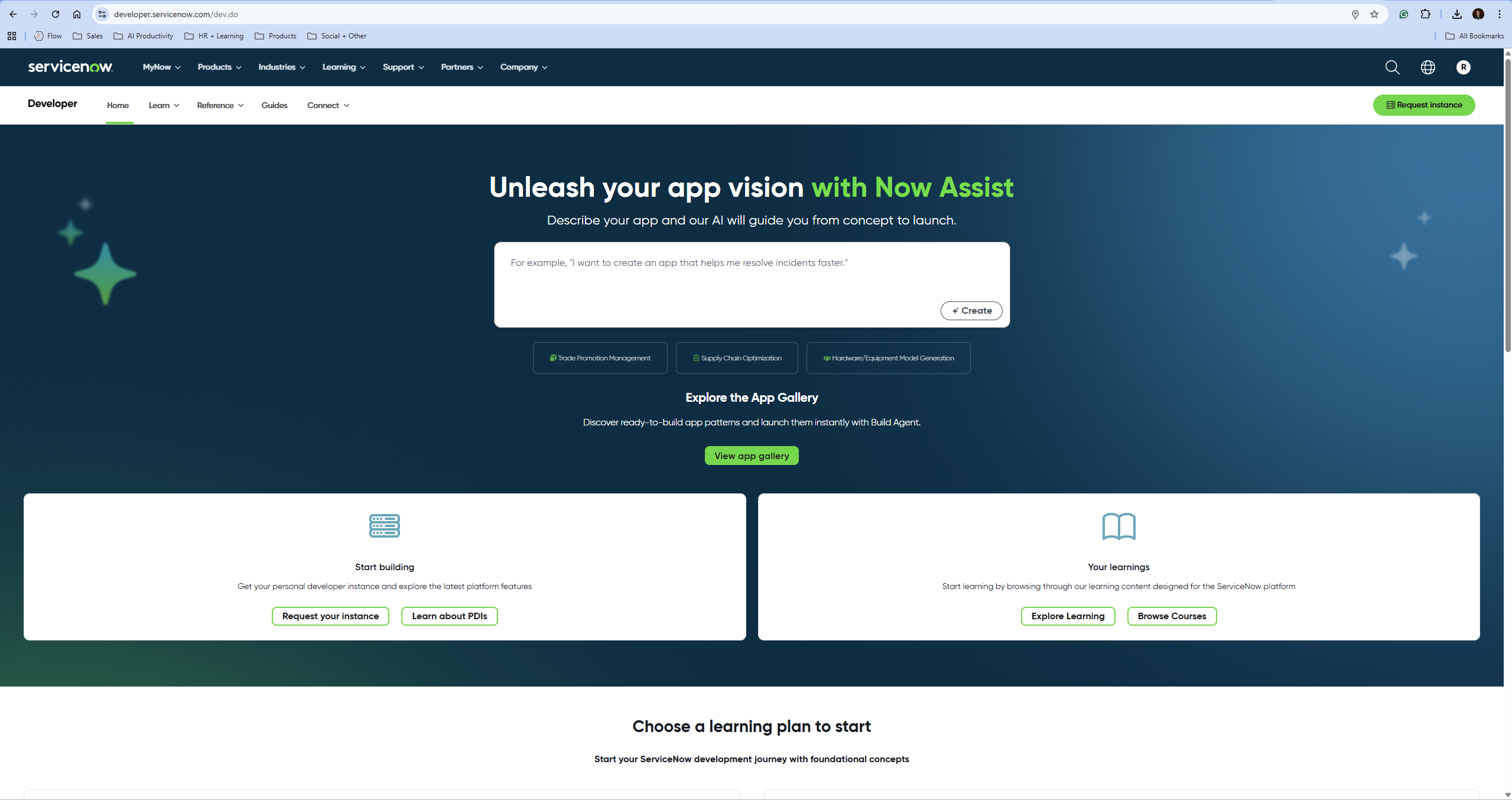
https://developer.servicenow.com/dev.do -
Sign in or create an account. After successful login, click Request Instance to request a ServiceNow developer instance.
Example
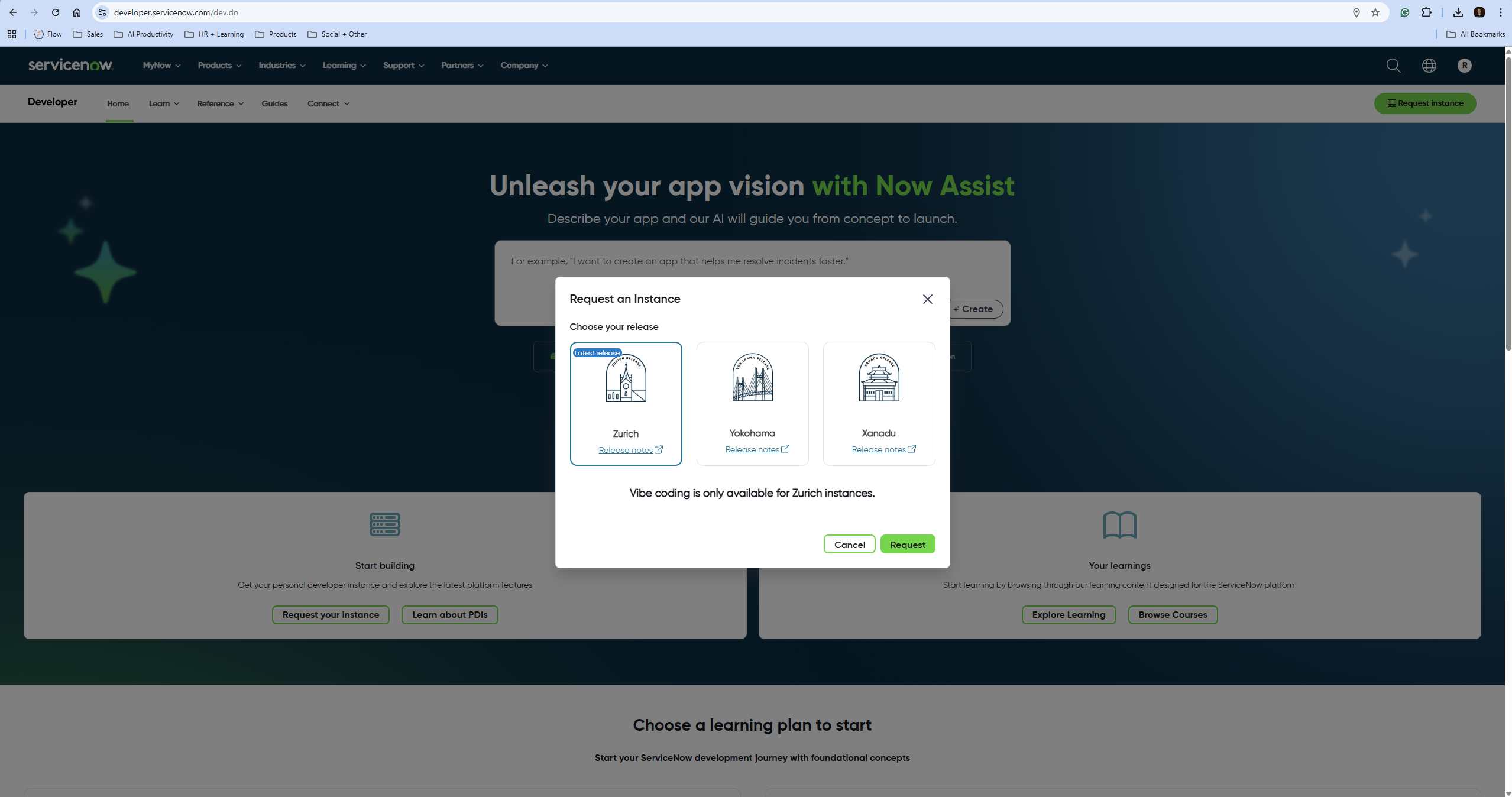
- Select the latest release for your instance and click Request.
Example
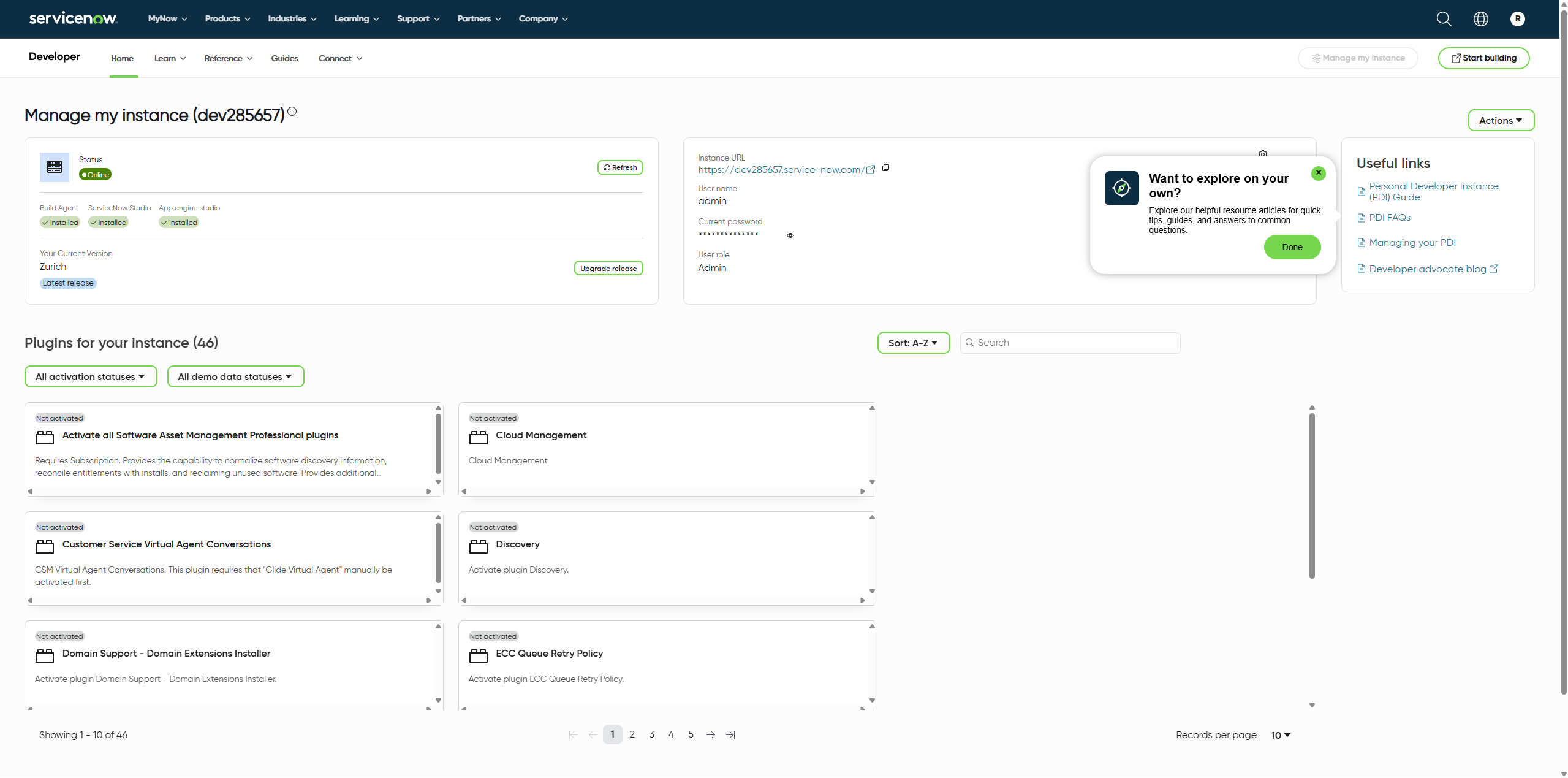
- After a few minutes, your developer instance will be online. Click Manage my instance.
Example
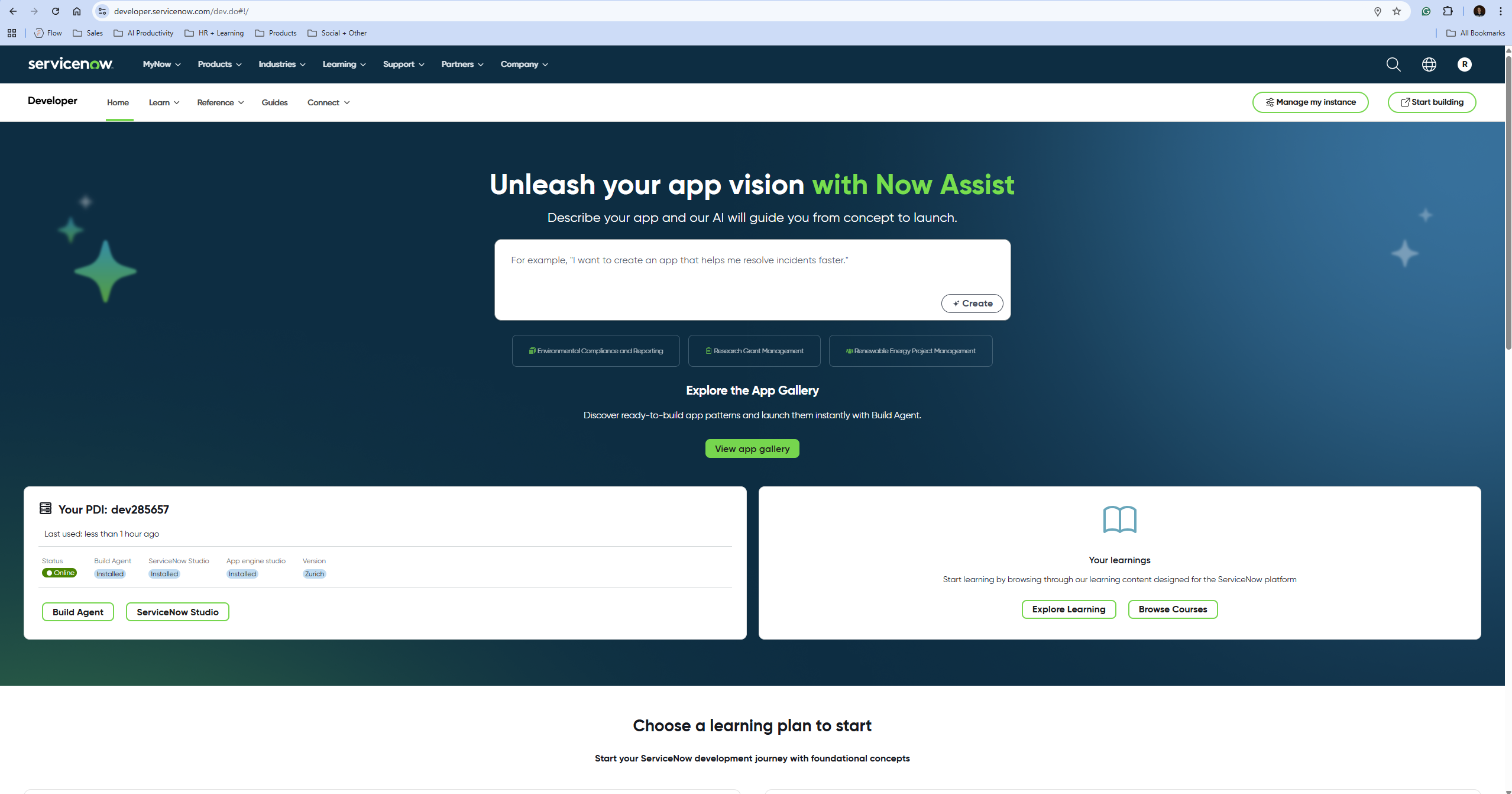
- Copy the Instance URL, Username, and Password from your developer instance.
Example
Requesting a Lab Environment
Below is a live chart showing Tech Zone capacity in each available region. When requesting your environment it would be wise to select the region that has the most capacity available.
Follow these instructions for step by step guidance on requesting and accessing a lab environment in IBM Tech Zone.
Request Tech Zone environment: