3. Lab Preparation
3.1: Overview
Before proceeding with the main lab activities, ensure that you have completed all Lab Preparation steps in this section.
You may receive prompts for software updates during the lab.
Please ignore these prompts and do not install any updates to avoid disrupting the lab environment.
If you encounter a security warning such as “Warning: Potential Security Risk Ahead” when using the browser, please disregard it. Select Advanced → Accept the Risk and Continue.
3.2: Using SSH from the Bastion Host
You can connect from the Bastion host to other VMs using the jammer user with the SSH commands as shown below. This is for information only. You don't need to run these commands now.
# Access the Concert VM
ssh jammer@concert

# Access the Demo Apps VM
ssh jammer@demo-apps
3.3: Capturing the Lab Credentials
In this section, you will collect all necessary credentials and configuration details required to complete the lab exercises. All credentials will be consolidated into a single text file, which simplifies the steps later in the lab.
Prepare the Credentials File
- From the Bastion Remote Desktop, on the left panel click Show Applications → Text Editor.
- Create a new file named
credentials.txt. - Paste the following template into the file and save it.
- Keep this window open for easy access during the lab.
Bookmarks:
  Lab guide:  https://ibm.github.io/waiops-tech-jam/labs/concert/introduction/
  Concert:    https://concert.ibmdte.local:12443

Concert Workflows: https://ibm.box.com/s/lrhd8y9d8bvkyv60v6kq989vdlf4du1v

concert_username: ibmconcert
concert_password: Passw0rd

demo-apps-ip:

rhel_vm_private_key: <paste the private key under this line, including the BEGIN and END lines>
3.4 Retrieve the Demo App IP address
Next, open a Terminal windows and run these commands to capture the IP address of the demo-apps VM:
getent hosts demo-apps | awk '{print $1}'
Copy the IP address displayed and update the corresponding section in your credentials.txt file:
demo-apps-ip: <copied_demo_app_ip>
3.5 Obtain the SSH Private Key
SSH key-based authentication is a system that replaces traditional passwords with cryptography. It relies on a mathematically linked pair: a Public Key (the lock) and a Private Key (the physical key).
- Placement: You install your Public Key on the remote RHEL server (usually in ~/.ssh/authorized_keys).
- Challenge: When you connect, the server sends a "challenge" encrypted with that public key.
- Response: Your local SSH client decrypts the challenge using your Private Key (which never leaves your machine).
- Access: If the math matches, the server confirms your identity and grants access without you ever typing a password.
The demo-apps VM uses SSH key-based authentication. There is a pre-generated SSH key pair for the jammer user on the demo-apps VM,
and you will need to retrieve the private key so we can use it later in the lab to enable Concert to connect to this VM.
Using the Terminal window, run the following command to connect from the Bastion host to the demo-apps VM:
ssh jammer@demo-apps
After connecting, display the private key by running:
cat ~/.ssh/id_rsa
Copy the entire key output and add it to your credentials.txt file under the rhel_vm_private_key field as shown below:
rhel_vm_private_key:
   -----BEGIN OPENSSH PRIVATE KEY-----
   <your_private_key_here>
   -----End OPENSSH PRIVATE KEY-----
Make sure to exit the ssh session to the demo-apps VM by running the exit command in the terminal.
exit
Keep your private key confidential. Do not share it publicly or commit it to any version control repositories.
3.6 Login into IBM Concert for the First Time
From the Bastion Remote Desktop, open the Firefox browser and click on the Concert bookmark to launch the Concert UI.
Login to the Concert UI using the credentials from your credentials file:
- concert_username
- concert_password
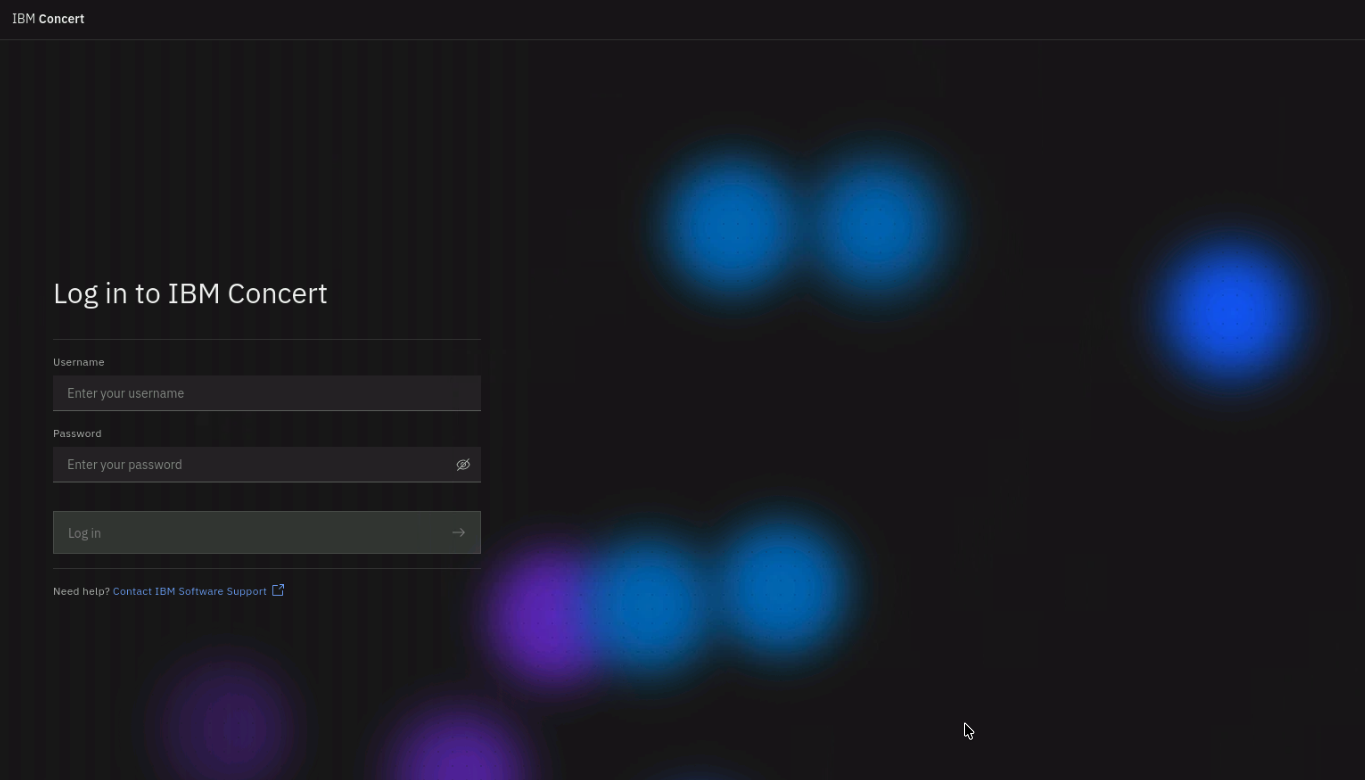
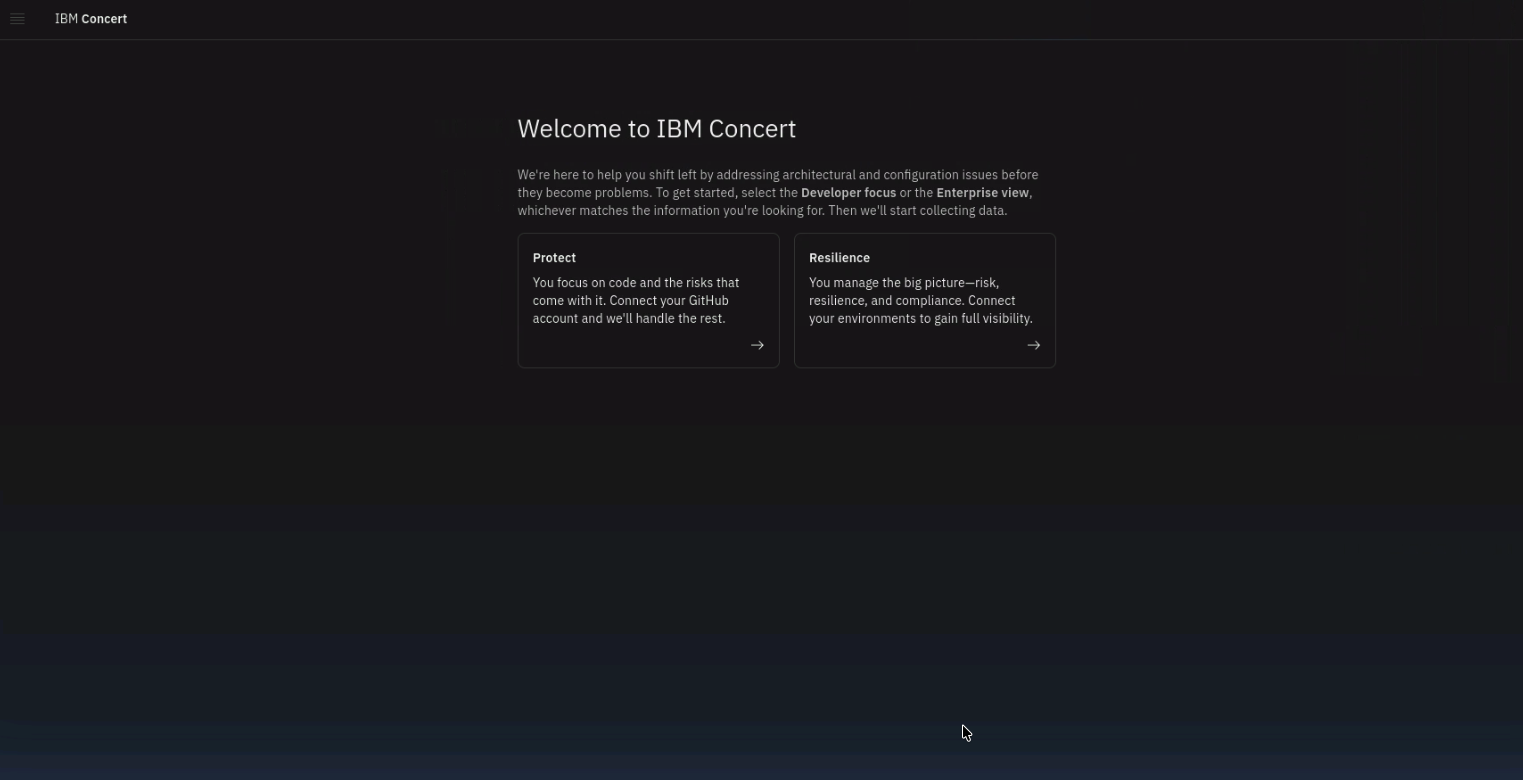
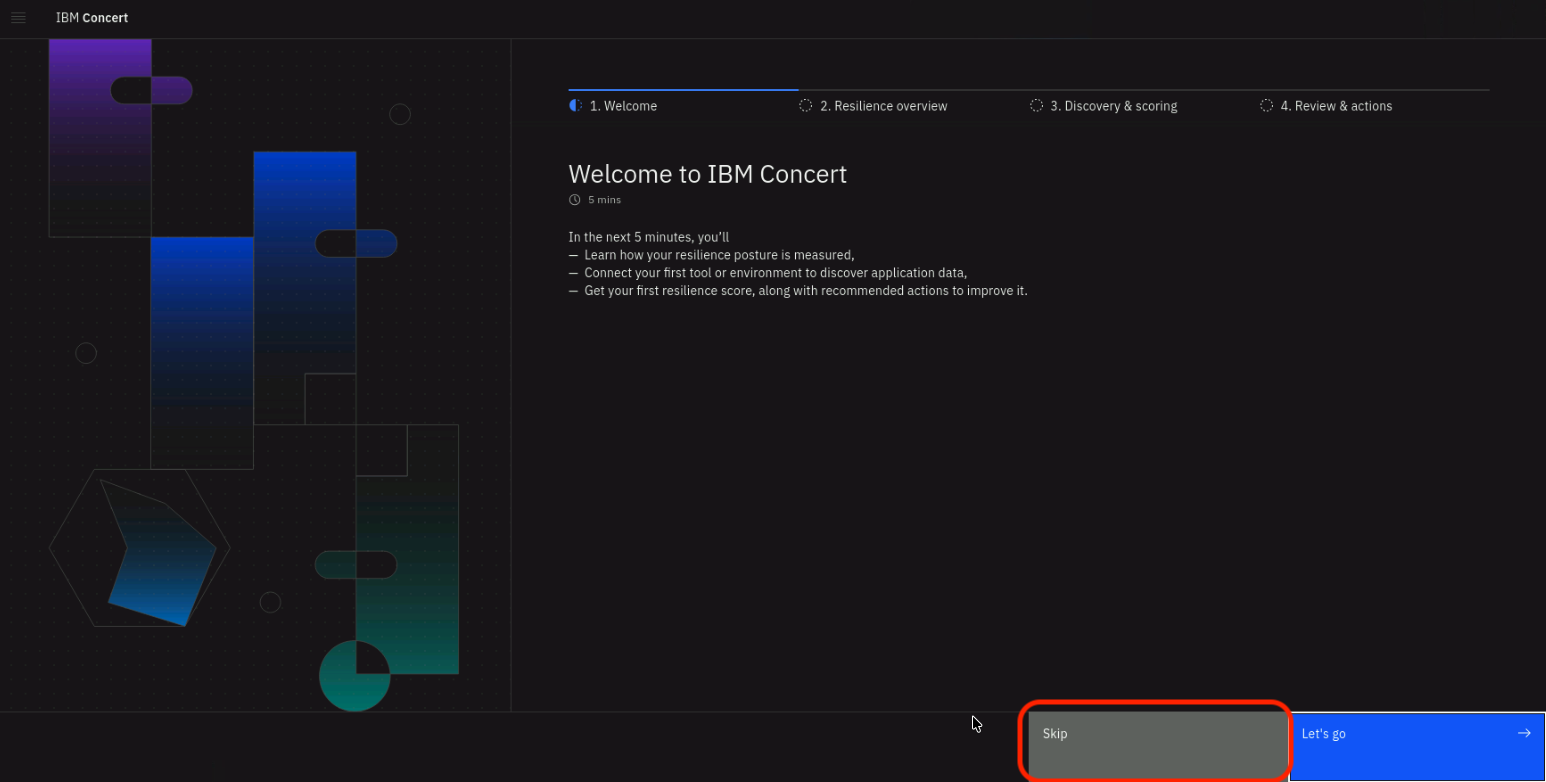
On the Concert welcome page, select the Resilience option on the right and select Skip in the next page:
Make sure to choose Skip in the next page to bypass the setup wizard.
3.7 Forcing Red Hat Security Advisories (RHSA)
As this Lab runs on TechZone infrastructure, there is a chance that the RHEL VMs may not have any vulnerabilities (e.g. everything has been already patched). To ensure that we have a vulnerable version of RHEL libraries on the demo-apps VM, we will force a downgrade of the ghostscript package to a version that has known exploits (ghostscript is an open-source interpreter for PostScript and PDF files). This will allow us to demonstrate the patch management capabilities of Concert in later sections of the lab. This open source package downgrade will trigger RHSA-2025:7586.
Run these commands one by one:
# connect to the demo-apps VM from the Bastion host using SSH
ssh jammer@demo-apps
# downgrade the current version of ghostscript installed.
# You may get a message that the version is already the same as the one we are downgrading to (nothing to do)
sudo dnf downgrade -y ghostscript-9.54.0-14.el9_3.x86_64
# verify the downgrade was successful by checking the installed version of ghostscript
rpm -q ghostscript
# exit the ssh session to the demo-apps VM
exit
3.8 Enable Firefox Menu Bar
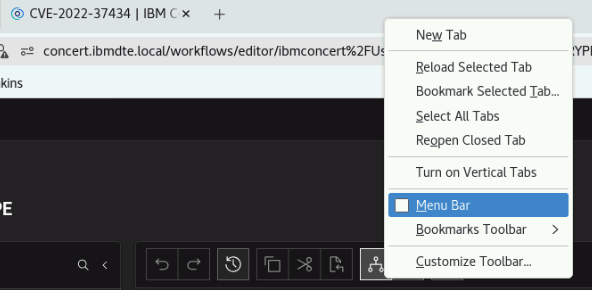
Enable the menu bar in Firefox to facilitate copy and paste operations with workflows. Right-click any empty space in the tab bar (or top toolbar) and check Menu Bar.
Make sure to fill and save the credentials file as described in this section. Do not skip any of the steps, as the credentials will be required for later sections of the lab.
Tip: keep the credentials file window open for easy access during the Lab.
3.9 Remove Data from Previous Labs (if needed)
If you have previously run other labs using the same Concert environment, there may be existing data such as applications or automation rules that could interfere with the exercises in this lab.
From the Bastion Remote Desktop, on the Firefox browser click on Concert > Home.
-
Select Administration > Integrations
-
Click the Automation rules tab
-
Remove each listed rule by selecting Delete from the 3-dot menu on the right side of each entry.
-
Click the Ingestion Jobs tab
-
Remove each listed job by selecting Delete from the 3-dot menu on the right side of each entry.
-
-
Select Inventory > Application inventory
-
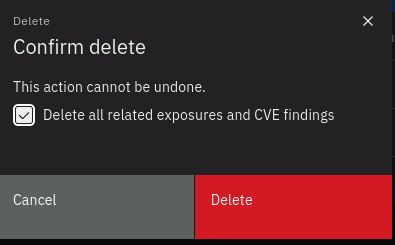
Remove each listed application by selecting Delete from the 3-dot menu on the right side of each entry. Make sure to check the box to also delete all related exposures and CVE findings when prompted.
-
-
Select Inventory > Environment inventory
- Remove each listed environment by selecting Delete from the 3-dot menu on the right side of each entry.