5. Vulnerability Patch Workflow
5.1: Overview
In the previous section, you reviewed the remediation actions that Concert has identified for the vulnerabilities discovered. Now you will set up the necessary authentications and workflows to automatically apply patches to our target VM called demo-apps. For each Action, Concert can create change requests in various ITSM (Information Technology Service Management) systems such as ServiceNow. Application or Infrastructure owners can approve or reject these change requests based on environmental needs. If the change request is approved, Concert will proceed to apply the vulnerability patching.
This end-to-end remediation process is orchestrated through these three Workflows:
- Create_Change_Request_For_Remediation_Action – Generates approval requests.
- Monitor_Remediation_Action_Status – Tracks approvals and schedules execution.
- Remediation_Master – Applies patches across supported platforms (Linux, Windows, Tomcat, Docker).
5.2 Setting up Authentications for the Patch Workflows
In this section we will create the authentication definitions required by the patching workflows. We will do this from Concert Workflows → Authentications tab.
5.2.1 Create Concert configuration authentication (concertConfig)
-
From the Authentications tab, click Create Authentication.
-
Configure the following:
- Name:
concertConfig - Service: Config Data
- Data (in JSON format):
- Name:
{
  "host": "concert.ibmdte.local",
  "port": "12443",
  "instance_id": "0000-0000-0000-0000",
  "username": "ibmconcert",
  "content-type": "application/json"
}
- Click Create to save the authentication.
5.2.2 Pliant Authentication (pliant_auth)
- From the Authentications tab, click Create Authentication.
- Configure the following:
- Name:
pliant_auth - Service: IBM Hub - Self (Workflows) (pick the one with the triangle icon)
- Name:
- Click Create to save the authentication.
5.2.3 Create ServiceNow Authentication (snowAuth)
- From the Authentications tab, click Create Authentication.
- Configure the following fields:
- Name:
snowAuth. - Service: ServiceNow
- Host: Enter the ServiceNow hostname (for example,
devXXXX.service-now.com- DO NOT include https:// or trailing slashes). - Username: ServiceNow username.
- Password: ServiceNow password.
- Name:
- Test the authentication. There is a known issue where the test may fail even if the credentials are correct. If this happens, ignore the failed test and proceed to next step.
- Click Create to save the authentication.
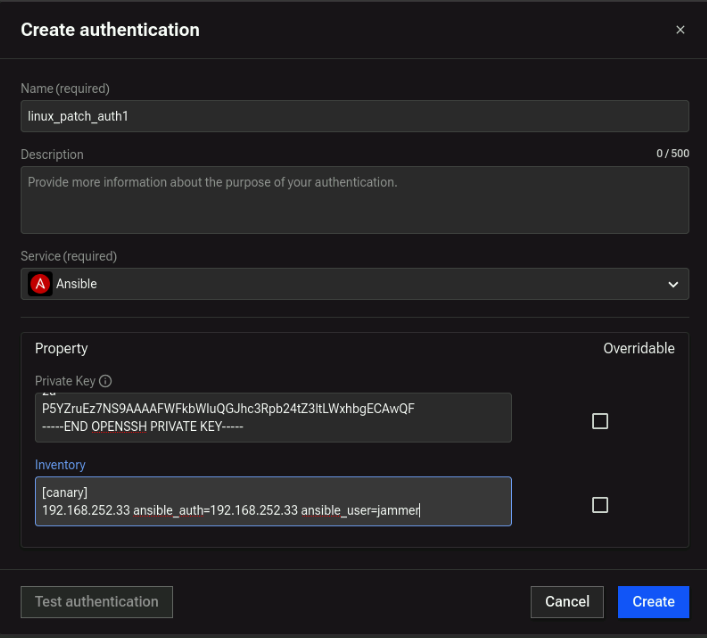
5.2.4 Create Ansible authentication (linux_patch_auth1)
-
From the Authentications tab, click Create Authentication.
-
Configure the following fields:
-
Name:
linux_patch_auth1 -
Service:
Ansible -
Private Key: Copy and paste the full RSA private key, beginning with
-----BEGIN OPENSSH PRIVATE KEY-----
and ending with
-----END OPENSSH PRIVATE KEY-----noteEnsure a newline is added after
-----END OPENSSH PRIVATE KEY----- -
Inventory: Enter the following content in Ansible hosts format:
[canary]
192.168.252.33 ansible_user=jammer ansible_ssh_common_args='-o StrictHostKeyChecking=no'
-
-
Click Create to save the authentication.
5.2.5 Create a ConfigData Auth for Linux patching (config_patch_data)
-
From the Authentications tab, click Create Authentication.
-
Configure the following fields:
-
Name:
config_patch_data -
Service: Config Data
-
Data (required): Enter the following JSON:
{
  "config": [
    {
      "auth": "ibmconcert/linux_patch_auth1",
      "host": ["192.168.252.33"]
    }
  ]
}
-
-
Click Create to save the authentication.
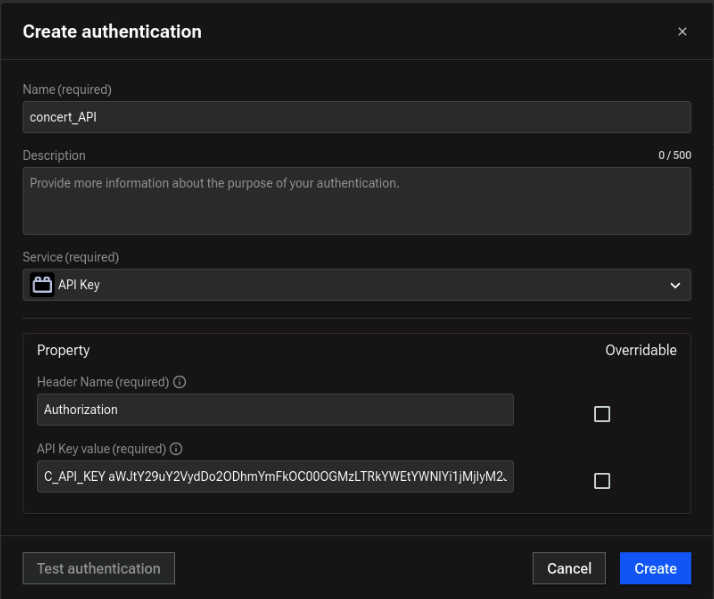
5.2.6 Concert API Authentication (concert_API)
This authentication is required by the workflow to interact with the Concert API. It uses the Concert API Key from the credentials file.
-
From the Authentications tab, click Create Authentication.
-
On the Create Authentication screen:
- Name:
concert_API - Service: API Key
- Header Name:
Authorization(first part of Concert Request Header from credentials file) - API Key value: Second part of Concert Request Header (starts with
C_API_KEY+ one_space + your Concert API Key)
- Name:
-
Click Create.
Example of Concert API Authentication:
5.3 Import Workflows
- From credentials.txt, open the Concert Workflows link in a new browser tab.
- From the top-right corner, click on the 3-dot icon and select Create folder. Name the folder
PATCH_WORKFLOWSand click Create. Click on the newly createdPATCH_WORKFLOWSfolder to open it. - Search for Create_Change_Request_For_Remediation_Action and download the
.zipfile. - In Concert Workflows → Workflows, click Import, then select
Create_Change_Request_For_Remediation_Action.zip. - Verify that the workflow appears in the Workflows list.
Next, repeat the same steps for Monitor_Remediation_Action_Status and Remediation_Master and ensure that all workflows have been succesfully added into Concert Workflows.
5.3.1 Review Remediation Actions
Concert automatically analyzes the scan results and gernerates remediation actions, such as installing patches or updating vulnerable components.
To review and approve actions:
- Go to the Dimension > Vulnerabilities > Auto-remediate tab
- Review the list of recommended remediation actions - in this case there will only be one Remediation option called Patch
- Click Action -> View Details to view the security advisories. Concert automatically ingests the security advisories and correlates them with the VM scan to understand which security adviories need to be applied to mitigate vulnerable products and versions.
Please notice, the current status of this particular OS Patch is + Created, Concert has correlated the VM scan with security advisories to understand that an automatic remediation option is available.
5.3.2 Workflow 1: Create_Change_Request_For_Remediation_Action
Concert uses the Create_Change_Request_For_Remediation_Action workflow to generate approval requests (for example, GitHub pull requests or ServiceNow incidents). This Concert Workflows identifies new action for vulnerabilities that can be auto-remediated.
Based on the action type, the workflow:
- Raises a pull request for code changes
- Raises a ServiceNow incident for OS patching or web server upgrades
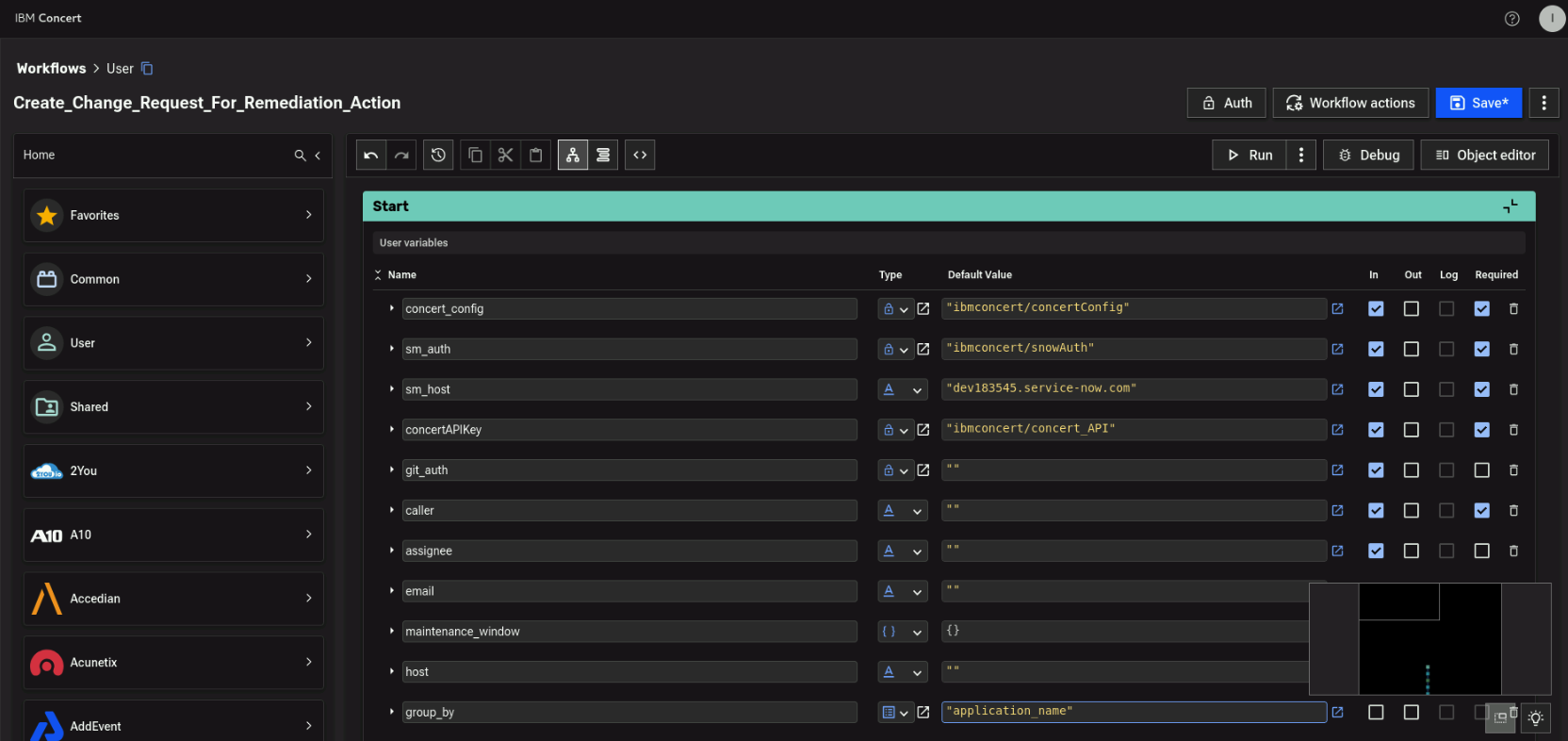
- Navigate to Concert Workflows → Workflows and open Create_Change_Request_For_Remediation_Action.
- In the Start block of the workflow, update the following field mappings:
- concert_config →
ibmconcert/concertConfig— created in Section 5.2.1 - sm_auth →
ibmconcert/snowAuth— created in Section 5.2.3 - sm_host →
devXXXX.service-now.com(do not include https:// or trailing slashes) - ConcertAPIKey →
ibmconcert/concert_API— created in Section 4.2.1 - group_by →
application_name
- concert_config →
- Click on Save on the top-right and press Run
Example
After the Incident in ServiceNow is created, the workflow:
- Updates the action status to approval pending
- Sets the maintenance window based on input values
- Adds the Incident links to the action details
5.3.3 Edit ServiceNow Change Request
From Concert → Vulnerability → Auto-Remediate → Patch.
Validate that the Remediation status has changed to Approval pending and click on Review and approve.
On the Patch overview page, a blue button labeled View should appear in the top-right corner. Click it to open the ServiceNow portal.
The user must update the Incident State to:
- In Progress to proceed with the remediation (the OS patching)
- Canceled to reject the remediation
To continue with the patch process:
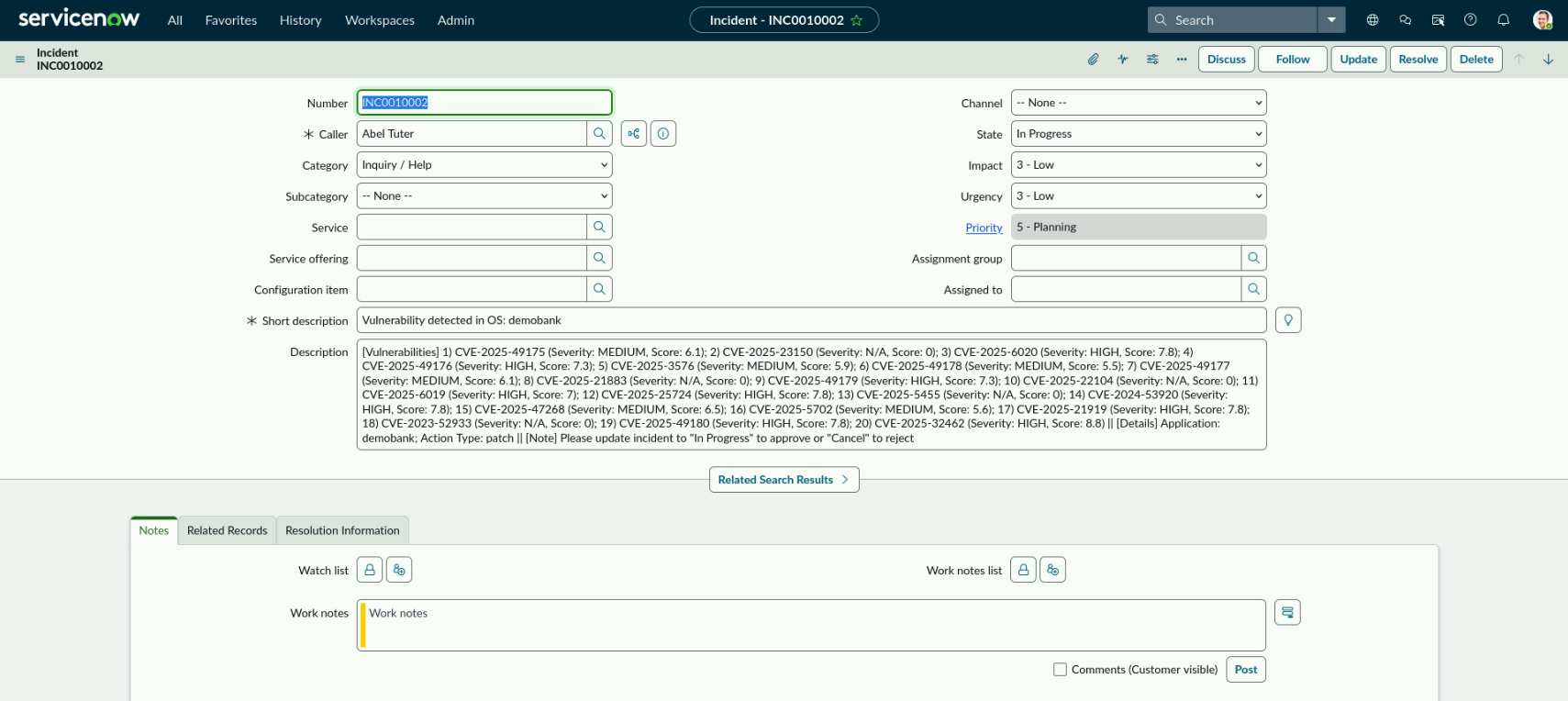
- In the ServiceNow incident, note that the Description field shows the list of CVEs that will be patched.
- Based on our review, we will approve this change request by clicking on State and change it from New to In Progress.
- Click on Caller, select any available email (for example, Abel Tuter), and add it to the ticket.
- Click Update in the top-right to save the changes.
Example
5.3.4 Workflow 2: Monitor_Remediation_Action_Status
This Concert Workflow monitors the status of actions that are in Approval pending state. Once it detects that the change request has been approved, it updates the action status to Scheduled and sets the date for when the Remediation_Master workflow will run to apply the patch.
-
Navigate to Concert Workflows → Workflows and open Monitor_Remediation_Action_Status.
-
In the Start block of the workflow, update the following field mappings:
- concert_config →
ibmconcert/concertConfig— created in Section 5.2.1 - sm_auth →
ibmconcert/snowAuth— created in Section 5.2.3 - pliant_auth →
ibmconcert/pliant_auth— created in Section 5.2.2 - wf_to_schedule →
ibmconcert/User/PATCH_WORKFLOWS/Remediation_Master_Folder/Remediation_Master - ConcertAPIKey →
ibmconcert/concert_API— created in Section 4.2.1
- concert_config →
-
Save the workflow and click Run to execute it.
After running the workflow, the Concert Action called Patch change it status to Scheduled and displays the date that the Remediation_Master workflow is set to run.
Concert can integrate with customer-defined maintenance windows to ensure patches are applied only during approved maintenance periods.
We will bypass the scheduled date and manually trigger the Remediation_Master workflow to run.
5.3.5 Workflow 3: Remediation_Master
This Concert Workflows applies patches to VMs or performs web server upgrades based on the operating system type. It supports patching for Linux, Apache Tomcat, and Windows servers. As we are patching a RHEL server in this lab, we will focus on the Linux patching section of the workflow, which uses Ansible to apply the necessary patches.
-
Navigate to Workflows -> User -> PATCH_WORKFLOWS -> Remediation_Master_Folder and open the Remediation_Master workflow.
-
In the Start block of the workflow, update the following field mappings:
- concert_config →
ibmconcert/concertConfig— created in Section 5.2.1 - ConcertAPIKey →
ibmconcert/concert_API— created in Section 4.2.1 - sm_auth →
ibmconcert/snowAuth— created in Section 5.2.3 - linux_auth →
ibmconcert/config_patch_data- created in Section 5.2.5
- concert_config →
-
Save the workflow and click Run to execute it.
This workflow will take approximately 5 minutes to run.
Once the workflow has completed, go back to Concert → Vulnerability → Auto-remediate and confirm that the status has updated to Success.
5.4 Verify that security advisories have been applied
To verify that the security advisories have been applied, follow these steps:
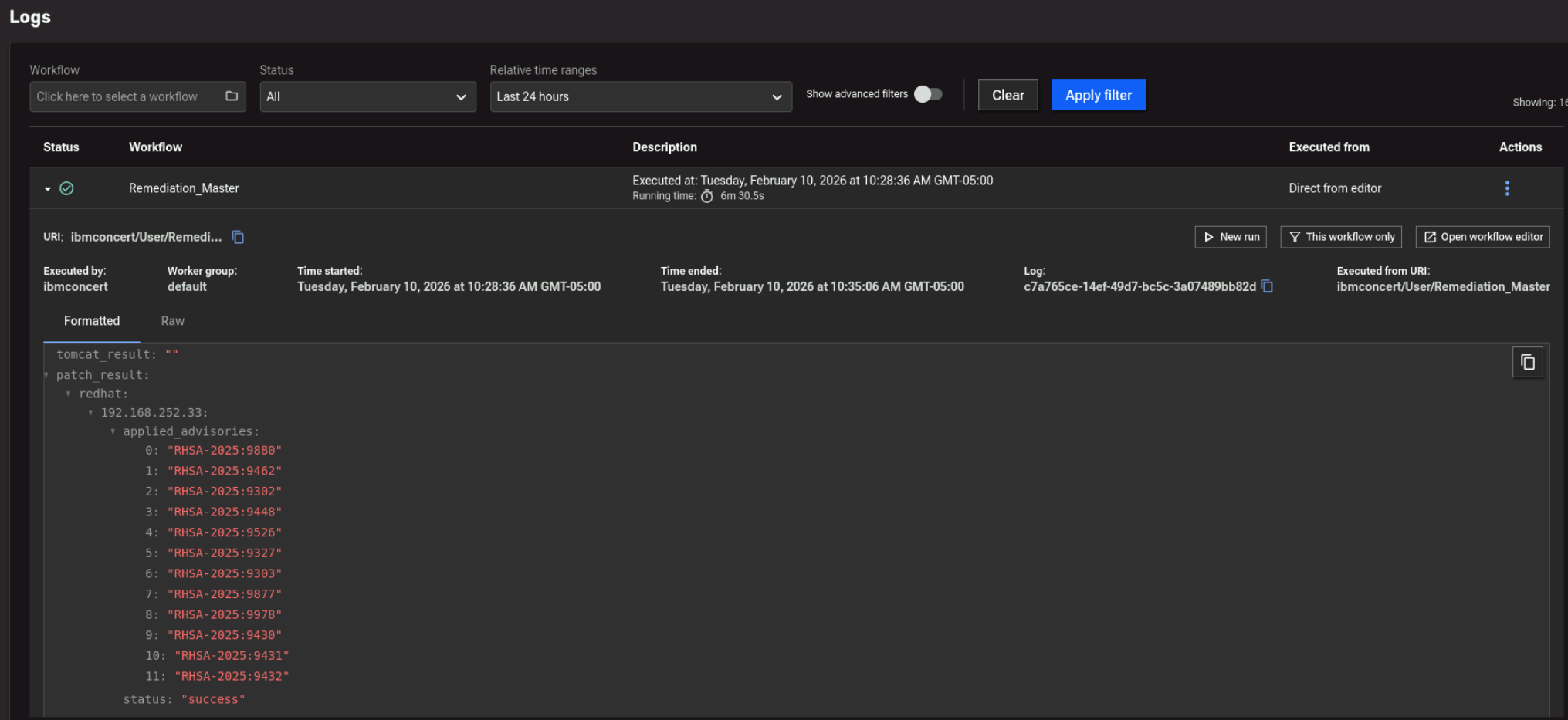
- Navigate to Concert Workflows → Workflows → Logs and open the Remediation_Master workflow that you just ran.
- Review the following logs to see which security advisories were applied to the specific server:
patch_result → redhat → serverIP → applied_advisories
Example
Additionally, you can verify this on the Linux server.
Run the following command on the Bastion host to connect to the RHEL VM:
ssh jammer@demo-apps
After connecting, run the following command, substituing one of the RHSA values that was reported as applied in the previous step:
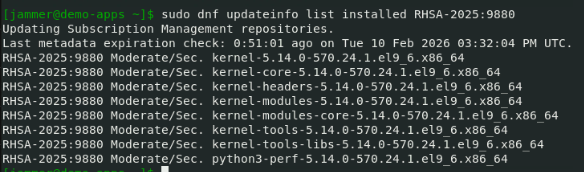
sudo dnf updateinfo list installed RHSA-XXXX:XXXX
If the output shows multiple packages associated with that specific advisory, then the RHSA has been successfully installed on the system.
Example