4. Vulnerability Scan Workflow
4.1: Overview
This lab section guides you through:
- Setting up Concert Workflows authentication to connect to the demo-apps VM
- Creating a host SBOM (Software Bill of Material) that describes a Concert environment and the VM configuration including operating system details
- Create a VM vulnerability scan
4.2 Setting up Authentications for Ingestion Workflow
4.2.1 RHEL VM Authentication (rhel_vm)
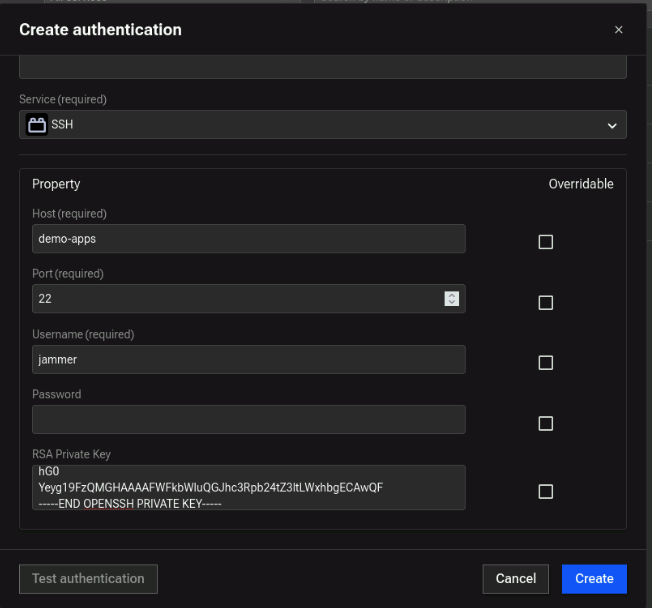
This authentication allows Concert Workflows to connect to the RHEL VM via SSH to perform vulnerability scans and gather system information.
-
From Concert Workflows → Authentications tab, click Create authentication.
-
On the Create Authentication screen:
- Name:
rhel_vm - Service: Search for SSH
- Host: (demo-apps-ip from credentials file)
- Port:
22 - Username:
jammer - Password: Leave blank
- Private Key: Copy full private key from
rhel_vm_private_keyin credentials file. DO NOT copy any extra spaces at the beginning or end. DO NOT add a new line after -----END OPENSSH PRIVATE KEY-----
- Name:
-
Click Create.
Example of RHEL VM Authentication:
4.2.2 VM Configuration Data (configuration_data)
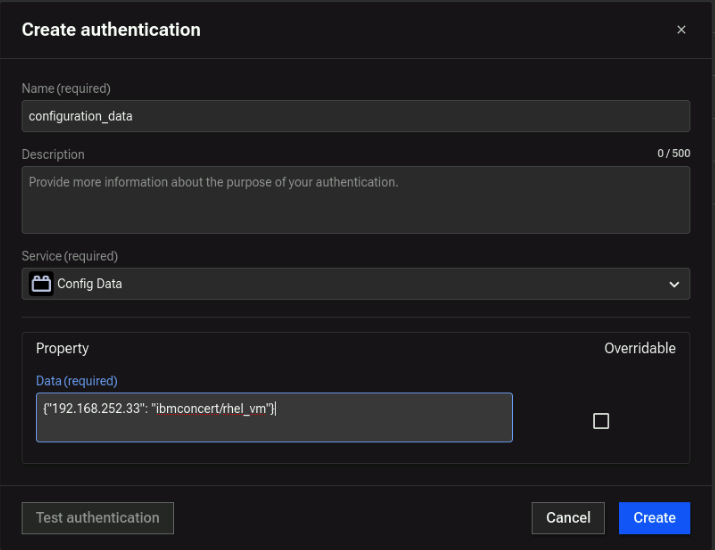
This authentication is used to provide Concert Workflows with necessary configuration data about the VM(s) to be scanned, such as IP address and authentication reference.
- From Authentications tab, click Create Authentication.
- On the Create Authentication screen:
-
Name:
configuration_data -
Service: Config Data
-
Data: JSON construct that includes the IP address of the demo-apps VM and a fully qualified reference to the
rhel_vmauthentication created in the previous step, as shown below:{"192.168.252.33": "ibmconcert/rhel_vm"}
-
For multiple servers, add additional VMs in JSON array format.
Configuration Data example:
- Finally, click Create.
4.2.3 Concert API Key (hub-self)
Note that in future versions of the Lab, this authentication will not be required. Use the name hub-self for authentication.
- From the Authentications tab, click Create Authentication.
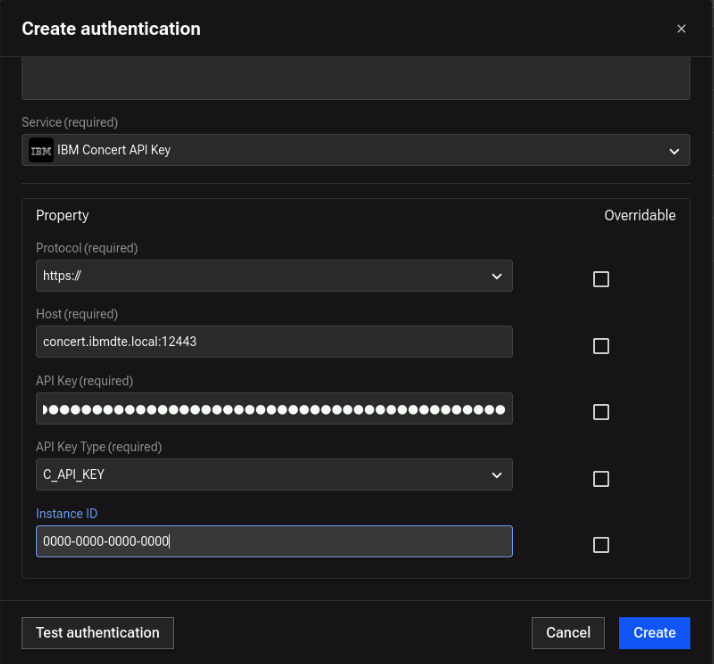
- Configure the following fields:
- Name:
hub-self - Service: IBM Concert API Key
- Protocol:
https:// - Host:
concert.ibmdte.local:12443 - API Key: Concert API Key from credentials file
- API Key Type:
C_API_Key - Instance ID:
0000-0000-0000-0000
- Name:
- Test the authentication
- Click Create.
Concert API Key example:
4.3 Import, Configure and Run Workflow
4.3.1 Import Workflow
- From credentials.txt, open the link for Concert Workflows link in new browser tab on your VM.
- Download the
.zipfile to the VM called vulnerability_scan.zip - In Concert Workflows → Workflows, click Import → select
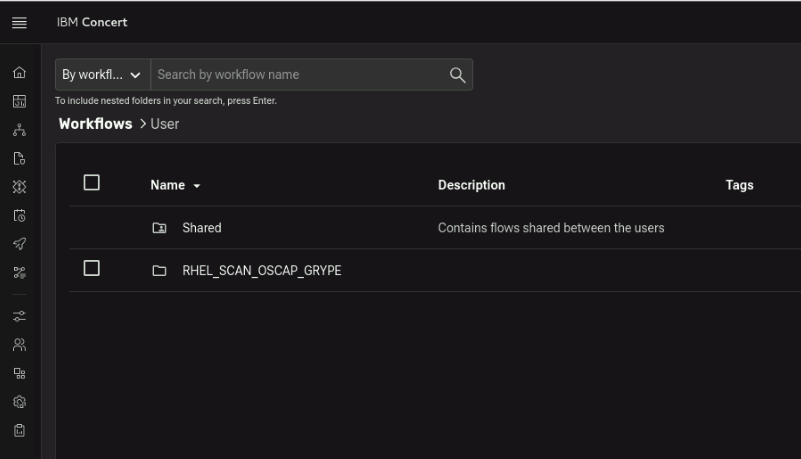
vulnerability_scan.zip. - Verify workflow appears in Workflows list as
RHEL_SCAN_OSCAP_GRYPE.
It should look like this:
4.3.2 Configure Workflow
- Click the RHEL_SCAN_OSCAP_GRYPE folder and click again on the workflow to open it.
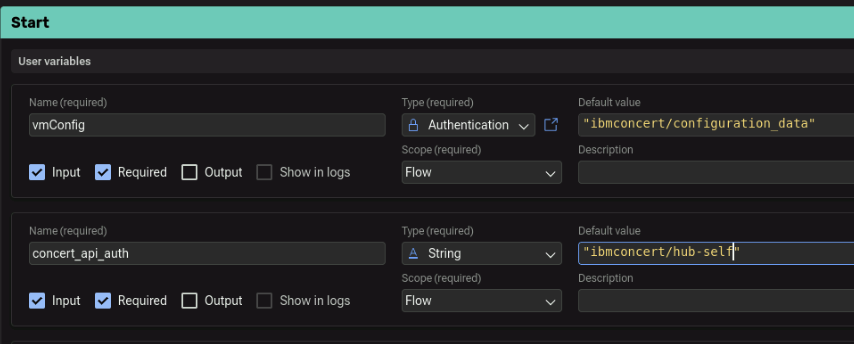
- In the Start block:
- set vmConfig parameter to
ibmconcert/configuration_data(as defined in section 4.2.2) - set concert_api_auth parameter to
ibmconcert/hub-self(as defined in section 4.2.3) - set cve_limit parameter to
20. This is done to limit the time it takes to patch a VM within the context of the lab.
The configured parameters should look like this:
- Click Save.
4.3.3 Run Workflow
- Click Run to execute the workflow (it takes a few minutes).
- After completion, verify results in Concert → Administration → Event Log.
- You should see Application SBOMs and VM scan results uploaded to IBM Concert.
- Application SBOMs visible
- VM scan results in Event Log
- No authentication errors
4.4 Review Scan Findings in Concert
From the Concert UI, navigate to Inventory → Environment Inventory (click on the Refresh icon) and note that there is a new environment called staging. Click on the Runtimes tab (click on the Refresh icon) and note that there is a new runtime called demo-apps with an IP 192.168.252.33. Click on demo-apps to view the vulnerabilities found by the workflow you just ran.
Navigate to Inventory → Application Inventory (click on the Refresh icon) and note that there is a new application called demobank.
Navigate to Dimensions → Vulnerability and note that there are vulnerabilities discovered from the scan.
Concert provides a unified dashboard where you can monitor vulnerabilities, review remediation actions, and track progress across different environments.
The last tab highlights auto-remediation options. Concert’s auto-remediation feature automatically detects and fixes security vulnerabilities across operating systems, web servers, and container images. It identifies applicable fixes, creates remediation actions, and triggers patching workflows after receiving the required approvals.
By leveraging auto-remediation, you can proactively manage vulnerabilities, reduce the risk of security breaches, and strengthen your overall security posture. Concert displays newly discovered vulnerabilities from loaded scan files along with their associated impacts.
Concert also supports mitigation planning for new vulnerabilities using generative AI powered by watsonx.ai, helping you design data-driven remediation strategies.
After you upload a scan report (for example, from a Red Hat Enterprise Linux (RHEL) virtual machine), Concert analyzes the scan results and generates recommended remediation actions—such as installing specific OS patches. These actions are automatically submitted for approval through a GitHub pull request or a ServiceNow incident, depending on the action type.
Once approved, Concert triggers the corresponding workflows to apply patches and updates the action status in the UI.