Custom settings
IBM Data Shift provides various customizable configurations through custom user level settings.
Configuration Keys by Category
Device Management & Startup Checks
- skipMDMCheck
- Description: defines whether or not to check the device’s management state and if it’s enrolled in a recognised environment. More information on how to define “recognised environments” here.
- Possible values:
true/false - Default Value:
false.
- mdmEnvironments
- Description: array of “environment” objects used by the app to recognize the machine’s MDM environment.
- Possible values: array of dictionaries, each with the following structure
{ name : String (required), serverURL : String (required), reconPolicyID : String (optional, required if "skipJamfRecon" is set to "false" and "jamfReconMethod" is set to "selfServicePolicy") } - Default Value: set in the
AppContext.swiftfile in thefallbackMdmEnvironmentsvariable.
- enrollmentRedirectionLink
- Description: the link where the app redirects the user if
skipMDMCheckis set tofalseand no recognized MDM environment are found on the device. - Possible values:
String - Example:
https://www.someorg.com/enrolldoc - Default Value: set in the
AppContext.swiftfile in thefallbackEnrollmentRedirectionLinkvariable.
- Description: the link where the app redirects the user if
Post-Migration Steps
- skipAppleIDCheck
- Description: determines whether or not to display the post-migration phase for Apple ID login verification.
- Possible values:
true/false - Default Value:
false.
- skipJamfRecon
- Description: specifies whether or not to perform an inventory update to Jamf Pro.
- Possible values:
true/false - Default Value:
false.
- jamfReconMethod (Mandatory if
skipJamfReconis set tofalse)- Description: specifies what method to use to run the Jamf inventory update.
- Possible values:
direct-> The app runssudo jamf reconcommand. The app will ask for the user Mac password.selfServicePolicy-> Run a self service policy using deeplinks. The policy takes care of running the recon. The app tracks the recon in background. (More information on how to define the correct policy id here)
- Default Value:
selfServicePolicy
- storePath
- Description: the path to the Jamf self service.
- Possible values:
String - Example:
/Applications/SelfService.app -
- Validation From v2.0.0
- the value (and Jamf’s
self_service_app_path) is only honored if it is an absolute path to an existing.appbundle without control characters. Managed Jamf values must be forced by a configuration profile.
- Default Value: value of the
self_service_app_pathset in thecom.jamfsoftware.jamfdomain, if available. Alternatively, the value set in theAppContext.swiftfile in thefallbackStorePathvariable.
Migration Behavior
- duplicateFilesHandlingPolicy
- Description: defines how to handle duplicate files on the target device.
- Possible values:
ignore-> Doesn’t save the old file on the destination device.move-> Move the file already available on the destination device to a backup folder on the Desktop called “Migration.Backup”overwrite-> Overwrite the file already available on the destination device
- Default Value:
move(value offallbackDuplicateFilesHandlingPolicyinAppContext.swift).
- backupPath
- Description: the user relative path to the migration backup folder. This folder is used to store the duplicate files found on the new device if the
duplicateFilesHandlingPolicyvalue is set tomove. - Possible values:
String - Default Value:
/Desktop/Migration.Backupor the value set in theAppContext.swiftfile in thefallbackBackupPathvariable if defined.
- Description: the user relative path to the migration backup folder. This folder is used to store the duplicate files found on the new device if the
- excludedPathsList
- Description: represent a list of user’s folder relative paths that needs to be excluded from the migration. Supports dynamic flags like
$HOMEFOLDERand$APPFOLDERfor flexible path definitions. Path components support regular expressions for pattern matching From v1.4.0 . - Possible values:
[ String ](Array of String values, supports regex patterns) - Supported Flags:
$HOMEFOLDER- Expands to the user’s home directory$APPFOLDER- Expands to the application’s folder path
-
- Regex Support: Use standard regex patterns in path components (e.g.,
/Documents/.*\.tmp$to exclude all .tmp files in Documents). Each path component is parsed on its own From v1.4.1 - only components containing a regex special character (
\ + * ? [ ] { } ( ) ^ $ |) are treated as regular expressions, all other components are matched literally.
- Regex Support: Use standard regex patterns in path components (e.g.,
- Default Value: set in the
AppContext.swiftfile in thedefaultUrlExclusionListvariable.
- Description: represent a list of user’s folder relative paths that needs to be excluded from the migration. Supports dynamic flags like
- allowedPathsList
- Description: represent a list of user’s folder relative paths that needs to be explicitly included in the migration. Supports dynamic flags like
$HOMEFOLDERand$APPFOLDERfor flexible path definitions. Path components support regular expressions for pattern matching (v1.4.0+), with the same per-component parsing described forexcludedPathsList. - Possible values:
[ String ](Array of String values, supports regex patterns) - Supported Flags:
$HOMEFOLDER- Expands to the user’s home directory$APPFOLDER- Expands to the application’s folder path
- Regex Support: Use standard regex patterns in path components for fine-grained control
- Default Value: set in the
AppContext.swiftfile in thedefaultExplicitAllowListvariable.
- Description: represent a list of user’s folder relative paths that needs to be explicitly included in the migration. Supports dynamic flags like
- excludedFileExtensions
- Description: represent a list of file extensions that needs to be ignored and so excluded from the migration.
- Possible values:
[ String ](Array of String values) - Default Value: set in the
AppContext.swiftfile in thedefaultExcludedFileExtensionsvariable.
- excludedFilePrefixes
- Description: represent a list of file name prefixes that need to be ignored and excluded from the migration.
- Possible values:
[ String ](Array of String values) - Default Value: set in the
AppContext.swiftfile in thedefaultExcludedFilePrefixesvariable.- Default includes:
["MigrationReport_", "~", ".DS_Store", ".localized", "node_modules", "Safari.app"]
- Default includes:
- Example:
<key>excludedFilePrefixes</key> <array> <string>temp_</string> <string>cache_</string> <string>.</string> </array> - Use Case: Exclude temporary files, cache files, or hidden files based on naming patterns.
Migration Scope
-
migratePreferences From v2.0.0
- Description: whether the app discovers macOS system preferences on the source Mac and lets users select which groups to migrate. Preferences are read and written through
CFPreferences, and existing values on the destination are backed up before being overwritten. - Possible values:
true/false - Default Value:
true
- Description: whether the app discovers macOS system preferences on the source Mac and lets users select which groups to migrate. Preferences are read and written through
-
migrateAppSupportFiles From v2.0.0
- Description: whether the app automatically discovers and migrates the support files of the applications in scope (Application Support, sandboxed Containers, Group Containers and preference files).
- Possible values:
true/false - Default Value:
true
-
excludeApplicationsFolder From v2.0.0
- Description: completely excludes the Applications folders from the migration, regardless of what a preset or the Advanced option includes. It covers
/Applications,~/Applicationsand/System/Applications: no apps are loaded during setup and the folders are added to the URL exclusion list, so they can’t enter through a full user-folder preset either. - Possible values:
true/false - Default Value:
false
- Description: completely excludes the Applications folders from the migration, regardless of what a preset or the Advanced option includes. It covers
-
migrationPresets From v2.0.0
- Description: replaces the built-in
Lite/Completeoptions with your own named presets. See Migration presets. - Possible values: array of dictionaries
- Default Value:
LiteandComplete
- Description: replaces the built-in
Feature Specific Customization
- generateReport
- Description: Flag that specifies whether the app should generate a comprehensive migration report on the desktop of the source device. The report includes details about migrated files, skipped items, errors encountered, and migration statistics.
- Possible values:
true/false - Default Value:
false - Report Location: Desktop of the source device (filename:
MigrationReport_[timestamp].txt) - Report Contents:
- Migration summary (total files, size, duration)
- List of successfully migrated items
- List of skipped or excluded items
- Any errors or warnings encountered
-
Architecture compatibility information From v1.4.0
- Files that couldn’t be scanned From v2.0.0
- checkAppsArchitecture
- Description: Flag that specifies whether the app should check the architecture compatibility (Intel vs. Apple Silicon) of the applications in scope during migration setup, and warn the user about incompatible ones.
- Possible values:
true/false - Default Value:
true
- skipDeviceReboot
- Description: Flag that specifies whether the app should skip the device reboot step after the migration.
- Possible values:
true/false - Default Value:
false
- loggingLevel
- Description: Verbosity of the app logs.
- Possible values:
noLog-> no logs are written.standard-> a standard amount of logs is written.debug-> verbose logging for troubleshooting migration issues. It can generate large log files, use it cautiously.
- Default Value:
standard
User Interface Customization
- customFontFamily
- Description: the font family used throughout the app. If empty or not set, system fonts are used.
- Possible values:
String - Default Value:
IBMPlexSans(value offallbackCustomFontFamilyinAppContext.swift).
- orgName
- Description: the Organization’s name used within the text showed in the UI.
- Possible values:
String - Example:
Mac@IBM - Default Value: set in the
AppContext.swiftfile in thefallbackOrgNamevariable.
- networkServiceIdentifier
- Description: the advertised bonjour service identifier.
- Possible values:
String - Example:
_migrator - Default Value: set in the
AppContext.swiftfile in thefallbackNetworkServiceIdentifiervariable.
- skipMigrationSummary
- Description: Flag that specifies whether the app should skip the Migration Summary/Recap view before starting the migration.
- Possible values:
true/false - Default Value:
false - Use Case: Enable this to streamline the migration process by skipping the confirmation/recap page.
- showWelcomePageInfo
- Description: Flag that specifies whether the app should display version, copyright, and privacy information on the Welcome page.
- Possible values:
true/false - Default Value:
false - Use Case: Enable this to show app metadata and legal information on the initial screen.
Terms & Conditions
- shouldRequireTAndCAcceptance
- Description: Flag that defines whether the app should require user acceptance of the Terms and Conditions before proceeding with migration.
- Possible values:
true/false - Default Value:
false - Use Case: Enable this when your organization requires explicit user consent before data migration.
- termsConditionsURL
- Description: The URL string pointing to the app’s terms and conditions document.
- Possible values:
- Remote URL:
https://example.com/terms.html - Local file:
T&C.pdf(placed in app bundle’s Contents/Resources directory)
- Remote URL:
- Default Value: null
- Note: If using a local file, ensure it’s included in the app bundle during build. This link appears in the app’s menu bar for easy user access.
- privacyPolicyURL
- Description: The URL string pointing to the app’s privacy policy. Accessible from the app menu.
- Possible values:
- Remote URL:
http://www.ibm.com/privacy - Local file:
PrivacyPolicy.pdf(placed in app bundle’s Contents/Resources directory)
- Remote URL:
- Default Value: null
- Note: If using a local file, ensure it’s included in the app bundle during build. This link appears in the app’s menu bar for easy user access.
- thirdPartyNotices
- Description: The URL string pointing to the app’s third party notices document. Accessible from the app menu.
- Possible values:
- Remote URL:
https://example.com/notices.html - Local file:
TPNotices.pdf(placed in app bundle’s Contents/Resources directory)
- Remote URL:
- Default Value: null
- Note: If using a local file, ensure it’s included in the app bundle during build. This link appears in the app’s menu bar for easy user access.
Custom Page Icons
Administrators can customize the icon displayed on each page of the migration workflow. Icons can be specified as:
- Remote URLs (e.g.,
https://cdn.example.com/icon.png) - Local file paths relative to the user folder (e.g.,
/Documents/custom-icon.pdf) - Base64 encoded image data
Available Icon Configuration Keys:
- welcomePageIcon
- Description: Custom icon for the Welcome/Initial page
- Type: String (URL, file path, or base64)
- Default: Uses built-in icon
- browserPageIcon
- Description: Custom icon for the Browser page (old device selecting new device)
- Type: String (URL, file path, or base64)
- Default: Uses built-in icon
- serverPageIcon
- Description: Custom icon for the Server page (new device waiting for connection)
- Type: String (URL, file path, or base64)
- Default: Uses built-in icon
- codeVerificationPageIcon
- Description: Custom icon for the Code Verification page
- Type: String (URL, file path, or base64)
- Default: Uses built-in icon
- setupPageIcon
- Description: Custom icon for the Setup/Migration Options selection page
- Type: String (URL, file path, or base64)
- Default: Uses built-in icon
- recapPageIcon
- Description: Custom icon for the Recap/Summary page (before migration starts)
- Type: String (URL, file path, or base64)
- Default: Uses built-in icon
- migrationPageIcon
- Description: Custom icon for the Migration in Progress page
- Type: String (URL, file path, or base64)
- Default: Uses built-in icon
- jamfReconPageIcon
- Description: Custom icon for the Jamf Recon/Inventory Update page
- Type: String (URL, file path, or base64)
- Default: Uses built-in icon
- rebootPageIcon
- Description: Custom icon for the Reboot countdown page
- Type: String (URL, file path, or base64)
- Default: Uses built-in icon
- finalPageIcon
- Description: Custom icon for the Final/Completion page
- Type: String (URL, file path, or base64)
- Default: Uses built-in icon
Example Icon Configuration:
<key>welcomePageIcon</key>
<string>https://cdn.company.com/migration-welcome.png</string>
<key>migrationPageIcon</key>
<string>/Documents/custom-migration-icon.pdf</string>
Configuration Profile Example
To configure these settings via a configuration profile, simply define the values as shown in the following schema:
<?xml version="1.0" encoding="UTF-8"?>
<!DOCTYPE plist PUBLIC "-//Apple//DTD PLIST 1.0//EN" "http://www.apple.com/DTDs/PropertyList-1.0.dtd">
<plist version="1.0">
<dict>
    <!-- Device Management & Startup Checks -->
    <key>skipMDMCheck</key>
    <false/>
    <key>mdmEnvironments</key>
    <array>
        <dict>
            <key>name</key>
            <string>Production</string>
            <key>serverURL</key>
            <string>https://some.server.url</string>
            <key>reconPolicyID</key>
            <string>000</string>
        </dict>
        <dict>
            <key>name</key>
            <string>QA</string>
            <key>serverURL</key>
            <string>https://some.server.url</string>
            <key>reconPolicyID</key>
            <string>000</string>
        </dict>
    </array>
    <key>enrollmentRedirectionLink</key>
    <string>https://www.some.org.enroll/doc</string>

    <!-- Post-Migration Steps -->
    <key>skipAppleIDCheck</key>
    <false/>
    <key>skipJamfRecon</key>
    <false/>
    <key>jamfReconMethod</key>
    <string>selfServicePolicy</string>
    <key>storePath</key>
    <string>/Applications/SelfService.app</string>

    <!-- Migration Behavior -->
    <key>duplicateFilesHandlingPolicy</key>
    <string>move</string>
    <key>backupPath</key>
    <string>/Desktop/Migration.Backup</string>
    <key>excludedPathsList</key>
    <array>
        <string>/some/path/1</string>
        <string>/some/path/2</string>
        <string>$HOMEFOLDER/Downloads</string>
        <string>$APPFOLDER/SomeApp.app</string>
        <!-- Example with regex patterns (v1.4.0+) -->
        <string>$APPFOLDER/.+ Creator Studio\.app</string>
    </array>
    <key>allowedPathsList</key>
    <array>
        <string>/Library/Application Support/SomeApp</string>
        <string>/Library/Preferences/com.example.plist</string>
        <string>$HOMEFOLDER/Library/ImportantFiles</string>
    </array>
    <key>excludedFileExtensions</key>
    <array>
        <string>vdi</string>
        <string>tmp</string>
    </array>
    <key>excludedFilePrefixes</key>
    <array>
        <string>temp_</string>
        <string>cache_</string>
    </array>
    <key>generateReport</key>
    <true/>
    <!-- Migration scope (next release) -->
    <key>migratePreferences</key>
    <true/>
    <key>migrateAppSupportFiles</key>
    <true/>
    <key>excludeApplicationsFolder</key>
    <false/>
    <key>checkAppsArchitecture</key>
    <true/>
    <key>skipDeviceReboot</key>
    <false/>
    <key>loggingLevel</key>
    <string>standard</string>

    <!-- User Interface Customization -->
    <key>orgName</key>
    <string>YourOrg</string>
    <key>networkServiceIdentifier</key>
    <string>_migrator_yourorg</string>
    <key>skipMigrationSummary</key>
    <false/>
    <key>showWelcomePageInfo</key>
    <true/>

    <!-- Terms & Conditions -->
    <key>shouldRequireTAndCAcceptance</key>
    <true/>
    <key>termsConditionsURL</key>
    <string>https://www.yourorg.com/terms</string>
    <key>privacyPolicyURL</key>
    <string>https://www.yourorg.com/privacy</string>
    <key>thirdPartyNotices</key>
    <string>https://www.yourorg.com/notices</string>

    <!-- Custom Page Icons (Optional) -->
    <key>welcomePageIcon</key>
    <string>https://cdn.yourorg.com/welcome-icon.png</string>
    <key>browserPageIcon</key>
    <string>custom-browser-icon.pdf</string>
    <key>serverPageIcon</key>
    <string>custom-server-icon.pdf</string>
    <key>codeVerificationPageIcon</key>
    <string>custom-code-icon.pdf</string>
    <key>setupPageIcon</key>
    <string>custom-setup-icon.pdf</string>
    <key>recapPageIcon</key>
    <string>custom-recap-icon.pdf</string>
    <key>migrationPageIcon</key>
    <string>custom-migration-icon.pdf</string>
    <key>jamfReconPageIcon</key>
    <string>custom-recon-icon.pdf</string>
    <key>rebootPageIcon</key>
    <string>custom-reboot-icon.pdf</string>
    <key>finalPageIcon</key>
    <string>custom-final-icon.pdf</string>
</dict>
</plist>
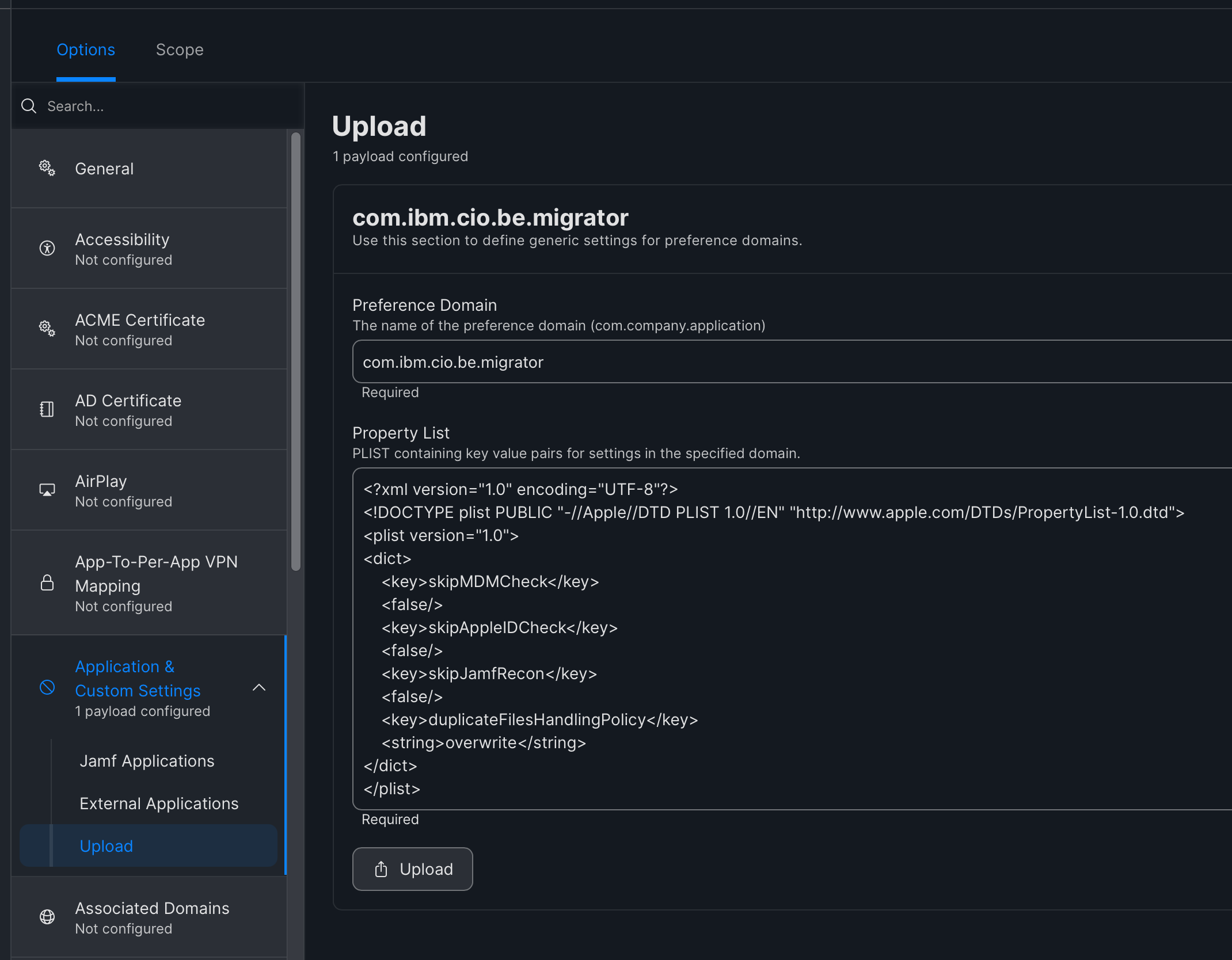
Afterward, you will need to create a new configuration profile in Jamf Pro (if one has not already been created for configuring PPPC values) and define a new “Application & Custom Settings” payload as shown below:
Migration presets
From v2.0.0
The migrationPresets setting replaces the standard options shown in the Migration Setup picker. The Advanced option remains available. Each preset is a dictionary:
{
   id : String (required, unique),
   name : String (required, shown in the picker and not localized),
   categories : [ String ] (optional),
   additionalPaths : [ String ] (optional)
}
Available categories:
| Category | Migrates |
|---|---|
desktop |
The user’s Desktop folder |
documents |
The user’s Documents folder |
userFolder |
The entire home folder (supersedes desktop, documents and additionalPaths) |
apps |
Applications discovered in /Applications |
preferences |
macOS preferences, discovered by the app |
additionalPaths accepts the same $HOMEFOLDER / $APPFOLDER flags as the path lists. Unknown category names (for example a typo, or a category from a newer app version) are dropped individually without failing the preset. Entries that are malformed, have an empty name or reuse an existing id are dropped and logged. If no valid preset remains, the app falls back to Lite and Complete.
<key>migrationPresets</key>
<array>
<dict>
<key>id</key>
<string>docs-only</string>
<key>name</key>
<string>Documents & Projects</string>
<key>categories</key>
<array>
<string>documents</string>
<string>preferences</string>
</array>
<key>additionalPaths</key>
<array>
<string>$HOMEFOLDER/Projects</string>
</array>
</dict>
<dict>
<key>id</key>
<string>everything</string>
<key>name</key>
<string>Everything</string>
<key>categories</key>
<array>
<string>userFolder</string>
<string>apps</string>
<string>preferences</string>
</array>
</dict>
</array>
Usage Notes
Terms & Conditions Configuration
When enabling shouldRequireTAndCAcceptance, ensure that:
- The
termsConditionsURLpoints to a valid, accessible document - Users will be required to accept before proceeding with migration
- The acceptance is stored locally and persists across app launches
Custom Icons Best Practices
- Use PDF format for vector icons that scale well
- PNG format is supported for raster images (recommended: 512x512px or higher)
- Icons should be clear and recognizable at various sizes
- Test icons in both light and dark mode if applicable
- Keep file sizes reasonable (< 1MB per icon)
File Exclusion Strategy
The app combines both default exclusions and managed exclusions:
excludedPathsList+ default exclusions = final exclusion listexcludedFileExtensions+ default extensions = final extension listexcludedFilePrefixes+ default prefixes = final prefix list- Use
allowedPathsListto explicitly include paths that would otherwise be excluded - From v2.0.0
Exclusion rules for file extensions and name prefixes (for example a nested
node_modules,.DS_Storeor VM disk images) are applied at every depth of a selected folder, and sizes and file counts match what is actually transferred. Application bundles (.app) are always copied whole, so an app’s ownnode_modulesor cache folders are never removed. - From v2.0.0
Cache and temporary folders that apps regenerate on their own (
Library/Cachesin the user library, Containers and Group Containers, and a container’sData/tmp) are never migrated, including app support files.
Using Dynamic Path Flags
Both excludedPathsList and allowedPathsList support dynamic flags for flexible path definitions:
$HOMEFOLDER: Automatically expands to the user’s home directory (e.g.,/Users/username)$APPFOLDER: Automatically expands to the application’s folder path
Examples:
$HOMEFOLDER/Downloads→/Users/username/Downloads$APPFOLDER/Cache→/Applications/YourApp.app/Contents/Cache$HOMEFOLDER/Library/Caches→/Users/username/Library/Caches
These flags ensure paths work correctly across different user accounts and system configurations without hardcoding specific usernames or paths.
Configuration Profile Deployment
To deploy these settings:
- Create a new Configuration Profile in Jamf Pro
- Add an “Application & Custom Settings” payload
- Set the Preference Domain to your app’s bundle identifier
- Upload the XML plist with your custom settings
- Scope to appropriate devices/users