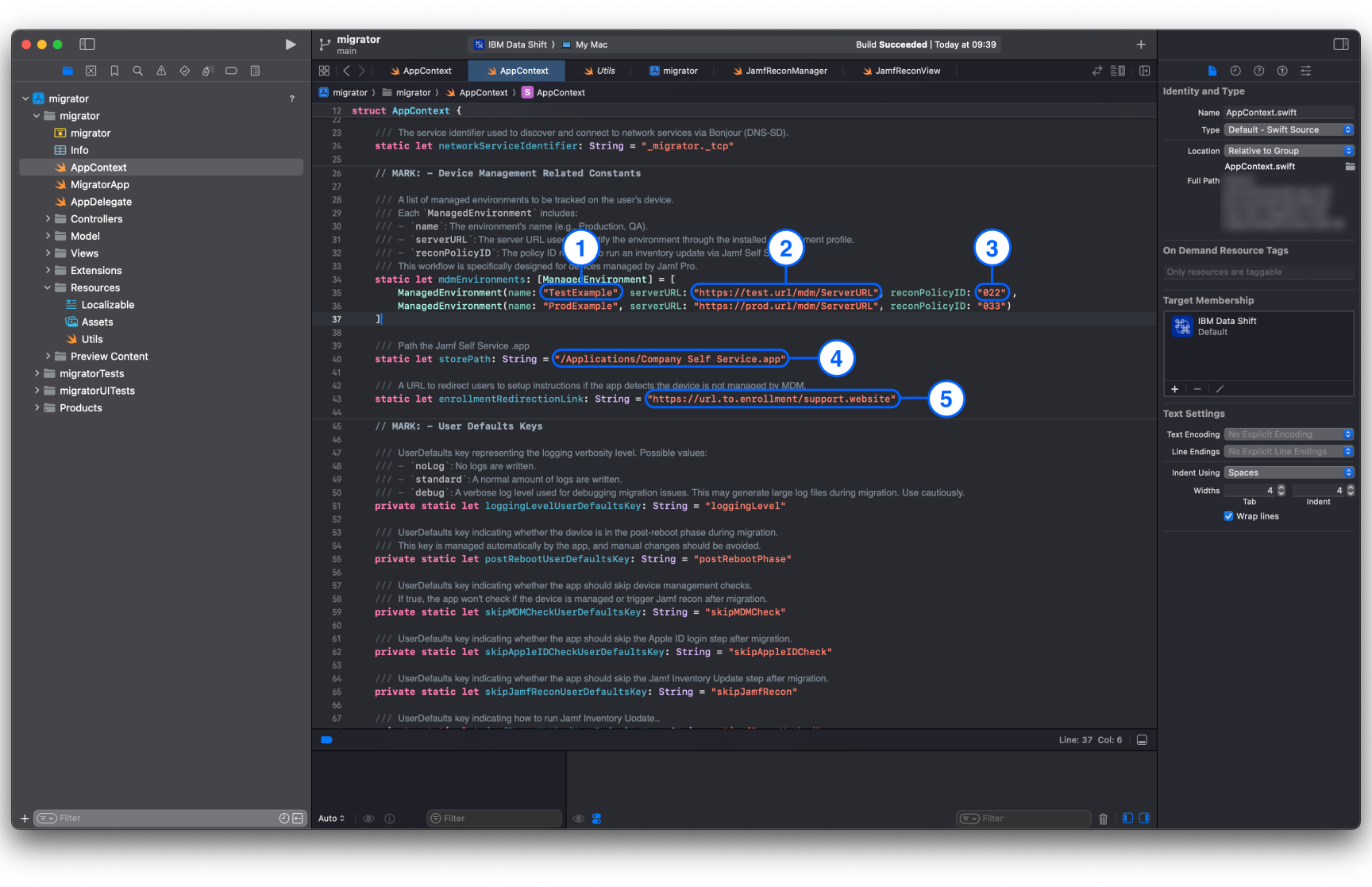
MDM check & inventory update
At startup, IBM Data Shift can run a background check to verify that the device is enrolled in a recognized MDM program. To enable it, set the custom setting skipMDMCheck to false as described in Custom settings. Some variables in AppContext.swift must also be customized before archiving the project.
To recognize your MDM environment:
- Define a new
ManagedEnvironmentobject in themdmEnvironmentsarray inAppContext.swift. Each environment needs aname(nr. 1 in the picture below) and aServerURL(nr. 2). The ServerURL identifies the environment by matching the ServerURL of the MDM profile detected on the device. - If the app is configured to check the device management state and no recognized environment is found, it prompts the user to visit a website to start enrollment. Define this URL in the
enrollmentRedirectionLinkvariable (nr. 5) inAppContext.swift. - If you use
selfServicePolicyas thejamfReconMethod, also define thereconPolicyID(nr. 3) for that environment and thestorePathvariable (nr. 4).
These values are also available as custom settings deployable through a configuration profile.
From v2.0.0
The
storePath value (and Jamf's self_service_app_path) is only honored if it is an absolute path to an existing .app bundle without control characters. Self Service is launched without a shell. Managed Jamf values must be forced by a configuration profile.