6. Concert OIDC Setup

In this section, you will configure Concert to use Keycloak as its OpenID Connect (OIDC) identity provider. This enables Single Sign-On for Concert, allowing users to authenticate with their LDAP credentials through Keycloak.

6.1: Understanding OIDC Integration

OpenID Connect (OIDC) is an authentication protocol built on top of OAuth 2.0. It allows applications like Concert to delegate authentication to an identity provider like Keycloak.

6.1.1: OIDC Authentication Flow

  1. User Access: User navigates to Concert and clicks "Login with SSO"
  2. Authorization Request: Concert redirects user to Keycloak with an authorization request
  3. User Authentication: User authenticates with Keycloak (which validates against LDAP)
  4. Authorization Grant: Keycloak redirects back to Concert with an authorization code
  5. Token Exchange: Concert exchanges the code for an ID token and access token
  6. User Info: Concert validates the token and retrieves user information
  7. Session Creation: Concert creates a session and grants access

6.2: Retrieve Client Secret

After creating the concert-client in Section 5.4, you need to retrieve the client secret for Concert configuration.

6.2.1: Get Client Secret

  1. In the Keycloak Admin Console, ensure you're in the concert-realm realm (check the realm dropdown)
  2. In the left navigation menu, click Clients in the main navigation.
  3. Click concert-client from Clients list
  4. Click the Credentials tab
  5. You'll see the Client Secret field
  6. Click the Copy to clipboard icon next to the secret
  7. Paste the secret into your credentials.txt file under oidc_client_secret:

Client Secret

important

Keep this client secret secure. It will be used by Concert to authenticate with Keycloak.


6.3: Assign Service Accounts Roles to a Client

Now, we will assign Service Accounts Roles to concert-client.

6.3.1: Assign Service Accounts Roles

  1. After retrieving the client secret, you should be on the client details page for concert-client
  2. Click the Service accounts roles tab
  3. Click Assign role dropdown list and select Client Roles

Assign Service Account Roles

  1. Search for realm-admin and manage-users roles
  2. Assign realm-admin and manage-users roles to it

Assign Service Account Roles-Realm-Admin

Assign Service Account Roles-Manage-Users

  1. Click Assign

  2. Now, you should be able to see 2 new roles added to the list for concert-client

Assign Service Account Roles-2new-roles


6.4: Create client roles

Now, we will create 2 new Roles for concert-client.

6.4.1: Create Client Roles

  1. After assigning service account roles, you should be on the client details page for concert-client
  2. Click the Roles tab
  3. Click Create role

Create Client Role

  1. Add a custom specific Role name for Admin. On the Create Role page, enter the following values:

    • Role Name: Admin
    • Description: Admin
  2. Click Save

Add Client Role-Admin

  1. Add a custom specific Role name for User. On the Create Role page, enter the following values:

    • Role Name: User
    • Description: User
  2. Click Save

Add Client Role-User

  1. Finally, you should see 2 new client roles in the list

Add Client Role-User


6.5: Setup the default role for all imported users

Now, we will setup the default role for all OpenLDAP imported users.

6.5.1: Navigate to Clients

  1. In the Keycloak Admin Console, ensure you're in the concert-realm realm (check the realm dropdown)
  2. Click Realm Roles from the left navigation menu.
  3. Check if the role default-roles-concert-realm already exists for your Realm.
  4. Click on default-roles-concert-realm to list all the roles for user realm.
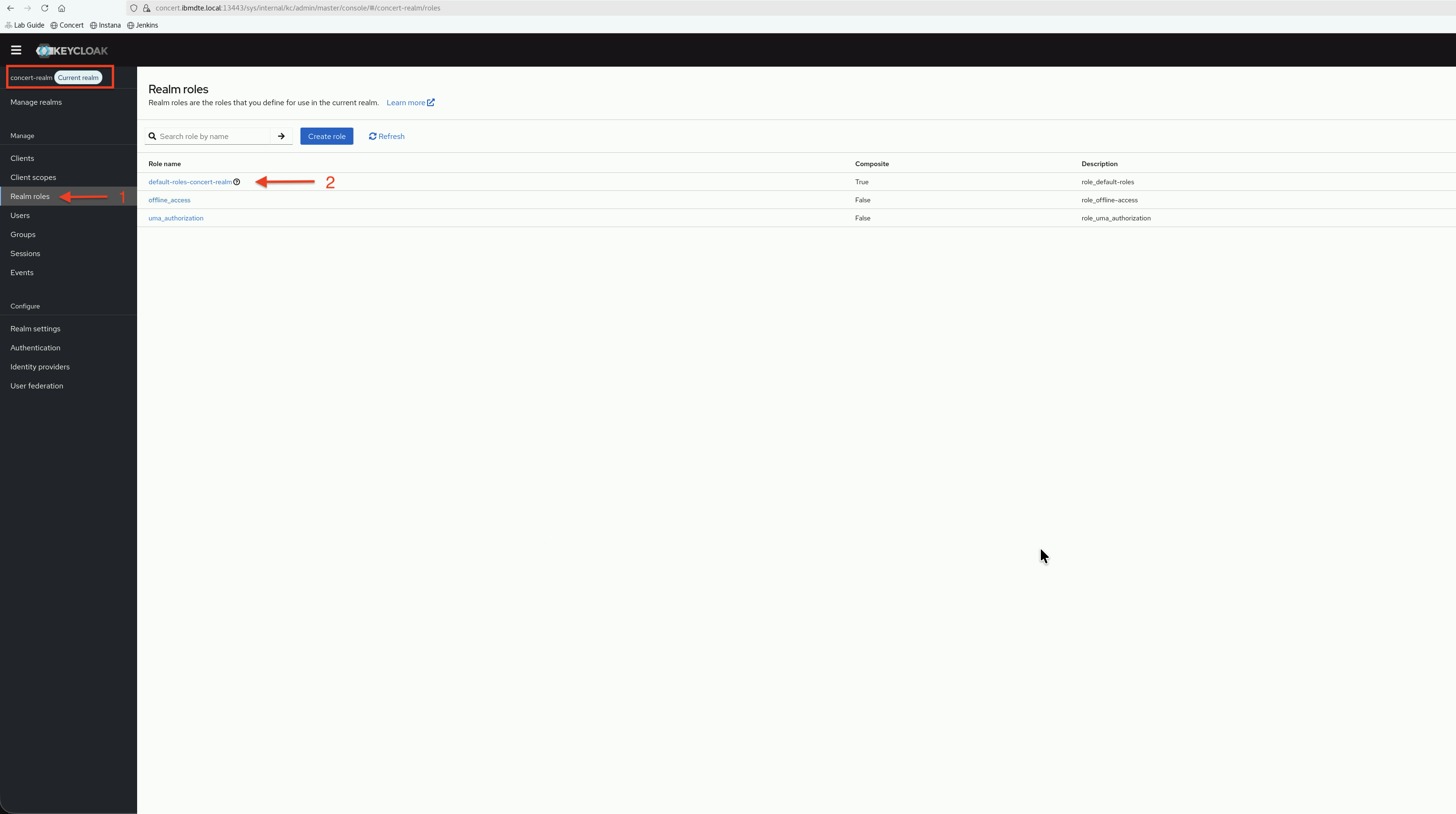
Concert Realm Default Roles

  1. Click Assign role dropdown list and select Client Roles
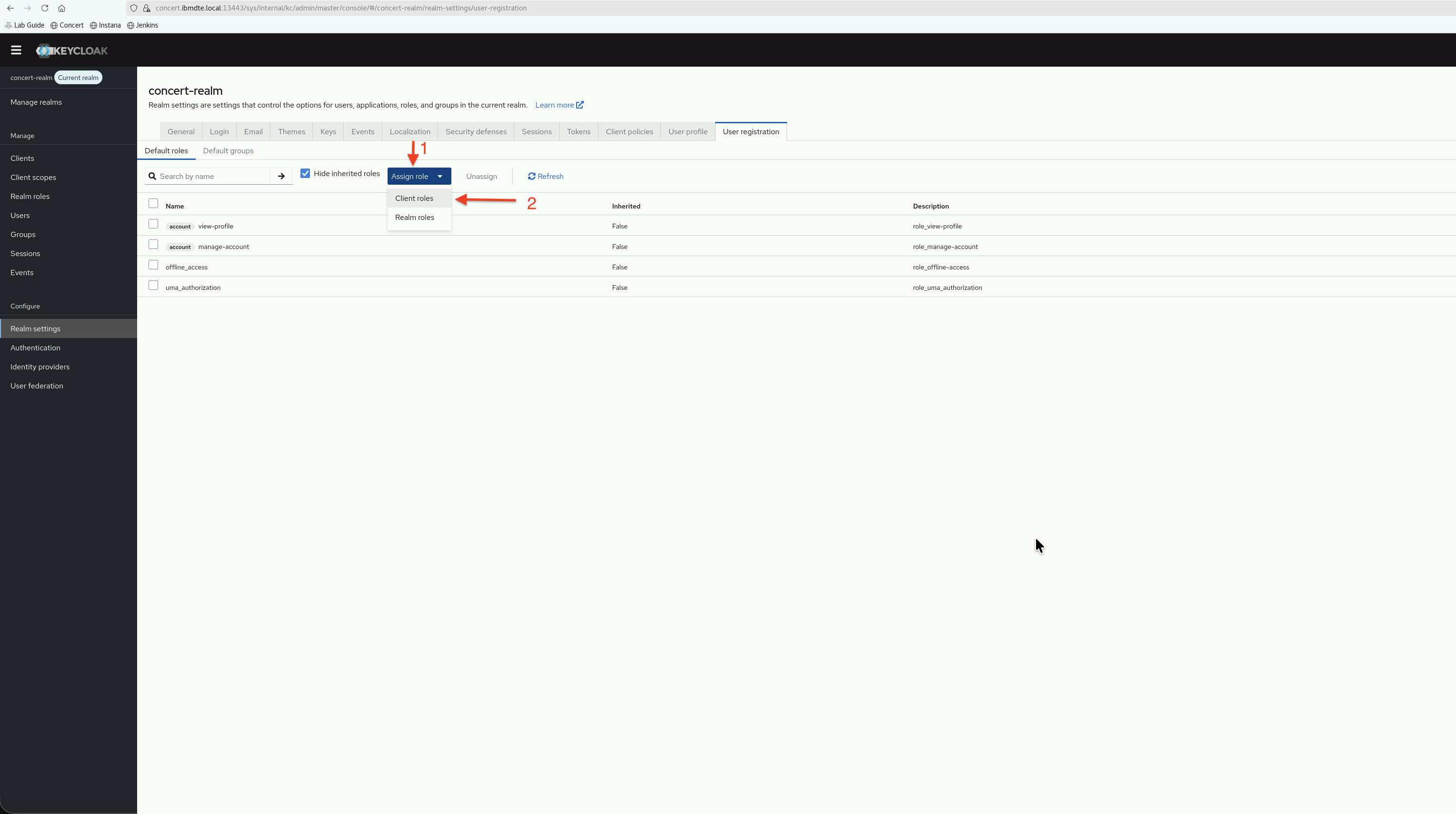
Concert Realm Assign User

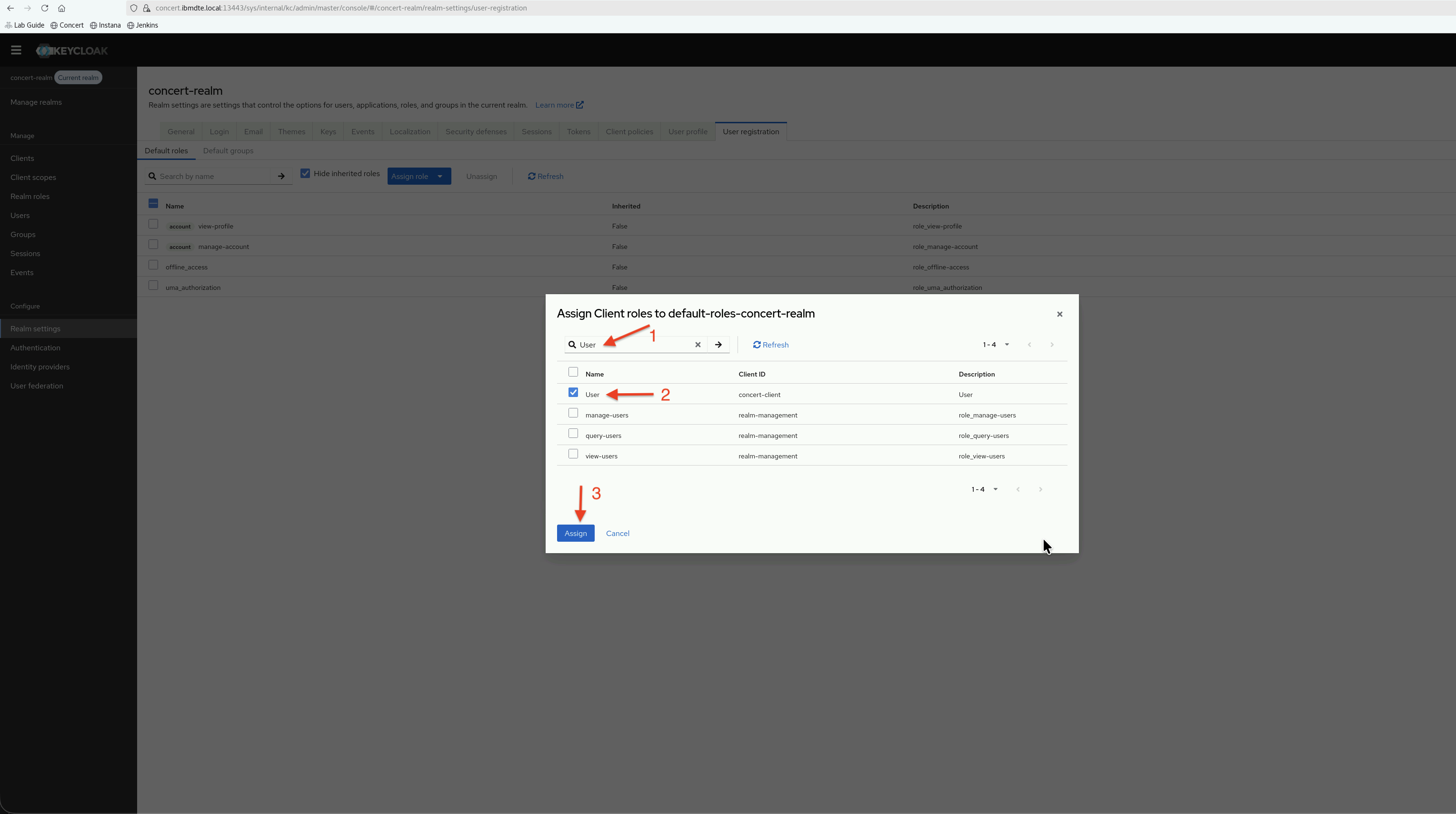
  1. Search for User
  2. Select User role and click Assign.

Default Roles

  1. Finally, you should see User role is added in the list.
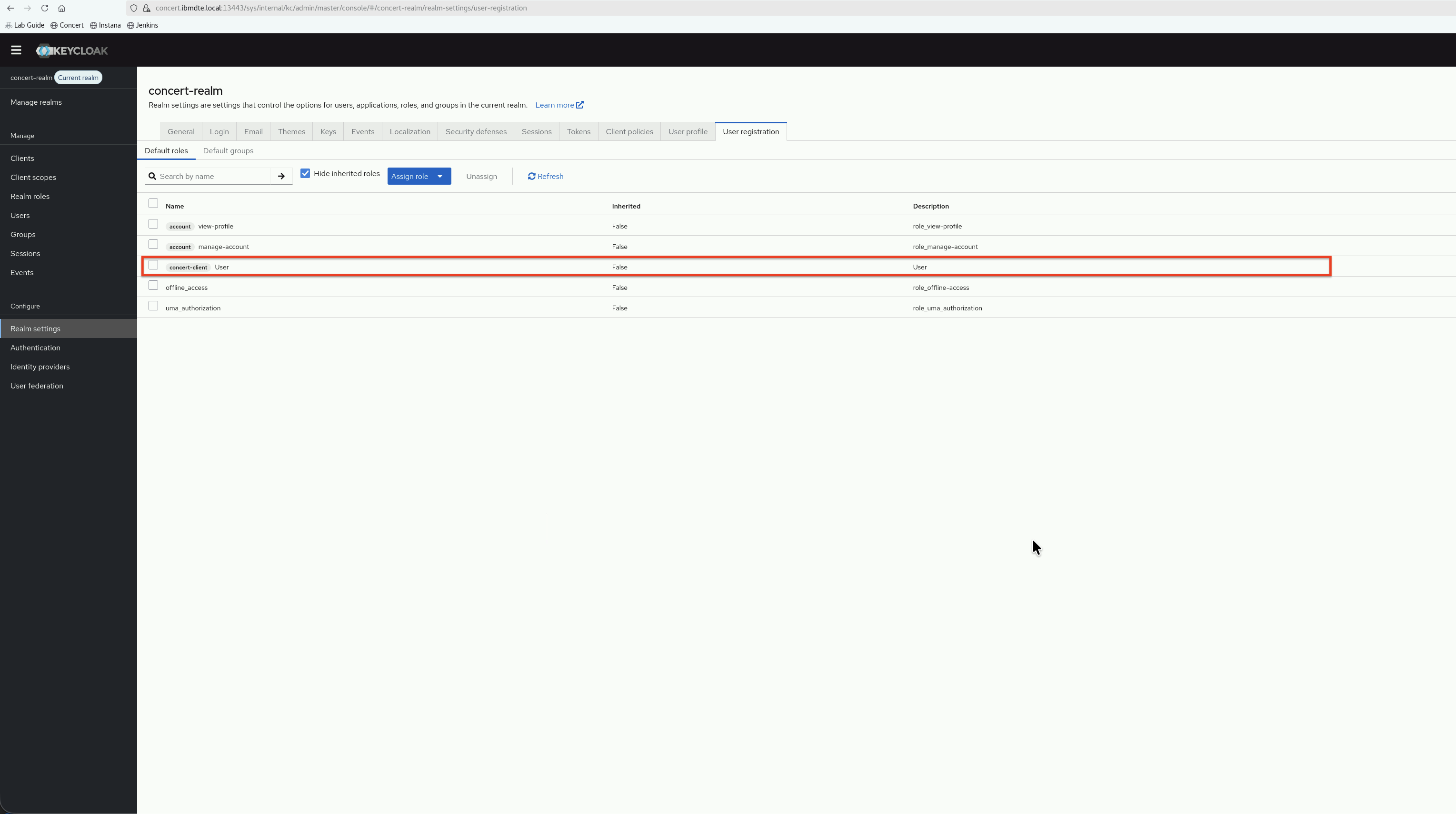
User Role Added


6.6: Configure Client Scopes

Client scopes define what information is included in the tokens issued by Keycloak. We'll configure scopes to include user roles and group memberships.

6.6.1: Add a new Client Scope

  1. In the Keycloak Admin Console, ensure you're in the concert-realm realm, go to Clientsconcert-client
  2. On the concert-client details page, click Client scopes from the left navigation menu.
  3. Click Create client scope button

Create Client Scope

  1. Configure the new Client Scope using the following values:
    • Name: groups
    • Description: Include user groups in the token
    • Type: Default
    • Protocol: OpenID Connect
    • Display on consent screen: ON
    • Consent screen text: **Leave empty**
    • Include in token scope: OFF
    • Include in OpenID Provider Metadata: ON
    • Display Order: **Leave empty**

Client Scope Data

  1. Click Save.
  2. You should see the newly created client scope in the list of client scopes.

Client Scope with Groups


6.7: Configure Group Membership Mapper for Client Scope

Now, we will setup concert-client with Group Membership Mapper for Client Scope.

6.7.1: Add Groups to Token

  1. In the Keycloak Admin Console, ensure you're in the concert-realm realm, go to Clientsconcert-client
  2. On the concert-client details page, click the Client scopes tab
  3. You'll see Assigned client scopes column name

Client Scopes

  1. In the Assigned client scope column, find and click on concert-client-dedicated
  2. Click the Mappers tab
  3. Click Configure a new mapper

Add Mapper

  1. Select Group Membership from the list of built-in mapper types

Group Membership Mapper

  1. Configure the Group Membership mapper using the following values:
    • Name: groups
    • Token Claim Name: groups
    • Full group path: OFF
    • Add to ID token: ON
    • Add to access token: ON
    • Add to lightweight access token: OFF
    • Add to userinfo: ON
    • Add to token introspection: ON

Group Membership Mapper Data

  1. Click Save
  2. You will see the newly created Group Membership mapper in the list of mappers for the concert-client-dedicated client scope.

Group Membership Mapper


6.8: Assign groups to concert-client

Now, we will assign groups which we created in Section 6.6 to concert-client.

6.8.1: Assign groups to client

  1. In the Keycloak Admin Console, ensure you're in the concert-realm realm, go to Clientsconcert-client
  2. On the concert-client details page, click Client scopes.
  3. Click Add Client Scope.

Concert Client Add Client Scope

  1. Select groups.
  2. Select the Default option to assign the groups.

Concert Client Add Groups

  1. You should see the groups in the list of assigned client scopes for concert-client.

Concert Client with Groups


6.9 : Verify Token Claims

Before testing the actual login, let's verify that Keycloak will include the correct user information in the authentication tokens.

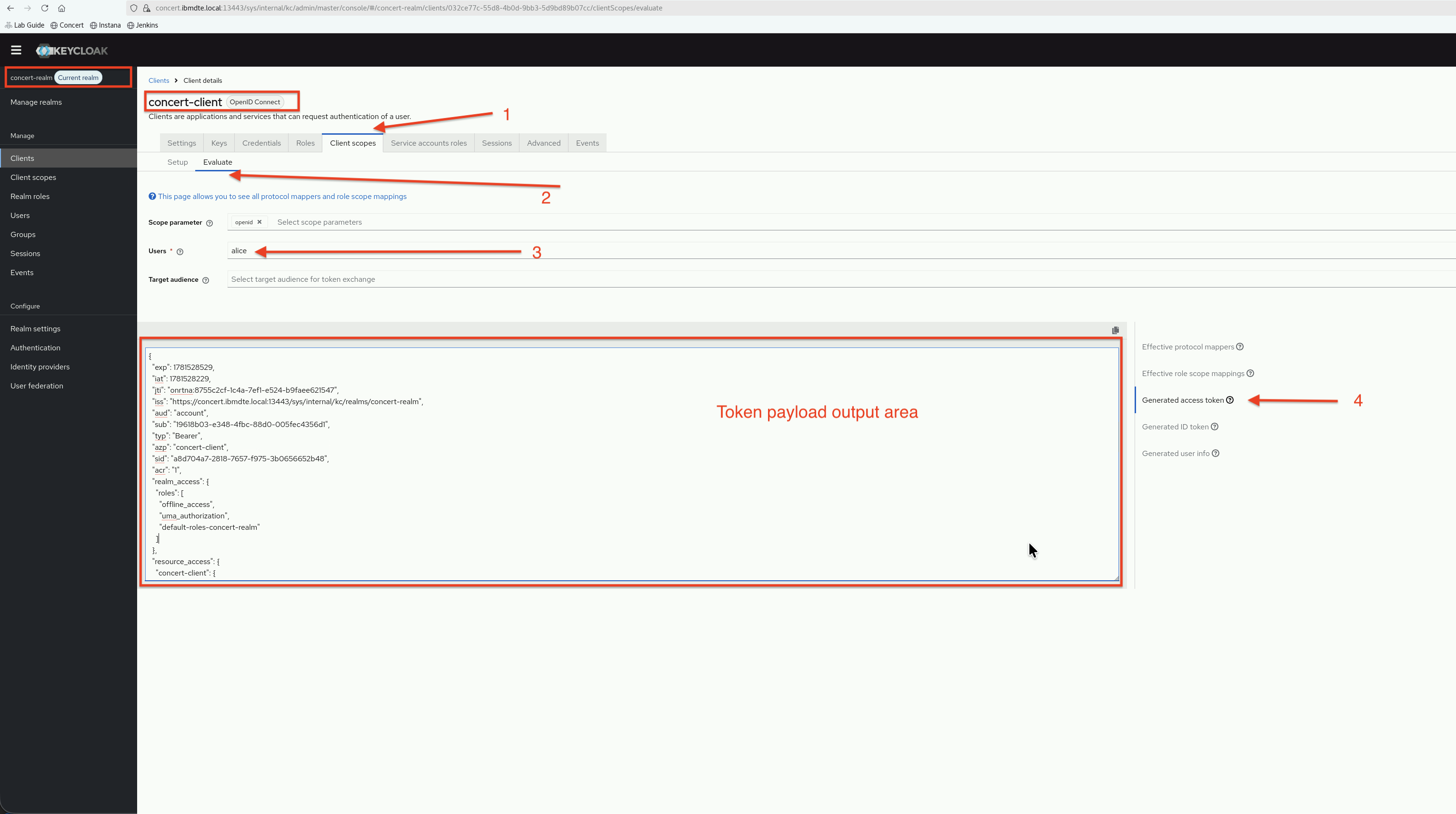
  1. Go back to Clientsconcert-client
  2. Click the Client scopes tab
  3. Click Evaluate
  4. In the User field, type alice and select the user
  5. Click Generated access token tab
  6. You should see the token payload including:

Token Evaluation

Actual output in payload section
{
"exp": 1782133013,
"iat": 1782132713,
"jti": "onrtna:4b1020a6-6975-02a4-d141-36d9a136ab55",
"iss": "https://concert.ibmdte.local:13443/sys/internal/kc/realms/concert-realm",
"aud": "account",
"sub": "d5659585-1fc3-4fa5-afea-c36125755275",
"typ": "Bearer",
"azp": "concert-client",
"sid": "99c2b194-1c3f-a182-c086-d377a834631f",
"acr": "1",
"realm_access": {
"roles": [
"offline_access",
"uma_authorization",
"default-roles-concert-realm"
]
},
"resource_access": {
"concert-client": {
"roles": [
"User"
]
},
"account": {
"roles": [
"manage-account",
"manage-account-links",
"view-profile"
]
}
},
"scope": "openid email profile",
"email_verified": false,
"name": "Alice Admin Admin",
"groups": [
"corporate_it_staff"
],
"preferred_username": "alice",
"given_name": "Alice Admin",
"family_name": "Admin",
"email": "alice@example.com"
}

6.10: Configure Admin Role for Concert Instance level

Concert has 2 levels of role-based access: Instance level access and Object level access.

With Instance level access, user with Admin role can perform the following actions:

RoleDetails
AdminGrant or revoke access to other users or user groups (except for the Owner role)
Create, edit, delete, and run ingestion jobs
View, use, create, update, and delete shared third-party credentials (connections)
Define applications and environments

Whereas user with User role can perform the following actions:

RoleDetails
UserView ingestion jobs
View and use shared third-party credentials (connections)
Define applications and environments
info

This section only applies to Concert v2.2.0. Steps for this section are not required for Concert v2.3.0 or later.

In this section, we will assign Admin role to alice user for Concert instance level access. Other users will have User role for instance level access. We will explore object level access and role assignment in section 7.

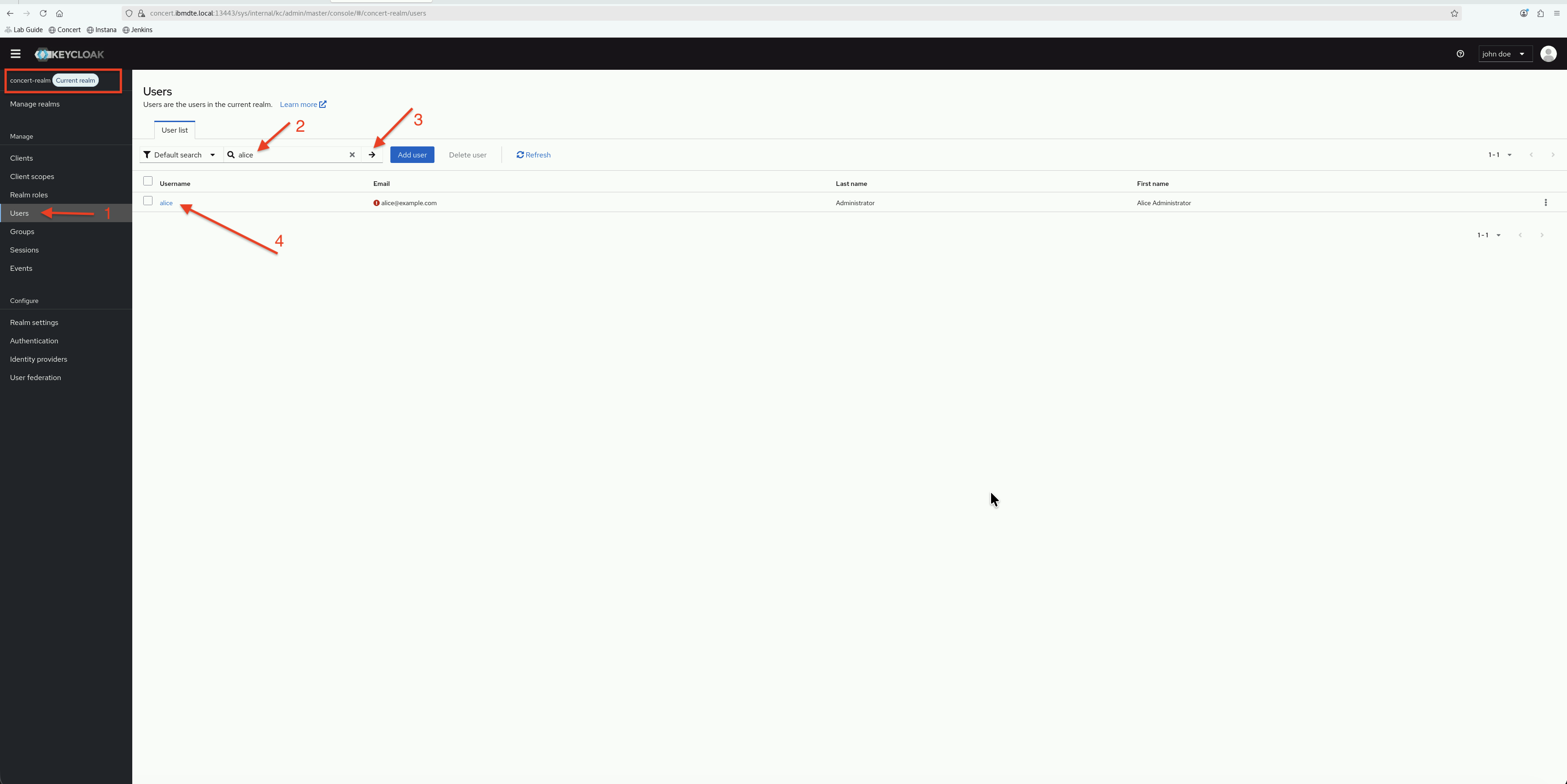
  1. In the Keycloak Admin Console, ensure you're in the concert-realm realm (check the realm dropdown)
  2. Click Users from the left navigation menu.
  3. Enter alice in the search box, next to magnifying glass, and click Return key

Search User Alice

  1. You should see one user: alice
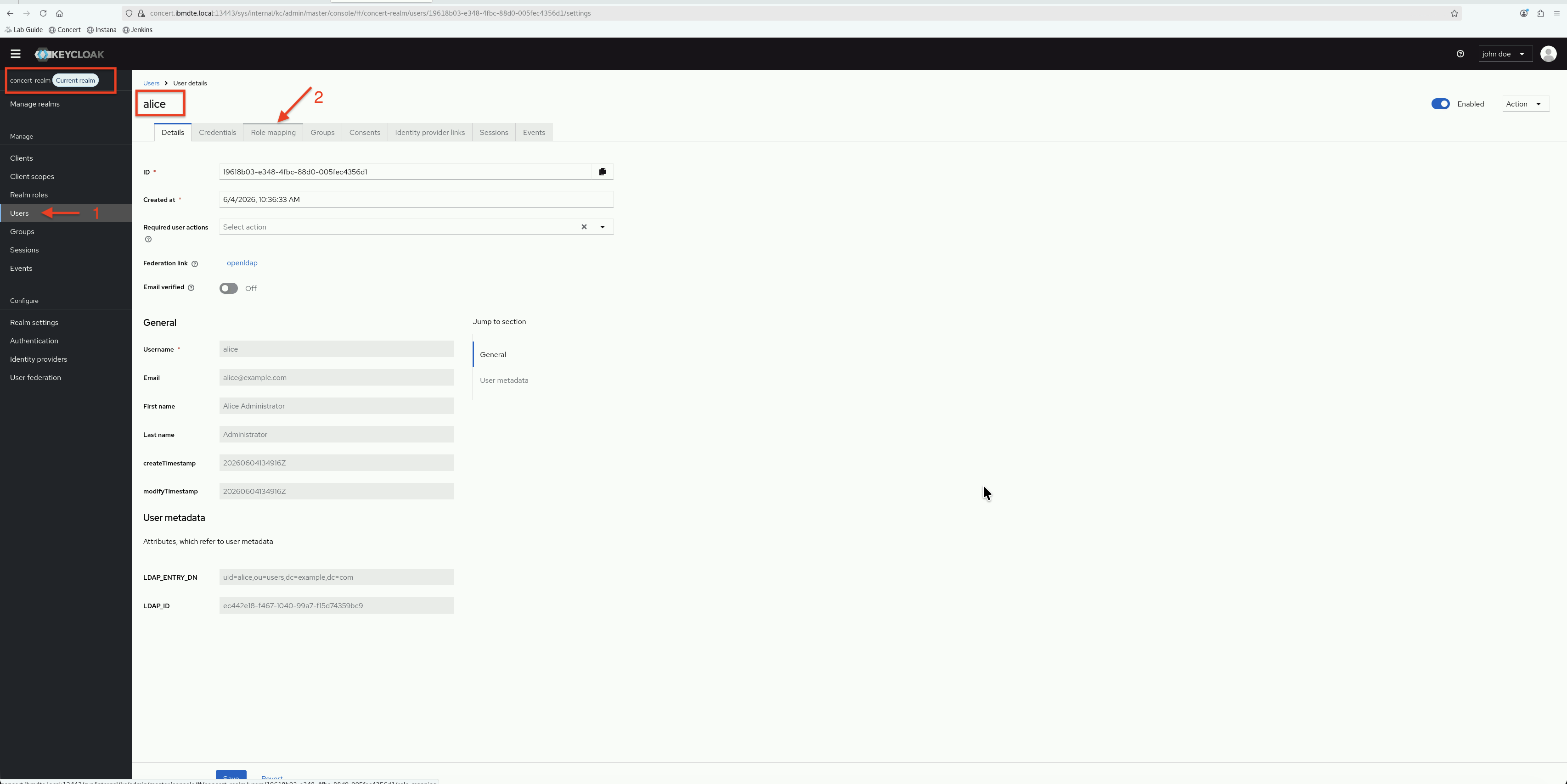
  2. Click on alice to open user details page
  3. Click on the Role Mappings tab

User Alice Role Mapping

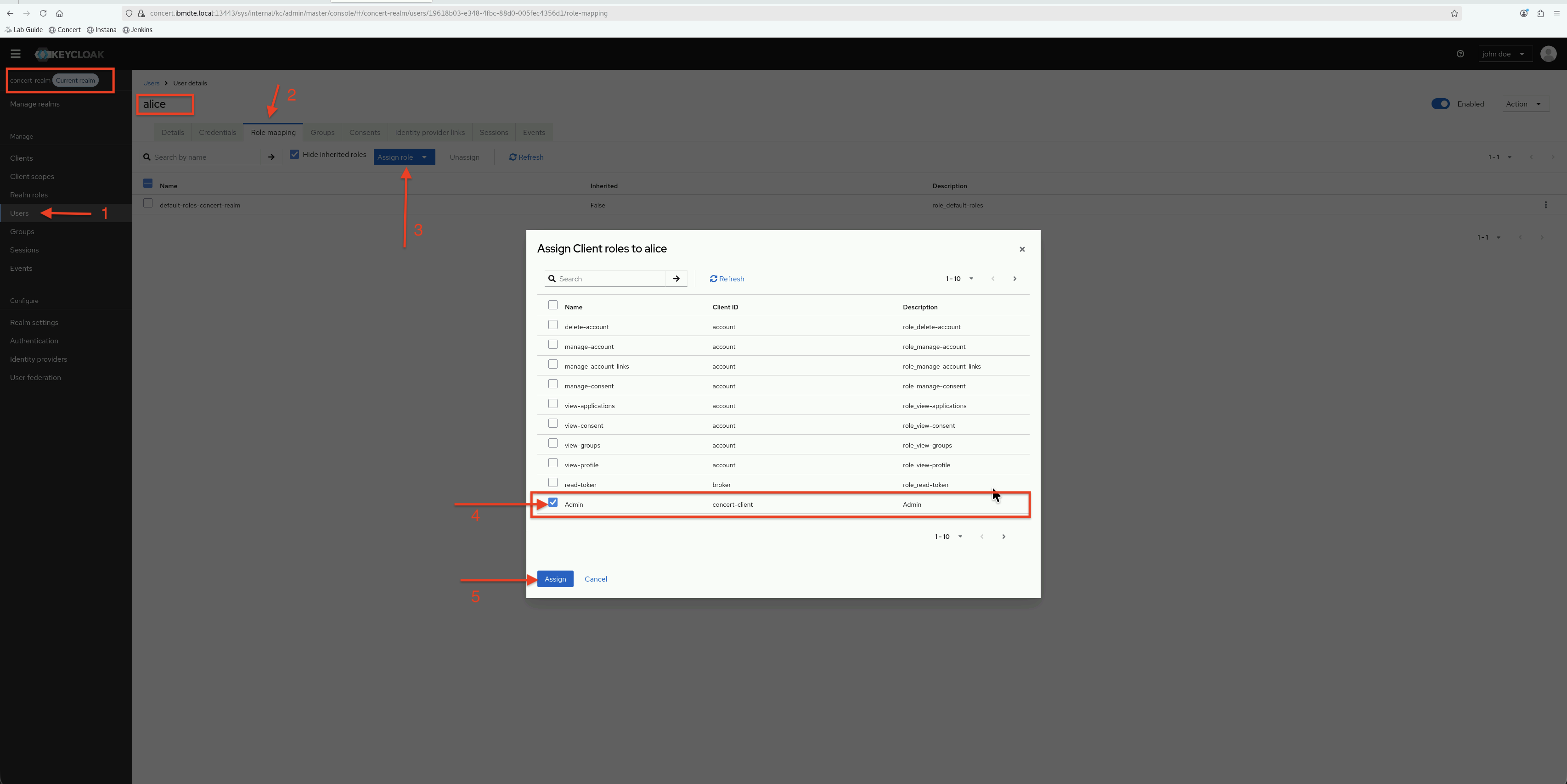
  1. For Assign role dropdown, select Client Roles and then select Admin under Name column and concert-client under Client ID column

Assign Alice Admin Role

  1. Now, you should see Admin role is added in the list of assigned roles for alice user.
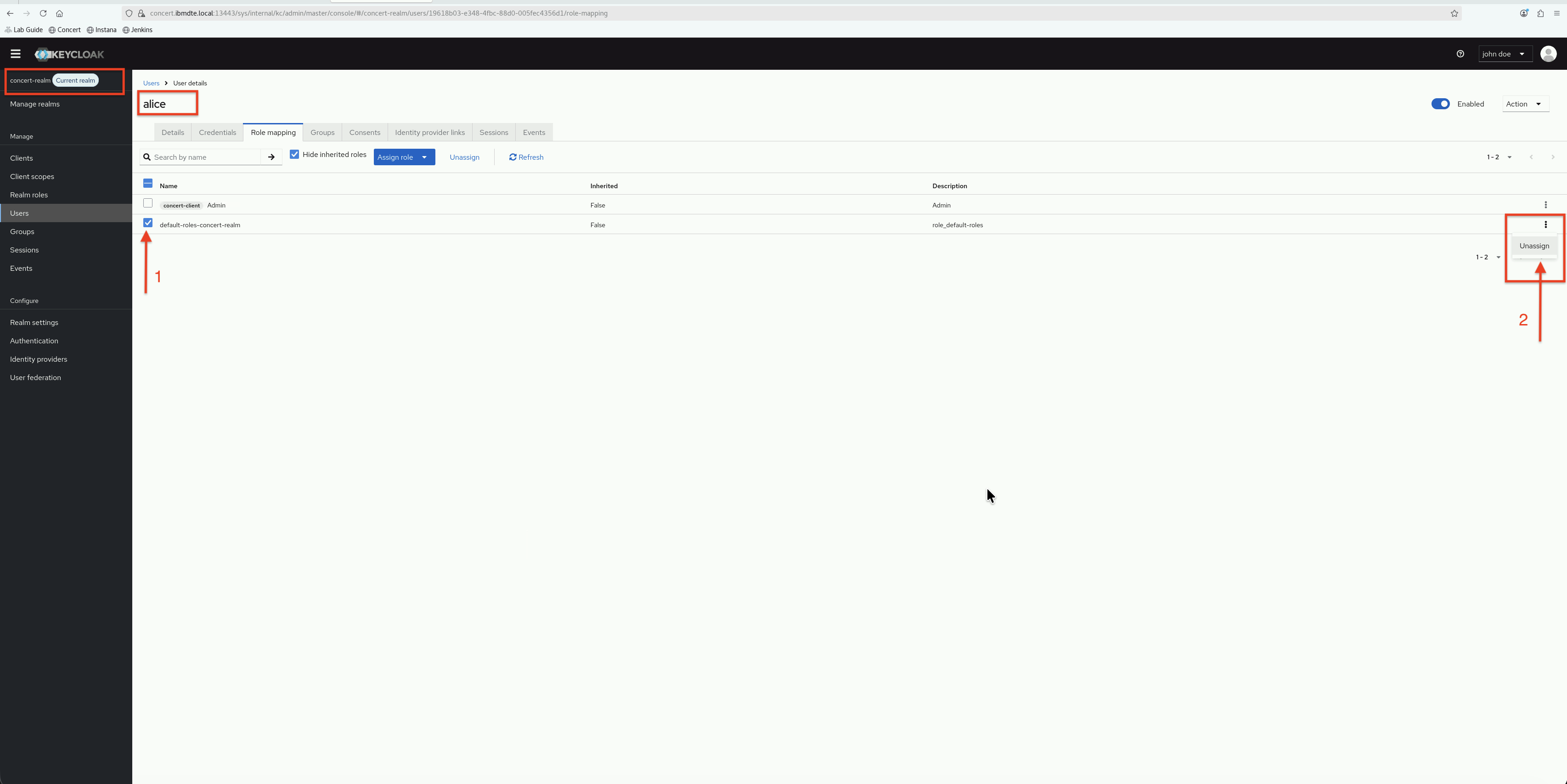
  2. Next, remove default-roles-concert-realm role from alice user by selecting default-roles-concert-realm role in the list of assigned roles.
  3. Click the (three vertical dots) far right on same row as default-roles-concert-realm role to make Unassign visible.
  4. Click Unassign to unassign the role from alice user. This step is required because the default role assigned to all users is set to User and it will override the client role assignment. Unassign the default role will allow the Admin role to take effect.

Unassign Default Role

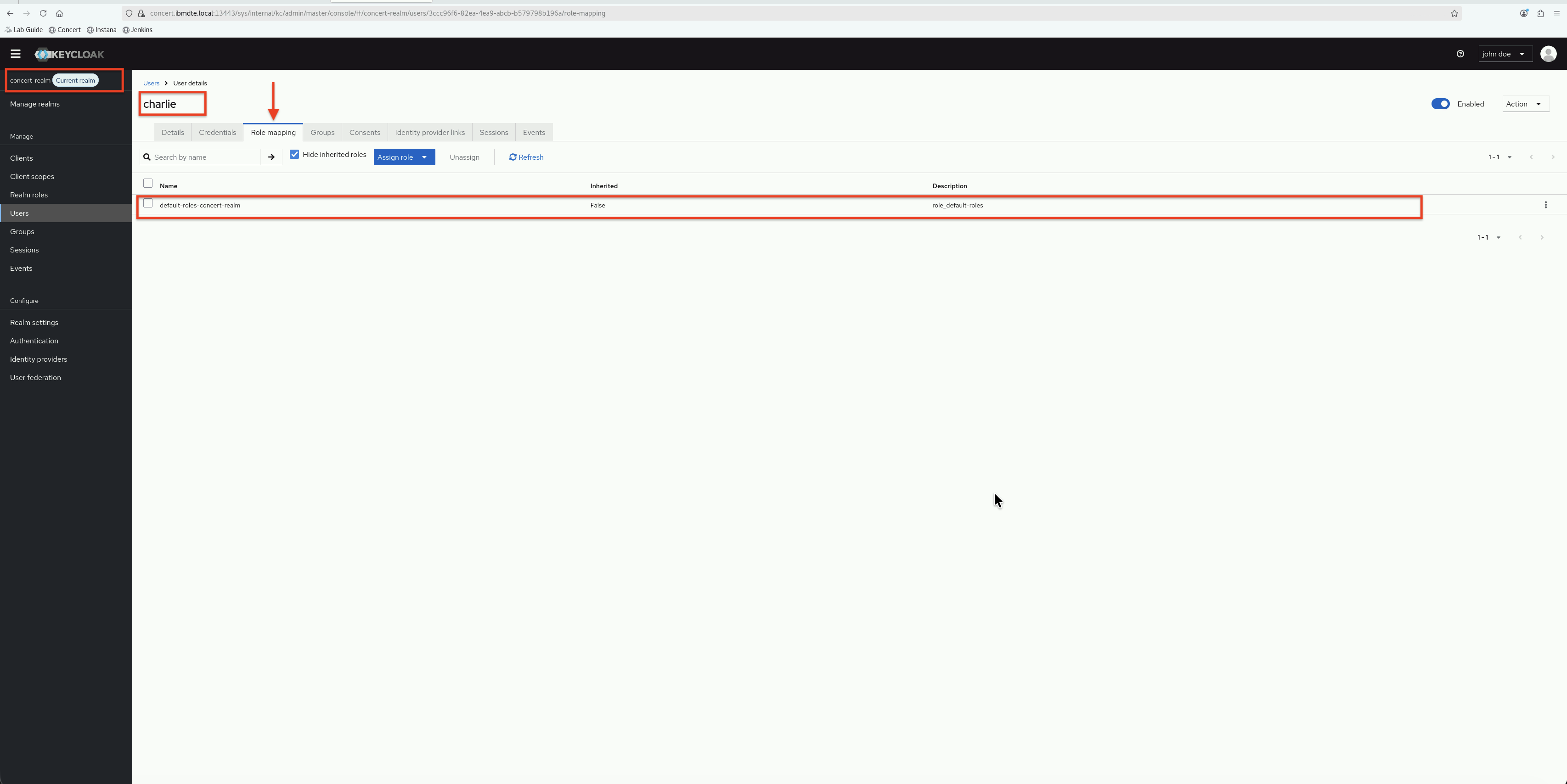
  1. Leave the other users bob and charlie with the default-roles-concert-realm role for Concert instance level access.
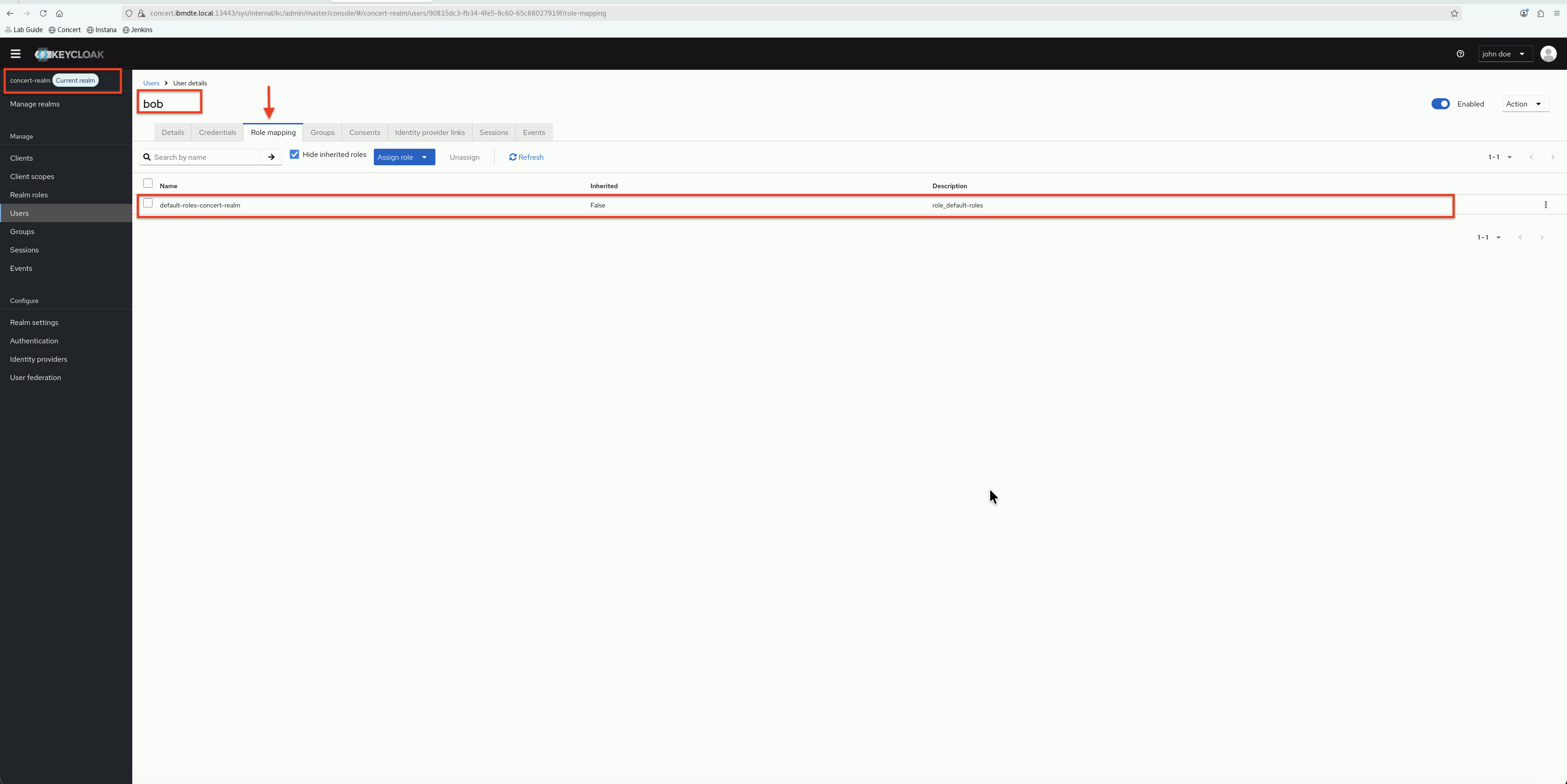
Bob User Role Mapping

Charlie User Role Mapping

We will validate this role assignment for Concert Instance level in Section 7 when we test the SSO login to Concert UI with alice user.


6.11: Configure Concert OIDC Integration

Now, we will configure Concert to use Keycloak as its OIDC identity provider. This configuration is done via Concert's configuration files on the Concert host.

6.11.1: Connect to Concert Host

  1. Connect to concert host using SSH from the bastion-gym-lan. The Concert host is where the Concert application is running and where we'll apply the OIDC configuration.
Host: bastion-gym-lan
ssh jammer@concert

6.11.2: Locate Concert Configuration

  1. For Concert VM installation, its OIDC configuration is kept in a file called local_config.env located in /opt/ibm/concert/ibm-concert/concert-hub/etc/ directory.
Host: concert
ls /opt/ibm/concert/ibm-concert/concert-hub/etc/local_config.env

6.11.3: Backup current configuration file before making changes

  1. For safety, create a backup of the current local_config.env file before making any changes. This allows you to restore the original configuration if needed.
Host: concert
cp /opt/ibm/concert/ibm-concert/concert-hub/etc/local_config.env \ 
/opt/ibm/concert/ibm-concert/concert-hub/etc/local_config.env.no-oidc

6.11.4: Create OIDC Configuration Secret

  1. Now you have a backup of the original configuration file named local_config.env.no-oidc in the same directory. You can proceed with the OIDC configuration knowing that you can revert back to the original settings if necessary. Edit local_config.env located in /opt/ibm/concert/ibm-concert/concert-hub/etc/ directory. Include the following OIDC configuration parameters at the end of the file:
Host: concert
vi /opt/ibm/concert/ibm-concert/concert-hub/etc/local_config.env
Host: concert
# OIDC Configuration
SOLIS_AUTH=OIDC
KEYCLOAK_URL=https://concert.ibmdte.local:13443/sys/internal/kc
REALM_NAME=concert-realm
CLIENT_ID=concert-client
CLIENT_SECRET=<your-client-secret-from-credentials-file>

Replace <your-client-secret-from-credentials-file> with the actual client secret you copied earlier in Section 6.2.1.

  1. Save the file and exit the editor.
  2. Your saved file should now contain the OIDC configuration parameters needed for Concert to integrate with Keycloak like below:
Example OIDC Configuration in local_config.env
HUB_REGISTRY=cp.icr.io/cp/solis-hub
HUB_IMAGE_TAG=v2.2.0-273-20251215.165711-v2.2.0.x
DOCKER_EXE=podman
HUB_HTTPS_PORT=13443
HUB_CLIENT_LANG=en_US.UTF-8
HUB_BUILD_SUFFIX=-v2.2.0-273-20251215.165711-v2.2.0.x
SYSTEMD_ENABLE=y
SOLIS_DEPLOYMENT=sw-ent
SOLIS_HUB_INTERNAL_SECRET=197ed1a07f4dd3637927cf31
KC_BOOTSTRAP_ADMIN_USERNAME=70ef10c2c12c17b74301624d
KC_BOOTSTRAP_ADMIN_PASSWORD=<kc-admin-password>
OOB_POSTGRES_USER=1961420ace5043233a6f75b5
OOB_POSTGRES_PASSWORD=<oob-postgres-password>
SOLIS_AUTH_USERNAME=ibmconcert
SOLIS_AUTH=OIDC
KEYCLOAK_URL=https://concert.ibmdte.local:13443/sys/internal/kc
REALM_NAME=concert-realm
CLIENT_ID=concert-client
CLIENT_SECRET=Dqmj9eMW2qYyp8IW5MrjSTQrSe61wOsn
  1. Restart the Concert instance with OIDC. First, stop the Concert service to apply the new configuration.
Host: concert
bash /opt/ibm/concert/ibm-concert/concert-hub/systemd/stop_service

Finally, start the Concert service to apply the new configuration.

Host: concert
bash /opt/ibm/concert/ibm-concert/concert-hub/systemd/start_service

6.11.5: Verify Configuration

Check that the Concert containers affected by the stop_service and start_service commands have restarted and are healthy:

Host: concert
podman ps -f name=ibm-solis-core -f name=ibm-solis-embedded-db \
-f name=ibm-solis-embedded-keycloak -f name=ibm-solis-hub-gw

You should be able to see similar results as shown below:

Concert Containers Status

6.11.6: Exit Concert Host

Host: concert
exit

6.12: Enable SSO Login Button

After configuring OIDC, Concert should display an SSO login option on the login page.

6.12.1: Verify SSO Login Option

  1. From the Bastion Host, open Firefox
  2. Navigate to Concert UI: https://concert.ibmdte.local:12443/concert/
  3. You should now see Login with SSO (new OIDC login button)

SSO Login Button

note

If you don't see the SSO login button:

  • Verify OIDC configuration was applied correctly
  • Check Concert containers have restarted
  • Clear browser cache and reload the page

6.13: Configuration Summary

You have successfully configured Concert OIDC integration with:

Keycloak Client Configuration

  • ✅ Created concert-client in Keycloak
  • ✅ Configured as confidential client with authorization code flow
  • ✅ Set valid redirect URIs for Concert
  • ✅ Retrieved and secured client secret

Client Scopes and Mappers

  • ✅ Configured group membership mapper
  • ✅ Enabled groups claim in tokens
  • ✅ Verified token claims include user groups

Concert OIDC Configuration

  • ✅ Created OIDC configuration secret
  • ✅ Created OIDC configuration ConfigMap
  • ✅ Updated Concert deployment with OIDC settings
  • ✅ Configured role mappings for Concert personas

Verification

  • ✅ Concert containers restarted with new configuration
  • ✅ SSO login button visible on Concert login page
  • ✅ OIDC provider initialized successfully

Troubleshooting

info

This section provides basic troubleshooting steps in case you encounter any issues while performing the steps above. These steps are optional and only need to be followed if you run into problems.

SSO Login Button Not Appearing

Problem: Concert login page doesn't show SSO option

Solutions:

  • Verify OIDC configuration was applied in local_config.env file
  • Check Concert containers state whether healthy or not
  • Clear browser cache and reload page
  • Verify OIDC enabled flag is set in local_config.env file

Concert Containers Not Restarting

Problem: Containers don't restart after configuration change

Solutions:

  • Check for concert-hub service status : bash /opt/ibm/concert/ibm-concert/concert-hub/systemd/status_service
  • Verify client secret exists in local_config.env file :
    grep CLIENT_SECRET /opt/ibm/concert/ibm-concert/concert-hub/etc/local_config.env

Invalid Client Error

Problem: Login fails with "Invalid client" error

Solutions:

  • Verify client ID matches in both Keycloak and Concert configuration
  • Check client is enabled in Keycloak
  • Verify redirect URIs are correctly configured in Keycloak client
  • Ensure Concert URL matches the configured redirect URI

Client Secret Mismatch

Problem: Authentication fails with "Invalid client credentials"

Solutions:

  • Verify client secret in Concert configuration matches Keycloak
  • Regenerate client secret in Keycloak if needed
  • Update Concert secret with new client secret
  • Restart Concert containers after updating secret

Groups Not in Token

Problem: Users authenticate but don't get correct roles

Solutions:

  • Verify group membership mapper is configured in Keycloak
  • Check mapper is added to the correct client scope
  • Evaluate token in Keycloak to verify groups claim is present
  • Ensure users are members of LDAP groups
  • Re-sync LDAP groups in Keycloak

Role Mapping Not Working

Problem: Users authenticate but have wrong permissions in Concert

Solutions:

  • Verify role mapping configuration in Concert OIDC config
  • Check group names match exactly (case-sensitive)
  • Ensure Concert role names are correct (Admin, User)
  • Review Concert logs for role assignment messages
  • Test with different users to isolate the issue

Redirect Loop

Problem: Login redirects back and forth between Concert and Keycloak

Solutions:

  • Verify redirect URIs are correctly configured
  • Check for trailing slashes in URLs (should be consistent)
  • Clear browser cookies and cache
  • Verify Concert callback endpoint is accessible
  • Check for proxy or load balancer configuration issues

Next Steps

Now that Concert is configured to use Keycloak for OIDC authentication, you're ready to test the complete SSO flow. In the next section, you'll:

  • Test SSO login with different user personas
  • Verify role-based access control
  • Validate the complete authentication chain from Concert → Keycloak → OpenLDAP
  • Troubleshoot any authentication issues
success

Concert OIDC setup is complete! Concert is now ready to authenticate users via Keycloak SSO.