7. Testing Authentication
In this section, you will test the complete Concert SSO authentication flow with different user personas. You'll verify that users can log in via SSO, receive the correct roles based on their LDAP group membership, and have appropriate access to Concert features.
7.1: Two levels of role-based access in Concert
Let's recap, Concert has 2 levels of role-based access:
- Instance level access
With Instance level Role access, user with Admin or User role can perform the following actions:
| Instance level Role | Details |
|---|---|
| Admin | Grant or revoke access to other users or user groups (except for the Owner role) |
| Create, edit, delete, and run ingestion jobs | |
| View, use, create, update, and delete shared third-party credentials (connections) | |
| Define applications and environments | |
| User | View ingestion jobs |
| View and use shared third-party credentials (connections) | |
| Define applications and environments |
- Object level access
| Object level Role | Access to applications or environments | Access to automation rules | Access to managing other users or user groups |
|---|---|---|---|
| Admin | View, edit, and delete an application or environment | View, create, edit, or delete an automation rule for applications/environments to which you have access | Grant or revoke access to other users |
| Editor | View and update an application or environment | View, create, edit, or delete an automation rule for applications/environments to which you have access | No access |
| Viewer | View an application or environment | View an automation rule | No access |
Also, in Section 4, we have created 3 users and 3 groups in OpenLDAP as follow:
dc=example,dc=com (Base DN)
├── ou=users (Organizational Unit for users)
│   ├── uid=alice
│   ├── uid=bob
│   └── uid=charlie
└── ou=groups (Organizational Unit for groups)
    ├── cn=corporate_it_staff
    ├── cn=hr_staff
    └── cn=sales_staff
For the above LDAP structure, let's imagine that:
• Alice belongs to Corporate IT organization.
She gets Admin role and everybody else assigns her as Editor for Concert objects such as applications and environments.
• Bob is a techie user in HR organization.
He only supports HR applications. He will create a sample HR application and make Alice as an Editor and Charlie as a Viewer.
• Charlie is a techie user in Sales organization.
He only supports Sales applications. He will get Viewer role to the sample HR application.
In this section, we will test :
- Instance level access for Alice, Bob and Charlie,
- Object level access for Alice, Bob and Charlie.
7.1: Understanding the Complete Authentication Flow
Before testing, let's review the complete authentication chain:
User → Concert UI → Keycloak → OpenLDAP
                ↓
            ID Token
                ↓
         Concert Session
                ↓
         Role Assignment
                ↓
         Access Granted
Flow Steps:
- User clicks "Log in with SSO" in Concert
- Concert redirects to Keycloak authorization endpoint
- Keycloak presents login page
- User enters LDAP credentials (username/password)
- Keycloak validates credentials against OpenLDAP
- OpenLDAP confirms authentication and returns user info
- Keycloak generates ID token with user claims (including groups)
- Keycloak redirects back to Concert with authorization code
- Concert exchanges code for tokens
- Concert validates token and extracts user information
- Concert maps groups to roles (concert-admins → Administrator)
- Concert creates session and grants access
7.2: Test instance level access for Alice
In this section, you will test instance-level access for Alice, who is assigned the Admin role at the instance level.
You will log in to Concert SSO as Alice.
7.2.1: Concert SSO Login as Alice
From the Bastion Remote Desktop, open the Firefox browser and click on the Concert bookmark.
- On the Concert login page, click Log in with SSO
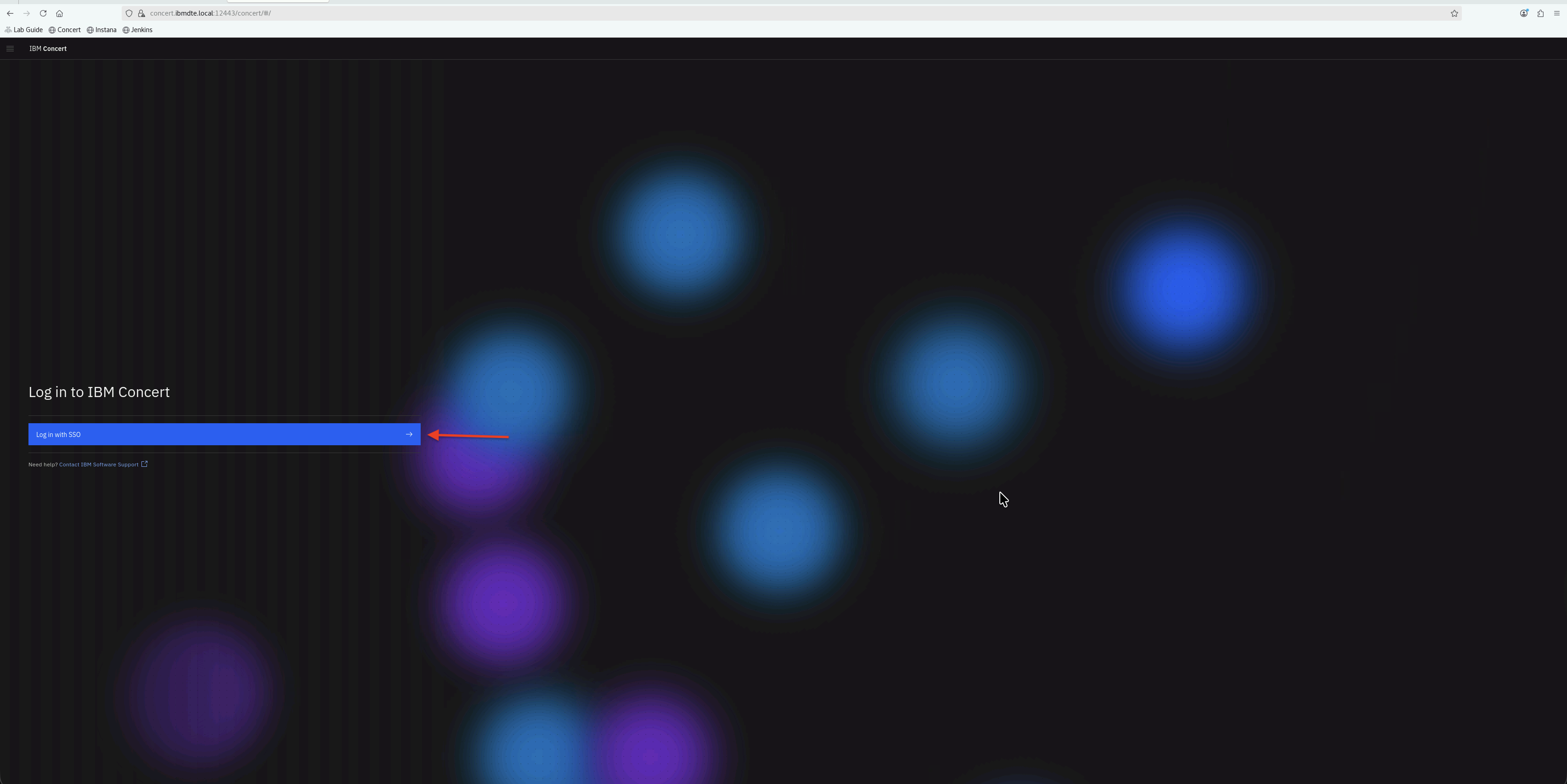
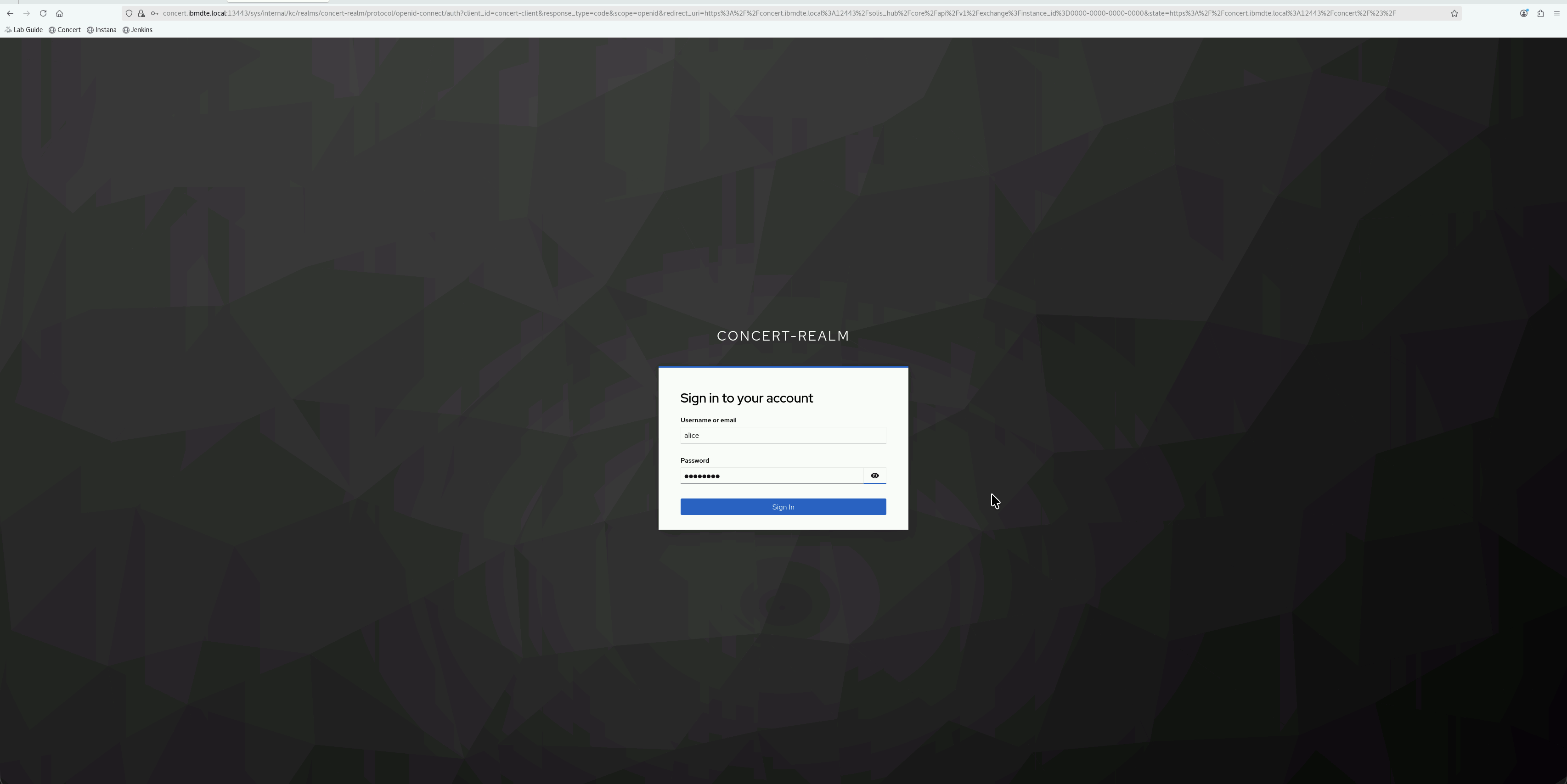
- You should be redirected to the Keycloak login page
- Enter Alice's credentials:
- Username:
alice - Password:
Alice@123
- Username:
- Click Sign In
7.2.2: Verify Successful Login
After successful authentication:
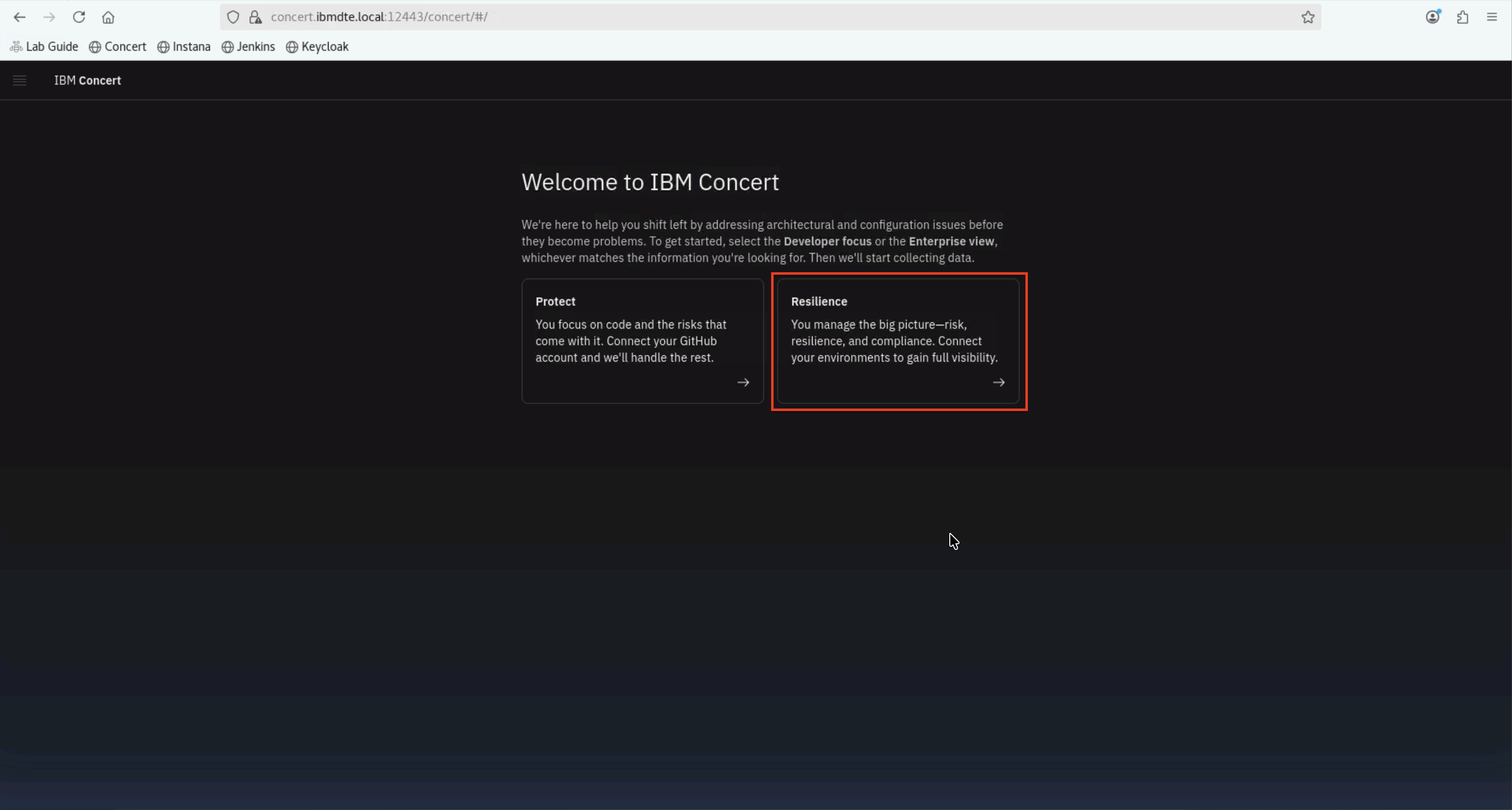
- You should be redirected back to Concert. On the Concert welcome page, select the Resilience option on the right:
- Click Skip
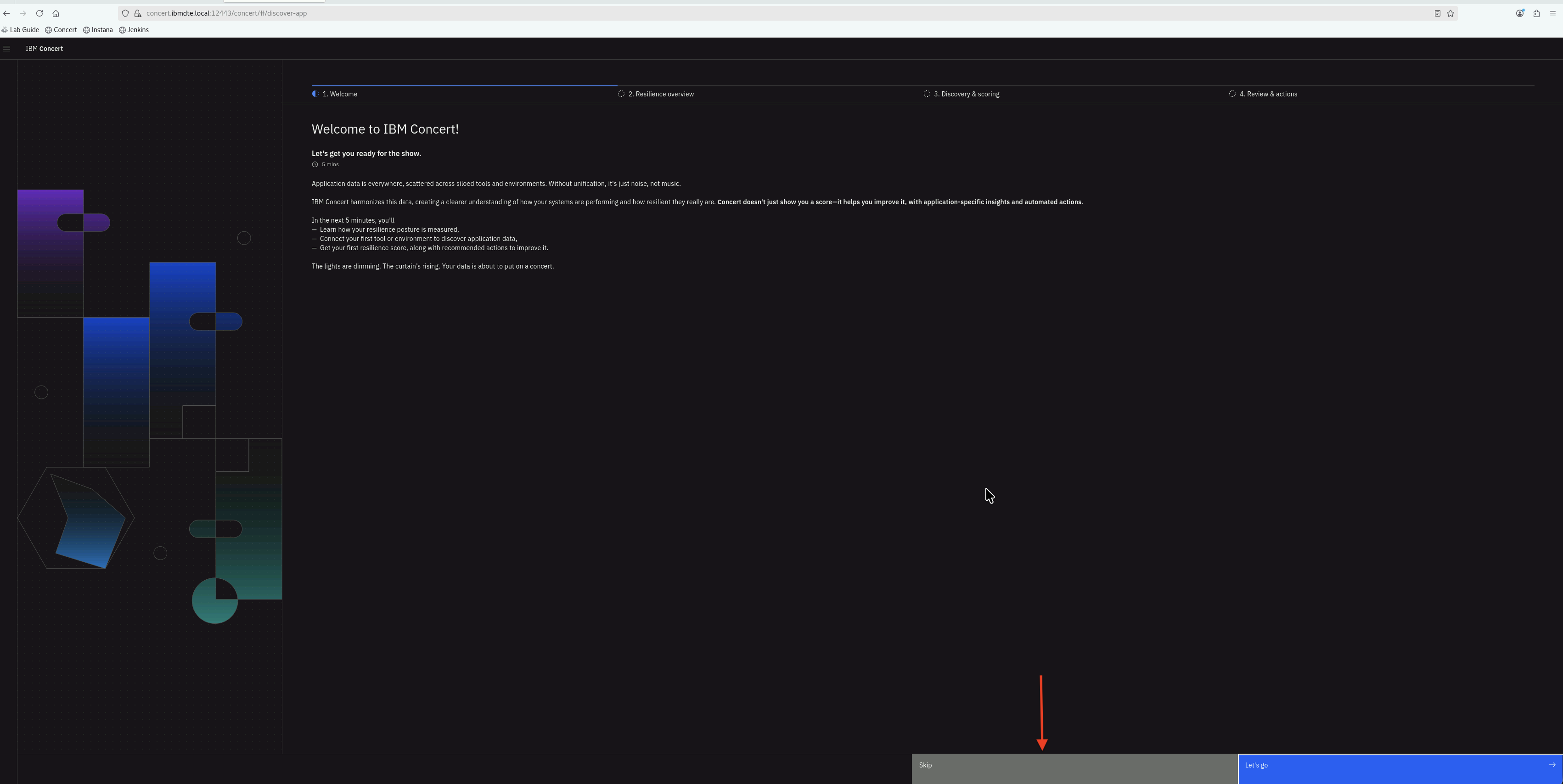
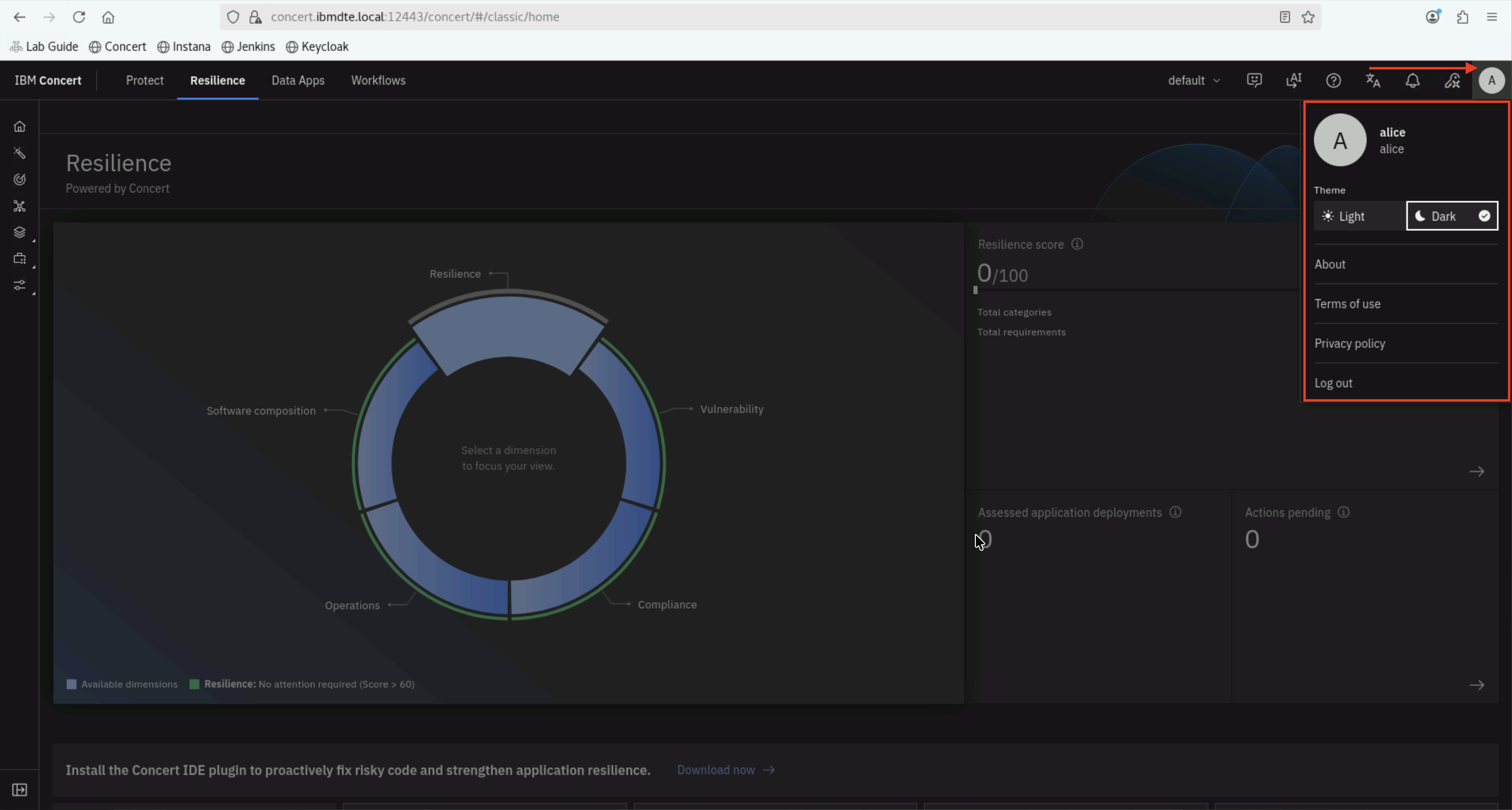
- Concert dashboard should load
- You should see Alice's name in the top-right corner
7.2.3: Verify Instance level Admin Role
With Admin role, Alice should have full access to all Concert features.
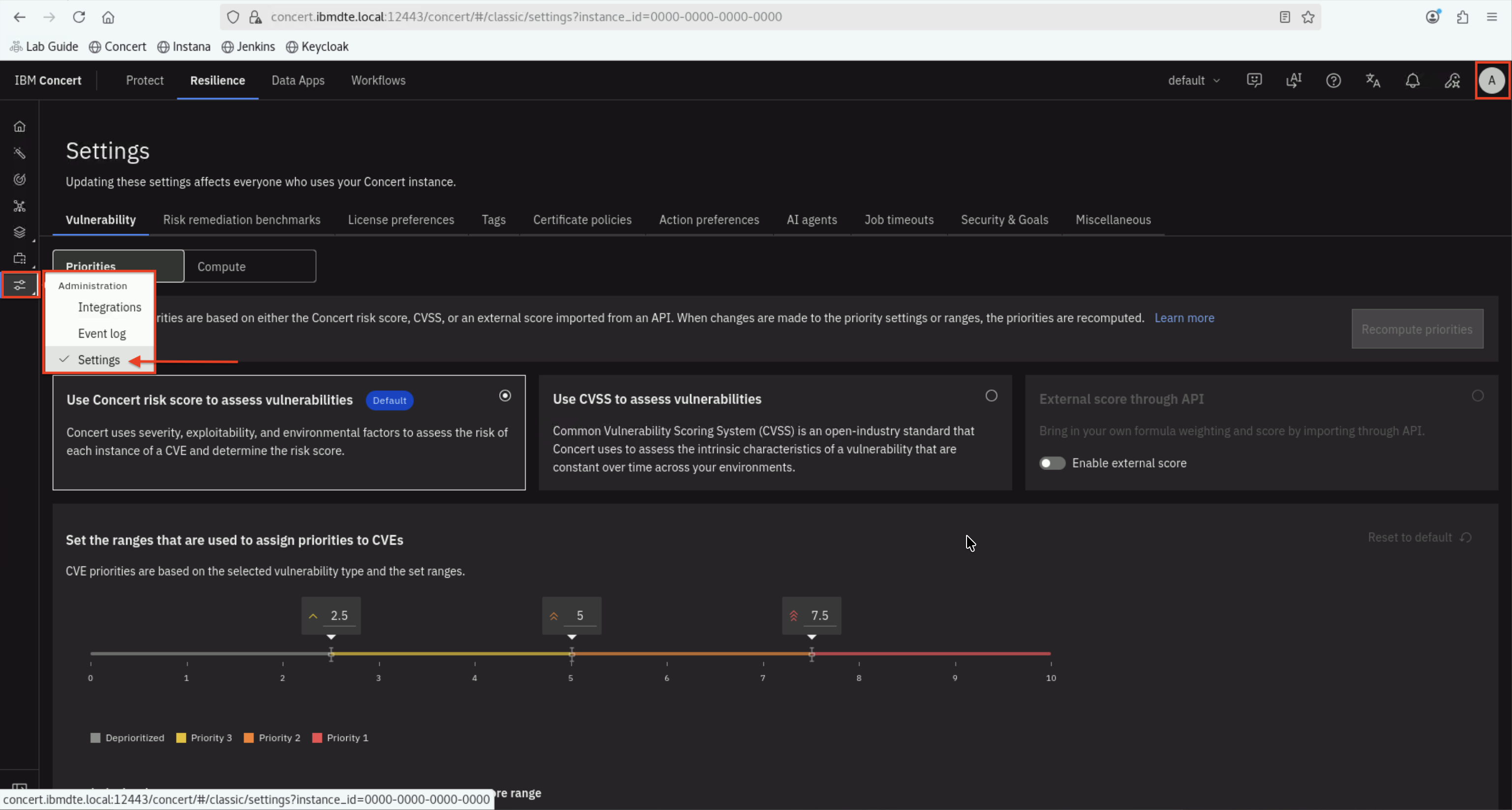
- Check Navigation Menu on left panel : Click the
Administrationicon at the bottom - Under Settings:
- You should be able to access all admin sections:
- Vulnerability
- Risk remediation benchmarks
- License preferences
- Tags
- Certificate policies
- Action preferences
- AI agents
- Job timeouts
- Security & Goals
- Miscellaneous
- You should be able to access all admin sections:
For instance level access with User role, the user will see message below when trying to access Settings page:
**Read-only** Contact your instance administrator to get access to edit these settings.
We will see this in action when we test Bob's and Charlie's login as Instance level User role.
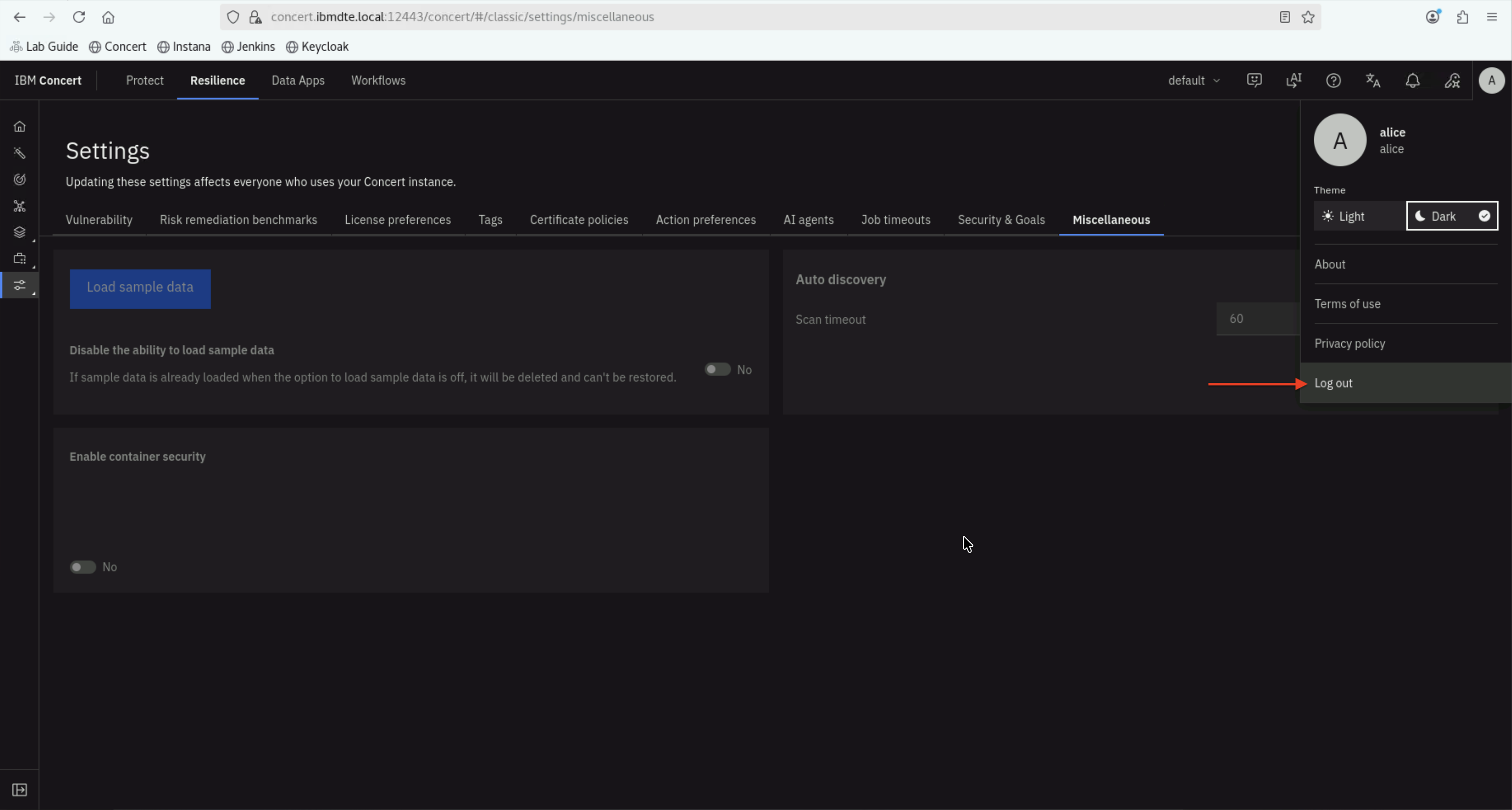
7.2.4: Concert logout as Alice
- Logout from Alice's session
7.2.5: Keycloak signout Alice session
Why do I need to sign out?
In a typical workplace, each person uses their own computer, so signing out of Keycloak isn't usually necessary.
If you don't sign out, the browser will remember the previous user's session, preventing you from properly testing the next user's login.
From the Bastion Remote Desktop, open the Firefox browser and click on the Keycloak bookmark.
- Accept the certificate warning if prompted
- Log in with Keycloak admin credentials from your credentials file:
- Username:
admin - Password: (created in Section 3.6)
- Username:
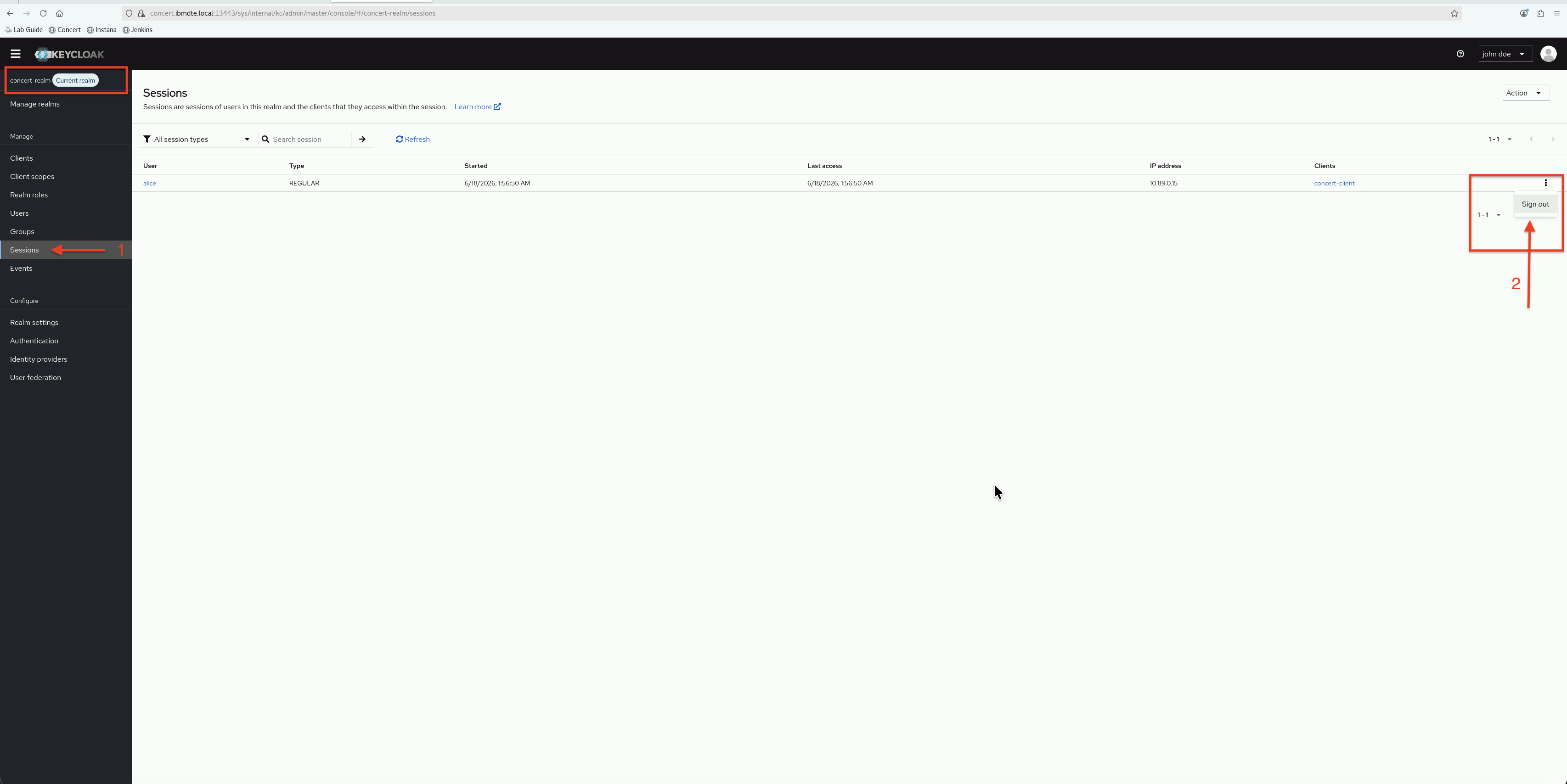
- In the Keycloak Admin Console, ensure you're in the concert-realm realm (check the realm dropdown)
- In the left navigation menu, click Sessions
- Click Sign out
Alice's session is signed out from Keycloak and now, we can use other user account to login to Concert SSO. Otherwise, Concert SSO uses Alice to login automatically without prompting username and password.
In a real-life production environment, you typically don't need to sign out of Keycloak because each user works on
their own computer. For this lab, you must perform Keycloak sign out between users to avoid confusion and ensure proper testing.
✅ Alice successfully logged in via SSO with Admin role and full access to Concert features.
7.3: Test instance level access for Bob
In this section, you will test instance-level access for Bob, who is assigned the User role at the instance level.
You will log in to Concert SSO as Bob.
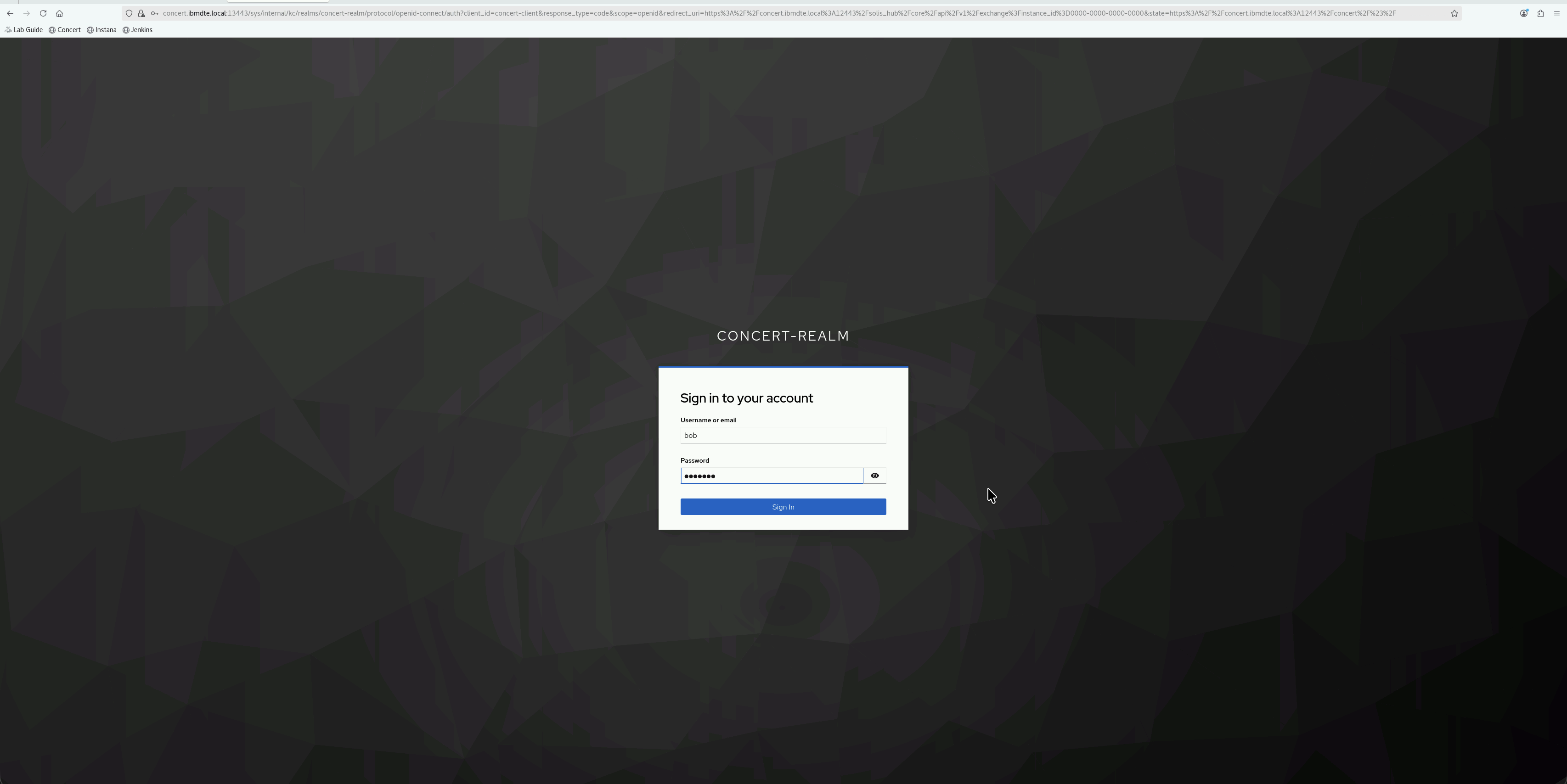
7.3.1: Concert SSO Login as Bob
From the Bastion Remote Desktop, open the Firefox browser and click on the Concert bookmark.
- On the Concert login page, click Log in with SSO
- Enter Bob's credentials:
- Username:
bob - Password:
Bob@123
- Username:
- Click Sign In
7.3.2: Verify Successful Login
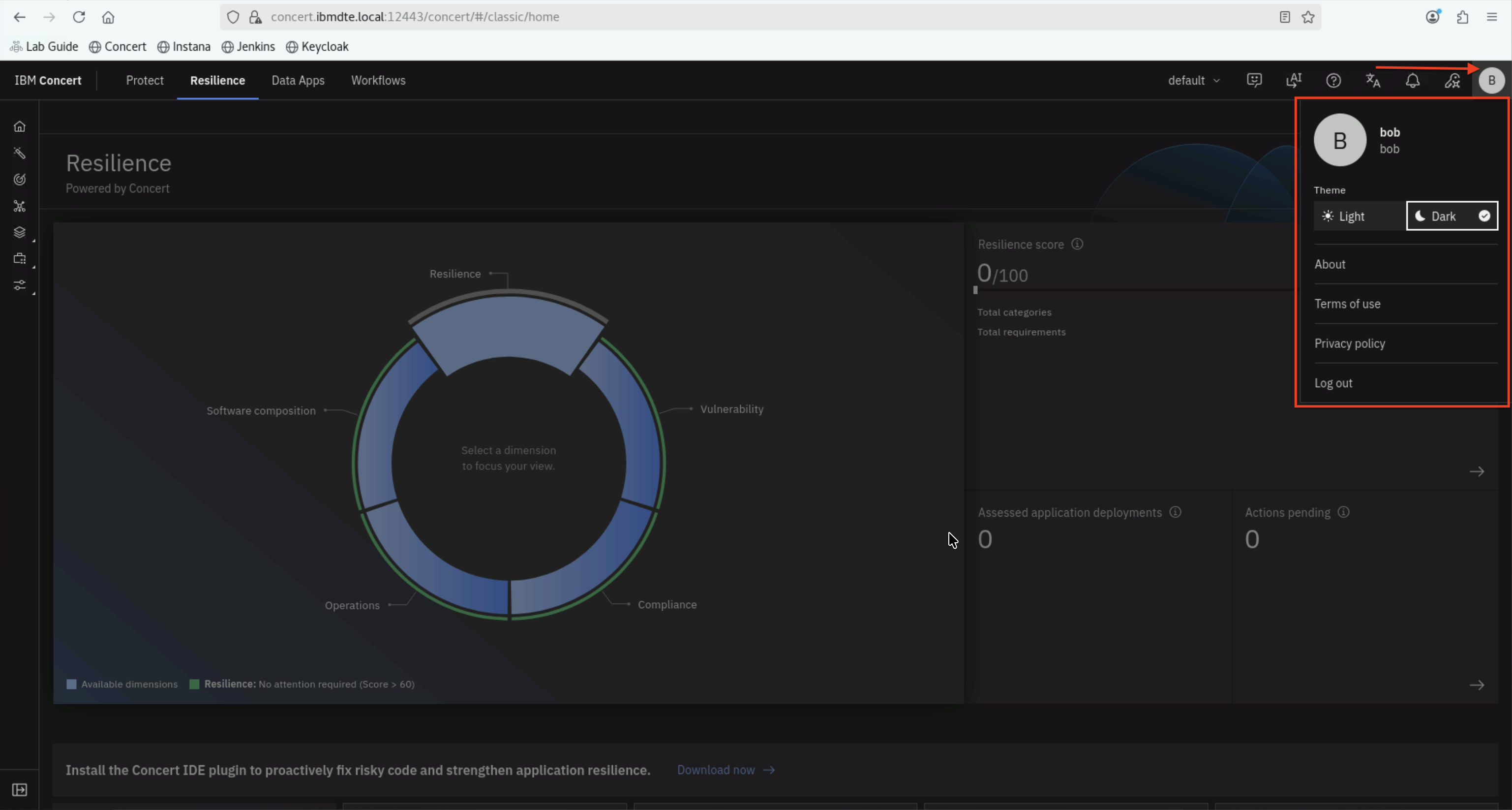
After successful authentication:
- You should be redirected back to Concert. On the Concert welcome page, select the Resilience option on the right:
- Click Skip
- Concert dashboard should load
- You should see Bob's name in the top-right corner
7.3.3: Verify Instance level User Role
With User role, Bob should have partial access to all Concert features:
- Check Navigation Menu on left panel : Click the
Administrationicon at the bottom - Under Settings:
- You have Read-only access to all sections:
- Vulnerability
- Risk remediation benchmarks
- License preferences
- Tags
- Certificate policies
- Action preferences
- AI agents
- Job timeouts
- Security & Goals
- Miscellaneous
- You have Read-only access to all sections:
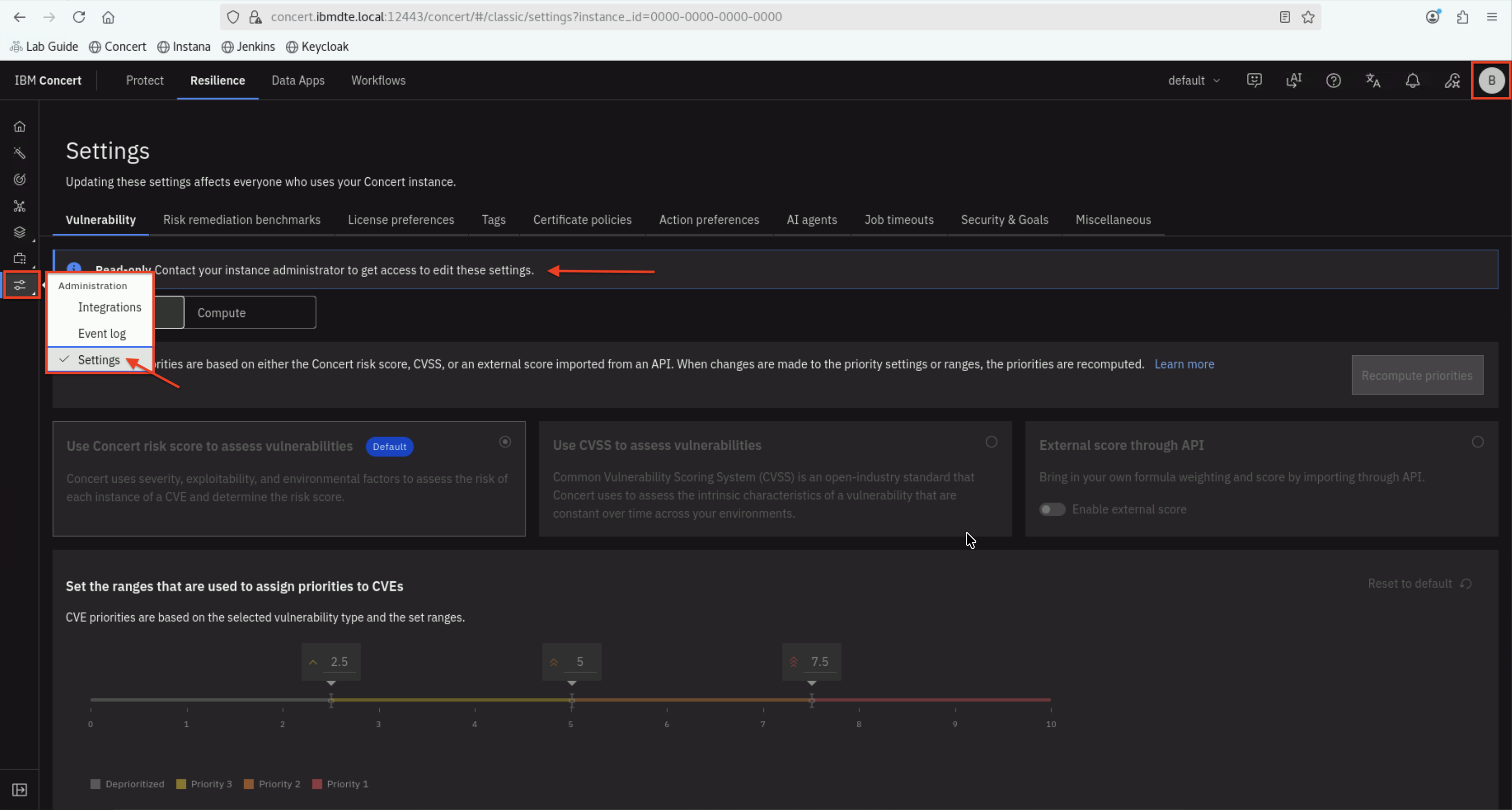
For instance level access with User role, the user will see message below when trying to access Settings page:
**Read-only** Contact your instance administrator to get access to edit these settings.
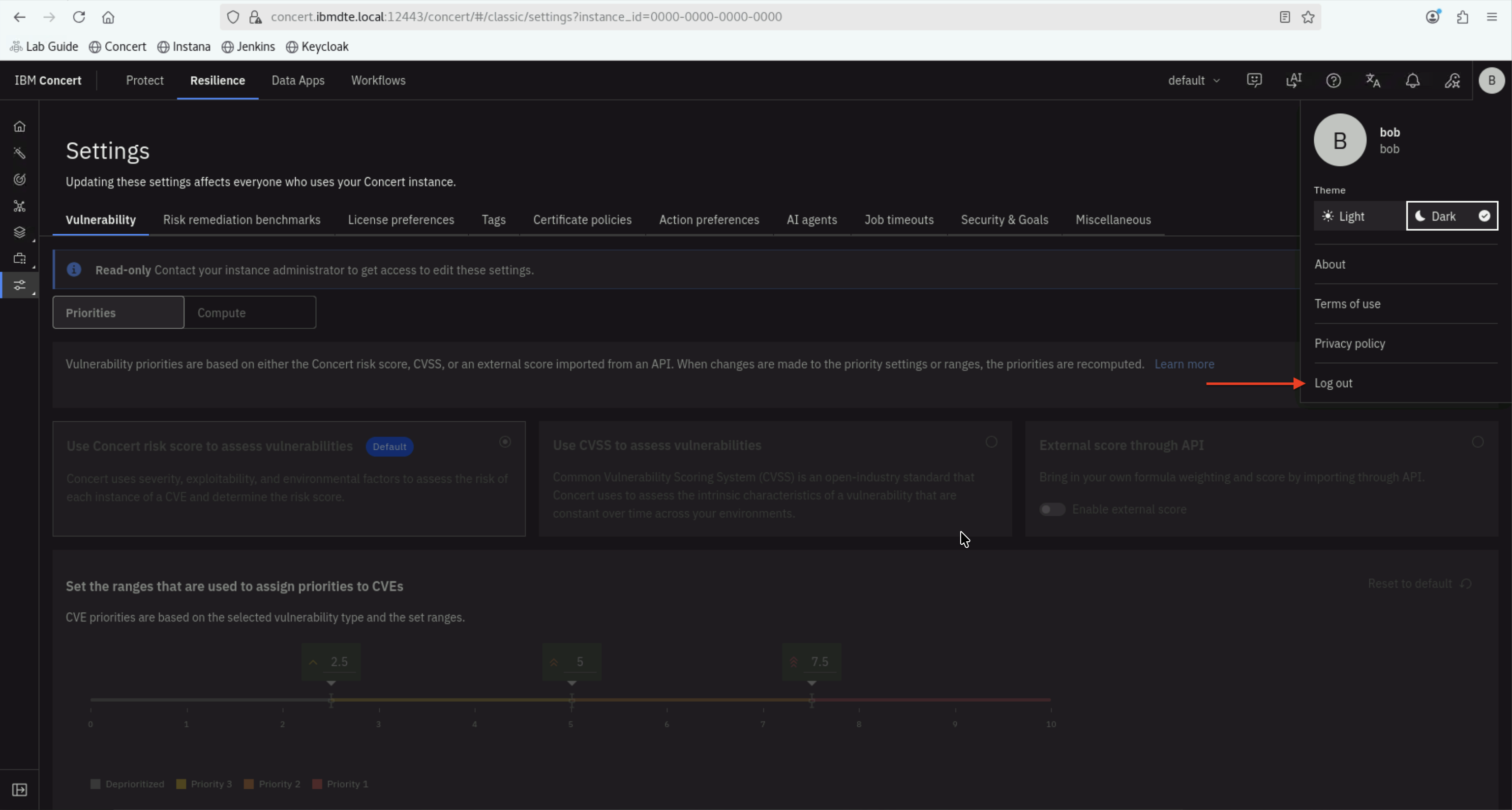
7.3.4: Concert logout as Bob
- Logout from Bob's session
7.3.5: Keycloak signout Bob session
From the Bastion Remote Desktop, open the Firefox browser and click on the Keycloak bookmark.
- Accept the certificate warning if prompted
- Log in with Keycloak admin credentials from your credentials file:
- Username:
admin - Password: (created in Section 3.6)
- Username:
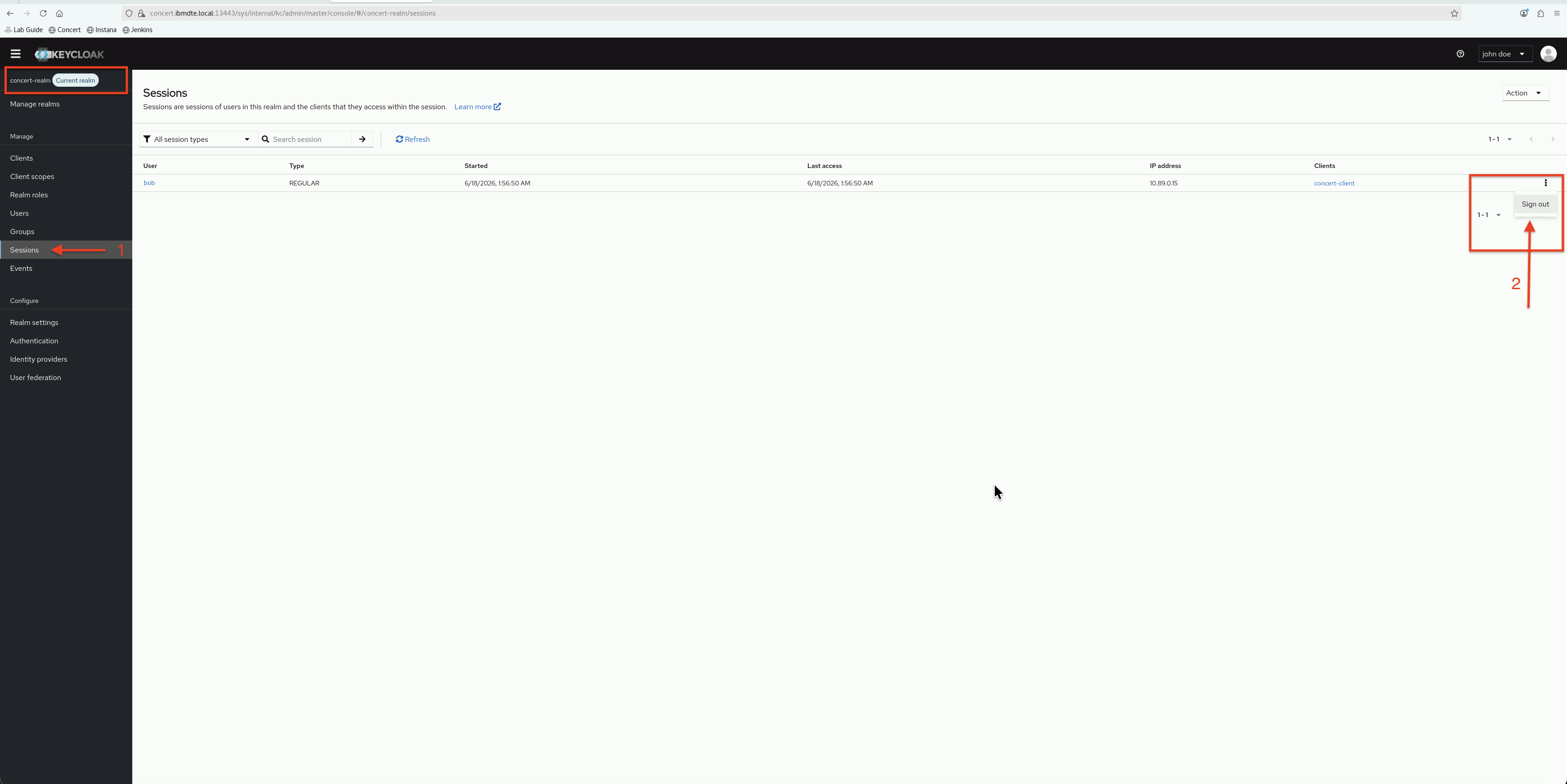
- In the Keycloak Admin Console, ensure you're in the concert-realm realm (check the realm dropdown)
- In the left navigation menu, click Sessions
- Click Sign out
Bob's session is signed out from Keycloak and now, we can use other user account to login to Concert SSO. Otherwise, Concert SSO uses Bob to login automatically without prompting username and password.
✅ Bob successfully logged in via SSO with instance-level User role and appropriate access restrictions.
7.4: Test instance level access for Charlie
In this section, you will test instance-level access for Charlie, who is assigned the User role at the instance level.
You will log in to Concert SSO as Charlie.
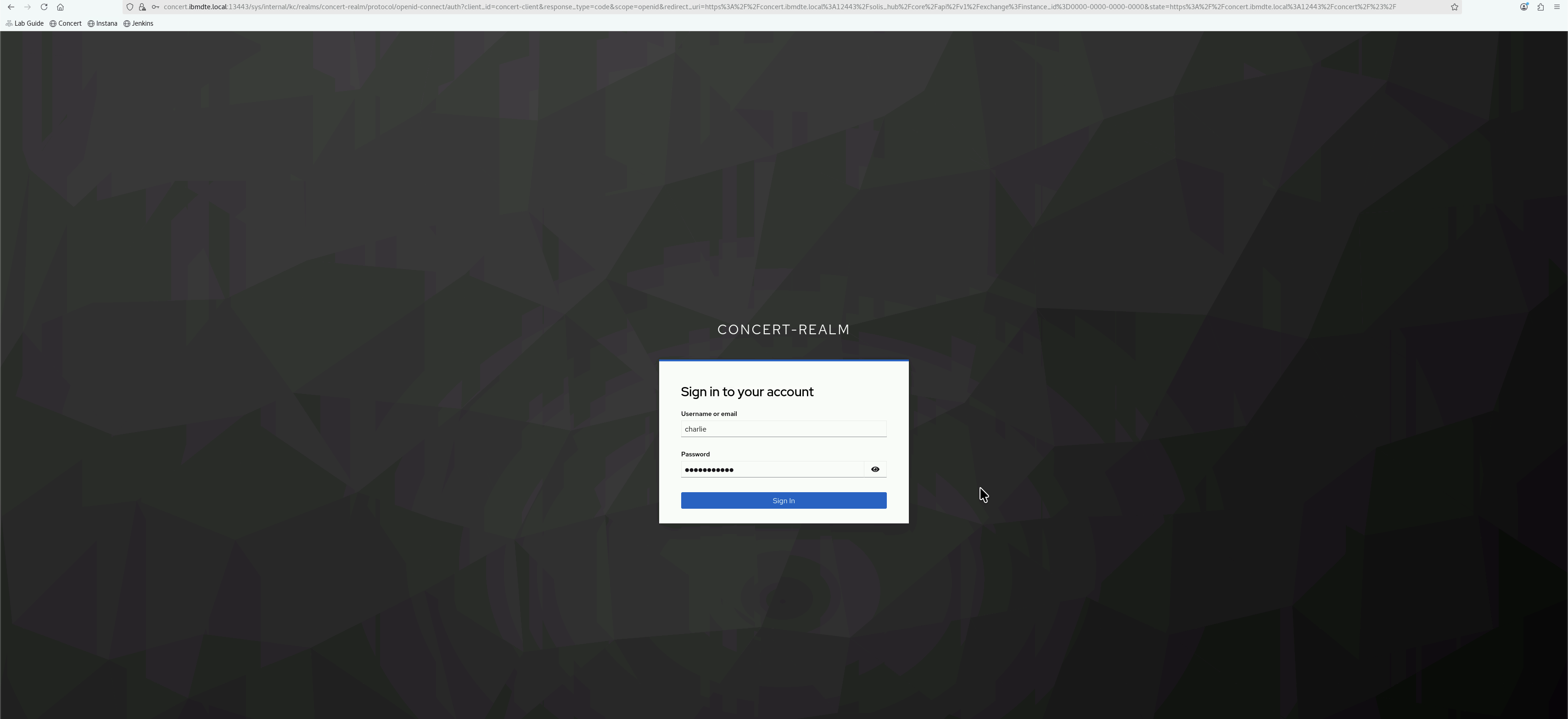
7.4.1: Concert SSO Login as Charlie
From the Bastion Remote Desktop, open the Firefox browser and click on the Concert bookmark.
- On the Concert login page, click Log in with SSO
- You should be redirected to the Keycloak login page
- Enter Charlie's credentials:
- Username:
charlie - Password:
Charlie@123
- Username:
- Click Sign In
7.4.2: Verify Successful Login
After successful authentication:
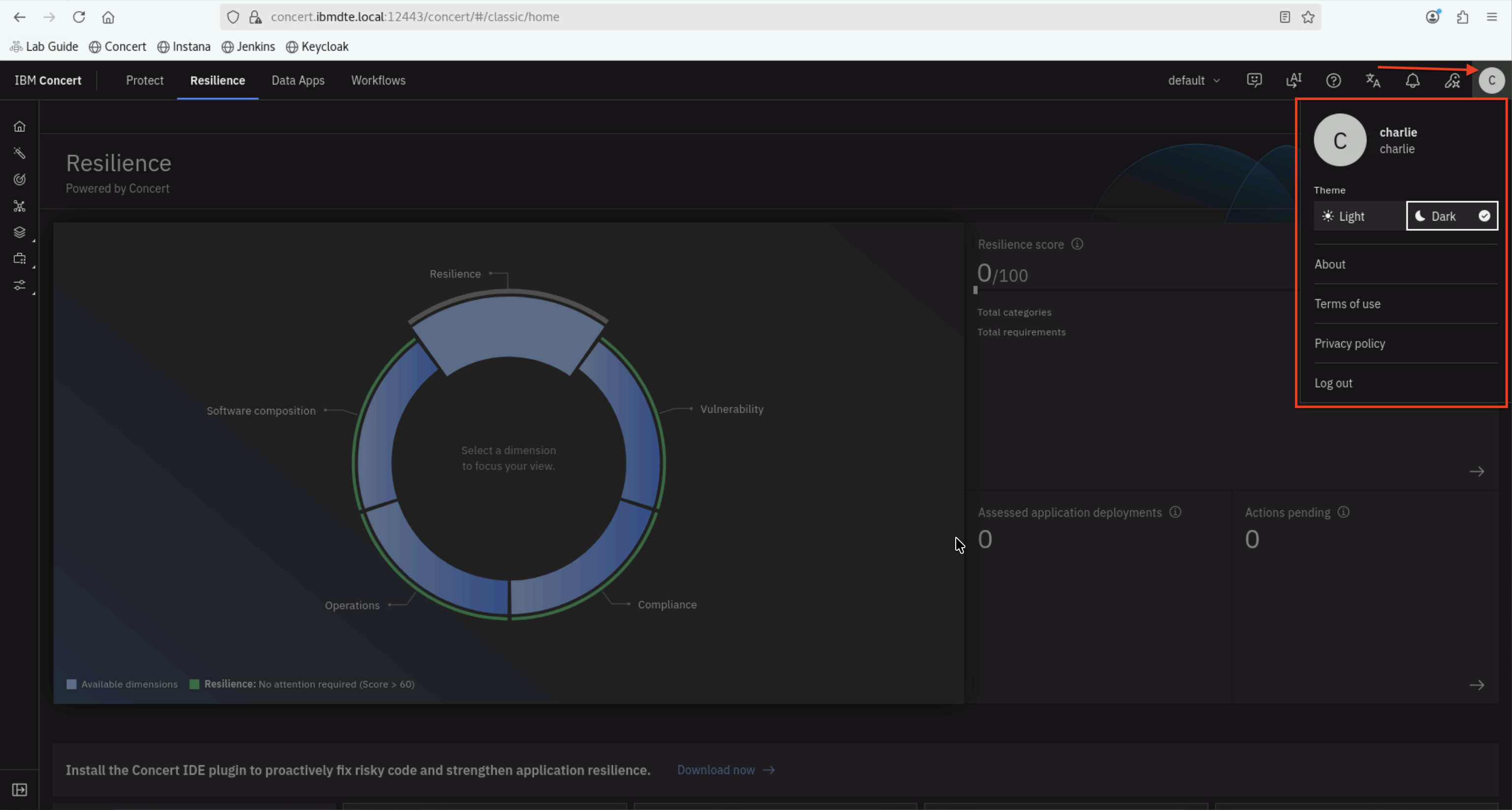
- You should be redirected back to Concert. On the Concert welcome page, select the Resilience option on the right:
- Click Skip
- Concert dashboard should load
- You should see Charlie's name in the top-right corner
7.4.3: Verify Instance level User Role
With User role, Charlie should have partial access to all Concert features:
- Check Navigation Menu on left panel : Click the
Administrationicon at the bottom - Under Settings:
- You have Read-only access to all sections:
- Vulnerability priorities
- License preferences
- Tags
- Miscellaneous
- Certificate policies
- IBM Power preferences
- AI agents
- You have Read-only access to all sections:
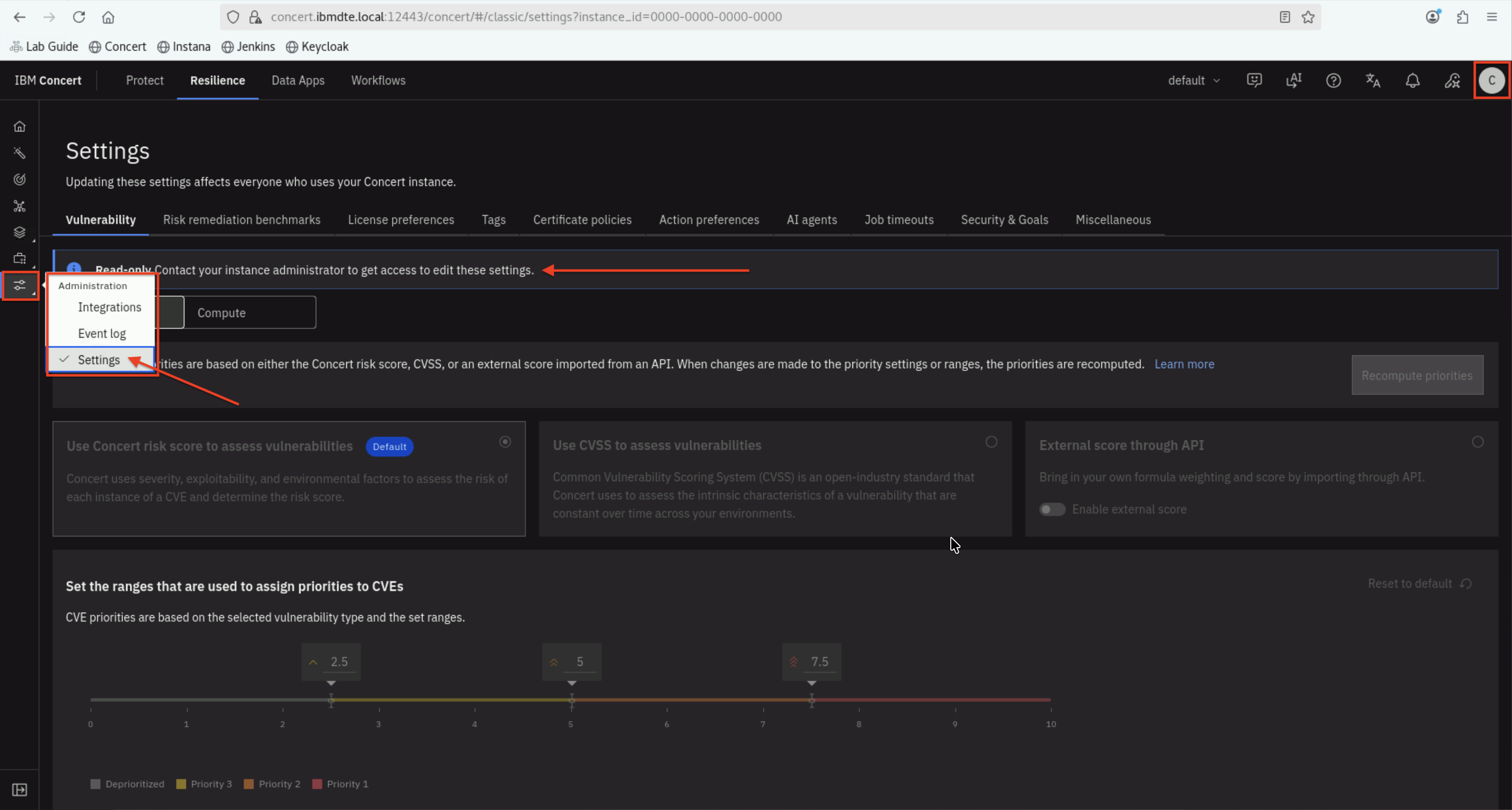
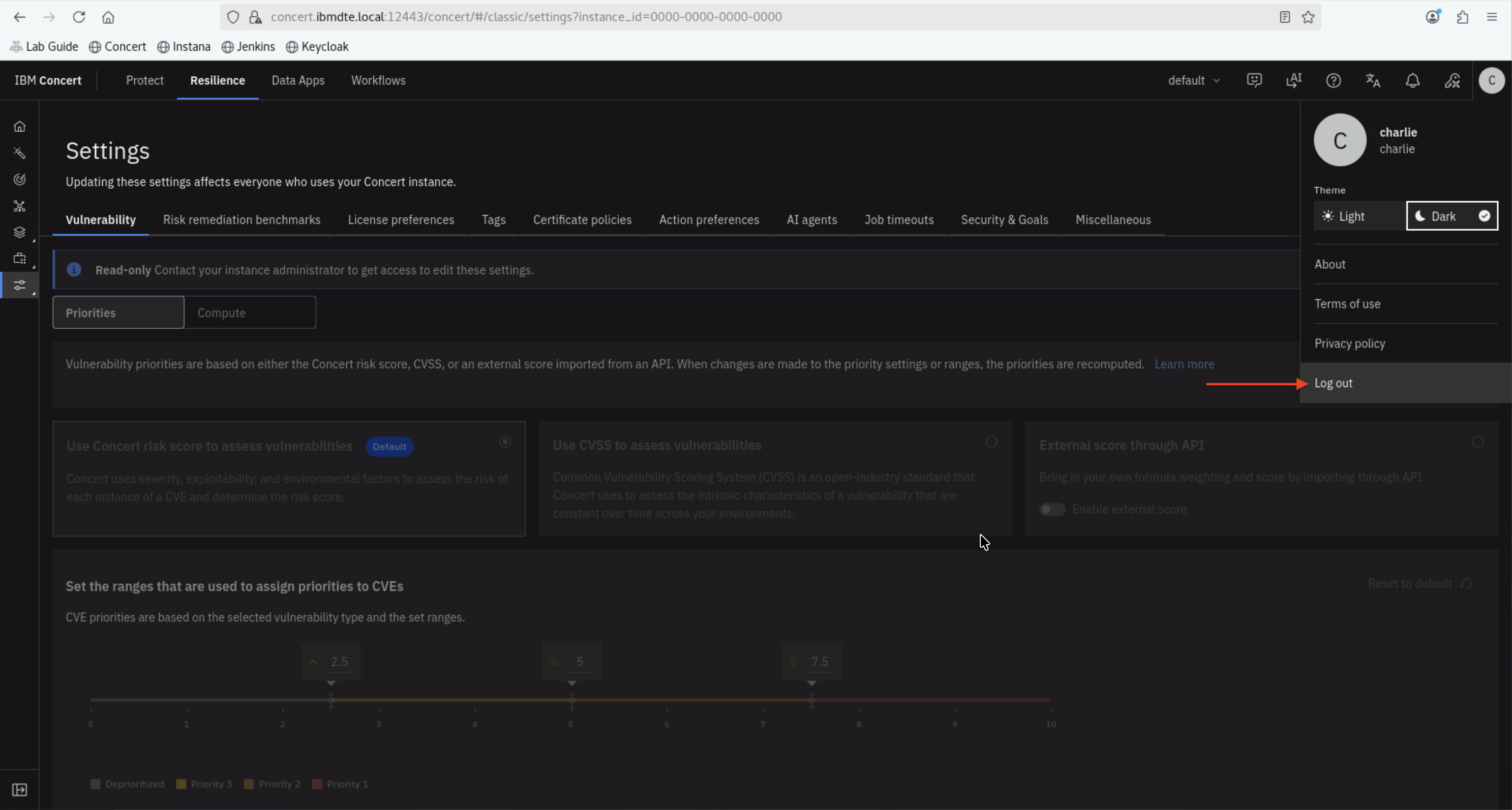
For instance level access with User role, the user will see message below when trying to access Settings page:
**Read-only** Contact your instance administrator to get access to edit these settings.
7.4.4: Concert logout as Charlie
- Logout from Charlie's session
7.4.5: Keycloak signout Charlie session
From the Bastion Remote Desktop, open the Firefox browser and click on the Keycloak bookmark.
- Accept the certificate warning if prompted
- Log in with Keycloak admin credentials from your credentials file:
- Username:
admin - Password: (created in Section 3.6)
- Username:
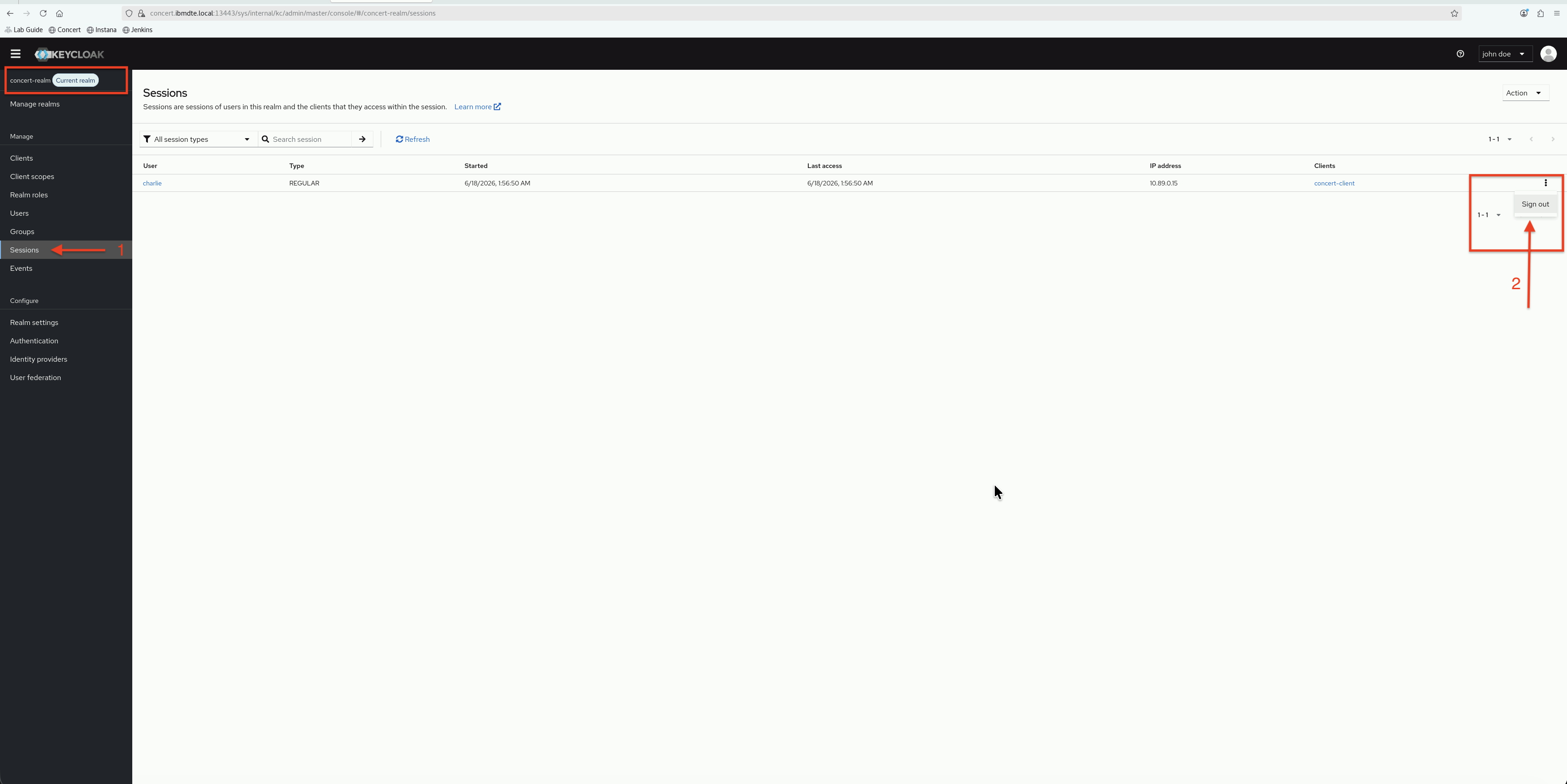
- In the Keycloak Admin Console, ensure you're in the concert-realm realm (check the realm dropdown)
- In the left navigation menu, click Sessions
- Click Sign out
Charlie's session is signed out from Keycloak and now, we can use other user account to login to Concert SSO. Otherwise, Concert SSO uses Charlie to login automatically without prompting username and password.
✅ Charlie successfully logged in via SSO with instance-level User role and read-only access.
7.5: Create an Application in Concert as Bob and grant role
Next, you will login to Concert as Bob, create an Application and grant role to Alice and Charlie.
7.5.1: Concert SSO Login as Bob
From the Bastion Remote Desktop, open the Firefox browser and click on the Concert bookmark.
- On the Concert login page, click Log in with SSO
- Enter Bob's credentials:
- Username:
bob - Password:
Bob@123
- Username:
- Click Sign In
7.5.2: Verify Successful Login
After successful authentication:
- Concert dashboard should load
- You should see Bob's name in the top-right corner
7.5.3: Create an Application in Concert
Let's create an Application in Concert as Bob.
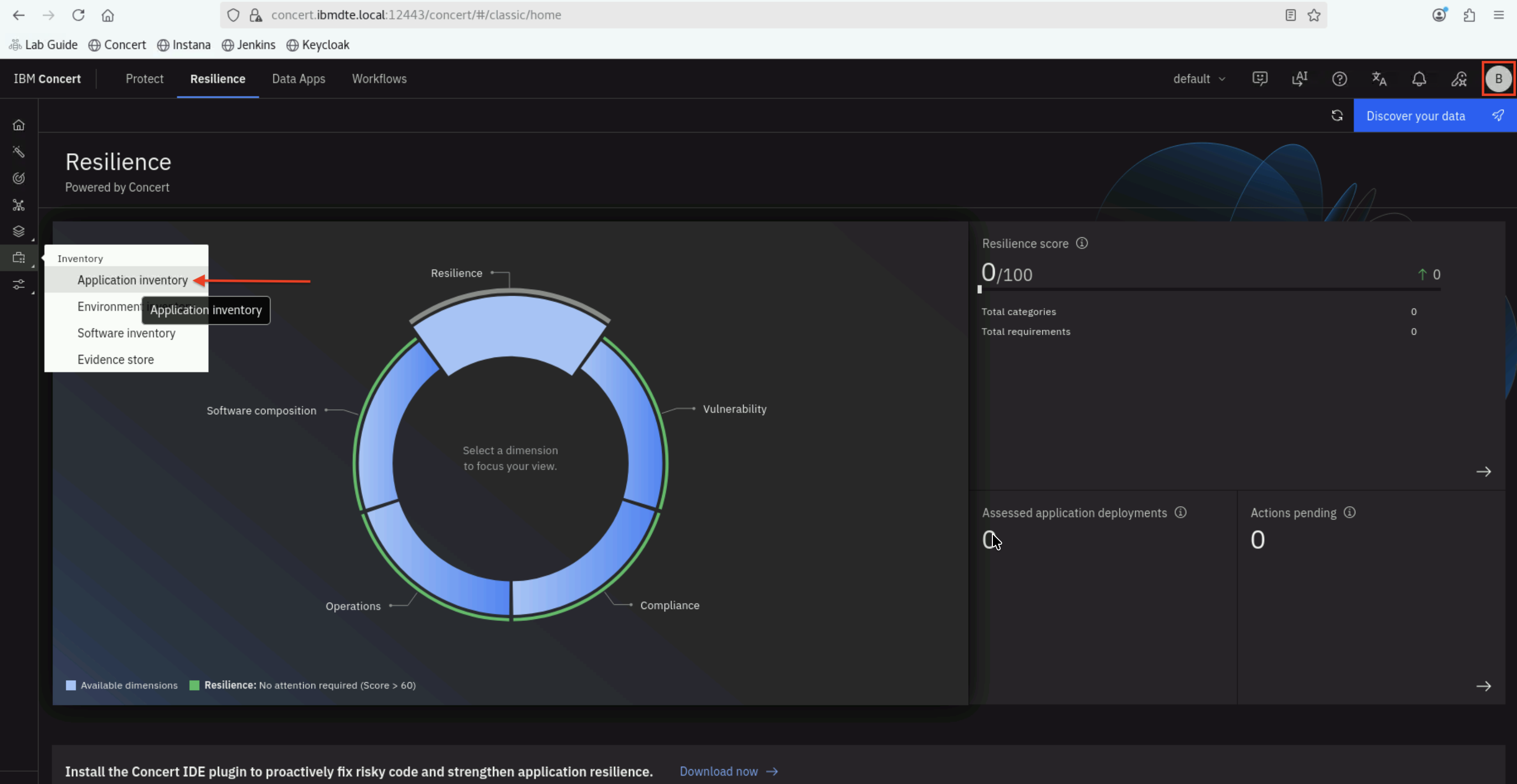
- Click Inventory on left panel and click Application inventory.
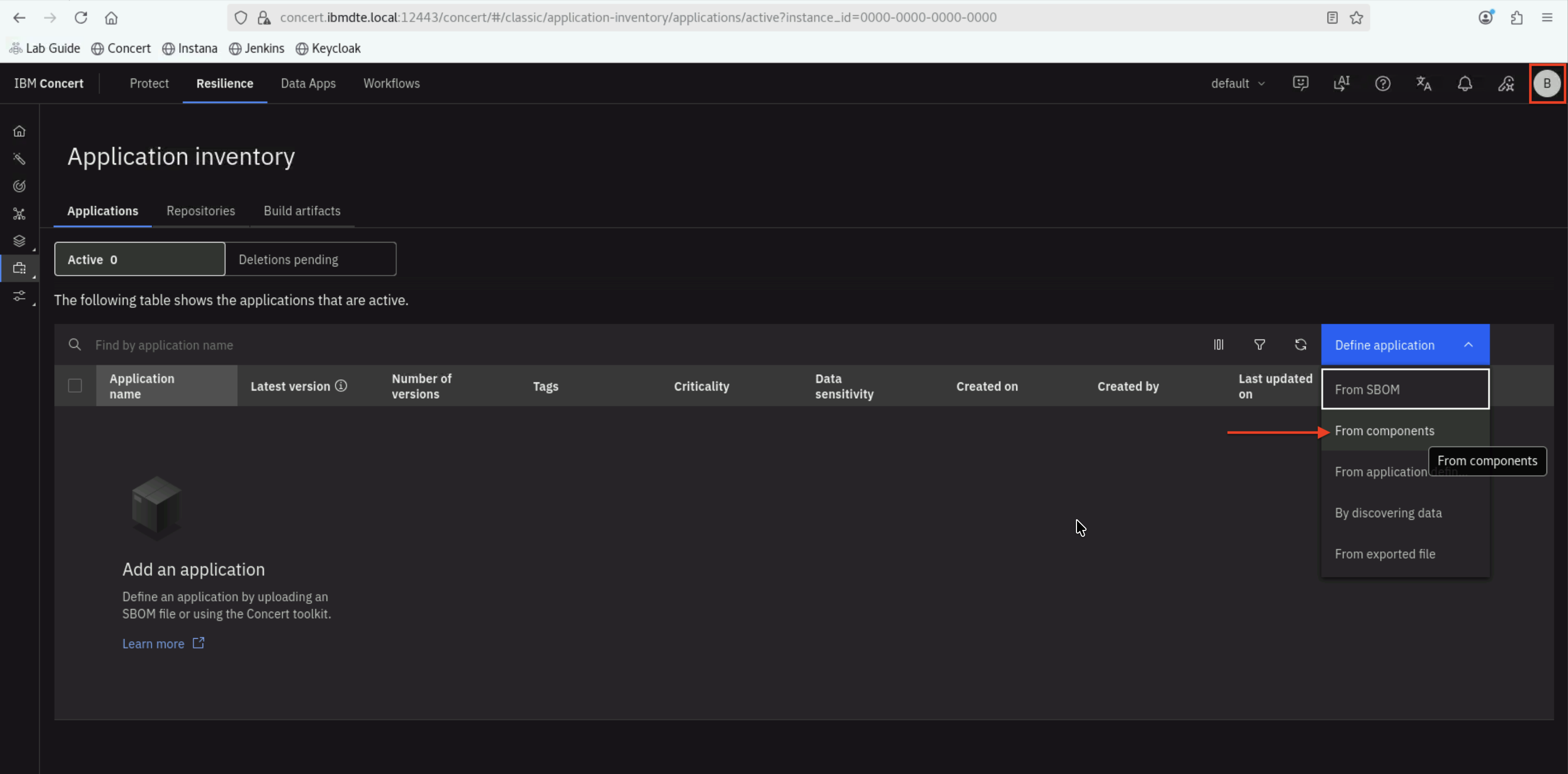
- On Application inventory page, click Define application dropdown and select From components.
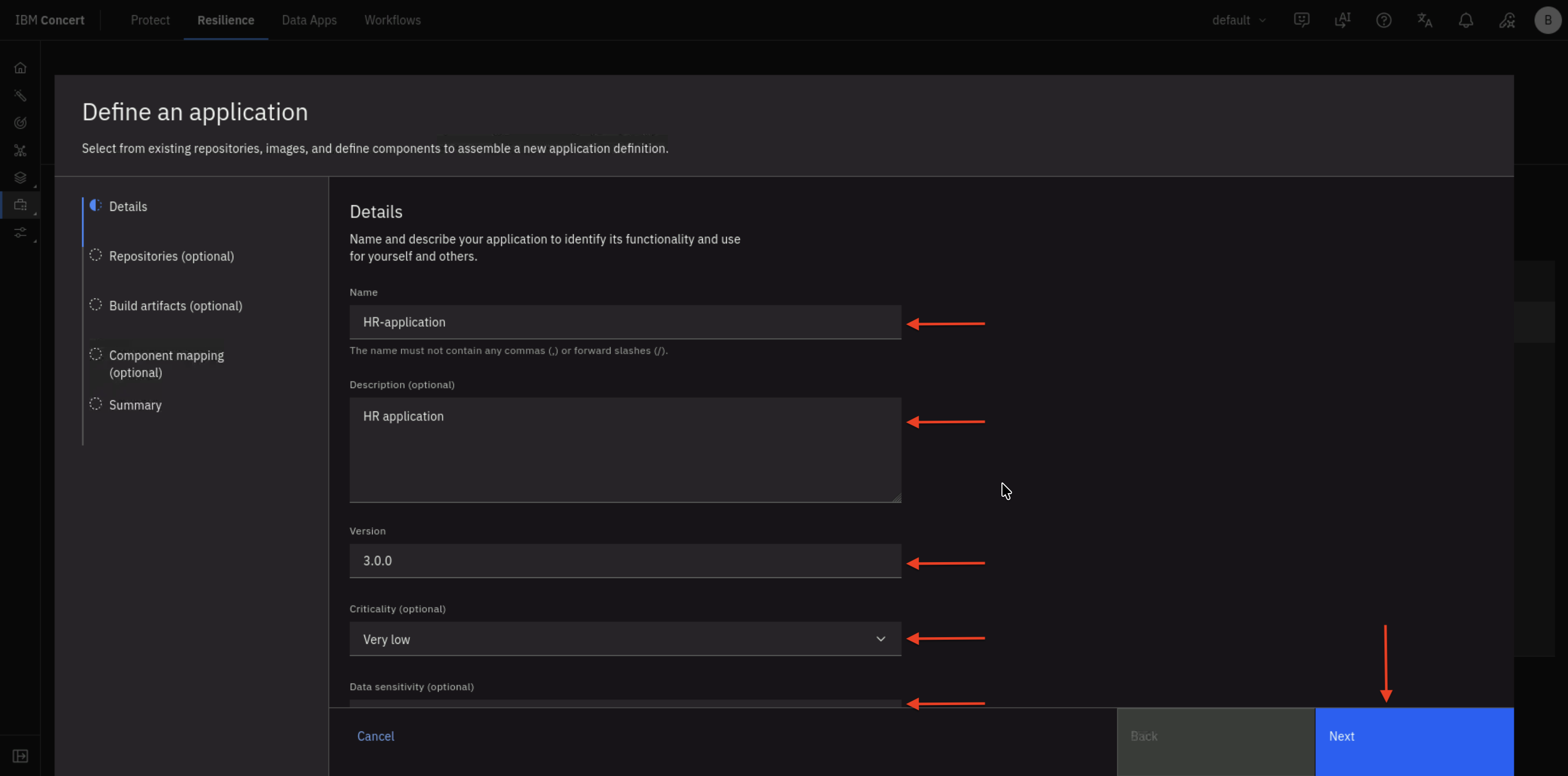
- On Define an application page, under Details section, enter the following values:
- Name:
HR-application - Description (optional):
HR application - Version:
3.0.0 - Criticality (optional):
Very low - Data sensitivity (optional):
Very low - Revenue per hour in $ (optional):
0 - Tags (optional):
**Leave empty** - Add business details:
NO - Custom properties section:
**Leave undefined**
- Name:
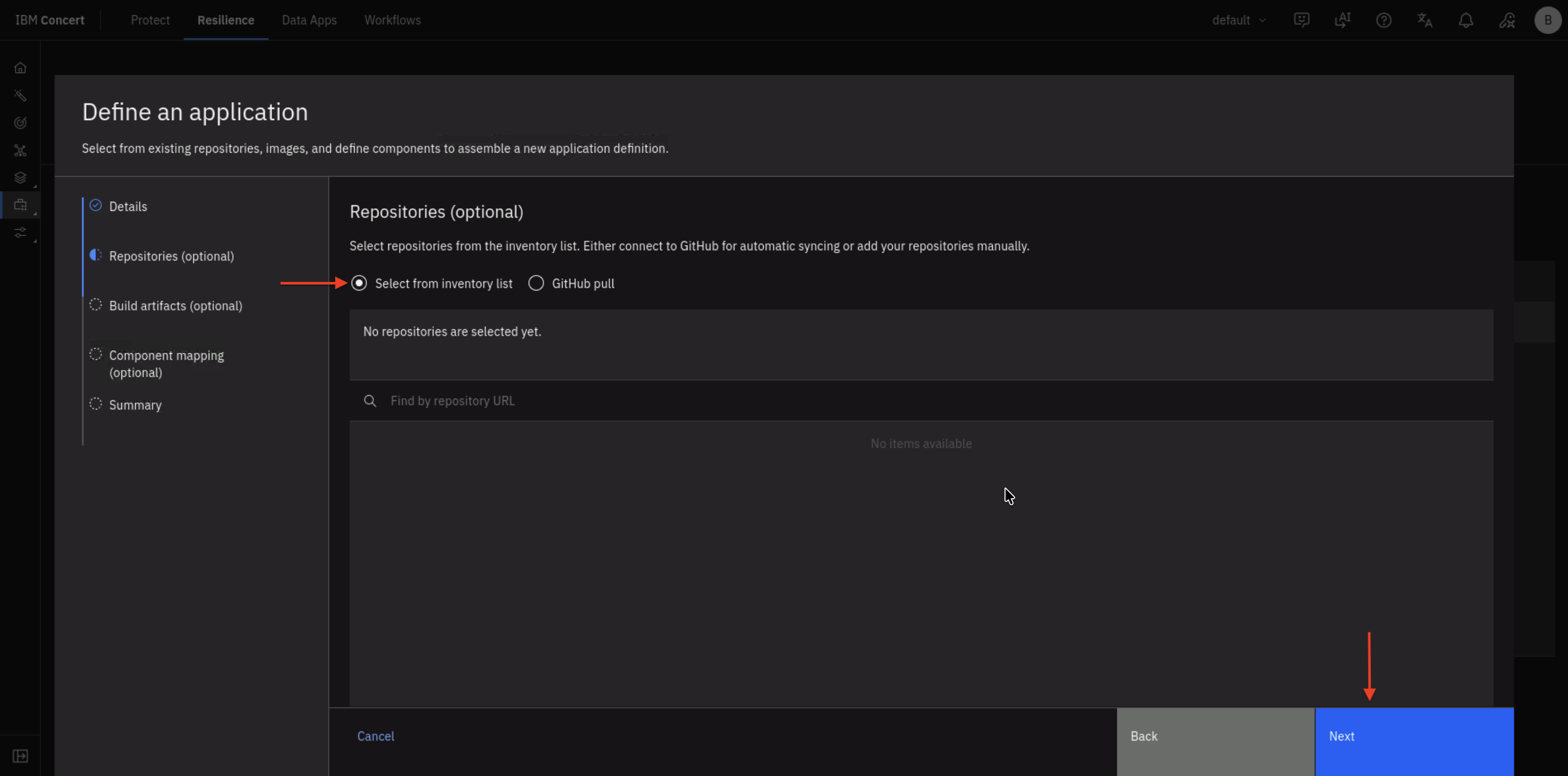
- On the Repositories (optional) section, select Select from inventory list radio button.
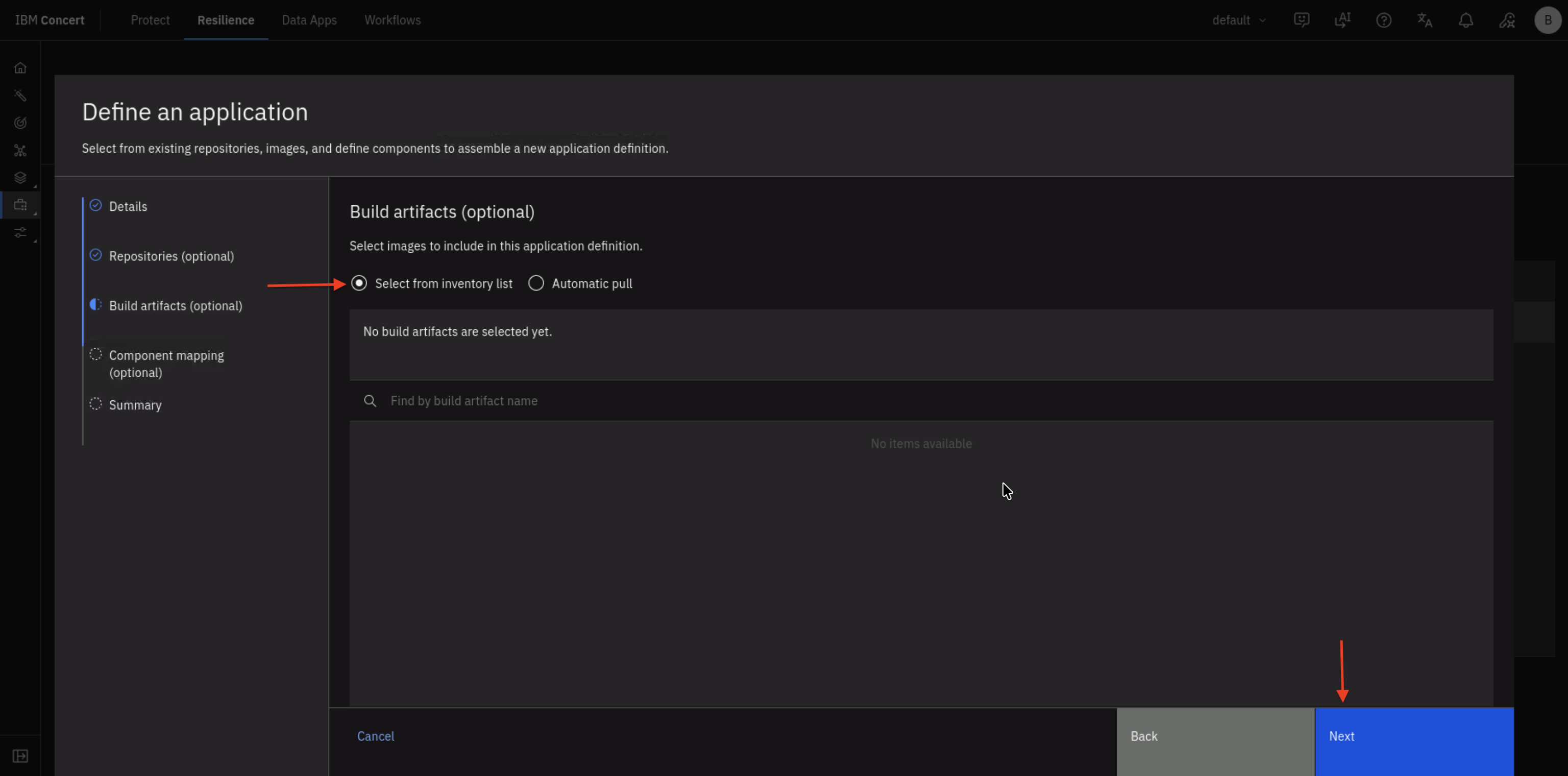
- On the Build artifacts (optional) section, select Select from inventory list radio button.
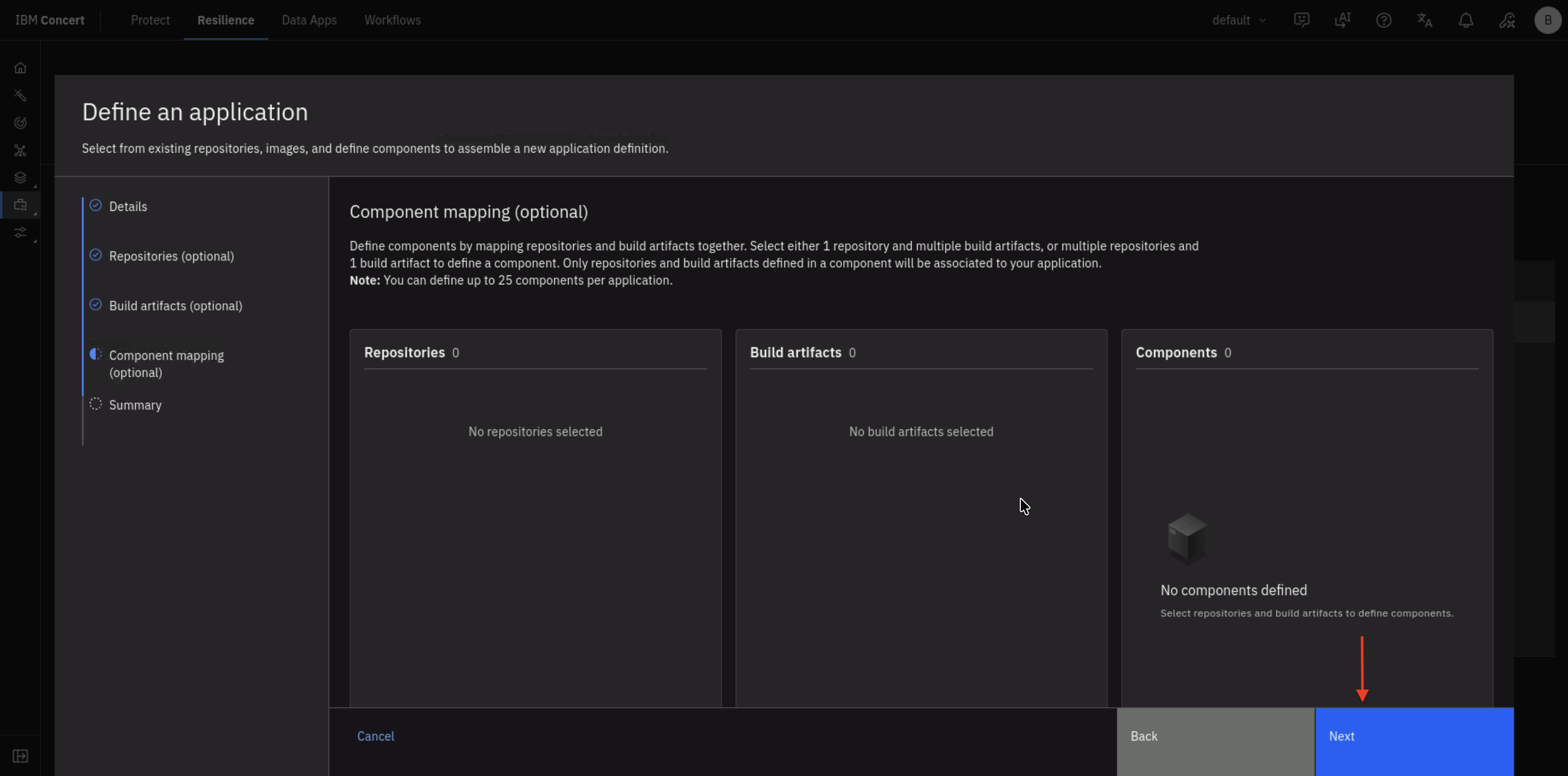
- On the Component mapping (optional) section, leave as is.
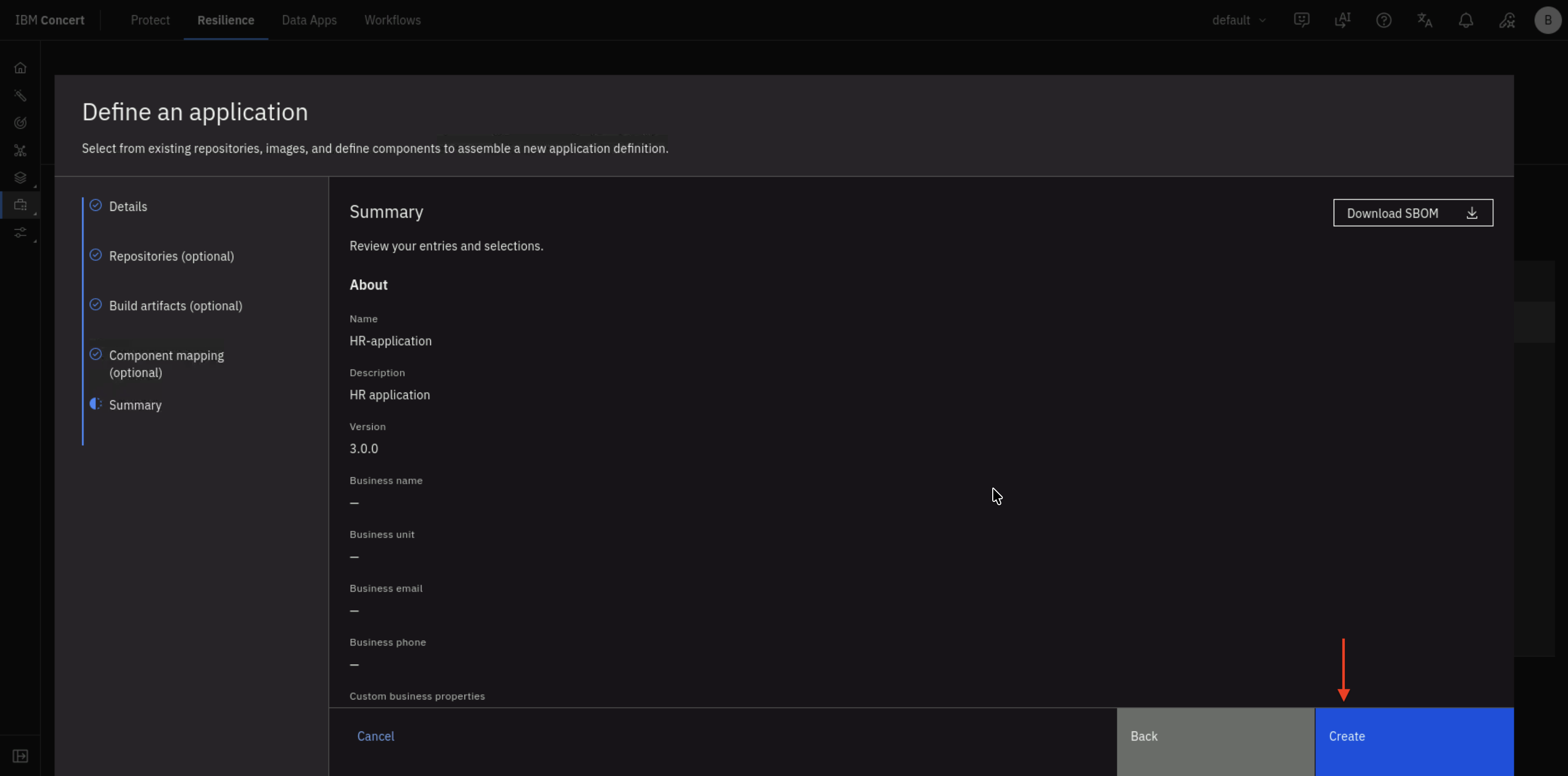
- On the Summary section, click Create button.
- The newly created application called HR-application is now listed in Application Inventory page.
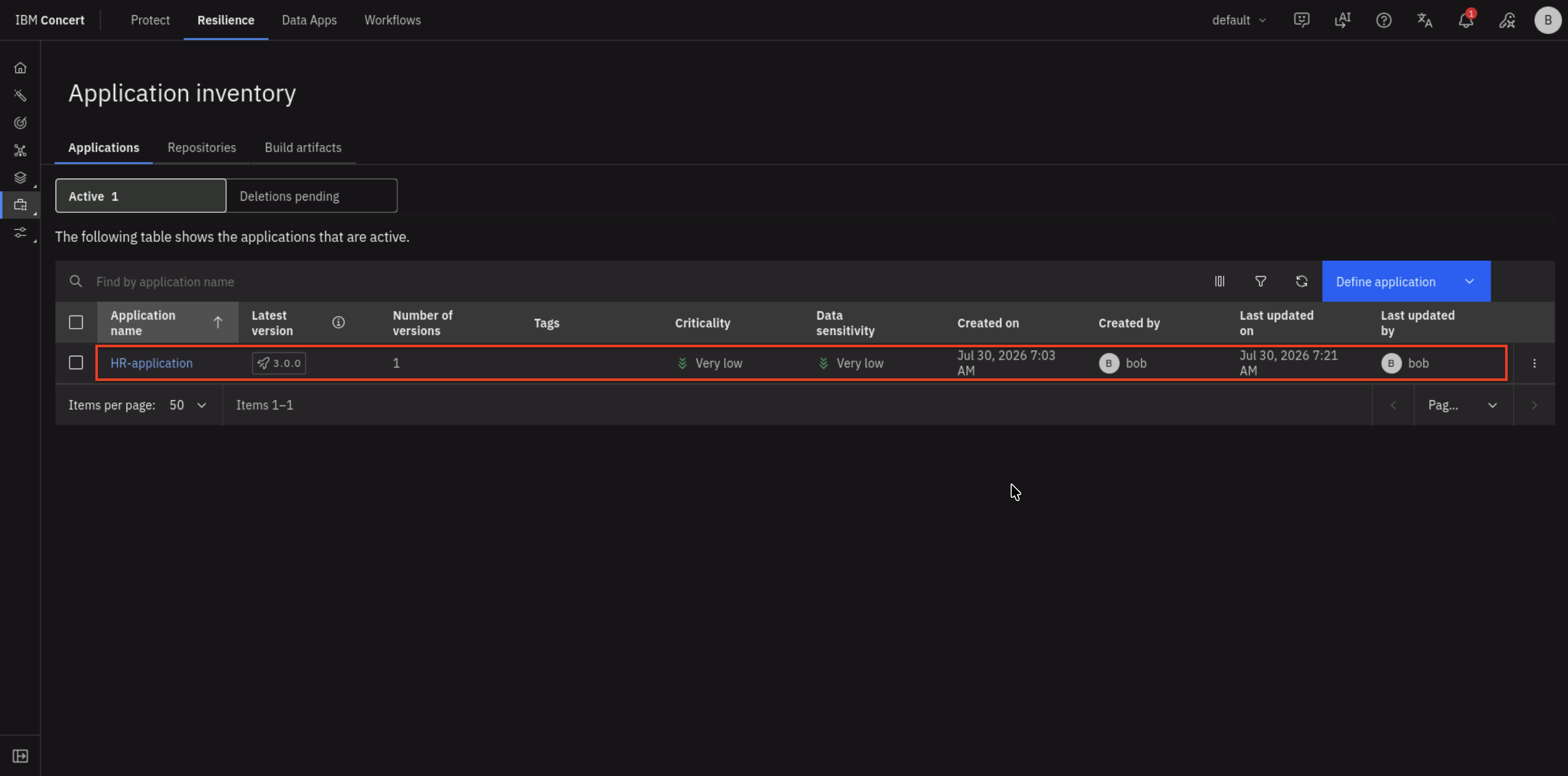
- Click the
⋮(three vertical dots) menu icon on same row to perform Manage collaborators action.
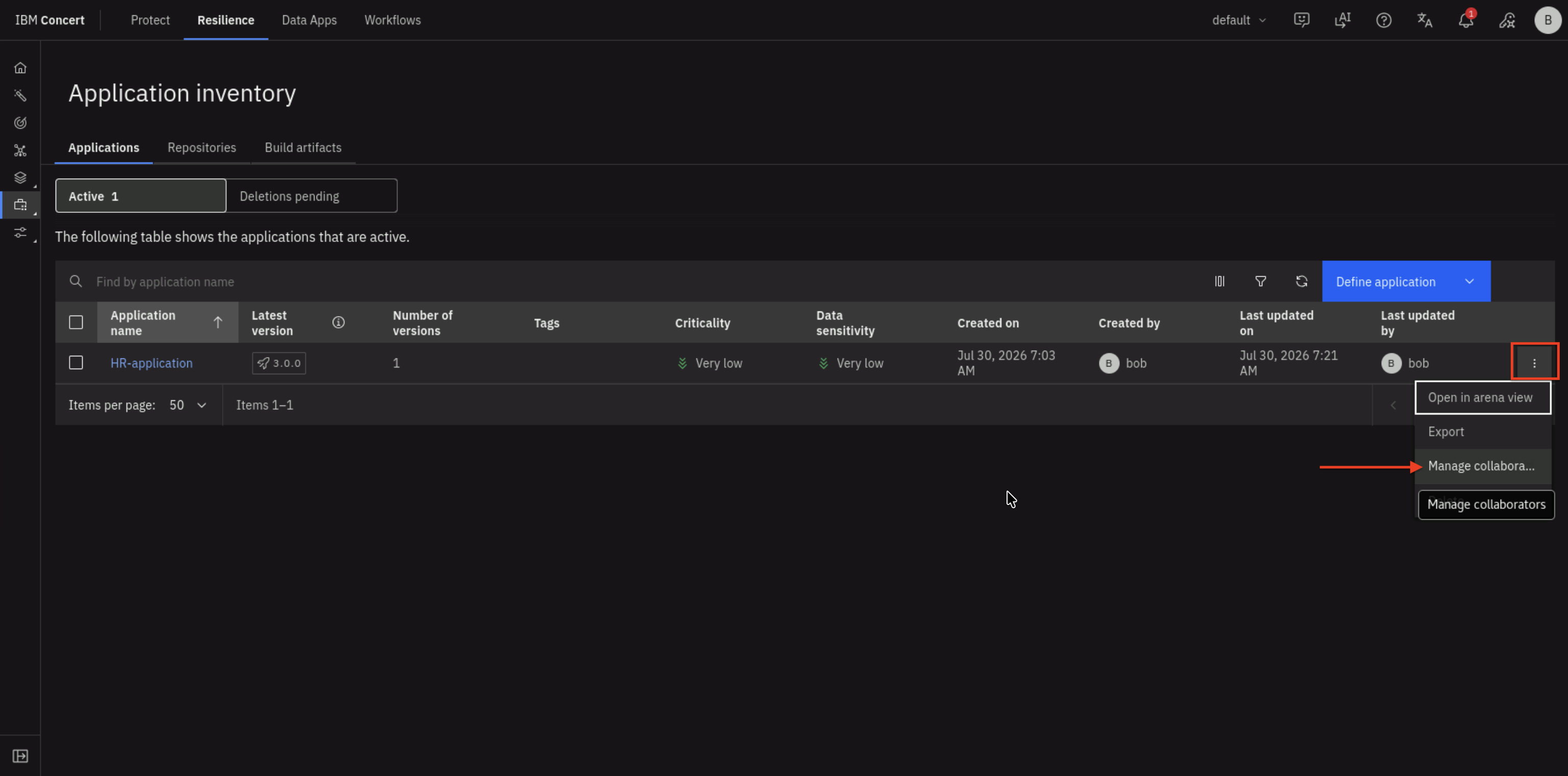
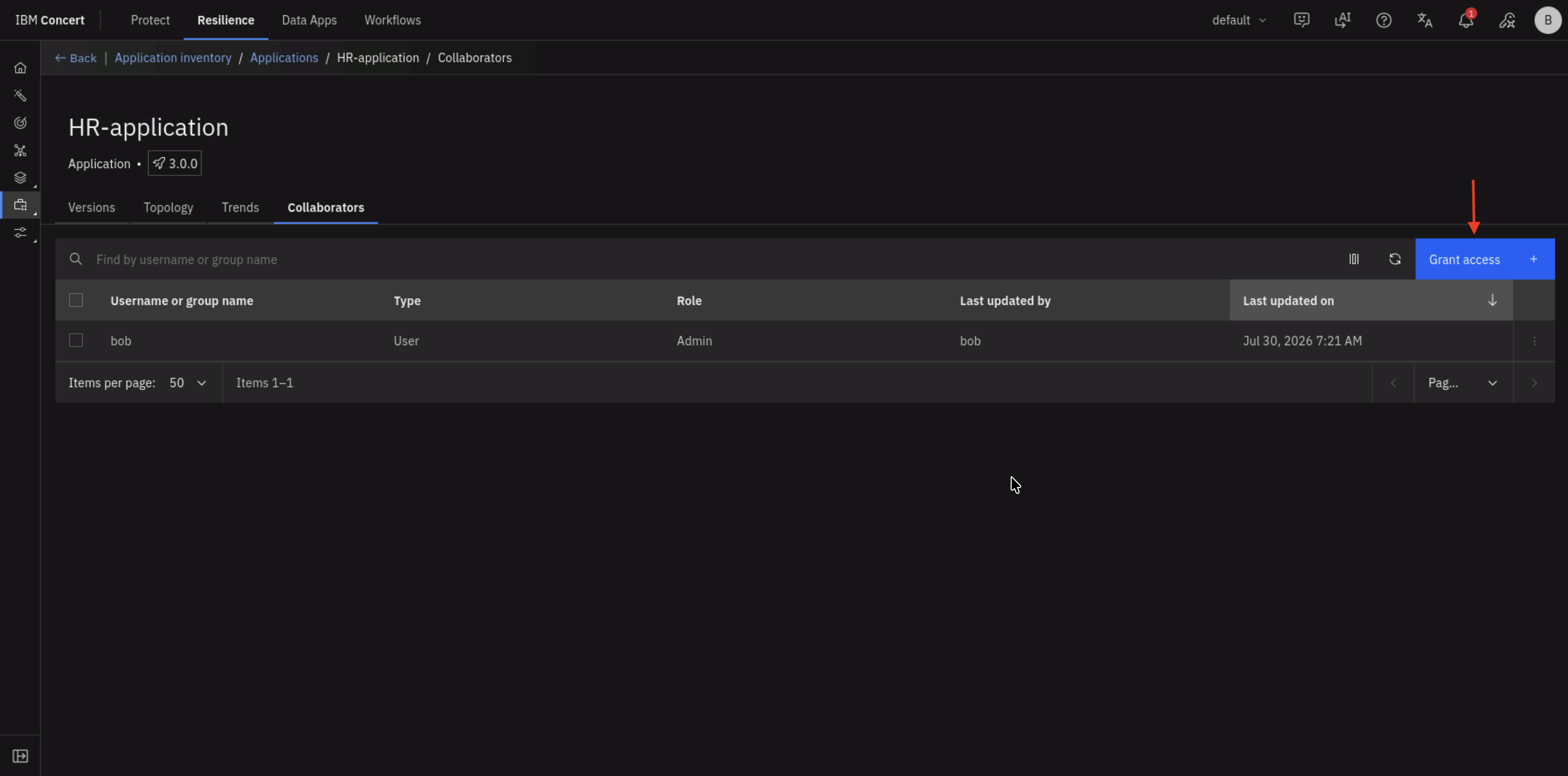
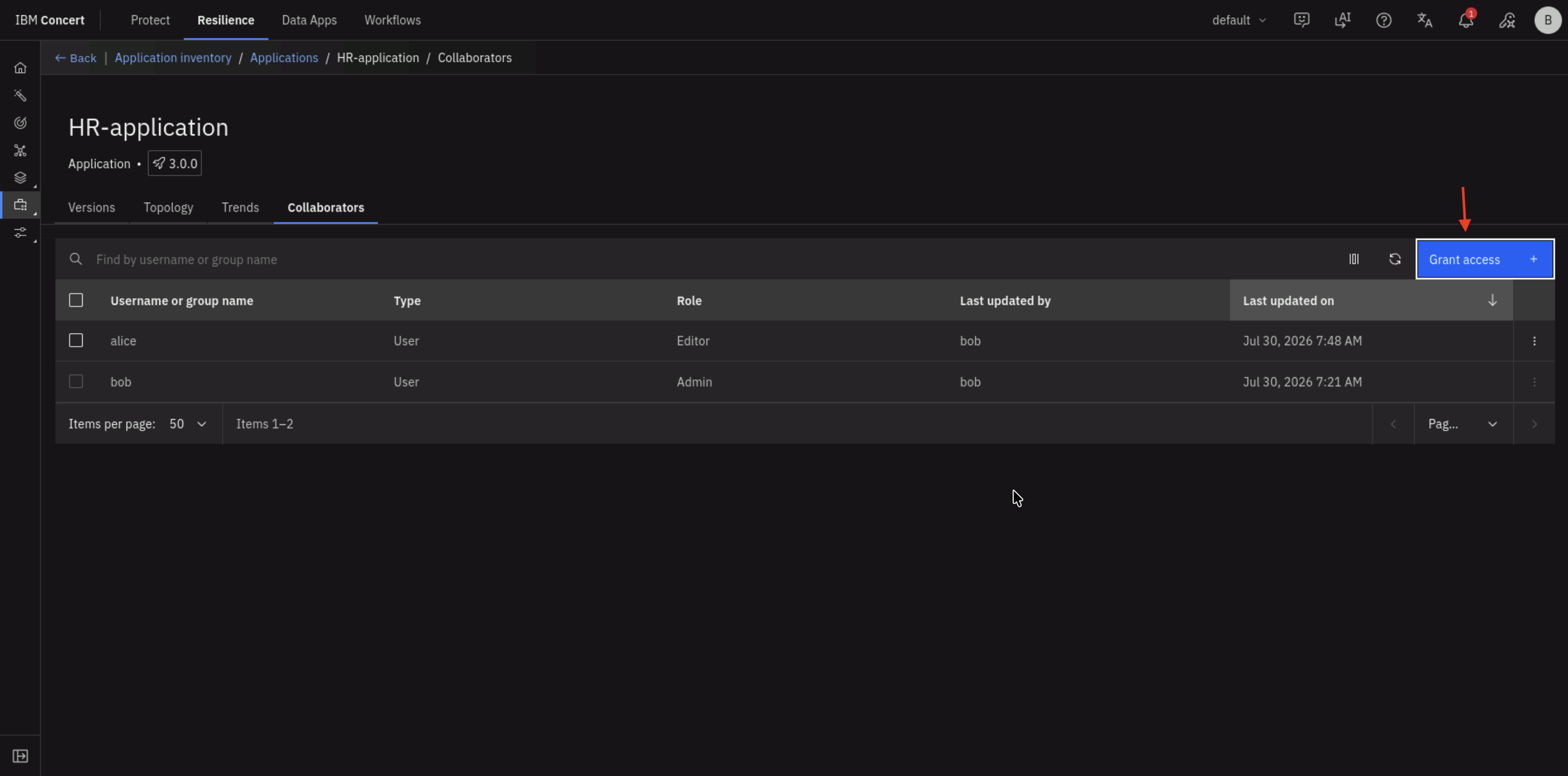
- You will make Alice as an Editor and Charlie as a Viewer for HR-application.
- Click Grant access button.
- On Grant access to HR-application page, do the following:
- select alice by ticking the checkbox
- select Editor from the drop down list
- click Grant button
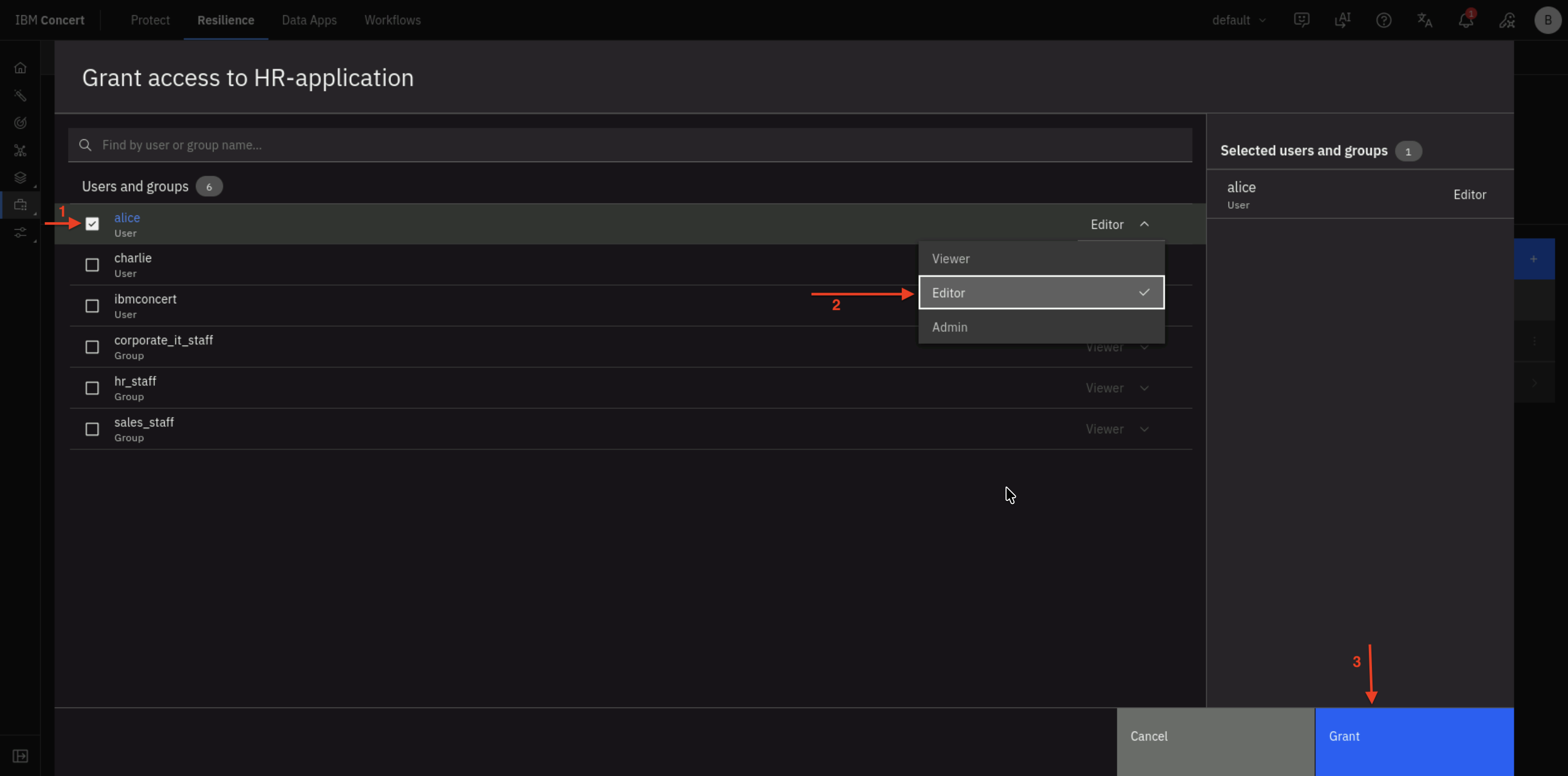
- Click Grant access button.
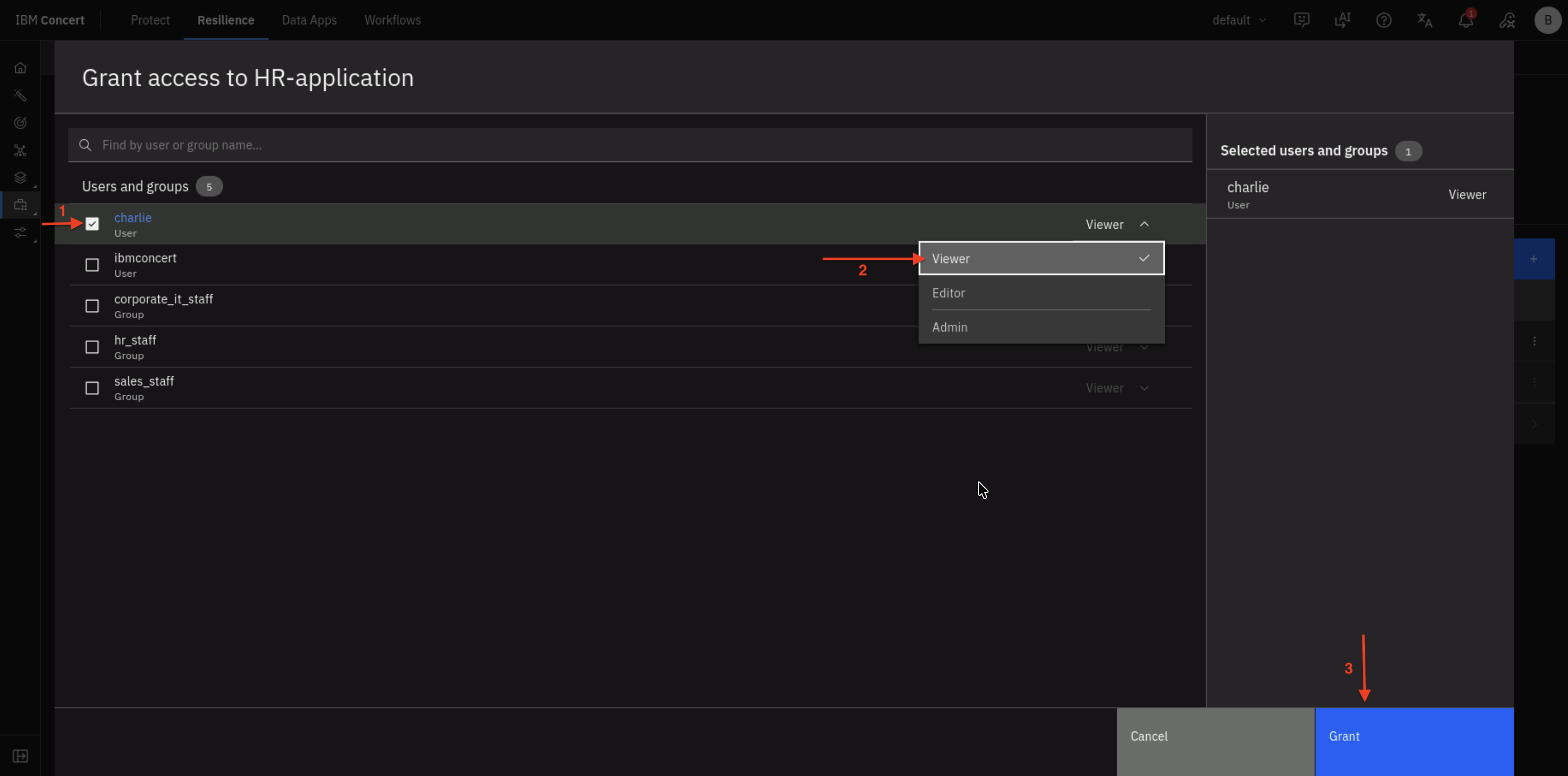
- On Grant access to HR-application page, do the following:
- select charlie by ticking the checkbox
- assign Viewer from the drop down list
- click Grant button
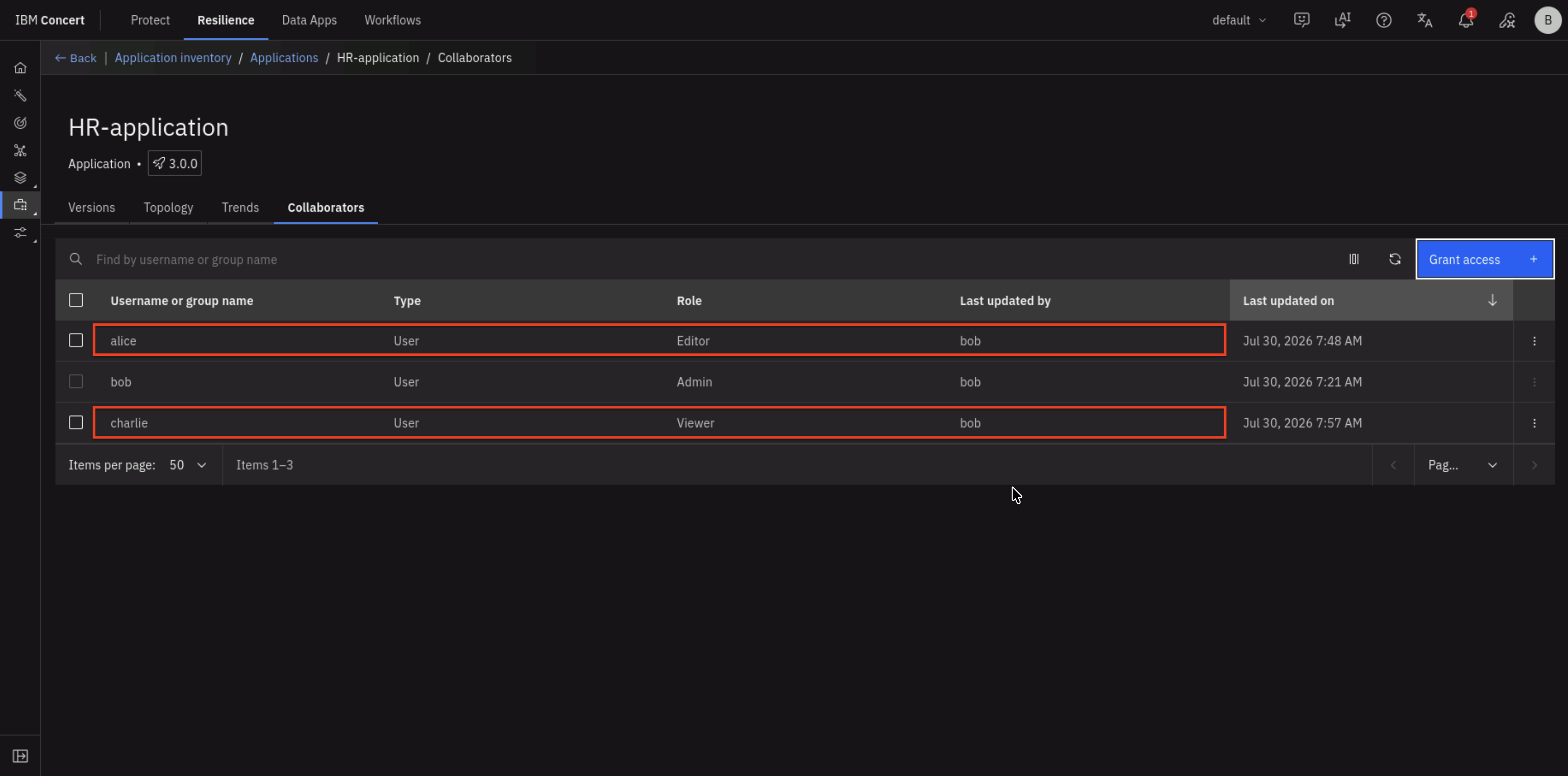
- Finally, as Bob, you have granted HR-application to Alice as an Editor and Charlie as a Viewer.
- Log out from Concert as Bob.
7.6: Object level access testing
Next, you will perform object level access testing as Alice, Bob and Charlie.
7.6.1: Validate object level access as Alice
For a quick recap, Alice belongs to Corporate IT organization. She gets Admin role and everybody else assigns her as Editor for Concert objects such as applications and environments including HR-application.
First, let's sign out Concert session under concert-realm from Keycloak to avoid any SSO issues.
From the Bastion Remote Desktop, open the Firefox browser and click on the Keycloak bookmark.
- Accept the certificate warning if prompted
- Log in with Keycloak admin credentials from your credentials file:
- Username:
admin - Password: (created in Section 3.6)
- Username:
- In the Keycloak Admin Console, ensure you're in the concert-realm realm (check the realm dropdown)
- In the left navigation menu, click Sessions
- Click Sign out
Next, let's sign in to Concert as Alice to validate her object level access.
From the Bastion Remote Desktop, open the Firefox browser and click on the Concert bookmark.
-
Log in to Concert as Alice. On the Concert login page, click Log in with SSO.
-
Enter Alice's credentials:
- Username:
alice - Password:
Alice@123
- Username:
-
Click Sign In.
-
Click Inventory on left panel, select Application Inventory
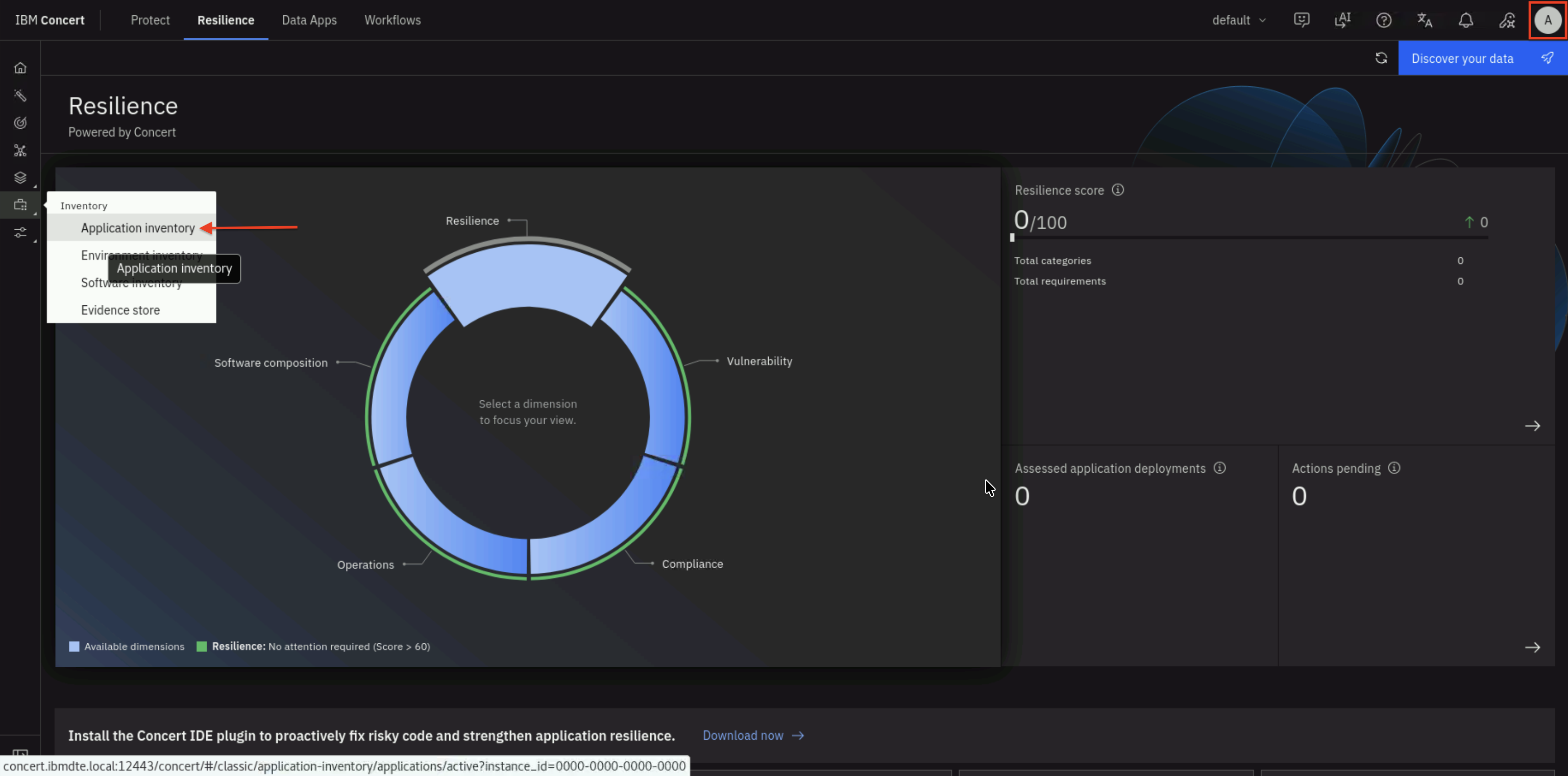
- Alice will be able to view all applications, such as HR-application, that have been granted to her.
Click HR-application.
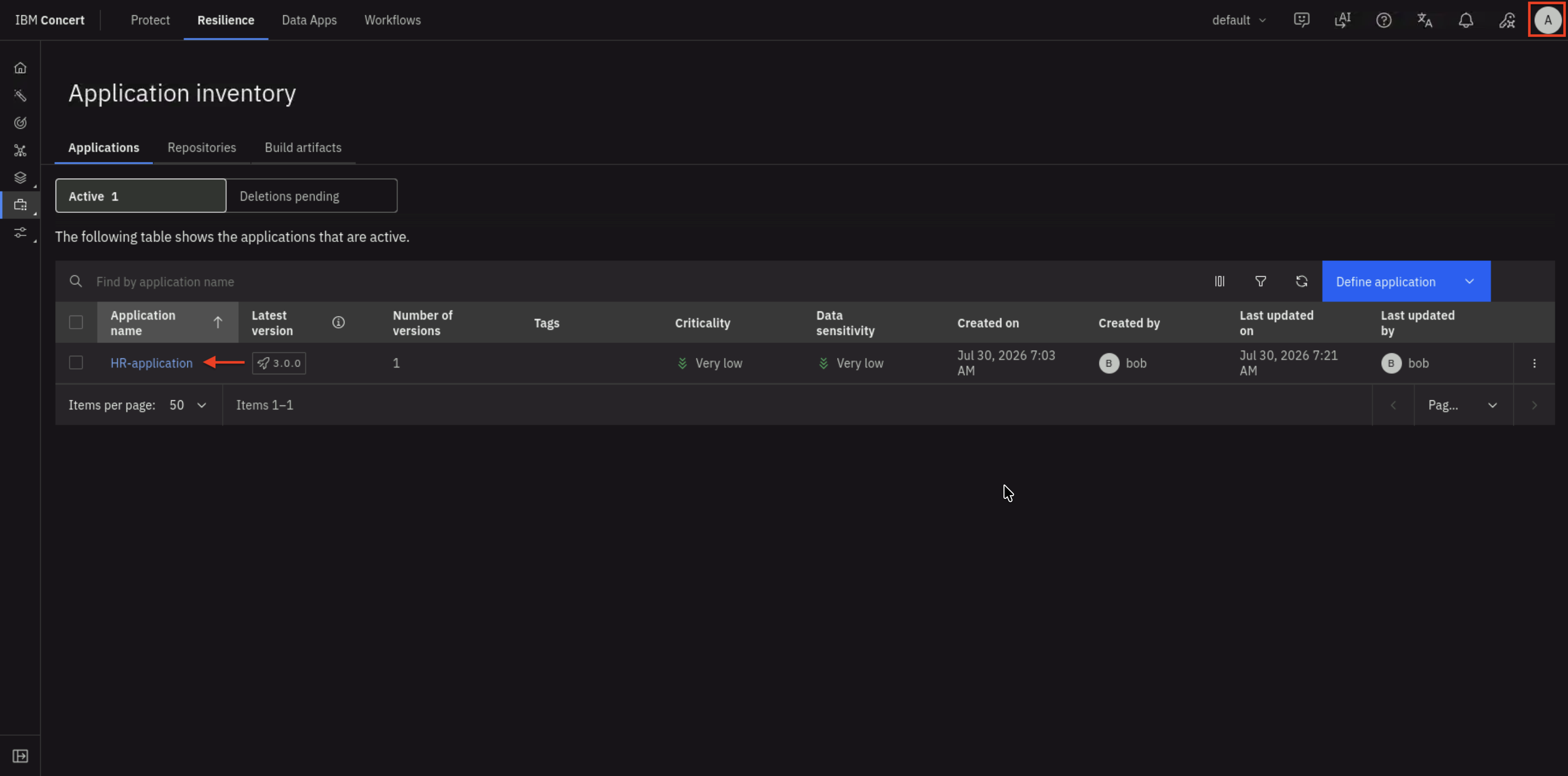
-
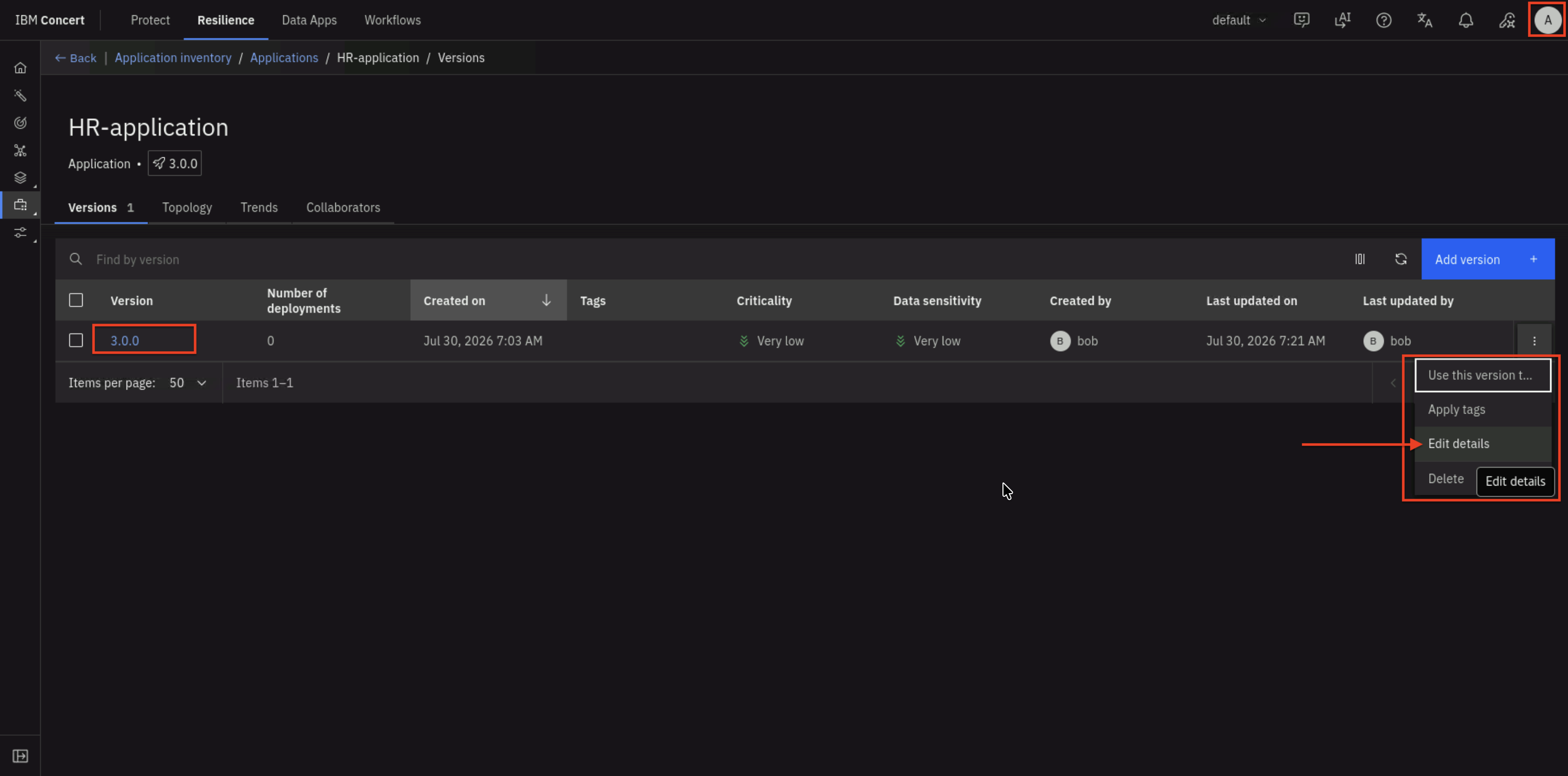
You will see 3.0.0 as the version.
Click the ⋮ (three vertical dots) menu icon on same row.
Alice with Editor role, has the permission to perform the following actions :- Use this version...
- Apply tags
- Edit details
- Delete
-
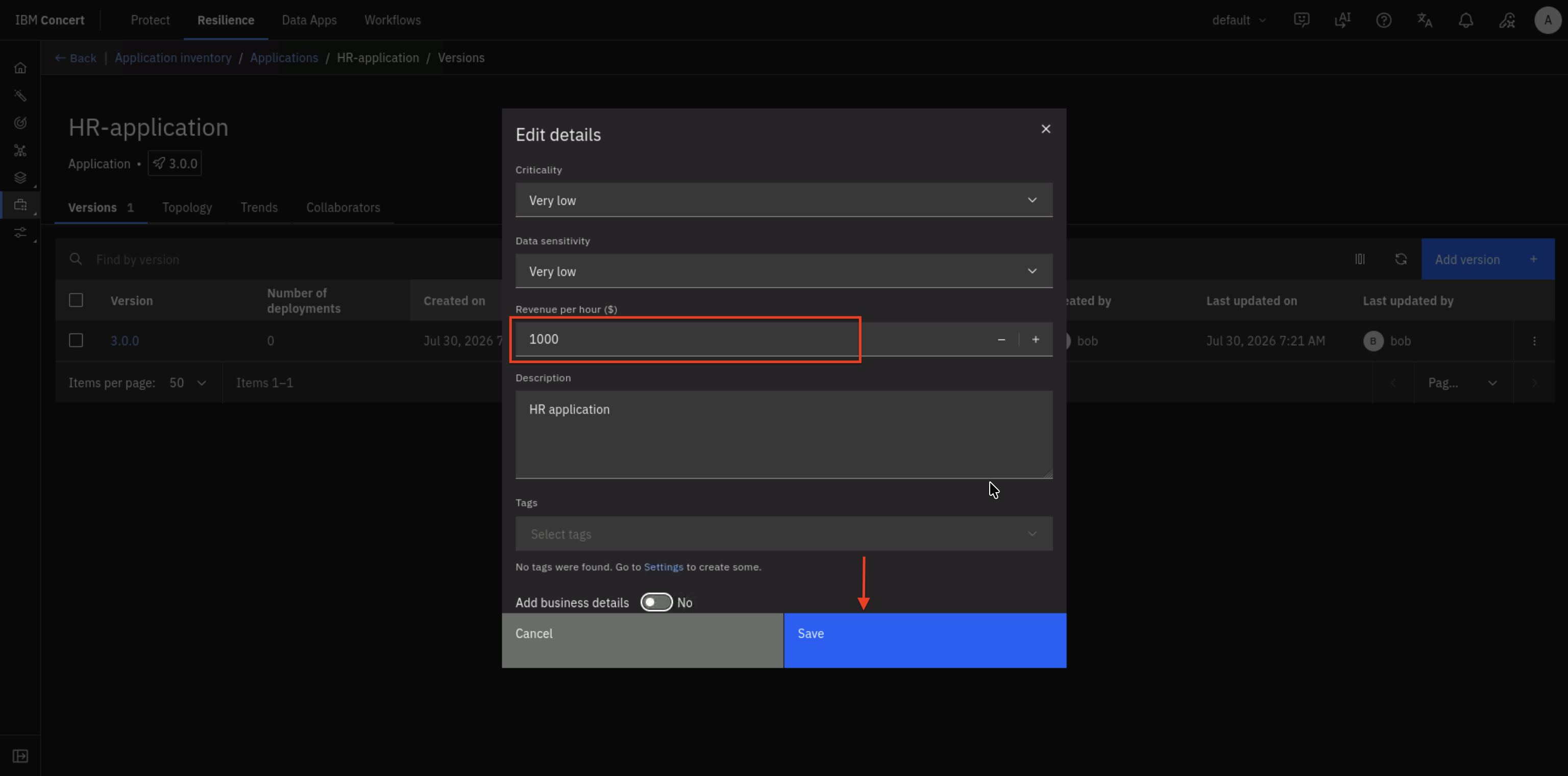
Click Edit details for HR-application, you will be able to make changes to the application attributes.
-
On Edit details, make the following change:
- Revenue per hour ($):
1000
- Revenue per hour ($):
-
Click Save.
- Logout Concert as Alice.
7.6.2: Validate object level access as Charlie
For a quick recap, Charlie is a techie user in Sales organization. He has Viewer role for HR-application.
First, let's sign out Concert session under concert-realm from Keycloak to avoid any SSO issues.
From the Bastion Remote Desktop, open the Firefox browser and click on the Keycloak bookmark.
- Accept the certificate warning if prompted
- Log in with Keycloak admin credentials from your credentials file:
- Username:
admin - Password: (created in Section 3.6)
- Username:
- In the Keycloak Admin Console, ensure you're in the concert-realm realm (check the realm dropdown)
- In the left navigation menu, click Sessions
- Click Sign out
Next, let's sign in to Concert as Charlie to validate his object level access.
From the Bastion Remote Desktop, open the Firefox browser and click on the Concert bookmark.
-
Log in to Concert as Charlie. On the Concert login page, click Log in with SSO.
-
Enter Charlie's credentials:
- Username:
charlie - Password:
Charlie@123
- Username:
-
Click Sign In
-
Click Inventory on left panel, select Application Inventory
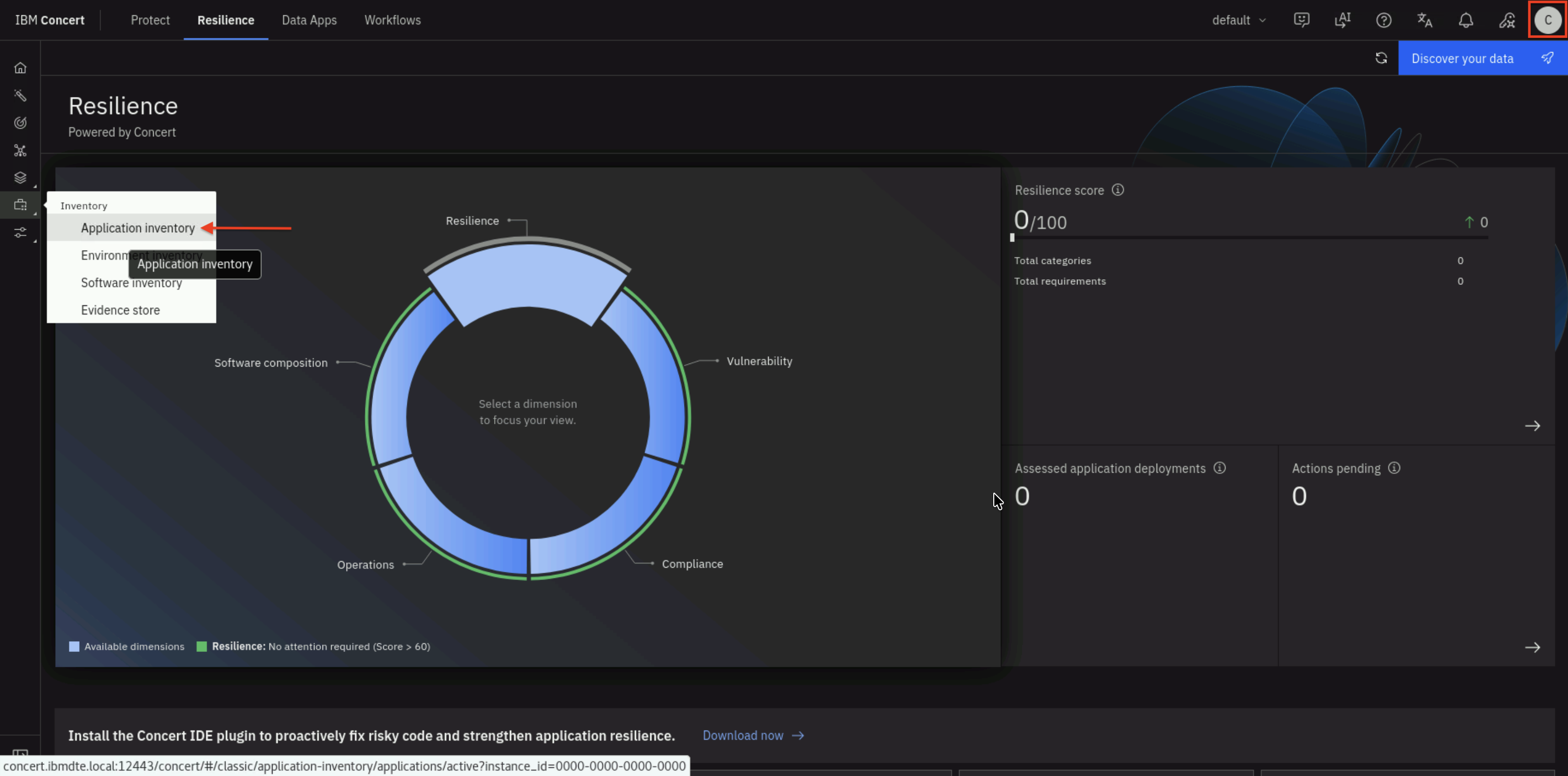
- Charlie will be able to view all applications, such as HR-application, which have been granted to him.
Click HR-application.
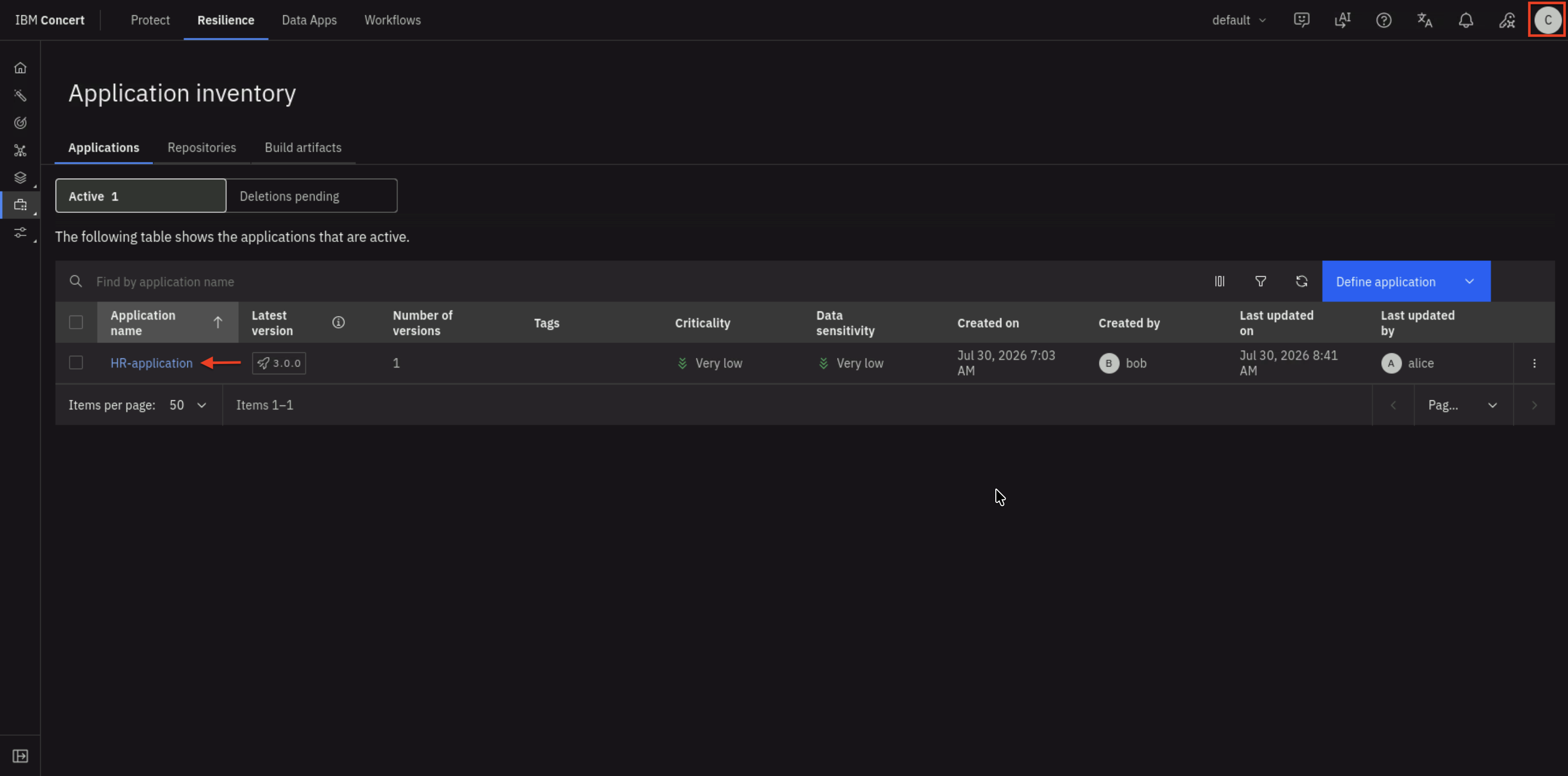
- You will see 3.0.0 as the version.
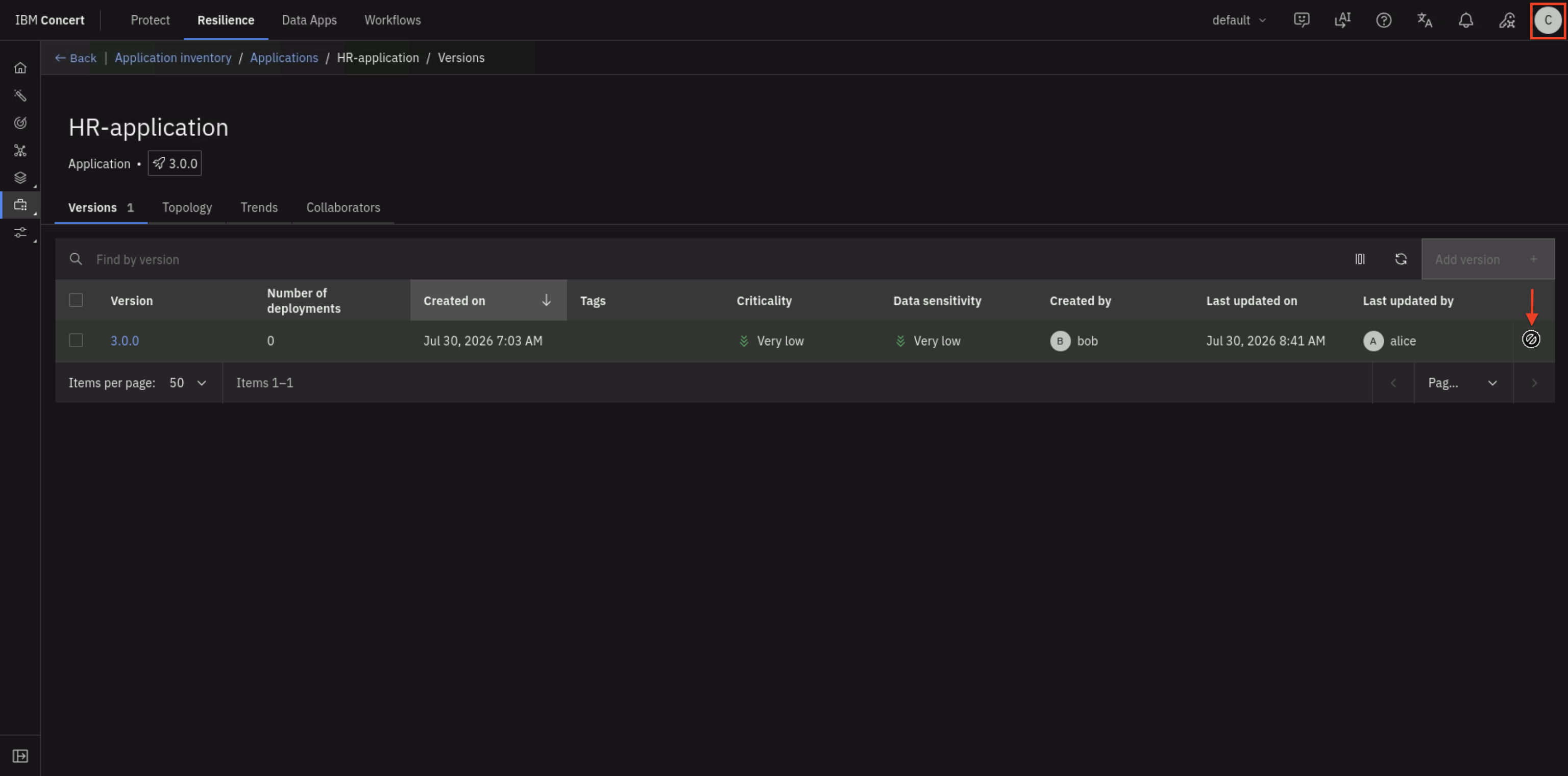
Click the ⋮ (three vertical dots) menu icon on same row.
Charlie with Viewer role for the HR-application does not have permission to perform any action.
- Logout Concert as Charlie.
7.6.3: Validate object level access as Bob
For a quick recap, Bob is a techie user in HR organization.
He only supports HR applications within the company.
He has Admin role for HR-application.
First, let's sign out Concert session under concert-realm from Keycloak to avoid any SSO issues.
From the Bastion Remote Desktop, open the Firefox browser and click on the Keycloak bookmark.
- Accept the certificate warning if prompted
- Log in with Keycloak admin credentials from your credentials file:
- Username:
admin - Password: (created in Section 3.6)
- Username:
- In the Keycloak Admin Console, ensure you're in the concert-realm realm (check the realm dropdown)
- In the left navigation menu, click Sessions
- Click Sign out
Next, let's sign in to Concert as Bob to validate his object level access.
From the Bastion Remote Desktop, open the Firefox browser and click on the Concert bookmark.
-
Log in to Concert as Bob. On the Concert login page, click Log in with SSO.
-
Enter Bob's credentials:
- Username:
bob - Password:
Bob@123
- Username:
-
Click Sign In
-
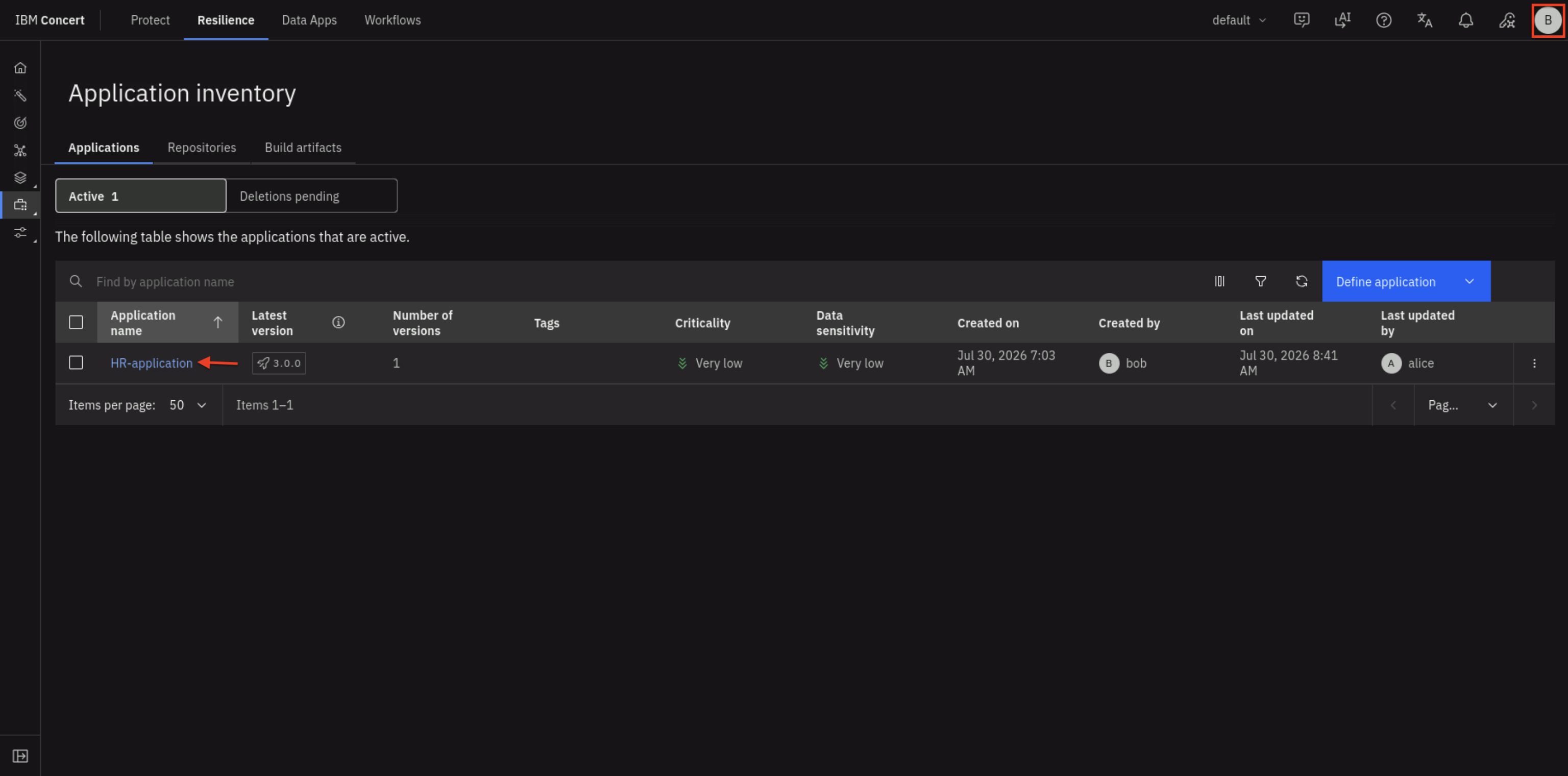
Click Inventory on left panel, select Application Inventory
- Bob will be able to view all applications, such as HR-application.
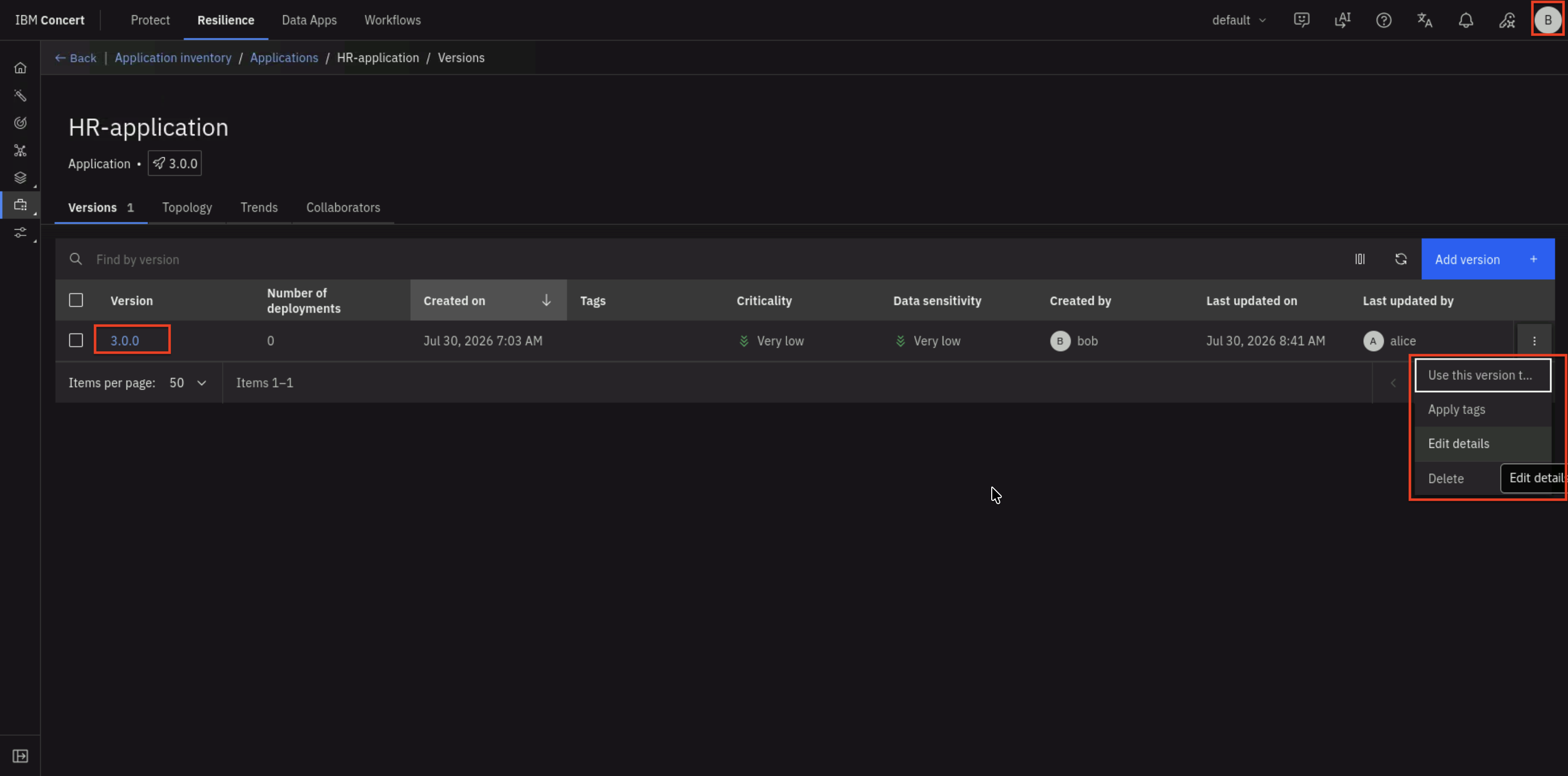
Click HR-application.
- You will see 3.0.0 as the version. Click the ⋮ (three vertical dots) menu icon on same row.
Bob has the permission to perform all actions because Bob is the Admin for HR-application.
- Logout Concert as Bob.
Troubleshooting
This section provides basic troubleshooting steps in case you encounter any issues while performing the steps above. These steps are optional and only need to be followed if you run into problems.
Verification Checklist
Use this checklist to verify all SSO functionality:
Authentication Tests
- Alice can login via SSO
- Bob can login via SSO
- Charlie can login via SSO
- Invalid credentials are rejected
- Non-existent users cannot login
Role-Based Access Control
- Alice has Admin role at Instance level
- Bob has User role at Instance level
- Charlie has User role at Instance level
- Admin role has permission to all actions for Concert objects
- Editor role has permission to 4 actions for Concert objects
- Viewer role cannot modify any data
Session Management
- Users can logout successfully
- Sessions expire after timeout period
- Expired sessions require re-authentication
Group Synchronization
- LDAP group changes sync to Keycloak
- Group membership changes affect Concert roles
- Role changes take effect after re-login
User Experience
- SSO login button is visible and functional
- Redirect to Keycloak works smoothly
- Return to Concert after authentication works
- User information displays correctly
- No error messages during normal flow
Login Redirects to Keycloak but Fails
Problem: User is redirected to Keycloak but authentication fails
Solutions:
- Verify user exists in LDAP:
ldapsearch -x -b "ou=users,dc=example,dc=com" "(uid=alice)" - Check user password is correct:
ldapwhoami -x -D "uid=alice,ou=users,dc=example,dc=com" -W - Verify LDAP connection in Keycloak: Test connection and authentication
SSO Login Button Missing
Problem: Concert login page doesn't show SSO option
Solutions:
- Verify OIDC configuration is applied in Concert
- Clear browser cache and reload page
Testing Summary
Congratulations! You have successfully tested the complete SSO authentication flow:
What You Tested
- ✅ SSO login with three different user personas
- ✅ Role-based access control for each persona
- ✅ Invalid credential rejection
- ✅ Session management and logout
- ✅ Group membership synchronization
- ✅ Complete authentication chain: Concert → Keycloak → OpenLDAP
What You Verified
- ✅ Users authenticate against LDAP via Keycloak
- ✅ Group memberships are correctly mapped to Concert roles
- ✅ Role-based permissions are enforced in Concert
- ✅ Security controls prevent unauthorized access
- ✅ Session management works as expected
Key Takeaways
- SSO Simplifies Access: Users login once with LDAP credentials
- Centralized Management: User and group management in LDAP
- Role-Based Security: Automatic role assignment based on groups
- Seamless Integration: Concert, Keycloak, and OpenLDAP work together
- Enterprise Ready: Production-grade authentication and authorization
Next Steps
You've completed the hands-on testing of Concert SSO! Proceed to the final section for a summary of what you've learned, best practices for production deployments, and additional resources.
🎉 SSO testing complete! All authentication flows are working correctly with proper role-based access control.