MODULE 1 | ASSIST
LITERATE CODING
i. Editing with intent
Much of a developer's day is spent making precise, surgical change to code that already exists. Literate Coding allows developer and users to annotate their code— using plain, natural language instructions —directly inside and inline the files they are working with. Bob then takes care of the heavy lifting by ensuring that every change is accounted for and that no instructions are missed.
IBM Bob reads the instruction in place and produces a targeted, localized modification. The developer is still describing intent in plain language; the difference is that here you are pointing at a specific spot and saying "change this." Think of it like annotating changes in a collaborative Word document, where you can delegate the modifications to a trusted colleague who will shoulder the workload.
This is the first (and most gentle) stage of the AI Maturity Curve, and therefore a natural sweet spot for building your understanding of IBM Bob. Across this module, you'll work shoulder to shoulder with Bob from the perspective of a software developer paired with the Bob editor. As you work, Bob will be anticipating the next keystroke, drafting the next few lines, and making targeted edits upon your request — all the while keeping the developer (you) in control of accepting or rejecting every AI-generated proposed change.
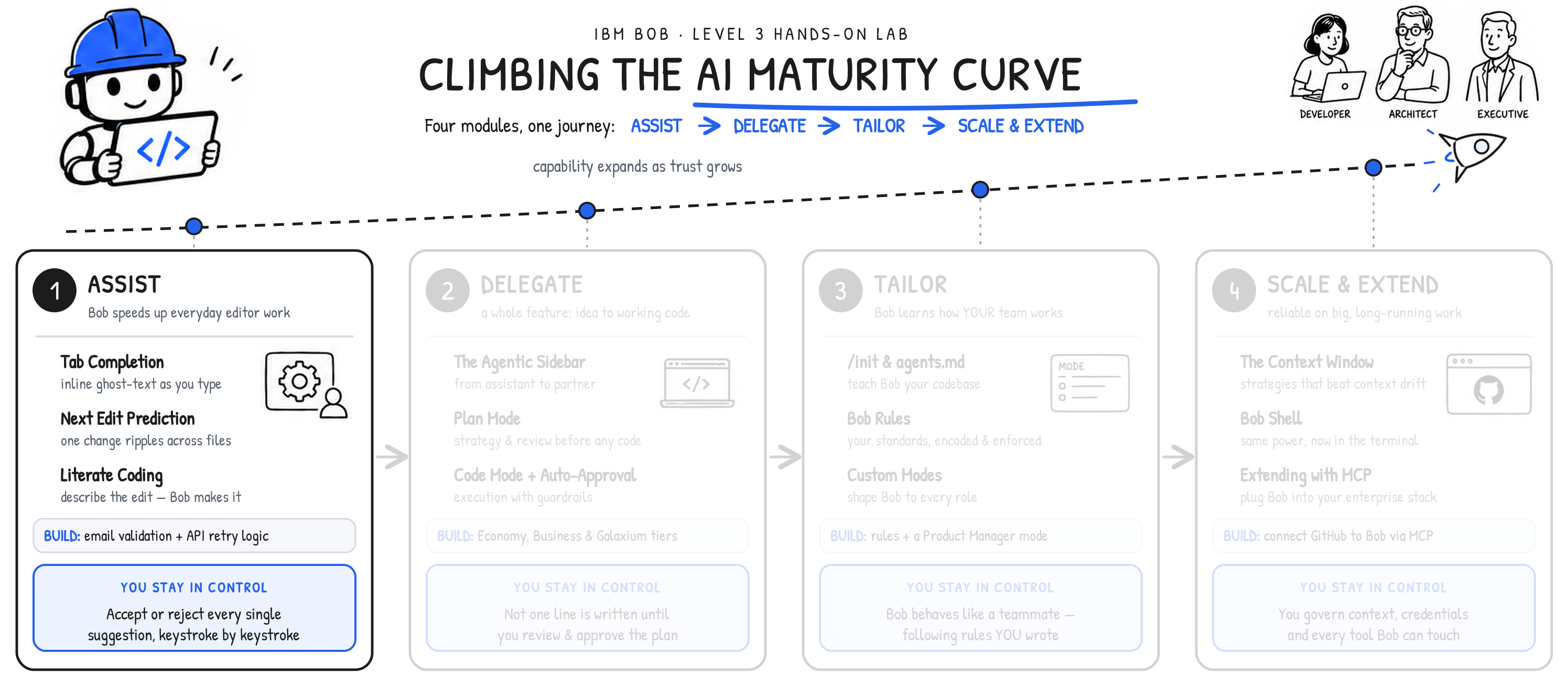
AI MATURITY CURVE
Literate Coding is a prime example of where the control that the human in the loop retains with IBM Bob — as part of the early Assist stage along the AI Maturity Curve — becomes tangible and truly valuable. IBM Bob never silently rewrites your files or codebase. Instead, it presents every change in a diff view that shows the added code, the removed code, and enough surrounding context to understand the scope of what is changing. You review, then you decide on whether to implement the suggestion or disregard it. Nothing is committed until you say so.
ii. Why this matters
Literate coding is at its best for focused, in-place work:
- Wrapping logic around existing code — retry mechanisms, error handling, or logging
- Refactoring a specific block while leaving the surrounding logic untouched
- Quick, targeted modifications to a single function without disturbing the broader structure
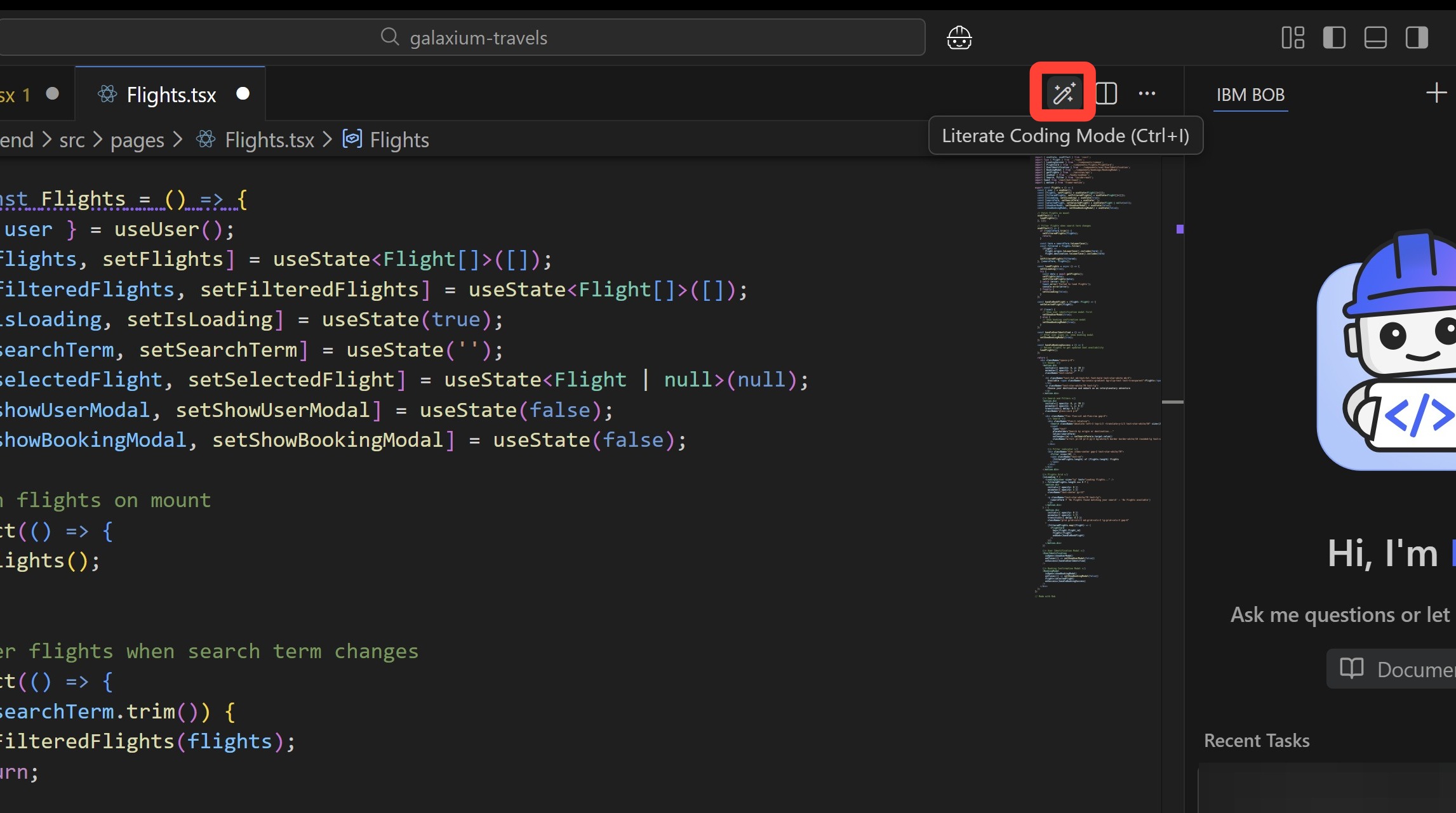
IBM Bob users engage the literate coding mode through the magic wand icon in the Bob IDE (you'll see exactly how this is performed in a few moments.) Once active, it allows those users to write natural-language instructions at a precise code location. They can target the exact section of code where changes are to be made; alternatively, they can queue up several instructions in sequence, across multiple locations of a single file.
How it works
The workflow is deliberately simple:
- Position your cursor within the codebase where the change belongs
- Click the magic wand icon to enter literate coding mode
- Type a natural-language instruction describing the change you want to implement
- For changes that span several places, add an instruction line at each location
- Click generate to produce the modifications (across one or many instructions)
iii. Adding email address validation checks
Let's begin by adding to Galaxium Travels' set of capabilities a new feature that's currently missing: validation of email addresses that a user types when they sign in.
-
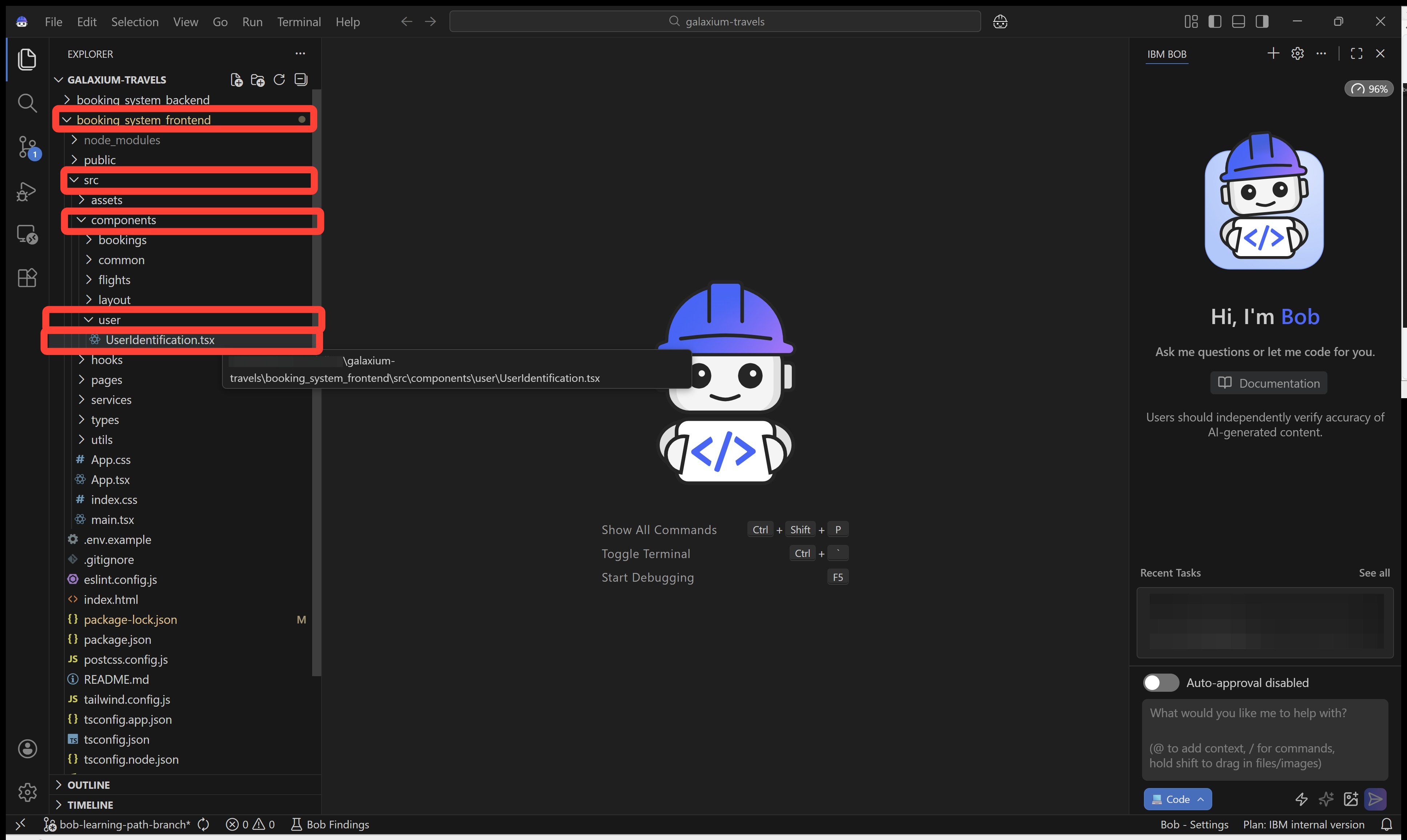
Click the Explorer tab along the left edge of the Bob IDE.
From the previous Setup module instructions, the
galaxium-travelsdirectory should already be open inside the Explorer tab.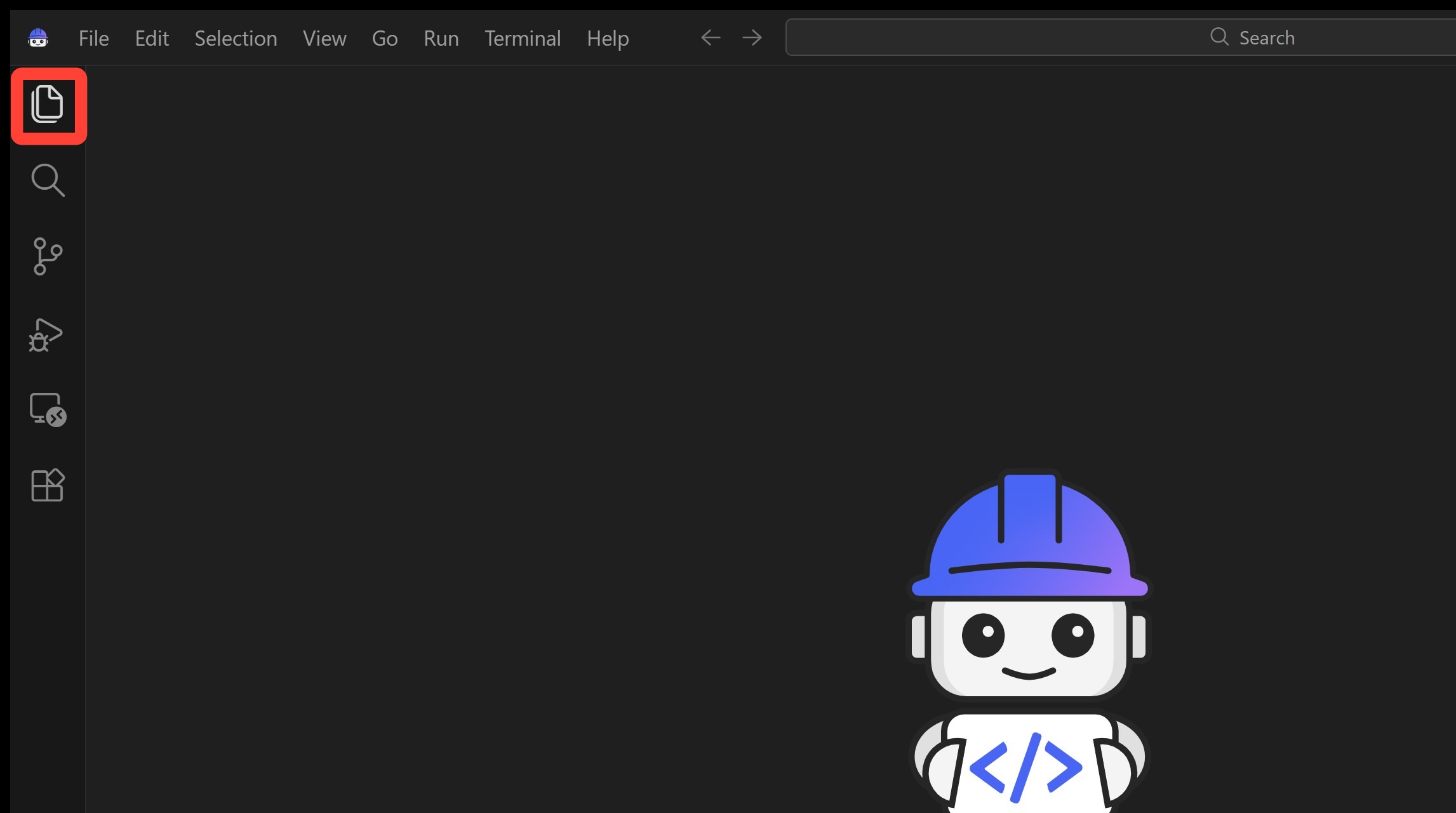
CAN'T LOCATE THE DIRECTORY?
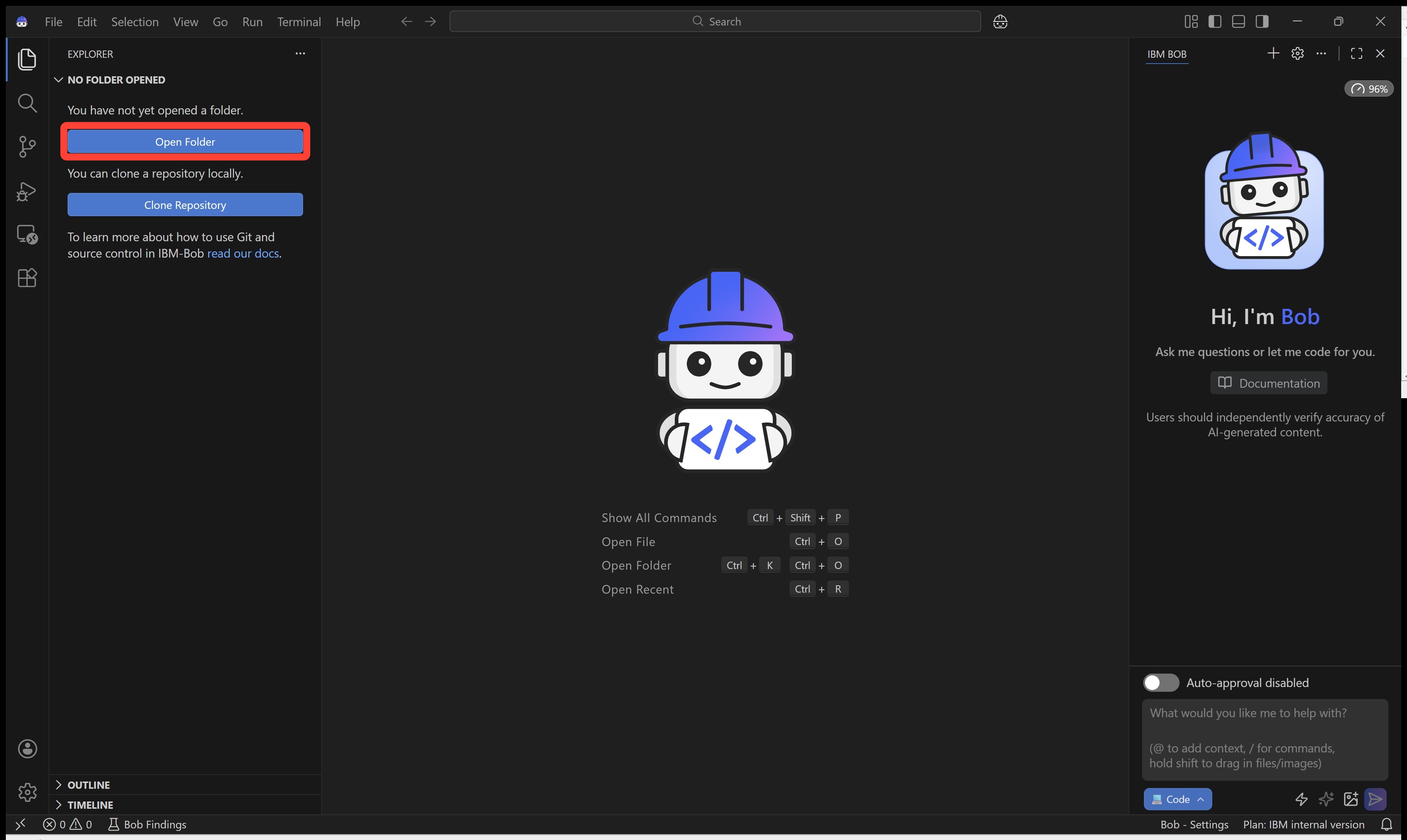
If this is not the case:
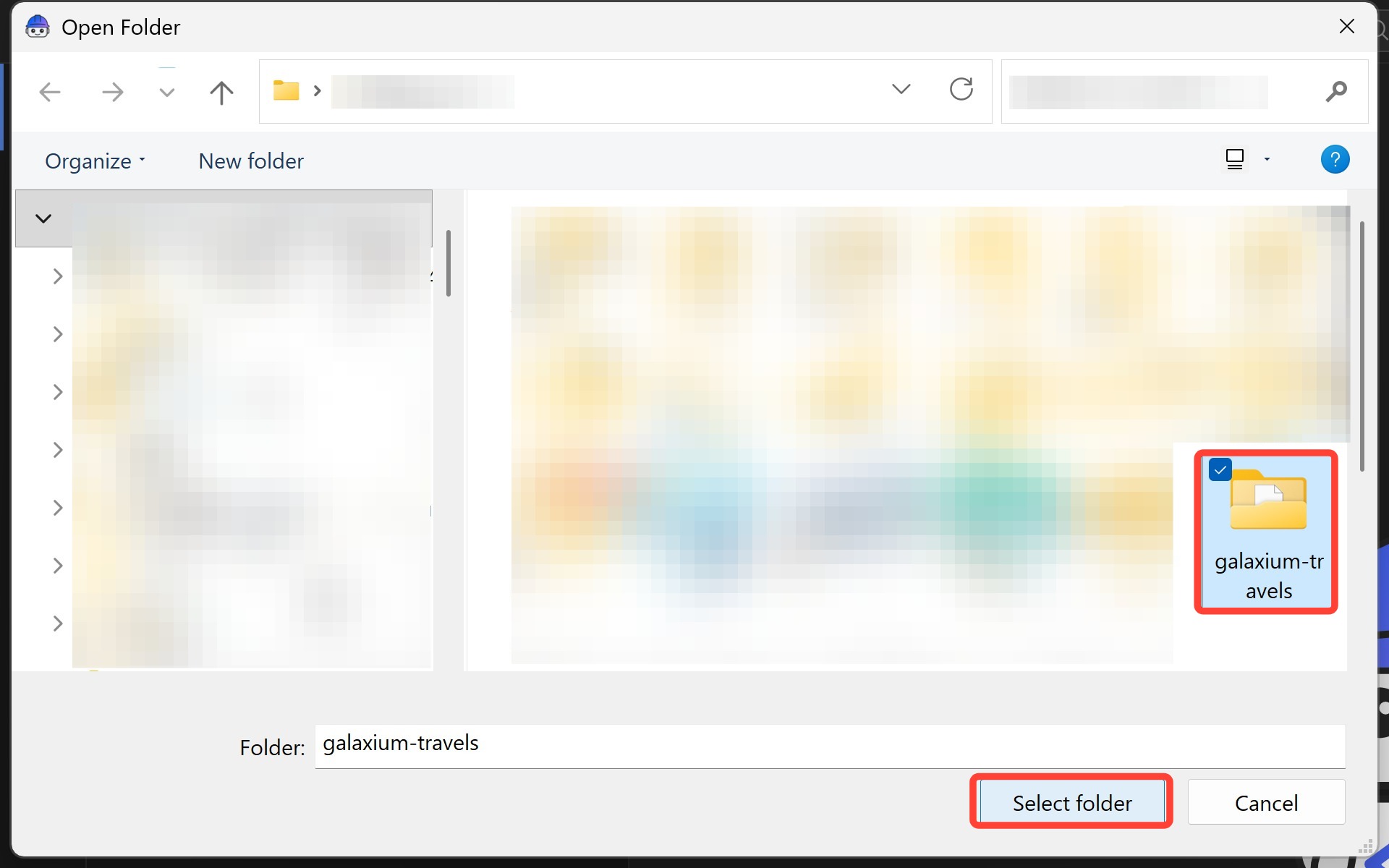
- Click Open Folder to expose the File Explorer view
- Drill down into the
galaxium-travelsfolder
-
Drill down into the
galaxium-travelsand locate theUserIdentification.tsxfile.It will be nestled inside the following directory hierarchy:
/
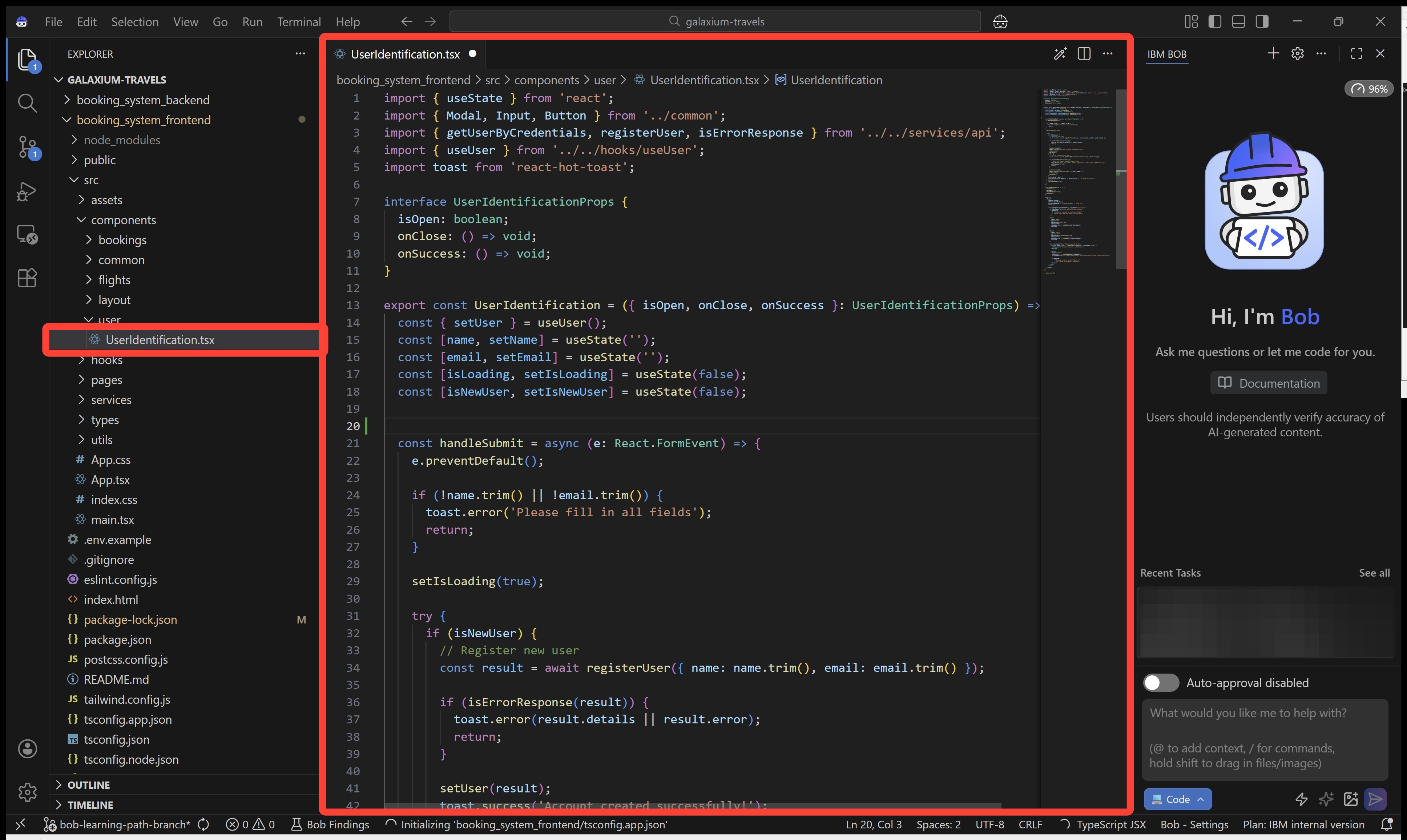
booking_system_frontend/src/components/user/UserIdentification.tsxDouble-click the file to open it within the editor.
-
Within the file editor (the center panel of the Bob IDE), scroll down to the
UserIdentificationlocated on line 13.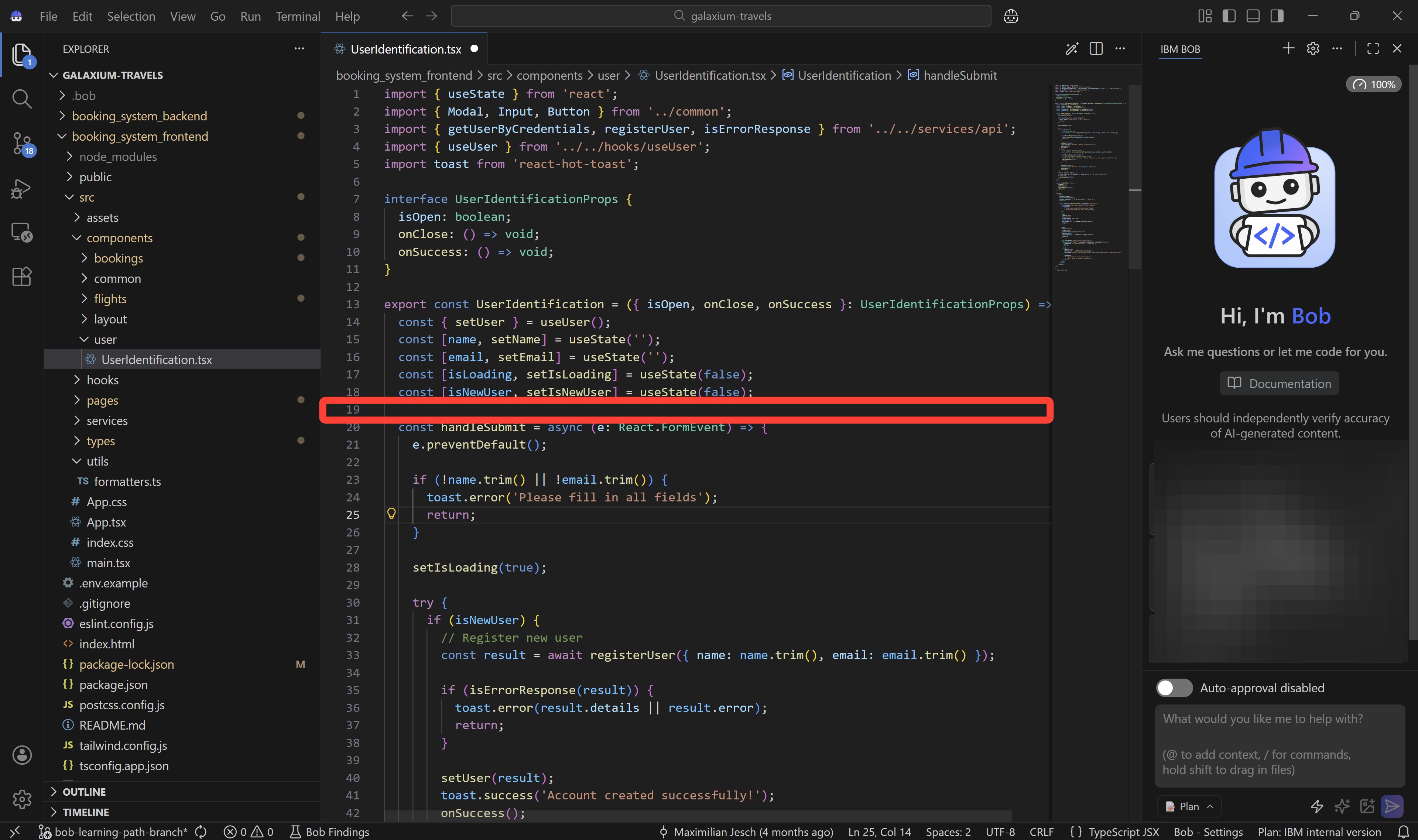
In order to demonstrate IBM Bob's ability to generate functional application code based on basic, natural language specifications, we'll begin with a simple one-liner comment that describes the work we'd like the application to perform.
For this example, that will be validation of email addresses to ensure that users signing up for the Galaxium service are supplying compliant email addresses that follow the expected formatting.
-
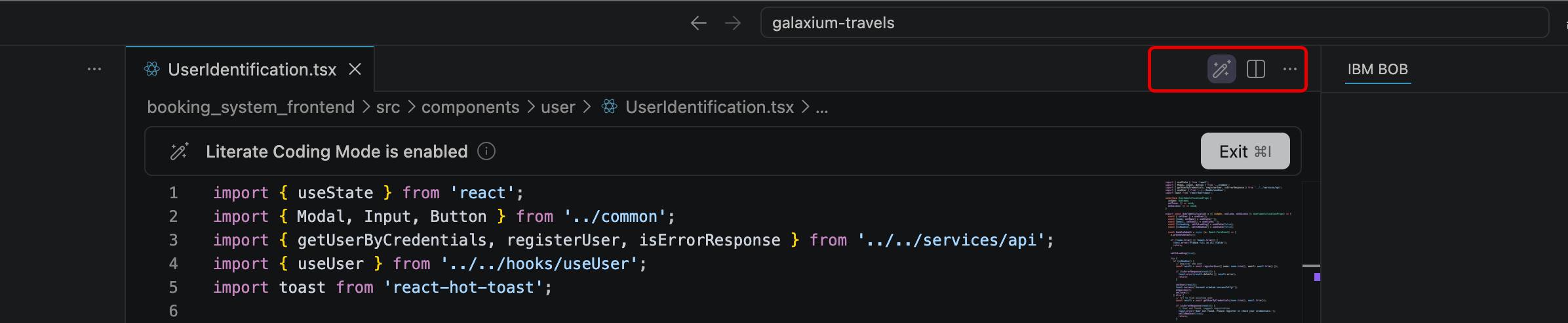
Ensure that Literate Coding Mode is
ENABLEDby either toggling on the magic wand tool in the top-right corner of theUserIdentification.tsxeditor (shown below).Alternatively, you can engage Literate Coding by pressing the Cmd + I keyboard shortcut.

-
Within the
UserIdentification.tsxfile, place your cursor on Line 19 of the file (just after theUserIdentificationdefinition).Copy & paste the following comment onto Line 19. Make sure to include the blank (empty) lines before and after the
validate email addressescomment.Before you click Generate, the setup within the file should appear as the following:
DEBUGGING: Error...
If IBM Bob returns an error when clicking Generate while Literate Coding mode is activated, double-check that your instruction comment
validate email addressesdoes NOT include "comment out" annotations like double//or#lines. Recent iterations of Bob's LLMs have been documented generating errors (related to newString and oldString) when encountering these comment lines.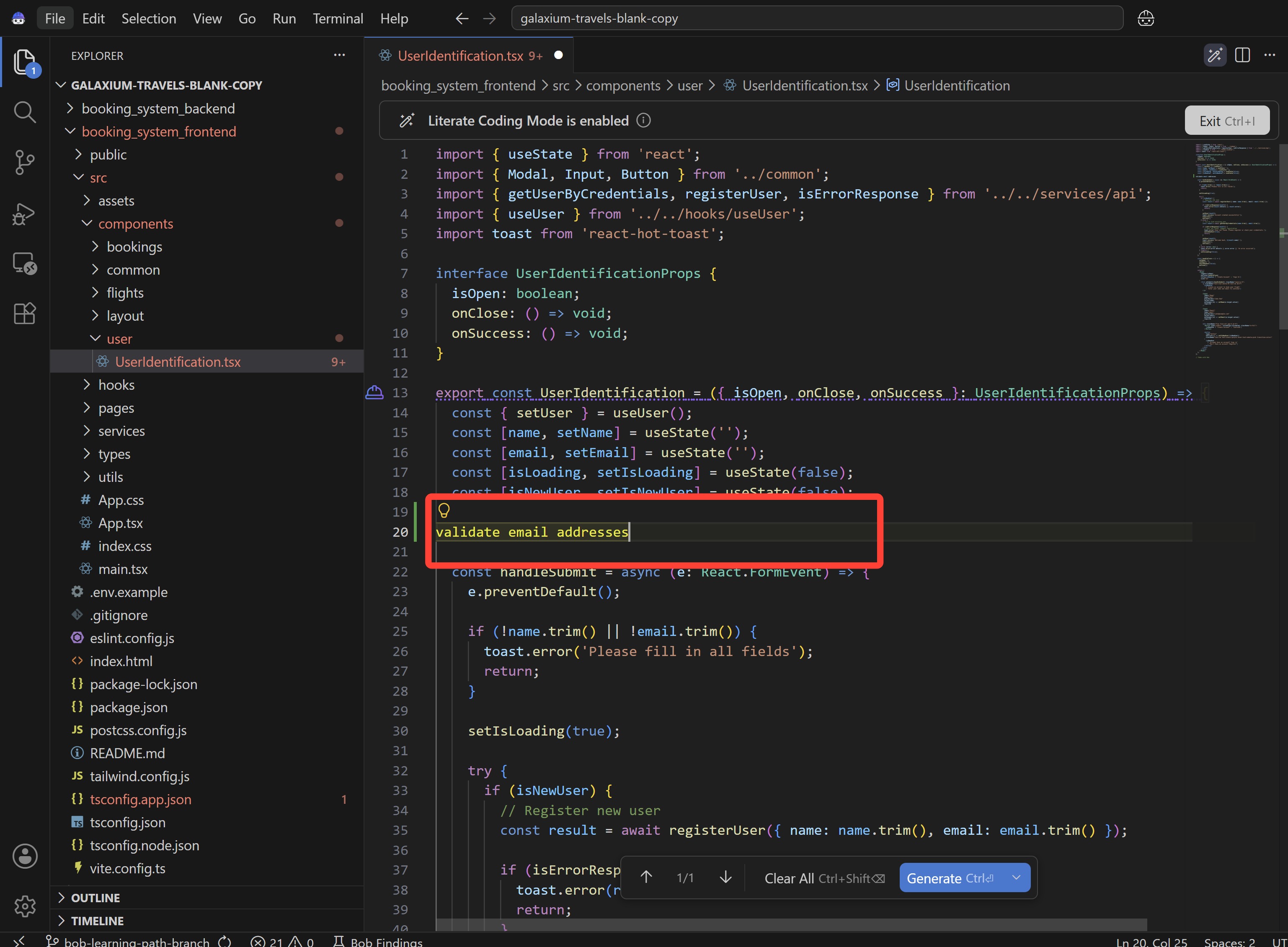
-
After pasting the 3 new lines, look towards the bottom-center of the Bob IDE interface. Green and red-highlighted text will appear in-line with the code after pasting. Take note of the two Literate Coding options that have now appeared just below the highlighted text:
- Clear All: selecting this option will disable Literate Coding on this code insert
- Generate: selecting this option will pass the instruction to IBM Bob for code generation and modification
Click the blue Generate button (or press Cmd + Enter) to execute.
EXPECT SOME VARIABILITY
Generative AI is non-deterministic and as such your results may differ from what you see here. If an output diverges, consider further refining the prompt, following up with another prompt, or adjusting the code by hand. Iteration and further precision are often the best remedies.
QUIZ QUESTION - IBM BOB LEVEL 4
If you are planning to pursue IBM Bob Level 4 accreditation, what is rendered on-screen or returned within a console as a result of this step are likely referenced as part of a multiple-choice question. It is strongly recommend that you record to a notebook (for reference later) details about which two options appear at the bottom-center of the IDE after pasting the instruction "validate email addresses" into the
UserIdentification.tsxfile.
-
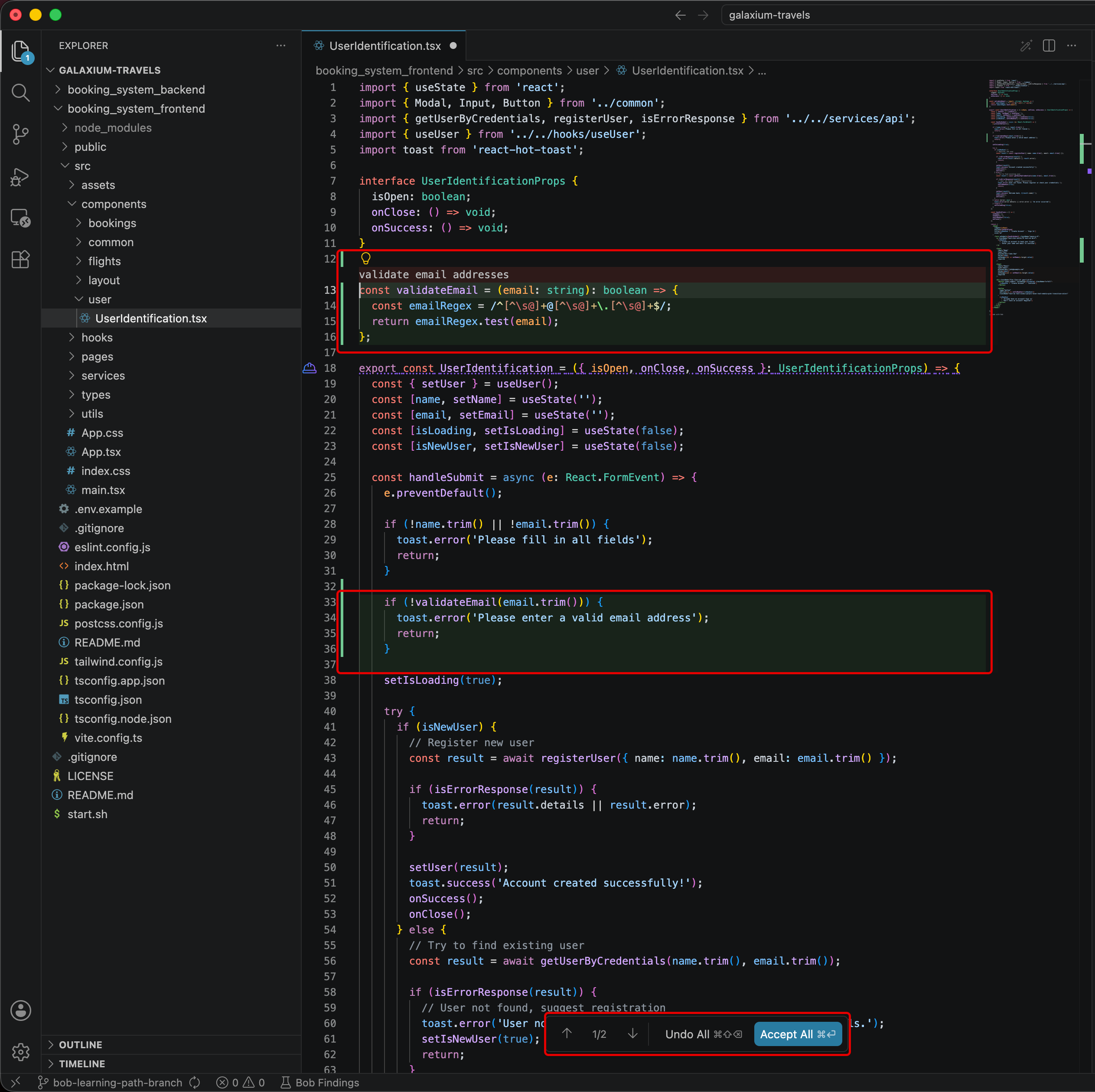
IBM Bob will generate two new blocks of code within the
UserIdentification.tsxfile:- Across Lines 20-22 (
isValidEmailfunction) - Across Lines 33-35 (
if(!isValidEmail ...logic)
- Across Lines 20-22 (
At this stage, the code suggestion is still only a suggestion: you, as the operator at the helm, have the option to: accept; modify; or reject and move on. As a reminder, because Bob's suggestions are non-deterministic, your generated function may look slightly different from the code documented. If the generated code does not compile, first compare the inserted function with the example shown in the lab documentation.
Note the colored highlighting, denoting IBM Bob's diff view:
- Green-highlighted text represents new additions to the code
- Red-highlighted text represents lines that have been marked for removal from the code
- The comment
validate email addressthat was used as a natural language instruction for Bob will be removed if the generation recommendations are accepted
QUIZ QUESTION - IBM BOB LEVEL 4
If you are planning to pursue IBM Bob Level 4 accreditation, what is rendered on-screen or returned within a console as a result of this step are likely referenced as part of a multiple-choice question. It is strongly recommend that you record to a notebook (for reference later) what happens to the "validate email addresses" instruction line you pasted on Line 19.
-
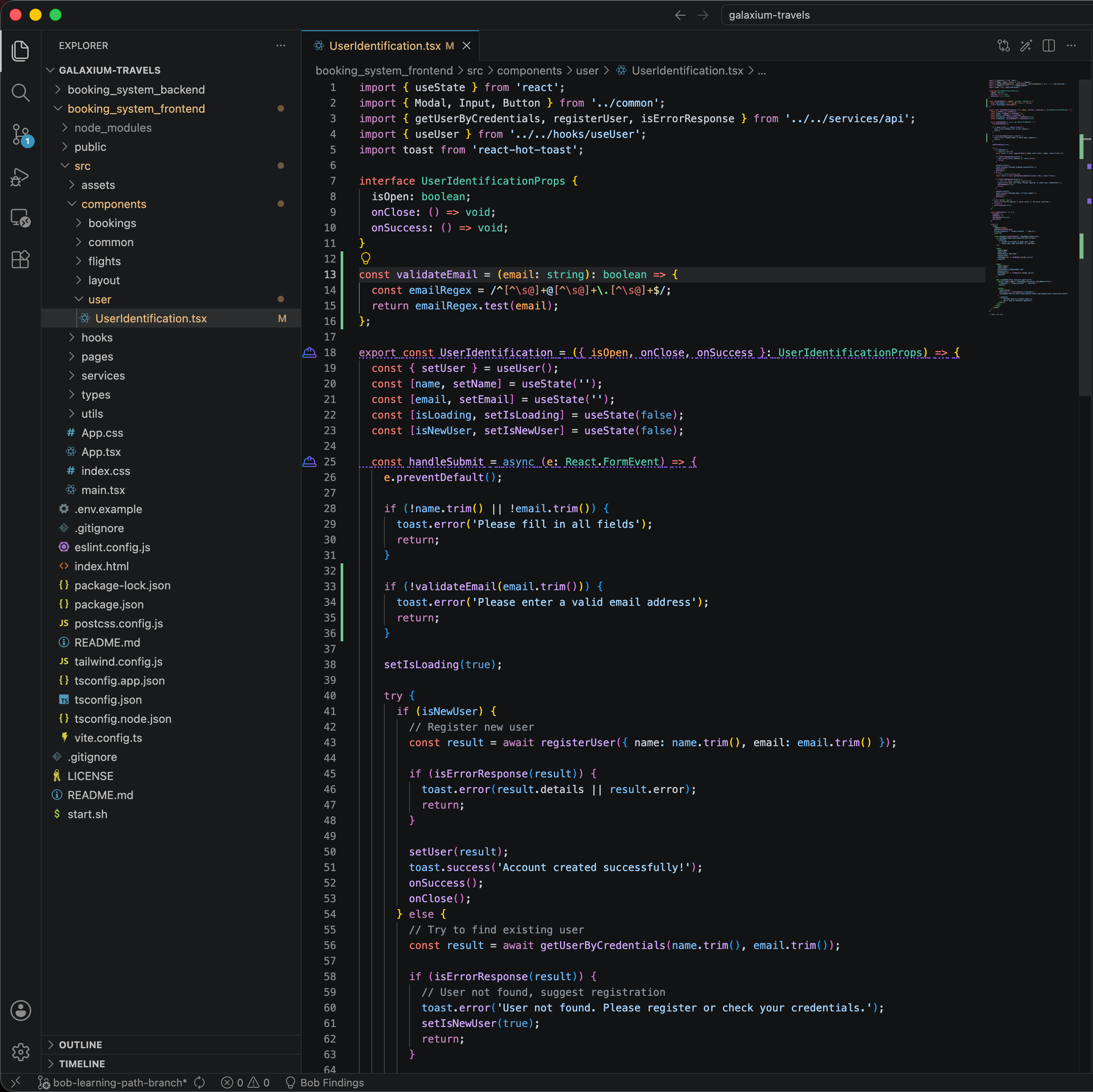
Click Accept All (or press Cmd + Enter) to confirm the changes to the code.
Alternatively, you could click Undo All to reverse the changes, or use the up and down arrows to review the two new code blocks manually.
-
You will need to reboot the Galaxium Travels web app service for the changes to take effect.
To do so:
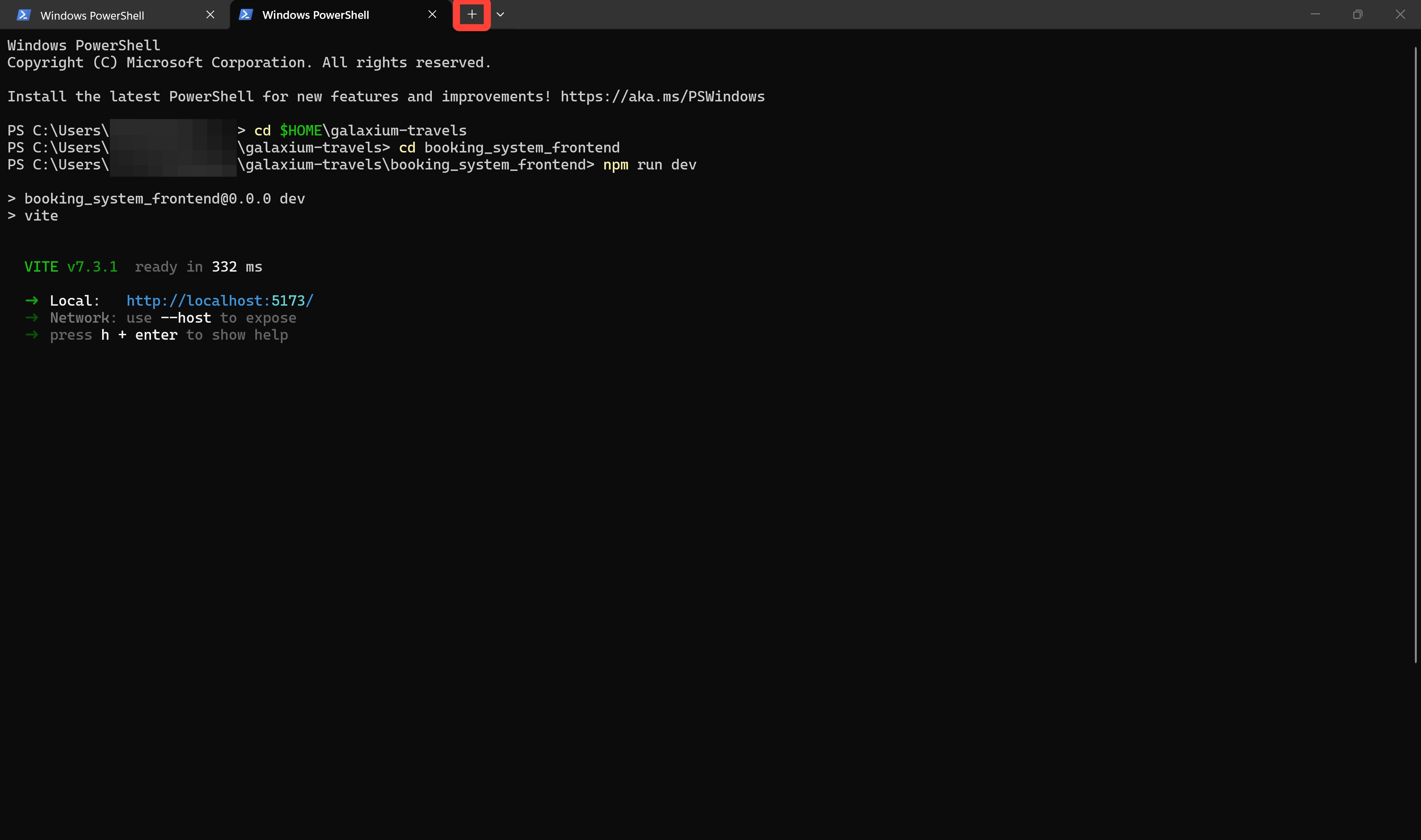
- To open a new Terminal window by click the Terminal button in the bottom-center portion of the Bob IDE interface or navigate using the top menu bar into Terminal > New Terminal
- Within the Terminal window, locate and click the + icon, along the right-hand side of the Terminal window
- This will launch a new Terminal connection into which you will next input additional commands
-
The commands to be issued to the Terminal console vary according to the operating system your machine is running upon.
From the expandable options below, follow and execute the instructions aligned to your machine's OS (either Mac/Linux or Windows). After completing the instructions within the appropriate tab, proceed to the next step in the lab guide.
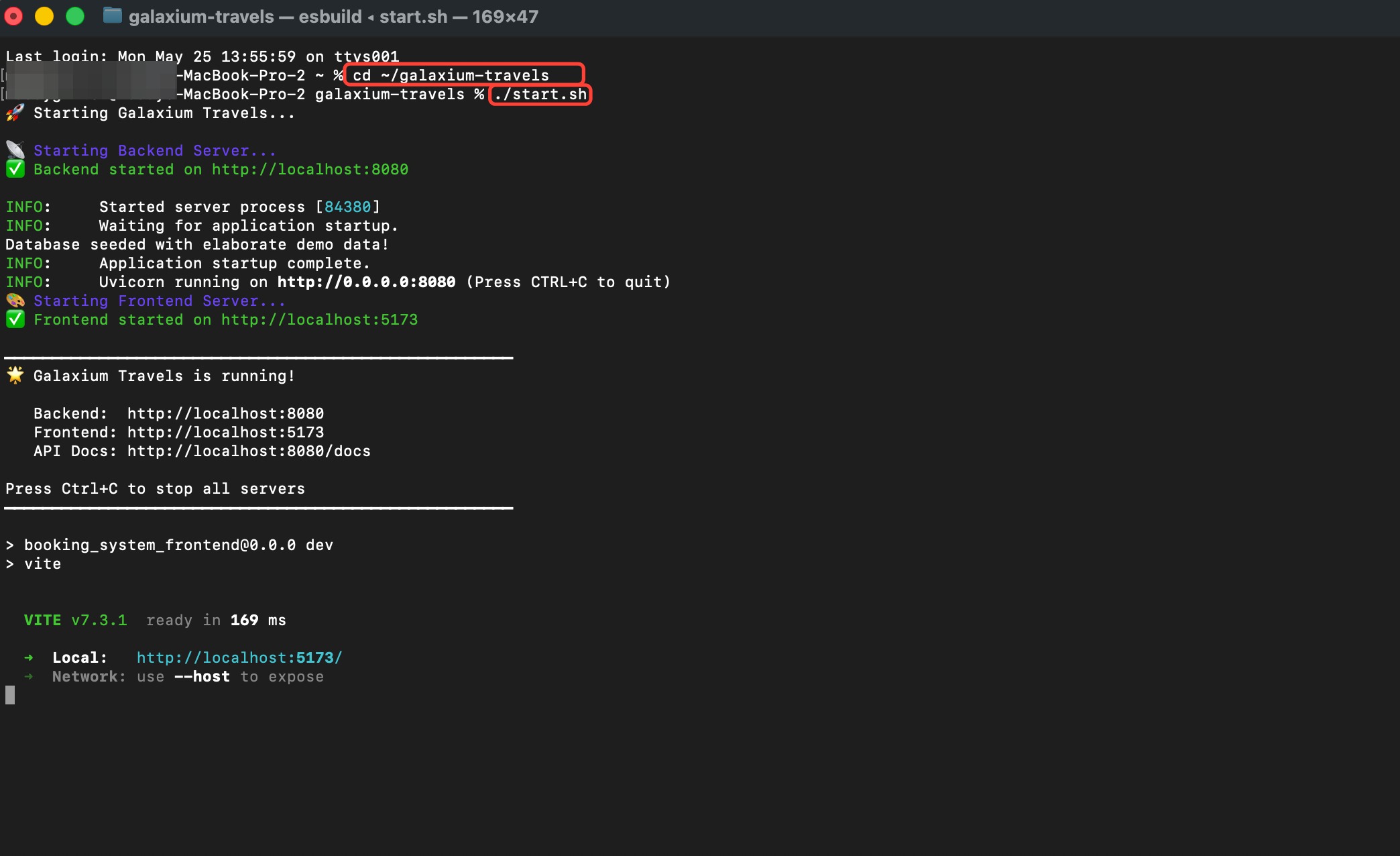
MAC OR LINUX
On macOS or Linux, run the following commands one at a time.
Step 1:
Step 2:
You should see a "Galaxium Travels is running!" prompt returned to the console (amongst other messages) once the application has deployed successfully.
WINDOWS OS
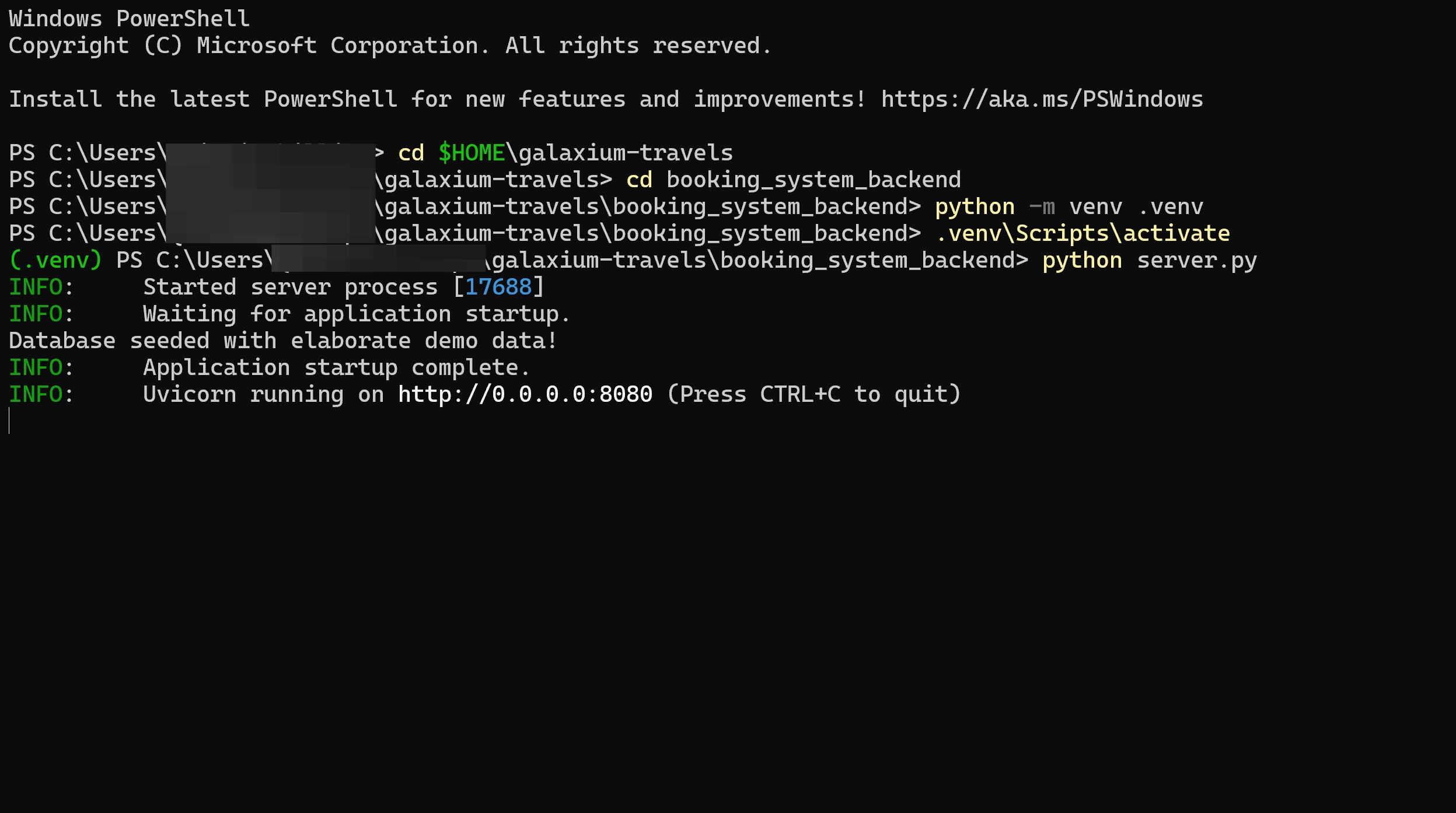
On Windows, run the following commands one at a time.
Step 1:
Step 2:
Step 3:
Step 4:
Step 5:
DO NOT CLOSE THE TERMINAL WINDOW
For the following Steps 6-9, you will be required to open a second Terminal window. Do not close the Terminal previously used for Steps 1-5. This window will need to remain open and active for the duration of the lab.
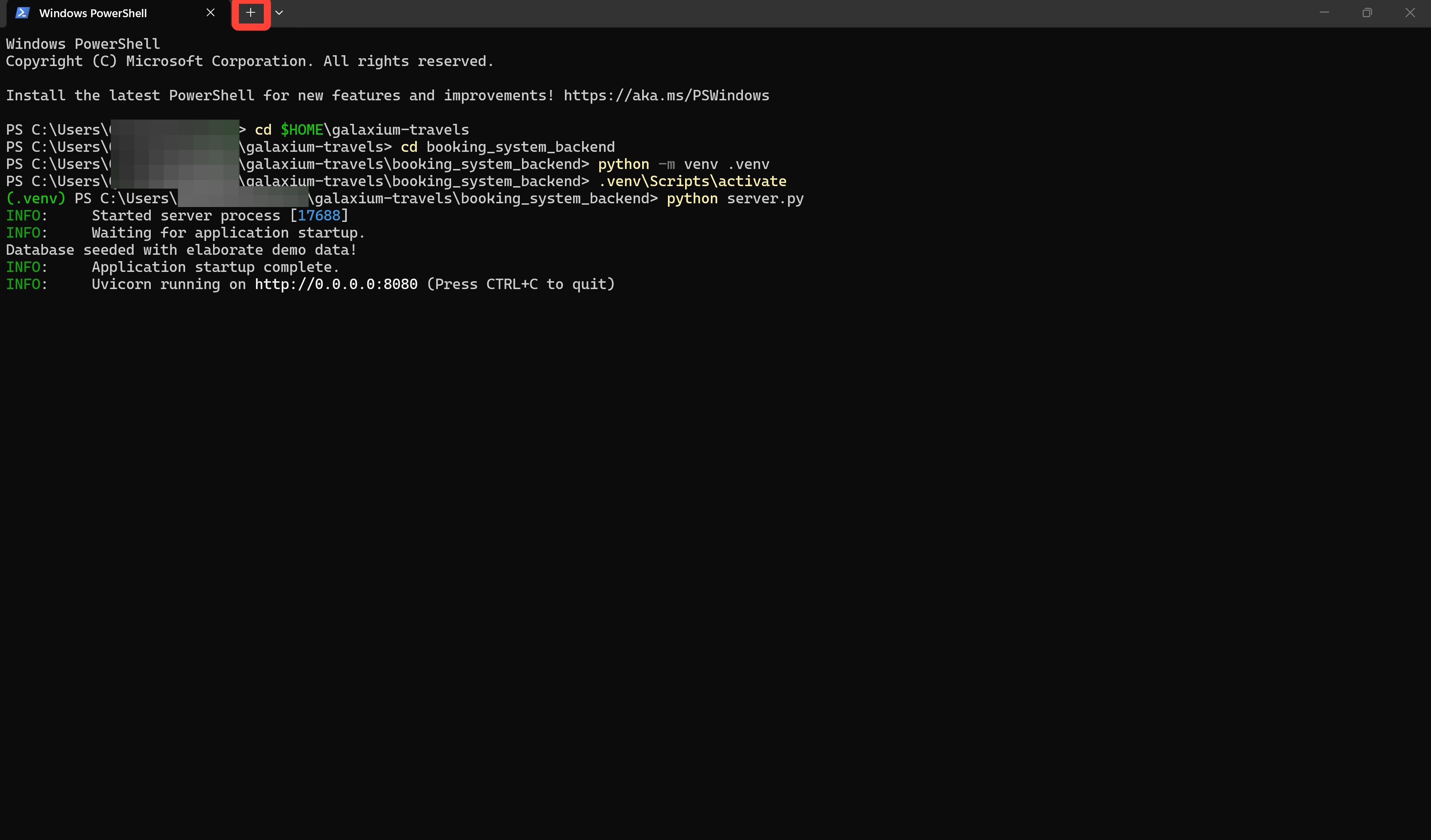
Step 6: After having completed all of Steps 1-5, open a new Terminal window by pressing the Plus button.
Step 7: Within the new Terminal window, execute the following commands one-by-one in sequence:
Step 8:
Step 9:
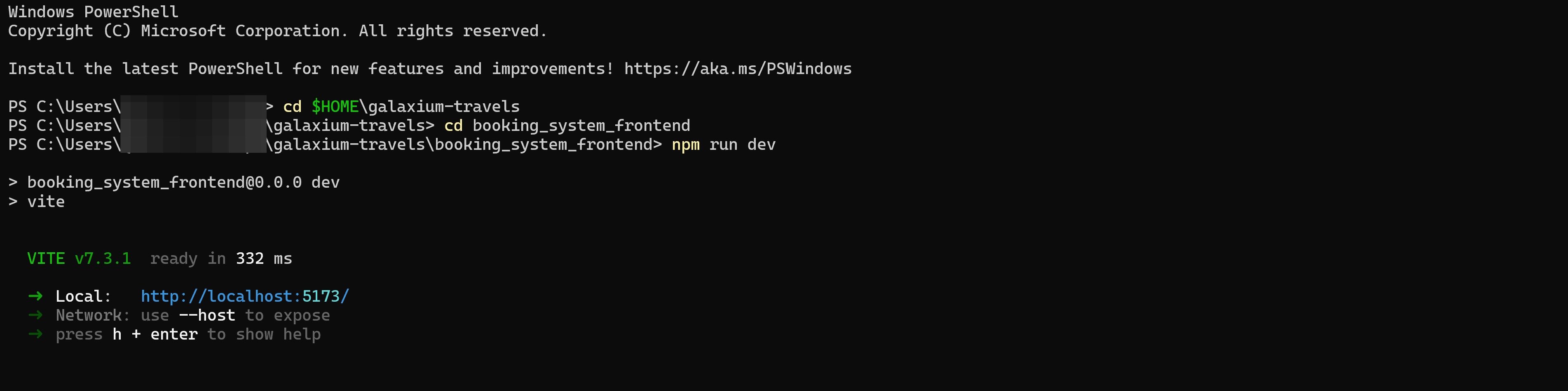
You should see a "Galaxium Travels is running!" prompt returned to the console (amongst other messages) once the application has deployed successfully.
-
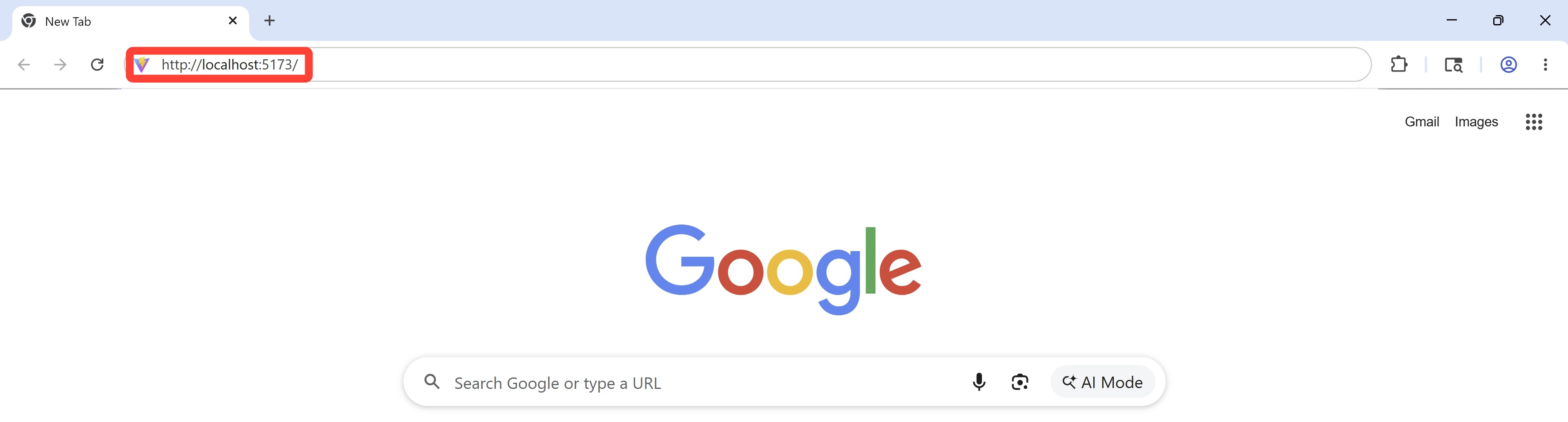
Open a web browser on your local machine and visit the following URL to access the Galaxium Travels application:
WEB BROWSER
http://localhost:5173/
-
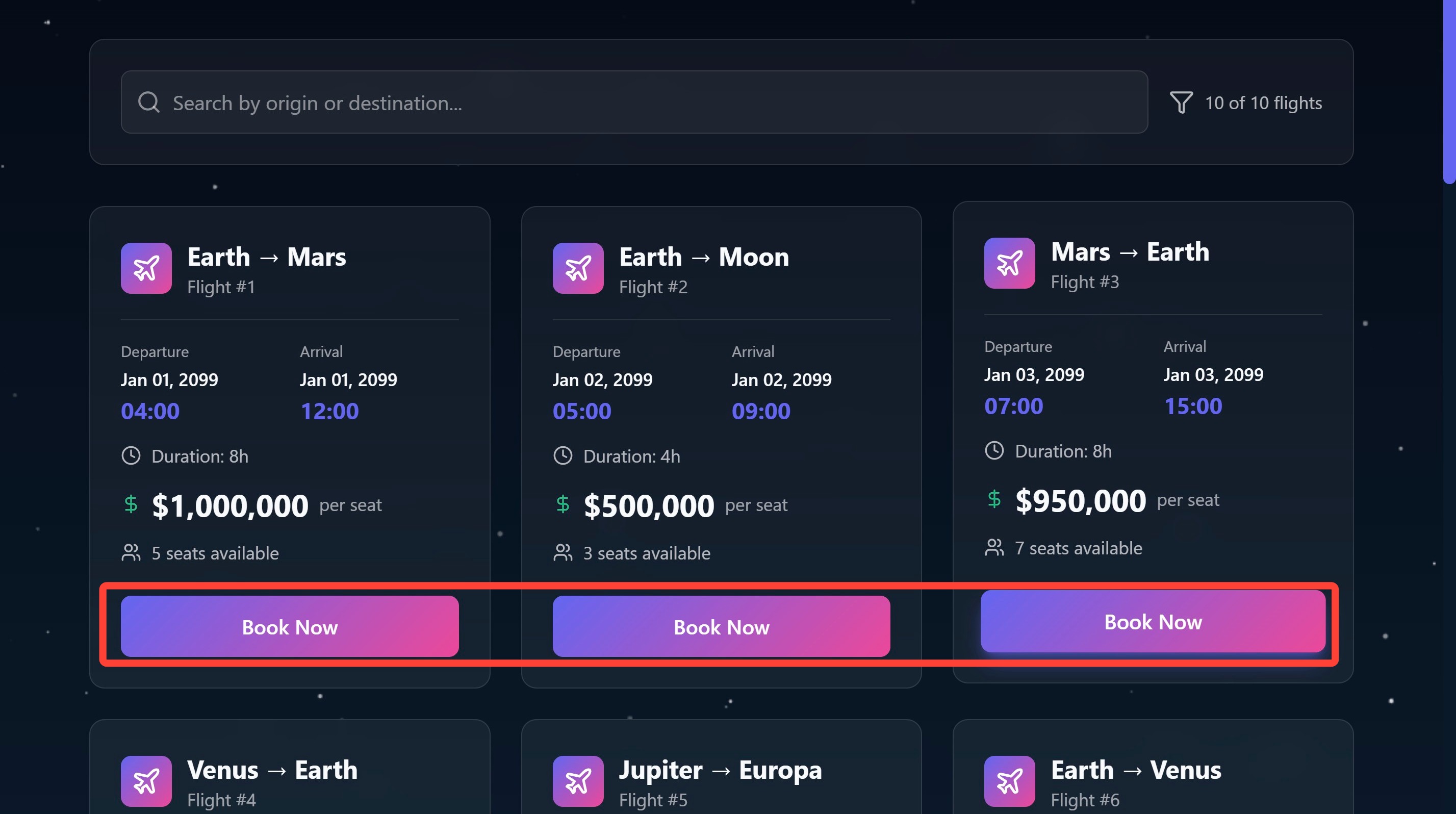
Once the Galaxium Travels site has loaded, click on Flights.

-
Click the Book Now button under any of the listed flights to test its functionality.
-
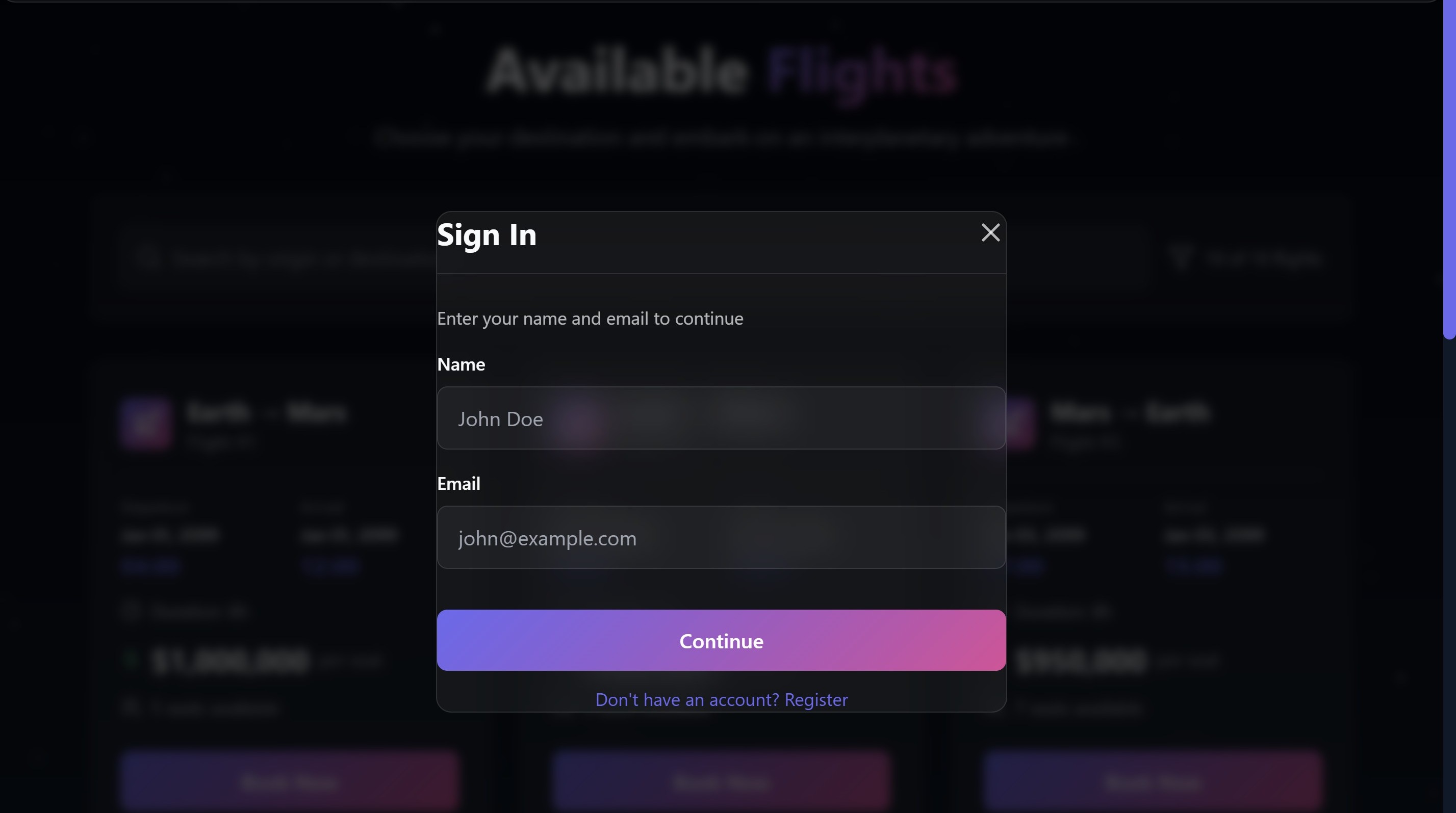
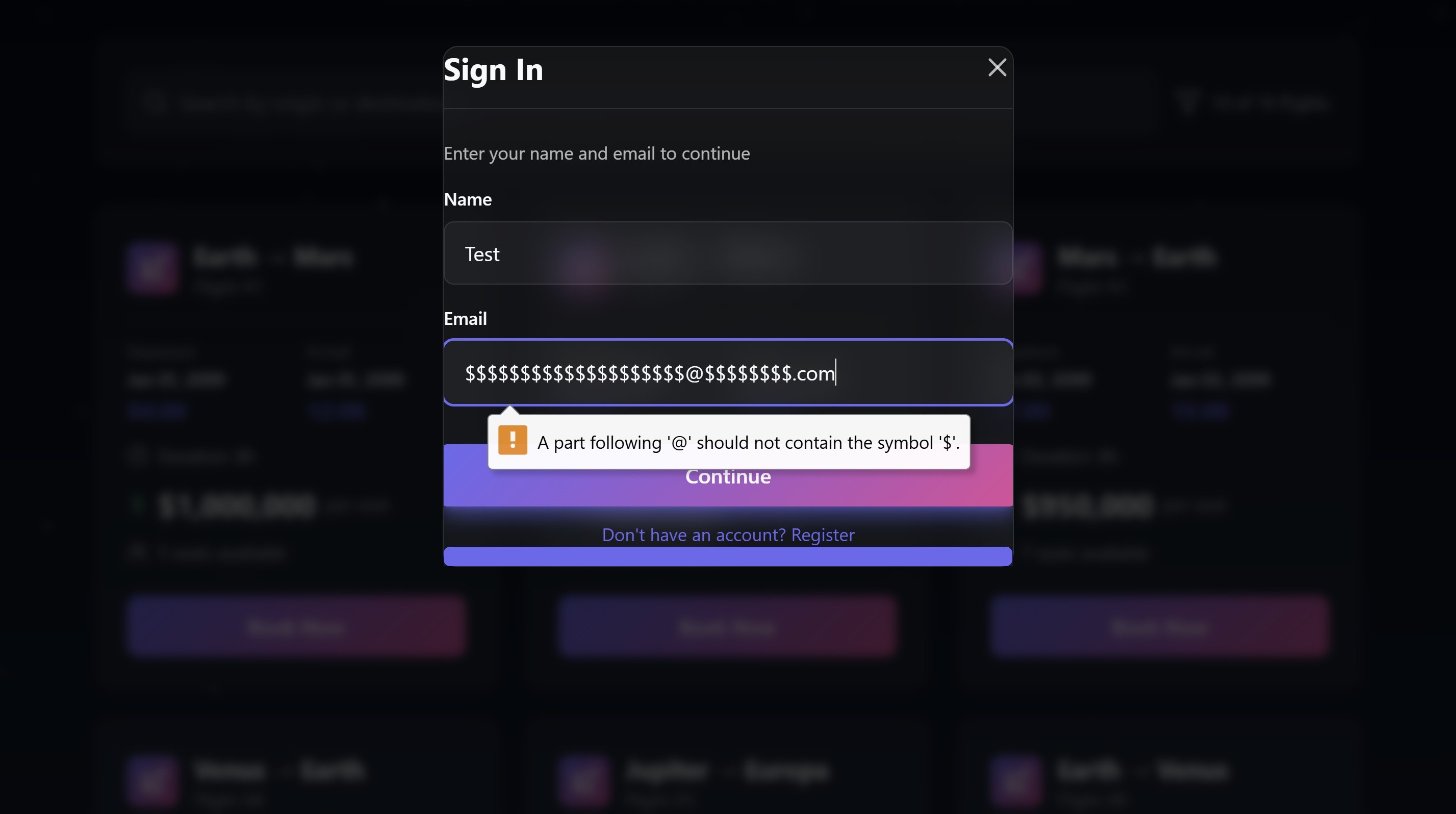
The web page will redirect to a Sign In panel. From this panel, we will be able to confirm (or troubleshoot) that the Bob-suggested email validation functionality is performing its intended job.
- Within the Name field, supply a name of your choosing.
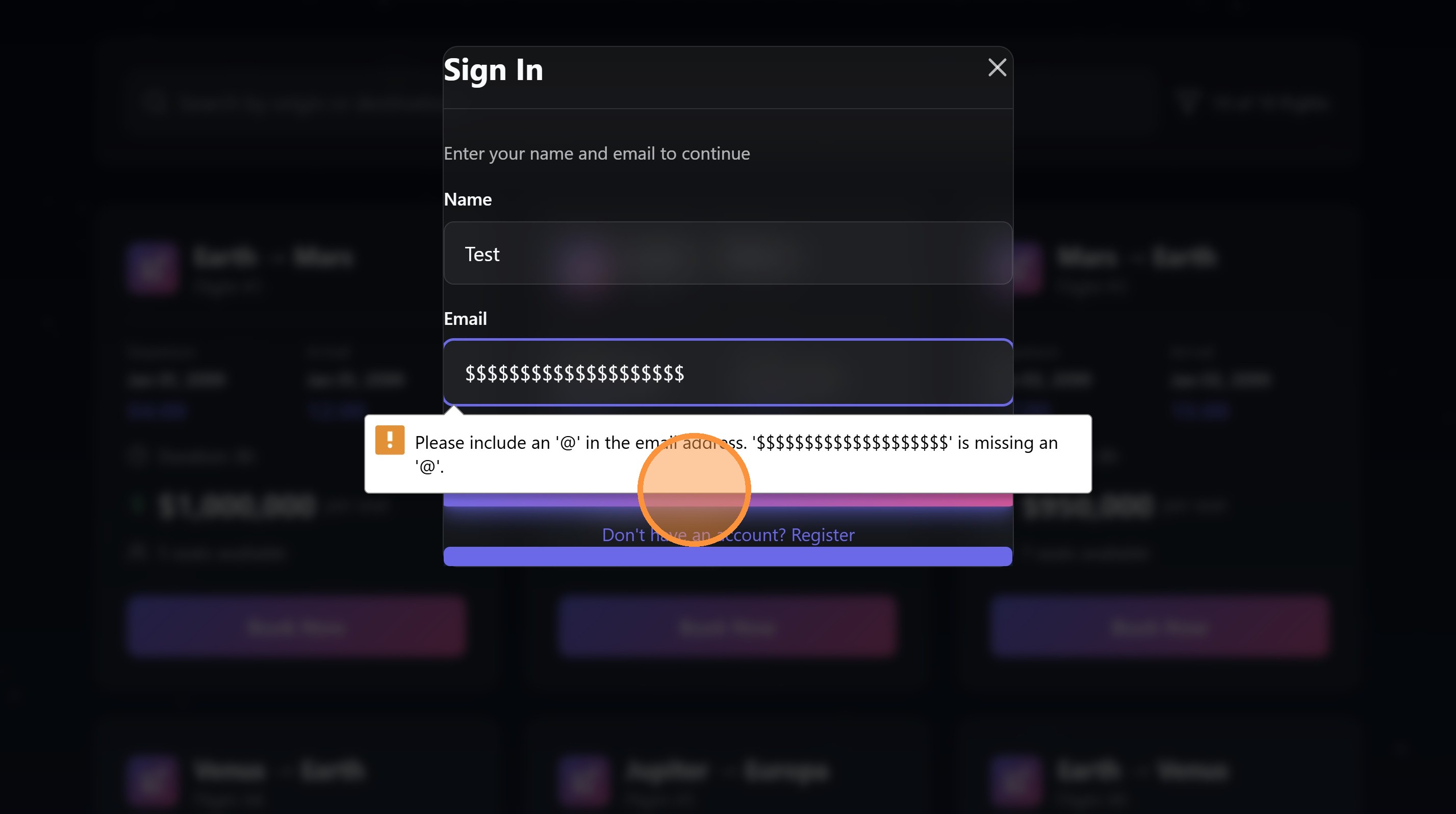
- Within the Email field, try any combination of improperly formatted text that you like. Remember: you want to test that the tool is rejecting any inputs that don't match a standard email address. You can even test with a random string of characters like
$$$$$, as an example. - The expected behavior of the function should be to reject any inproper addresses (
$$$$$) and accept a standard address (bienko@ibm.com).
iv. Improving retry logic
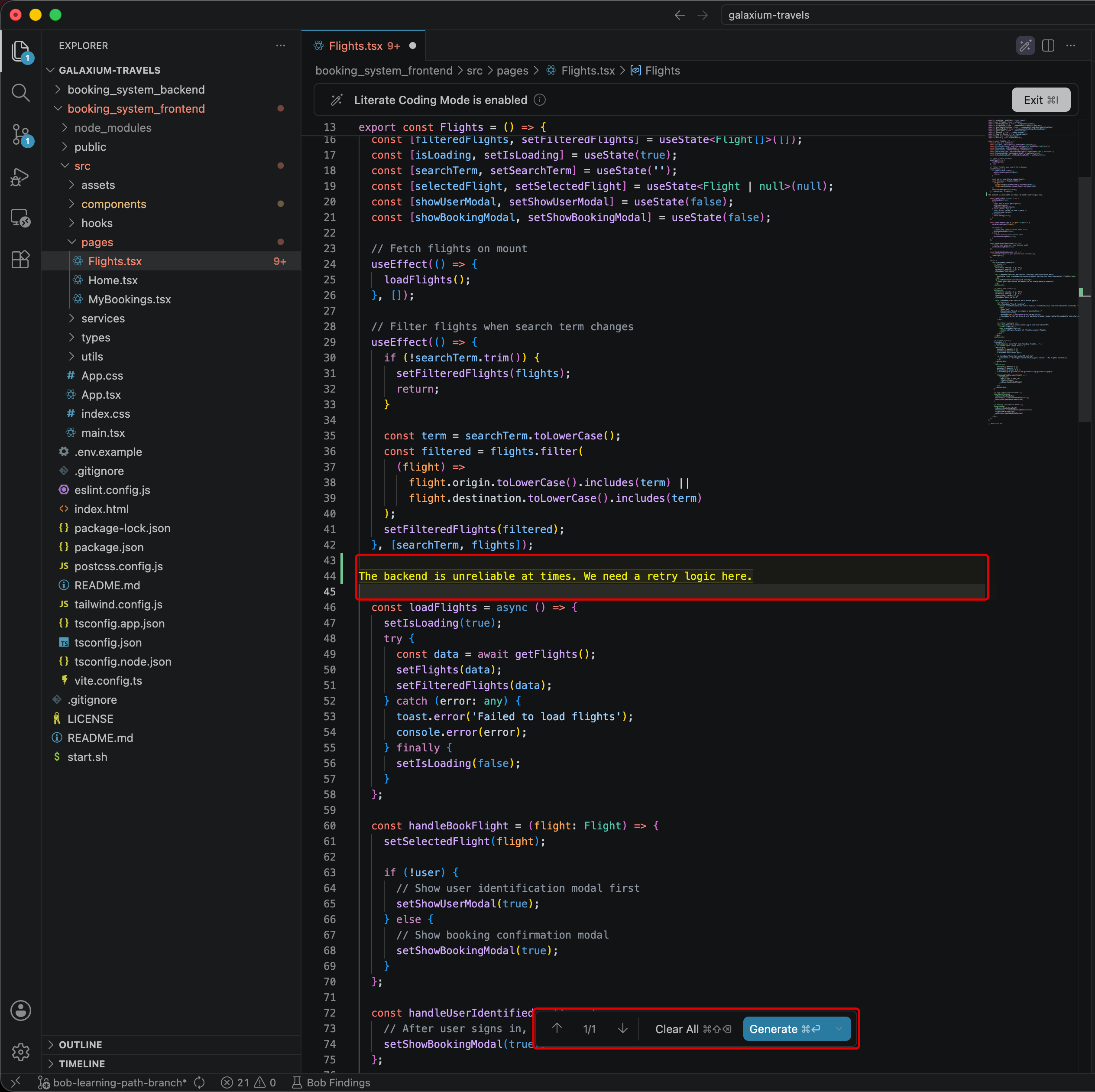
Galaxium's backend can be slow to respond when fetching flight information. If you test on this, you'll discover that occasional timeouts are often the result. This underforming feature is an ideal candidate for showcasing the small, surgical fixes that literate coding excels at.
In the following section, you will apply literate coding to wrap the flight-fetching call in retry logic — and do so with minimal coding work on your part.
-
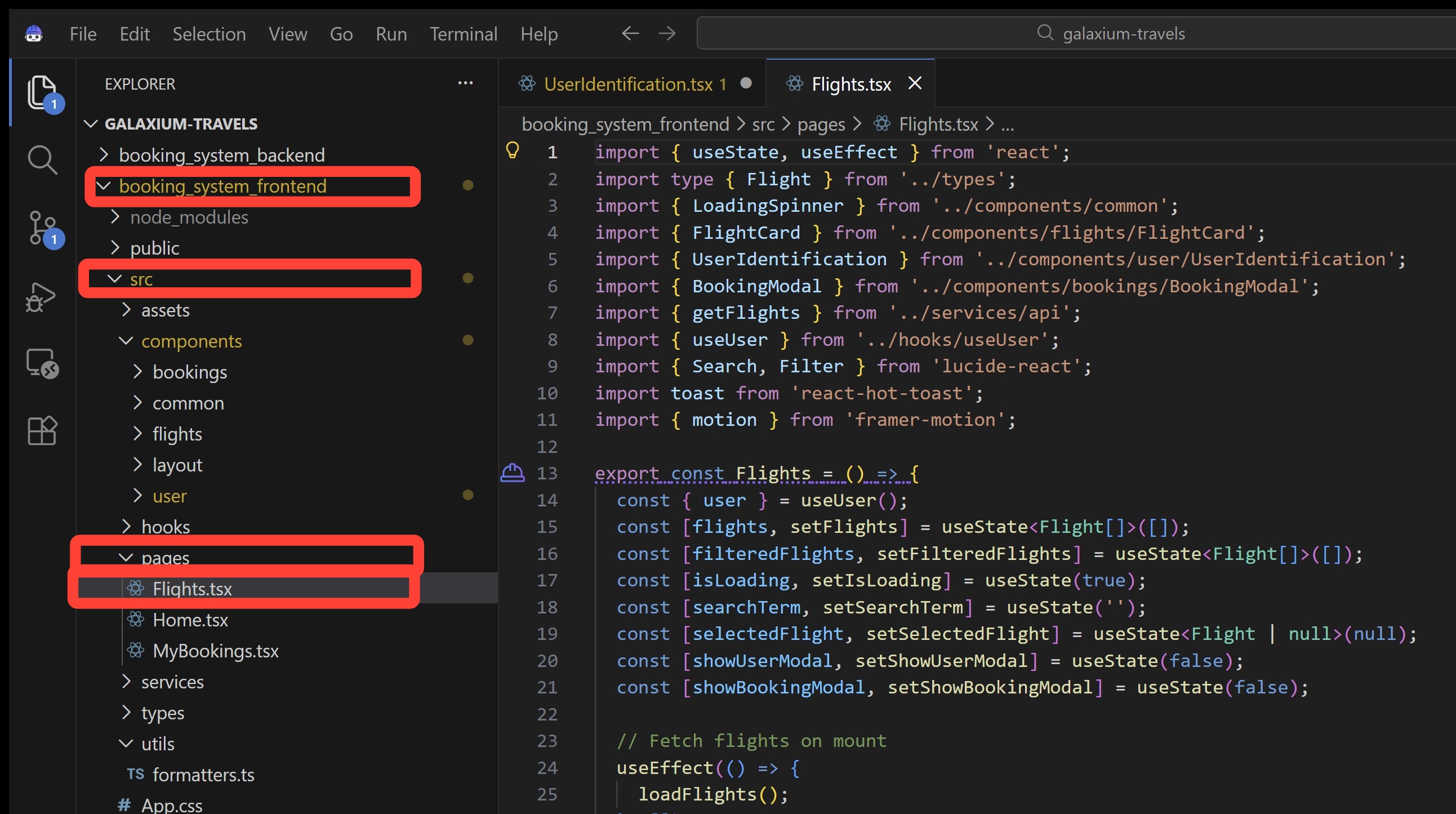
Within the Bob IDE, click the Explorer tab as you did previously to open the
galaxium-travelsproject directory.- Drill down into the following directory: /
booking_system_frontend/src/pages/Flights.tsx - Double-click on the Flights.tsx file to open it within the editor
- Drill down into the following directory: /
-
Scroll down the contents of
Flights.tsxuntil you reach Line 43, which an empty newline before theloadFlightsfunction definition.
-
Place your cursor at the beginning of the empty Line 43 and then click the magic wand icon near the top of the editor (or press Ctrl + I) to activate Literate Coding mode.
- Next, copy and paste the following statement directly into Line 43 (be sure to include the empty lines before and after as well):
-
Click the Generate button (or press Cmd + Enter as a shortcut).
DEBUGGING: Failed to generate code from literate text.
Some users have reported an error when attempting to generate code from literate text:
Failed to generate code from literate text. Please try again. Error: Each edit must have oldString and newStringIn such instances, try deleting the lines of text you added or inserted. Then either paste the code back in or type the code in again manually. Make sure that the Literate Coding mode is active before doing so. Click the Generate button again when ready to proceed.
Double-check that your instruction comment
validate email addressesdoes NOT include "comment out" annotations like double//or#lines. Recent iterations of Bob's LLMs have been documented generating errors (related to newString and oldString) when encountering these comment lines.
-
A diff view will render in-line at the code insertion point.
- Code that IBM Bob is proposing to remove will be highlighted in red
- Code that IBM Bob is proposing to add will be highlighted in green
You may use the Up and Down arrows to cycle through all proposed code block changes. In this example, there are two such code blocks. You may inspect them and modify them individually, or even revert back all changes by clicking the Undo All button.
Click the Accept All button to confirm Bob's recommendations and modify the
Flights.tsxfile.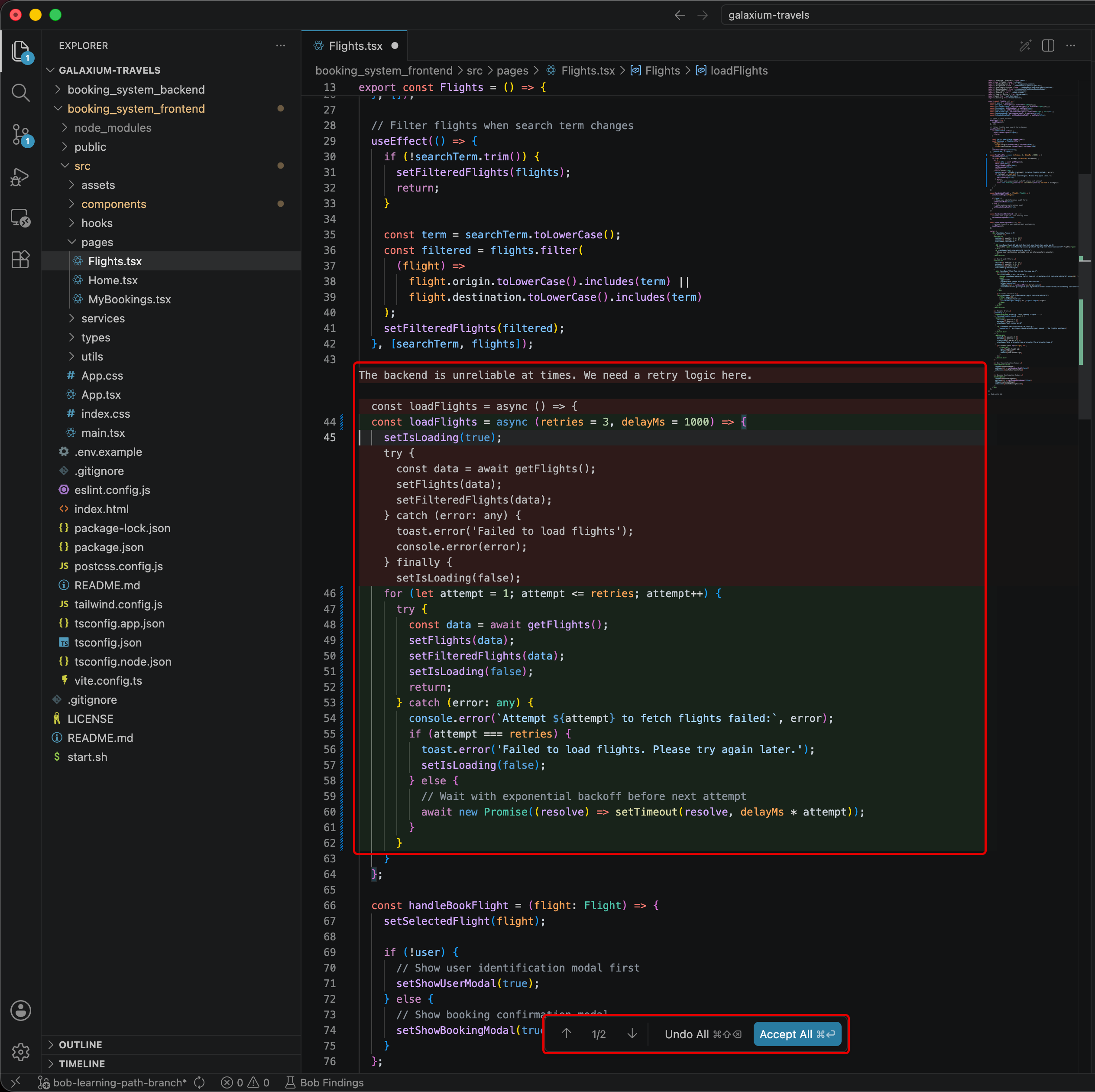
-
After confirming the Literate Coding generative AI recommendations, the file should look similar to the following.
Cycle through the two tabs within this documentation to compare the Modified and Unmodified versions of the same relative code blocks.
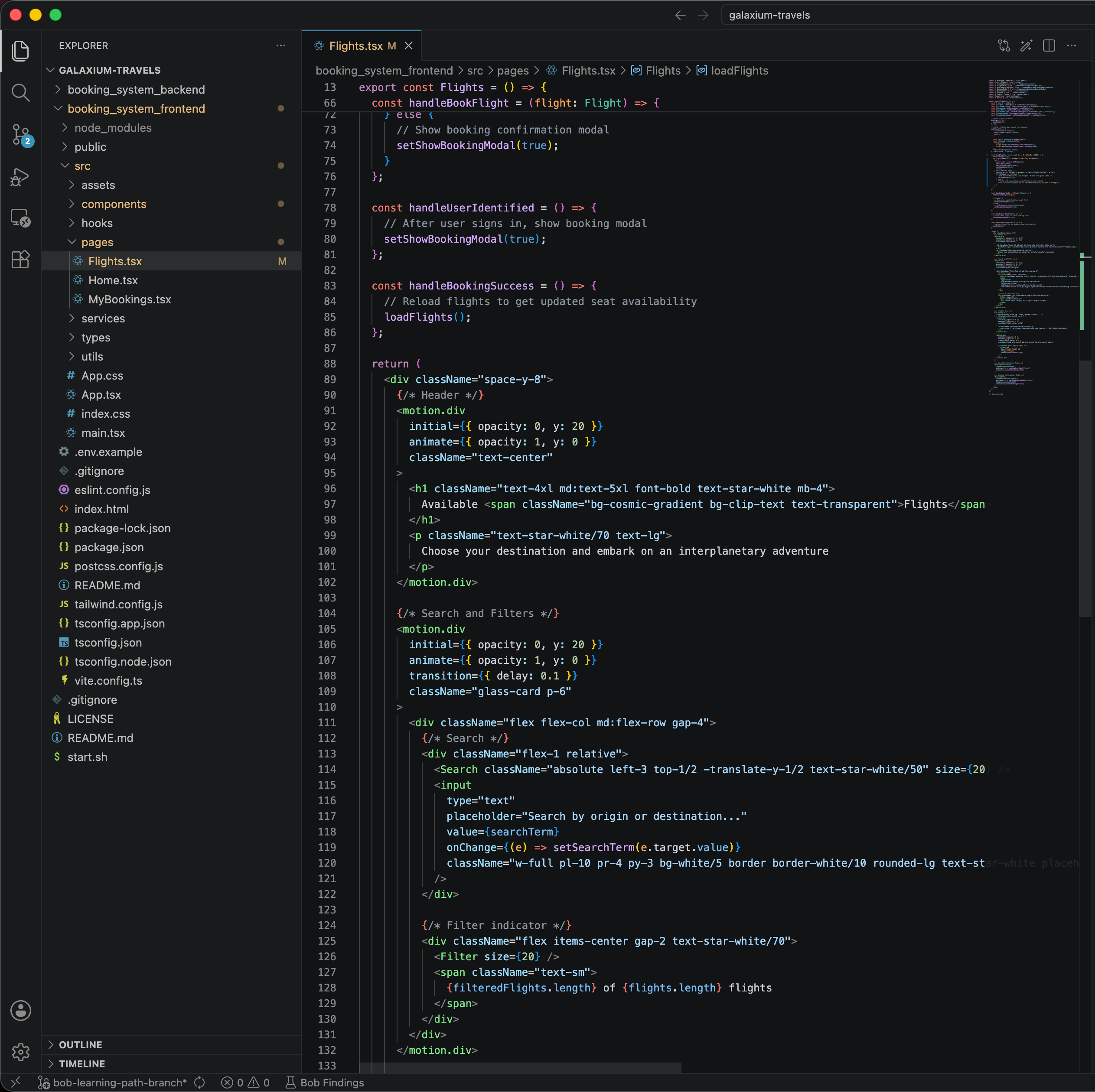
This particular change will not produce anything visible within the running application that you can test via the mocked-up website.
The point is to watch targeted code generation happen in context against real code, at which Bob has performed brilliantly.
BEFORE YOU MOVE ON
You can continue to tinker with this if you wish— but be mindful that changes you make and redeploy within the application will impact the website we are building. If you make changes, don't save them to the project directory code (and always be mindful of how many Bob tokens you are consuming and have remaining. Your account's token budget will only reset monthly for IBMers. Trial accounts will expire once the token budget is exhausted.
v. Key takeaways
- Literate coding turns plain-language instructions, written in place, into precise code change
- The diff view keeps you in full control, allowing you to inspect and understand every change before it is committed to code
- The literate coding mode is most effective for focused, single-file modifications
- For multi-file or architectural changes, Code mode is the more appropriate tool for the job
For sweeping, multi-file changes or architectural restructuring, you will instead want to reach for IBM Bob's Code mode. The topic is covered extensively within Module 2 | Delegate, which you will explore next.