Running SQL statements
IBM Db2 Developer Extension supports running multiple SQL statements within a single editor session. You can run all statements at once or select specific statements to run individually. Each statement that is run generates its own result tab in the Results pane, making it easier to review and compare the output from each statement
Running multiple SQL statements in SQL Editor
To run multiple SQL statements, do the following steps.
- Click Open SQL Editor (
 ) in the DB2 CONNECTIONS pane. Db2 SQL Editor opens.
 - Select the database connection from the dropdown menu.
- Write SQL statements in the editor.
- Right‑click in the editor and select Run All Queries. Alternatively, you can click Run to run all the statements.
When you run multiple SQL statements, the extension runs them sequentially and presents the consolidated results in the Results pane. Each statement’s result set appears in its own tab (for example, Query 1, Query 2).
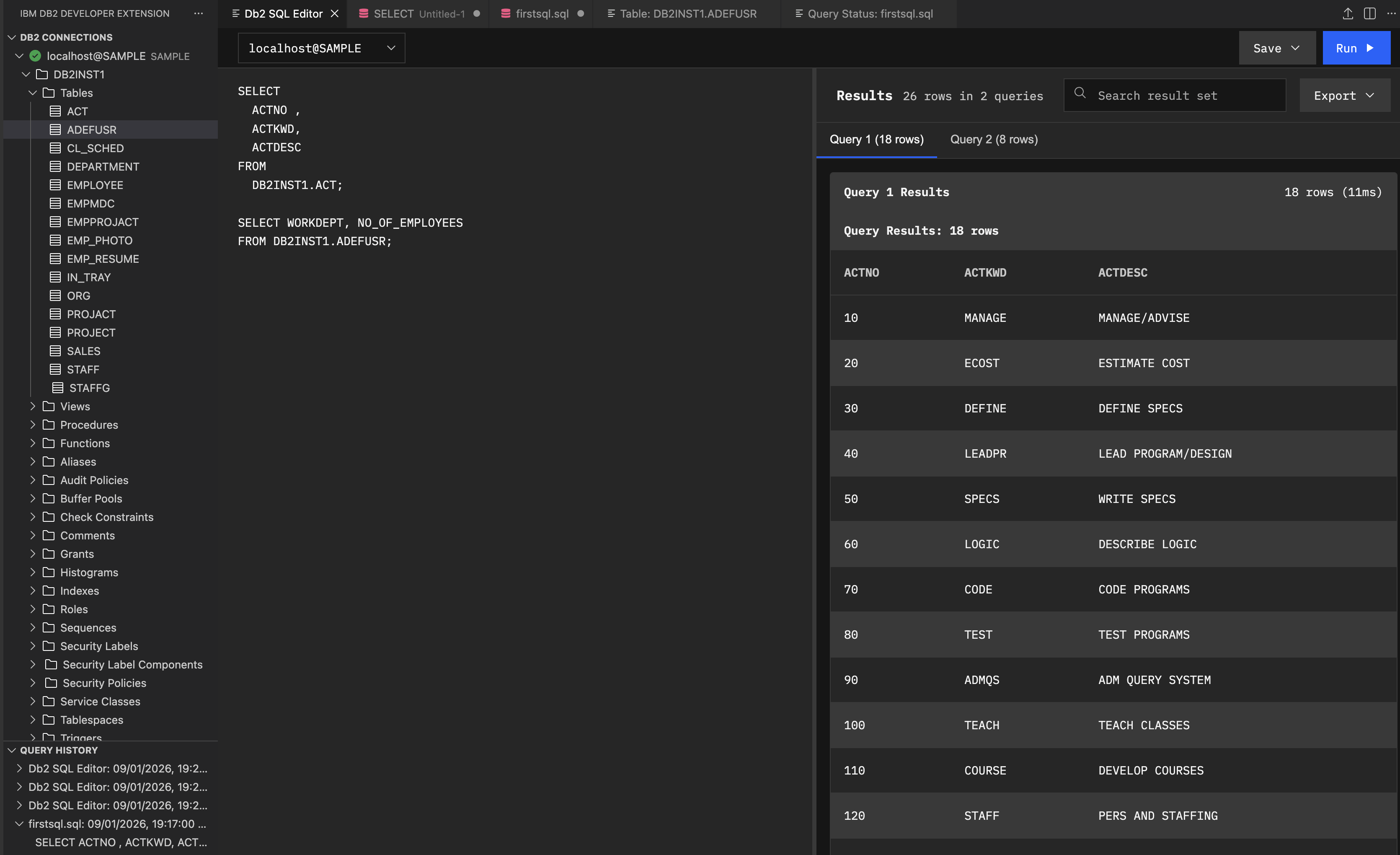
Note: When you click the layout toggle icon, the Results pane switches from the default vertical view to a horizontal view, where the results are aligned horizontally with the editor. Click the icon again to return the results to the vertical alignment with the editor.
You can search in the result set. Click Export to download your query results in CSV or JSON.
Running Selected SQL statements in SQL Editor
To run a single SQL statement, do the following steps:
- Write your SQL statements in the editor.
- Select the appropriate database connection from the dropdown menu.
- Right‑click in the editor and select Run Selected Query.
The statement result appears in the Results pane.
Click Save to save your SQL statements. You can also download the query results in CSV or JSON format for later use. The SQL statements results are also stored in the QUERY HISTORY menu in the sidebar.