Running procedures in SQL Editor
The topic explains how to run the procedures by using the SQL Editor and how to interpret the results .
Running a procedure using CALL statement
To run a procedure in the editor, use the CALL statement with the schema-qualified procedure name.
Syntax
CALL schema_name.procedure_name(parameters);
Where:
schema_nameis the schema where the procedure is stored (for example,DB2INST1).procedure_nameis the name of the procedure.parametersare the input and output parameters required by the procedure.
Using parameter markers
For procedures with OUT parameters, use the ? parameter marker to automatically capture and display output values.
Example:
The following example shows how to run the CalculateBonus procedure that is stored under SAMPLE database under DB2INST1 schema:
CALL DB2INST1.CalculateBonus('000010', 0.10, ?, ?);
Where:
'000010'is the employee ID (IN parameter).0.10is the bonus rate (IN parameter).?placeholders capture the bonus amount and status message (OUT parameters).
The ? acts as a placeholder for each OUT parameter. The extension automatically captures and displays the returned values in the Results pane.
Procedure
To run a procedure, do the following steps.
Step 1: Locate your procedure
Verify that your procedure exists in the database by expanding the schema in the DB2 CONNECTIONS pane:
- Go to your database connection (for example,
localhost@SAMPLE). - Expand the schema (for example,
DB2INST1). - Expand the Procedures section.
- Locate your procedure (for example,
CALCULATEBONUS).
If you haven’t created the procedure yet, see Creating native SQL procedures for the CalculateBonus example.
Step 2: Open the SQL Editor
Click the Open SQL Editor ( ) in the DB2 CONNECTIONS pane.
Step 3: Select the database connection
Ensure the correct database connection is selected in the dropdown (for example, localhost@SAMPLE).
Step 4: Write and run the CALL statement
-
Enter the following command to run the CalculateBonus procedure:
CALL DB2INST1.CalculateBonus('000010', 0.10, ?, ?); -
Click Run.
Understanding the results
When you run a procedure, the results are displayed in the Results pane on the right side of the editor.
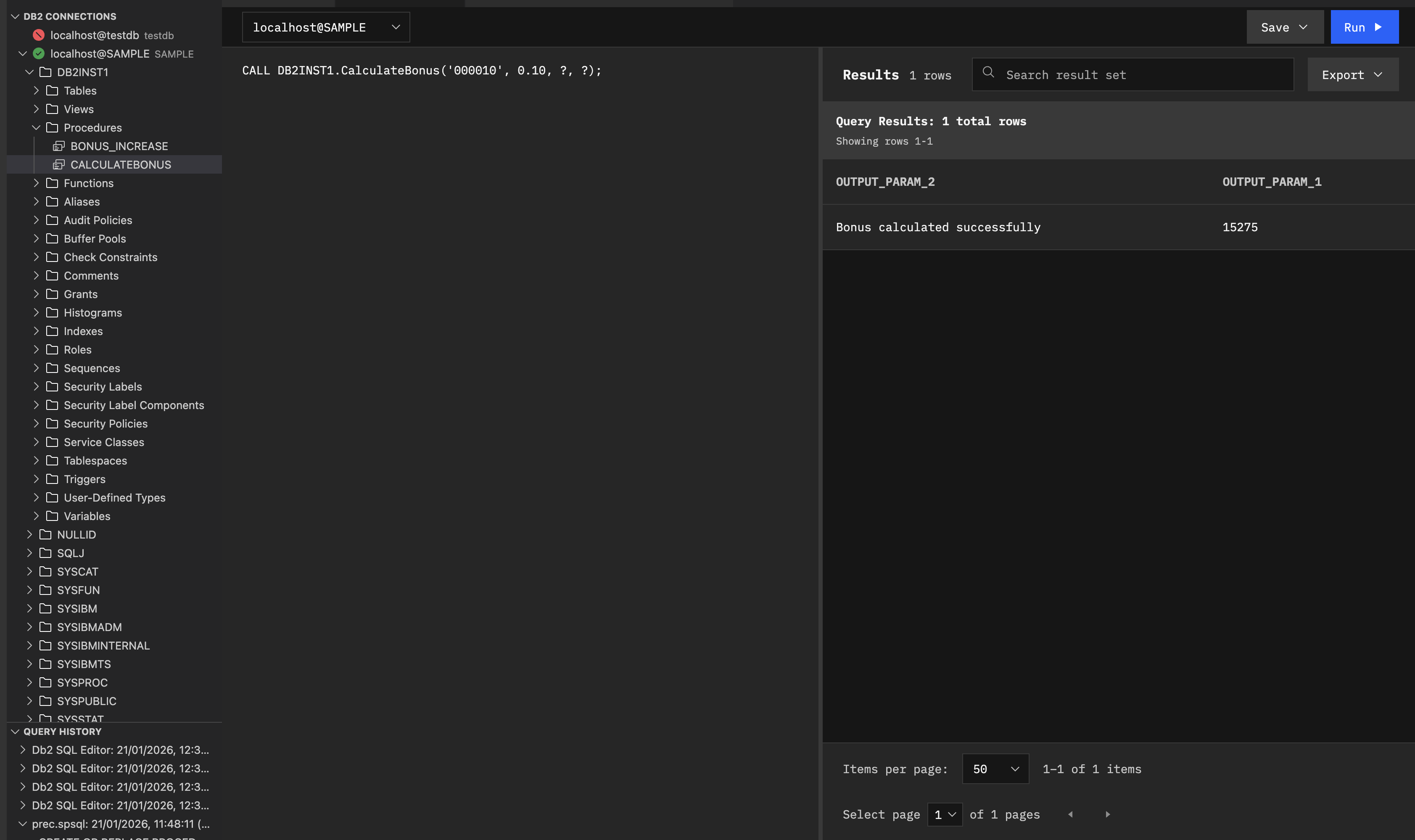
When you run a procedure, the Results pane shows:
- Query tab: Query Results: 1 total rows indicates the the number of rows returned. Since the previous procedure returns output parameters, you get one row with each output parameter shown as a column.
- Output parameters: Each OUT parameter appears as a column in the result grid.
- Column headers show generic names like
output-param-1,output-param-2when using?parameter markers. These correspond to the actual parameter names in order (for example,output-param-1=P_BONUS_AMOUNT,output-param-2=P_STATUS_MESSAGE). - Values are displayed in the corresponding cells.
- Column headers show generic names like
Exporting results
To export your results:
- Click Export in the Results pane.
- Choose your format:
- CSV
- JSON
- Select the save location. The results are saved to the specified file.