
Virtual topics are used to socialize one source topic multiple times and in different ways. By publishing multiple virtual topics for a single source topic, you can provide clients with different ways to access the topic according to their requirements.
A virtual topic can have various security and event data controls that you can use to have greater control over how virtual topics are accessed and how events are sent and received. One source topic can have many virtual topics and each virtual topic can contain numerous controls as demonstrated in the following diagram.
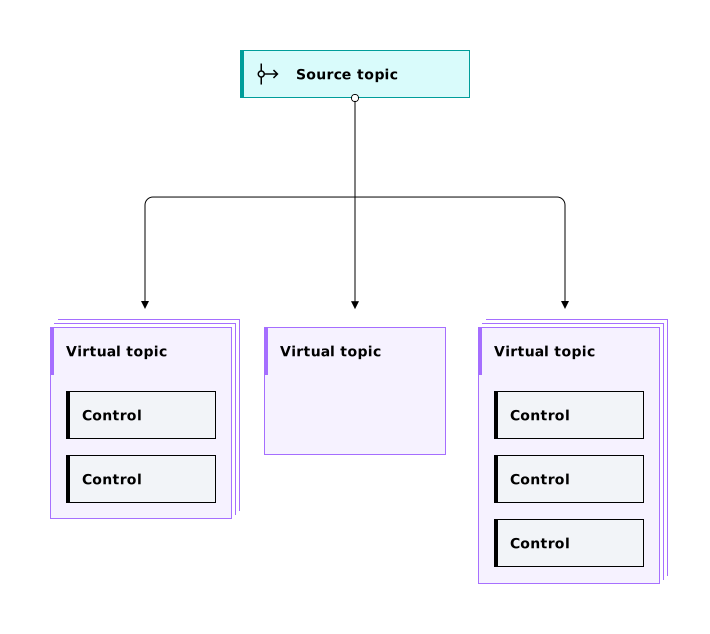
For example, one source topic can have 3 virtual topics. One of those virtual topics has the schema filtering and redaction control set; the other virtual topic has no controls; and the other virtual topic has 3 controls (schema filtering, redaction, and mTLS). So, each virtual topic is providing a different control set for a client to interact with. In each case, the original source topic remains untouched and all the controls that you add are enforced by the Event Gateway.
If user groups are enabled, you can control visibility to virtual topics by assigning specific user groups to have access to selected virtual topics only. When Event Endpoint Management is connected to your external identity provider, it provides an automatically populated list of groups that are discoverable when you add virtual topics to user groups. When you create a virtual topic, you can decide which user groups are able to access and use the virtual topic in the catalog after you publish it. You can assign user groups when you create a virtual topic or through the User groups page.
Note: Virtual topics that do not have any user groups are considered public and are visible to all users with the viewer role.
Creating a virtual topic
To create a virtual topic, complete the following steps:
- In the navigation pane, click Manage > Topics.
- Click the source topic that you want to work with.
- Click the Virtual topics tab on the topic page.
- Click Create virtual topic. The configuration properties for the virtual topic are split into separate panes.
-
In the Details pane, provide a name and a unique alias for your virtual topic. The alias must be an alphanumeric string that is under 200 characters in length, but can contain underscores, hyphens, and periods.
-
In the Event data controls pane, you can define operations that are applied to the event data.
For consume-enabled topics, the following event data controls are available:
- Quota enforcement: Set a quota for the maximum megabytes or messages per second that can be read from the topic.
- Schema filtering: Removes events that do not match the schema that is defined for the source topic.
- Redaction: Redact specific fields in events with a replacement or hash value. Redaction is available only when a schema is defined for the source topic, or if its message format is specified as JSON.
- Content filtering: Control which events are delivered to subscribers based on event properties or subscriber data.
For produce-enabled topics, the following event data controls are available:
- Quota enforcement: Set a quota for the maximum megabytes or messages per second that can be sent to the topic.
- Schema enforcement: The topic accepts only events that comply with the schema that is defined for the source topic.
- If user groups are enabled, then the Visibility pane is displayed.
Select the visibility type for the virtual topic from one of the following options:
- Public. If you select Public, the virtual topic is visible to all users with the viewer role.
- Custom. If you select Custom, you are prompted to select the user groups that you want to make the virtual topic available to.
If the group you want is not displayed, then click Add user group to add a group.
Important: Any user groups that you add manually must exist within the organization that is provided by your external identity provider.
- In the Security controls pane, select the Client authentication set that you want to use to secure your virtual topic, and if you want users to require approval when they subscribe. For more information, see adding security controls to virtual topics.
You can publish the virtual topic from the Virtual topics tab when you are ready.
Editing a virtual topic
To edit a virtual topic, complete the following steps:
- In the navigation pane, click Manage > Topics.
- Click the source topic that you want to work with.
- Click the Virtual topics tab in the topics page.
- Click
 More options on the topic that you want to edit, and select Edit. The Edit virtual topic window is displayed.
 -
In the Details pane, edit the fields that you want to change.
Note: You can edit the Alias only when the virtual topic is in an unpublished state.
- On the Event data controls pane, edit the event data controls as required.
-
On the Visibility pane, select or add the user groups that you want to make the virtual topic available to.
Note: You cannot remove groups from published or archived virtual topics.
- On the Security controls pane, select the Client authentication set that you want to use to secure your virtual topic, and if you want users to require approval when they subscribe. When you are finished, click Save.
Virtual topic lifecycle states
After you add a virtual topic to a source topic in Event Endpoint Management, the virtual topic can have different lifecycle states. The lifecycle state of your virtual topic determines whether it can be subscribed to by applications and socialized in the catalog.
The lifecycle of a virtual topic in Event Endpoint Management progresses as follows:
- Unpublished: This virtual topic is not socialized in the Catalog. It cannot be subscribed to by applications and has no current subscriptions.
- Published: This virtual topic is socialized in the Catalog. Applications can create new subscriptions to use it.
- Archived: This virtual topic is socialized in the Catalog and has existing subscriptions. Applications cannot create new subscriptions to use it.
The Virtual topics tab on the topic detail page allows users to manage virtual topics.
To change the lifecycle state of a virtual topic, complete the following steps:
- In the navigation pane, click Manage > Topics.
- Click the source topic that you want to work with.
- Click the Virtual topics tab on the topic detail page.
-
Click Publish, Unpublish, or Archive on the virtual topic tile. The option available depends on the current state of the topic.
- On archived and unpublished topics, Publish is the only option.
- On published topics, Unpublish is only available if the topic has no current subscribers. Otherwise, Archive is available.
Note: Archived virtual topics automatically return to the unpublished state when all their subscriptions are removed.
A virtual topic can be edited in any lifecycle state. However, the set of fields that can be edited is restricted when in Published or Archived states to prevent changes that would impact clients.
Deleting a virtual topic
A virtual topic can be deleted from a source topic if it’s in an unpublished state. To move your virtual topic into a state so that you can delete it, refer to the different lifecycle states of a virtual topic.
To delete a virtual topic from Event Endpoint Management, complete the following steps.
- In the navigation pane, click Manage > Topics.
- Click the source topic that the virtual topic belongs to.
- Open the Virtual topics tab within the topic detail page.
- Click More options, and select Delete. The Delete virtual topic window is displayed.
- Enter the name of the virtual topic to confirm the virtual topic that you want to delete.
- Click Delete.