
Configure your client applications to connect to the Event Gateway to access virtual topics.
Configuring a client
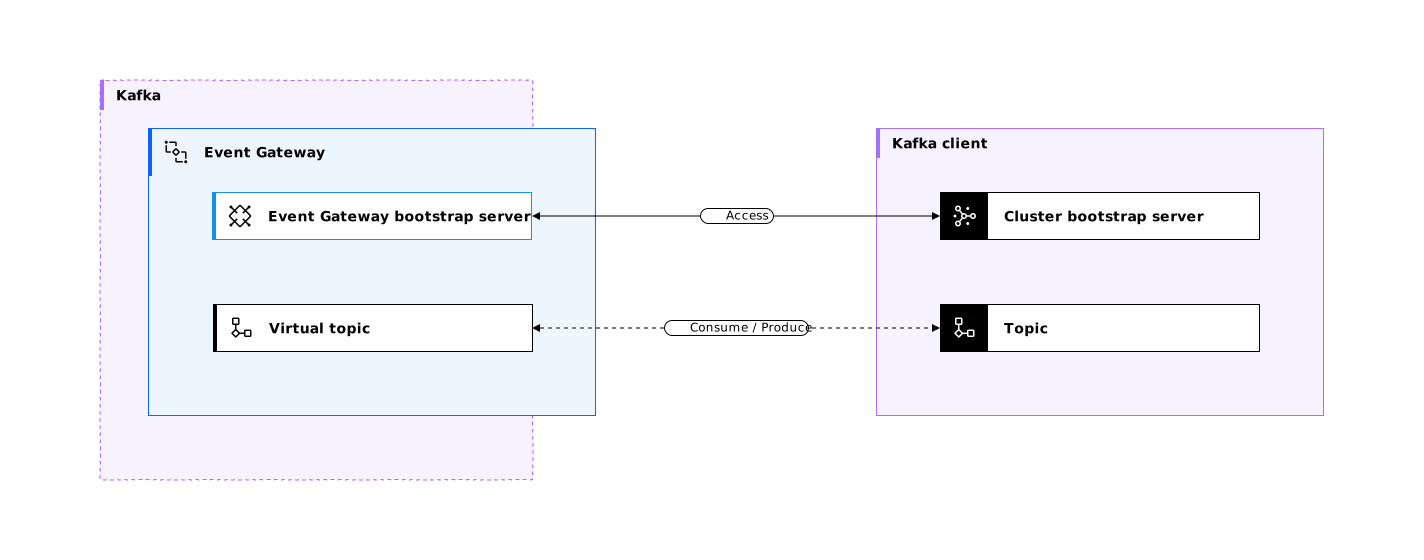
The Event Gateway manages access to virtual topics in Event Endpoint Management. Configure your client applications to connect to the Event Gateway by using standard Kafka client configuration options.
The way that you provide the configuration settings to your client varies from client to client. However, the following settings are common for every client:
Bootstrap servers: Your Event Gateway endpoint addresses that provide access to a virtual topic.Security mechanism: Set asSASL_SSLif username and password are used in the application. Set asSSLif mTLS is used without a username and password.SSL configuration: The Event Gateway exposes only TLS-secured endpoints for clients to connect to. Configure your client to trust this certificate.SASLcredentials : IfSASL_SSLis specified as theSASL mechanism, then setSASL username, andSASL passwordwith the values retrieved when you subscribed to the virtual topic.Topic name: The name of the virtual topic that you want your application to use.
To find the virtual topic name, bootstrap server addresses, and gateway server certificate in the Event Endpoint Management UI, follow these steps:
- Log in to the Event Endpoint Management UI by using your login credentials.
- In the navigation pane, click Catalog.
- Click the topic that you want to subscribe to.
- In the Virtual topics section, click the virtual topic that you want to use. The name of the virtual topic is the name that is displayed in the card.
- The bootstrap server addresses and server certificate are available in the Selected virtual topic server URLs section.
If you configure multiple clients that use the same application and the same group ID, then you must also use the same client ID. The group ID and client ID are not required to match, but each client that shares an application must reuse the same pair of values. For example,
myClientApplication1: <GROUP_ID>=BOB, <CLIENT_ID>=ABC
myClientApplication2: <GROUP_ID>=BOB, <CLIENT_ID>=ABC
Using different client ID values within the same application and group ID can cause connection failures or runtime errors.
Testing virtual topics with the Code accelerator
You can test the virtual topic configuration by using the code accelerator samples.
Example kcat test of consumer virtual topic
kcat is an open source test tool for Kafka. Follow these steps to test a SASL secured virtual topic with the kcat code accelerator sample:
- Install kcat on a system that has network access to your Event Gateway.
- Log in to the Event Endpoint Management UI by using your login credentials.
- In the navigation pane, click Catalog.
- Select the virtual topic that you want to test.
- If you do not already have a subscription to this virtual topic, then subscribe to get a SASL username and password.
- Expand the Code accelerator section.
- Switch to the kcat tab.
- Copy the kcat sample command and replace the placeholder variables:
<GROUP_ID>- Replace with a unique string.<CLIENT_ID>- Replace with a unique string.<CREDENTIALS_USERNAME>- set to your SASL username.<CREDENTIALS_PASSWORD>- set to your SASL password.
Note: When you set the client ID, reuse the same values across all clients that subscribe with the same application and group ID.
-
Run the kcat sample command. Example:
kcat -J -G group1 \
  -b "grp1-gwy1-ibm-egw-example.apps.ibm.com:443,grp1-gwy1-ibm-egw-example.ibm.com:443,grp1-gwy1-ibm-egw-example.ibm.com:443" \
  -X client.id=client1 \
  -X security.protocol="SASL_SSL" \
  -X ssl.ca.pem="-----BEGIN CERTIFICATE-----
...
-----END CERTIFICATE-----" \
  -X sasl.mechanisms="PLAIN" \
  -X sasl.username="eem-7f0c68e8-3c40-432b-a926-921080c9661d" \
  -X sasl.password="<password>" \
  "noop"; : # Note: in some versions of kcat the '-t' flag must precede the topic name
The kcat command output displays the events that the virtual topic produces. Example:
% Waiting for group rebalance
% Group group1 rebalanced (memberid client1-730ea6d6-6968-4a8b-9900-8652d4f5e310): assigned: noop [0]
% Reached end of topic noop [0] at offset 15
{"topic":"noop","partition":0,"offset":15,"tstype":"create","ts":1754311306587,"broker":1,"key":null,"payload":"Sample message value"}
% Reached end of topic noop [0] at offset 16
{"topic":"noop","partition":0,"offset":16,"tstype":"create","ts":1754311308412,"broker":1,"key":null,"payload":"Sample message value"}
% Reached end of topic noop [0] at offset 17
Tip: If your Kafka cluster is an Event Streams instance, you can create test events with the starter application.