
Upgrade your Event Streams installation as follows. The Event Streams operator handles the upgrade of your Event Streams instance.
Before you begin, review the upgrade procedure and determine the appropriate steps for your deployment based on your platform, current version, and target version.
Upgrade paths
You can upgrade Event Streams to the latest 13.0.x version directly from any 12.3.x version by using the latest 13.0.x operator. The upgrade procedure depends on whether you are upgrading to a major, minor, or patch level version, and what your catalog source is.
If you are upgrading from Event Streams version 12.2.x or earlier, you must first upgrade your installation to 12.3.x and then follow these instructions to upgrade from 12.3.x to 13.0.x.
-
On OpenShift, you can upgrade to the latest version by using operator channel v13.0. Review the general upgrade prerequisites before following the instructions to upgrade on OpenShift.
Note: If your operator upgrades are set to automatic, patch level upgrades are completed automatically. This means that the Event Streams operator is upgraded to the latest 13.0.x version when it is available in the catalog, and your Event Streams instance is then also automatically upgraded, unless you set a schedule for the upgrade by pausing the reconciliation.
-
On other Kubernetes platforms, you must update the Helm repository for any level version update (any digit update: major, minor, or patch), and then upgrade by using the Helm chart. Review the general upgrade prerequisites before following the instructions to upgrade on other Kubernetes platforms.
Prerequisites
-
Ensure you migrate your CRDs and custom resources to the v1 API before upgrading to Event Streams 13.0.0 or later.
-
Ensure you are on version 12.3.x before upgrading to Event Streams 13.0.0 or later.
-
The images for Event Streams release 13.0.x are available in the IBM Cloud Container Registry. Ensure you redirect your catalog source to use
icr.io/cpopenas described in Implementing ImageContentSourcePolicy to redirect to the IBM Container Registry. -
Ensure that you have installed a supported container platform and system. For supported container platform versions and systems, see the support matrix.
-
Ensure persistent storage is enabled for your Event Streams instance to prevent data loss, and ensure that broker and controller nodes have at least 3 replicas to maintain service availability.
-
If you installed the Event Streams operator to manage instances of Event Streams in any namespace (one per namespace), then you might need to control when each of these instances is upgraded to the latest version. You can control the updates by pausing the reconciliation of the instance configuration as described in the following sections.
Note: Some updates, such as changes to Custom Resource Definitions (CRDs), are applied at the cluster level and affect all Event Streams instances in the cluster.
-
If you are running Event Streams as part of IBM Integration Software (formerly IBM Cloud Pak for Integration), ensure you meet the following requirements:
- Follow the upgrade steps for IBM Integration Software before upgrading Event Streams.
- If you are planning to configure Event Streams with Keycloak, ensure you have the IBM Cloud Pak for Integration 16.2.0 or later installed, including the required dependencies.
-
Ensure all applications connecting to your instance of Event Streams that use the schema registry are using Apicurio client libraries version 2.5.0 or later.
Important: Support for Apicurio Registry Core REST API version 2 is deprecated and will be removed in a future release. To ensure continued compatibility, update all Apicurio client libraries to use API version 3. For more information, see prerequisites.
Note: There is no downtime during the Event Streams upgrade. The Kafka pods are rolled one at a time, so a Kafka instance will always be present to serve traffic. However, if the number of brokers you have matches the min.insync.replicas value set for any of your topics, then that topic will be unavailable to write to while the Kafka pods are rolling.
Migrate to v1 API
Important:
-
The
v1beta2API is not supported in Event Streams 13.0.0 and later. You must migrate your CRDs and custom resources to thev1API before upgrading to 13.0.0. -
Event Streams 13.0.0 removes the
v1beta2API from the CRDs. This is a cluster-scoped change, so if different versions of Event Streams operators are installed across multiple namespaces in the same cluster, you must plan to upgrade operators in all namespaces to version 13.0.0 at the same time.
Event Streams 13.0.0 includes a conversion tool for migrating your custom resources from the v1beta2 API to the v1 API, including updates to CRDs. The migration is a multi-step process that updates your resources and CRDs in stages. Most updates are automated, but in some cases, manual updates might be required.
Note: The conversion tool prompts you to manually update unsupported fields that cannot be automatically converted. The following table lists the fields that require manual conversion. In some cases, replacing fields such as oauth or keycloak with custom requires additional configuration. For more information, see the Strimzi documentation.
| Resource type | Field location | Unsupported field | Replacement |
|---|---|---|---|
| EventStreams | spec.strimziOverrides.kafka.listeners[].authentication |
oauth |
custom (additional configuration required, see Strimzi documentation) |
| EventStreams | spec.strimziOverrides.kafka.listeners[].authentication.secrets |
Any secrets | Move to additional volumes in template section |
| EventStreams | spec.strimziOverrides.kafka.authorization |
keycloak, opa |
custom (additional configuration required, see Strimzi documentation) |
| KafkaConnect, KafkaBridge | spec.authentication |
oauth |
custom (additional configuration required, see Strimzi documentation) |
| KafkaConnect | spec.externalConfiguration |
Any external configuration | Move to spec.template section |
| KafkaMirrorMaker2 | spec.clusters[].authentication, spec.target.authentication, spec.mirrors[].source.authentication |
oauth |
custom |
Before you begin
Before starting the migration, ensure you have the following:
- Java 21 or later installed on your system.
kubectlconfigured with access to your Kubernetes cluster.- Required permissions to list, get, and update custom resources in your cluster.
- Optional: A backup of all your Kafka custom resources.
- Download the conversion tool as a packaged archive (JAR + launch scripts) from the IBM Digital Hub Enterprise (DHE). After downloading, extract the archive.
Note: When running the conversion commands in the following steps, use v1-api-conversion.sh if you are on Linux or macOS, or use v1-api-conversion.cmd if you are on Windows.
Step 1: Identify resources that need migration
List all Event Streams custom resources across all namespaces in the cluster to identify the resources and namespaces that require migration from v1beta2 to v1:
bin/v1-api-conversion.sh list-resource --all-namespaces
Resources with deprecation warnings require migration. The migration can be performed while Event Streams 12.3.x is running.
Step 2: Remove unsupported fields
Remove fields that are no longer supported to make your custom resources compatible with the v1 API.
Note: In Event Streams 12.3.x, resources that use deprecated fields are flagged with warnings. You can review each Event Streams instance for these deprecation warnings to identify the fields that require updates.
Complete one of the following procedures:
- If you manage your custom resources as YAML files, follow the procedure to remove unsupported fields from YAML files.
- If your custom resources are already deployed in your cluster, follow the procedure to remove unsupported fields from deployed custom resources.
Remove unsupported fields from YAML files
If you manage your Event Streams custom resources as YAML files (for example, stored locally or in a version control system), remove unsupported fields from the YAML files as follows:
-
Convert your YAML files by running one of the following commands for each YAML file:
-
To save the result to a new YAML file:
bin/v1-api-conversion.sh convert-file-shape --file <input-file> --output <output-file> -
To update the file in place:
bin/v1-api-conversion.sh convert-file-shape --file <input-file> --in-place
Where:
<input-file>is the path to your existing YAML file.<output-file>is the path where you want to save the converted YAML file.
Note: The conversion tool will prompt you to manually update certain fields. See the unsupported fields table for the replacement fields.
-
-
Apply the converted files to your cluster:
kubectl apply -f <converted-file>Where
<converted-file>is the path to the converted YAML file.
Remove unsupported fields from deployed custom resources
If your Event Streams custom resources are already deployed in your cluster, remove unsupported fields from the deployed custom resources by running the following command:
bin/v1-api-conversion.sh convert-resource-shape --namespace <namespace-name>
Repeat this step for each namespace that contains Event Streams resources until all resources listed in Step 1 no longer have deprecation warnings.
Note: The conversion tool will prompt you to manually update certain fields. See the unsupported fields table for replacement fields.
Review the output from the previous command to ensure that all custom resources were converted and that all unsupported fields have been removed. The tool logs any errors encountered during the conversion. Resolve any errors or warnings, then re-run the conversion command to ensure all resources are successfully converted before proceeding to the next step.
Note: If you encounter 409 conflict errors when running the conversion commands, retry the command. If the error persists, pause reconciliation before running the conversion commands, and then unpause reconciliation after completing the migration.
Step 3: Enable v1 API version
After removing all unsupported fields, run the following command to enable the v1 API version in the CRDs:
bin/v1-api-conversion.sh enable-v1-api-version
Important: Both v1beta2 and v1 API versions are now enabled. This affects how Event Streams resources are displayed in the OpenShift web console and other Kubernetes management tools. Tools and scripts must explicitly specify the API version when accessing these resources (for example, apiVersion: eventstreams.ibm.com/v1).
Step 4: Convert custom resources to v1 API version
Convert your custom resources from v1beta2 to v1 API version. This changes the apiVersion field from eventstreams.ibm.com/v1beta2 to eventstreams.ibm.com/v1.
Complete one of the following procedures:
- If you manage your custom resources as YAML files, follow the procedure to convert YAML files to v1 API version.
- If your custom resources are already deployed in your cluster, follow the procedure to convert deployed custom resources to v1.
Convert YAML files to v1 API version
If you manage your Event Streams custom resources as YAML files (for example, stored locally or in a version control system), convert the files to use the v1 API version, then apply them to your cluster.
-
Convert your YAML file to v1 API version by running one of the following commands for each YAML file:
-
To save the result to a new file:
bin/v1-api-conversion.sh convert-file --file <input-file> --output <output-file> -
To update the file in place:
bin/v1-api-conversion.sh convert-file --file <input-file> --in-place
Where:
<input-file>is the path to your existing YAML file.<output-file>is the path where you want to save the converted YAML file.
-
-
Apply the converted files to your cluster:
kubectl apply -f <converted-file>Where
<converted-file>is the path to the converted YAML file.
Convert deployed custom resources to v1
If your Event Streams custom resources are already deployed in your cluster, convert the deployed custom resources to use the v1 API version by running the following command:
bin/v1-api-conversion.sh convert-resource --namespace <namespace-name>
Repeat this step for each namespace that contains Event Streams resources.
Step 5: Update CRDs to use v1 as stored version
Update the CRDs to use v1 as the stored version and complete the migration.
Important: This step affects all Event Streams instances across your cluster. All instances will be reconciled by the operator, potentially causing rolling updates.
Note: After this step, rollback is not possible without restoring from backups.
-
Run the following command:
bin/v1-api-conversion.sh crdThis command updates the CRDs to set v1 as the stored version, updates all custom resources to be stored as v1, and removes v1beta2 from the list of served versions.
-
Verify that all resources are stored as v1 by running the following command:
kubectl get crds -o jsonpath='{range .items[?(@.spec.group=="eventstreams.ibm.com")]}{.metadata.name}{"\t"}{.status.storedVersions}{"\n"}{end}'All Event Streams CRDs must show
v1as the stored version.Note: The
eventstreamsgeoreplicators.eventstreams.ibm.comCRD will still showv1beta1. This CRD is no longer used in Event Streams 13.0.0 and later, and can be safely ignored.
Scheduling the upgrade of an instance
The Event Streams operator handles the upgrade of your Event Streams instance automatically after the operator is upgraded. No additional step is required to change the instance (product) version.
If your operator manages more than one instance of Event Streams, you can control when each instance is upgraded by pausing the reconciliation of the configuration settings for each instance, running the upgrade, and then unpausing the reconciliation when ready to proceed with the upgrade for a selected instance.
Pausing reconciliation by using the CLI
- Log in to your Kubernetes cluster as a cluster administrator by setting your
kubectlcontext. -
To apply the annotation first to the
EventStreamsand then to theKafkacustom resource, run the following command, where<type>is eitherEventStreamsorKafka:kubectl annotate <type> <instance-name> -n <instance-namespace> eventstreams.ibm.com/pause-reconciliation='true' - Follow the steps to upgrade on OpenShift.
Unpausing reconciliation by using the CLI
To unpause the reconciliation and continue with the upgrade of an Event Streams instance, run the following command to first remove the annotations from the Kafka custom resource, and then from the EventStreams custom resource, where <type> is either Kafka or EventStreams:
kubectl annotate <type> <instance-name> -n <instance-namespace> eventstreams.ibm.com/pause-reconciliation-
When the annotations are removed, the configuration of your instance is updated, and the upgrade to the latest version of Event Streams completes.
Pausing reconciliation by using the OpenShift web console
- Log in to the OpenShift Container Platform web console using your login credentials.
-
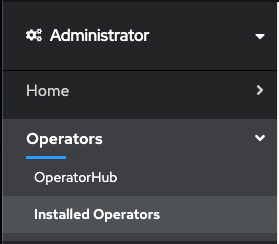
Expand Operators in the navigation on the left, and click Installed Operators.
- From the Project list, select the namespace (project) the instance is installed in.
- Locate the operator that manages your Event Streams instance in the namespace. It is called Event Streams in the Name column. Click the Event Streams link in the row.
- Select the instance you want to pause and click the
YAMLtab. -
In the
YAMLfor the custom resource, addeventstreams.ibm.com/pause-reconciliation: 'true'to themetadata.annotationsfield as follows:apiVersion: eventstreams.ibm.com/v1 kind: EventStreams metadata: name: <instance-name> namespace: <instance-namespace> annotations: eventstreams.ibm.com/pause-reconciliation: 'true' spec: # ... - This annotation also needs to be applied to the corresponding
Kafkacustom resource. Expand Home in the navigation on the left, click API Explorer, and typeKafkain theFilter by kind...field. SelectKafka. - From the Project list, select the namespace (project) the instance is installed in and click the Instances tab.
- Select the instance with the name
<instance-name>(the same as the Event Streams instance). -
In the
YAMLfor the custom resource, addeventstreams.ibm.com/pause-reconciliation: 'true'to themetadata.annotationsfield as follows:apiVersion: eventstreams.ibm.com/v1 kind: Kafka metadata: name: <instance-name> namespace: <instance-namespace> annotations: eventstreams.ibm.com/pause-reconciliation: 'true' - Follow the steps to upgrade on OpenShift.
Unpausing reconciliation by using the OpenShift web console
To unpause the reconciliation and continue with the upgrade of an Event Streams instance, first remove the annotations from the Kafka custom resource, and then from the EventStreams custom resource. When the annotations are removed, the configuration of your instance is updated, and the upgrade to the latest version of Event Streams completes.
Upgrading on the OpenShift Container Platform
Upgrade your Event Streams instance running on the OpenShift Container Platform by using the CLI or web console as follows.
Pre-upgrade checks and preparation
Complete the following steps to plan your upgrade on OpenShift.
-
Ensure you have migrated your CRDs and custom resources to the v1 API before upgrading to Event Streams 13.0.0 or later.
-
If your Kafka cluster uses custom listener certificates with SSL private keys, ensure that they are in PKCS#8 format (BEGIN PRIVATE KEY) before upgrading. Private keys in PKCS#1 format (BEGIN RSA PRIVATE KEY) are not compatible with Event Streams 12.3.0 and later.
Run the following command to convert your private key to PKCS#8 format:
openssl pkcs8 -topk8 -inform PEM -outform PEM -nocrypt -in PKCS1.key -out PKCS8.keyFor more information, see troubleshooting.
-
Determine which Operator Lifecycle Manager (OLM) channel is used by your existing Subscription. You can check the channel you are subscribed to in the web console (see Update channel section), or by using the CLI as follows (this is the subscription created during installation):
-
Run the following command to check your subscription details:
oc get subscription -
Check the
CHANNELcolumn for the channel you are subscribed to, for example, v12.3 in the following snippet:NAME PACKAGE SOURCE CHANNEL ibm-eventstreams ibm-eventstreams ibm-eventstreams-catalog v12.3
-
- If your existing Subscription does not use the v13.0 channel, your upgrade is a change in a major version. Complete the following steps to upgrade:
- Ensure the catalog source for new version is available.
- Change your Subscription to the
v13.0channel by using the CLI or the web console. The channel change will upgrade your operator, and then the operator will upgrade your Event Streams instance automatically.
- If your existing Subscription is already on the v13.0 channel, your upgrade is a change to the patch level (third digit) only. Make the catalog source for your new version available to upgrade to the latest level. If you installed by using the IBM Operator Catalog with the
latestlabel, new versions are automatically available. The operator will upgrade your Event Streams instance automatically.
Making new catalog source available
Before you can upgrade to the latest version, the catalog source for the new version must be available on your cluster. Whether you have to take action depends on how you set up the catalog sources for your deployment.
-
Latest versions: If your catalog source is the IBM Operator Catalog, latest versions are always available when published, and you do not have to make new catalog sources available.
- Specific versions: If you used the CASE bundle to install catalog source for a specific previous version, you must download and use a new CASE bundle for the version you want to upgrade to.
- If you previously used the CASE bundle for an online install, apply the new catalog source to update the
CatalogSourceto the new version. - If you used the CASE bundle for an offline install that uses a private registry, follow the instructions in installing offline to remirror images and update the
CatalogSourcefor the new version.
- If you previously used the CASE bundle for an online install, apply the new catalog source to update the
- In both cases, wait for the
status.installedCSVfield in theSubscriptionto update. It eventually reflects the latest version available in the newCatalogSourceimage for the currently selected channel in theSubscription:- In the OpenShift Container Platform web console, the current version of the operator is displayed under
Installed Operators. - If you are using the CLI, check the status of the
Subscriptioncustom resource, thestatus.installedCSVfield shows the current operator version.
- In the OpenShift Container Platform web console, the current version of the operator is displayed under
Upgrading Subscription by using the CLI
If you are using the OpenShift command-line interface (CLI), the oc command, complete the steps in the following sections to upgrade your Event Streams installation.
- Log in to your Red Hat OpenShift Container Platform as a cluster administrator by using the
ocCLI (oc login). -
Ensure the required Event Streams Operator Upgrade Channel is available:
oc get packagemanifest ibm-eventstreams -o=jsonpath='{.status.channels[*].name}' -
Change the subscription to move to the required update channel, where
vX.Yis the required update channel (for example,v13.0):oc patch subscription -n <namespace> ibm-eventstreams --patch '{"spec":{"channel":"vX.Y"}}' --type=merge
Wait for the operator to reconcile the Event Streams instance and roll all the pods.
Note: During this reconciliation process, the Kafka controller pod might temporarily enter a CrashLoopBackOff state with the following error. This happens because the new operator has updated the ConfigMap, but the pod is still using the previous image. This is expected and resolves automatically within a few minutes after the new image is updated by the operator. No manual intervention is required, and the Kafka cluster remains operational throughout this period.
cat: /opt/kafka/custom-config/metadata.state: No such file or directory
Upgrading Subscription by using the web console
If you are using the web console, complete the steps in the following sections to upgrade your Event Streams installation.
- Log in to the OpenShift Container Platform web console using your login credentials.
-
Expand Operators in the navigation on the left, and click Installed Operators.
- From the Project list, select the namespace (project) the instance is installed in.
- Locate the operator that manages your Event Streams instance in the namespace. It is called Event Streams in the Name column. Click the Event Streams link in the row.
- Click the Subscription tab to display the Subscription details for the Event Streams operator.
- Click the version number link in the Update channel section (for example, v12.3). The Change Subscription update channel dialog is displayed, showing the channels that are available to upgrade to.
- Select v13.0 and click the Save button on the Change Subscription Update Channel dialog.
Wait for the operator to reconcile the Event Streams instance and roll all the pods.
Note: During this reconciliation process, the Kafka controller pod might temporarily enter a CrashLoopBackOff state with the following error. This happens because the new operator has updated the ConfigMap, but the pod is still using the previous image. This is expected and resolves automatically within a few minutes after the new image is updated by the operator. No manual intervention is required, and the Kafka cluster remains operational throughout this period.
cat: /opt/kafka/custom-config/metadata.state: No such file or directory
Note: The number of containers in each Kafka broker will reduce from 2 to 1 as the TLS-sidecar container will be removed from each broker during the upgrade process.
Upgrading on other Kubernetes platforms by using Helm
If you are running Event Streams on Kubernetes platforms that support the Red Hat Universal Base Images (UBI) containers, you can upgrade Event Streams by using the Helm chart.
Pre-upgrade checks and preparation on other Kubernetes platforms
Complete the following steps to plan your upgrade on other Kubernetes platforms.
-
Ensure you have migrated your CRDs and custom resources to the v1 API before upgrading to Event Streams 13.0.0 or later.
-
Ensure you have Helm version 3.x installed. The upgrade to Event Streams 13.0.x is not compatible with Helm 4.x. You can check your Helm version by running
helm version. -
Determine the chart version for your existing deployment:
-
Change to the namespace where your Event Streams instance is installed:
kubectl config set-context --current --namespace=<namespace> -
Run the following command to check what version is installed:
helm list -
Check the version installed in the
CHARTcolumn, for example,<chart-name>-12.3.1in the following snippet:NAME NAMESPACE REVISION UPDATED STATUS CHART APP VERSION ibm-eventstreams es 1 2026-03-20 11:49:27.221411789 +0000 UTC deployed ibm-eventstreams-operator-12.3.1 12.3.1
-
-
Check the latest chart version that you can upgrade to:
- Log in to your Kubernetes cluster as a cluster administrator by setting your
kubectlcontext. -
Add the IBM Helm repository:
helm repo add ibm-helm https://raw.githubusercontent.com/IBM/charts/master/repo/ibm-helm -
Update the Helm repository:
helm repo update ibm-helm -
Check the version of the chart you will be upgrading to is the intended version:
helm show chart ibm-helm/ibm-eventstreams-operatorCheck the
version:value in the output, for example:version: 13.0.0
- Log in to your Kubernetes cluster as a cluster administrator by setting your
-
If the chart version for your existing deployment is earlier than 12.3.x, you must first upgrade your installation to 12.3.x and then follow these instructions to upgrade to chart version 13.0.x.
-
If your existing installation is in an offline environment, you must carry out the steps in the offline installation instructions to download the CASE bundle and mirror the images for the new version you want to upgrade to, before running any
helmcommands. -
Complete the steps in Helm upgrade to update your Custom Resource Definitions (CRDs) and operator charts to the latest version. The operator will then upgrade your Event Streams instance automatically.
Note: If you use the Helm diff plugin, you might encounter a failure during the upgrade. For more information, see troubleshooting.
Upgrading by using Helm
You can upgrade your Event Streams on other Kubernetes platforms by using Helm.
Depending on how you installed the operator, select one of the following upgrade approaches:
- If you installed the operator with all required resources together, follow the instructions in upgrading the operator with cluster-scoped resources.
- If you installed the cluster-scoped resources and operator separately, follow the instructions in upgrading the operator and cluster-scoped resources separately.
Upgrading the operator with cluster-scoped resources
If you installed the Event Streams operator and cluster-scoped resources together, upgrade to the latest version by running the following command:
helm upgrade \
<release-name> ibm-helm/ibm-eventstreams-operator \
-n <namespace> \
--set watchAnyNamespace=<true/false> \
--set previousVersion=<previous-version>
Where:
<release-name>is the name you provide to identify your operator.<namespace>is the name of the namespace where you want to install the operator.watchAnyNamespace=<true/false>determines whether the operator manages instances of Event Streams in any namespace or only a single namespace (default isfalseif not specified). For more information, see choosing operator installation mode.-
<previous-version>is the version of the Helm chart being upgraded from. For example, if your Helm chart version is 12.3.1, set the field as:--set previousVersion=12.3.1. You can retrieve the version of your existing Helm chart by running the following command:helm list --filter <release-name> -n <namespace> -o json | jq '.[0].app_version'
Wait for the operator to reconcile the Event Streams instance and roll all the pods.
Upgrading the operator and cluster-scoped resources separately
If you installed the Event Streams operator and cluster-scoped resources separately, upgrade them in the following order:
-
Upgrade the operator:
helm upgrade \
<operator-release-name> ibm-helm/ibm-eventstreams-operator \
-n <namespace> \
--set clusterScopedResources=false \
--set watchAnyNamespace=<true/false> \
--set previousVersion=<previous-version>
Where:
<operator-release-name>is the name of the Helm release for the operator (for example,eventstreams).<namespace>is the namespace where the operator is installed.clusterScopedResources=falseensures that only namespace-scoped resources are upgraded.watchAnyNamespace=<true/false>must match the value used during installation.<previous-version>is the version of the Helm chart being upgraded from (for example,12.3.1).
Wait for the operator to reconcile the Event Streams instance and roll all the pods.
Repeat this step for each namespace that contains an Event Streams operator.
-
After all Event Streams operators are upgraded, upgrade the cluster-scoped resources (CRDs and ClusterRoles):
helm upgrade \
<crd-release-name> ibm-helm/ibm-eventstreams-operator \
-n <namespace> \
--set namespaceScopedResources=false \
--set watchAnyNamespace=<true/false> \
--set previousVersion=<previous-version>
Where:
<crd-release-name>is the name of the Helm release for the cluster-scoped resources (for example,es-crds).<namespace>is the namespace where the cluster-scoped resources were installed.namespaceScopedResources=falseensures that only cluster-scoped resources are upgraded.watchAnyNamespace=<true/false>must match the value used during installation.<previous-version>is the version of the Helm chart being upgraded from (for example,12.3.1).
Upgrade reconciliation
Wait for the operator to reconcile the Event Streams instance and roll all the pods.
Note: During this reconciliation process, the Kafka controller pod might temporarily enter a CrashLoopBackOff state with the following error. This happens because the new operator has updated the ConfigMap, but the pod is still using the previous image. This is expected and resolves automatically within a few minutes after the new image is updated by the operator. No manual intervention is required, and the Kafka cluster remains operational throughout this period.
cat: /opt/kafka/custom-config/metadata.state: No such file or directory
Verifying the upgrade
After the upgrade, verify the version and status of Event Streams by using the CLI or the UI.
Post-upgrade tasks
Removing the EventStreamsGeoReplicator CRD
The EventStreamsGeoReplicator custom resource is no longer used in Event Streams 13.0.0 and later. The eventstreamsgeoreplicators.eventstreams.ibm.com CRD might still exist after the upgrade and can be safely deleted.
Note: Only delete this CRD after all Event Streams instances in your cluster are upgraded to version 13.0.0 or later.
To remove the CRD, run the following command:
kubectl delete crd eventstreamsgeoreplicators.eventstreams.ibm.com
Migrate ImageContentSourcePolicy to ImageDigestMirrorSet
The ImageContentSourcePolicy API is deprecated in OpenShift 4.14 and later versions. If you have ImageContentSourcePolicy resources configured, you must migrate them to ImageDigestMirrorSet.
Note: This migration is only required if you are running in an offline environment and have existing ImageContentSourcePolicy resources from a previous installation.
Complete the following steps to migrate:
- Log in to your Red Hat OpenShift Container Platform as a cluster administrator by using the
ocCLI (oc login). -
Get the name of the
ImageContentSourcePolicyresources on your cluster:oc get ImageContentSourcePolicy -
For Event Streams, migrate the
ImageContentSourcePolicytoImageDigestMirrorSet:a. Set an environment variable to the name of the Event Streams
ImageContentSourcePolicy. For example, if the policy name isibm-eventstreams:export ES_ICSP=ibm-eventstreamsb. Save the
ImageContentSourcePolicyas a YAML file:oc get ImageContentSourcePolicy ${ES_ICSP} -o yaml >> ${ES_ICSP}.yamlc. Convert the
ImageContentSourcePolicytoImageDigestMirrorSet:oc create -f $(oc adm migrate icsp ${ES_ICSP}.yaml | cut -f 4 -d ' ')Note: This command might trigger node upgrades. Wait for all the nodes to be in
Readystate before you proceed to the next step.d. Delete the
ImageContentSourcePolicy:oc delete ImageContentSourcePolicy ${ES_ICSP}Note: This command might trigger node upgrades. Wait for all the nodes to be in
Readystate before you proceed to the next step. -
Verify that the
ImageDigestMirrorSetresources are created:oc get imagedigestmirrorsetImportant: After the
ImageDigestMirrorSetresources are applied, you might see the node status asReady,Scheduling, orDisabled. Wait until all the nodes show aReadystatus. -
Verify your cluster node status and wait for all nodes to be updated before proceeding:
oc get MachineConfigPool -w
For more information, see the OpenShift documentation.