
Parameter Sets#
A parameter set is an object that helps make your jobs more flexible and reusable. Parameter sets allow you to specify values at run time rather than hardcoding them.
The SDK provides functionality to interact with parameter sets.
- This includes operations such as:
Creating a parameter set
Retrieving a parameter set
Updating a parameter set
Adding value sets
Adding local parameters
Using local parameters and parameter sets
Duplicating a parameter set
Deleting a parameter set
Creating a Parameter Set#
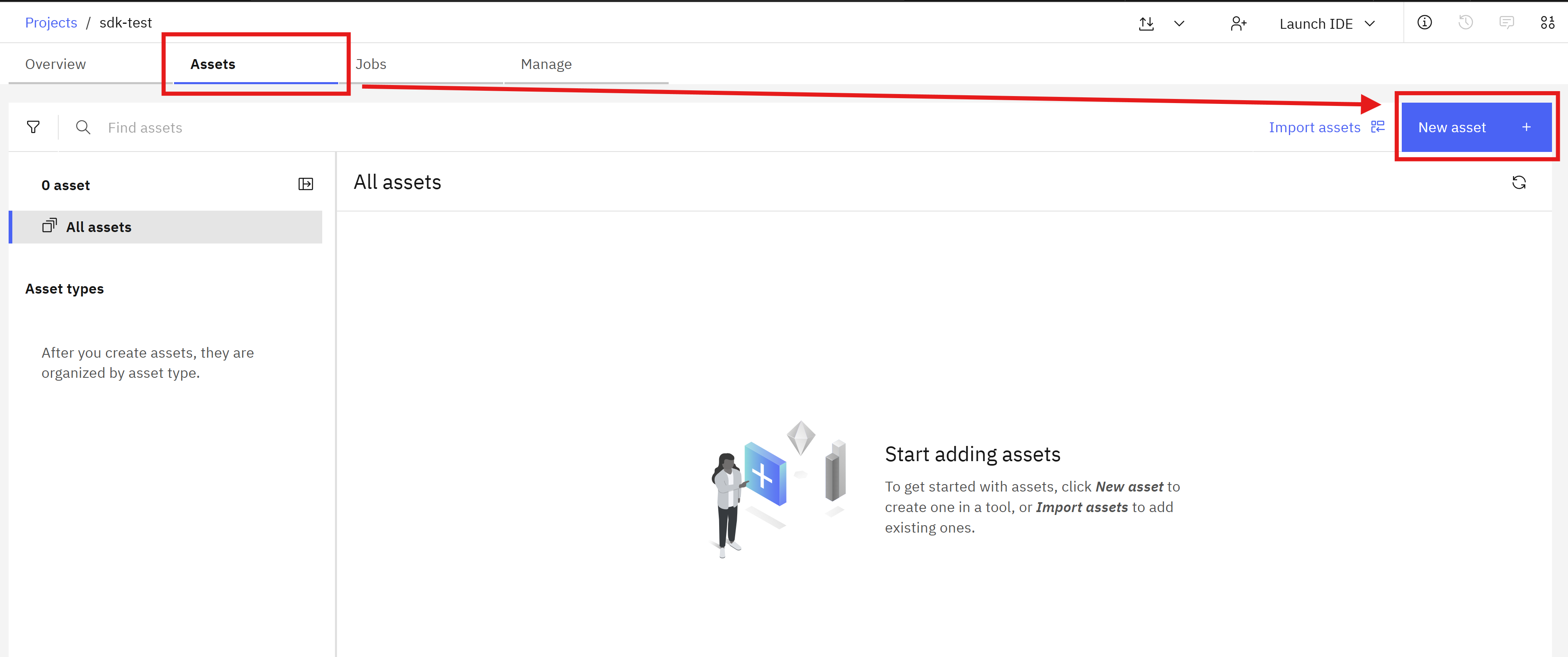
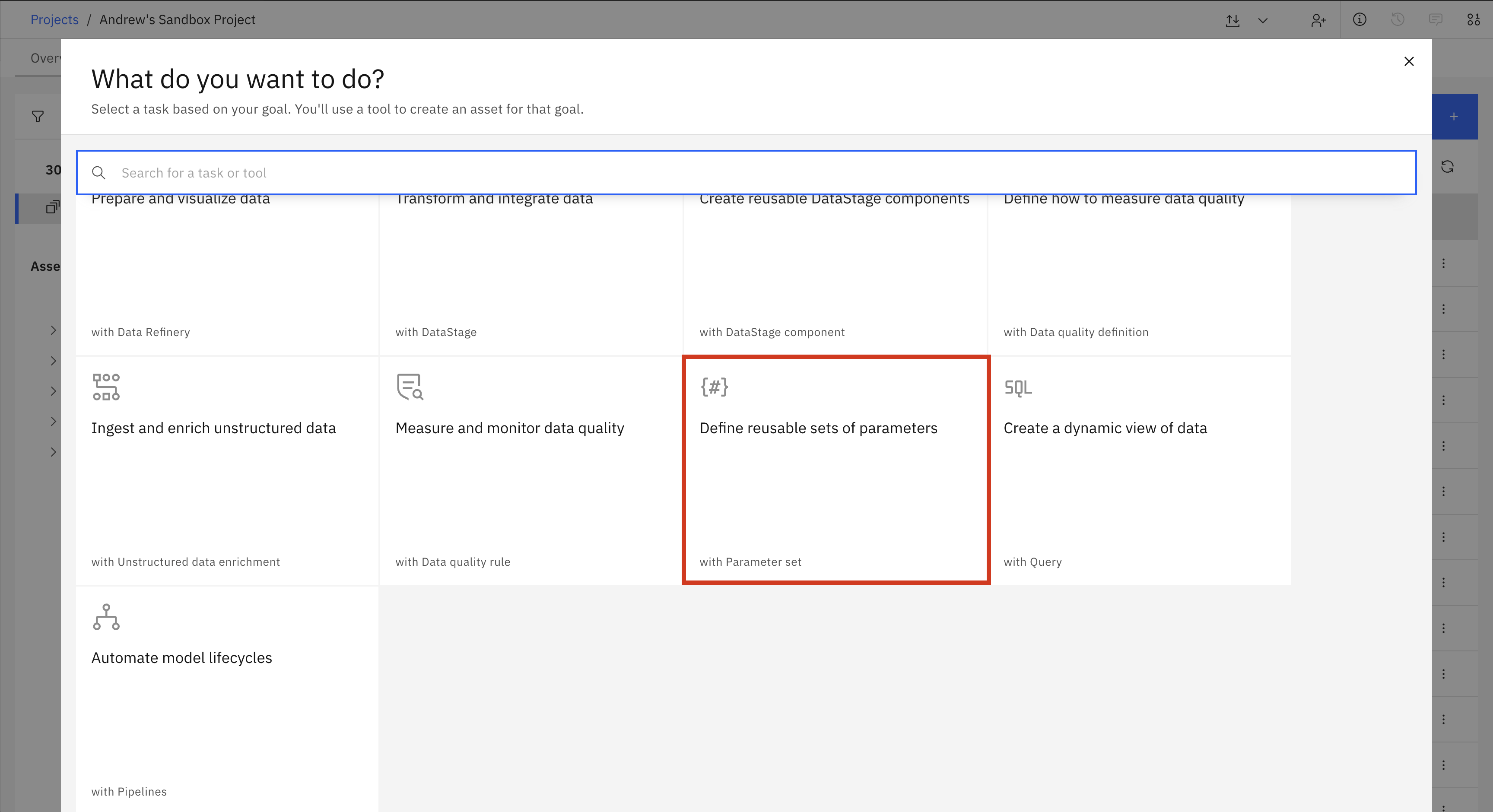
In the UI, you can create a new Parameter Set by navigating to Assets -> New asset -> Define reusable sets of parameters.
In the SDK, you can create a new ParameterSet object within a
Project,
by selecting the appropriate project from the Platform and then using
the Project.create_parameter_set() method to instantiate the Parameter Set.
You must provide a name to create a parameter set. The parameter set name can only contain letters, numbers, and underscores.
When adding parameters to a parameter set, you should use the ParameterType enum to specify the parameter type.
The available parameter types match the options available in the UI.
>>> paramset = project.create_parameter_set('testparamset')
>>> paramset.add_parameter(parameter_type=ParameterType.Integer, name='qty', value='100')
ParameterSet(name='testparamset', parameters=[Parameter(name='qty', param_type='int64', value='100')], description='', value_sets=[])
>>>
>>> project.update_parameter_set(paramset)
<Response [200]>
When creating a parameter set with Project.create_parameter_set(), you can provide parameters as either Parameter objects or as dictionaries.
>>> from ibm_watsonx_data_integration.cpd_models.parameter_set_model import Parameter, ParameterType
>>>
>>> # Using Parameter objects
>>> param1 = Parameter(name='qty', param_type=ParameterType.Integer, value='100')
>>> param2 = Parameter(name='score', param_type=ParameterType.String, value='high')
>>> paramset_a = project.create_parameter_set(name='my_params_from_objects', parameters=[param1, param2])
>>>
>>> # Using dictionaries
>>> params_dict = [
...     {'name': 'qty', 'type': ParameterType.Integer, 'value': '100'},
...     {'name': 'score', 'type': ParameterType.String, 'value': 'high'}
... ]
>>> paramset_b = project.create_parameter_set(name='my_params_from_dictionaries', parameters=params_dict)
Retrieving an Existing Parameter Set#
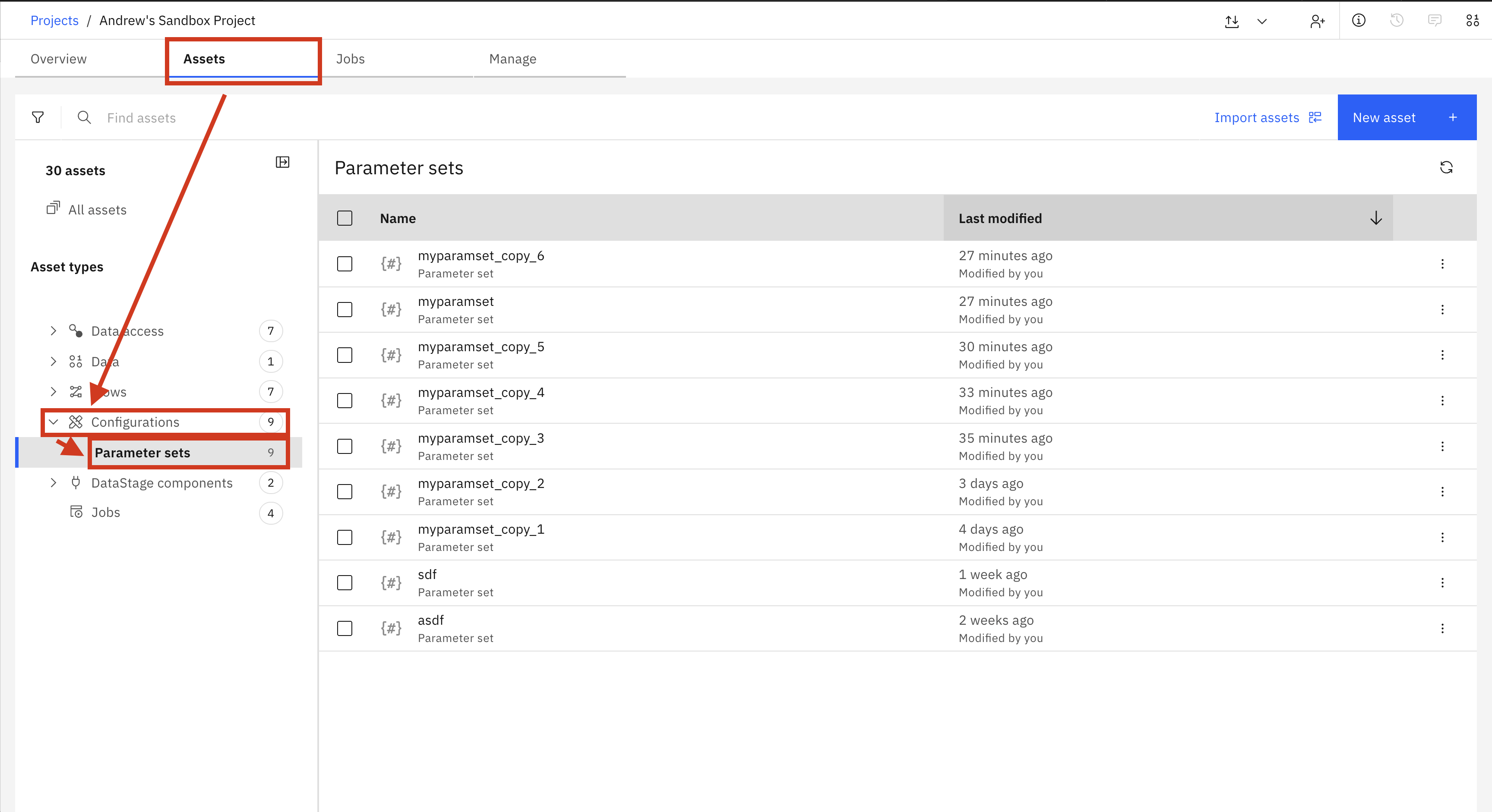
In the UI, you can view all Parameter Sets by navigating to Assets -> Configurations -> Parameter sets.
In the SDK, Parameter Sets can be retrieved using the Project.parameter_sets property.
This property returns a list of ParameterSet objects.
>>> # Returns a list of all parameter sets
>>> project.parameter_sets
[...ParameterSet(name='testparamset', parameters=[Parameter(name='qty', param_type='int64', value='100')], description='', value_sets=[])...]
>>>
>>> project.parameter_sets.get(name='testparamset')
ParameterSet(name='testparamset', parameters=[Parameter(name='qty', param_type='int64', value='100')], description='', value_sets=[])
Updating a Parameter Set#
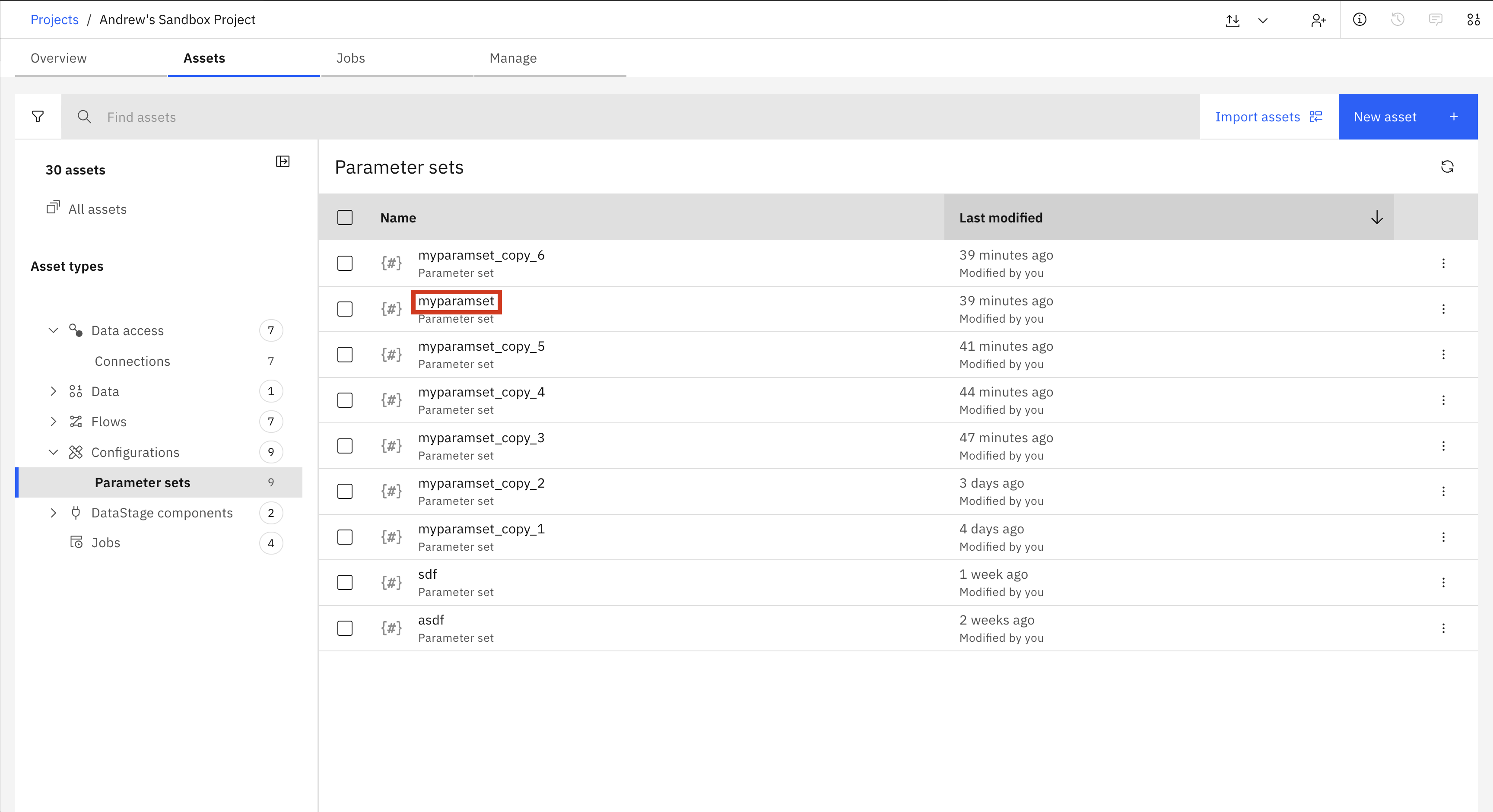
In the UI, you can update a Parameter Set by navigating to Assets -> Configurations -> Parameter sets and clicking the name of the Parameter Set you want to edit. This will take you to a new page where you can add, edit, and delete parameters.
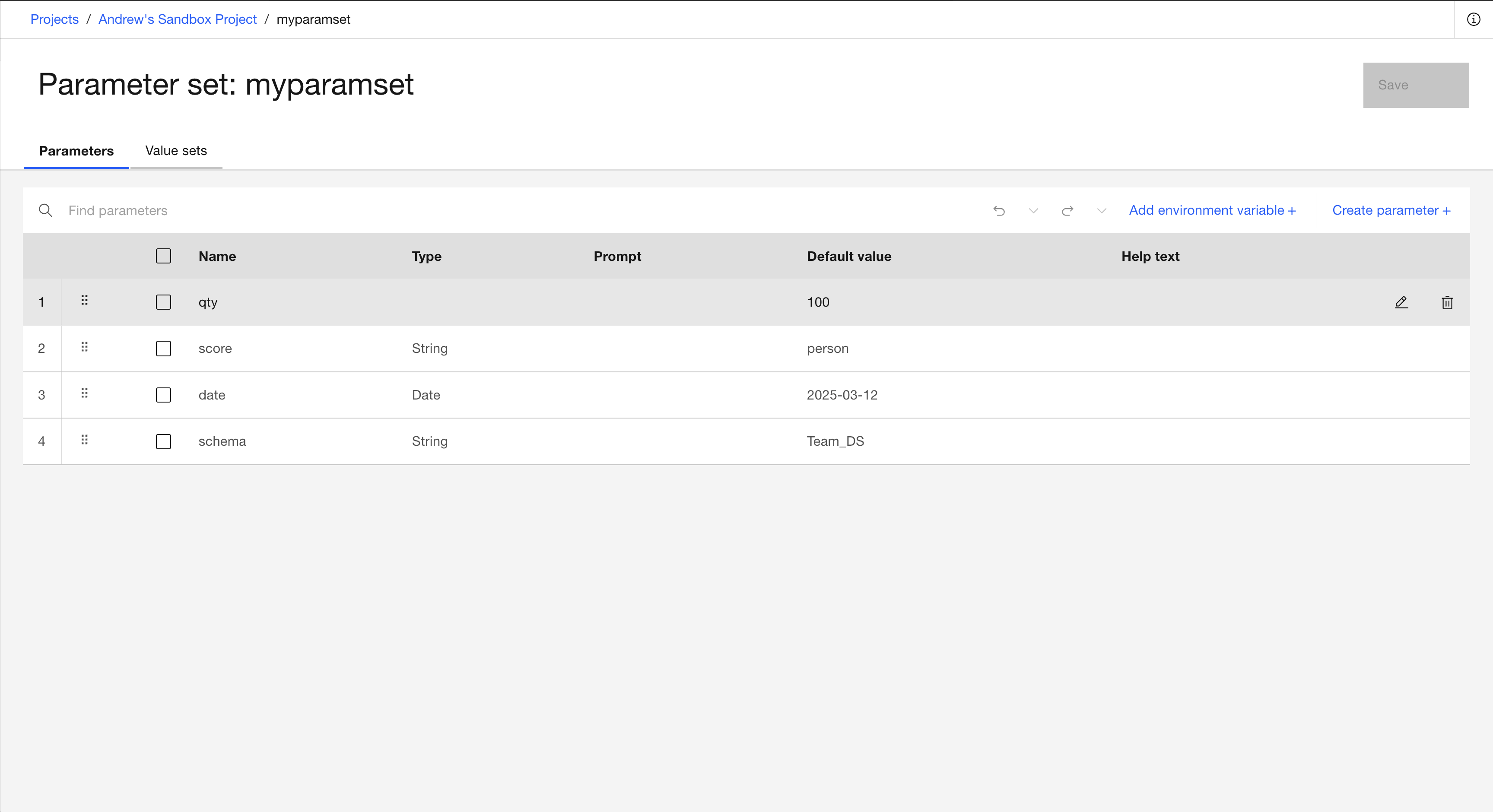
To add parameters to a Parameter Set in the SDK, you can use the ParameterSet.add_parameter() method.
This method requires a name and parameter_type and can also take value, description, prompt, and valid_values. The valid_values argument is used only for parameters of type list.
To remove parameters, use the ParameterSet.remove_parameter() method, which takes the name of the parameter you want to remove.
>>> paramset = (
...    paramset.add_parameter(parameter_type=ParameterType.String, name='score', value='person')
...    .add_parameter(parameter_type=ParameterType.Date, name='date', value='2025-03-12')
... )
>>> paramset.remove_parameter('score')
ParameterSet(name='testparamset', parameters=[Parameter(name='qty', param_type='int64', value='100'), Parameter(name='date', param_type='date', value='2025-03-12')], description='', value_sets=[])
You can also directly change the name and description of the Parameter Set. When changing the parameter set name, remember that it can contain only letters, numbers, and underscores.
To apply these modifications to the Parameter Set, pass the instance to the Project.update_parameter_set() method.
This method returns an HTTP response indicating the status of the update operation.
>>> paramset.name = 'New_Paramset_Name'
>>> project.update_parameter_set(paramset)
<Response [200]>
>>>
>>> project.parameter_sets.get(name='New_Paramset_Name')
ParameterSet(name='New_Paramset_Name', parameters=[...Parameter(...)...], description='', value_sets=[])
Updating Parameters Within a Parameter Set#
When you add a parameter with an existing name to a ParameterSet, it will overwrite the existing parameter. Alternatively, you can fetch a single parameter and modify it directly:
>>> # Overwriting an existing parameter by adding with the same name
>>> paramset.add_parameter(parameter_type=ParameterType.Integer, name='qty', value='200')
ParameterSet(name='New_Paramset_Name', parameters=[Parameter(name='qty', param_type='int64', value='200'), ...], description='', value_sets=[])
>>>
>>> # Or fetch and modify a parameter directly
>>> param = next((p for p in paramset.parameters if p.name == 'qty'), None)
>>> if param:
...     param.value = '300'
>>> project.update_parameter_set(paramset)
<Response [200]>
Adding Value Sets#
Value sets let you assign different values to the parameters in a parameter set. In the UI, to create a value set, first navigate to Assets -> Configurations -> Parameter sets and click the name of the Parameter Set you want to edit. Then click the Value sets tab to create, edit, or delete a value set.
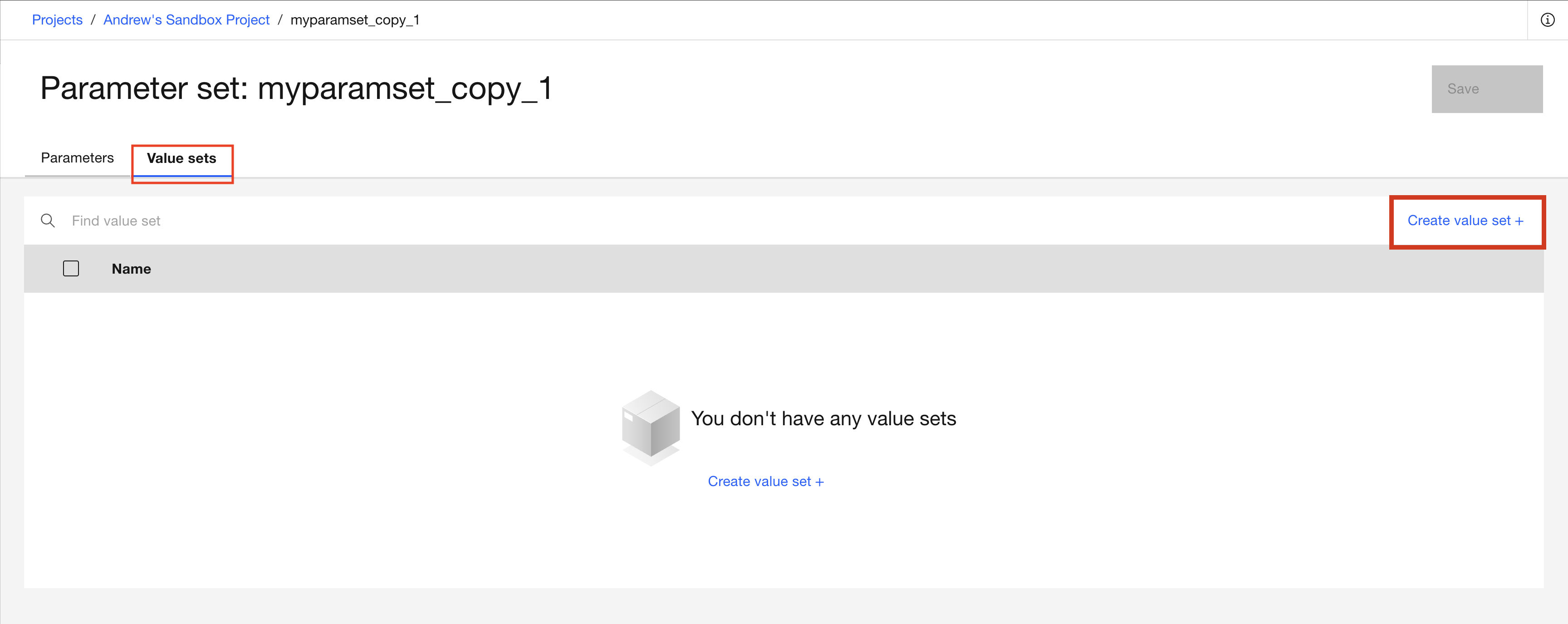
The following window appears when you click Create value set.
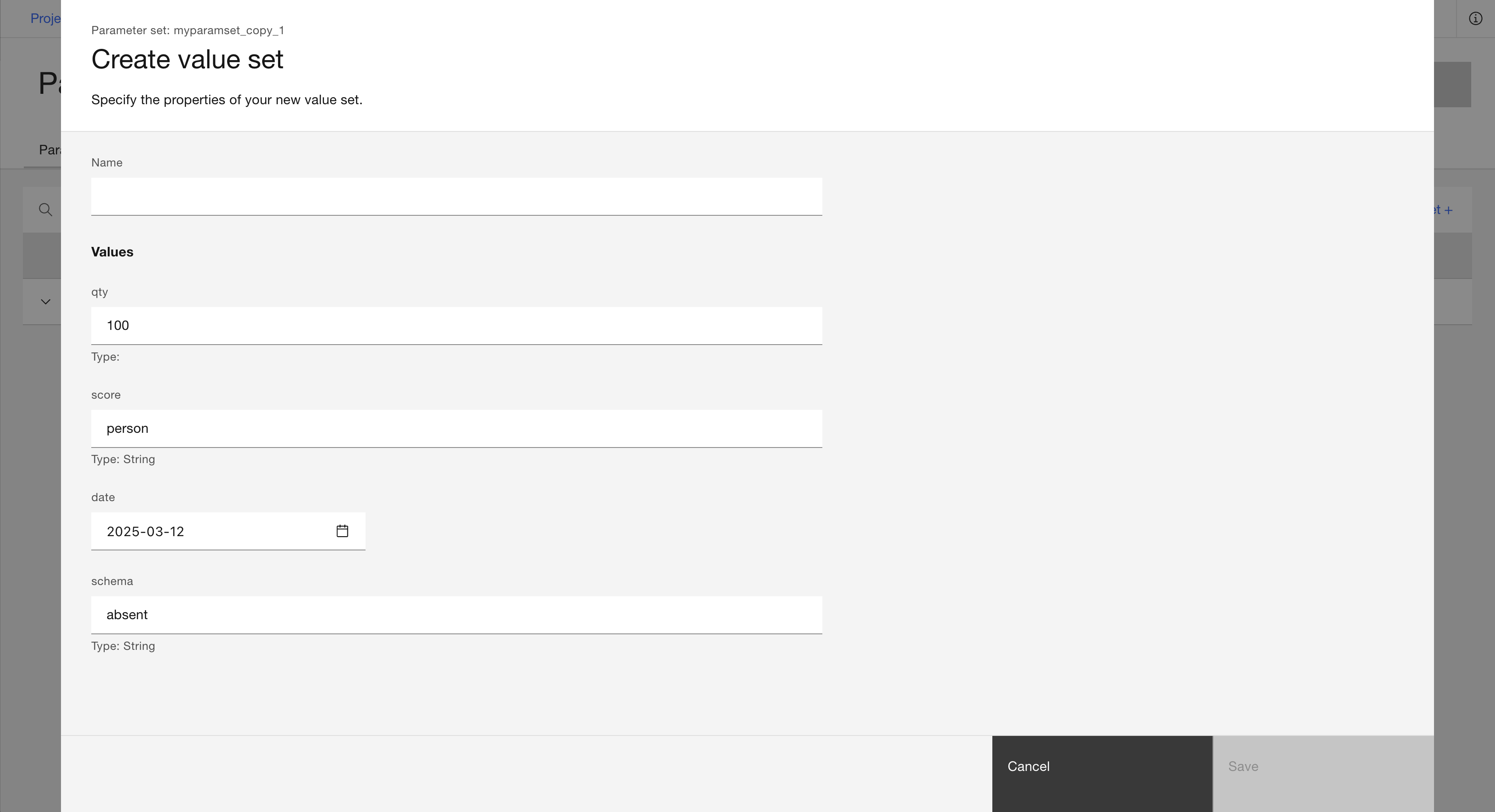
In the SDK, you can create a ValueSet, which requires the name of the value set. Then add values to the value set by calling ValueSet.add_value(), which takes the name of the parameter and the value for that parameter. Finally, add the value set to the parameter set by passing the ValueSet object to ParameterSet.add_value_set().
If a parameter is not given a value, its default value is used. You can also call ValueSet.remove_value() with the name of the parameter to reset it to the default value.
>>> from ibm_watsonx_data_integration.cpd_models.parameter_set_model import ValueSet
>>> set_1 = (
...    ValueSet(name='set_1')
...    .add_value(name='qty', value='20')
...    .add_value(name='date', value='2022-07-13')
... )
>>> set_1.remove_value(name='date')
ValueSet(name='set_1', values=[{'name': 'qty', 'value': '20'}])
>>>
>>> paramset.add_value_set(set_1)
ParameterSet(name='New_Paramset_Name', parameters=[Parameter(name='qty', param_type='int64', value='300'), Parameter(name='date', param_type='date', value='2025-03-12')], description='', value_sets=[ValueSet(name='set_1', values=[{'name': 'qty', 'value': '20'}, {'name': 'date', 'value': '2025-03-12'}])])
>>>
>>> set_2 = (
...    ValueSet(name='set_2')
...    .add_value(name='qty', value='40')
... )
>>> paramset.add_value_set(set_2)
ParameterSet(name='New_Paramset_Name', parameters=[Parameter(name='qty', param_type='int64', value='300'), Parameter(name='date', param_type='date', value='2025-03-12')], description='', value_sets=[ValueSet(name='set_1', values=[{'name': 'qty', 'value': '20'}, {'name': 'date', 'value': '2025-03-12'}]), ValueSet(name='set_2', values=[{'name': 'qty', 'value': '40'}, {'name': 'date', 'value': '2025-03-12'}])])
In this example, both value sets have the qty parameter set to a new value, while the date parameter still uses the default value.
Alternatively, you can initialize value sets directly when creating a parameter set by passing a list of ValueSet objects or dictionaries to the value_sets parameter. When using dictionaries, each dict must contain a name field and a values list with parameter name-value pairs.
>>> # Using ValueSet objects
>>> value_set_1 = ValueSet(name='set_1').add_value(name='qty', value='20')
>>> value_set_2 = ValueSet(name='set_2').add_value(name='qty', value='40')
>>> paramset_with_sets = project.create_parameter_set(
...     name='paramset_with_valuesets',
...     parameters=[{'name': 'qty', 'param_type': ParameterType.Integer, 'value': '100'}],
...     value_sets=[value_set_1, value_set_2]
... )
>>>
>>> # Using dictionaries
>>> paramset_with_dict_sets = project.create_parameter_set(
...     name='paramset_with_dict_valuesets',
...     parameters=[{'name': 'qty', 'param_type': ParameterType.Integer, 'value': '100'}],
...     value_sets=[
...         {'name': 'set_1', 'values': [{'qty': '20'}]},
...         {'name': 'set_2', 'values': [{'qty': '40'}]}
...     ]
... )
You can choose which value set you want a job to use by editing the job’s runtime settings.
Note
In the UI, there is a way to choose a value set for a flow, but this is not yet implemented in the SDK.
Adding Local Parameters#
Local parameters are parameters that only exist within a single flow.
In the UI, you can add a local parameter by navigating to Flow parameters -> Local parameters -> Create parameter.
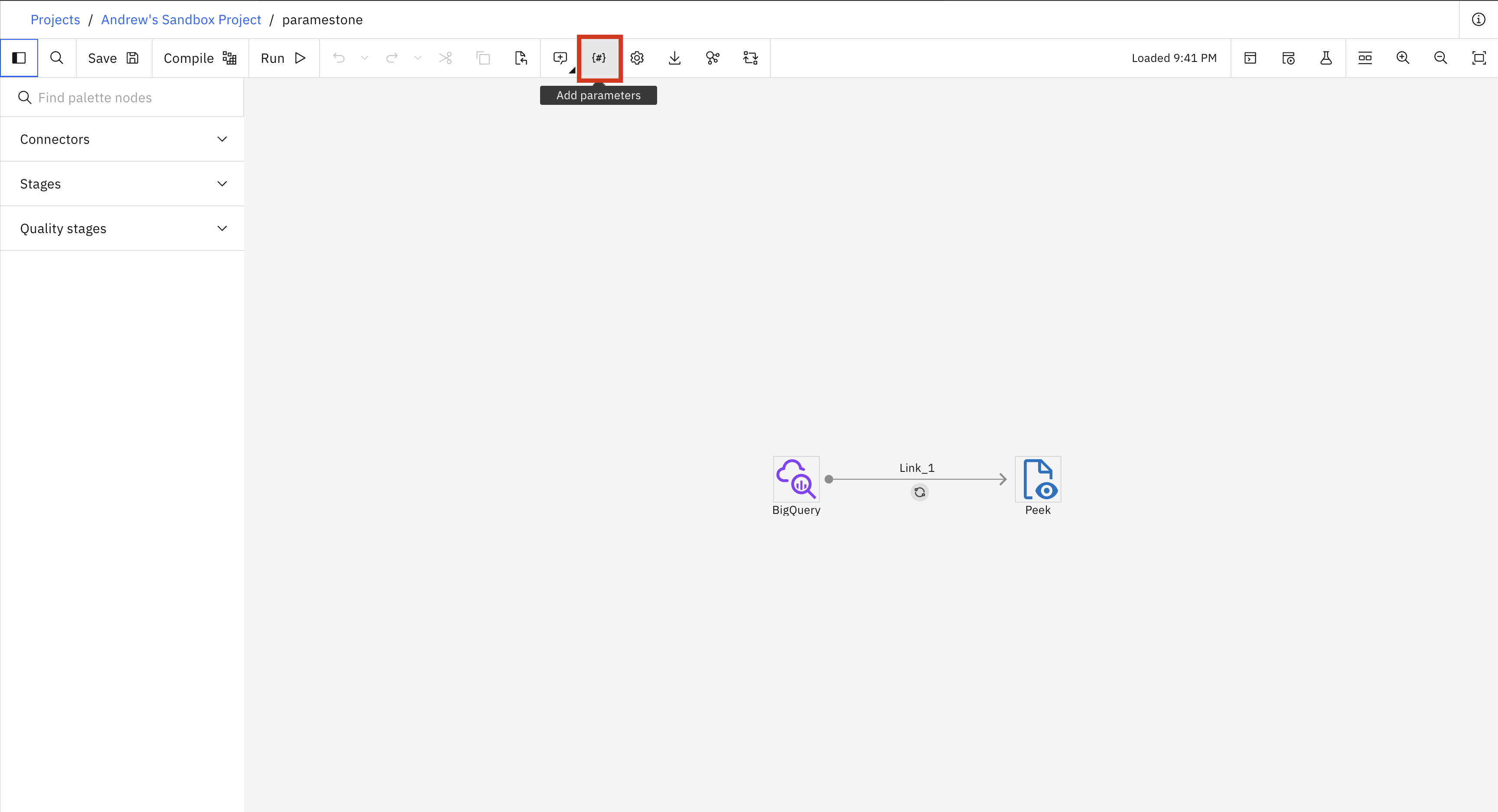
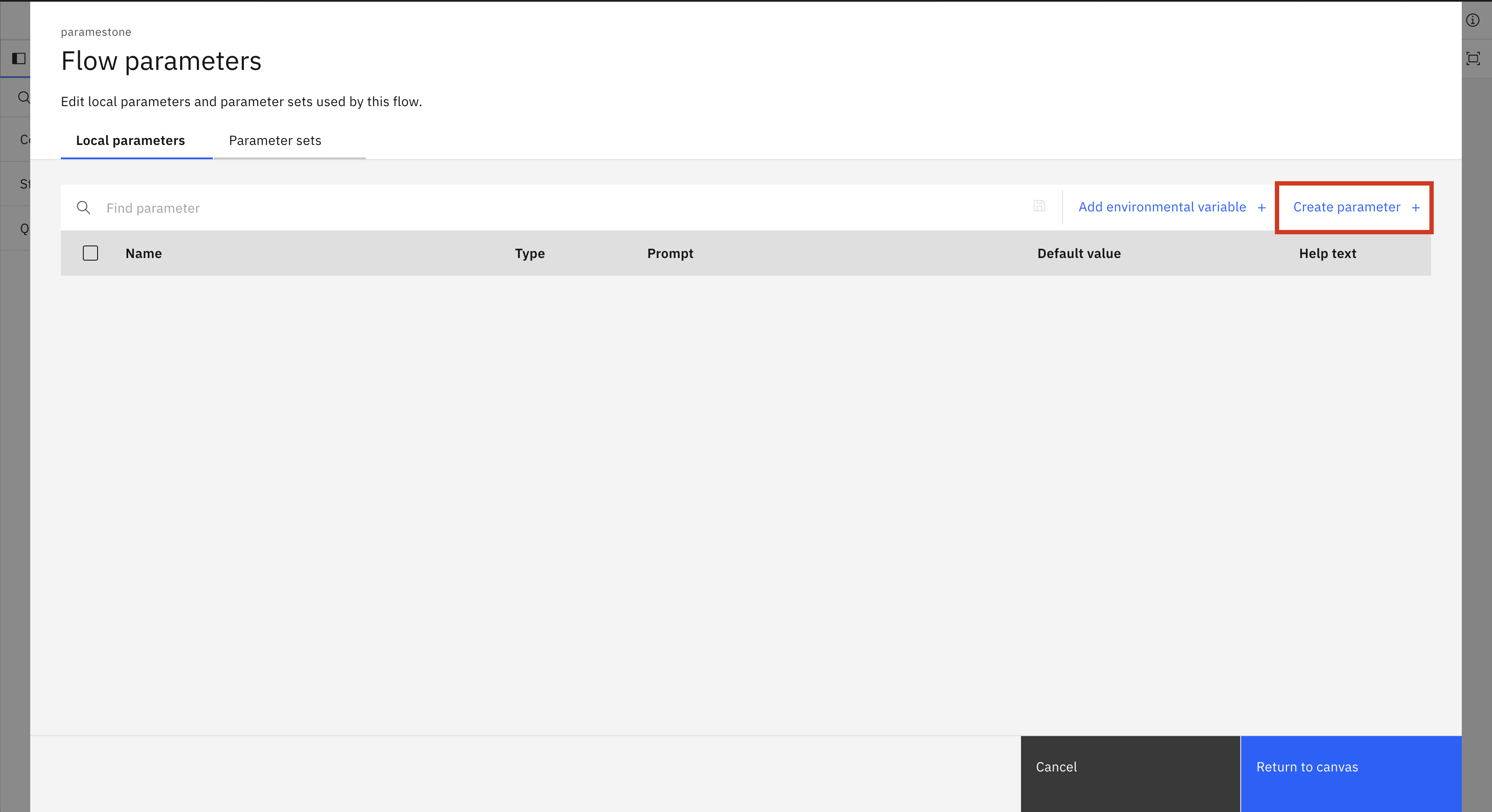
In the SDK, you can call the BatchFlow.add_local_parameter() method.
Just like the add_parameter method above, this method requires a name and parameter_type and can also take value, description, prompt, and valid_values.
>>> batch_flow.add_local_parameter(parameter_type=ParameterType.String, name='tablename', value='cust_source')
>>> batch_flow.add_local_parameter(parameter_type=ParameterType.List, name='shoplist', valid_values=['tomato', 'lettuce', 'bacon'], value='bacon')
Using Local Parameters and Parameter Sets#
In the UI, you can use a Parameter Set in a flow by navigating to Flow parameters -> Parameter sets -> Add parameter sets and choosing the desired parameter set from the list.
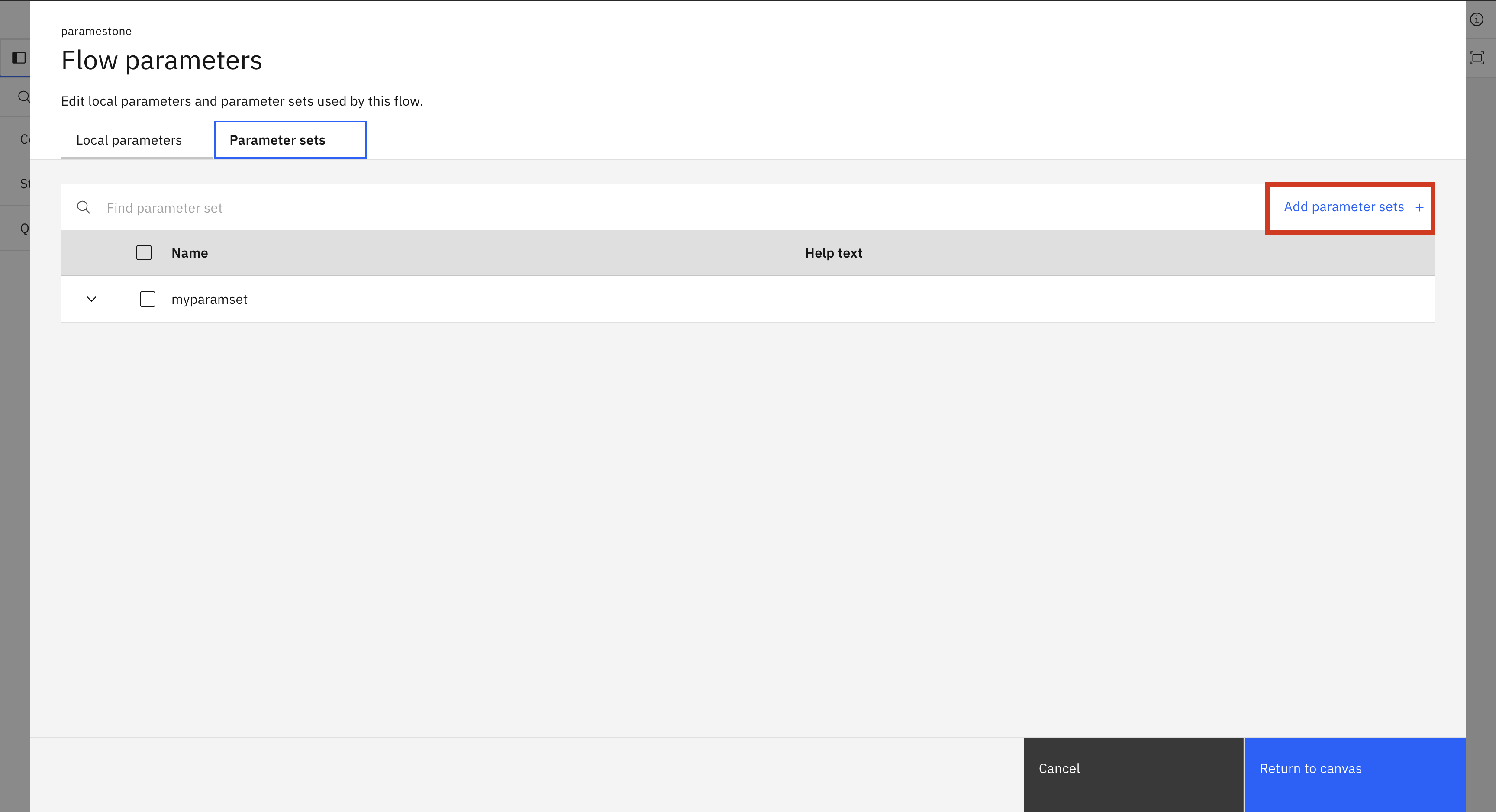
In the SDK, to use a Parameter Set instance in a flow, you can pass it to the BatchFlow.use_parameter_set() method.
For local parameters, there are no additional actions you need to take after you add a local parameter.
>>> batch_flow.use_parameter_set(paramset)
To use a parameter from a parameter set in your code, you can use the following notation: '#New Paramset Name.schema#', where the name of the parameter set is followed by the parameter you want to use.
For local parameters, you do not need to put anything in front of the parameter name: '#tablename#'.
>>> bigquery = batch_flow.add_stage('Google BigQuery', 'BigQuery')
>>> bigquery.configuration.table_name = '#tablename#'
>>> bigquery.configuration.dataset_name = '#testparamset.schema#'
Duplicating a Parameter Set#
In the UI, you can duplicate a Parameter Set by navigating to Assets -> Configurations -> Parameter sets.
Then click the three-dot menu on the Parameter Set you want to duplicate and select Duplicate.
A new Parameter Set with a _copy_1 suffix appended to the name will be created.
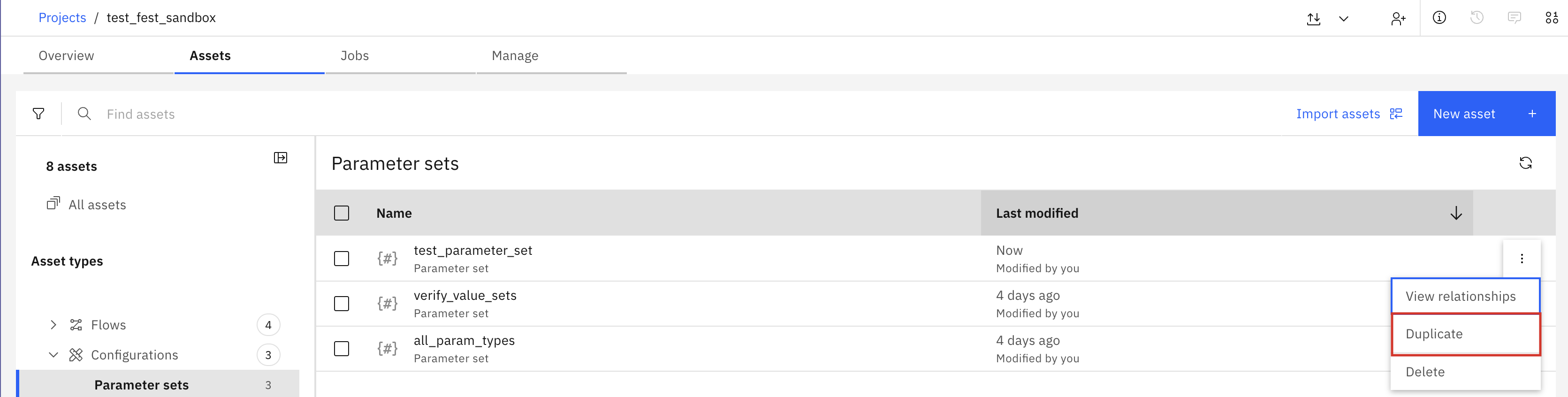
In the SDK, you can duplicate a Parameter Set by passing it to the Project.duplicate_parameter_set() method.
This method returns a new ParameterSet object with all parameters and value sets copied from the original.
>>> original_paramset = project.parameter_sets.get(name='New_Paramset_Name')
>>> duplicated_paramset = project.duplicate_parameter_set(original_paramset)
>>> duplicated_paramset.name
'New_Paramset_Name_copy_1'
Using PROJDEF#
You can use the PROJDEF parameter set to contain the parameters and environment variable values that a batch flow, job, or job run can reference. You can read more about PROJDEF here. To add PROJDEF in the UI, go to Flow parameters -> Add PROJDEF parameter.
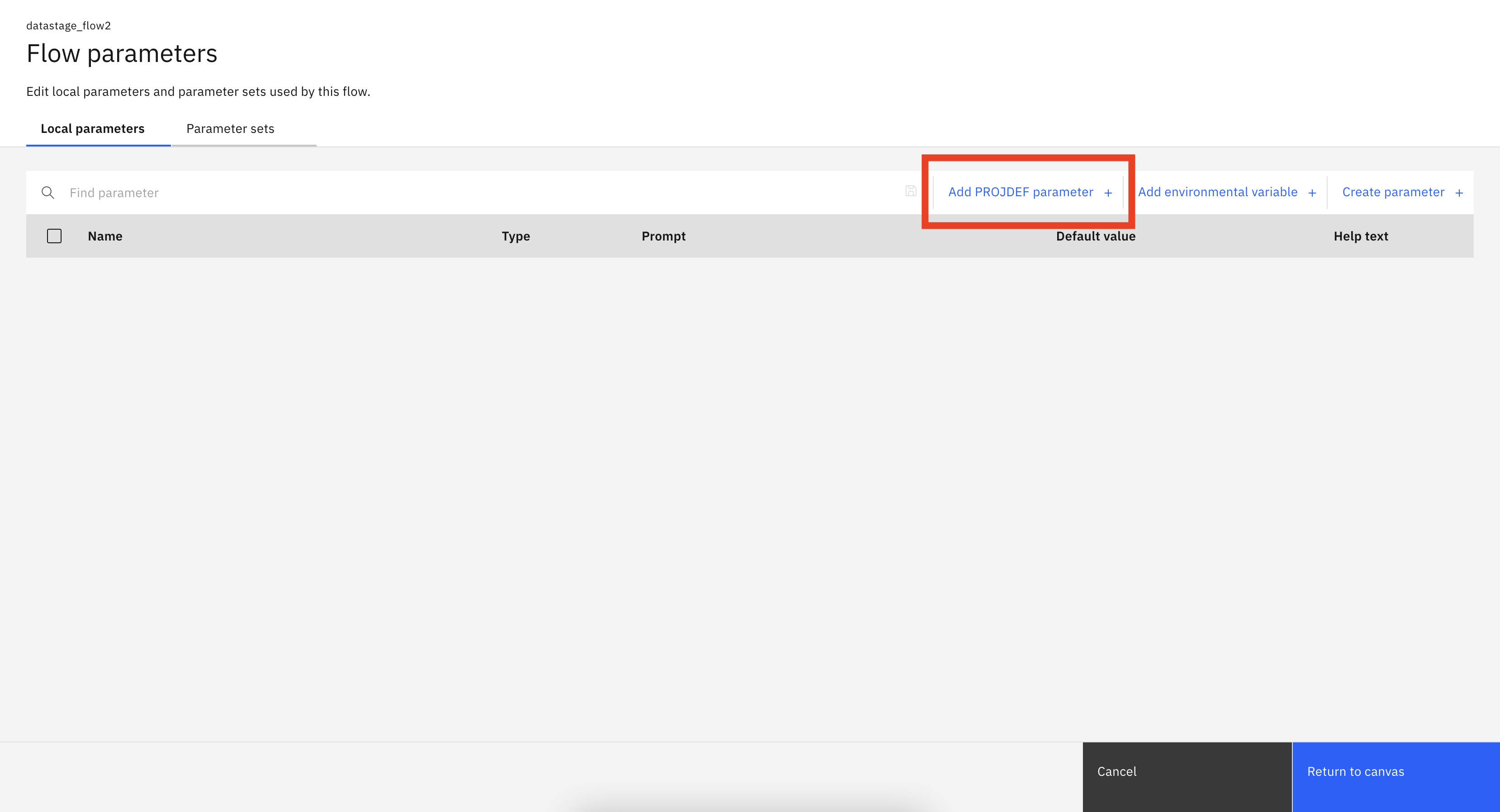
To use PROJDEF in the SDK, you first need to create a parameter set with the name PROJDEF and then use it like a normal parameter set.
>>> projdef_param = project.create_parameter_set('PROJDEF')
>>> projdef_param.add_parameter(parameter_type=ParameterType.Integer, name='qty', value='100')
ParameterSet(name='PROJDEF', parameters=[Parameter(name='qty', param_type='int64', value='100')], description='', value_sets=[])
>>>
>>> project.update_parameter_set(projdef_param)
<Response [200]>
>>>
>>> batch_flow.use_parameter_set(projdef_param)
BatchFlow(...)
>>>
>>> project.update_flow(batch_flow)
<Response [201]>
To add only some of the PROJDEF parameters, use flow.use_projdef_parameter().
>>> projdef_param = project.parameter_sets.get(name='PROJDEF')
>>> projdef_param = project.parameter_sets.get(parameter_set_id=projdef_param.parameter_set_id)
>>>
>>> param = next((p for p in projdef_param.parameters if p.name == 'qty'), None)
>>> batch_flow.use_projdef_parameter(param)
BatchFlow(...)
>>>
>>> project.update_flow(batch_flow)
<Response [201]>
Deleting a Parameter Set#
In the UI, you can delete an existing Parameter Set by navigating to Assets -> Configurations -> Parameter sets.
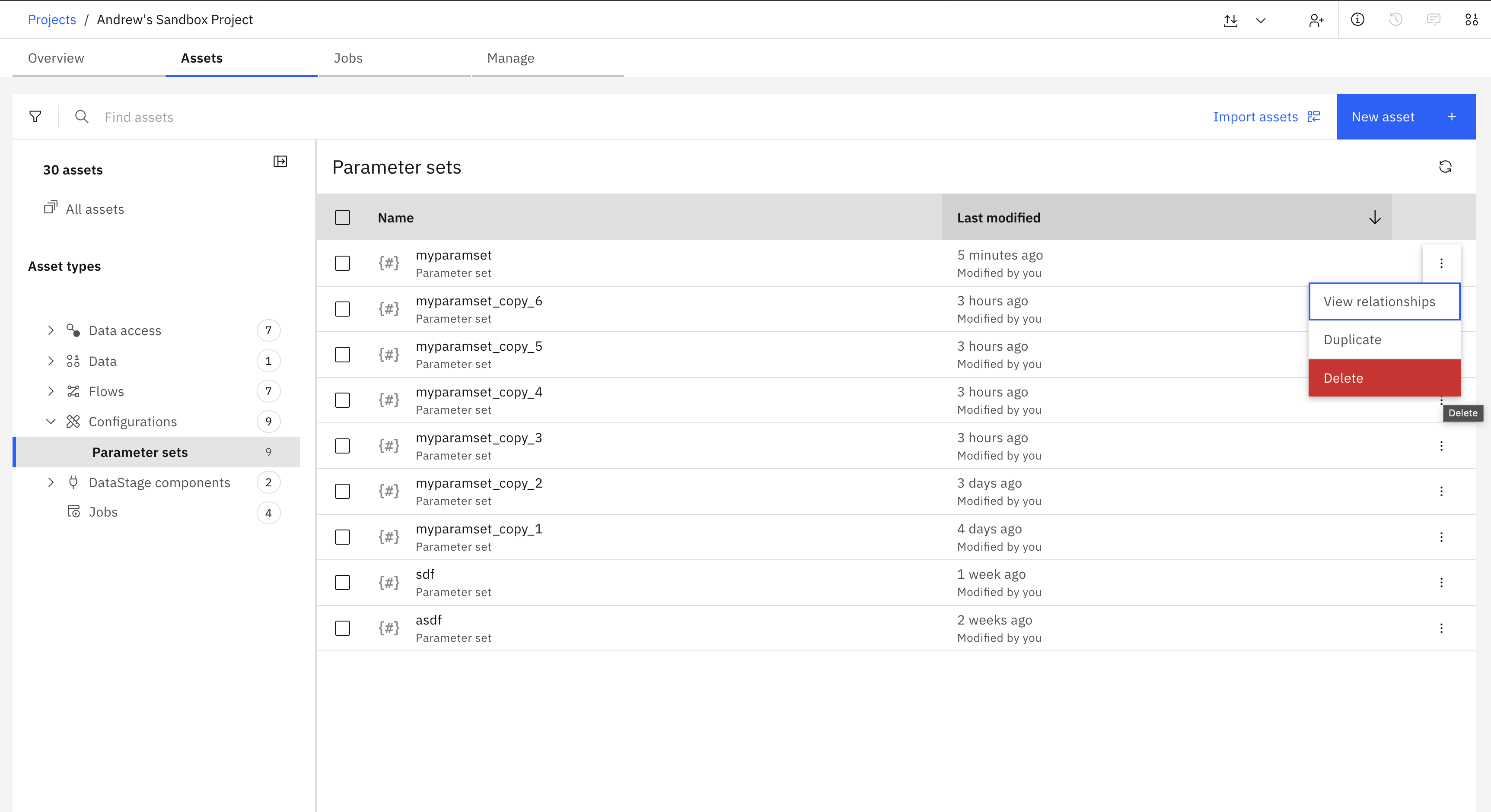
In the SDK, to delete a Parameter Set instance, you can pass it to the Project.delete_parameter_set() method.
This method returns an HTTP response indicating the status of the delete operation.
>>> project.delete_parameter_set(paramset)
<Response [204]>