
Access Groups#
An access group is a resource that can be used to assign policies and roles to a group of members (users, trusted profiles, and service IDs). Access group management is a platform-level service in IBM Cloud that enables you to manage access groups under your account. The SDK provides functionality to interact with the access group API.
- This includes operations such as:
Creating a new access group
Listing all access groups under the current Account
Updating an existing access group
Deleting an existing access group
Create an Access Group#
In the IBM Cloud UI, you can create a new access group by clicking the blue Create + button on the top right of the pane.
The two fields to be filled in are the Name and Description fields.
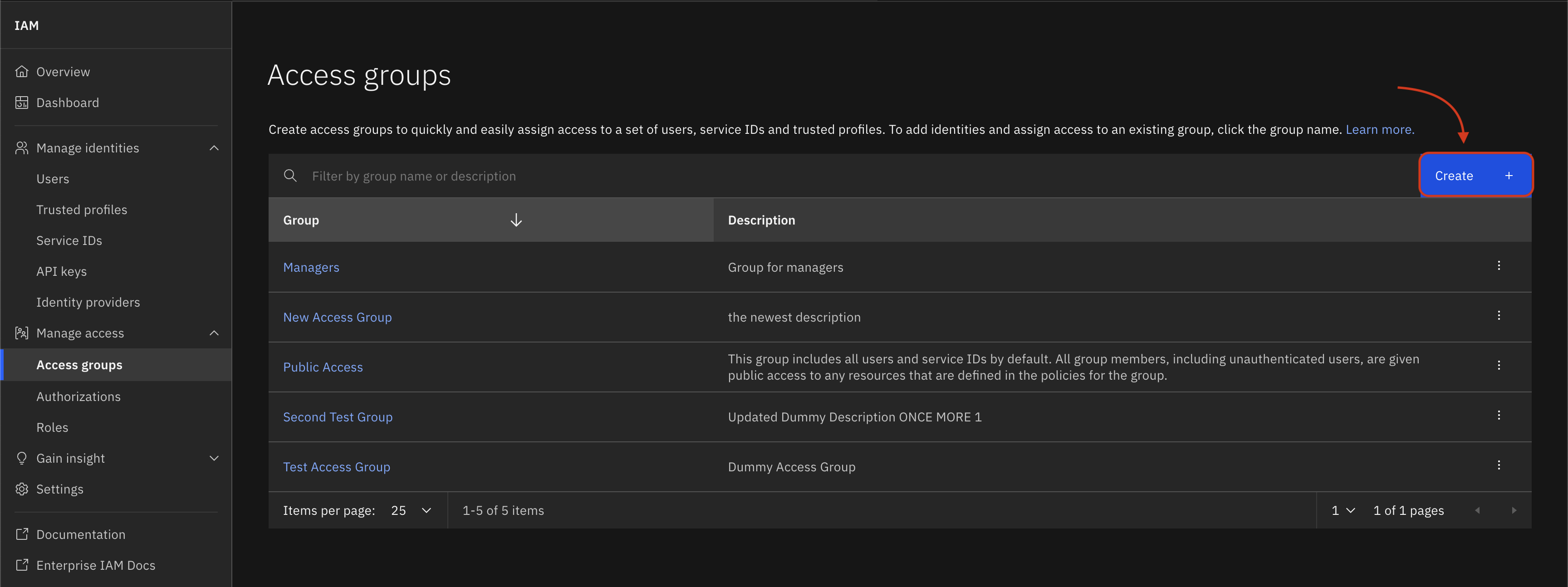
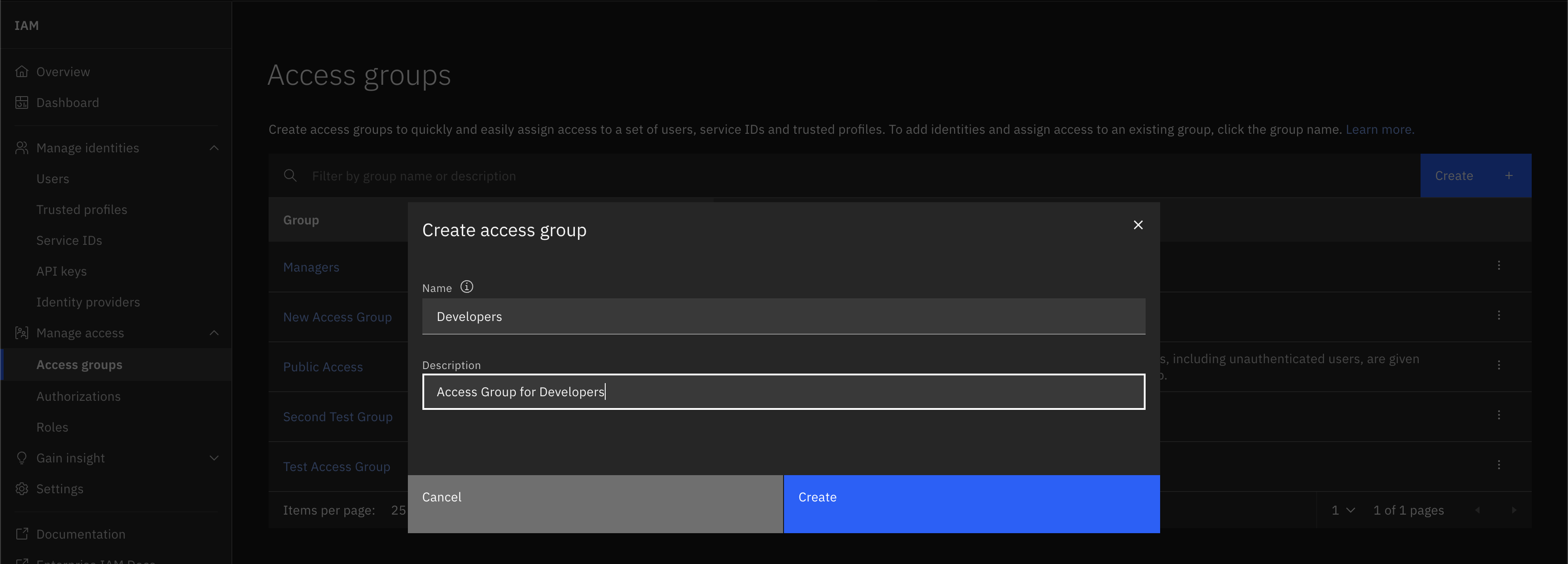
In the SDK, an access group can be created by passing a name and description to the Platform.create_access_group() method.
This method returns a new AccessGroup object.
>>> new_group = platform.create_access_group(name='Developers', description='access group for Developers')
>>> new_group
AccessGroup(name='Developers', description='access group for Developers')
Listing all Access Groups#
In the IBM Cloud UI, you can view a list of all access groups under the current account by navigating to Manage -> Access (IAM) -> Access Groups.
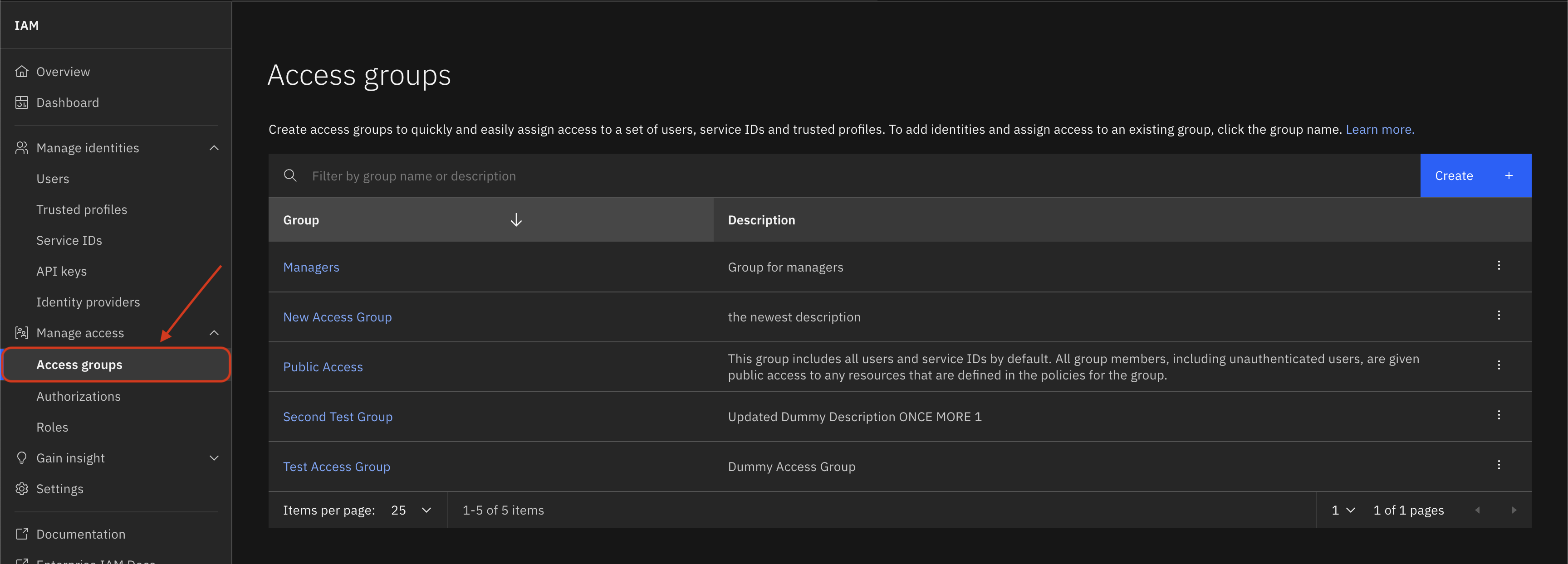
In the SDK, access groups can be retrieved by using the Platform.access_groups property.
This property returns an AccessGroups object, which is a collection of AccessGroup objects.
>>> platform.access_groups
[...AccessGroup(name='Developers', description='access group for Developers')...]
Get an Access Group#
To get a specific access group using the SDK, provide the name as a filter on Platform.access_groups by using the AccessGroups.get() method.
This method returns an AccessGroup object if the requested access group is found.
>>> platform.access_groups.get(name='Developers')
AccessGroup(name='Developers', description='access group for Developers')
Update an Access Group#
In the IBM Cloud UI, you can update an existing access group by clicking on the name of the access group you would like to update.
That opens up a new page with more details about the members, policies, and rules for the access group.
You then need to navigate to Actions -> Edit to open a popup pane. There, you can provide the updated Name or Description.
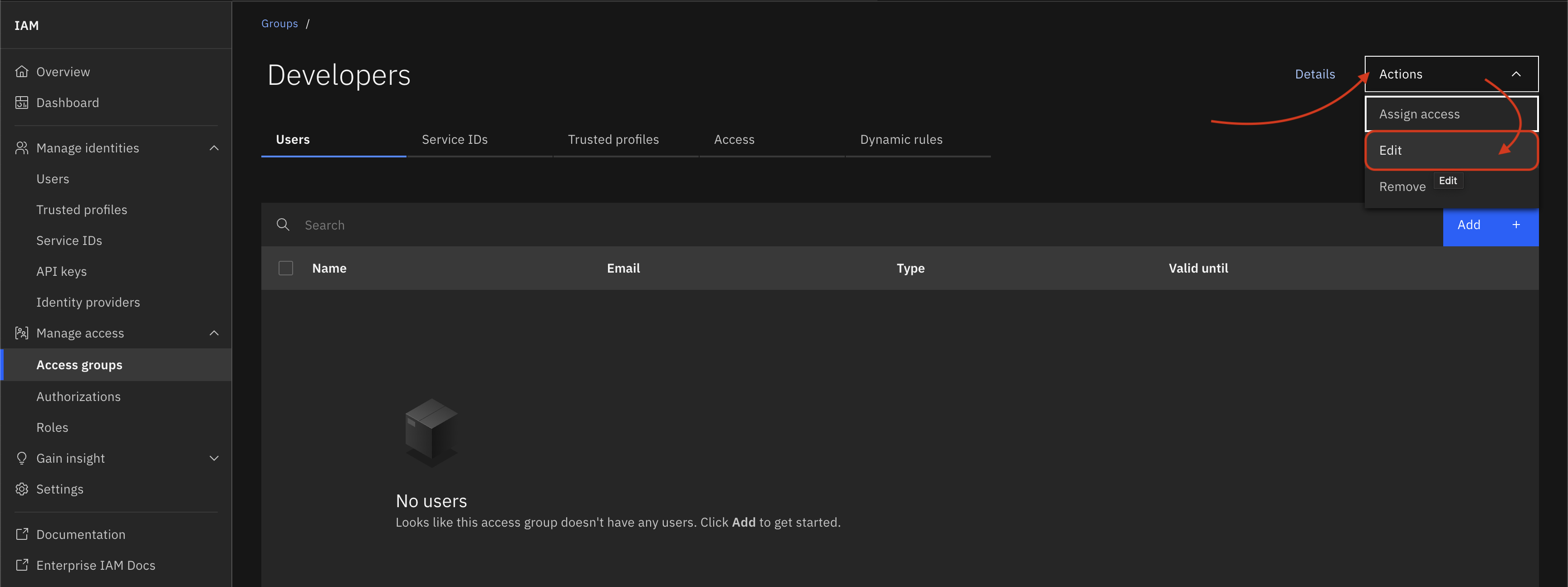
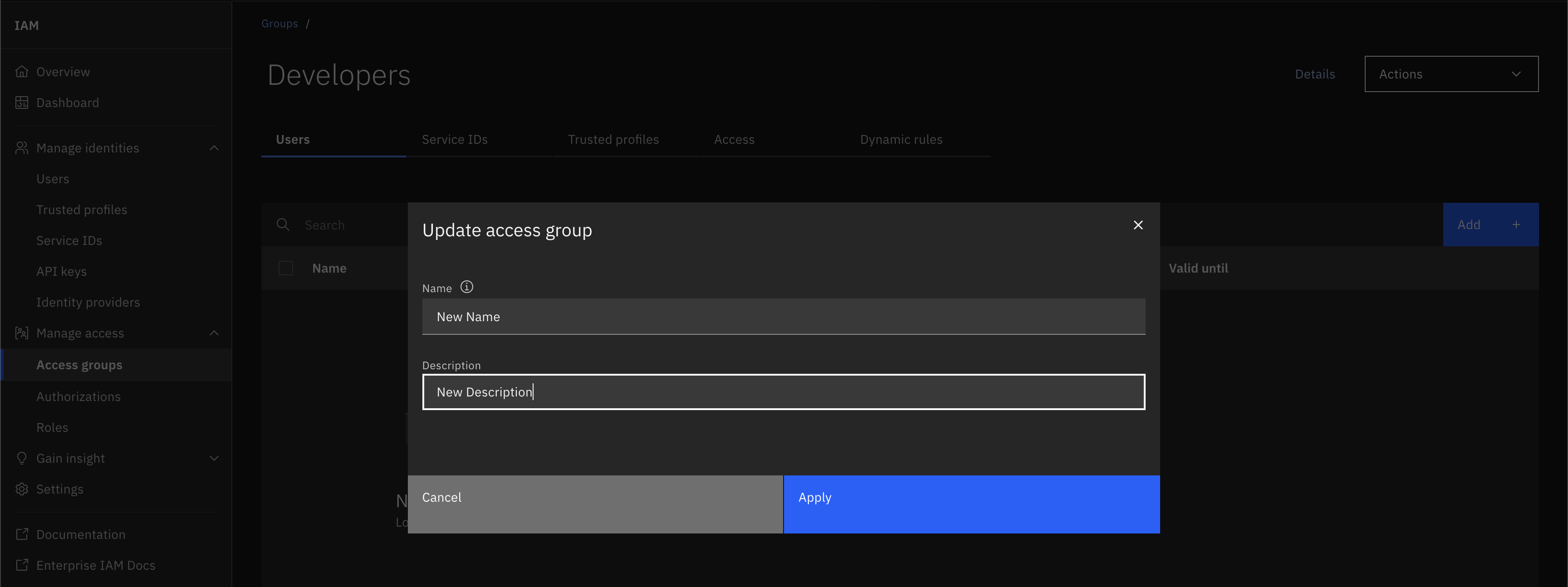
In the SDK, an access group can be updated by first modifying the name and description fields of an existing AccessGroup object.
Then pass the updated AccessGroup object to the Platform.update_access_group() method.
This method returns an API response whose status code should be 200 if the access group was updated successfully.
>>> new_group.name = 'New Name'
>>> new_group.description = 'New Description'
>>> platform.update_access_group(new_group)
<Response [200]>
Add Member(s) to Access Group#
To add a member to an Access Group in the UI, select the desired access group, navigate to the tab for the type of member you want to add (one of Users, Service ID, or Trusted Profile),
and enter the details of the new member to assign them to the selected Access Group.
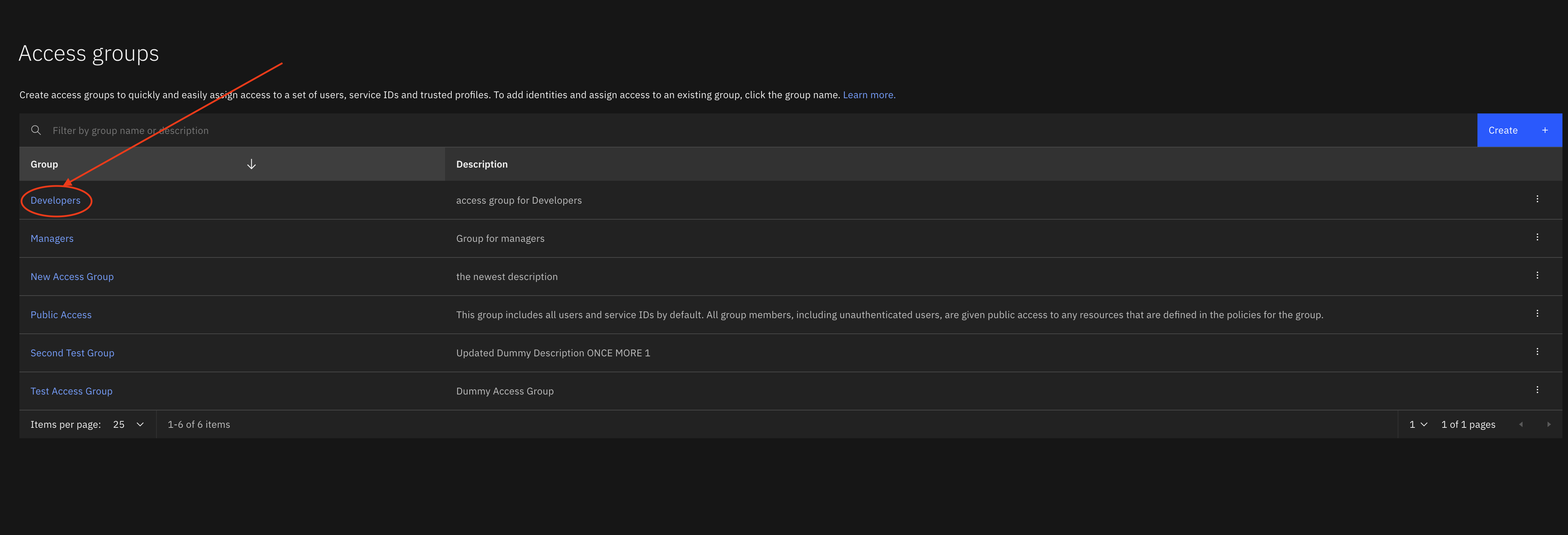
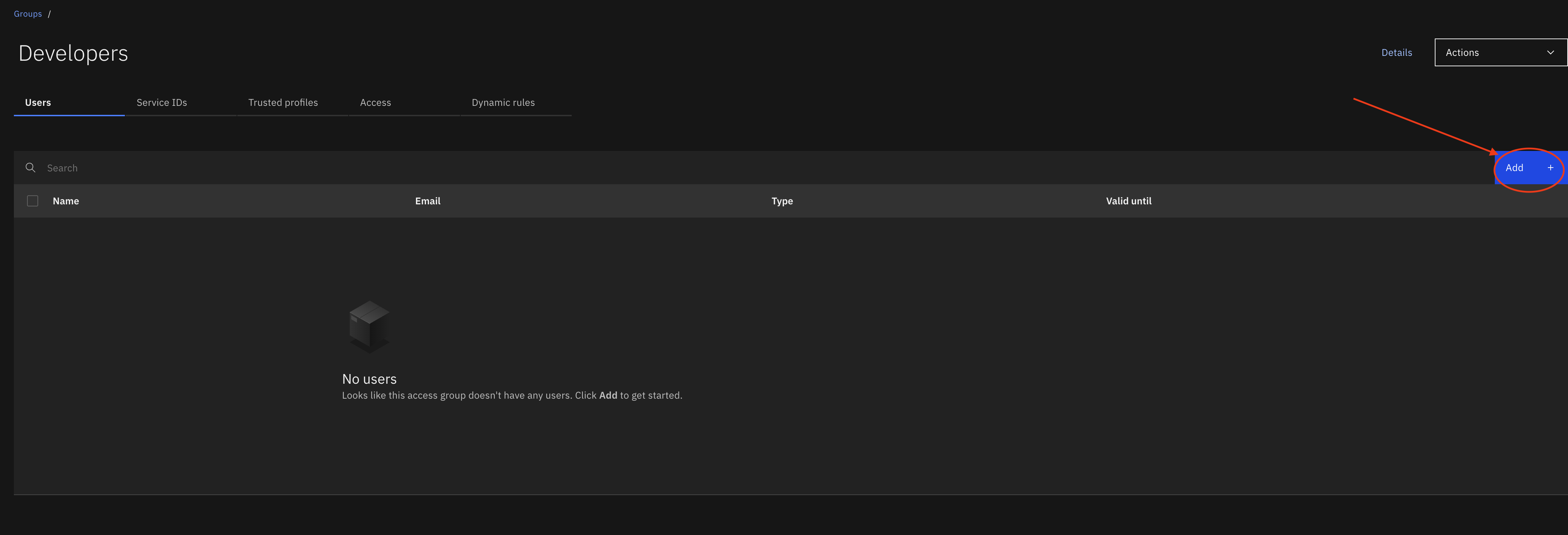
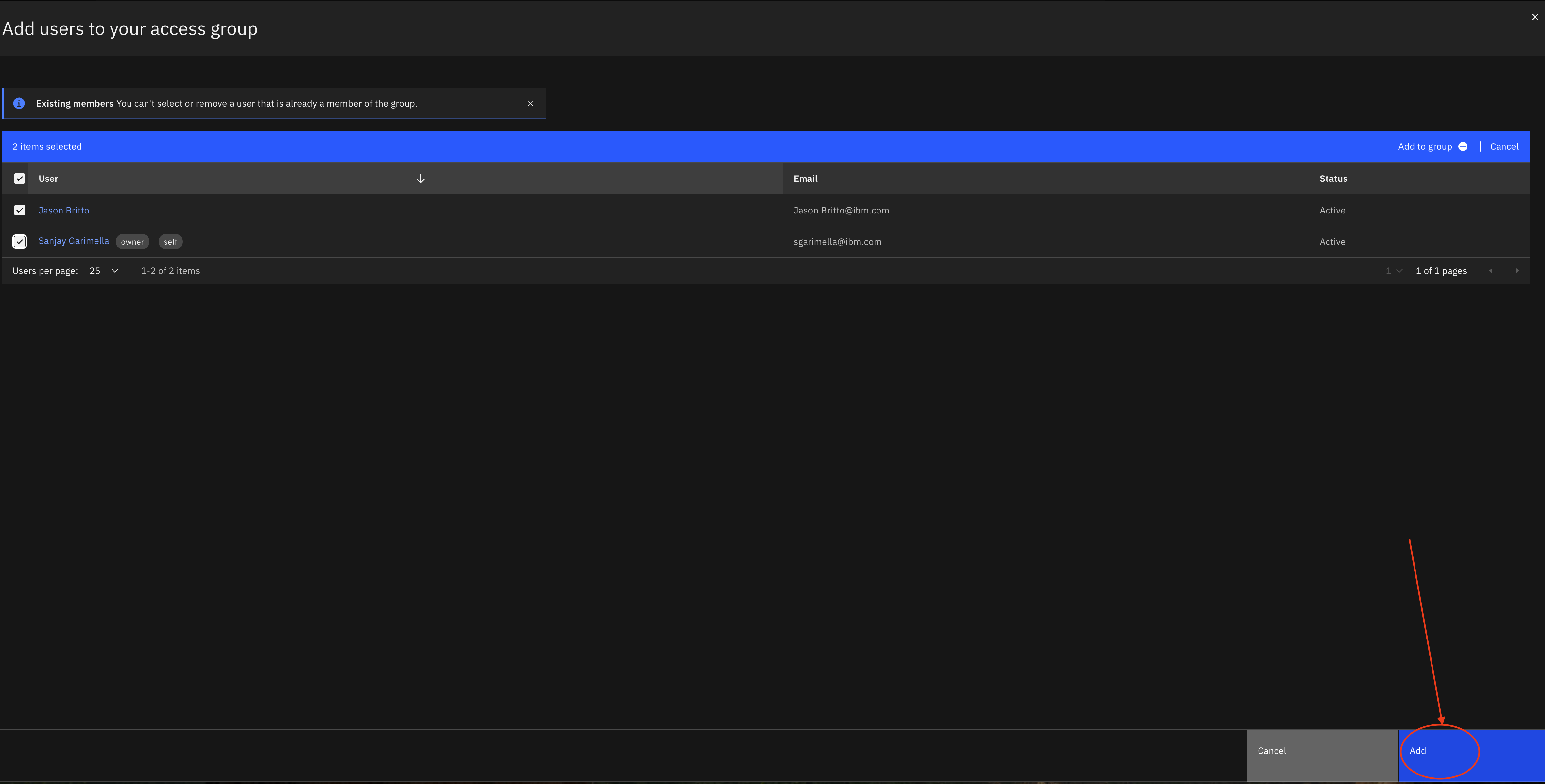
In the SDK, to add a member to the desired access group, pass either an individual member or a list of members (of types UserProfile, TrustedProfile, or ServiceID) to the
AccessGroup.add_members_to_access_group() method. This adds the specified member or members to the desired Access Group and returns an API response whose status code should be 207 if the member or members were added successfully.
>>> user = platform.users[0]
>>> new_group.add_members_to_access_group(user)
<Response [207]>
Get Member of an Access Group#
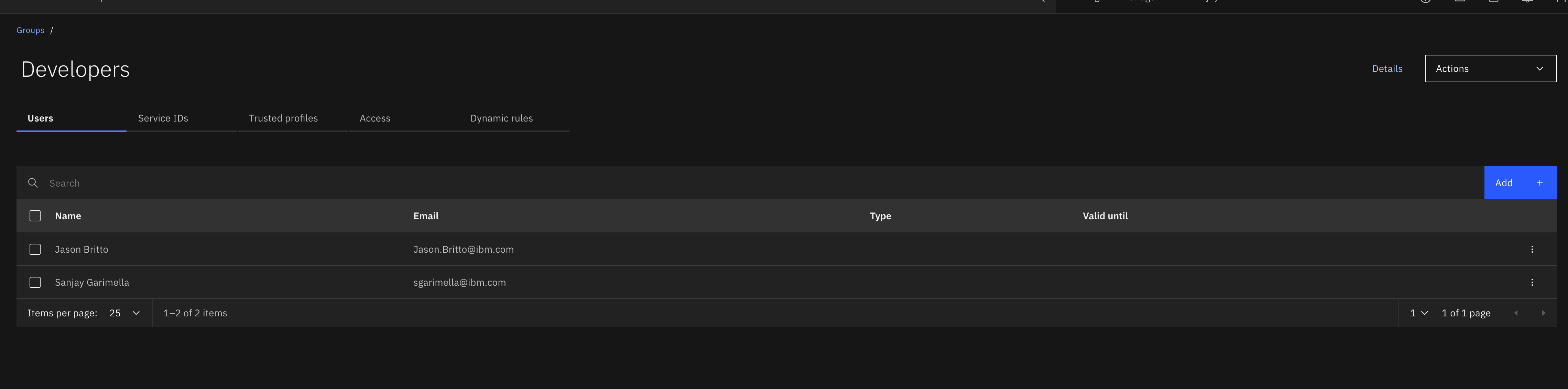
You can view membership information for an Access Group in the IBM Cloud UI by clicking the desired access group’s name. This opens a new page with multiple tabs. The Users tab lists IBM Cloud users with membership in the selected access group.
The Service ID tab lists service IDs with membership in the selected access group. The Trusted Profiles tab lists trusted profiles with membership in the selected access group.
In the SDK, all current members of the selected access group can be retrieved by calling the AccessGroup.get_access_group_members() method.
This method returns a list of UserProfile, TrustedProfile, and ServiceID objects that correspond to the members of the selected access group.
>>> new_group.get_access_group_members()
[UserProfile(...)]
Check Membership to an Access Group#
To check the membership of a specific member (of types UserProfile, TrustedProfile, or ServiceID),
click the desired access group to display all members of each member type with membership in the Access Group.
In the SDK, to check whether an individual member (of types UserProfile, TrustedProfile, or ServiceID) has membership in an Access Group,
pass the member to the AccessGroup.check_membership() method. This returns True if the member has membership in the specified access group and False otherwise.
>>> new_group.check_membership(user)
True
Remove Member(s) from Access Group#
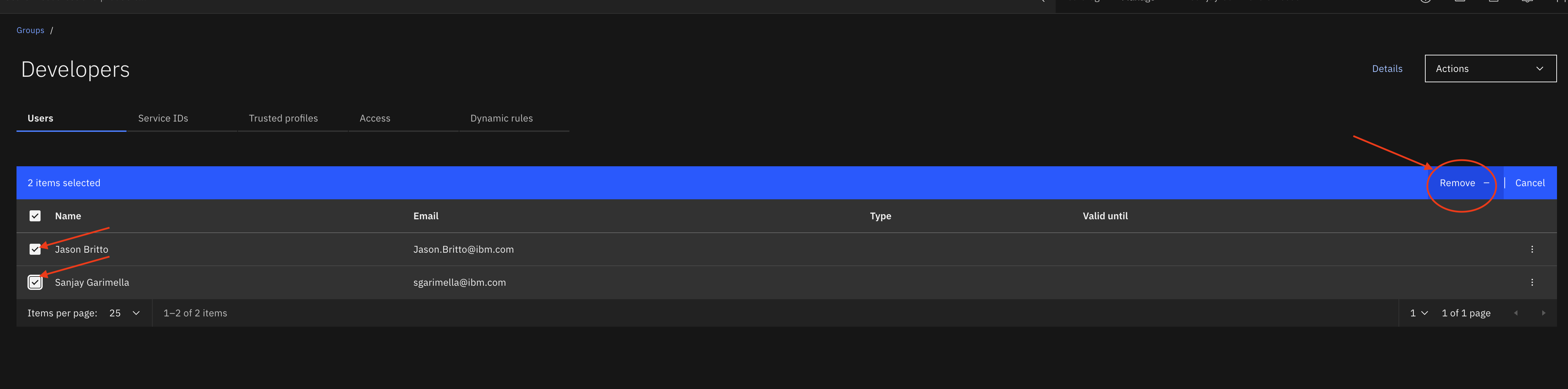
To remove a member from an Access Group in the UI, select the desired access group, navigate to the tab for the type of member you want to remove (one of Users, Service ID, or Trusted Profile),
select the member or members to remove, and then click the remove button in the top-right corner. Confirm the removal in the following popup.
In the SDK, to remove a member from the desired access group, pass either an individual member or a list of members (of types UserProfile, TrustedProfile, or ServiceID) to the
AccessGroup.remove_members_from_access_group() method. This removes the specified member or members from the desired Access Group and returns an API response whose status code should be 207 if the member or members were removed successfully.
>>> new_group.remove_members_from_access_group(user)
<Response [207]>
Add Member to Multiple Access Groups#
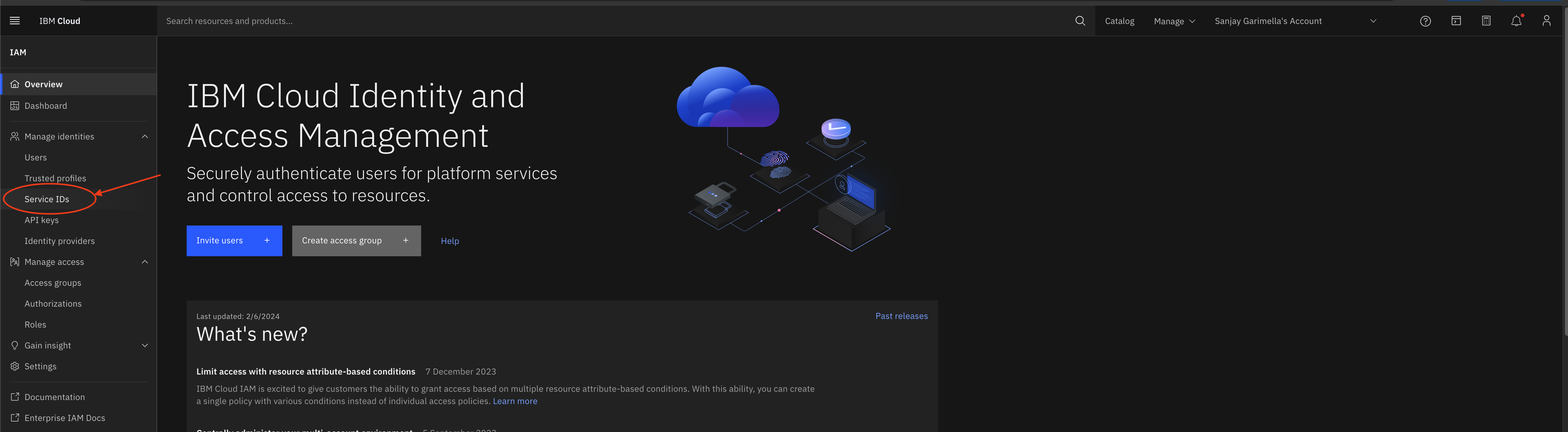
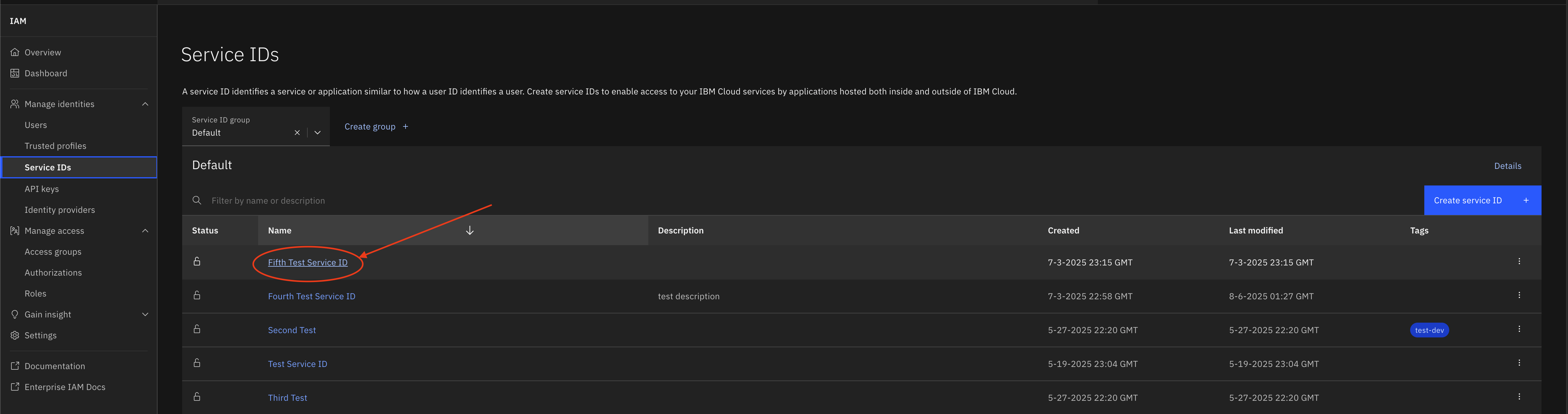
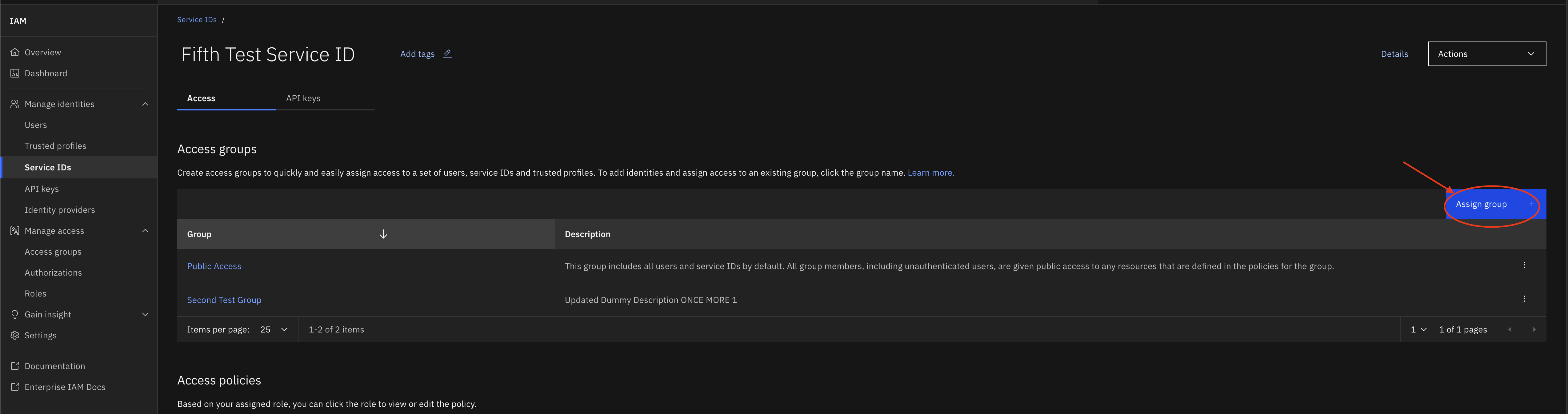
To add a member to multiple access groups in the UI, first navigate to the desired member type on the IAM landing page (one of Users, Service ID, or Trusted Profile). In this example, use Service ID, then select the desired member.
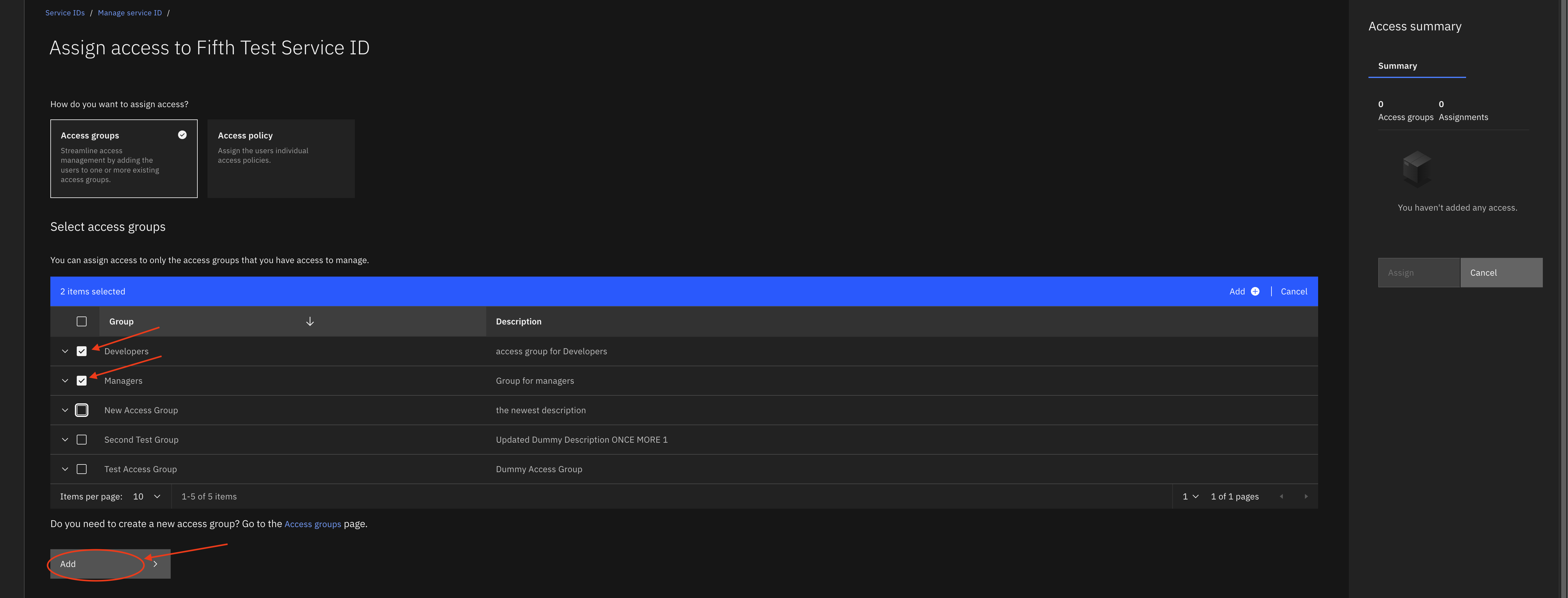
On the following page, navigate to Assign Group, then select the groups to which the member should be added.
In the SDK, to add a member to multiple groups, pass the member (of types UserProfile, TrustedProfile, or ServiceID) to
the Platform.add_member_to_multiple_access_groups() method along with a list of AccessGroup objects representing the Access Groups to which the member should be added.
This returns an API response whose status should be 207 when the member is added successfully.
>>> access_groups = [new_group, users_access_group]
>>> platform.add_member_to_multiple_access_groups(user, access_groups)
<Response [207]>
Remove Member from All Access Groups#
To remove a member from all access groups in the SDK, pass the member (of types UserProfile, TrustedProfile, or ServiceID) to
the Platform.remove_member_from_all_access_groups() method. This returns an API response whose status should be 207 when the member is removed successfully from the relevant access groups in the account.
>>> platform.remove_member_from_all_access_groups(user)
<Response [207]>
Delete an Access Group#
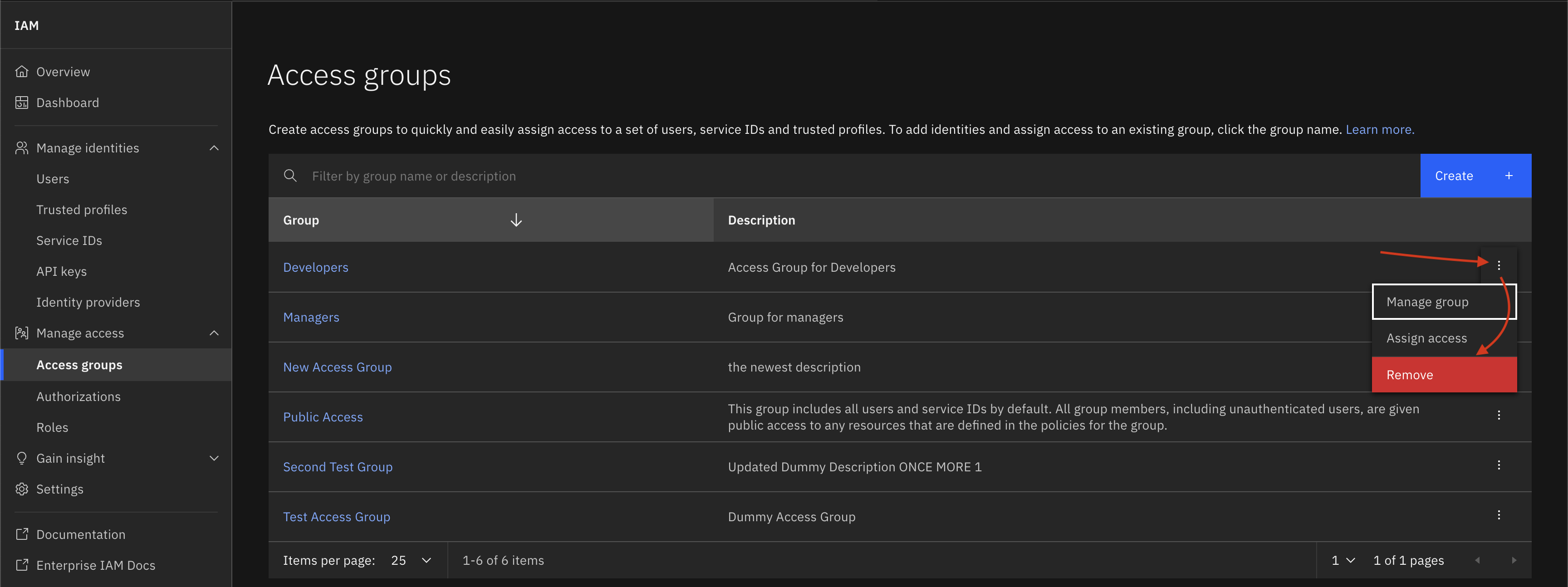
In the IBM Cloud UI, you can delete an access group by clicking the three-dot menu to the right of the access group you want to delete.
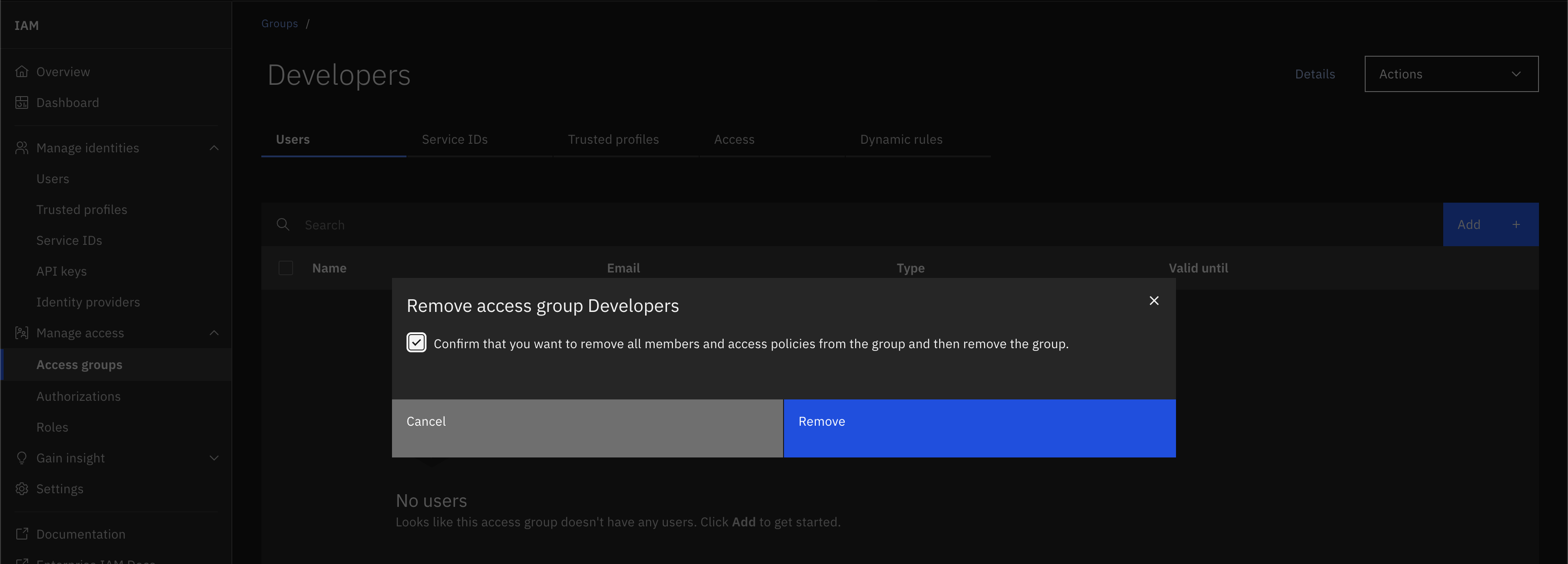
That opens a dropdown with a Remove button. Clicking that button opens a popup asking you to confirm that you want to delete the access group.
An access group can be deleted through the SDK by passing an AccessGroup object to the Platform.delete_access_group() method.
This method returns an API response whose status code should be 204 if the access group was deleted successfully.
>>> platform.delete_access_group(new_group)
<Response [204]>