Lab Guide — Getting Started with Data Ingestion in watsonx.data
Overview
This lab walks you through two methods of ingesting financial data into IBM watsonx.data:
- Direct ingestion from a local CSV file — upload a file directly from your machine via the watsonx.data web console.
- Ingestion from Cloud Object Storage (COS) — load a CSV file already stored in a COS bucket via a registered storage connection.
Pre-requisites
- Access to an IBM watsonx.data web console.
- A sample CSV file containing financial records (e.g. transactions, customer data).
- A Cloud Object Storage bucket with the CSV file uploaded (for Part 2).
Part 1 — Direct Ingestion from a Local CSV File
In this part, you will ingest a CSV file directly from your local machine using the watsonx.data Data Manager.
Step 1 — Log in and navigate to Data Manager
- Open your browser and navigate to your watsonx.data instance URL.
- Enter your credentials and click Log in.
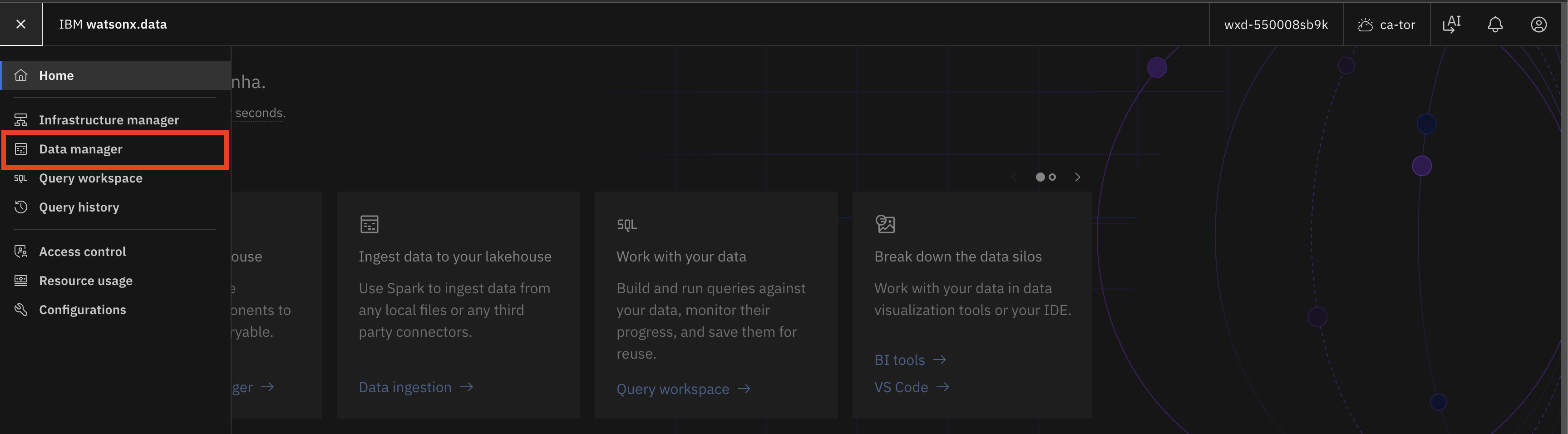
- From the left navigation menu, click Data manager.
Step 2 — Click Ingest data
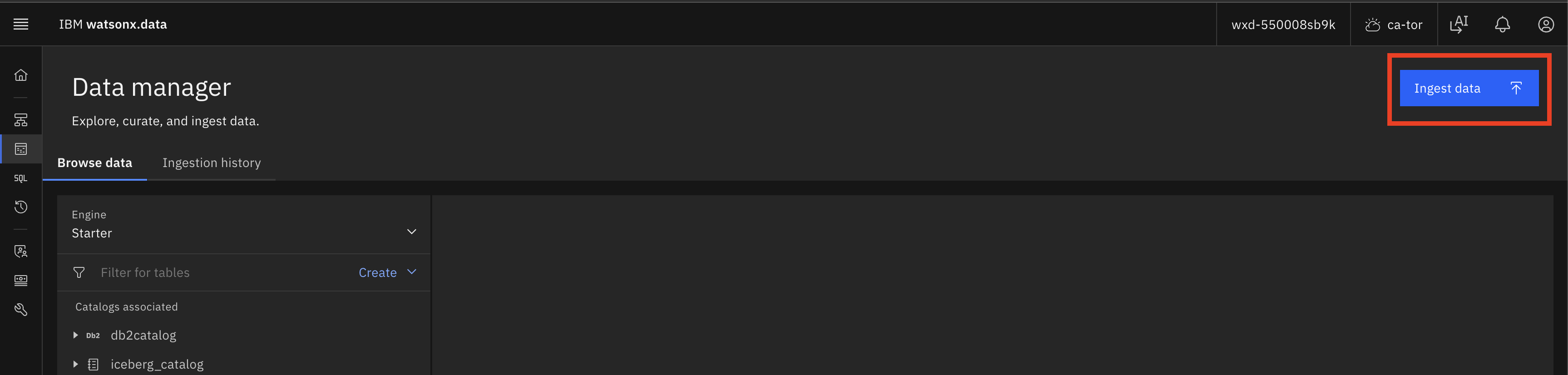
- In the Data manager page, click the blue Ingest data button in the top-right corner.
Step 3 — Select Local system as the source
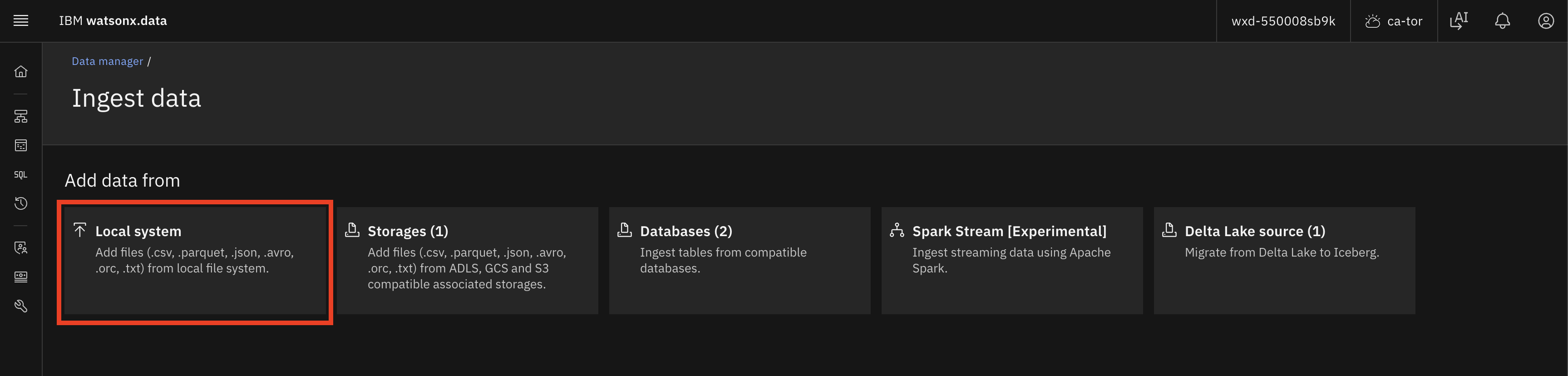
- On the Ingest data page under Add data from, click the Local system tile.
- This option supports
.csv,.parquet,.json,.avro,.orc, and.txtfiles from your local file system.
- This option supports
Step 4 — Upload your CSV file
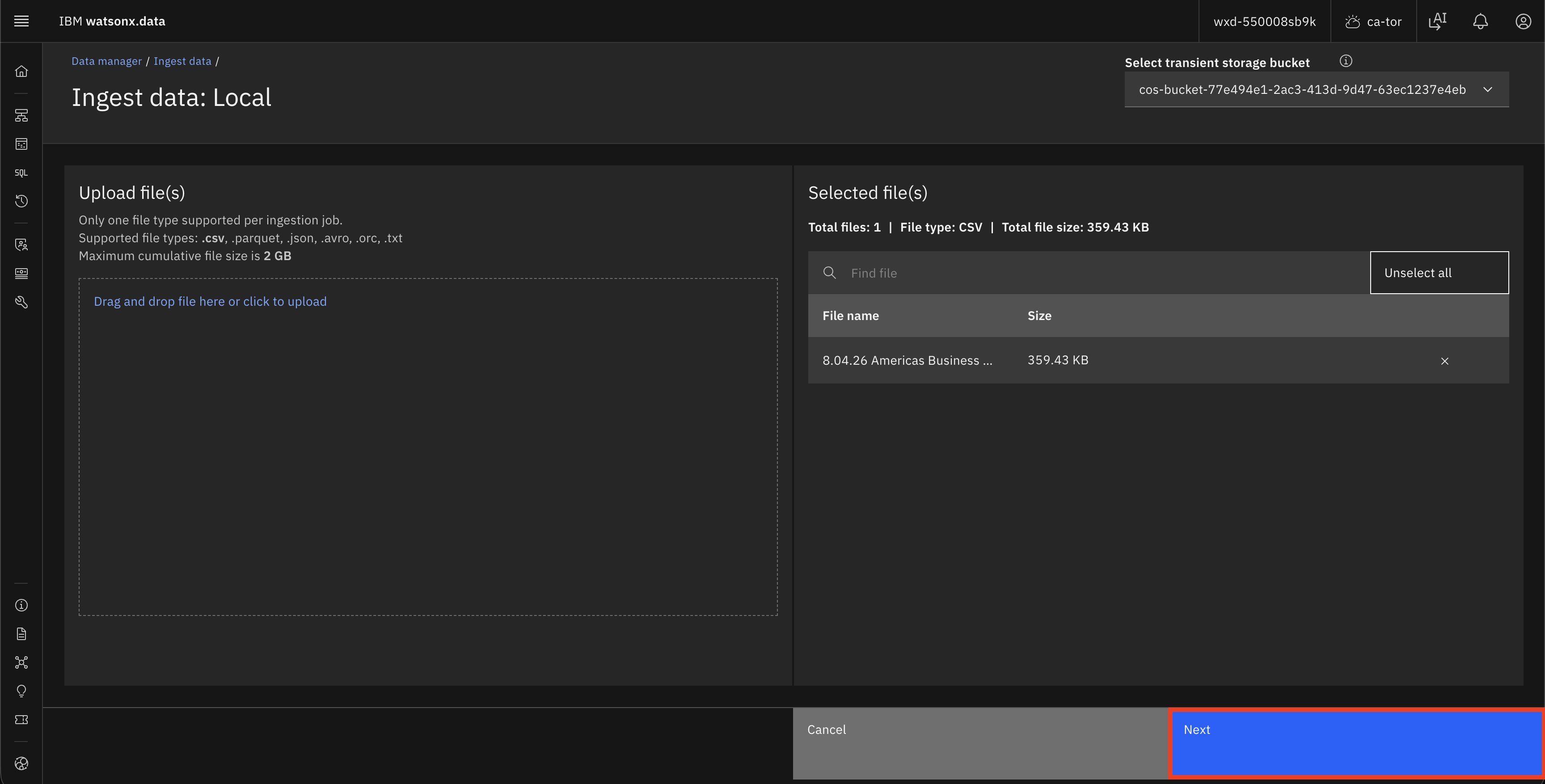
- On the Ingest data: Local page, drag and drop your CSV file into the upload area, or click Drag and drop file here or click to upload to browse and select it.
- Once selected, the file will appear in the Selected file(s) panel on the right showing the file name and size.
- Click Next.
Step 5 — Configure the target table
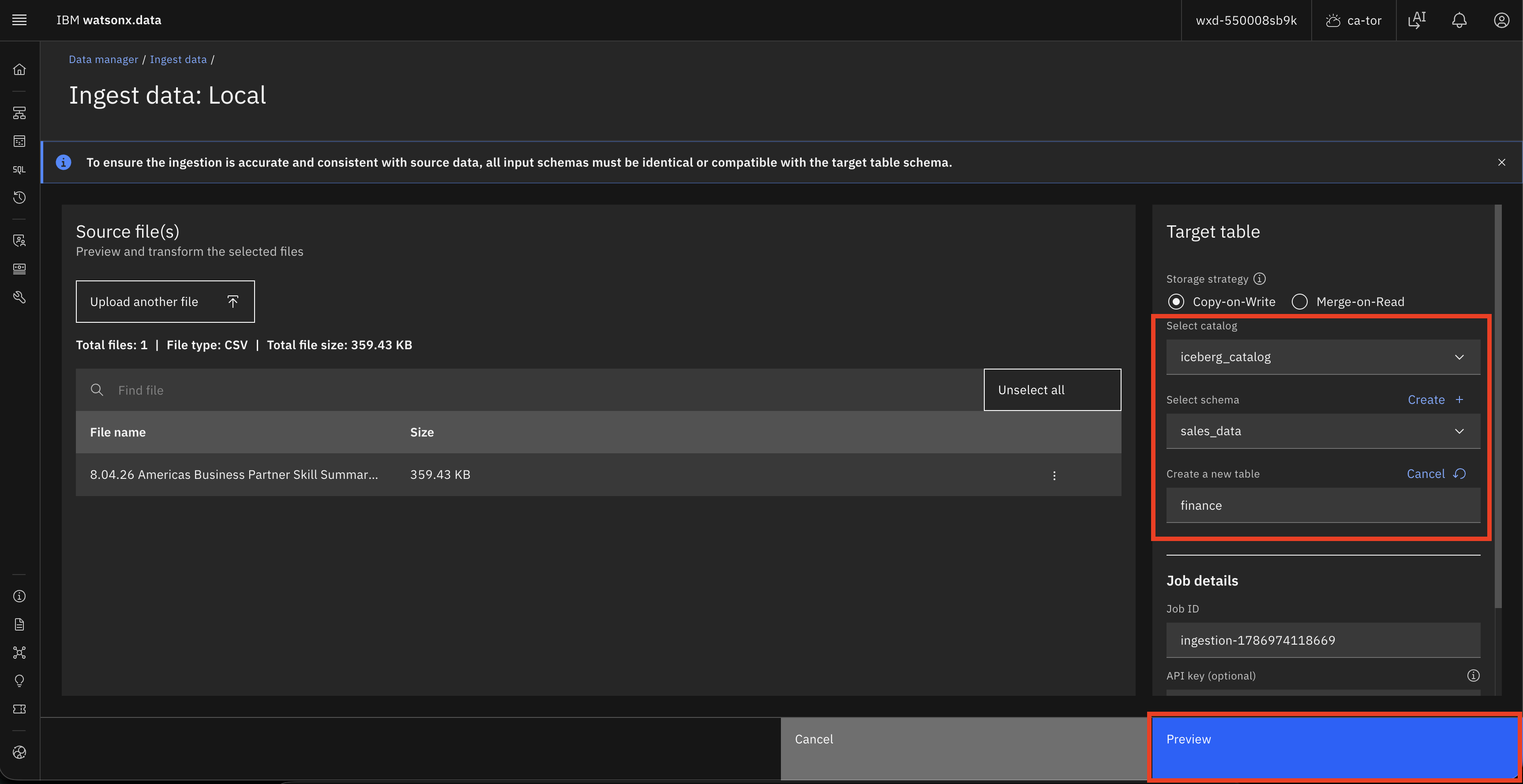
- On the next screen, review the Source file(s) panel confirming your file is listed.
- In the Target table panel on the right:
- Select catalog (e.g.
iceberg_catalog). - Select schema (e.g.
sales_data). - Under Create a new table, enter a table name (e.g.
finance).
- Select catalog (e.g.
- Click Preview to verify the data before ingesting.
Step 6 — Preview and Ingest
- The Target table preview modal will open showing the detected columns and sample rows (e.g.
Customer Id,First Name,Last Name,Company,City,Country, etc.). - Verify the column names and data types look correct.
- Click Ingest to start the ingestion job.
Part 1 Complete
Your CSV file has been ingested from your local machine into the finance table in watsonx.data.
Part 2 — Ingestion from Cloud Object Storage (COS)
In this part, you will load a CSV file from a COS bucket that is already registered as a storage connection in watsonx.data.
Pre-requisite for Part 2
Make sure your CSV file is already uploaded to your COS bucket, and that the COS bucket is registered as a Storage connection in watsonx.data's Infrastructure Manager.
Step 1 — Navigate to Data Manager and click Ingest data
- From the left navigation menu, click Data manager.
- Click the blue Ingest data button in the top-right corner.
Step 2 — Select Storages as the source
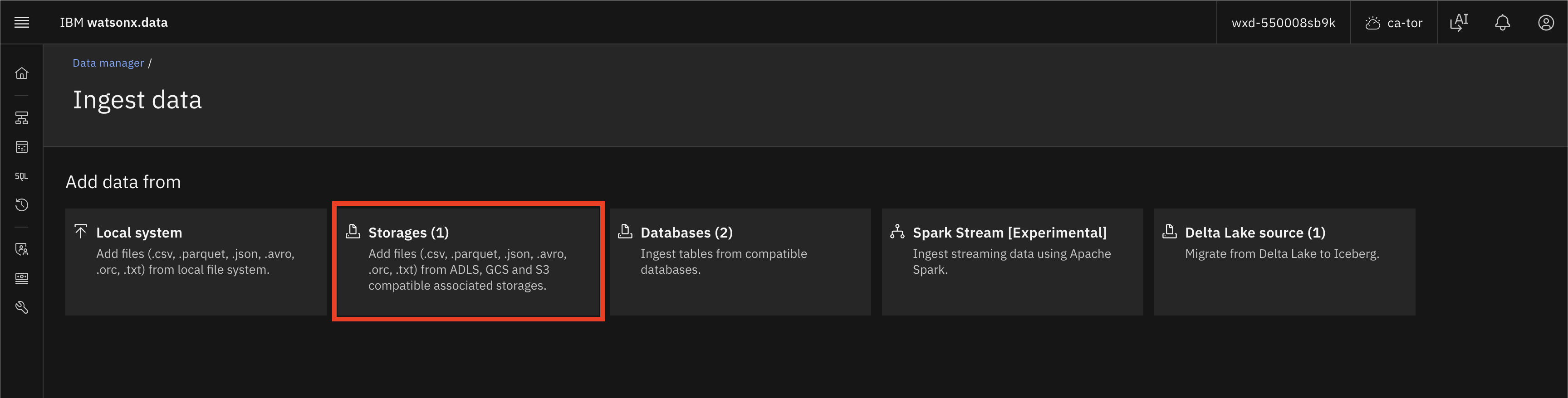
- On the Ingest data page, click the Storages (1) tile.
- This option supports files from ADLS, GCS, and S3-compatible associated storages.
Step 3 — Select your COS bucket and CSV file
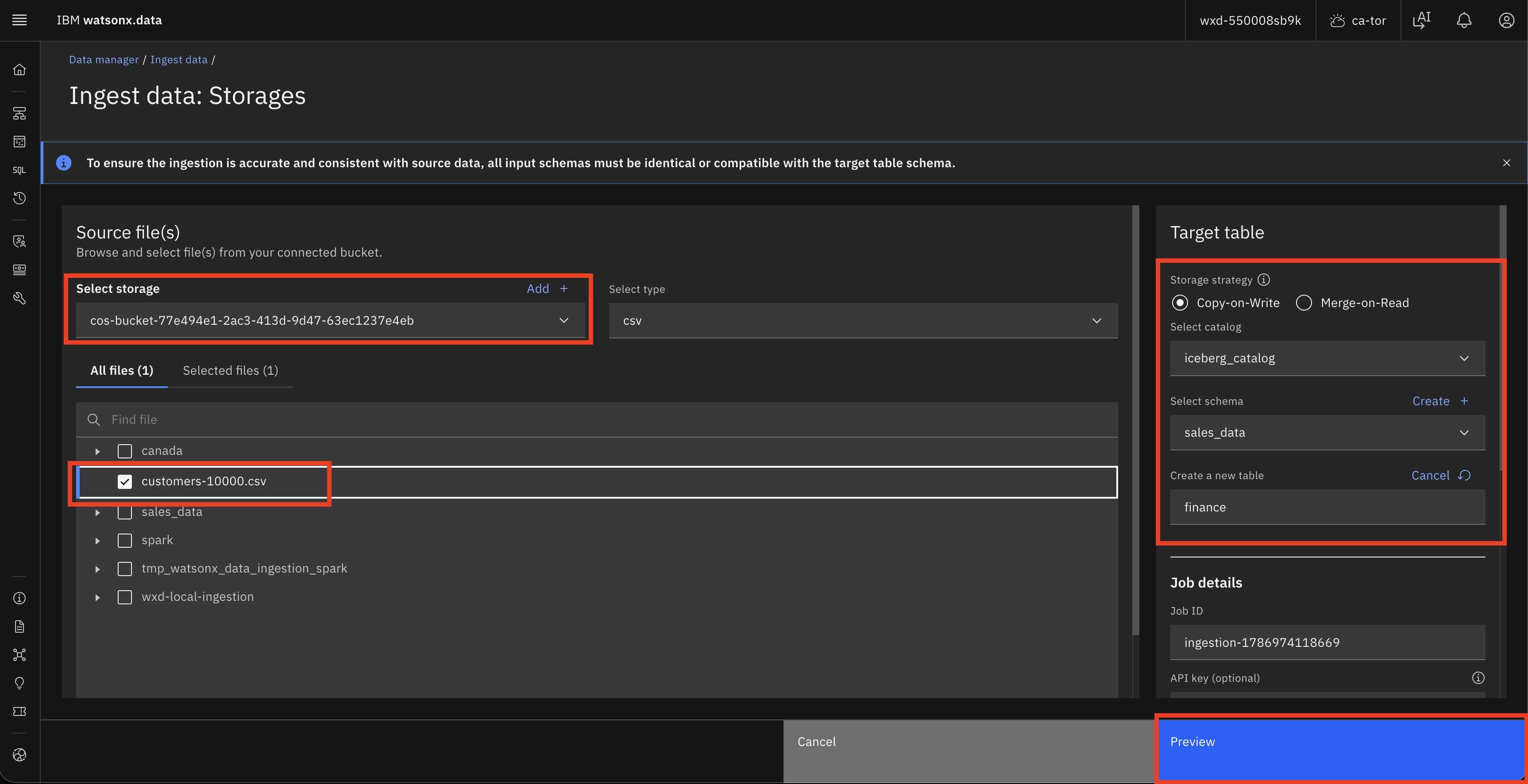
- On the Ingest data: Storages page, use the Select storage dropdown to choose your COS bucket.
- Set the Select type dropdown to
csv. - The file browser will display the contents of your bucket. Check the box next to your CSV file.
- In the Target table panel on the right:
- Select catalog (e.g.
iceberg_catalog). - Select schema (e.g.
sales_data). - Under Create a new table, enter a table name (e.g.
finance).
- Select catalog (e.g.
- Click Preview.
Step 4 — Preview and Ingest
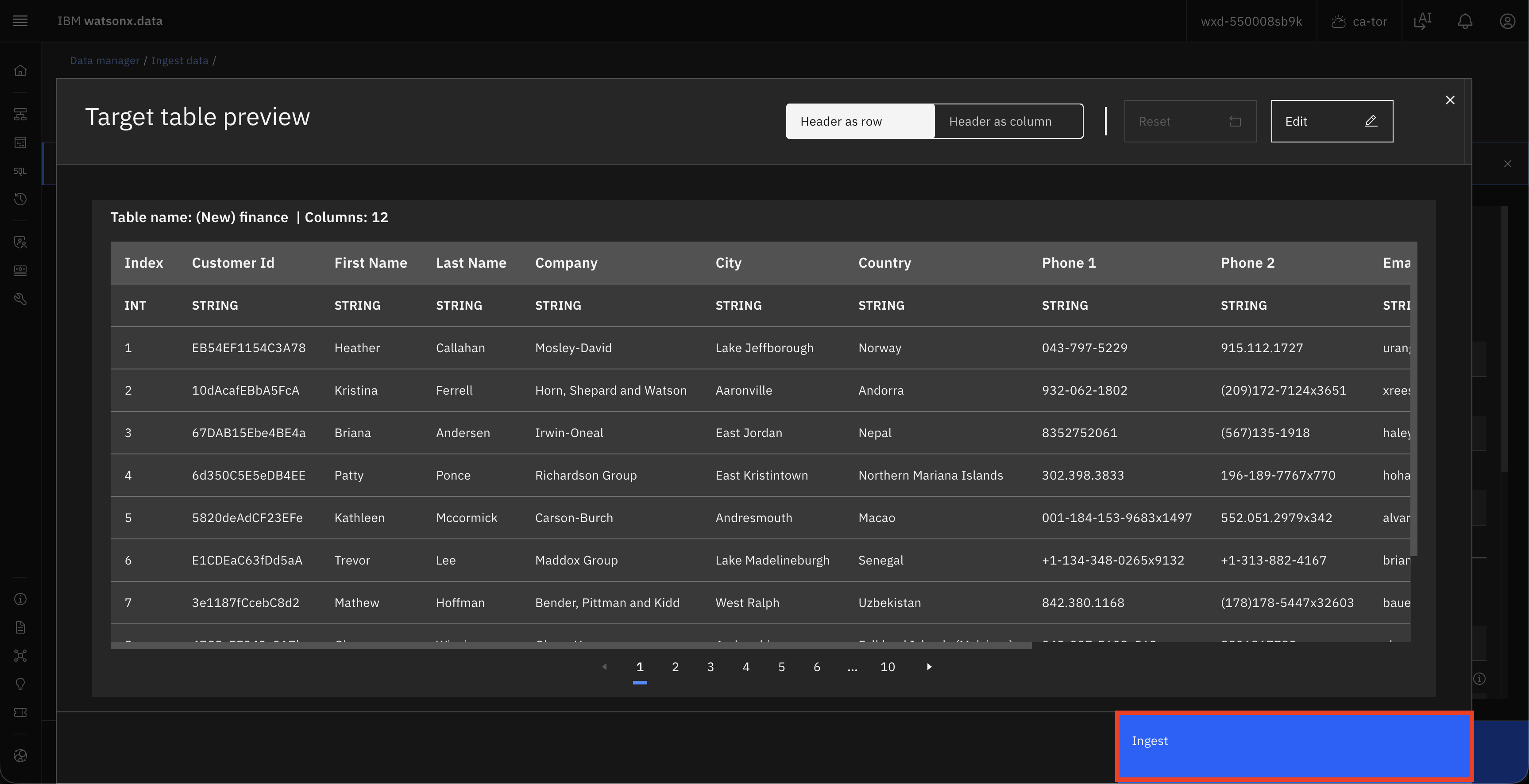
- The Target table preview modal will open showing the detected schema and sample rows.
- Verify the columns and data types are correct.
- Click Ingest to start the job.
Step 5 — Check Ingestion history
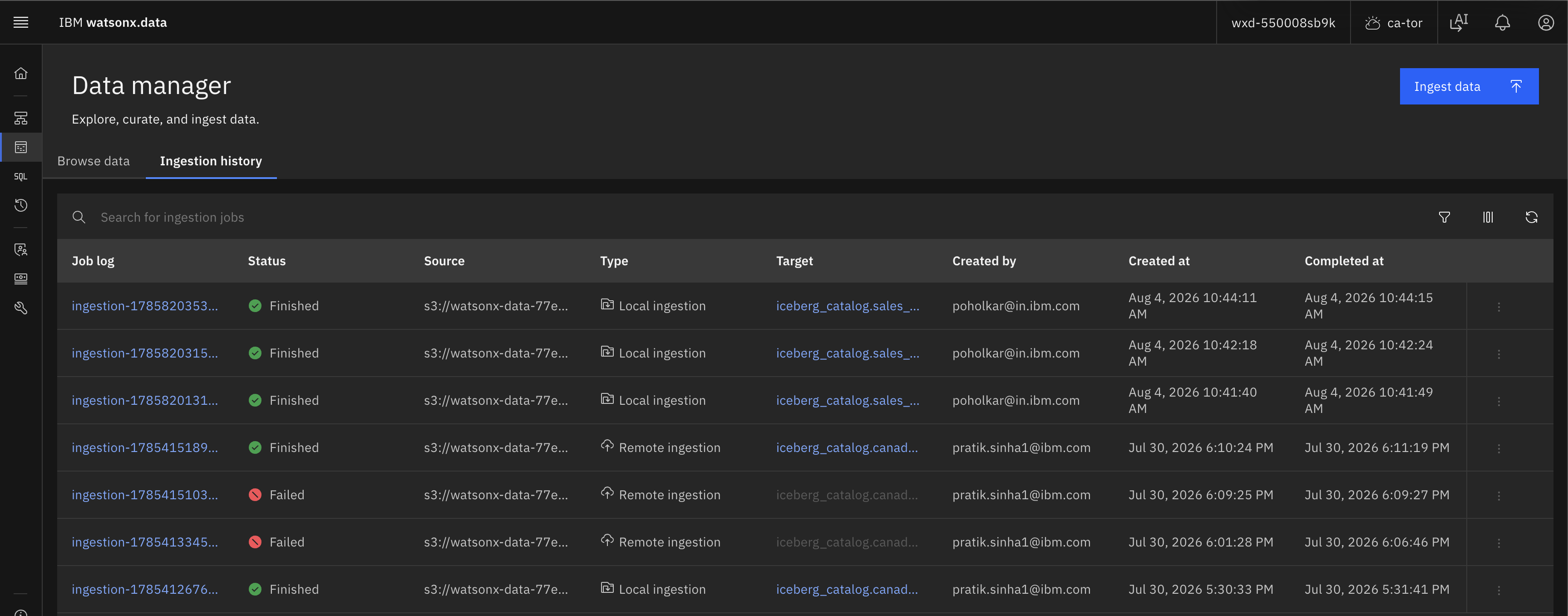
- Once submitted, go back to Data manager and click the Ingestion history tab.
- Your job will appear in the list. Click on the Job log link to see the details.
- A status of Finished (green tick) confirms the job completed successfully.
Part 2 Complete
Your CSV file has been ingested from Cloud Object Storage into the finance table in watsonx.data.
Summary
| Part 1 | Part 2 | |
|---|---|---|
| Source | Local system (your machine) | Cloud Object Storage bucket |
| Tile to select | Local system | Storages |
| File picked from | Local disk via drag-and-drop | COS bucket file browser |
| Use case | Quick ad-hoc ingestion | Scalable, production-grade ingestion |
Conclusion
👏 Congratulations on completing the lab! You have successfully ingested financial data into watsonx.data using both local file upload and Cloud Object Storage. 🎉