Build CRUD-Capable Apache Iceberg Tables with Spark
Overview
This lab demonstrates how to make tabular data stored in IBM Cloud Object Storage (COS) fully CRUD-capable using Apache Spark and Apache Iceberg on watsonx.data. Starting from a plain cars.csv file — which is read-only in object storage — the solution ingests the data into an Iceberg table registered in a Spark catalog, after which it behaves like a normal SQL table: supporting row-level SELECT, UPDATE, INSERT, and DELETE, schema evolution, and time travel, while still being backed by object storage under the hood.
Pre-requisites
- Make sure you've already set up the environment:
- A TechZone reservation with a watsonx.data and Cloud Object Storage instance provisioned
- Reserve the instance on TechZone
- VS Code installed locally, with the IBM watsonx.data VS Code extension
- Download the lab files (contains
cars.csvand theApp.pyCRUD script) - An IBM Cloud account with permissions to generate an API key
Reference Architecture
IBM COS bucket (cars.csv)
        │
        ▼
Spark DataFrameReader (inferSchema)
        │
        ▼
df.writeTo(...).createOrReplace()
        │
        ▼
Iceberg table: <catalog>.<schema>.cars
        │
        ▼
Spark SQL CRUD (SELECT / UPDATE / INSERT / DELETE)
Key Components
- Cloud Object Storage (COS) – Stores the raw
cars.csvfile and the underlying Iceberg data/metadata files; accessed via HMAC service credentials. - watsonx.data instance – The lakehouse engine that registers the COS bucket and hosts the Spark engine used for processing.
- Spark Engine (v3.5) – Reads the CSV from COS, writes it into an Iceberg table, and runs all CRUD operations via Spark SQL.
- Iceberg Table (
cars) – The table format that turns the flat CSV into a fully updatable, deletable, and schema-evolvable dataset. - VS Code + watsonx.data extension – Provides an SSH-based Spark session used to author and run
App.py, the script containing all connection and CRUD logic.
Steps
1. Set up the data environment
Reserve an instance with watsonx.data and Cloud Object Storage on TechZone.
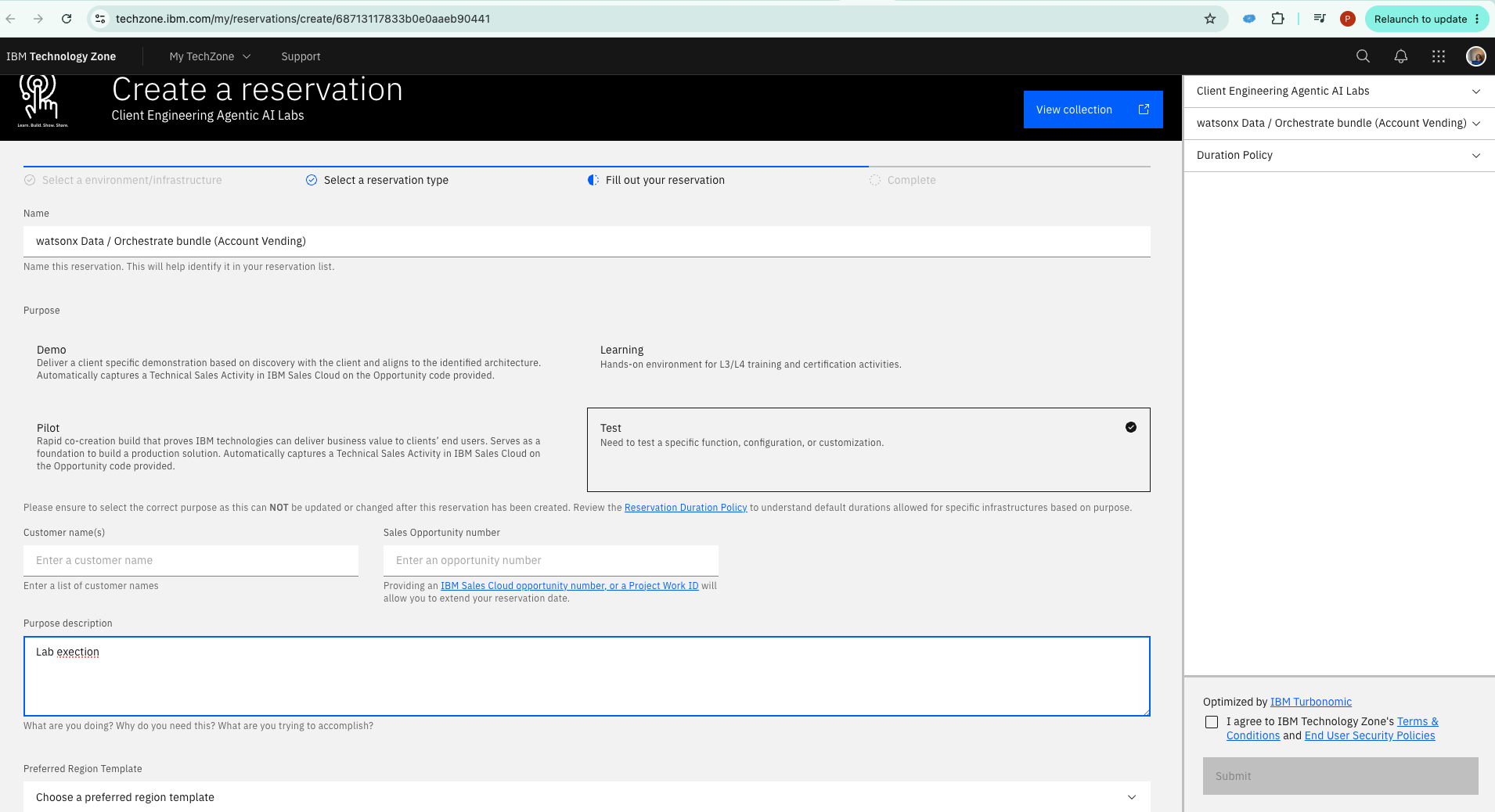
Open the instance, then open Cloud Object Storage.
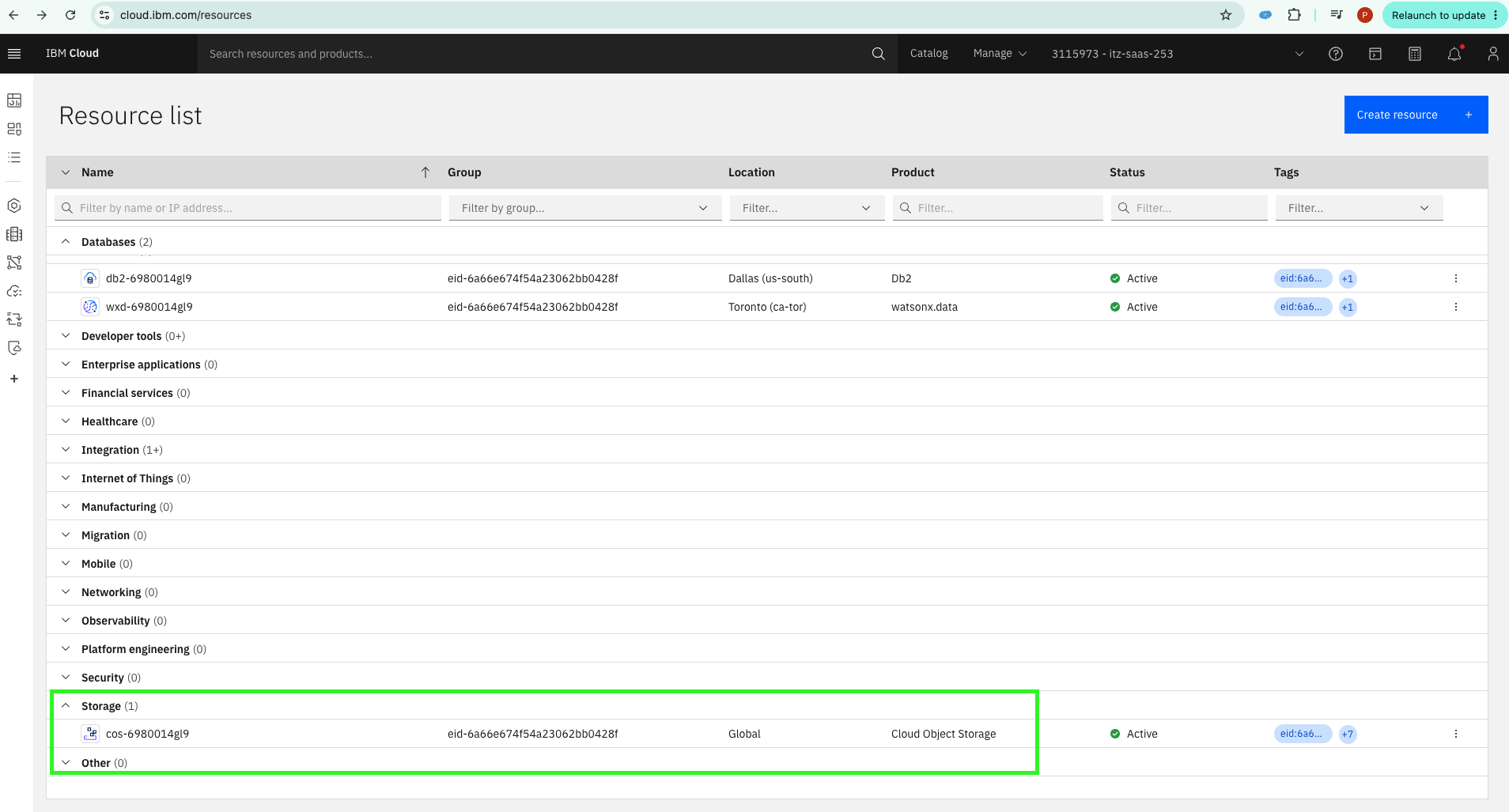
Click Create a Bucket.
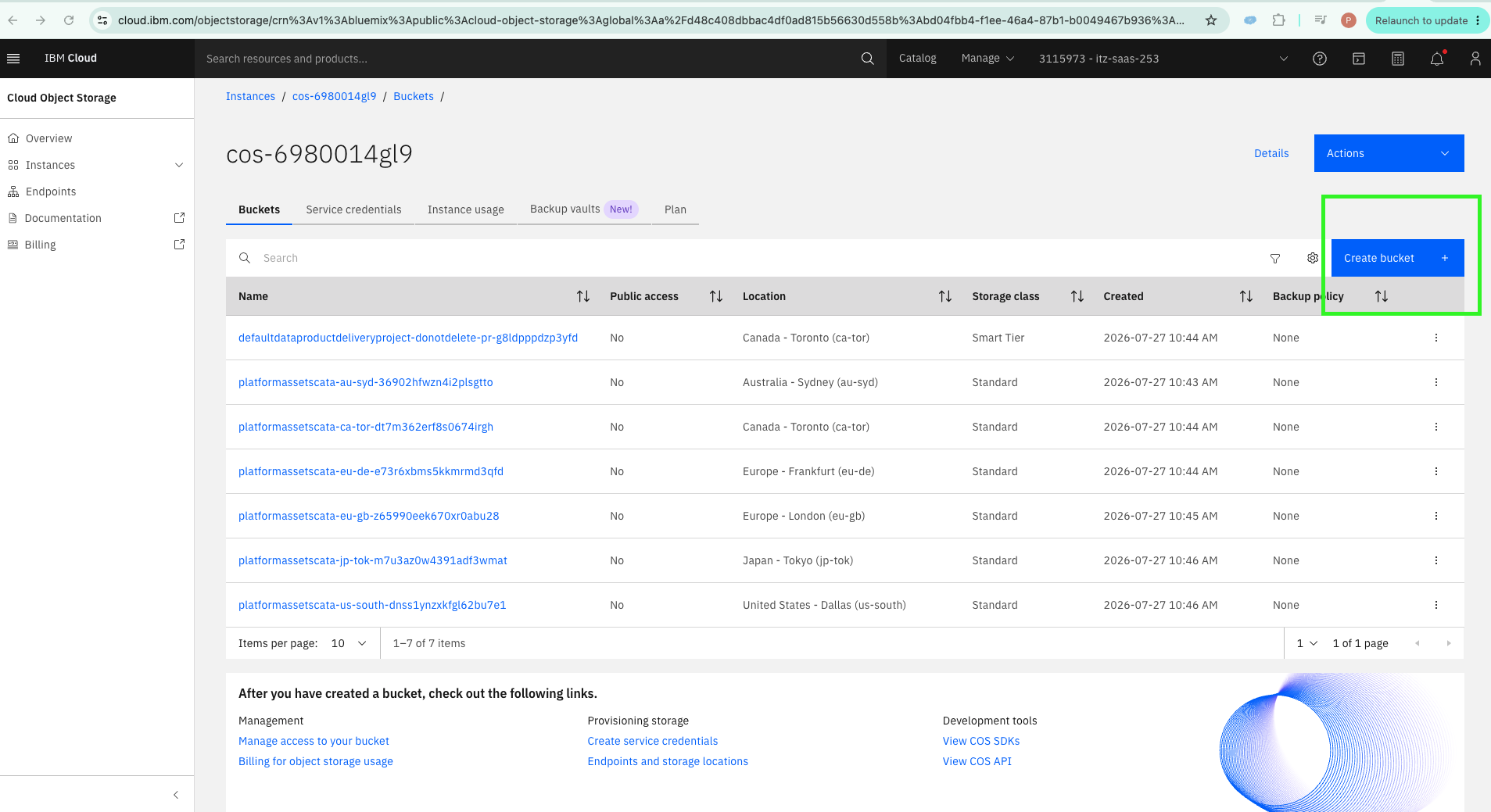
Select Create a Custom Bucket, keep the default configuration, and create the bucket.
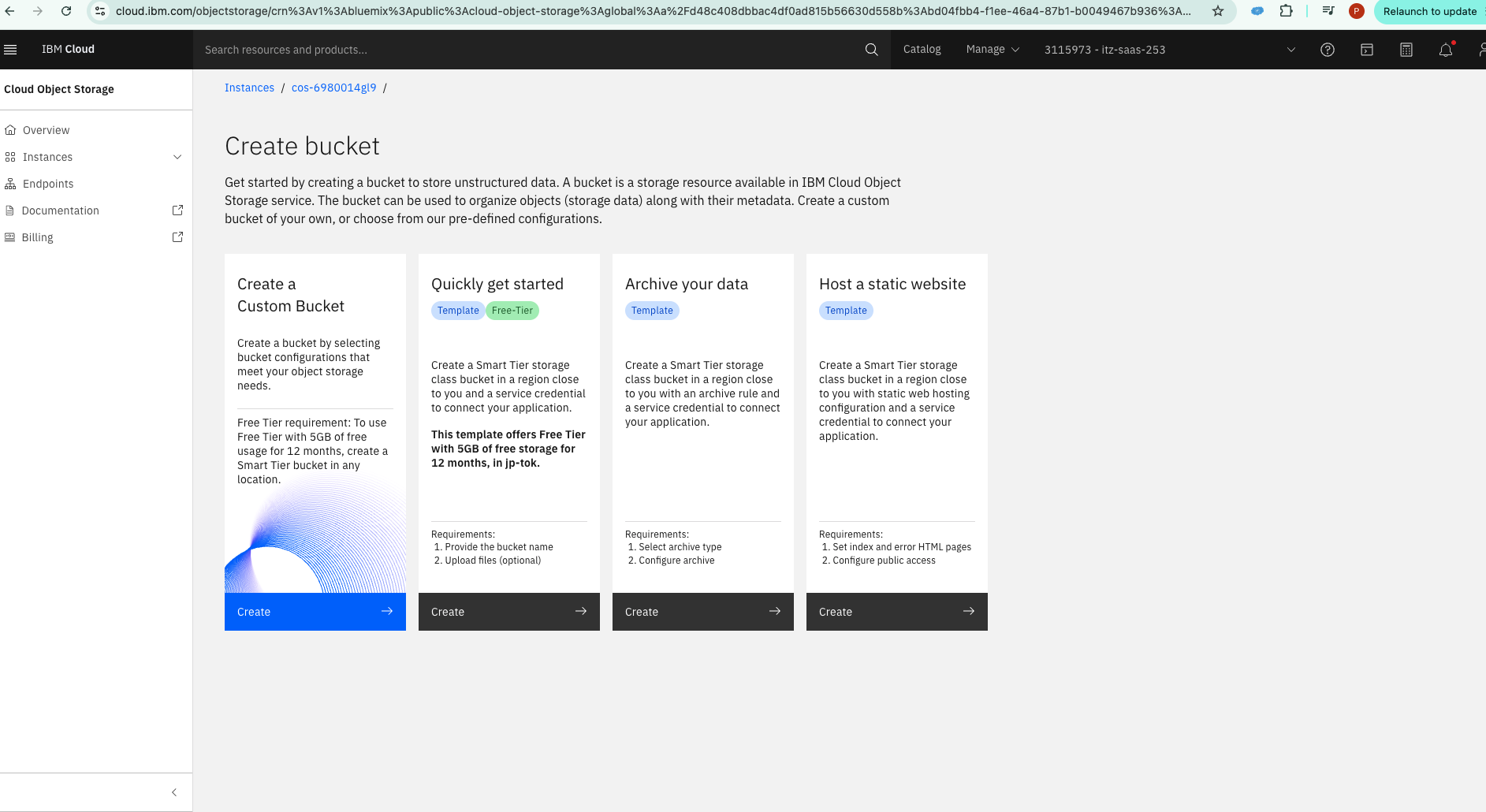
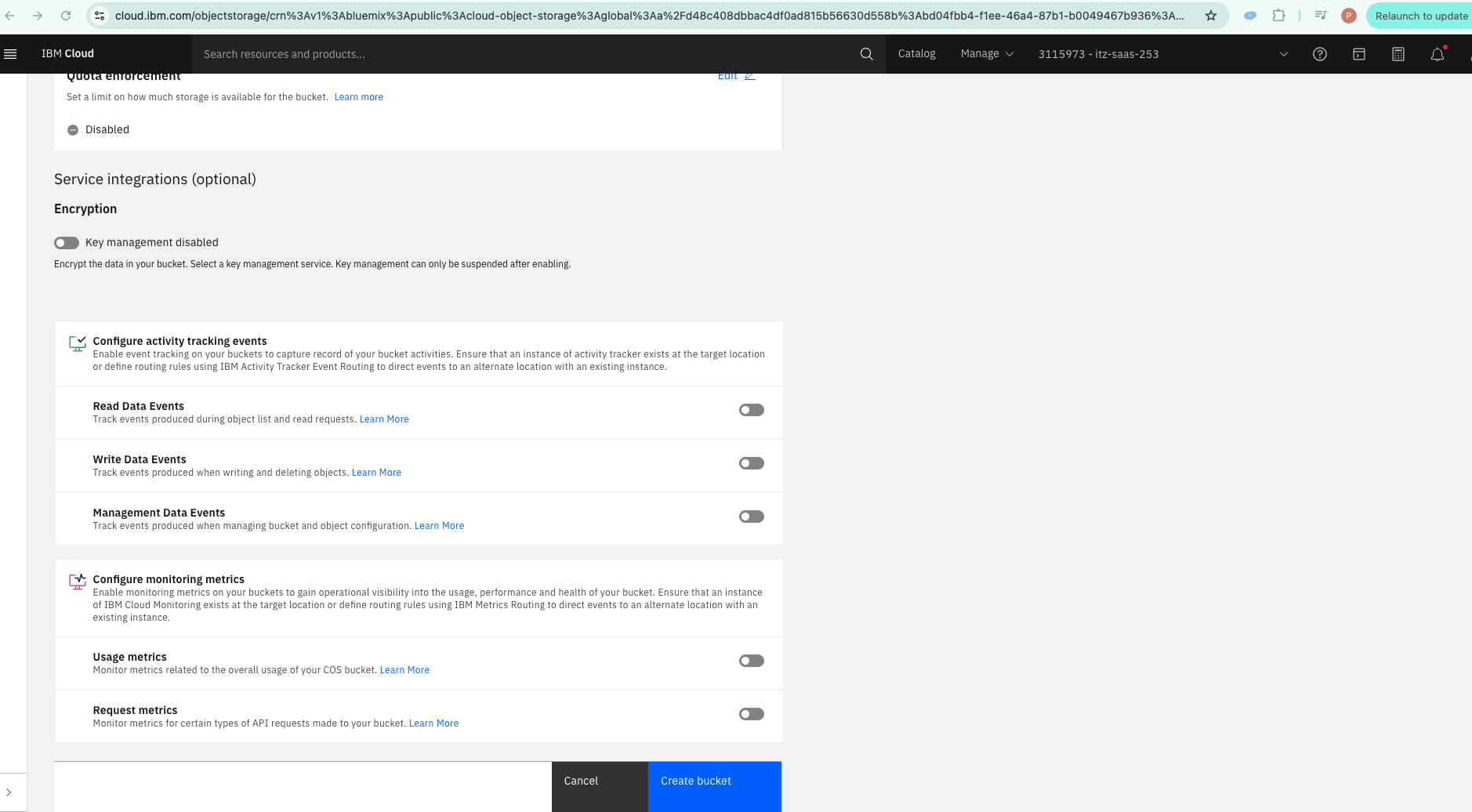
Once the bucket is created, upload the cars.csv file from the provided zip folder.
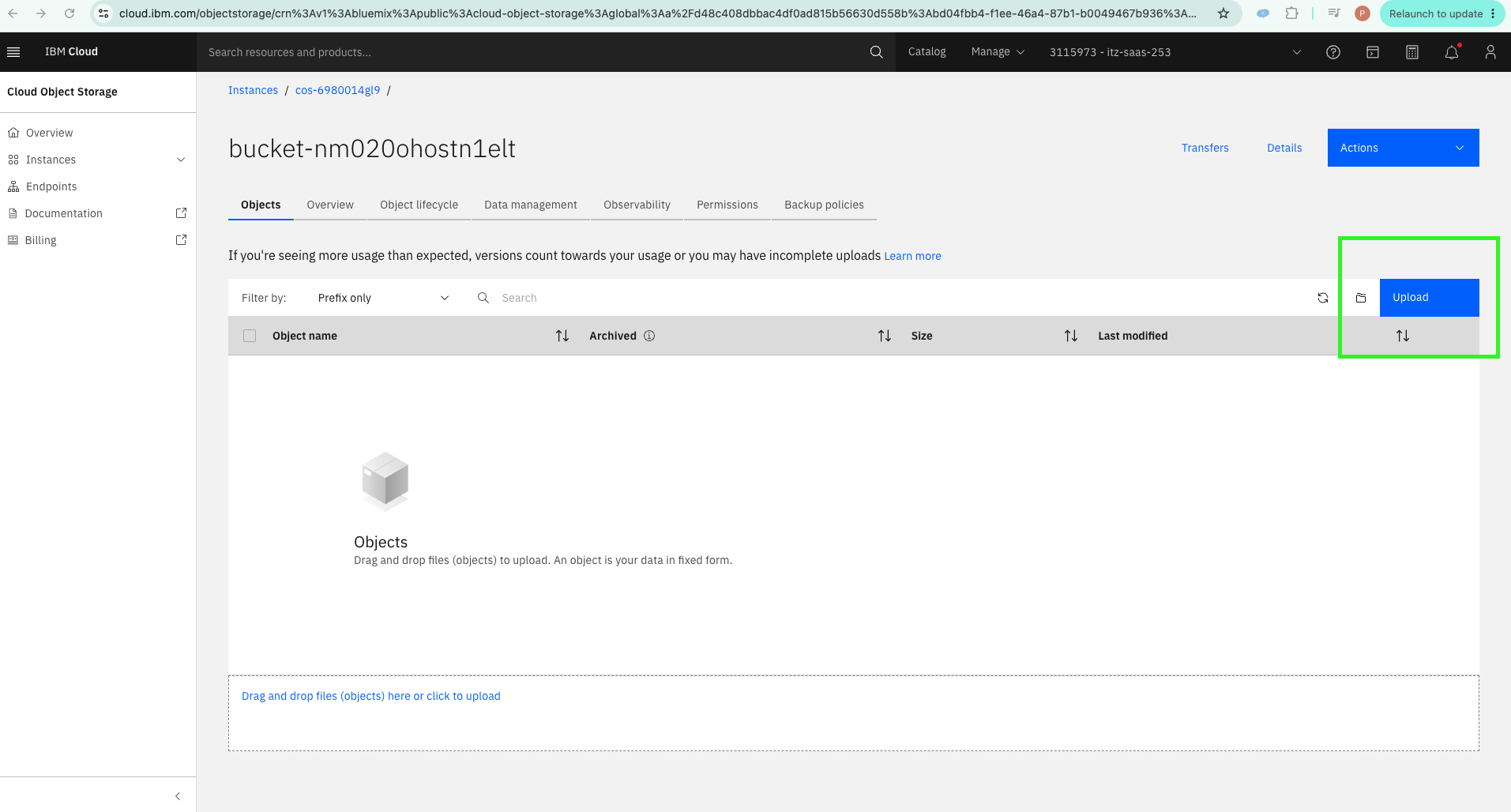
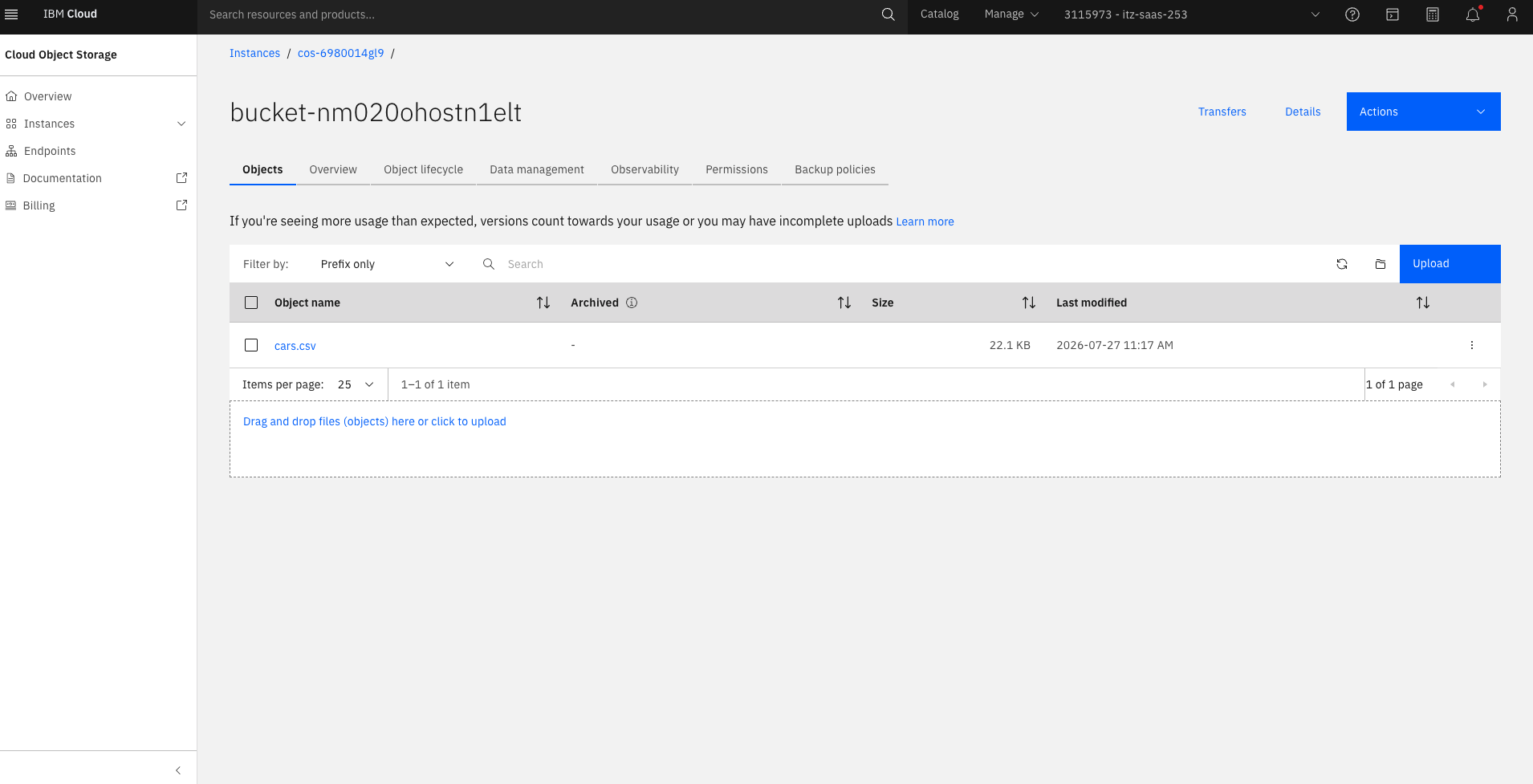
Once the upload completes, confirm the CSV file appears under Objects.
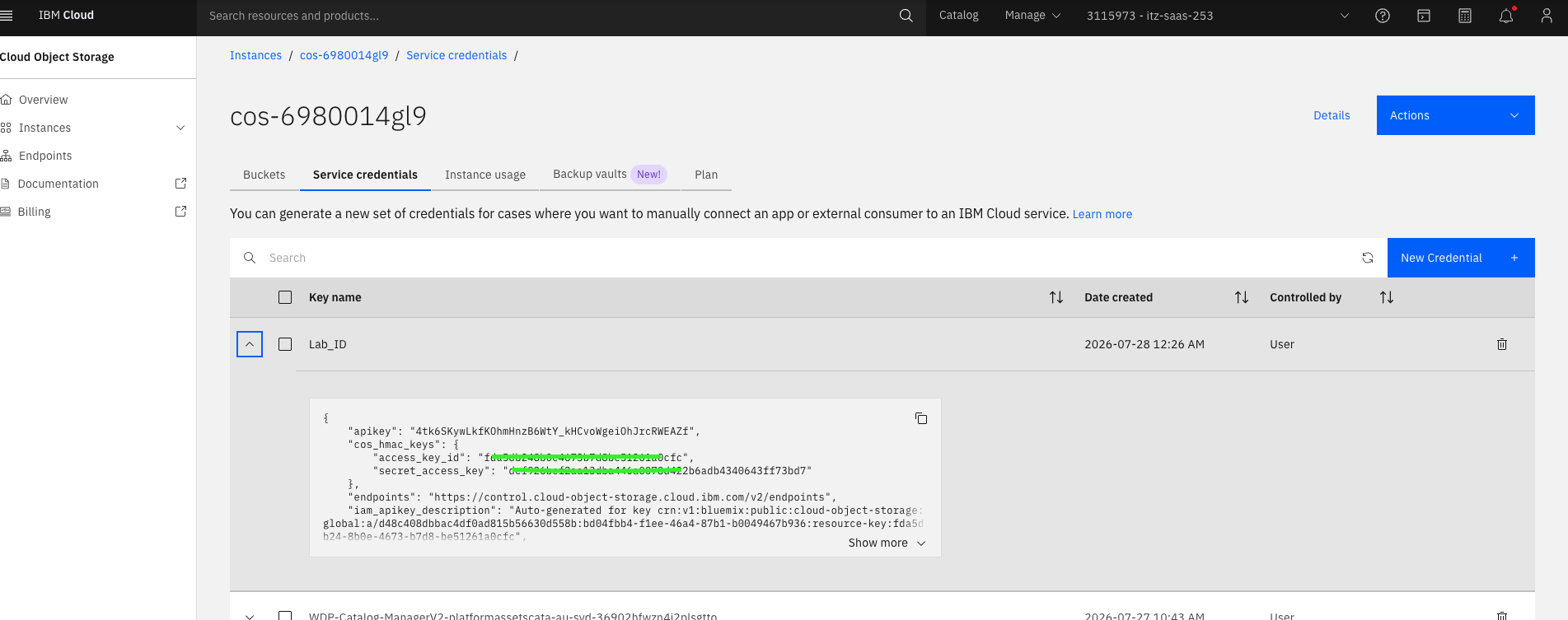
Click on the COS instance name to create service credentials for the bucket.
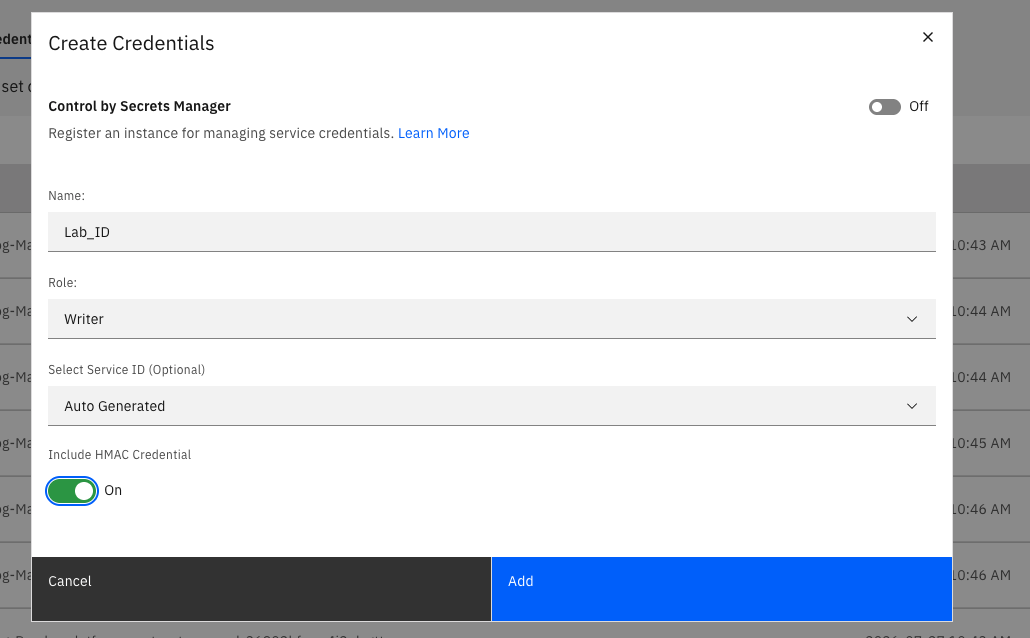
Retrieve the access key and secret key from the newly created service credentials.
Create an API key in your cloud account and store it securely.
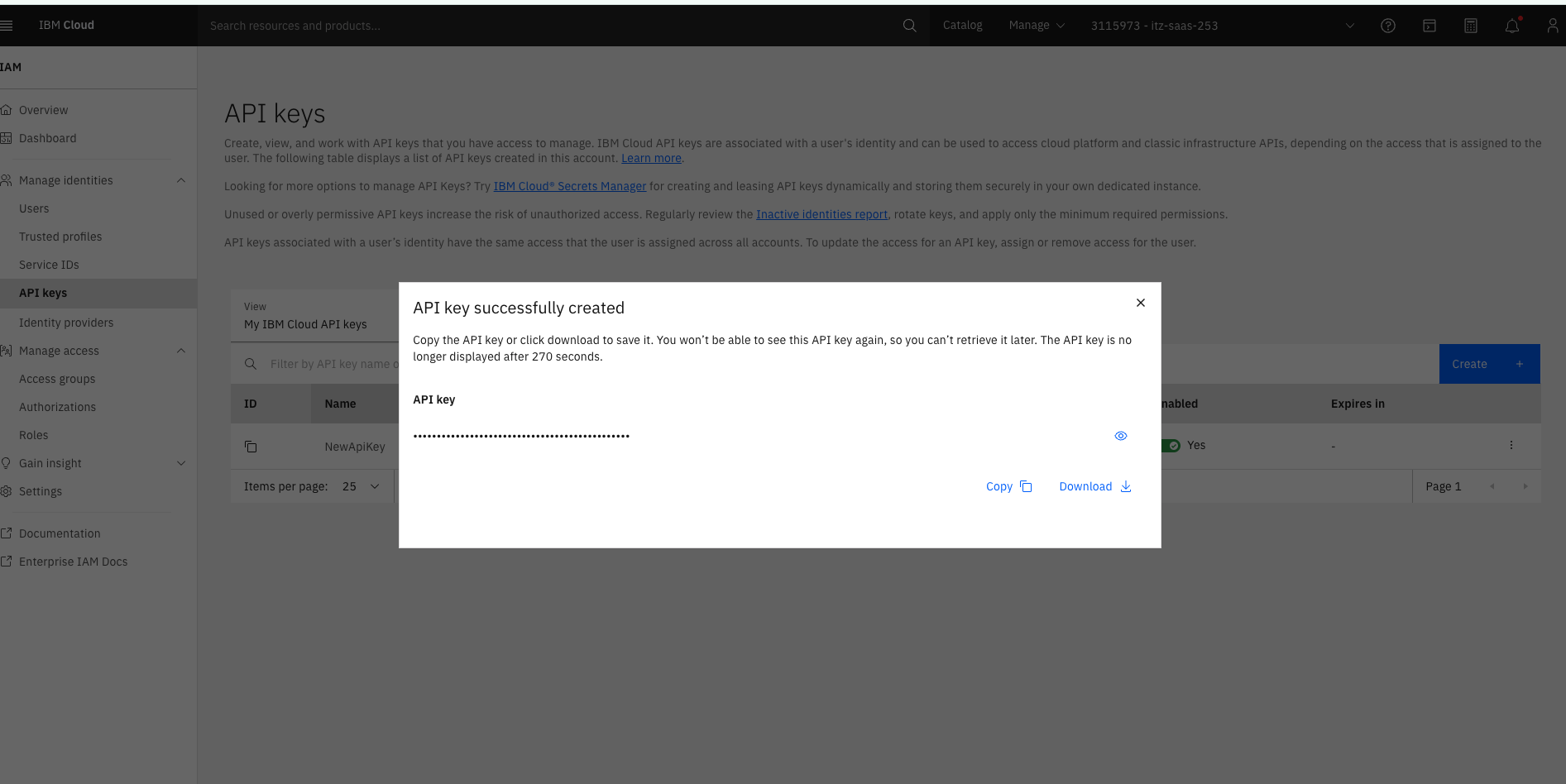
⚠️ Treat this API key and the COS HMAC credentials as secrets — never commit them to version control or paste them in shared chats/logs.
2. Configure watsonx.data with the Spark engine and your bucket
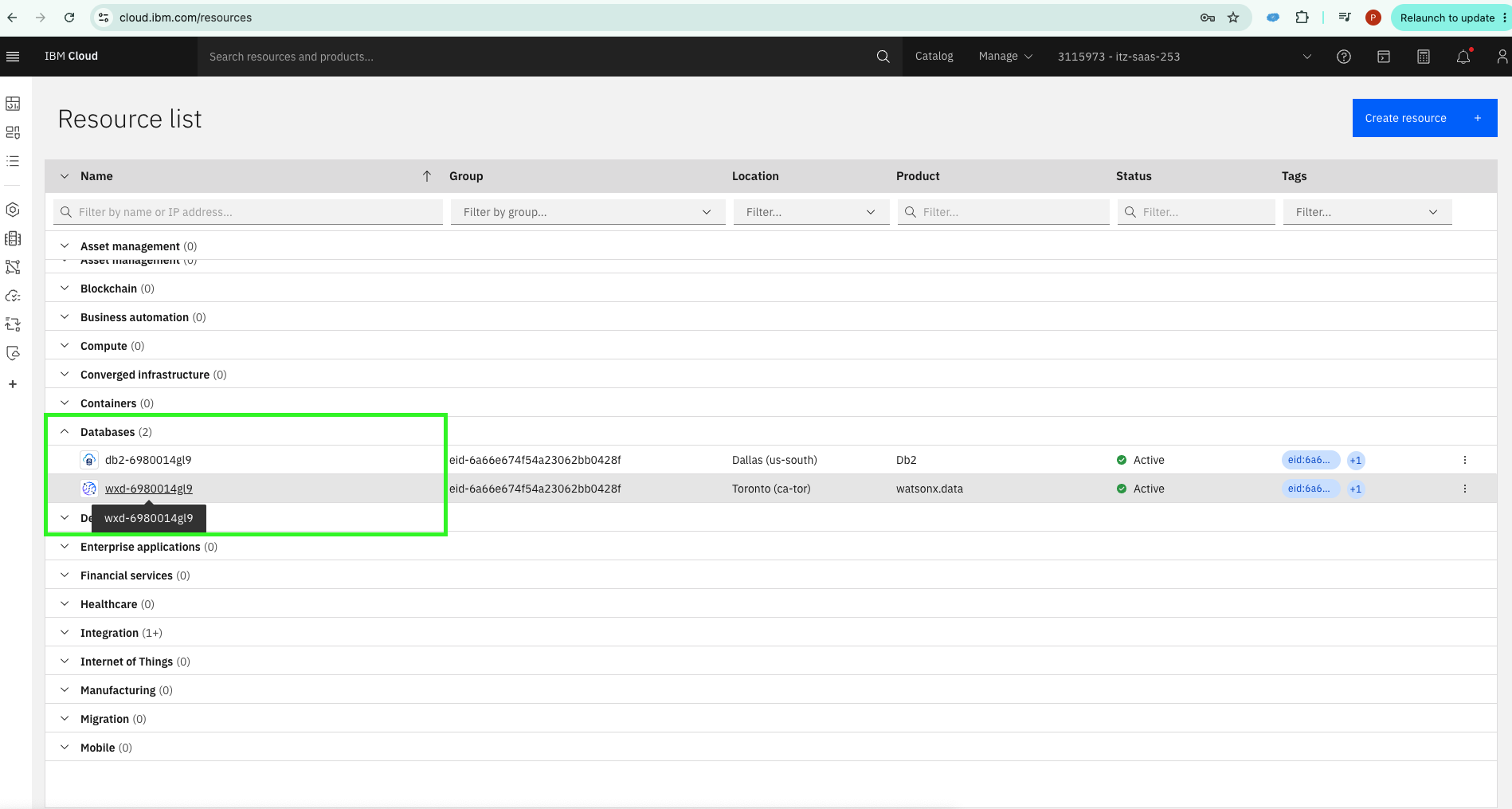
From the resource list, open the watsonx.data instance.
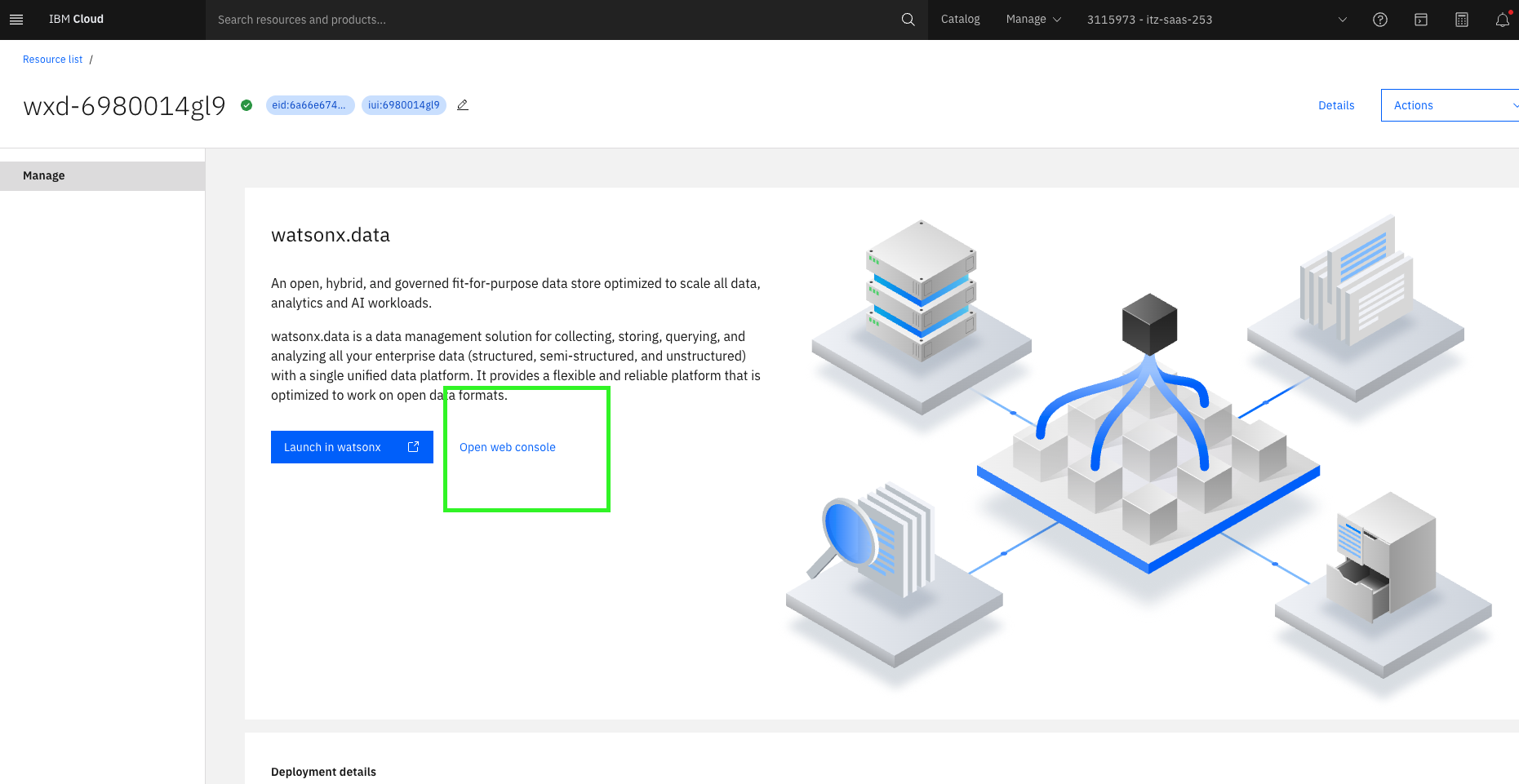
Click Open web console.
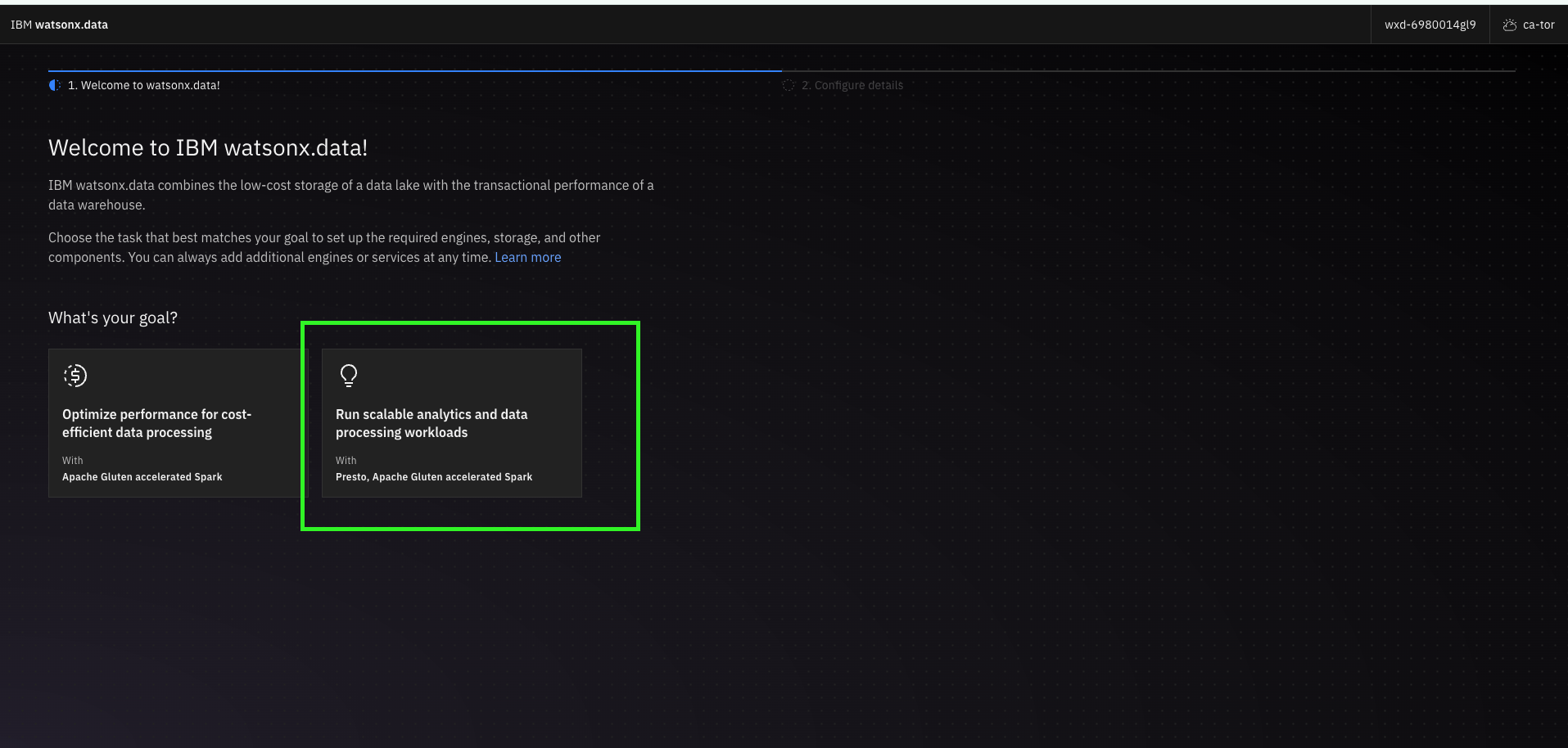
Select Run scalable analytics and data processing workloads and click Next.
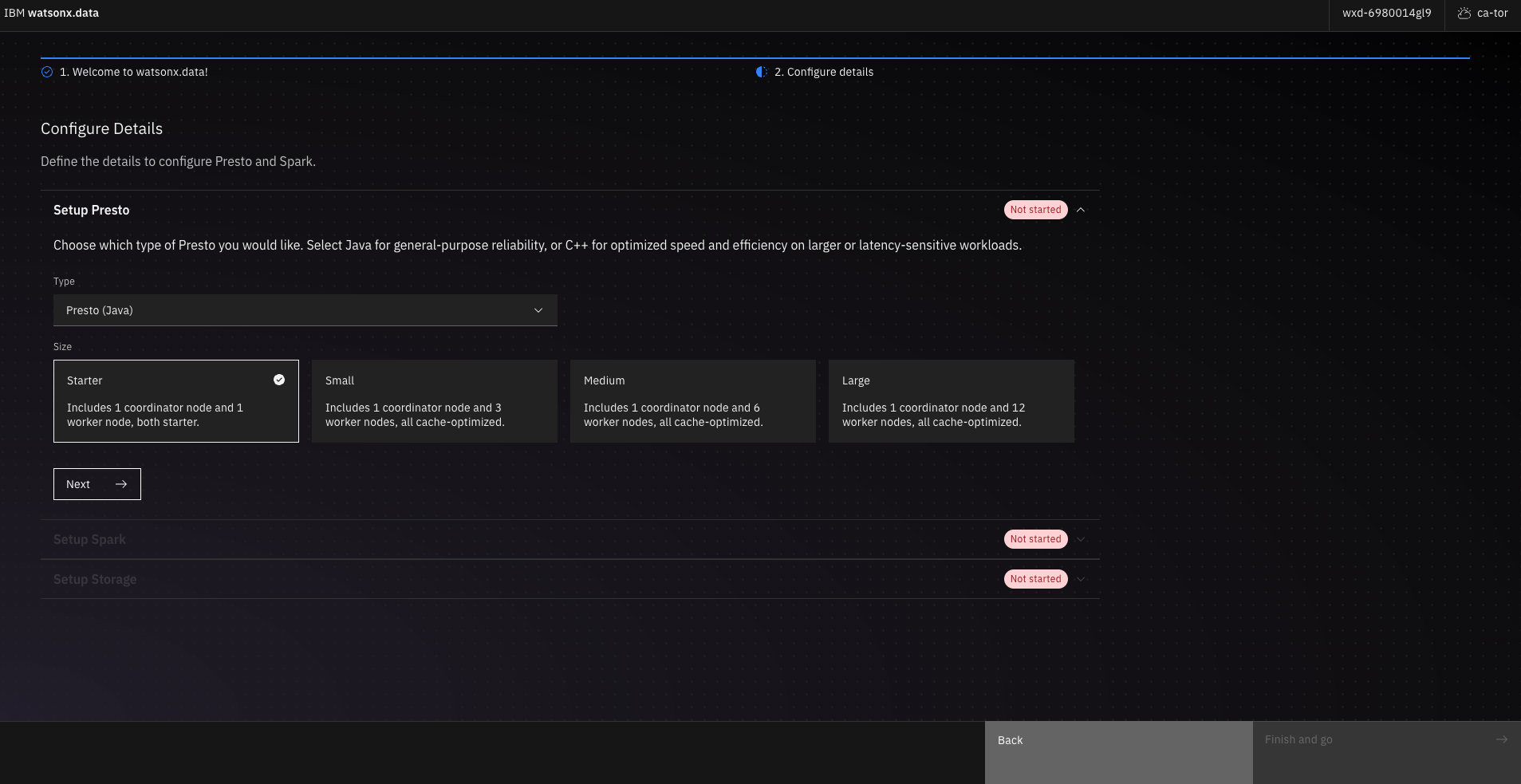
In the Presto setup section, keep the default values and click Next.
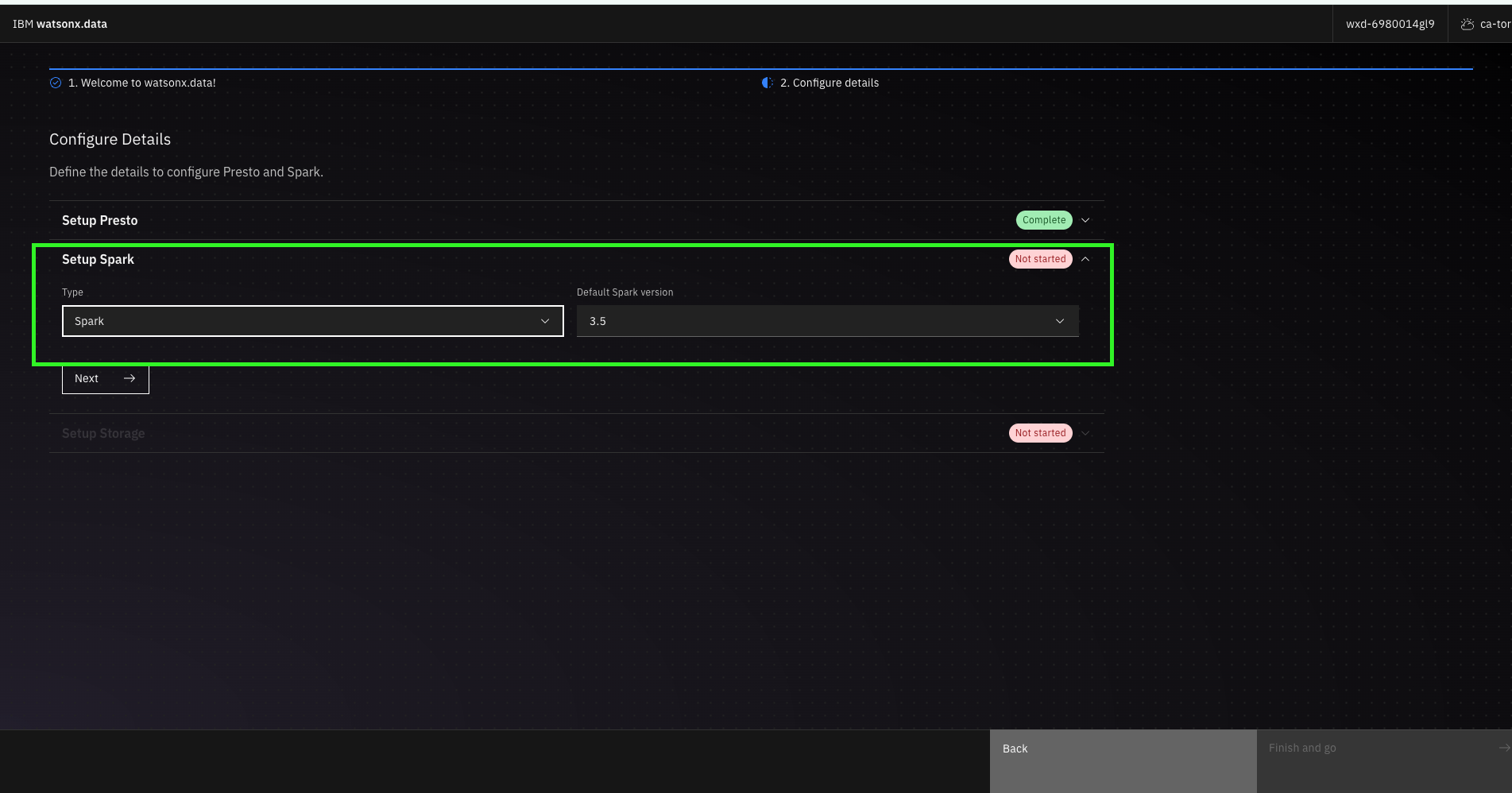
In the next section, set Type to Spark and Default version to 3.5, then click Next.
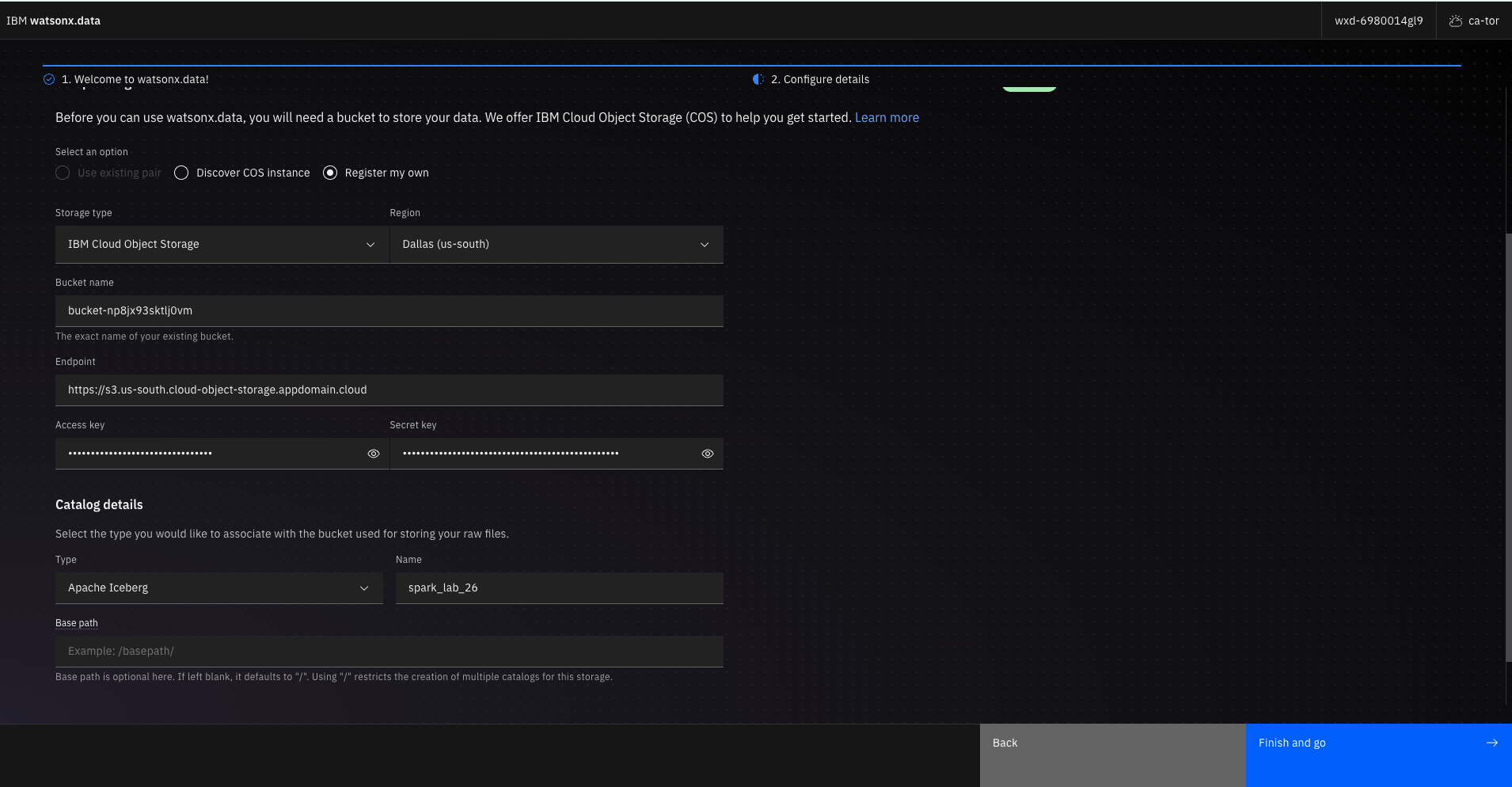
Register your bucket by filling in the details from the bucket you created earlier, then click Finish.
Setup takes 2–3 minutes to complete.
Open Infrastructure Manager to verify the components configured in the previous step.
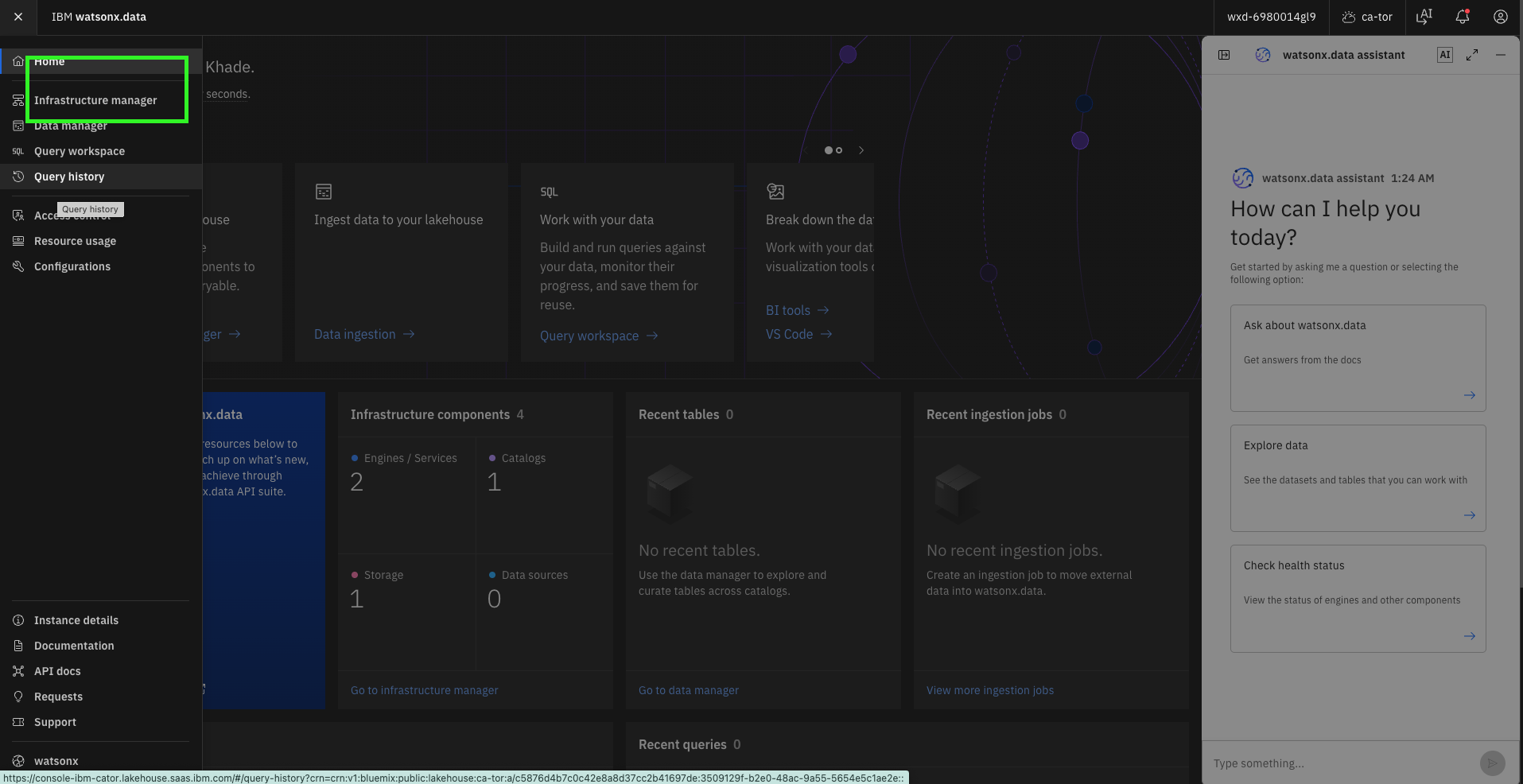
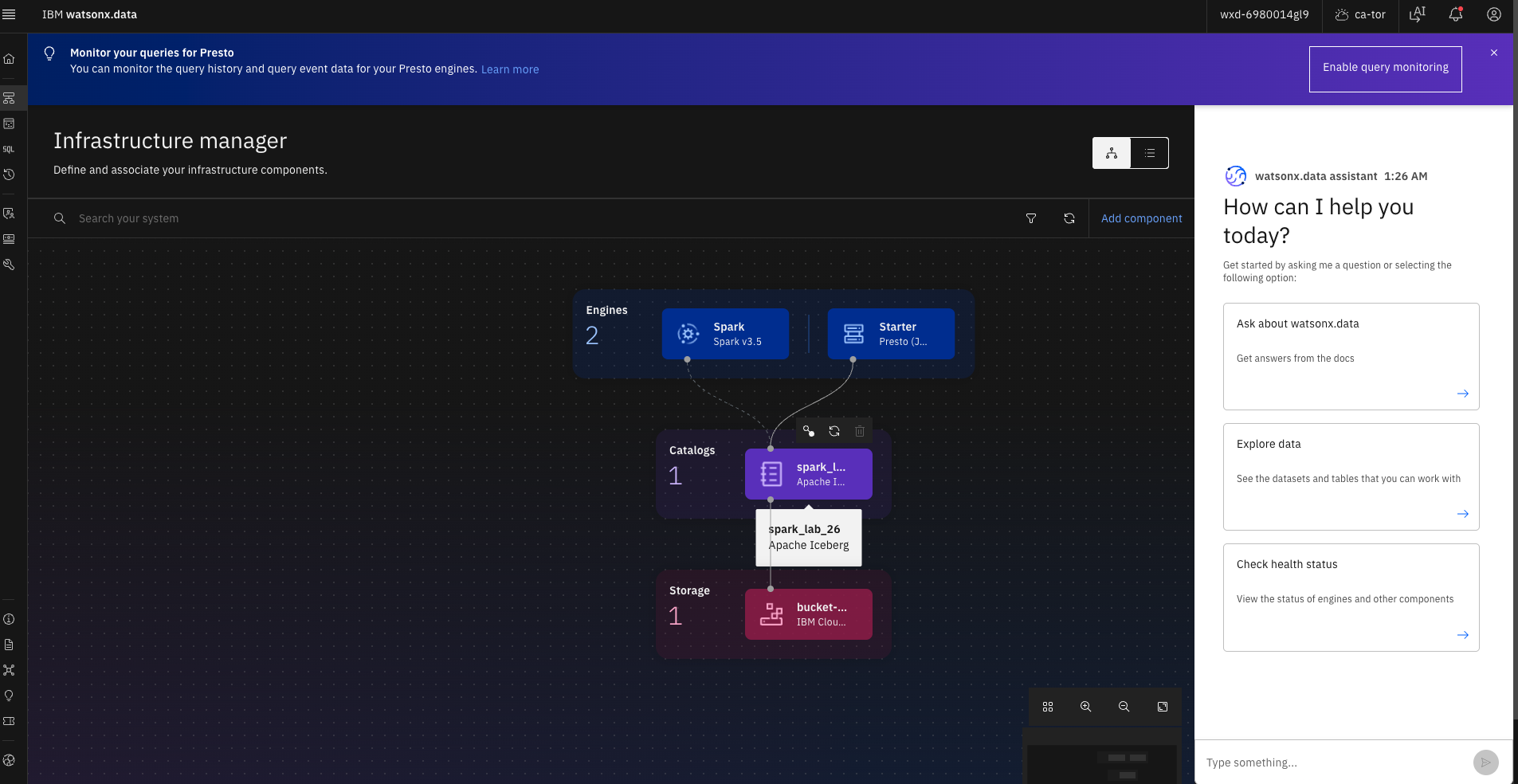
3. Set up a Spark SSH session in VS Code
Open a new folder in VS Code, install the IBM watsonx.data extension, and open it.
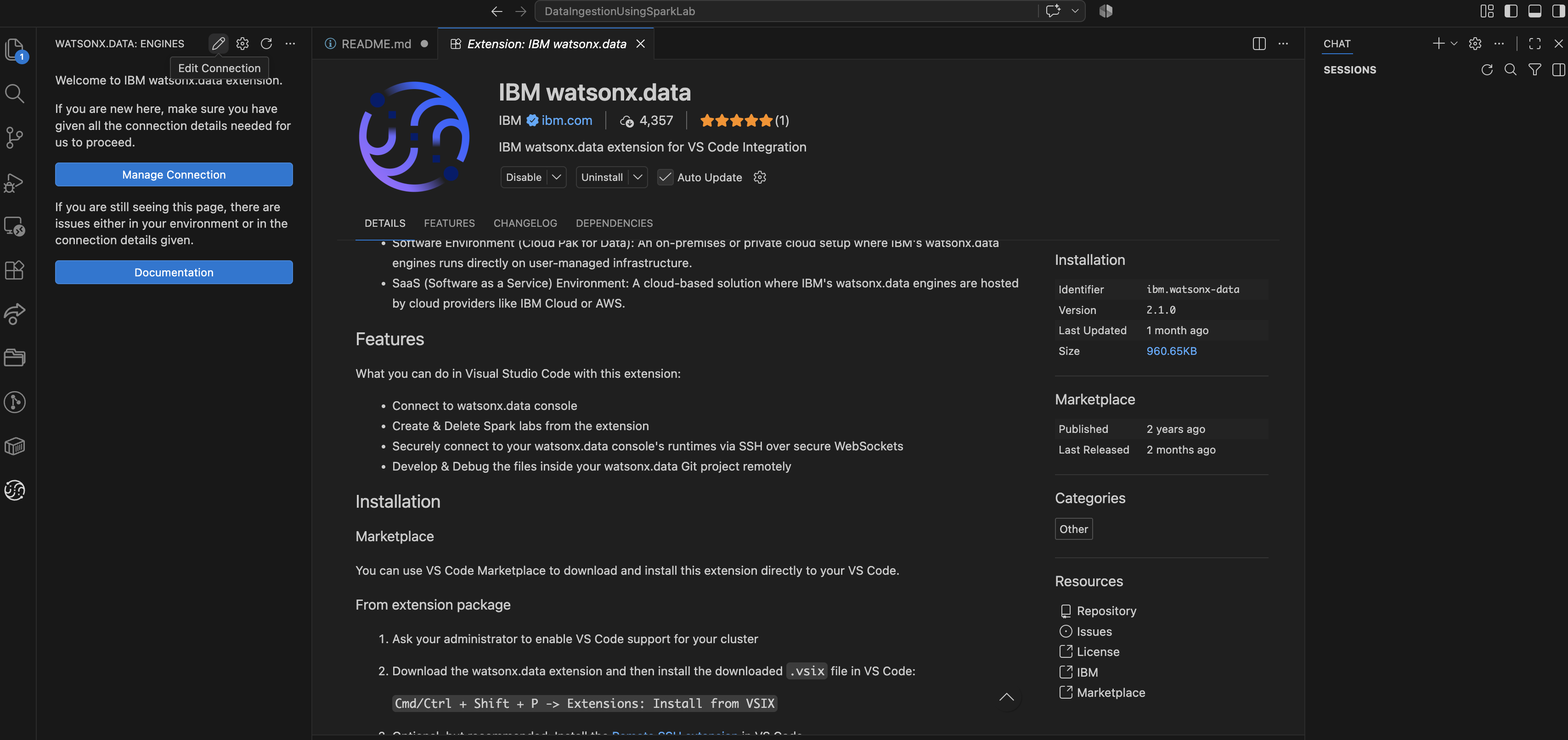
Click the pencil icon, fill in your watsonx.data instance details, then click Test and Save.
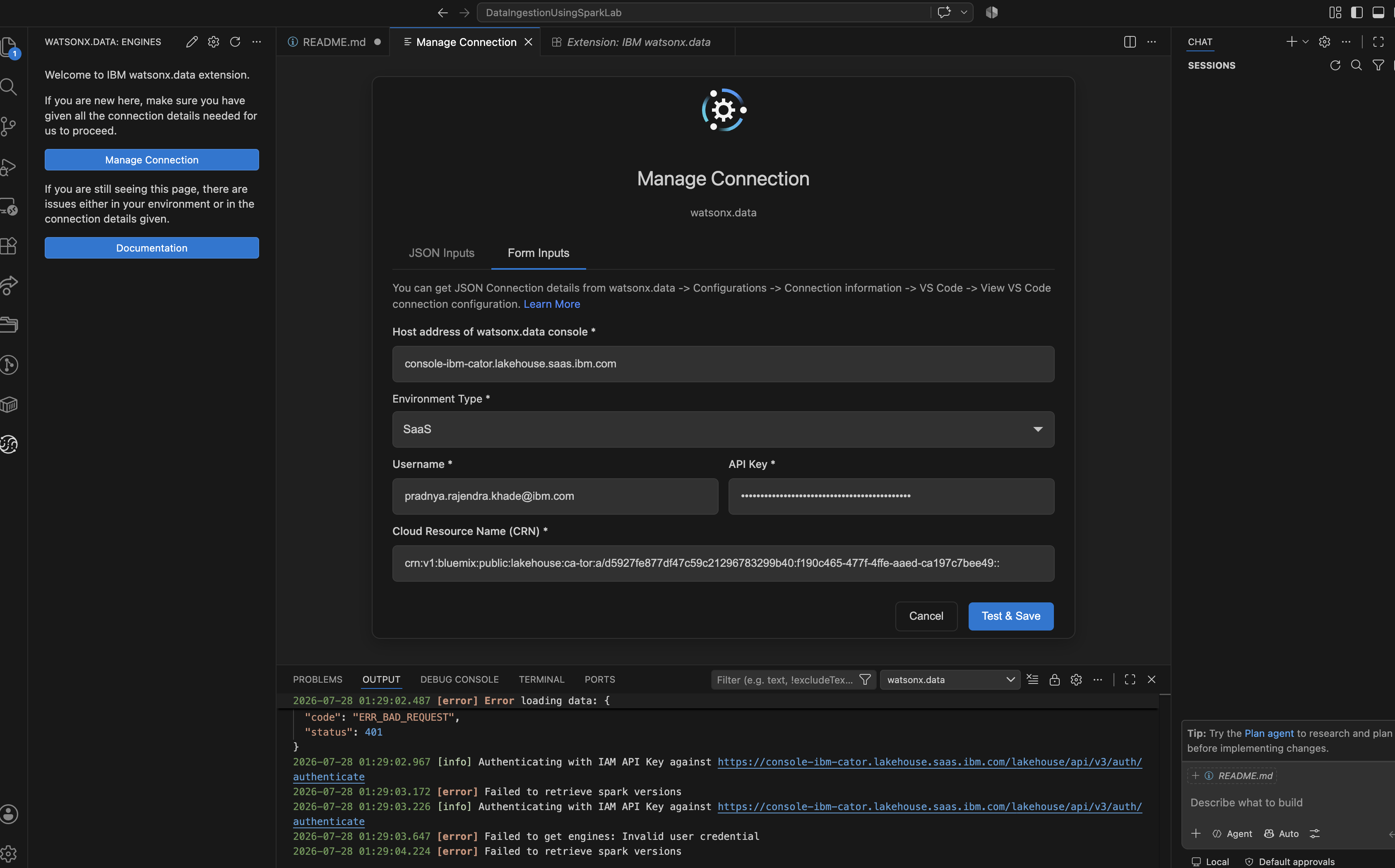
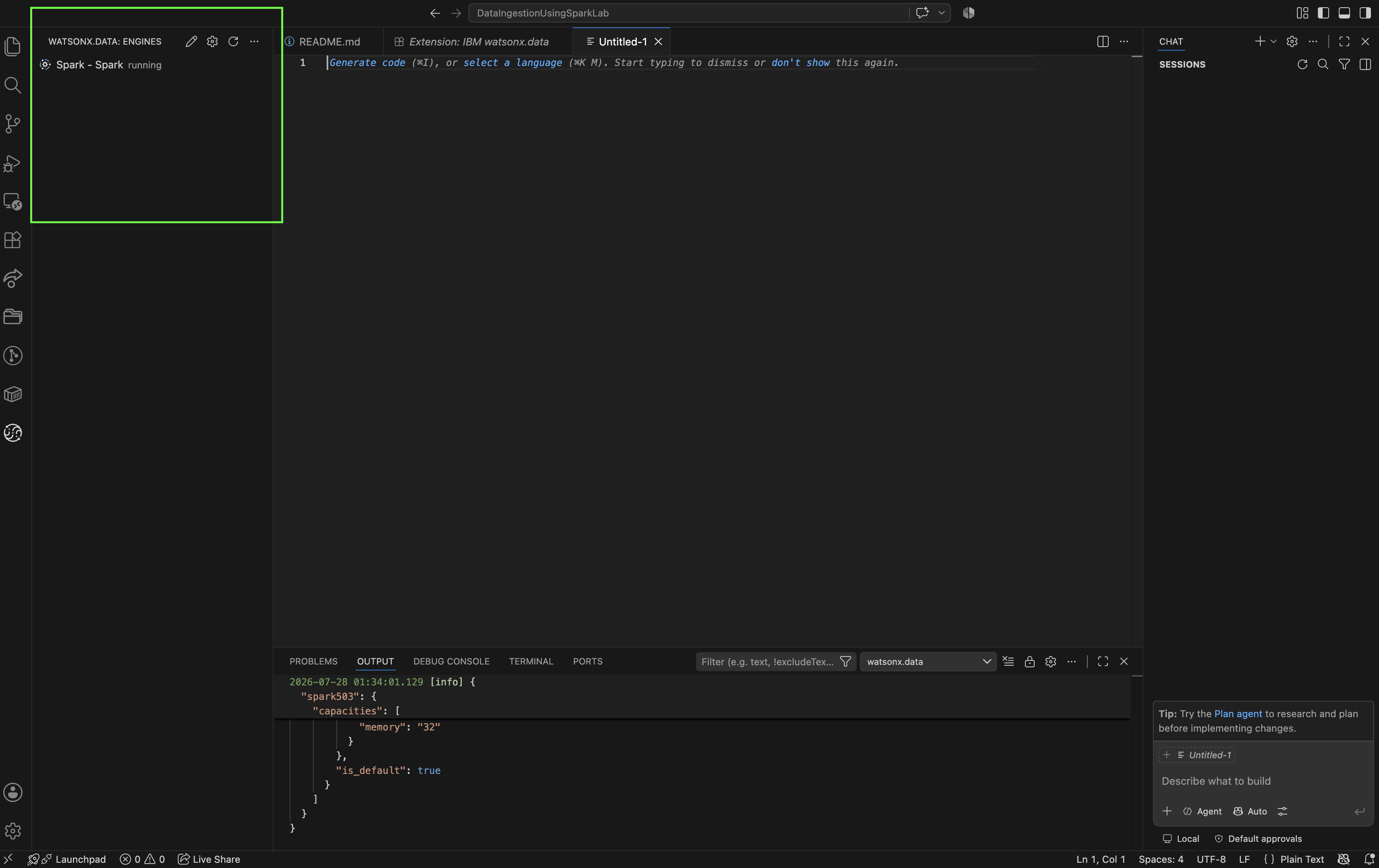
Once the connection succeeds, you'll see the Spark engine in the left panel. Hover over it, click the + icon, and create a new Spark session.
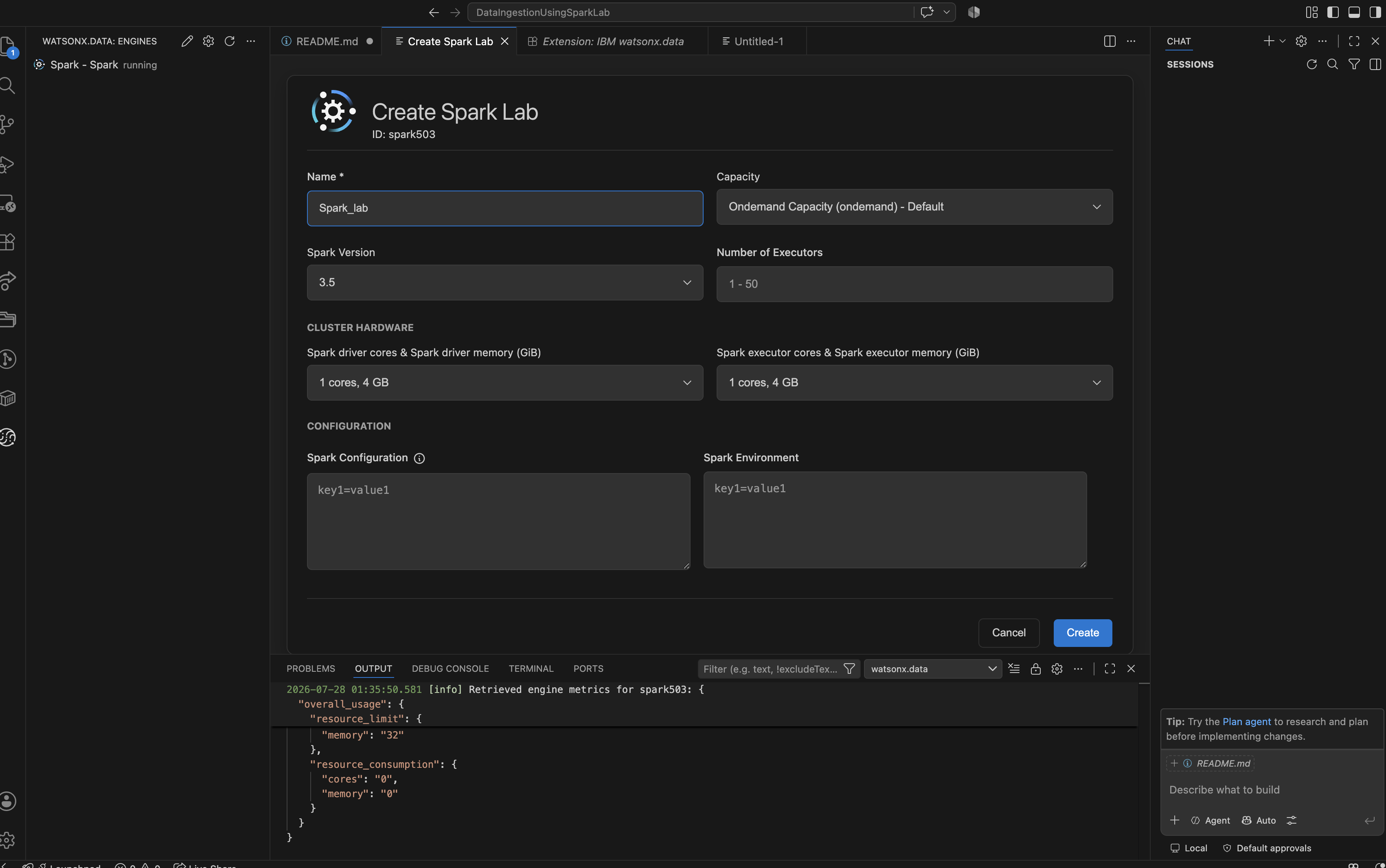
Give the session a name and click Create.
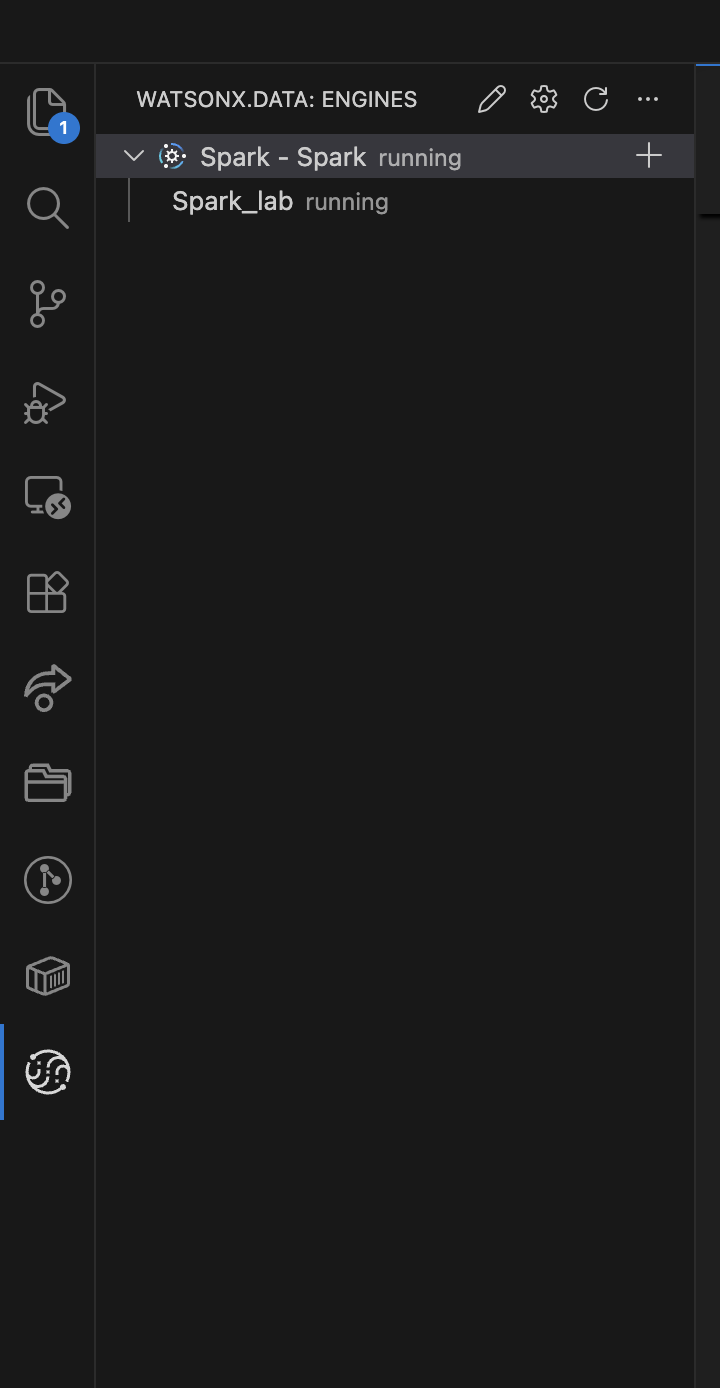
Click on the Spark engine to see the newly created session. Selecting it opens an SSH screen.
4. Ingest the CSV into an Iceberg table
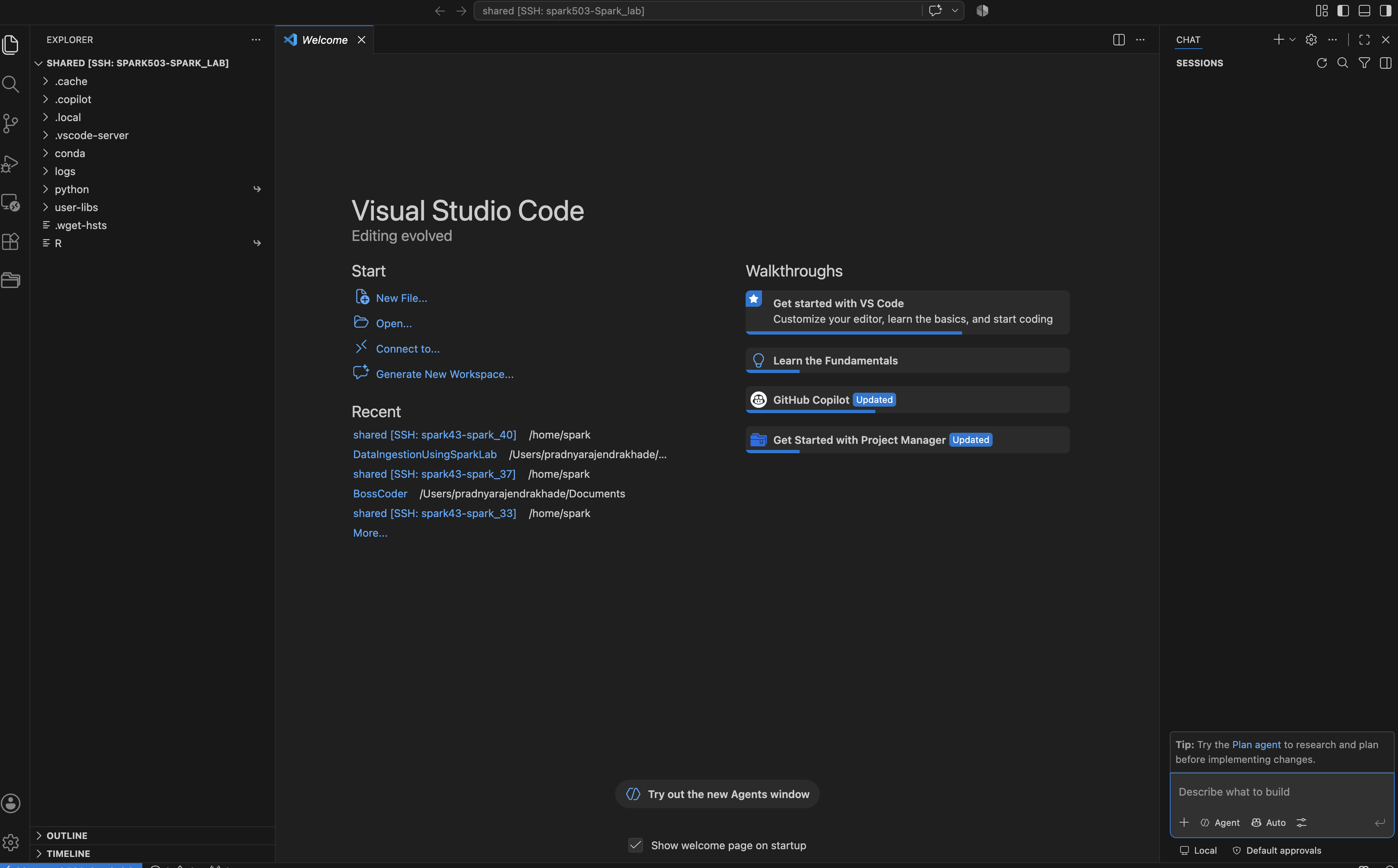
In the new SSH session, create an App.py file containing the connection and CRUD operations script (copy this from the provided zip folder).
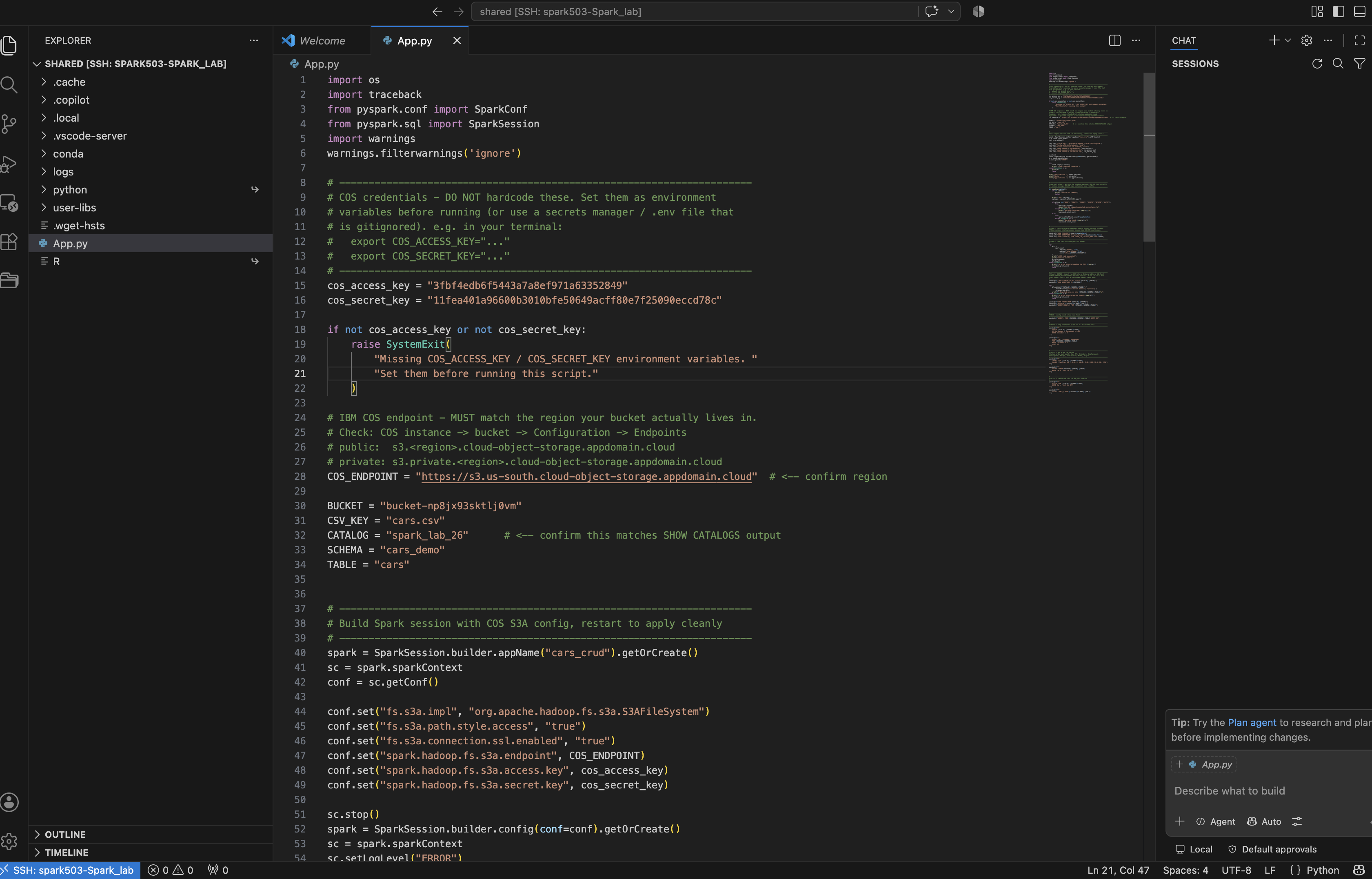
Update the following constants in App.py to match your environment — prefer setting the COS keys as environment variables rather than hardcoding them:
cos_access_key = "<Access Key>"
cos_secret_key = "<Secret Key>"
COS_ENDPOINT   = "https://s3.us-south.cloud-object-storage.appdomain.cloud"  # match your bucket's region

BUCKET  = "bucket-np8jx93sktlj0vm"  # your bucket name
CSV_KEY = "cars.csv"                # keep as is
CATALOG = "spark_lab_26"            # confirm via SHOW CATALOGS
SCHEMA  = "cars_demo"               # keep as is
TABLE   = "cars"                    # keep as is
The script performs the following steps end-to-end:
| Step | Description |
|---|---|
| Session setup | Creates a Spark session, configures S3A settings for IBM COS, restarts the session to apply config |
| Catalog check | Verifies the target catalog and namespace exist before doing anything else |
| CSV read | Reads cars.csv from COS with header + inferred schema |
| Ingest | Writes the DataFrame into a new Iceberg table via writeTo(...).createOrReplace() |
| Read | SELECT * FROM catalog.schema.cars LIMIT 10 |
| Update | Increases Horsepower by 5% for all 8-cylinder cars |
| Insert | Adds a new row (Test Car XYZ) |
| Delete | Removes the row that was just inserted |
| Verify | Confirms row count returns to the original total after the insert/delete round trip |
Table schema:
root
 |-- Car: string
 |-- MPG: double
 |-- Cylinders: int
 |-- Displacement: double
 |-- Horsepower: double
 |-- Weight: decimal(4,0)
 |-- Acceleration: double
 |-- Model: int
 |-- Origin: string
Weightisdecimal(4,0)— whole numbers only, max 4 digits (under 10,000).Modelrepresents model year (e.g.70= 1970), not a text model name.
5. CRUD operations performed
Once the cars table exists in Iceberg, App.py walks through each CRUD operation in sequence, verifying the result after every step:
- Create (ingest) – The raw CSV DataFrame is written into a brand-new Iceberg table with
df.writeTo(CATALOG.SCHEMA.TABLE).tableProperty("write.format.default", "parquet").createOrReplace(). This is what actually converts the flat, read-only CSV into a queryable, updatable SQL table — everything else in the script depends on this step succeeding first. - Read – A simple
SELECT * FROM CATALOG.SCHEMA.TABLE LIMIT 10confirms the table is readable and the schema/data landed correctly after ingest. - Update –
UPDATE CATALOG.SCHEMA.TABLE SET Horsepower = Horsepower * 1.05 WHERE Cylinders = 8increases horsepower by 5% for every 8-cylinder car. A follow-upSELECT Car, Cylinders, Horsepower ... WHERE Cylinders = 8confirms the values actually changed — this row-level update is only possible because the data lives in an Iceberg table, not a plain CSV. - Insert –
INSERT INTO CATALOG.SCHEMA.TABLE VALUES ('Test Car XYZ', 28.5, 4, 140.0, 95.0, 2400, 16.5, 82, 'USA')adds a single new record, matching the table's column order exactly (Car, MPG, Cylinders, Displacement, Horsepower, Weight, Acceleration, Model, Origin). ASELECT * ... WHERE Car = 'Test Car XYZ'confirms the new row is present. - Delete –
DELETE FROM CATALOG.SCHEMA.TABLE WHERE Car = 'Test Car XYZ'removes the row that was just inserted, and a finalSELECT COUNT(*)confirms the row count drops back to the original total — proving the insert/delete round trip left the table in a clean state. Each of these statements runs through the script'ssparksql()helper, which prints the SQL being executed, runs DDL/DML statements (CREATE,INSERT,UPDATE,DELETE,ALTER) silently with a success/error message, and shows results directly forSELECT-style queries — so the full CRUD flow is visible step by step in the terminal output.
6. Test the solution end-to-end
With App.py updated, run the script as a single batch job from the bash terminal:
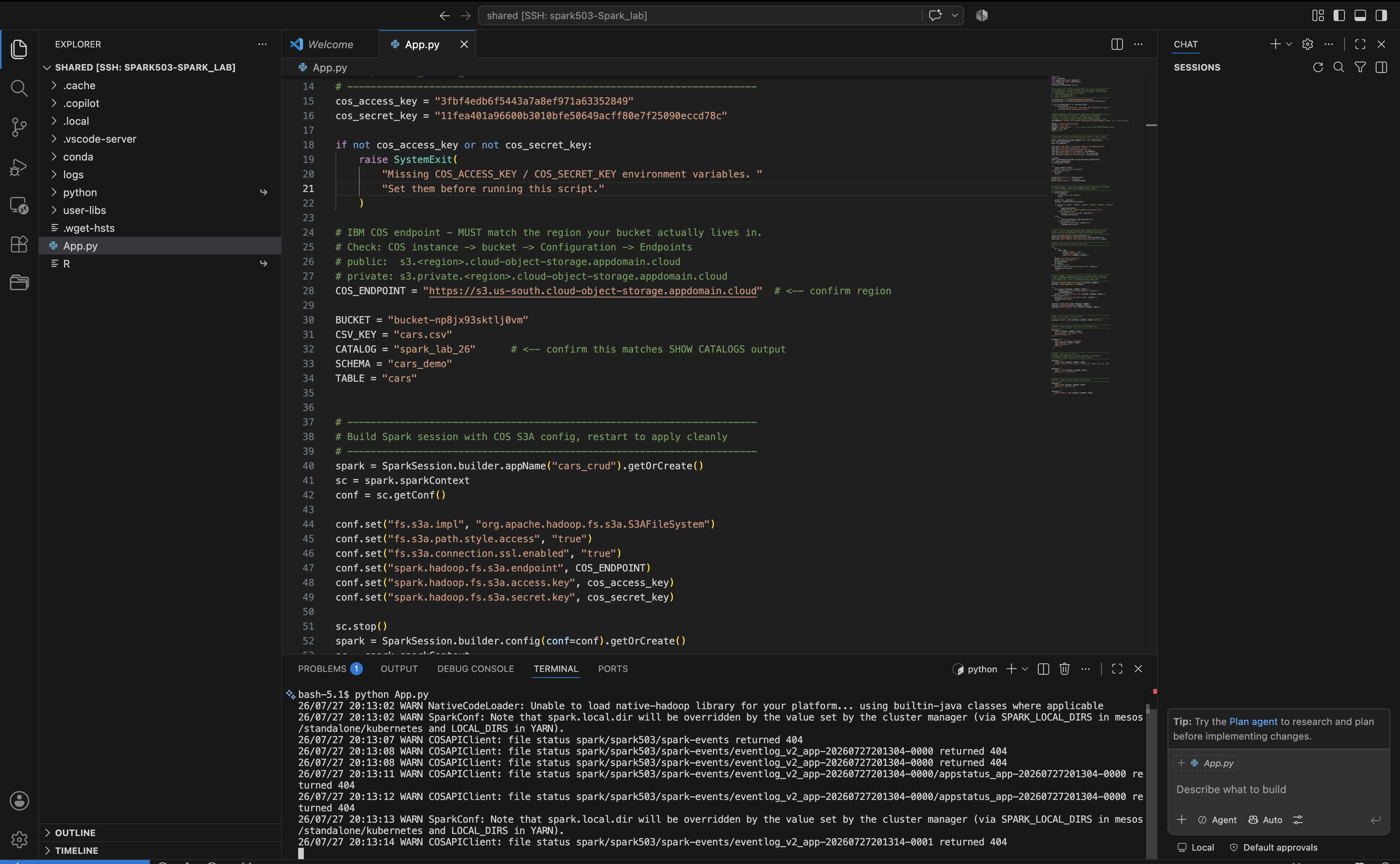
Running the whole script in one pass avoids partial-state issues if the environment disconnects mid-session — common on lab/sandbox Spark clusters with limited session lifetimes.
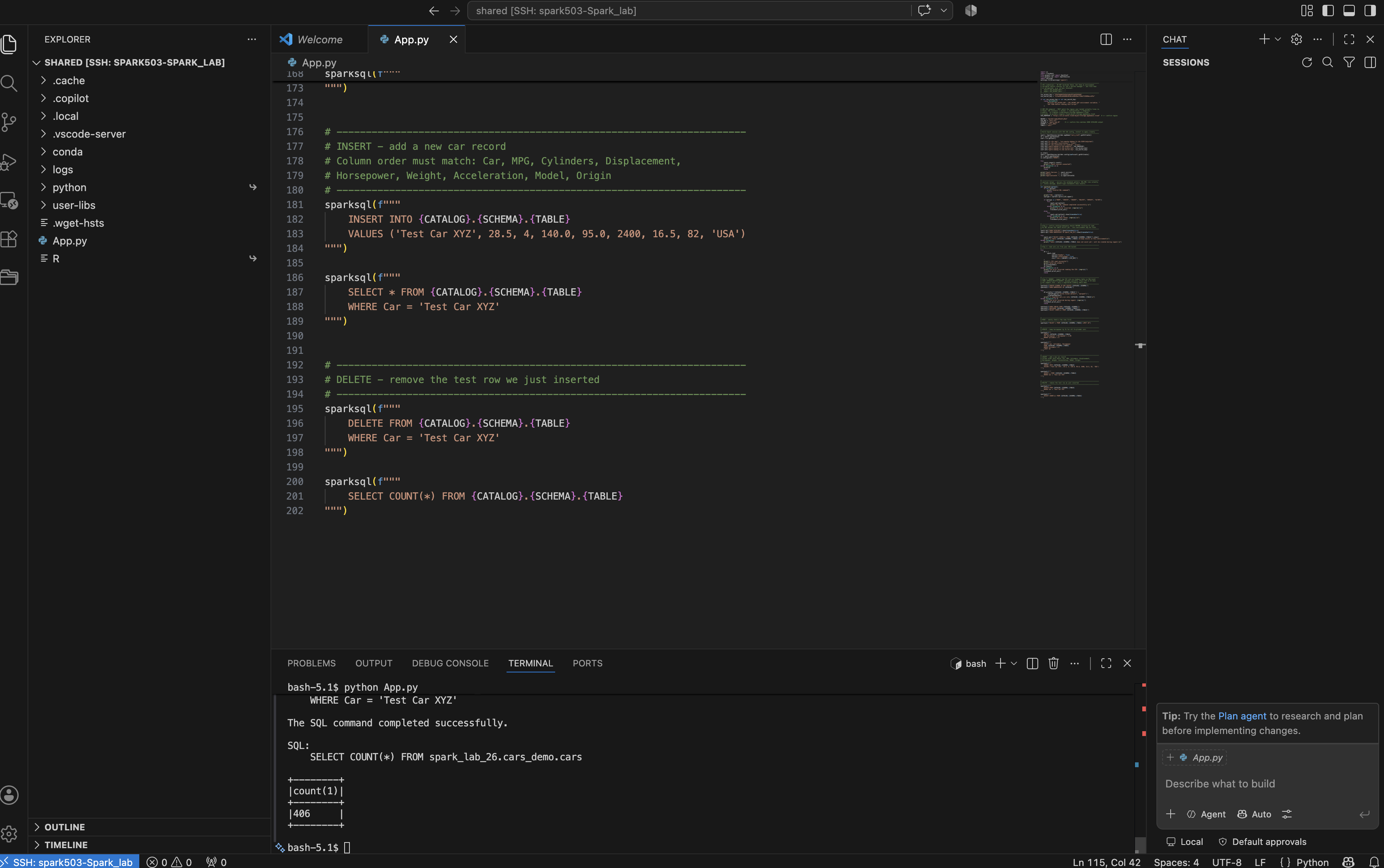
Confirm the row count returns to its original total (406) after the insert/delete round trip, and that the UPDATE step correctly scaled horsepower for 8-cylinder cars (e.g. 130.0 → 136.5).
Note: the Iceberg table is durably stored in COS — it survives even if the Spark/VS Code session disconnects. Only the compute session (SSH/Spark) is ephemeral; the table itself persists independently and can be queried again once reconnected.
Suggested script
Expected output:
✓ Spark session connected
Spark Version : 3.5.4
...
SQL: SELECT COUNT(*) FROM spark_lab_26.cars_demo.cars
+--------+
|count(1)|
+--------+
|406     |
+--------+
After the UPDATE step, 8-cylinder cars show scaled horsepower values (e.g. 130.0 → 136.5). After INSERT + DELETE, the row count returns to 406, confirming the full CRUD round trip.
Conclusion
👏 Congratulations on completing the lab! 🎉
You have successfully:
- Ingested a CSV file from IBM Cloud Object Storage into an Apache Iceberg table using Spark on watsonx.data.
- Performed full CRUD operations — Create, Read, Update, and Delete — on the Iceberg table using Spark SQL.
- Verified that the Iceberg table persists independently of the Spark session in object storage.