Custom Macros for HLASM
With the release of IBM Z Open Editor 5.2.0, both local and remote custom macros are supported for your HLASM programs as an advanced feature. Macro support in Z Open Editor is centered around three main capabilities:
- Hovers
- Document links with "Go to Definition"
- Code completion
The availability of these capabilities are dependent on the configuration of Z Open Editor that you are using:
- The free version of Z Open Editor provides all three capabilities for default z/OS macros stored in
SYS1.MACLIB, as well as hovers and links for COPY files. - The advanced features version of Z Open Editor adds document links, code completion, and hovers for local macros, and document links and hovers for macros stored in data sets.
- The advanced features version of Z Open Editor, in combination with the IBM Remote System Explorer (RSE) API server and Zowe profiles, adds code completion for remote custom macros. Note: This feature is not compatible with z/OSMF connections.
To support remote custom macros, you must have an IBM RSE API profile as your default Z Open Editor CLI profile. See zopeneditor.zowe settings explained for more information on configuring your default CLI profile. IBM Z Open Editor uses RSE API to scan remote maclibs and cache the results. The scan data is then used to retrieve the macro data sets. See Managing the Remote Maclib Cache for more details on refreshing the cache when modifying your remote maclibs. Files that contain multiple macros are supported, as well as single-macro files.
If scans are taking too long or you experience issues with the RSE API, set a timeout for the remote scan using the zopeneditor.hlasm.remoteMaclibScanTimeout setting. The default timeout is 3 minutes.
Declare Macro Libraries in your zapp.yaml file
Macro libraries can be declared in your zapp.yaml file and used to find your custom macros. To locate macros from your MACLIB, you need to create a new library in your ZAPP named maclib.
The following ZAPP snippet shows a property group declaration for HLASM that contains a MACLIB entry:
- name: hlasm-maclibs
  language: hlasm
  libraries:
    - name: maclib
      type: local
      locations:
        - "**/ASMMAC"
    - name: maclib
      type: mvs
      locations:
        - "IBMUSER.ASM.MACLIB"
You can declare any number of locations, but they must be under the maclib library to be scanned for macros. Note: Macros contained in maclib entries will not be available for resolving with COPY statements. See syslib for more information on setting up your ZAPP file for COPY statements.
Access Custom Macros from HLASM Programs
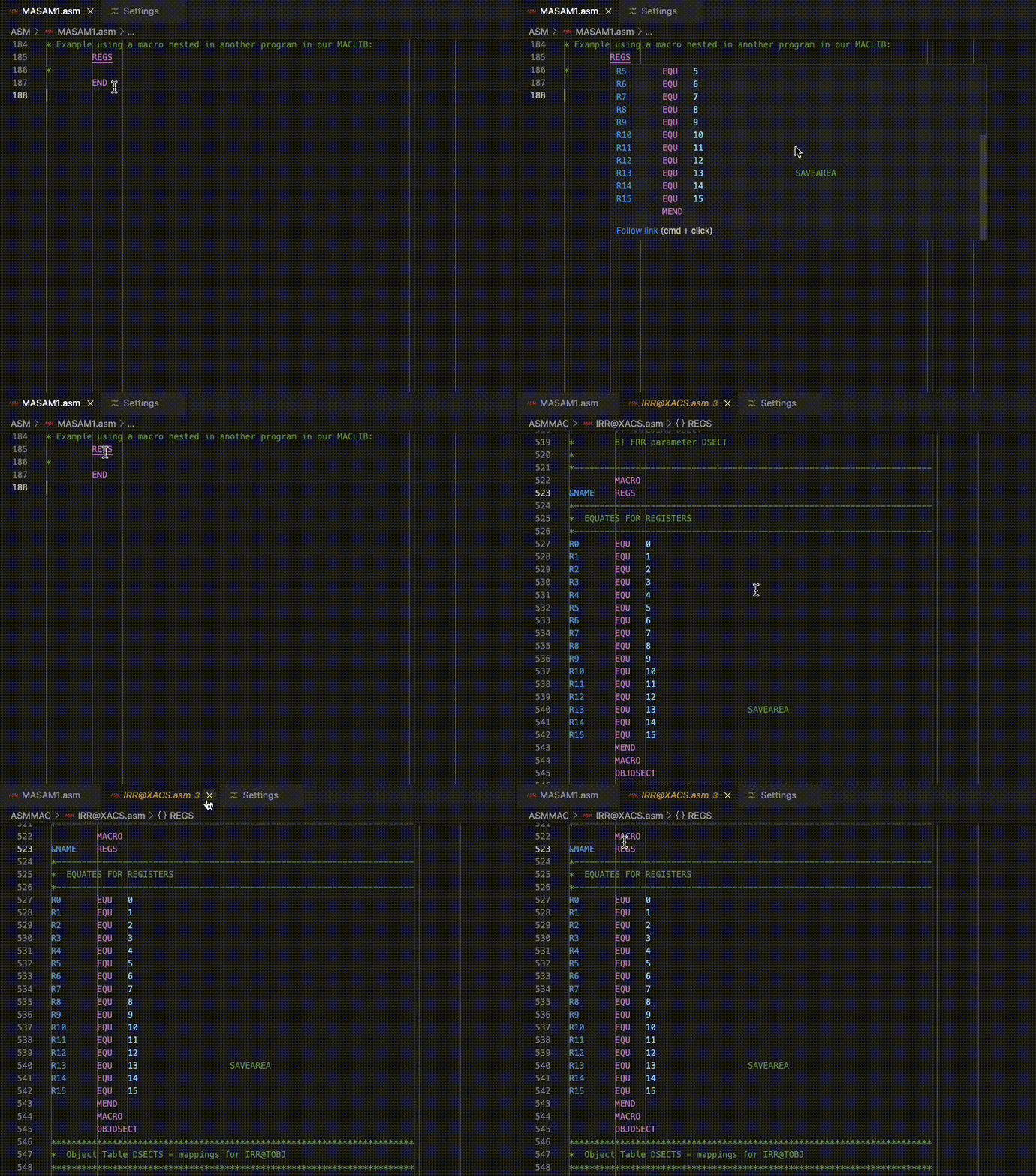
When custom macros resolve correctly in your HLASM programs, underlines (document links) appear under all located custom macros in your program. You can hover over the macro to see the declaration and contents. To directly access the macro, use Ctrl+Click (Windows) or Cmd+Click (Mac) to open it. Alternatively, right-click and select Go to Definition to navigate directly to the line where the macro is declared.
The following gif shows this functionality:
Code Completion for Custom Macros
If you are running IBM RSE API server version 1.2.0 or newer, your local and custom macros will be available in code completion with all of their parameters available for snippet-style code completion, just as you would expect when using code completion for operations and SYS1.MACLIB macros. If your RSE API server is on an earlier version, you can still see your custom macros in the code completion list, but snippet-style completion is not available because the macro parameters are not provided through the scan service.
The following gif shows a custom macro appearing in the code completion results. Note the following highlights:
- You can see how the parameters can be previewed
- When the macro is selected the parameters are filled in using snippet-style completion and you are able to use
tabto navigate to the next parameter andshift+tabto navigate to the previous parameter - After the macro is selected, a document link underline appears under the macro, see Access Custom Macros from HLASM Programs for how to access the macro source

Settings for Custom Macros
The following settings are added to support the new custom macros feature:
zopeneditor.hlasm.enableCustomMacrosWarnings: This setting is enabled by default and places warnings under all custom macros that cannot be found in your HLASM programs. Disable this setting if you do not want to see these warnings.zopeneditor.hlasm.reduceCustomMacroLogging: This setting is disabled by default and accelerates custom macro scanning performance at the cost of reduced logging. When the setting is disabled, you can debug and see which documents are being requested by the language server. When the setting is enabled, the language server handles everything internally and no communication is logged.
Managing the Remote Maclib Cache
IBM Z Open Editor maintains a cache for remote macros using VSCode's memento storage API. Each workspace that contains a zapp.yaml file will have its own cache. The cache will be cleared and a new scan initiated in these two scenarios:
- Whenever a change is made to a workspace's ZAPP file
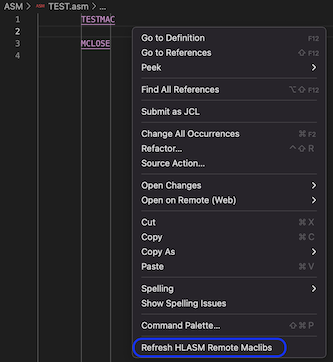
- The cache can be manually refreshed by executing the command
hlasm.refreshMaclibs. You may want to do this if you've made changes to files in your maclib without changes to your ZAPP file. The language server will react similar to a ZAPP change: all of your documents will be reparsed and local and remote copy members and macros will be requested again after the scan is complete. You can access this command in the context menu or using the command palette. See the following screenshot: