User build with IBM Dependency Based Build (DBB)
Note: Recent updates to Zowe CLI SDK require SSH team configuration profiles to specify a hostKey property. This requirement can affect user build v1 when it is used with z/OSMF and SSH profiles. See Migrating Zowe profiles for instructions on how to add this property to team configuration files.
User build
The user build functionality helps COBOL, PL/I, and HLASM developers to leverage the IBM® Dependency Based Build (DBB) toolkit directly from IBM Developer for z/OS® on VS Code or within the IBM Developer for z/OS on Cloud development environment. You can run a user build to compile and link programs before the code is exposed to the repository for others to use, or perform your z/OS development locally using modern tools without context switching. With user build, you can compile your program without performing commits or pushes, and then initiate a remote Debug session against your compiled program from within VS Code using the IBM Z Open Debug VS Code extension.
The user build integration that Z Open Editor provides with IBM® Dependency Based Build enables team members to share a configuration file that defines how to build programs. It also integrates with VS Code to execute a build: the program and its dependencies are uploaded to z/OS® through Zowe™ Explorer, the build is executed, and the build logs are downloaded and displayed in the editor.
Prerequisites
Ensure that the IBM Z Open Editor VS Code extension is installed and fully configured for editing your programs.
For Z Open Editor to locate and upload local copybooks used during the build, you must configure property groups to define their locations. These property groups are required in addition to the copybook rules defined for DBB. To test whether a copybook is resolved, open a COBOL program in the editor and hover your mouse cursor over the copybook name in a COPY statement. If a preview appears, it means that copybook is resolved successfully.
Ensure that you have created Zowe team configuration profiles using Zowe Explorer's graphical user interface, as described in the Connecting to z/OS with Zowe Explorer walk through. If you are using z/OSMF, you also must create an SSH profile. Zowe SSH profiles support authentication through SSH keys or password. If you are using RSE API, SSH profile is not required because SSH commands are executed through the RSE REST API.
After you have created the Zowe team configuration profile(s), you must select in the VS Code status bar the profile(s) to be used for user build. The profile that is currently active for user build is always displayed in the VS Code status bar for you to check before starting a build.
Configure the EBCDIC encoding to be used when uploading your program files from your local development workspace to z/OS by specifying it in
.gitattributesfile within your VS Code development workspace. See Character conversion using .gitattributes for details.
Setting up user build for DBB zBuilder
Dependency Based Build version 3 provides a new YAML based build scripting framework called zBuilder. With zBuilder the setup and configuration work for developers has been vastly simplified. The assumption is that build scripts and configuration files have been provided by the team lead or build engineer on z/OS together with the DBB installation. Developers only have to configure the location of files and basic settings such as their personal HLQ for the user build to be executed from Z Open Editor.
See the DBB v3 zBuilder documentation for an overview of the five basic z/OS setup steps. Step 4 talks about creating the dbb-app.yaml file which is shared with developers together with a ZAPP profile for the build.
After DBB and zBuilder are configured by the system administrator on z/OS, the developer must perform the following additional steps to set up user build:
- Set up your UNIX System Services profile: Since remote build execution occurs on the z/OS UNIX System Services, you must configure some basic environment variables to run the build. The minimum required variables are
DBB_HOME,DBB_CONF, andDBB_BUILD. Refer to the DBB environment variables page for details. Ensure thatDBB_BUILDpoints to a directory containing YAML files updated by your administrator for your specific z/OS system. These files define the specific locations of compilers, linkers, load libraries and other build components. - Create a "zapp.yaml" file with a DBB v3 build profile: The
dbbZAPP profile type supports configurations for both zBuilder and Groovy-based user builds. Ensure that your ZAPP file provides a valid zBuilder setting object, as shown in the example below. The profile enables you to specify local settings such as the HLQ for building or log file locations that the build engineer cannot define when creating the "dbb-app.yaml" file. You must also provide valid property groups in the ZAPP file so the editor can locate dependencies such as local copybooks. If the local copybooks change along with the program you build, user build automatically uploads these files together with the program file for the build. - Provide the "dbb-app.yaml" for your application: Add the "dbb-app.yaml" provided by your build engineer in your workspace folder next to the "zapp.yaml" file.
- Configure Z Open Editor user settings: In addition to settings that are general to your application and shared workspace, you must configure settings that are specific to your personal user accounts, file locations, and preferences. Section Specifying user build user settings and variables covers all the details.
You can find examples for a (2) and (3) in our Github sample repository. We show how such files could look like in a single root workspace as well as multi-root workspace.
The following snippet shows an example of a ZAPP profile for DBB zBuilder that you can find in these samples:
profiles:
  - name: zBuilder-userbuild
    type: dbb
    settings:
      command: "$DBB_HOME/bin/dbb build"
      lifecycle: user
      lifecycleArgs:
        - "--hlq ${dbbHlq}"
      additionalDependencies:
        - "dbb-app.yaml"
      logFilePatterns:
        - "*.log"
        - "BuildReport.*"
The example shows:
- How you can use variables from the Z Open Editor user settings to provide your specific HLQ to the build command. Variables are not required if you share one HLQ through the ZAPP file, but the risk is that users might overwrite each other's build results. You can also used mixed expressions that combine variables with hard-coded values.
- How you can specify additional dependencies that are required for the build and must be uploaded with the program file when the Run user build with full upload command is selected. These dependencies can include the "dbb-app.yaml" file itself or BMS files for a CICS application. If you are uploading many directories of files, consider increasing parallel uploads by using the "zopeneditor.zowe.maximumParallelFileUploads" setting described in zopeneditor.zowe settings explained.
- How you specify which log files to download after the build is executed. These files are optional downloads in addition to the logs automatically retrieved for the Problems view, as described later in this section.
Setting up user build for DBB with Groovy and dbb-zappbuild
The GitHub repository dbb-zappbuild provides a generic build solution for z/OS applications using Apache Groovy build scripts and IBM Dependency Based Build (DBB) v2 or v3 APIs. Z Open Editor's user build can be used with this solution package, which must be installed on z/OS UNIX System Services. You can either provide a global copy of the repository for the entire team or clone it into your personal home directory.
git clone https://github.com/IBM/dbb-zappbuild.git
You can use the cloned repository as-is when running user build, except for the file dbb-zappbuild/build-conf/datasets.properties. This file must be updated to reflect the data sets specific to your z/OS system, including paths to compiler versions, linkers, load libraries, and other components. Consult your system administrator or sysprog for the correct values.
To run dbb-zappbuild scripts, create a ZAPP profile using the dbb type with settings that differ from those used for zBuilder. The ZAPP file editor includes code templates to help you get started. See Configuring your applications with ZAPP files for details. Use the "ZAPP User Build Profile" code template to add a new profile to your ZAPP file.
Variable substitution using user settings defined in the following section is supported. These values are substituted within brackets ${}, as shown in the following example.
profiles:
  - name: dbb-userbuild
    type: dbb
    settings:
      application: SAM
      command: "$DBB_HOME/bin/groovyz"
      buildScriptPath: "${dbbWorkspace}/dbb-zappbuild/build.groovy"
      buildScriptArgs:
        - "--userBuild"
        - "--workspace ${dbbWorkspace}"
        - "--application ${application}"
        - "--hlq ${dbbHlq}"
        - "--outDir ${dbbLogDir}"
        - "--dependencyFile ${dependencyFile}"
      additionalDependencies:
        - application-conf
        - "zapp*"
      logFilePatterns:
        - "${buildFile.basename}.log"
        - "BuildReport.*"
Update the following fields with your own information:
application: This variable defines the top-level folder name where user build uploads the source code. This folder is created inside the UNIX System Services folder defined under thedbbWorkspaceuser setting. It can be the name of the Git repository of the build file and can be referenced in thebuildScriptArgsthrough the${application}variable.command: Points to the binary executable file that initiates the user build. For example,$DBB_HOME/bin/groovyz.buildScriptPath: The UNIX System Services location of yourdbb-zappbuild/build.groovyfile or another build script file.buildScriptArgs:--userBuild- Indicates to DBB that this is a user build.--workspace- This setting is the parent workspace used by DBB, resolved by the value in the user SettingsdbbWorkspace(see later in this section).--application- Application directory path on UNIX System Services relative to theworkspacebuildScriptArgs parameter. The application directory must contain anapplication-conffolder at the top level. If your local workspace in VS Code has program source code nested withapplication-conf, define the application path accordingly. See the following example for details.--hlq- This setting specifies the TSO high-level qualifier(s) used by DBB for data set creation and updating. You can use a variable such as the user settingdbbHlq(see later in this section). However, variables are not required if you share one HLQ through the ZAPP file, but the risk is that users might overwrite each other's build results. You can also use mixed expressions that combine variables with hard-coded values.--outDir- The UNIX System Services location for log files, defined as a subfolder to theworkspacelocation.--dependencyFile- Optional parameter for COBOL and PL/I builds that improves performance. Z Open Editor computes program dependencies through its language server, which prevents DBB from performing this task. If the parameter is omitted, DBB performs the dependency resolution, which can slow down build times. The parameter points to a dependency file on z/OS UNIX System Services generated and uploaded by Z Open Editor. The file contains the list of copybooks and the application type. If the default parameter${dependencyFile}is used, user build automatically generates and places this file in thedbbLogsfolder location specified. Alternatively, you can specify the path to an existing file on z/OS. By default, the dependency file is tagged asUTF-8. If a custom encoding is required (for example,IBM-1047), specify the dependency file encoding in the.gitattributesfile by settingzos-working-tree-encodingtoIBM-1047or another preferred value.
additionalDependencies- Other folders or files required for the build, such as theapplication-conffolder that contains DBB properties files. The path must be relative to the build file workspace and reside inside it. Starting with Z Open Editor 3.0.0, paths can include Glob wildcards. If you are uploading many directories of files, consider increasing parallel uploads by using the "zopeneditor.zowe.maximumParallelFileUploads" setting described in zopeneditor.zowe settings explained.logFilePatterns- In Z Open Editor 3.0.0, you can specify file locations relative to${dbbLogDir}for download. UNIX System Services "find" wildcards are supported. If this setting is not defined, all log files underdbbLogDirare downloaded. User build also searches nested directories underdbbLogDirfor matching log files. To restrict the search to the top-level directory only, define the pattern as"${dbbLogDir}/my_pattern".
When building a application with "dbb-zappbuild", ensure that the application-conf folder is at the top level of your VS Code workspace. In some cases, your Git repository contains a single application with application-conf at the root. In this situation, the ZAPP application variable and buildScriptArgs can be the same (see the zopeneditor-sample SAM ZAPP configuration in the preceding section). In other cases, the application is nested inside the Git repository. In the following example, MortApp program code resides in the folder samples/MortgageApplication (relative to the VS Code workspace). The code is uploaded to the folder ${application}/samples/MortgageApplication, so the value of the --application parameter must be --application ${application}/samples/MortgageApplication.
profiles:
- name: MortgageApplicationBuild
  type: dbb
  settings:
    application: MortApp
    command: "$DBB_HOME/bin/groovyz -DBB_PERSONAL_DAEMON"
    buildScriptPath: "${dbbWorkspace}/dbb-zappbuild/build.groovy"
    buildScriptArgs:
      - "--userBuild"
      - "--workspace ${dbbWorkspace}"
      - "--application ${application}/samples/MortgageApplication"
      - "--hlq ${dbbHlq}"
      - "--outDir ${dbbLogDir}"
      - "--dependencyFile ${dependencyFile}"
    additionalDependencies:
      - "samples/MortgageApplication/application-conf"
    logFilePatterns:
      - "${buildFile.basename}.log"
      - "BuildReport.*"
You can add additional arguments if required. Refer to the Command Line Options Summary for a complete list of optional arguments.
Finally, manage your copy of the application-conf folder as documented at https://github.com/IBM/dbb-zappbuild. For user build, perform the following checks. Our sample repository at https://github.com/IBM/zopeneditor-sample/tree/wazi-main includes an additional set of files referenced here, which you can use as a starting point for your setup.
Verify settings for COBOL programs
Verify the
copybookSearchsetting in theapplication.propertiesfile.Open the
application.propertiesfile in theapplication-conffolder in the VS Code workspace.Search for
copybookSearchand verify the z/OS UNIX System Services location.The default z/OS UNIX System Services location is as follows:
search:${workspace}/?path=${application}/copybook/*.cpy
The user build functionality creates z/OS UNIX System Services folders that align with the VS Code workspace subfolders. For example, if your workspace copybook folder is
zopeneditor-sample/COPYBOOK, then the z/OS UNIX System Services folder location is alsozopeneditor-sample/COPYBOOK. Therefore, the z/OS UNIX System Services location in thecopybookSearchmust match the location generated during the user build process. In this example (which assumes copybook files use the*.cpyfile extension), set the value to:search:${workspace}/?path=${application}/COPYBOOK/*.cpy
Verify settings for PL/I programs
Verify the
pliincludeSearchsetting in theapplication.propertiesfile.Open the
application.propertiesfile in theapplication-conffolder in the VS Code workspace.Search for
pliincludeSearchand verify the z/OS UNIX System Services location.The default z/OS UNIX System Services location is as follows:
search:${workspace}/?path=${application}/plinc/*.inc
The user build functionality creates z/OS UNIX System Services folders that align with the VS Code workspace subfolders. For example, if your workspace include folder is
zopeneditor-sample/INCLUDES, then the z/OS UNIX System Services folder location is alsozopeneditor-sample/INCLUDES. Therefore, the z/OS UNIX System Services location in thepliincludeSearchmust match the location generated during the user build process. In this example (which assumes include files use the*.incfile extension), set the value to:search:${workspace}/?path=${application}/INCLUDES/*.incNote: When using the zopeneditor-sample repository, you must first build
PSAM1.plibefore buildingPSAM2.plito ensure that the link-edit step completes successfully.
Verify settings for HLASM programs
Verify the
asmCopySearchsetting in theapplication.propertiesfile.Open the
application.propertiesfile in theapplication-conffolder in the VS Code workspace.Search for
asmCopySearchand verify the z/OS UNIX System Services location.The default z/OS UNIX System Services location is as follows:
search:[SYSLIB:COPY]${workspace}/?path=${application}/maclib/*.mac
The user build functionality creates z/OS UNIX System Services folders that align with the VS Code workspace subfolders. For example, if your workspace copybook and macro folder is
zopeneditor-sample/ASMCOPY, then the z/OS UNIX System Services folder location is alsozopeneditor-sample/ASMCOPY. Therefore, the z/OS UNIX System Services location in theasmCopySearchmust match the location generated during the user build process. In this example (which assumes copybook and macro files use the*.asmfile extension), set the value to:search:[SYSLIB:COPY]${workspace}/?path=${application}/ASMCOPY/*.asm
Specifying user build user settings and variables
In Z Open Editor, you can use the Settings page to configure variables such as the dbbHlq variable shown in the preceding example.
- Open VS Code settings and search for "user build", two settings appear.
- Select the checkbox (if not selected) to enable user build.
- In the third setting, "Userbuild: User Settings", click the "Add Item" button to provide the following settings.
| Item | Description | Example |
|---|---|---|
| dbbWorkspace | Required. The UNIX System Services directory where files are uploaded. The directory must exist before a user build runs and can contain multiple application folders. | /u/ibmuser/projects |
| dbbHlq | Optional. TSO high level qualifier(s) for your project. | IBMUSER.SAMPLE |
| dbbDefaultZappProfile | Optional. Name of the ZAPP profile to be used when you run a user build. If not defined, user build uses the first defined ZAPP dbb profile. | dbb-profile-1 |
| localLogDir | Optional. Local directory where user build logs are downloaded. The path can be absolute or relative to the workspace of the build file. If not defined, the user build downloads logs into a directory in your local workspace called logs. | /Users/deb/dbb-logs |
| preserveWorkspaceNames | Optional. Default is false. Boolean value that controls how files such as include files and folders listed under "additionalDependencies" in the ZAPP file are uploaded to your UNIX System Services project folder. This settings particularly impacts how files that originate from VS Code multi-root workspaces are uploaded. If enabled, instead of uploading all dependencies to the application folder, local files are uploaded to a folder that matches their workspace name. For example, your VS Code multi-root workspace comprises of several workspaces with different Git repositories that appear next to each other in VS Code. When enabled, the name of each workspace is preserved in the folder hierarchy on UNIX System Services. If disabled, all sub-folders of these workspaces are uploaded into the application-specific upload folder. That folder is based on the the "application" property in ZAPP for Groovy builds and on the "name" property of the dbb-app.yaml file for zBuilder builds. Note: enabling this setting requires updates to your DBB search patterns for include files from previous Z Open Editor releases. If you switch between IBM Developer for z/OS on Eclipse and IBM Developer for z/OS on VS Code user builds, enable this setting for consistency. | false |
Each of these variables can be referenced in a ZAPP file using the format ${variable-name}, as shown in the preceding ZAPP snippet.
Note, that is early releases of Z Open Editor you would specify a fully qualified name when referencing these variables in your ZAPP file, such as ${zopeneditor.userbuild.userSettings.dbbHlq}. These variable names still work for backward compatibility, but we now recommend using the shorter names from the table above, such as a ${dbbHlq}, which allow your teams to share the same ZAPP files between IDz on VS Code and IDz on Eclipse users.
You can also define additional variables using the ZAPP variables feature, which can be referenced in your ZAPP profile. Using these variables allows you to share the ZAPP file with your team members as part of your Git repository, with each developer providing user-specific settings through the variables.
User build ZAPP profiles also support dynamically evaluated variables. These variables enable you to reference the file under build. The following table lists the available expressions you can use:
| Variable | Description | Example |
|---|---|---|
${buildFile} | Build file name and extension | SAM1.cbl |
${buildFile.basename} | Build file name without extension | SAM1 |
${buildFile.extension} | Build file extension | .cbl |
${buildFile.workspaceDir} | Build file directory relative to the workspace. In the example workspace, the file is COBOL/SAM1.cbl, so the directory is COBOL | COBOL |
${application} | Substitutes the value of the application setting defined in the ZAPP file anywhere in a DBB profile |
The following example shows how you can use these expressions in ZAPP profiles to specify naming patterns for locating log files on the UNIX System Services and downloading them to the local workspace as part of the ZAPP profile logFilePatterns setting.
logFilePatterns:
  - "${buildFile.basename}.+(log|html|json)"
When building a program called SAM1.cbl, for example, Z Open Editor downloads files named SAM1.log, SAM1.html,SAM1.json and so on.
In the next example, only files in the myfiles directory that start with SAM1 and end with .dat are uploaded.
additionalDependencies:
  - "myfiles/${buildFile.basename}*.dat"
Using single-root versus multi-root workspaces
You can use VS Code multi-root workspaces in a limited way for user build.
The limitation is that the ZAPP file, the application-conf directory for dbb-zappbuild, and the program to build must be in the same workspace in a multi-workspace setup. Include files, such as copybooks, can reside in other workspaces, and Z Open Editor finds them if a valid property group is defined.
For zBuilder the requirement is that the "dbb-app.yaml" file needs to be located in the root directory of the workspace with the program files.
If multiple ZAPP files exist in different workspaces, the ZAPP file in the workspace where the program is built is used to locate the user build profile. For property groups, Z Open Editor combines and uses all property groups defined in the workspace's ZAPP files to locate include files.
A sample multi-root workspace that shows a valid setup is available on GitHub. See the README document here.
Running a user build
After prerequisites, settings, ZAPP files, and scripts are in place, open the program you want to edit in Z Open Editor. Verify that dependencies such as copybooks are found as specified in the ZAPP file. When you finish editing the program, start a build by right-clicking inside the editor and select one of the available commands from the context menu:
- Run IBM User Build with full upload: Required for the first execution of a user build for a particular program. This command uploads all include files for the program, the program itself, and all files listed under
additionalDependenciesin the ZAPP file before running the build command specified in the ZAPP file. - Run IBM User Build: Used for subsequent executions of the build. This command provides faster execution because it uploads an include file only if it changed since the last user build. It does not upload
additionalDependencies. It uploads the program file and builds it. If you require upload of the other files again, choose the first option.
By default, user build commands are available only for COBOL, HLASM, and PL/I files. To show user build commands in context menus and the command palette for all files (excluding include files and copybooks), set the zopeneditor.userbuild.alwaysShowCommands setting to true. This enables running a user build with a custom Groovy and zBuilder script on files of other languages. This setting is experimental and can result in unexpected Z Open Editor behavior when running a user build on non-COBOL, HLASM, or PL/I programs.
The DBB build output also indicates the results of the build in the output console window. A successful build displays a message similar to the following:
** Build ended at Fri Feb 14 08:58:19 EST 2020
** Build State : CLEAN
** Total files processed : 1
** Total build time  : 14.877 seconds
** Build finished

Looking for user-build logs in /u/userid/projects/wazi-sample/logs
Downloading logs to c:\Users\userid\wazi-sample\wazi-sample\logs
Downloading log file /u/userid/projects/wazi-sample/logs/buildList.txt. Binary: false
Downloading log file /u/userid/projects/wazi-sample/logs/BuildReport.html. Binary: true
Downloading log file /u/userid/projects/wazi-sample/logs/BuildReport.json. Binary: true
Downloading log file /u/userid/projects/wazi-sample/logs/SAM1.log. Binary: false
Downloading of 4 log files to c:\Users\userid\wazi-sample\wazi-sample\logs finished successfully.
The preceding example shows the output from a Groovy build. The zBuilder output looks different, but remains very similar.
The user build functionality automatically downloads logs from z/OS into the logs directory in your local workspace, based on the logFilePatterns property of your dbb profile in your ZAPP file. The logs folder is created if it does not exist.
If you see an ERROR build result, view the log produced by DBB. The log resides in the z/OS UNIX System Services folder defined in the --outDir setting listed previously for DBB with Groovy and dbb-zappbuild build command.
** Build ended at Fri Feb 14 09:08:37 EST 2020
** Build State : ERROR
** Total files processed : 1
** Total build time  : 13.552 seconds

** Build finished

Looking for user-build logs in /u/userid/projects/zopeneditor-sample/logs
Downloading logs to c:\Users\userid\zopeneditor-sample\logs
...
Locating the log file of user build output
To locate the console log file of user build output, identify the log file path first. In the editor, open the OUTPUT tab by clicking View > Output. The tab appears at the bottom of the editor. Then, select IBM User Build from the dropdown menu.
The first line of the IBM User Build output reads “This log file is available at”, followed by a path. The output is similar to the following example:
This log file is available at c:\Users\userid\AppData\Roaming\Code\logs\20210610T094319\exthost1\IBM.zopeneditor\userbuild-20210610-164534.log
To access the log file, navigate to that path on your computer.
Note: The path to the log file might be hidden. In that case, adjust your operating system’s view preferences to show hidden items.
Advanced problems view integration
NOTE: New ways are available to enable and disable this feature in Z Open Editor 6.3.0. See the information later in this section and verify whether you must update your ZAPP files to keep the feature working.
When you edit enterprise application code in Z® Open Editor, language servers provide code completion and real-time syntax error detection. However, the language servers in Z Open Editor can only identify problems that a parser detects, such as basic syntax errors. A compiler goes through many more stages after parsing, generating additional information and warning messages for problems that a parser cannot detect. Therefore, it is sometimes necessary to build the program and review the compiler output to ensure that the program is correct, limited of course to what the compiler can detect without actually running tests.
When you run a build of a program directly from inside Z Open Editor through the context menu, the build completes by downloading the build log files into the local development workspace. Prior to Z Open Editor v4, you had to manually review the entire log file by opening it in the editor and scrolling through it.
If you unlock Z Open Editor's advanced capabilities and enable the feature through a setting in the ZAPP file, Dependency Based Build log files are parsed by Z Open Editor and presented as errors and warnings in the regular VS Code Problems view. You can click entries in the Problems view to navigate directly to the line in the code where the problem is reported. These errors appear side by side with regular Z Open Editor errors, but you can distinguish them by the compiler error number displayed next to them.
The Problems view can be cleared manually through by right-clicking any message or automatically when you rerun a build.
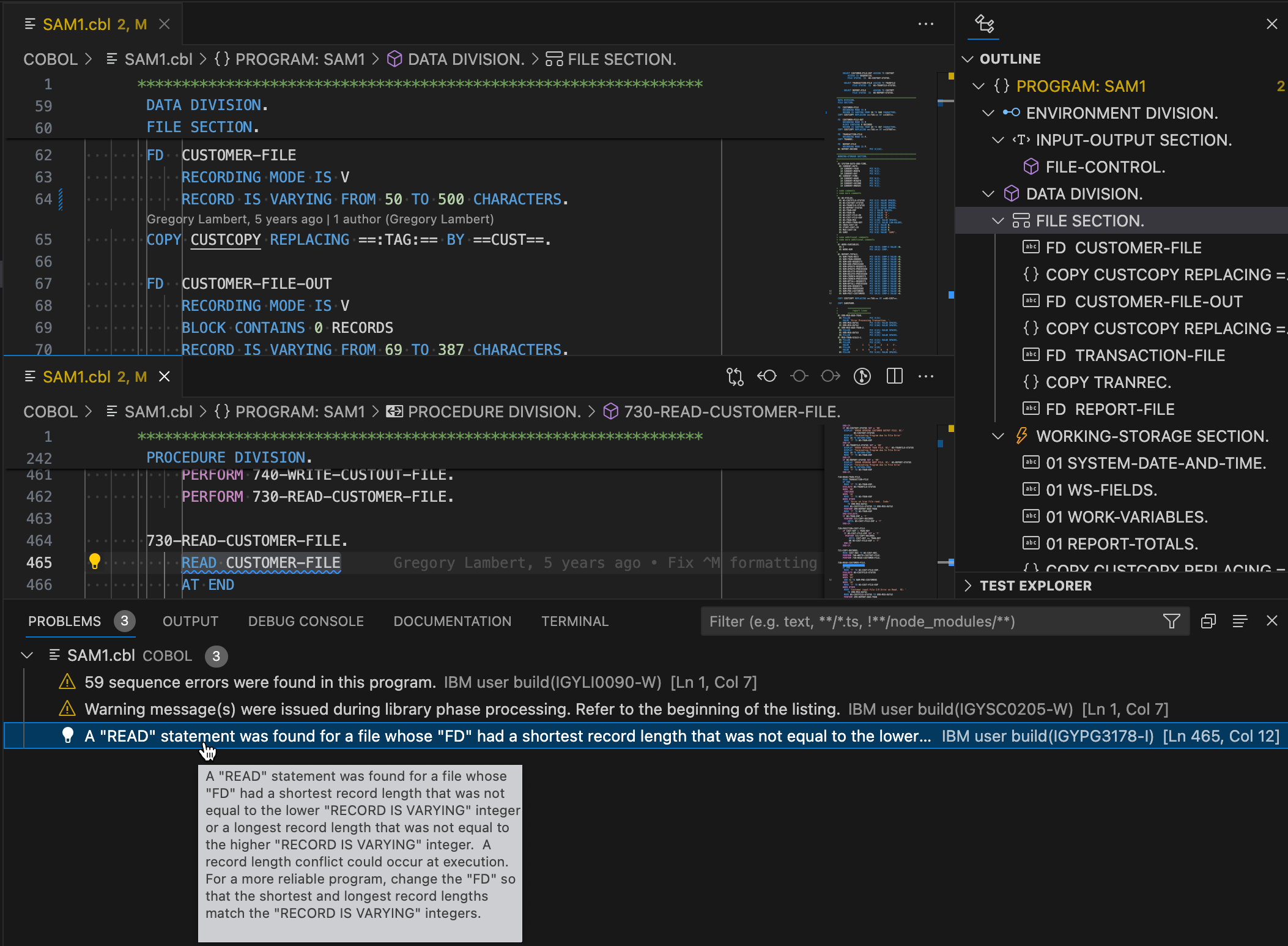
The preceding screenshot shows an example of the Problems view that reports a warning about a RECORD IS VARYING statement not matching the required range. This problem can only be detected when the program is built. Combining parser errors with user build errors and warnings provides developers with new ways to identify problems that were previously undetectable.
To enable this feature, you must edit your ZAPP file to add an additional command parameter: --errPrefix ${errPrefix}
For zBuilder, add another line to the lifecycleArgs like this
- name: zBuilder-userbuild
    type: dbb
    settings:
      command: "$DBB_HOME/bin/dbb build"
      lifecycle: user
      lifecycleArgs:
        - "--hlq ${dbbHlq}"
        - "--errPrefix ${errPrefix}"
      additionalDependencies:
        - "dbb-app.yaml"
For dbb_zappbuild with Groovy you would add the entry to buildScriptArgs like this
- name: groovyz-userbuild
    type: dbb
    settings:
      application: SAM
      command: "unset JAVA_OPTS; $DBB_HOME/bin/groovyz"
      buildScriptPath: "${dbbWorkspace}/dbb-zappbuild/build.groovy"
      buildScriptArgs:
        - "--userBuild"
        - "--workspace ${dbbWorkspace}"
        - "--application ${application}"
        - "--hlq ${dbbHlq}"
        - "--outDir ${dbbLogDir}"
        - "--errPrefix ${errPrefix}"
The ${errPrefix} variable is a built-in variable for which the user build tool generates a random string. This value is used to compose a data set name that stores compiler messages. The data set is allocated and used during the build, and then automatically deleted when the build finishes. The errPrefix value appears when user build lists the DBB command that it executes in the output log. For example, the user build log shows a zBuilder command like this:
$DBB_HOME/bin/dbb build user --hlq IBMUSER.SAMPLE --errPrefix U9709142 '/u/ibmuser/projects/wazi-sample/COBOL/SAM1.cbl'
DBB uses the parameter value to create the data set name, which consists of your HLQ (using ${dbbHlq}), the ${errPrefix} value, and the filename. For example, IBMUSER.U9709142.SYSXMLSD.XML, where U9709142 is the value generated for ${errPrefix}. You can provide a hard-coded value in the ZAPP file instead of using ${errPrefix}, but this may cause conflicts when multiple builds are executed from the same HLQ in parallel.
You can find complete examples of such ZAPP files in our GitHub repository (see the area around line 130 for zBuilder and dbb_zappbuild examples).
To summarize: To enable or disable the Problems view feature, add or remove the --errPrefix parameter in your ZAPP file.
User build with AI troubleshooting
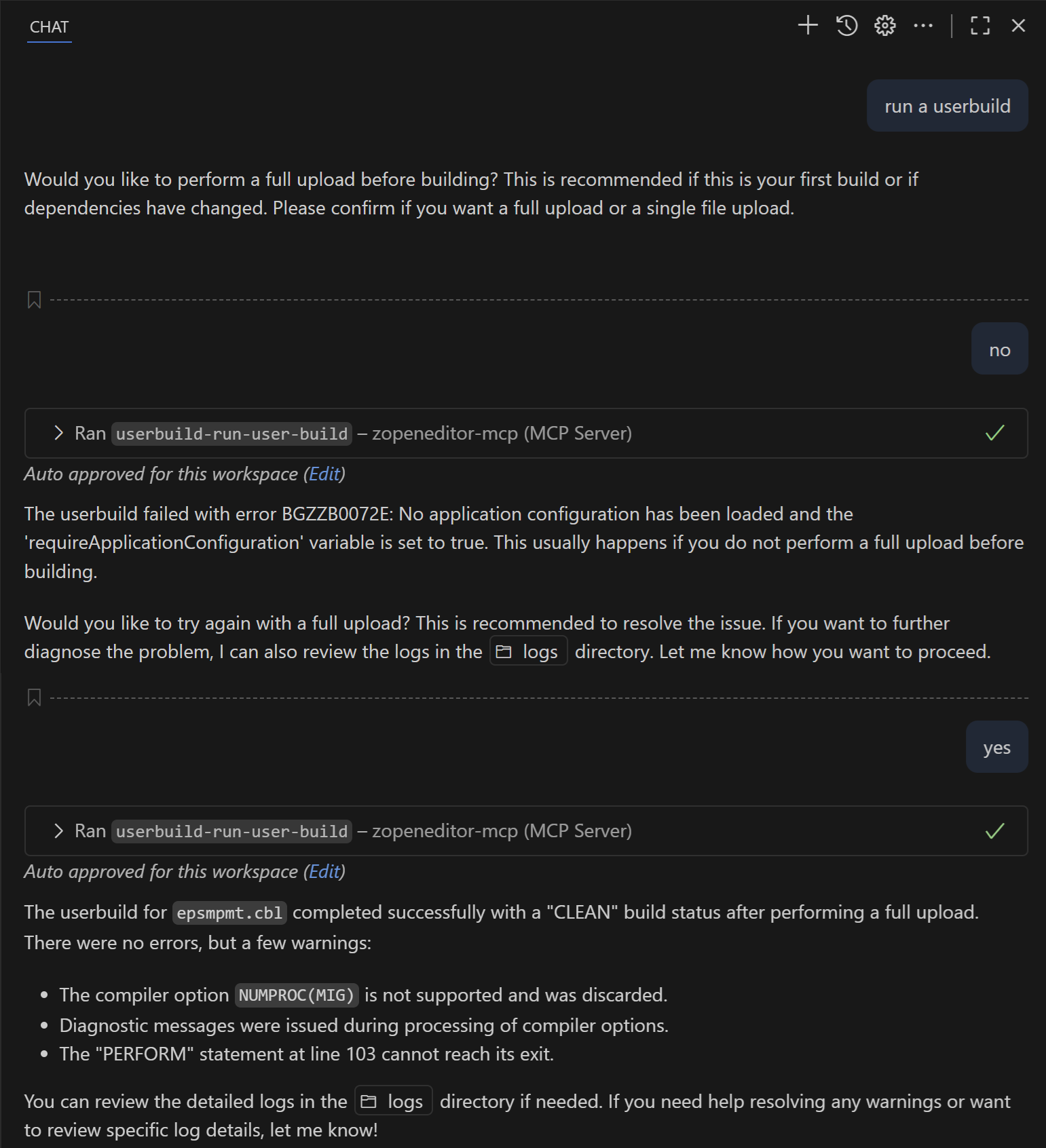
If you have configured agent mode with the Z Open Editor MCP server, you can use the "userbuild-run-user-build" MCP tool. This tool runs a user build and returns all results to your local LLM, so it can assist you with troubleshooting errors.
This tool provides the best results with DBB versions 3.0.3 or higher, as it relies on a feature called the "runtime report". However, it can still function with limited capabilities on older versions of DBB.
This tool returns the runtime report, the standard output of the build, the contents of all log files downloaded to the local user build log directory, any error feedback information featured in the User Build Problems View, and occasionally important notices to inform your LLM of common troubleshooting scenarios. Your configured agents then parse this information and provide appropriate explanations.
The Z Open Editor MCP server also provides the userbuild-get-dbb-log tool, which agents use to read the contents of logs stored in the local user build log directory.